How to Customize What Your Client Sees on Financial Documents
With just a few simple clicks, you can easily adjust which details your clients, vendors and subcontractors can and can't see on your financial documents, including estimates, proposals, invoices, purchase orders and change orders.
Customize in Edit Mode
You can hide specific elements of your document from your recipient while in edit mode, including columns, category totals and additional sections (files, terms and conditions, memos and signatures).
Note that showing/hiding something within edit mode will reflect the action in preview mode as well, and vice versa.
Hide Columns
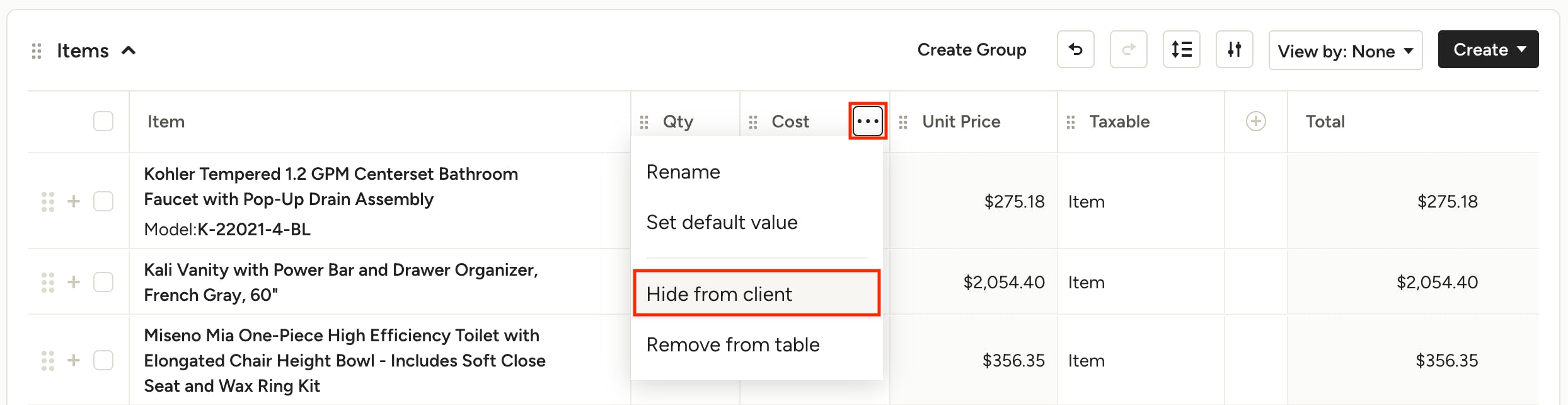
To hide an entire column from the recipient, hover over the name of a column and click on the three dots. Select Hide From Client/Vendor/Subcontractor in the menu options.

Once hidden, you’ll see a small eye icon that indicates that the column is only visible to you (in edit mode) and not to your client/vendor/sub.
Hide Category Totals
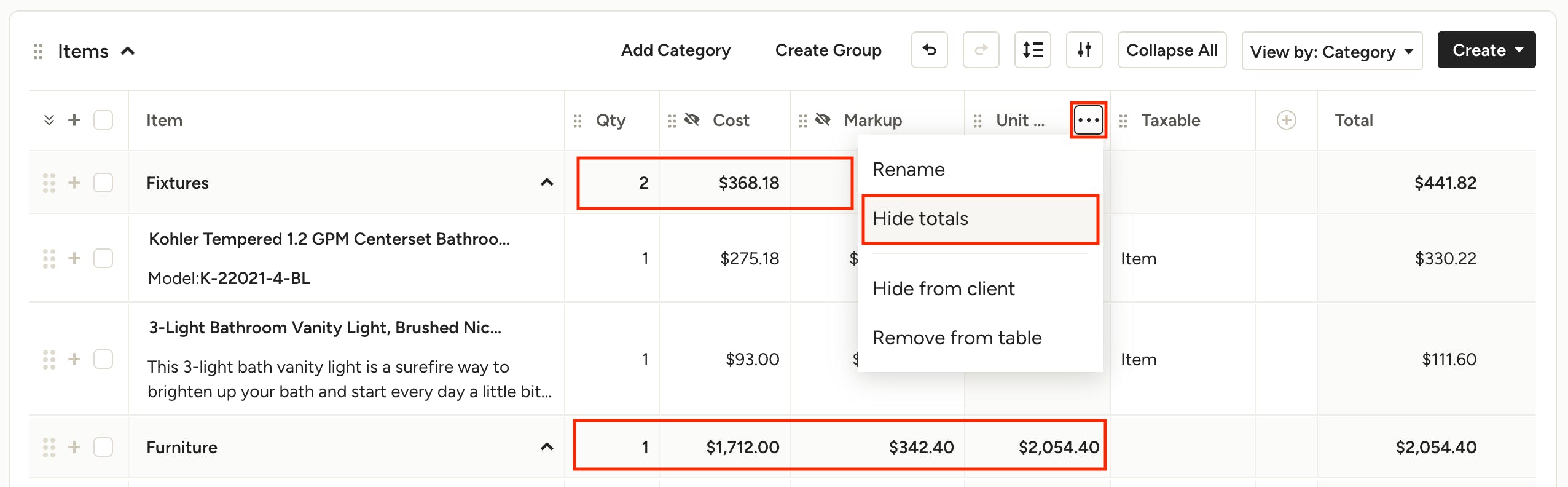
When you choose to organize your document by category, room, etc. using the View By dropdown, by default each category row will include totals in certain columns (Quantity, Cost, etc.). To hide these category totals and create a cleaner view of the document, simply hover over the name of a column and click on the three dots. Select Hide Totals in the menu options.
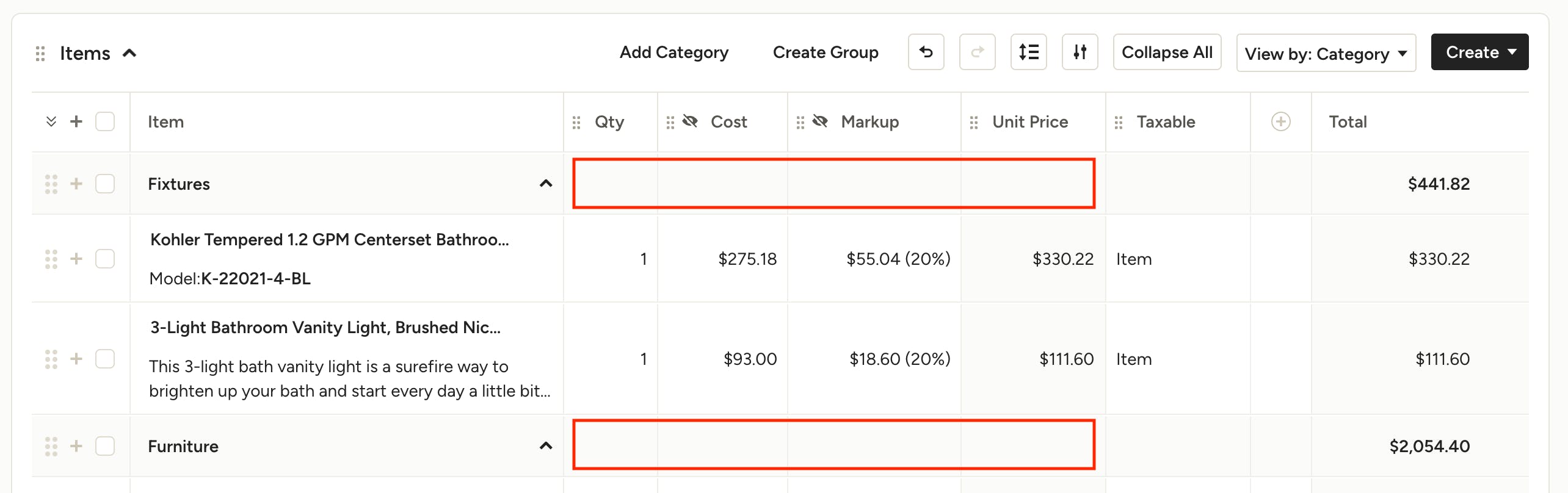
Once hidden, the totals will not appear at the category level for you or your recipient. You can show the totals again at anytime by selecting Show Totals on the corresponding column menu.
Hide Additional Sections
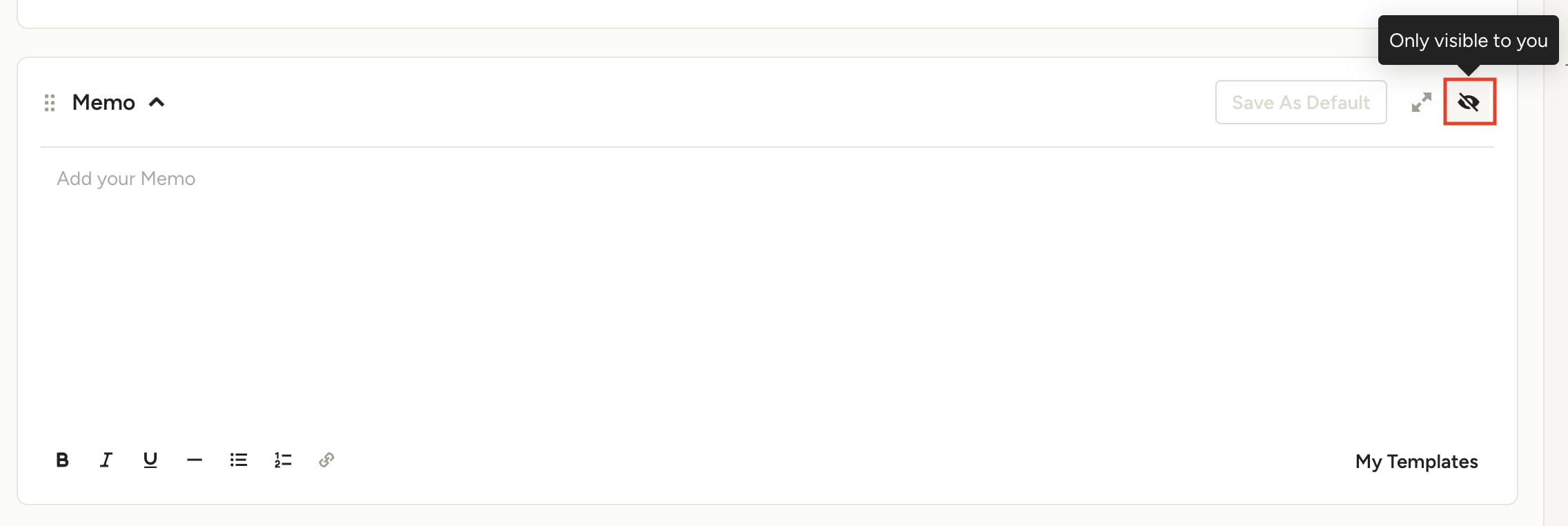
You can hide additional sections on your document in edit mode, including Files, Terms & Conditions, Memos and Signatures, by clicking the eye icon in the top right of each section. Hover over the eye to see the current setting.
Customize in Preview Mode
Preview mode allows you to see the document exactly how your recipient will view it once you send it. Within preview mode, you can customize what they can and can't see in more detail.
Note that showing/hiding something within the preview will reflect the action in edit mode as well, and vice versa.
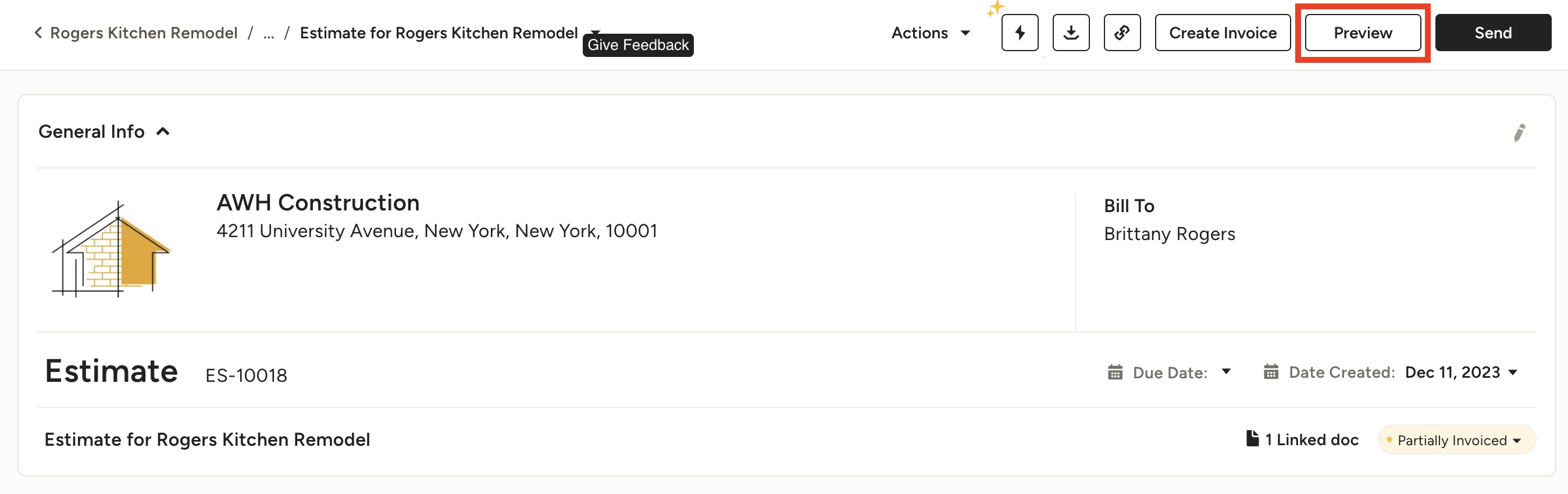
To access the preview, click the Preview button at the top right of your screen (next to Send).
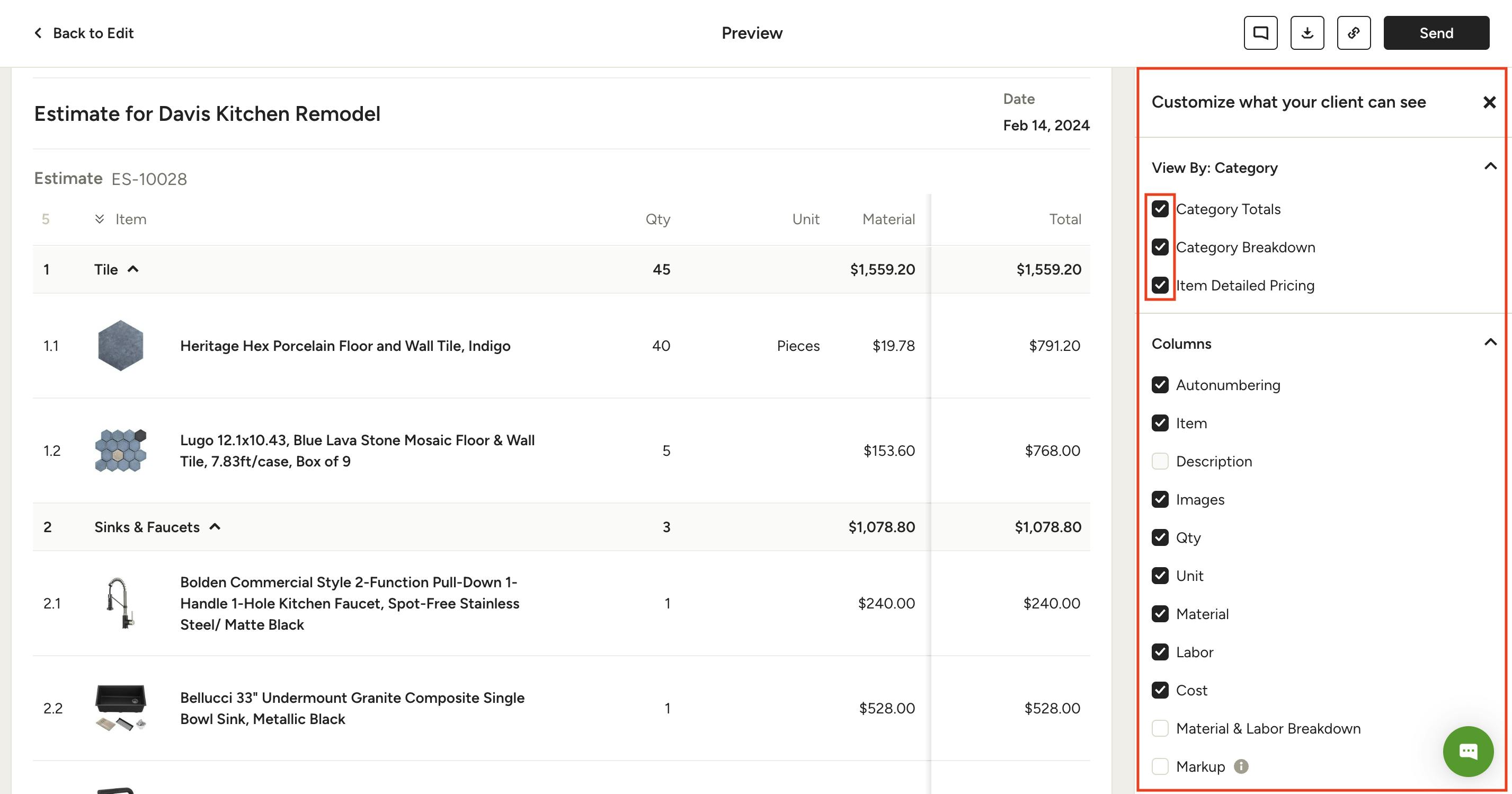
On the right side of your document preview, you will see "Customize what your client (vendor or subcontractor) can see". You can show/hide individual components using the checkboxes next to each one, for granular control.
If you want to hide something from your recipient, make sure to uncheck the box next to that setting — checking the box will allow your recipient to see it. When you make a change, your document will automatically update and save so you can see how your client/vendor/subcontractor will view it.

If you don't see the right panel on the preview page, click the customize icon in the top right to open the view settings.
View Settings Breakdown
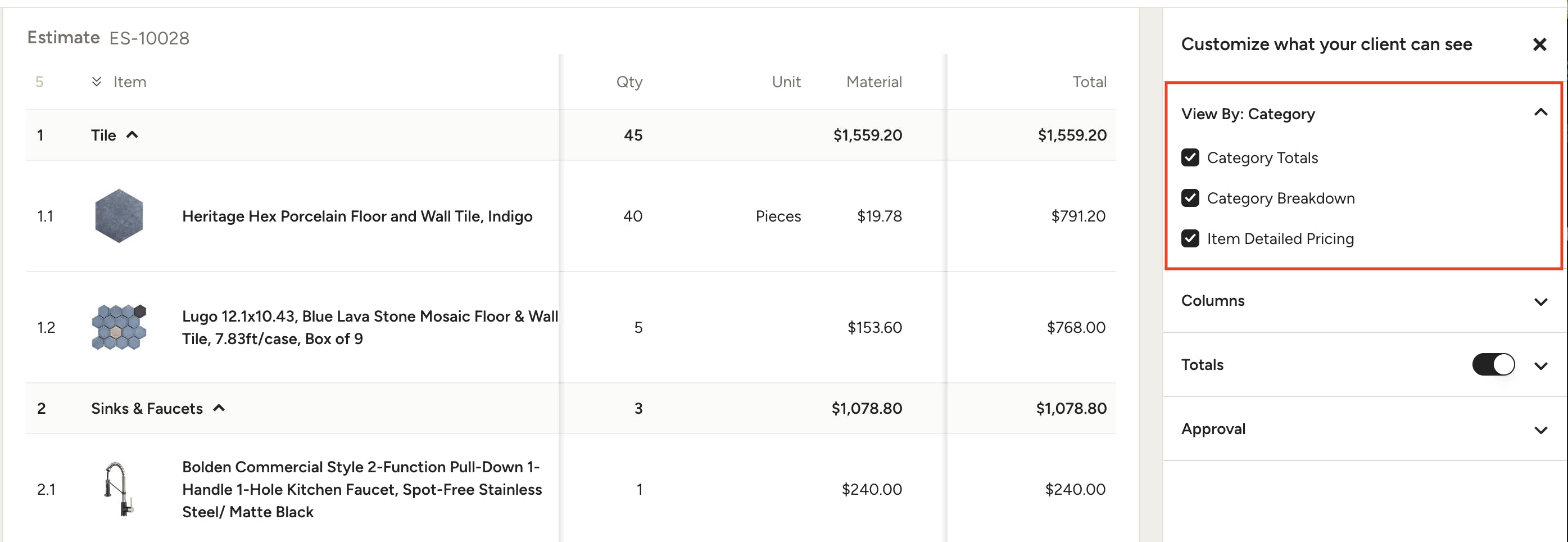
The client/vendor/subcontractor view settings are divided into multiple sections, depending on the type of document you are on. Let's take a look at what each one does.
View By
This section will include one or more of the following options, depending on what you have your View By set to in edit mode (category, room, section etc.).
- Category/Room/Section Totals: If enabled, the totals for each category/room/section will appear.
- Category/Room/Section Breakdown: If enabled, the breakdown of individual items in each category/room/section will be shown.
- Item Detailed Pricing: If enabled, the pricing details for each item will be shown (cost, markup etc). For further control of detailed pricing, use the Columns section to choose exactly which pricing columns are shown.
Columns
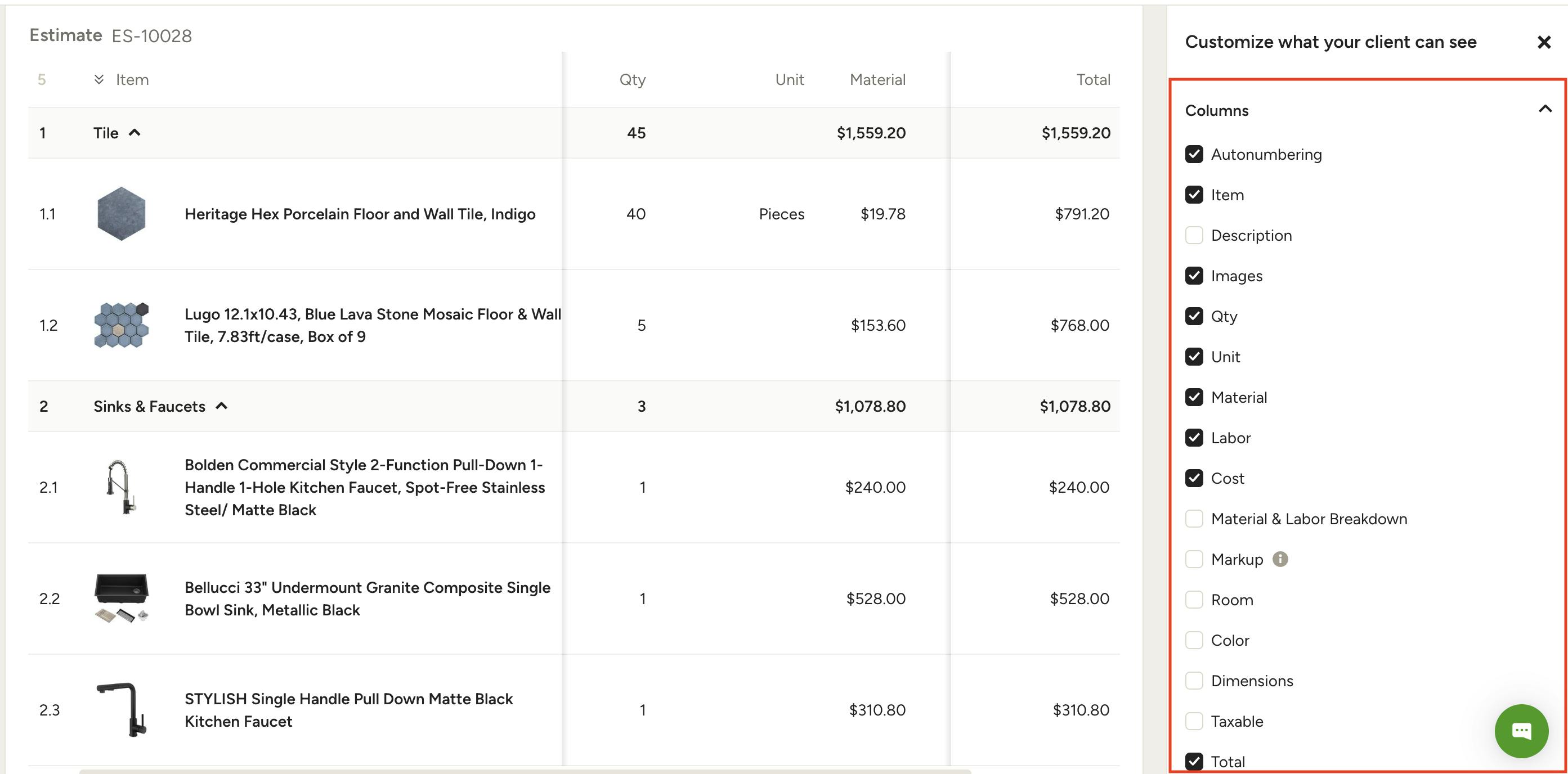
In the columns section, you have full control over the visibility of each column on the document. Columns in this section will vary depending on the type of document you are on, but include images, descriptions, quantity and various pricing components.
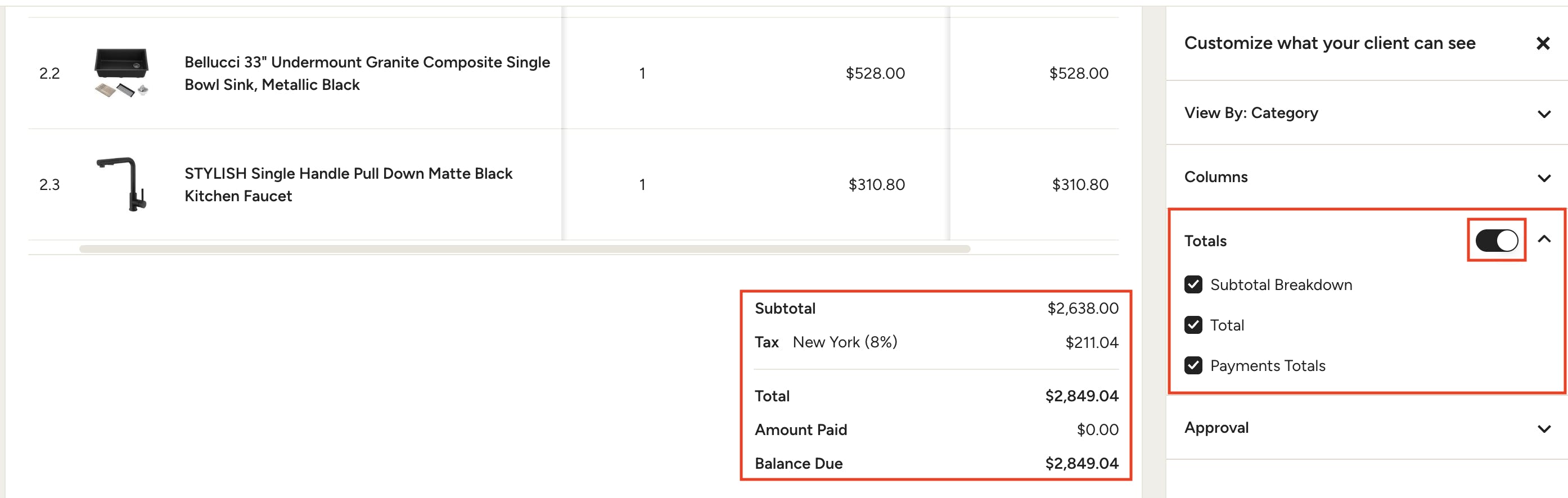
Totals
You can show or hide the entire Total breakdown by using the toggle at the top of this section. To control individual elements of the Total, use the checkboxes next to each one.
- Subtotal Breakdown: If enabled, the subtotal and any tax totals will be shown.
- Total: If enabled, the document total will be shown.
- Payments Totals: If enabled, Amount Paid and Balance Due will be shown.
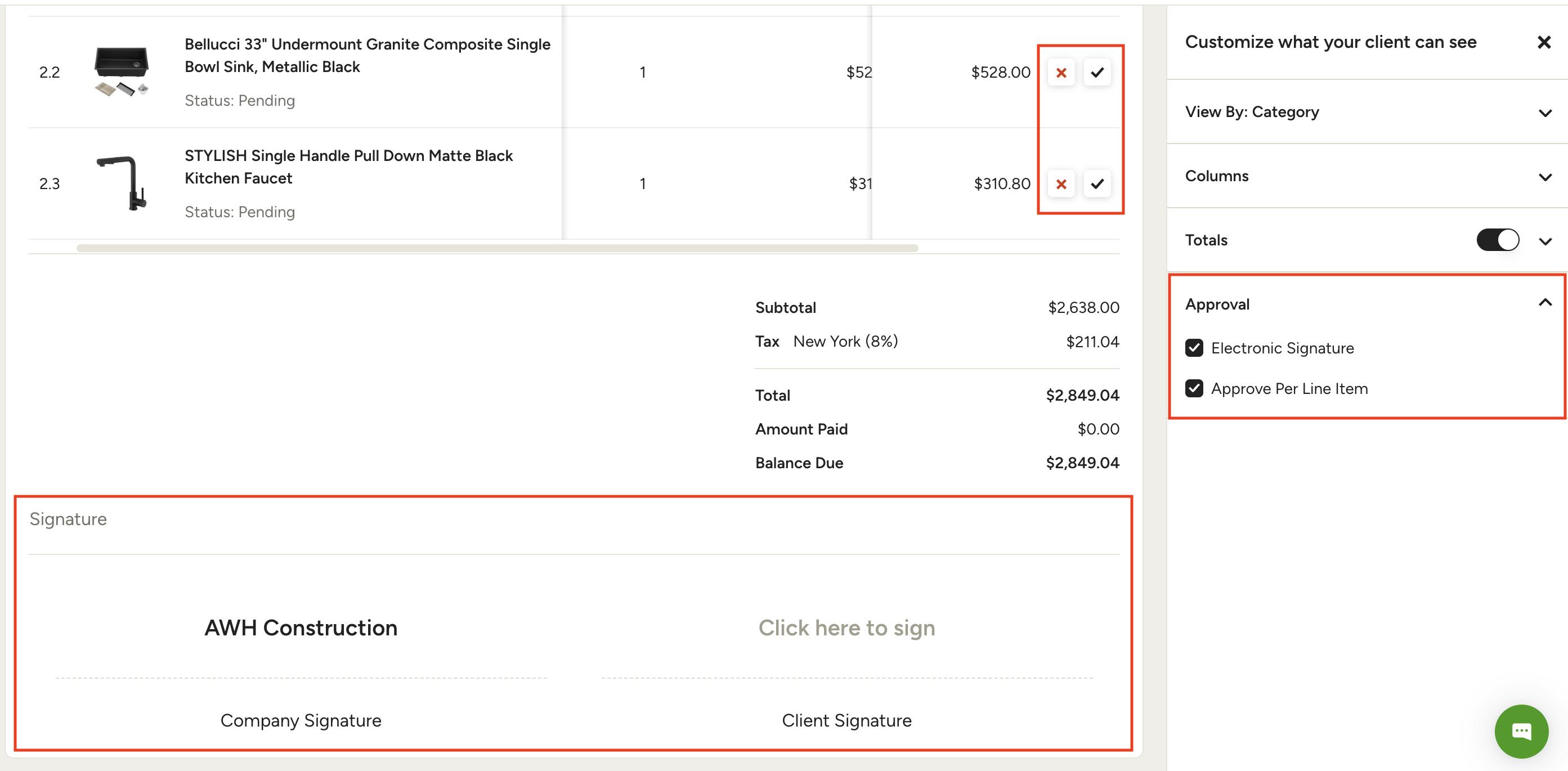
Approval
- Electronic Signature: If enabled, the electronic signature section will appear.
- Approve Per Line Item (Estimates/Proposals): If enabled, the recipient will be able to approve or decline line items individually.
- Issue Upon Sending (Invoices): If enabled, the invoice will be issued (locked from editing) when sent.
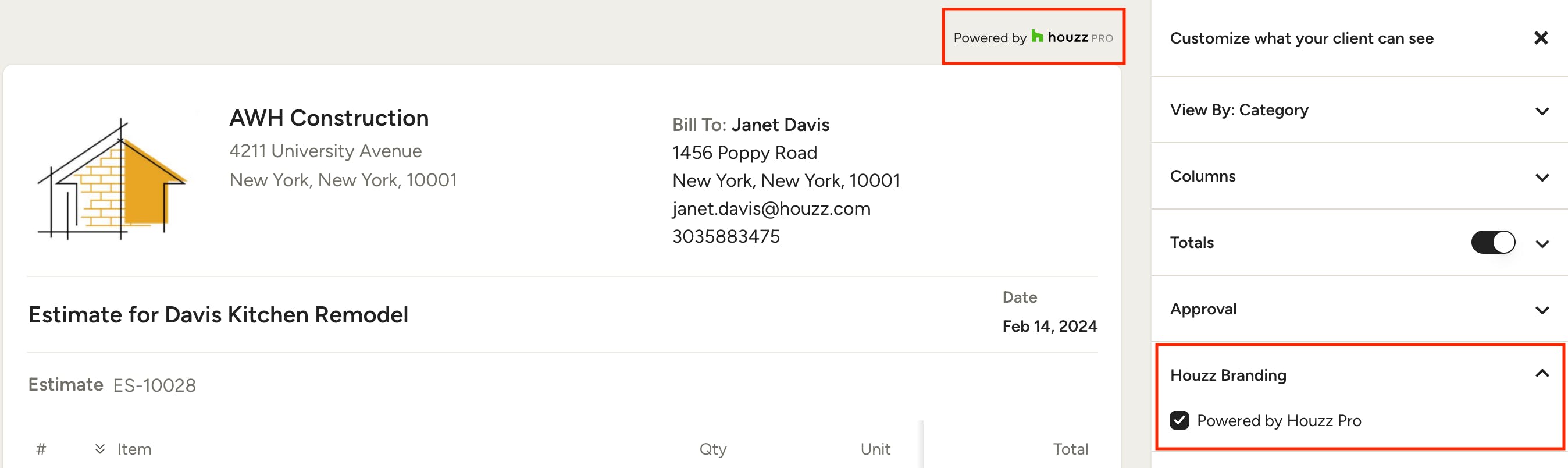
Houzz Branding
- Powered by Houzz Pro: If enabled, "Powered by Houzz Pro" will appear on all shared versions of the document, including PDFs.