Set One Markup for All Items on a Document
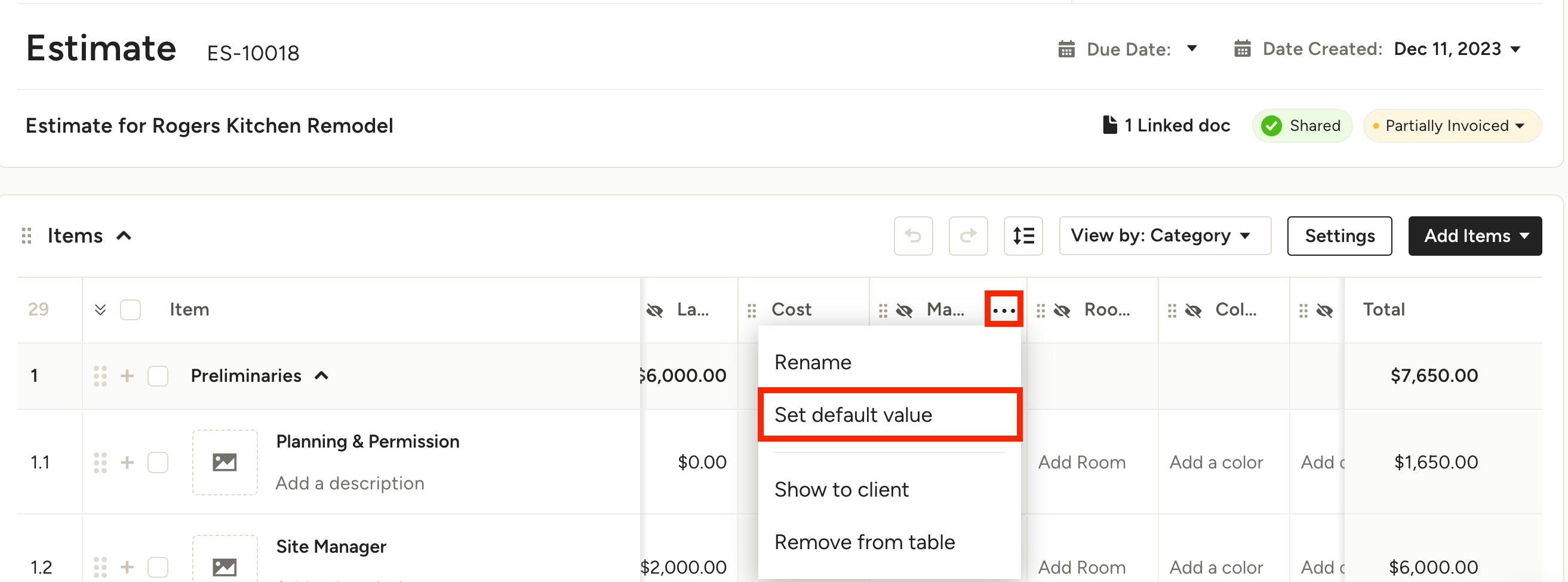
If you have one markup percentage for all or most line items on your financial document (estimate, proposal or invoice), you can easily apply that markup to all items with just one click.
To start:
1. Once you’ve created a financial document, find the Markup column and select the three dots icon. Select Set Default Value from the dropdown menu.
Note: If you don't see the Markup column, click the Customize button to open your column settings, then enable Markup.
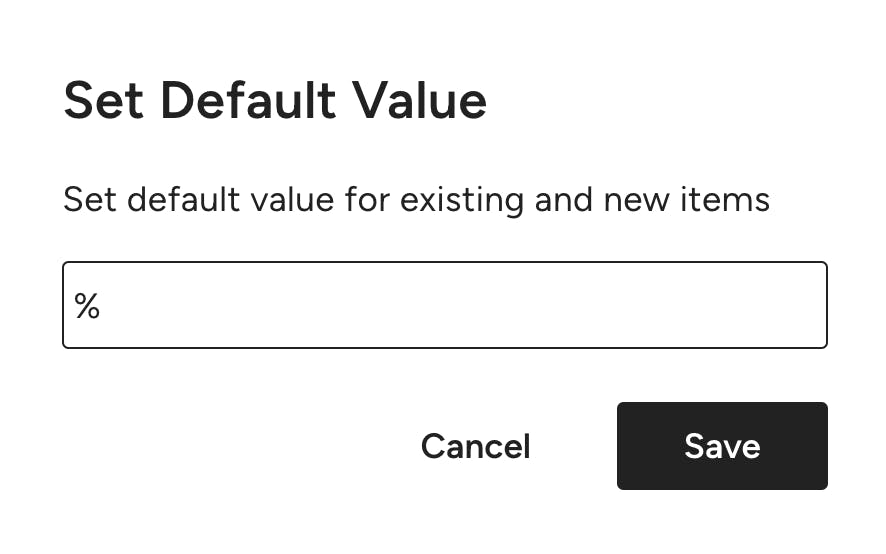
2. Input the default markup percentage you would like to use on your document, then click Save.
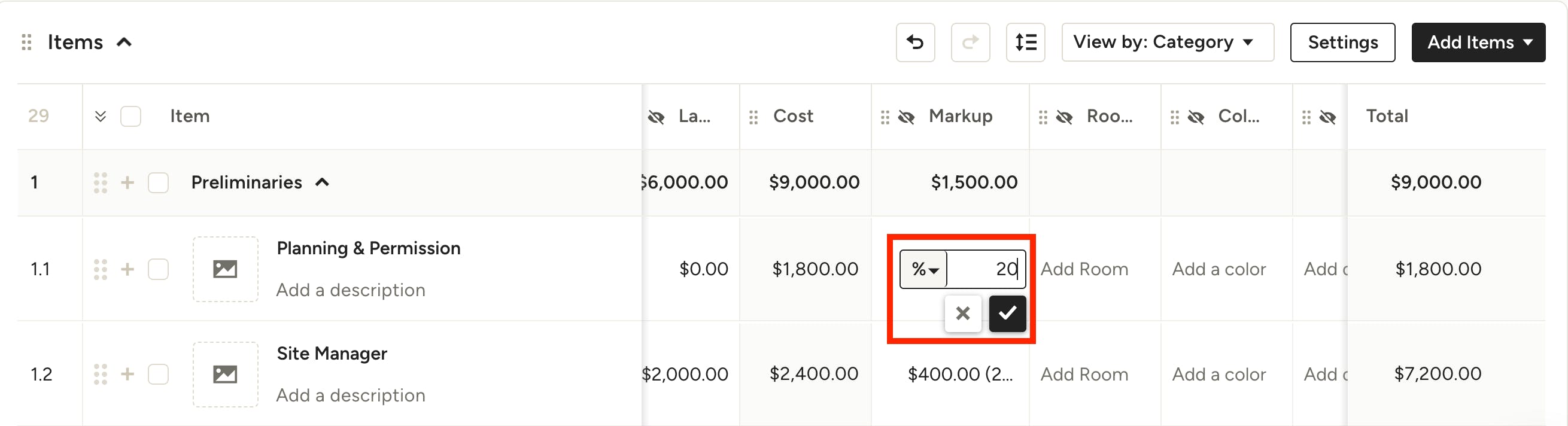
3. The markup you chose will be applied to all items on your document. You can still change the markup on individual items by simply selecting the markup for that line item and making a manual change.
To learn more about setting a different markup per line item, see this tutorial.
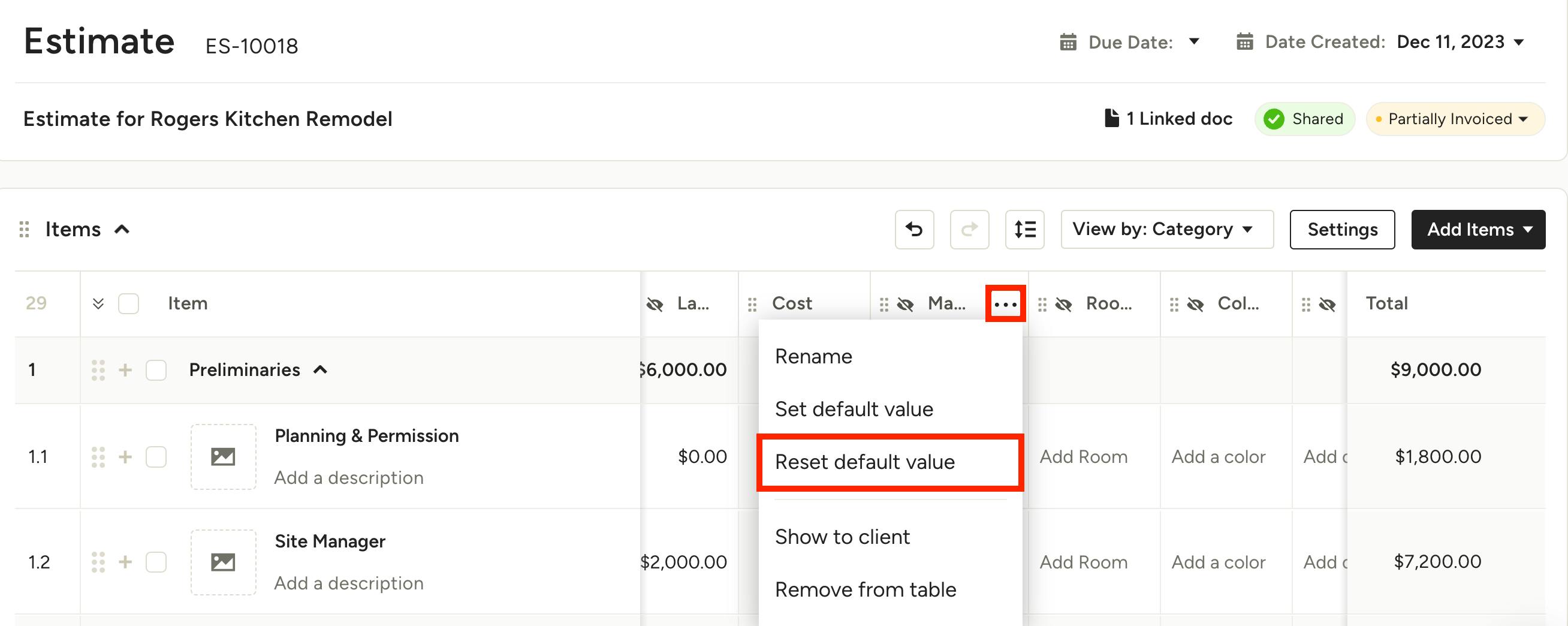
4. If you want to remove the default value, simply click on the three dot icon in the Markup column, then select Reset Default Value.