Getting Paid Through Houzz Pro Online Payments
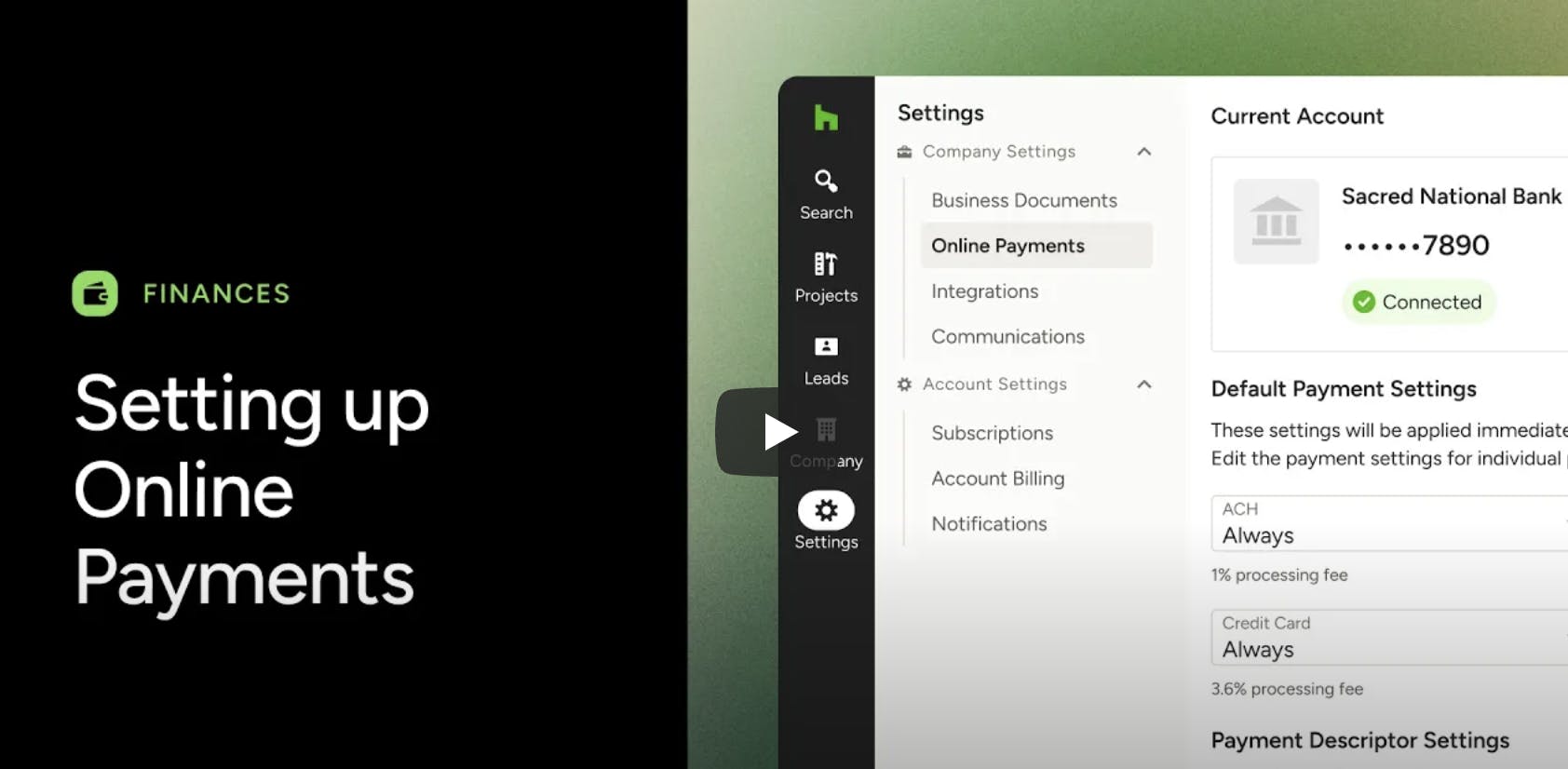
Houzz Pro online payments gives you an easy, convenient and secure way to receive payment from your client.
Why Use Online Payments?
When your client pays you directly on the Houzz Pro platform, those payments are automatically logged in your estimates/proposals and invoices without the need to manually input them. This saves you time and ensures accurate records for your business.
If you're synced with QuickBooks Online, a record of your online payments are logged automatically on documents and also automatically synced over to QuickBooks Online, which avoids the headache of double entry. See this article to learn more about syncing Houzz Pro to QuickBooks Online.
Using Houzz Pro for online payments is also a great benefit to your client, who has the convenience to pay online by either credit card or ACH (bank transfer). They will have a digital record of payments made through Houzz to use for their personal records or for tax purposes if needed. For example, homeowners can receive tax credits for energy efficient home improvements and residential clean energy property expenditures, but they might need documentation to qualify.
How to Set Up Online Payments
Ready to get started with online payments? Here's how to do it.
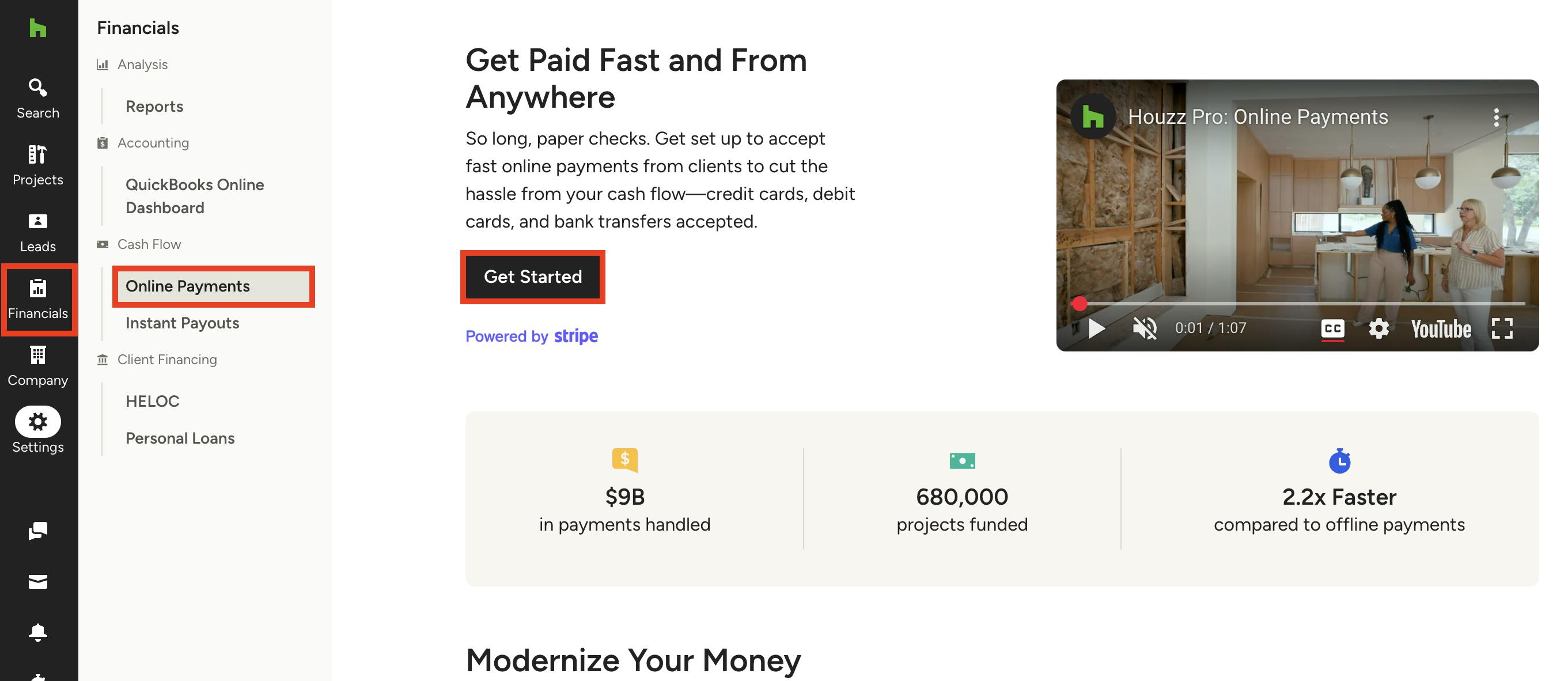
1. Click on the Financials icon in your left navigation, then select Online Payments from the left menu.
2. Click Get Started.
3. You will need to input the following bank account details:
- Account type: Individual or business
- Account holder information: Name, address, date of birth
- Account information for a business account: Account number, routing number, EIN (employer identification number), SSN (social security number)
- Account information for an individual account: Account number, routing number, SSN (social security number)
Please Note: For both a business and individual account, SSN (social security number) is required by Stripe to set up online payments.
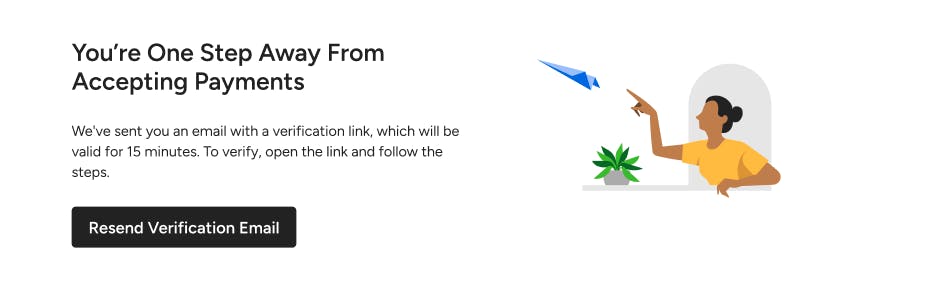
4. You will receive a verification link to your email address.
5. Click Verify My Account. Once you click Verify My Account, it can take up to an hour for your bank details to be approved. Following approval, your clients will be able to submit online payments through Houzz Pro.
In some cases, banking regulations might require you to provide additional information prior to your approval. In these cases, you’ll get an email from Houzz Pro with a link to a verification page. There you’ll find a list of additional information needed in order to verify your account.
Once online payments have been set up, you can edit your payment settings to control which payment methods you want to make available to your clients. Read How to Edit Online Payment Settings for more information.
Online Payment Transaction Fee Rates
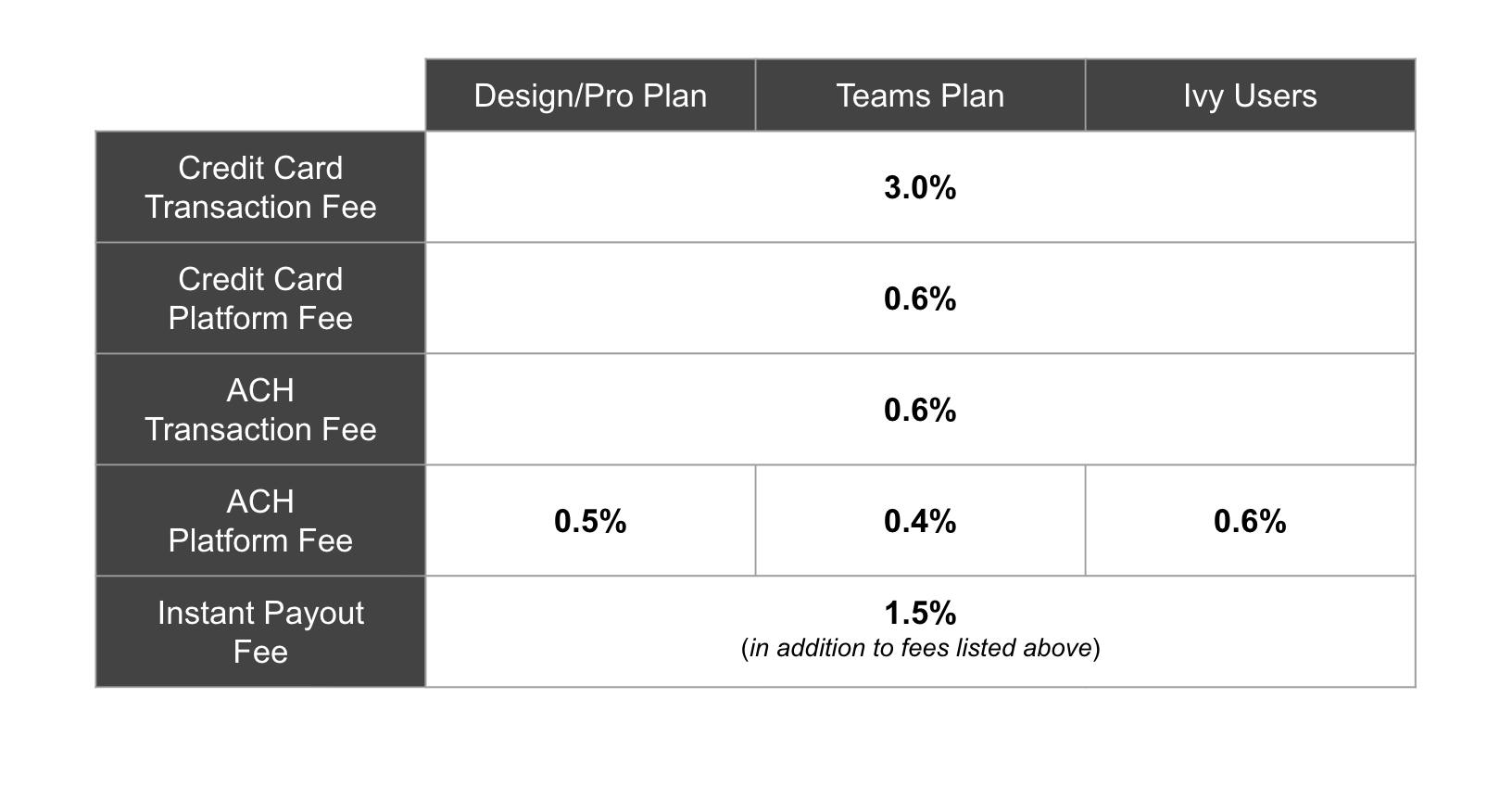
Houzz Pro offers competitive, flat rate transaction fees:
Things to Note:
- There is a minimum $5 transaction fee for online payments.
- Documents must be a minimum of $10 in order for online payments to be available.
With credit card and ACH transactions, you can choose how to best handle those fees for your business. Options include:
- Add fee to my overall markup — Automatically add a markup percentage that covers ACH or credit card fees. You will absorb the processing fees and discreetly pass the cost to clients. Read How to Move Processing Fees to Your Markup to learn more.
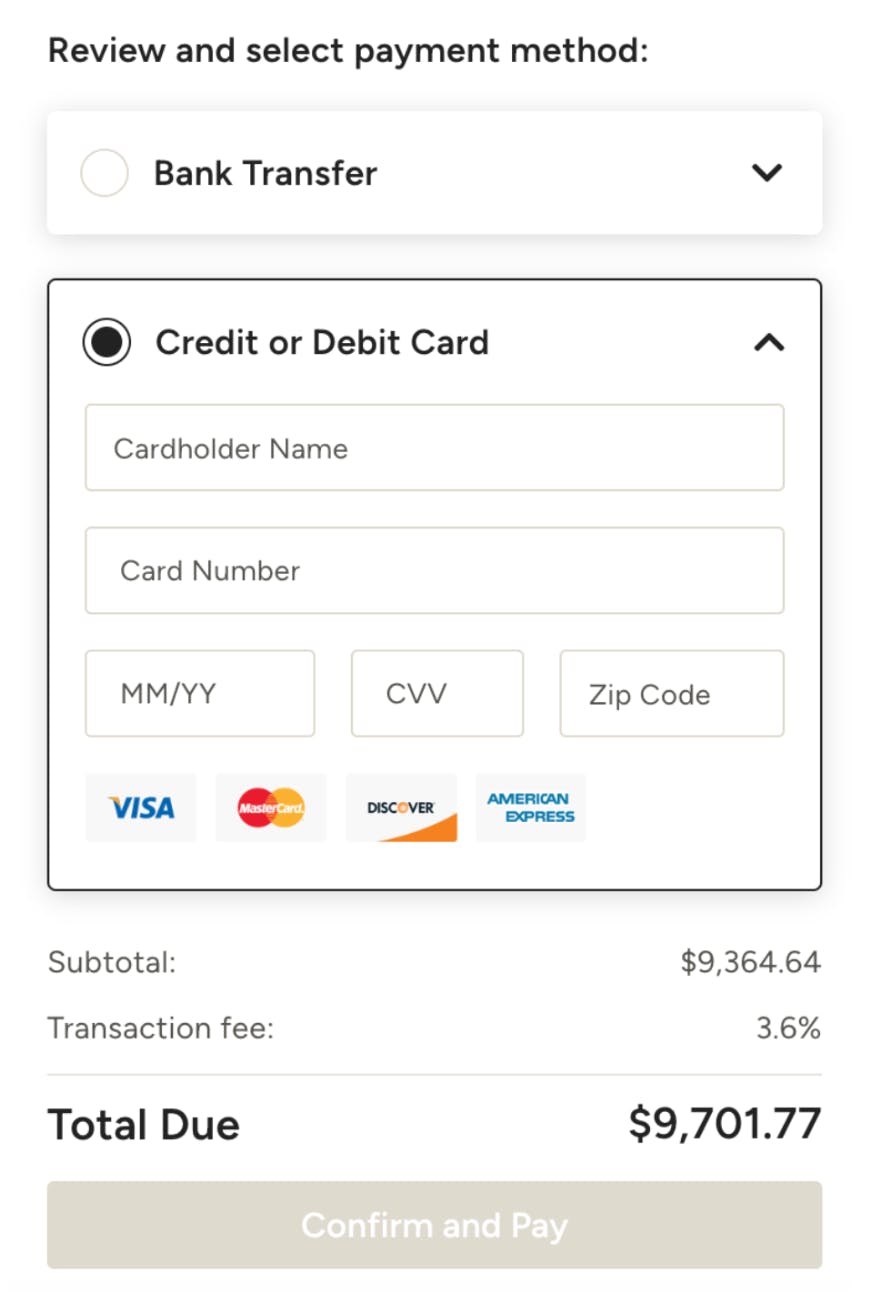
- Client pays fee during processing — Pass the processing fees to clients; your client will be able to view the fee breakdown when making an online payment. Read How to Offset the Processing Fee to Your Client to learn more.
- Deduct fee from my payment received — Absorb the processing fees yourself without passing the cost to clients.
When paying online, your client will be able to see a breakdown of the transaction fee (if any) by payment method in the online payment screen.
How Long Does it Take to Get Paid with Online Payments?
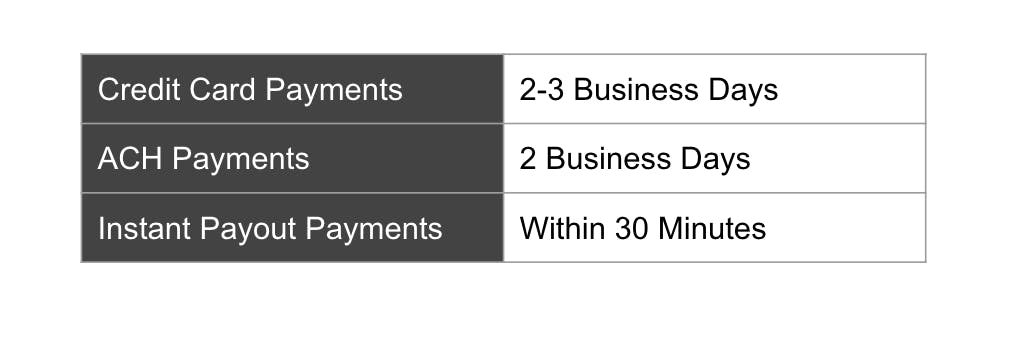
When your client pays with online payments via ACH / bank transfer / e-check, you can access your money in 2 business days. For credit card payments, you can access your money in 2-3 business days.
If you select our Instant Payout option for an additional 1.5% fee, you will receive your credit card or ACH payment within 30 minutes*. You can learn more about Instant Payouts below.
*Please Note: Transfer times can vary by bank. Not all banks support instant payout.
Online Payment Processing Timeline
1. Your client pays by credit card or ACH/bank transfer/e-check.
2. It takes approximately 2 business days via ACH or 2-3 business days via credit card to transfer the funds to your bank account.
ACH Example: If you receive an ACH payment before 2 p.m. EST, which is early morning UTC on the 25th, you should see the payout the next business day. For anything after 2 p.m. EST, the payout will appear within two business days.
Credit Card Example: If you receive a credit card payment at 12 p.m. EST on April 24th, which is early morning UTC on the 25th, you should expect to see the payout occur by the end of the day on the 27th UTC.
First Payment Process
In order to protect you from fraud, your first payment may take longer than normal to process, since we validate and review the transaction details. For first payments only, posting to your bank account may take up to 3-5 business days for credit card transactions, and 4-6 business days for ACH transactions. Future payments will follow the schedule listed above.
Online Payment Notifications
When your client pays you through online payments, you’ll get notified via email immediately after the payment has been made. You’ll be notified twice: Once when the payment has been paid and is pending, and once again when the payment has been authorized (once it’s been processed and approved by the issuing bank).
The email will contain information such as the client’s name, the payment amount, the processing fee (if you chose to offset to the client), and a link to more details.
You can also always keep track of all your online payments using the online payment filter in the Financial Reports section.
Instant Payouts with Online Payments
Instant Payouts are an easy way to fast track the payment process and ensure you get paid as soon as you need to. If you opt-in, you will pay an additional 1.5% fee to receive your client’s payment within 30 minutes (timing can vary by bank).
With Instant Payouts, you have a lot of flexibility when it comes to how you get paid:
- You can manually opt for instant payment on just one specific payment.
- You can opt-in to automatically receive instant payments for all your client payments.
- You can use instant payments for a portion of the payment amount, or for all of the payment amount.
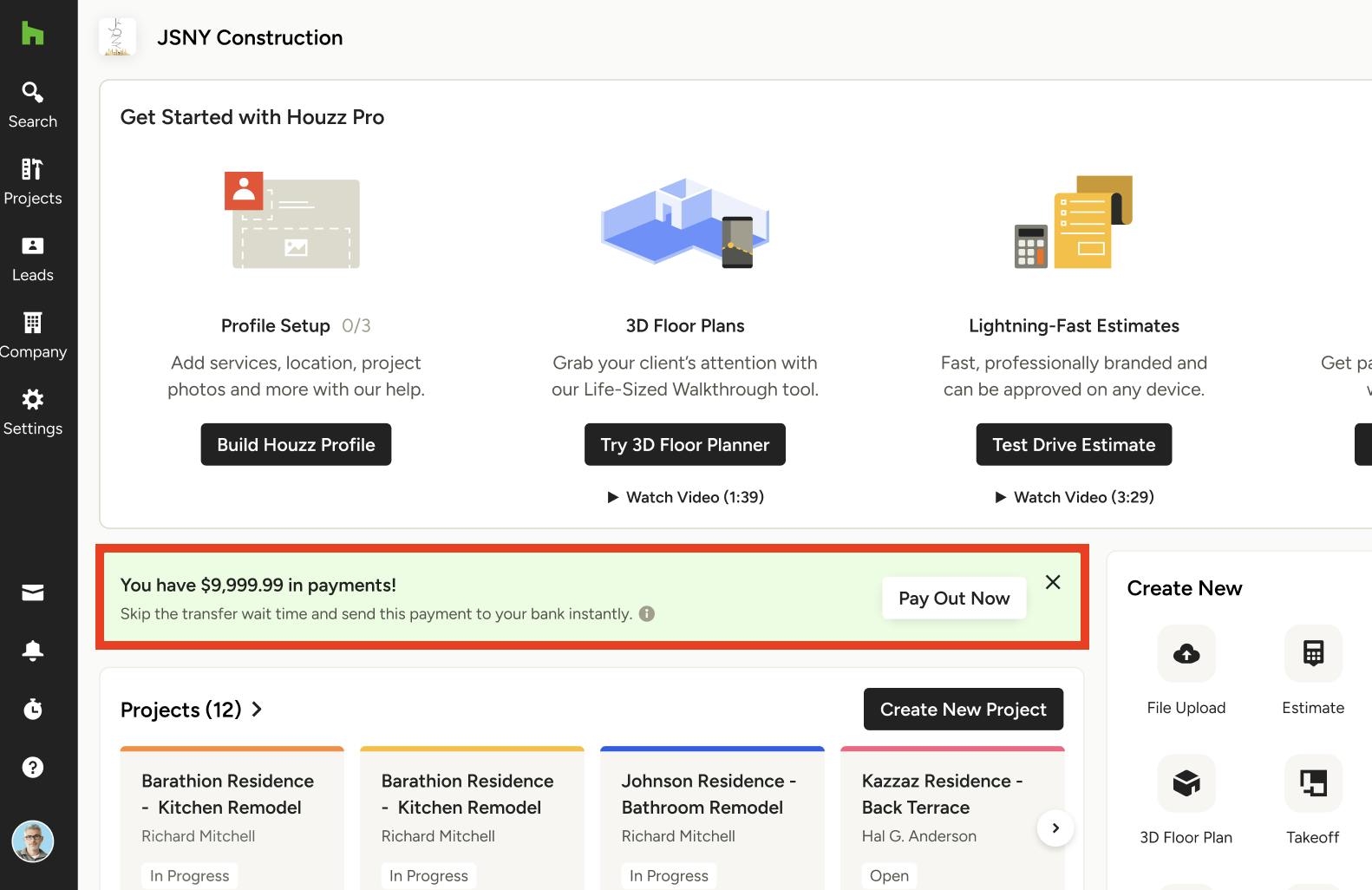
Although many banks support Instant Payouts, not all banks do. If your bank does not support it (see the list here), the Pay Out Now option will not appear, and you will not be able to receive instant payments.
How to Use Instant Payouts
1. When a client pays you through Houzz Pro, you will receive an email notification about the payment, as well as a notification within the Houzz Pro software. To skip the transfer time and receive an instant payment, click Pay Out Now.
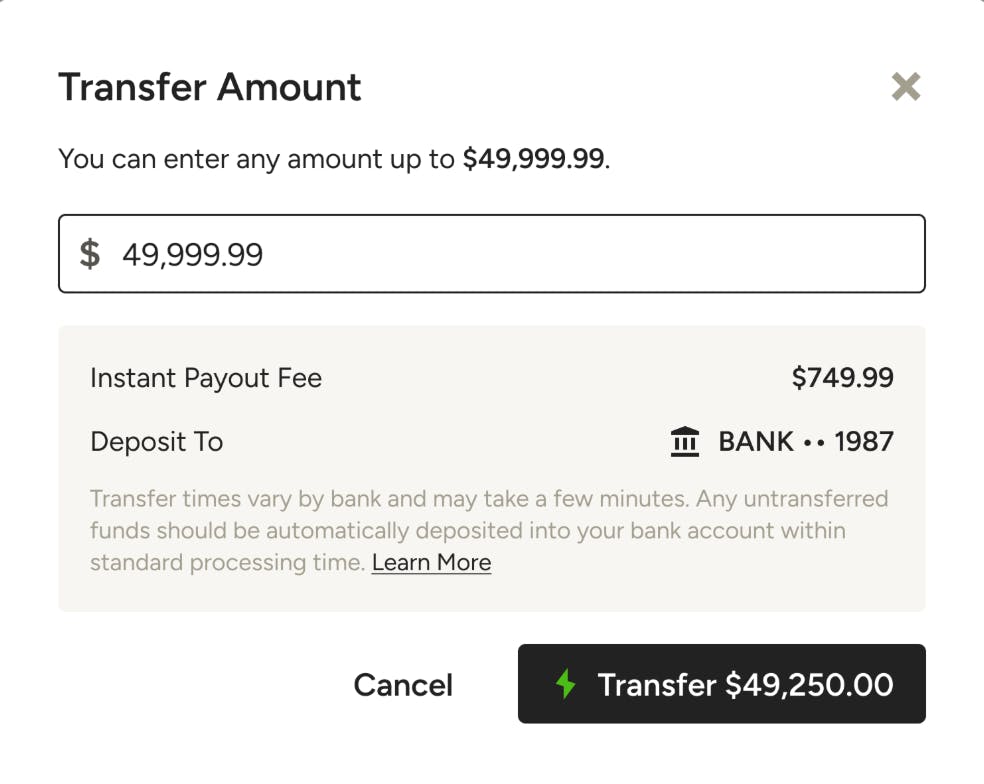
2. You can then select the transfer amount for this payment. You can decide to transfer all of the amount available, or just a portion. If you select a portion for instant payouts, the remainder of the payment will be deposited into your account within the standard processing time and with the standard fees.
The Instant Payout fee is 1.5% over and above the credit card or ACH processing fee, so you will notice that listed here. To continue, click Transfer.
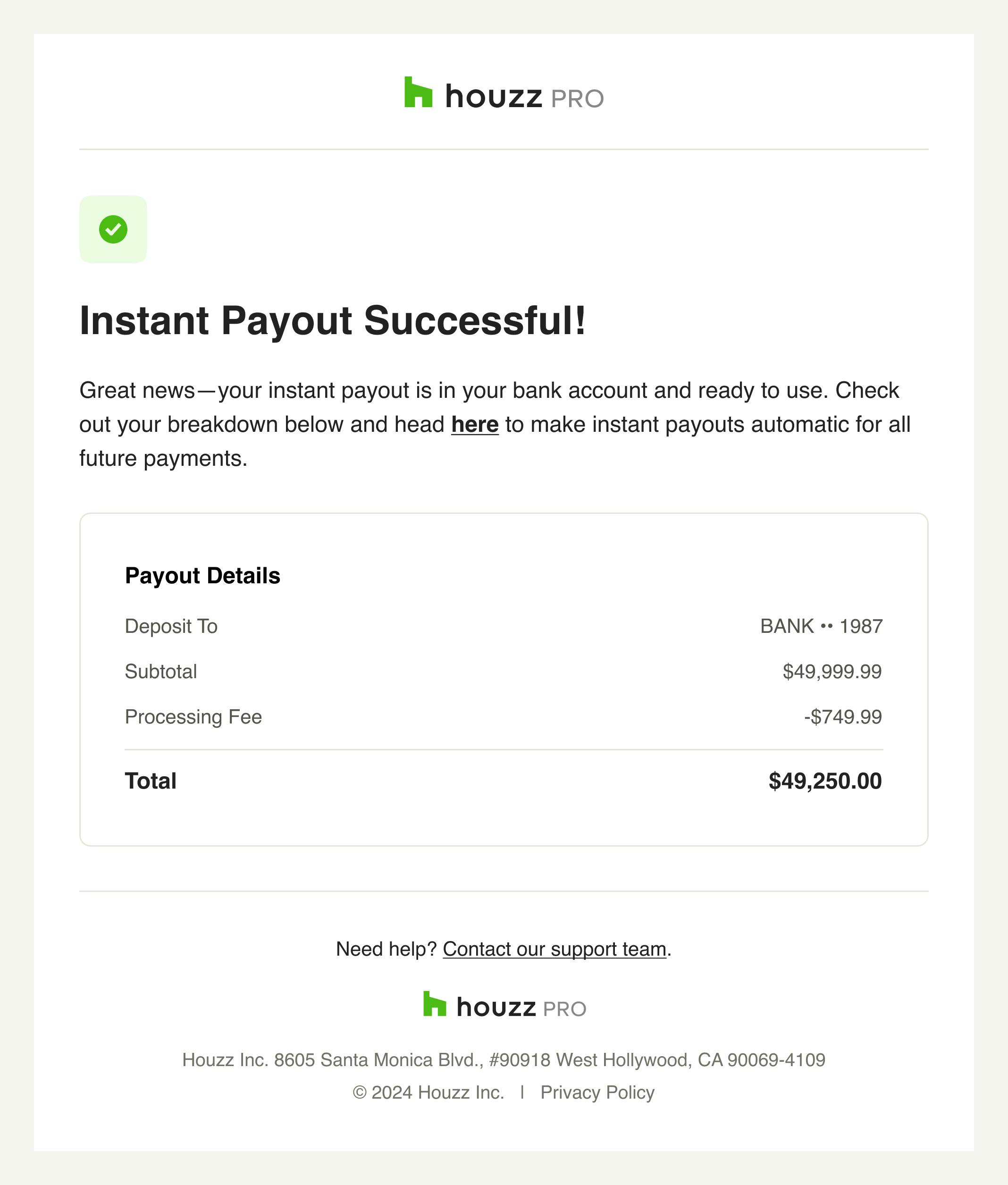
3. You will receive a transfer confirmation in Houzz Pro, as well as an email confirmation, and your funds should arrive shortly!
If there was an issue with your transfer, you will receive an error notification and be asked to try again.
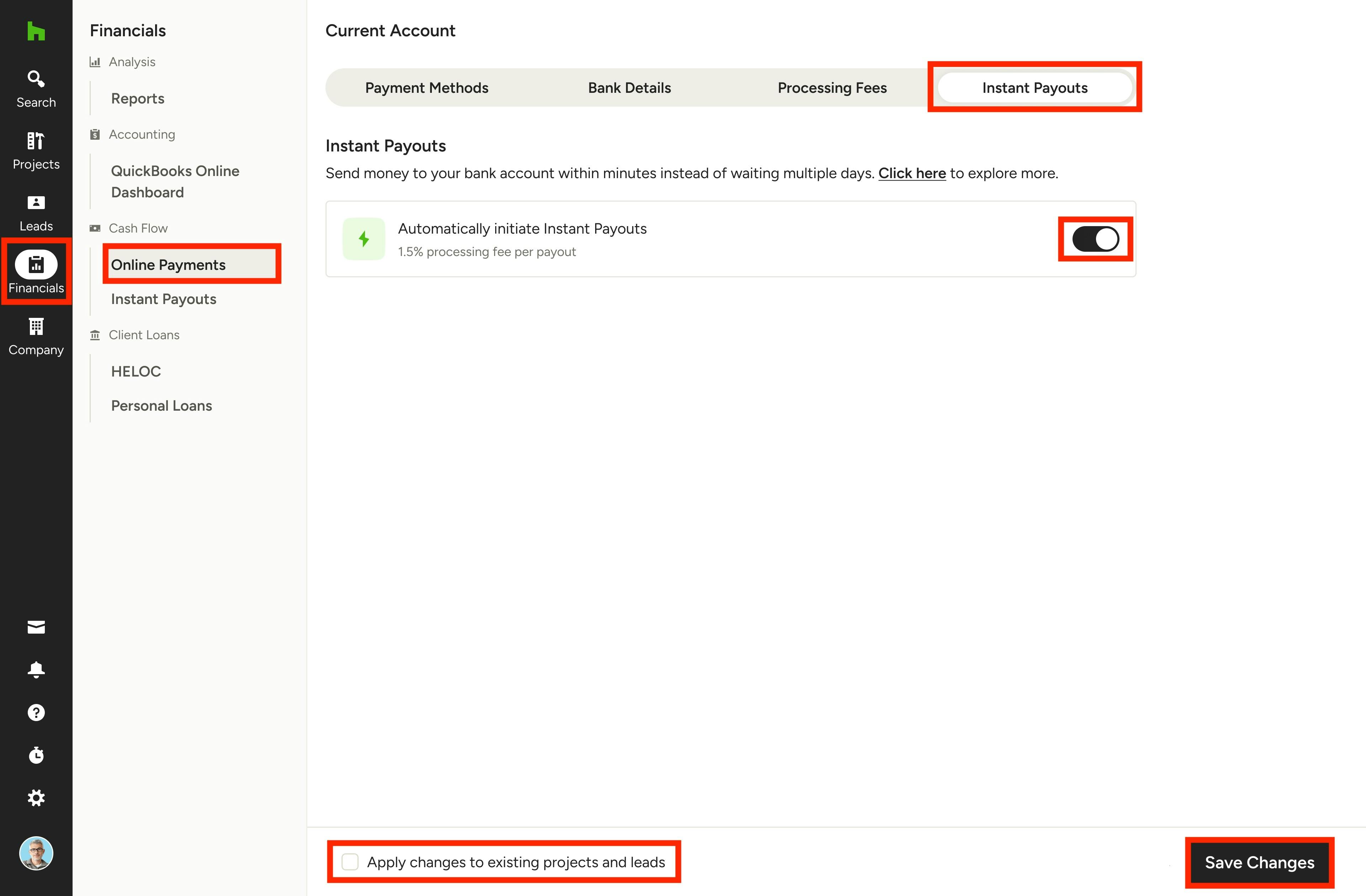
Opt-in for Instant Payouts
If you would like to automatically receive Instant Payouts for every payment you receive through Houzz Pro (up to $50,000 transaction volume per day), you can enable this in your Online Payment settings.
To start, click on the Financials icon in the left menu, then select Online Payments. Click on the Instant Payouts tab at the top of the page.
To enable instant payouts for every payment, turn the toggle on.
By default, your changes will only impact future projects and leads. If you would like to apply changes to existing projects and leads as well, be sure to check the Apply Changes to Existing Projects and Leads box at the bottom of your screen.
Once complete, click Save Changes at the bottom.
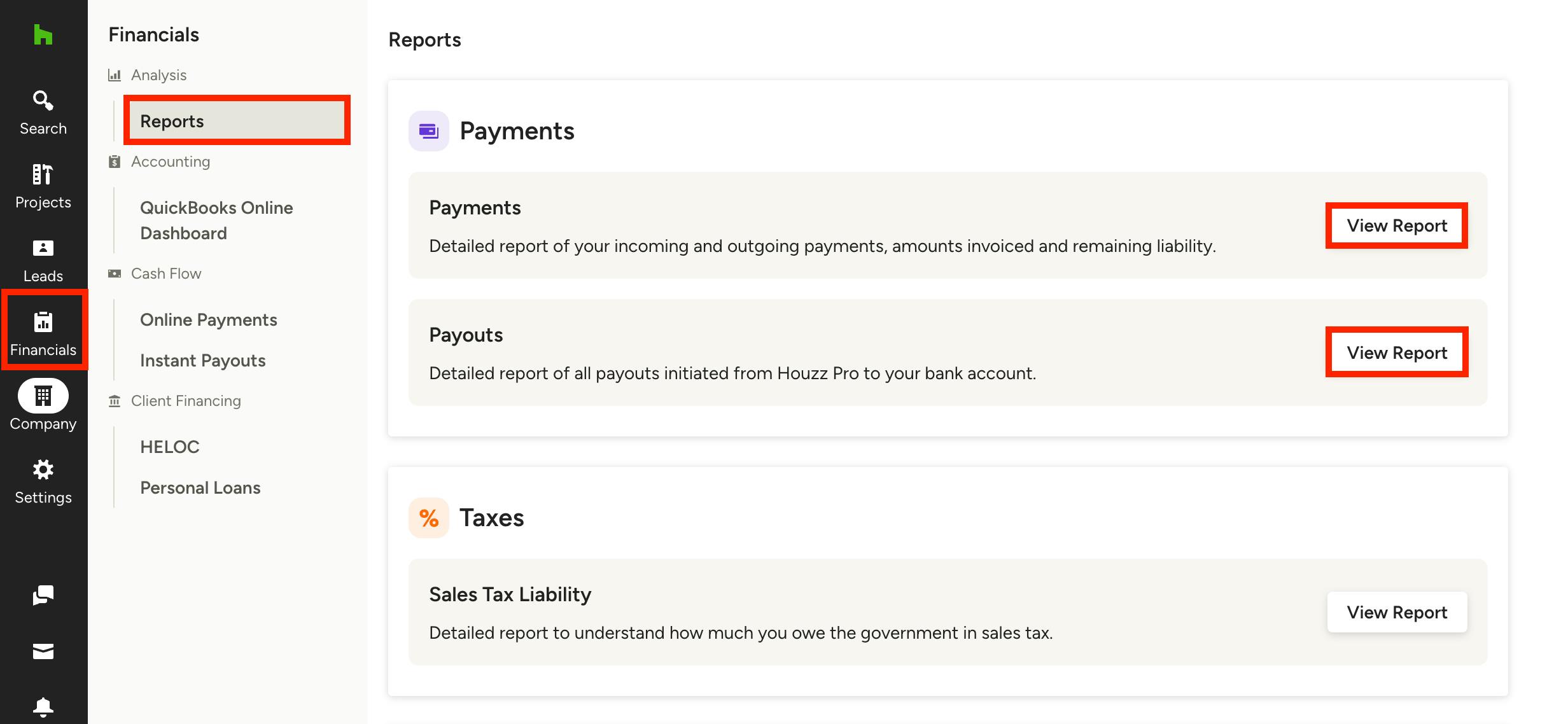
Instant Payouts in Payment Reports
All your Instant Payouts will be documented in both the Payments Report and Payouts Report. To access these reports, select the Financials icon, then click on Reports in the left menu.
Select View Report under the Payments report you would like to view. Don't know the difference? Read Introduction to Financial Reports to learn more.
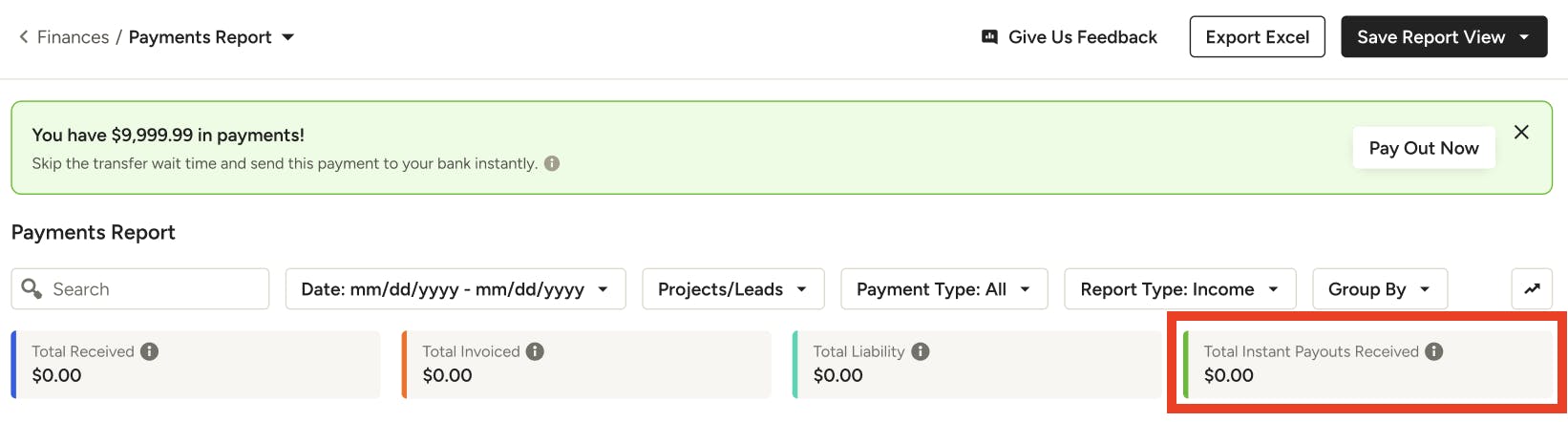
Your total Instant Payouts details will be displayed in the report, as shown here at the top of Payments Report.