How to Edit Online Payment Settings
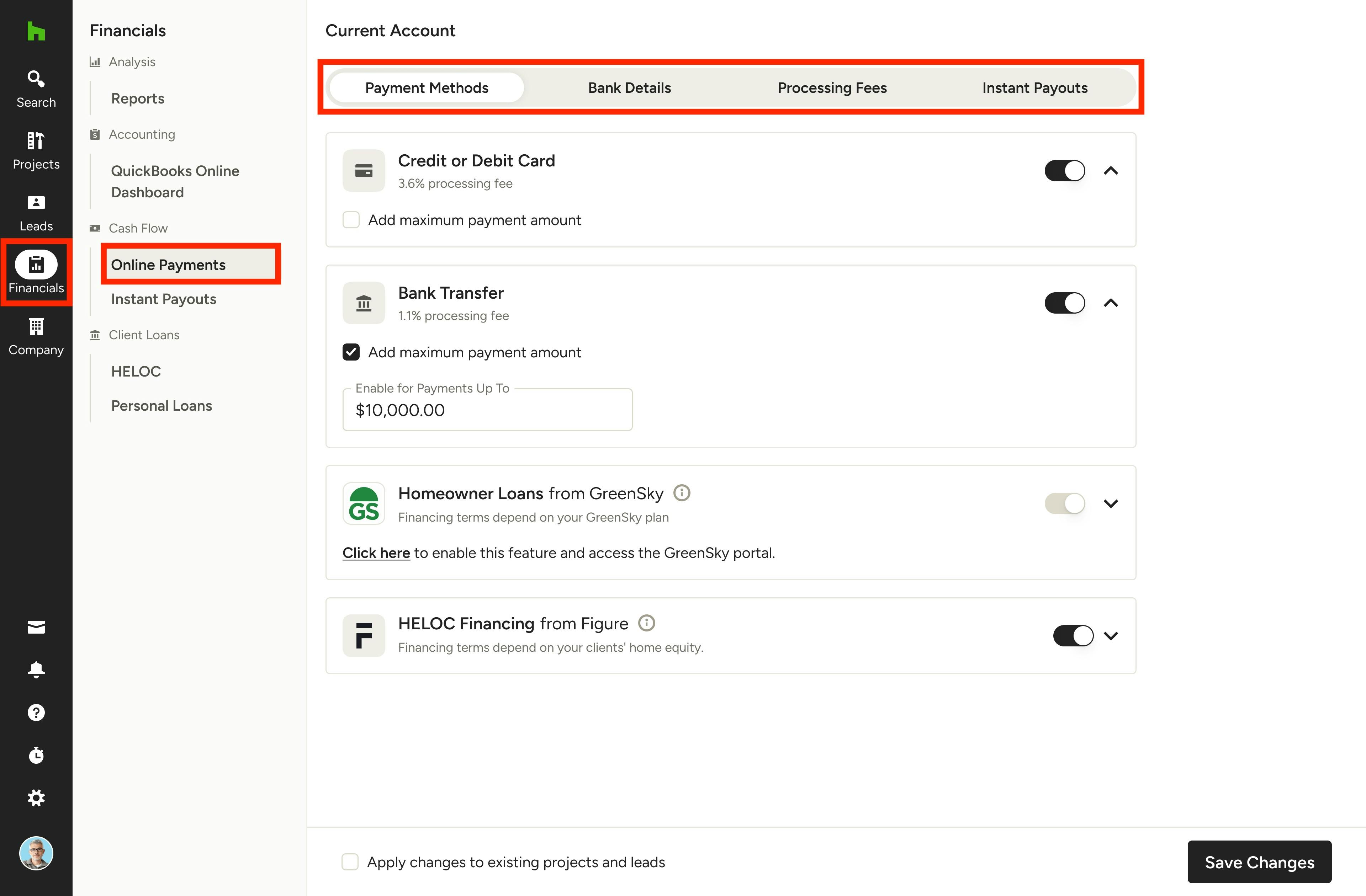
Once you’ve set up online payments, you can easily edit online payment settings within your account to meet your business needs.
To access your online payment settings, select the Financials icon in the left menu, then select Online Payments. You will see tabs at the top for Payment Methods, Bank Details, Processing Fees and Instant Payouts. From here, you can:
- Edit your preferred payment methods and decide whether to allow clients to pay by credit card, ACH/bank transfer, or both.
- Update your bank account details.
- Choose how you want to handle online payment processing fees.
- Enable or disable instant payouts.
Edit Payment Methods
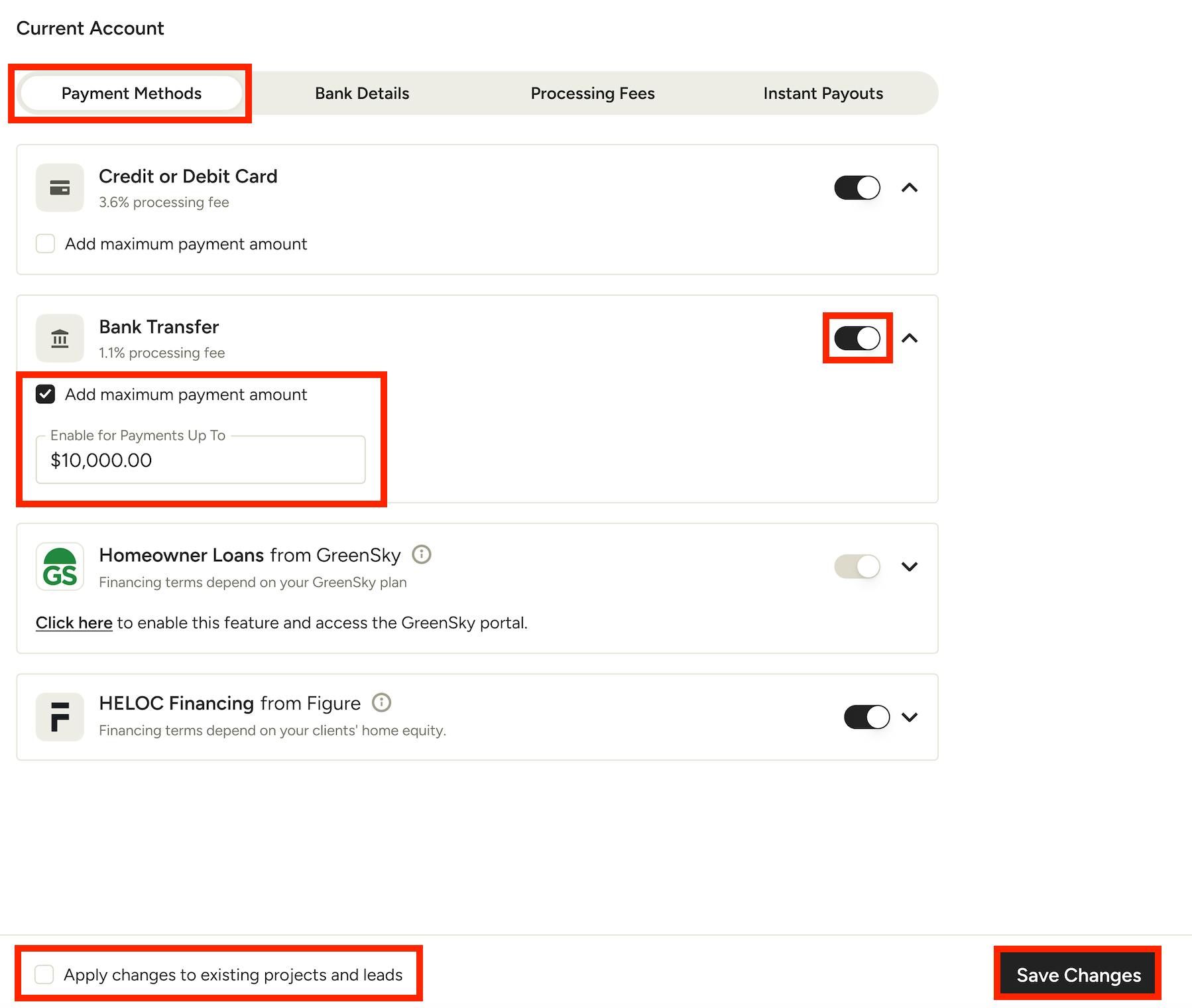
Within the Payment Methods tab, an admin can select whether clients pay by credit card, ACH/bank transfer, or both. You can offer certain payment methods based on the transaction amount — if a payment exceeds that set amount, the client will not be able to use that payment method.
To enable a payment method, turn on the toggle next to the relevant section. To disable a payment method, turn off the toggle.
Once enabled, you can specify a maximum dollar amount you would like to use for that payment method. To set a limit, check the box next to Add Maximum Payment Amount, then input the dollar amount below.
By default, your changes will only impact future projects and leads. If you would like to apply changes to existing projects and leads as well, be sure to check the Apply Changes to Existing Projects and Leads box at the bottom of your screen.
Once complete, click Save Changes at the bottom.
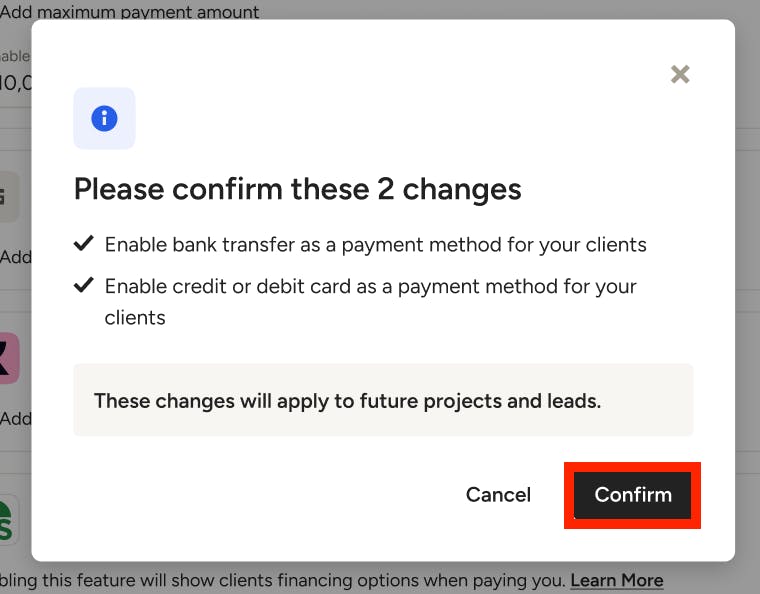
A new screen will appear to summarize your selected changes. Review, and if correct, select Confirm to save.
Edit Payment Methods on Project Level
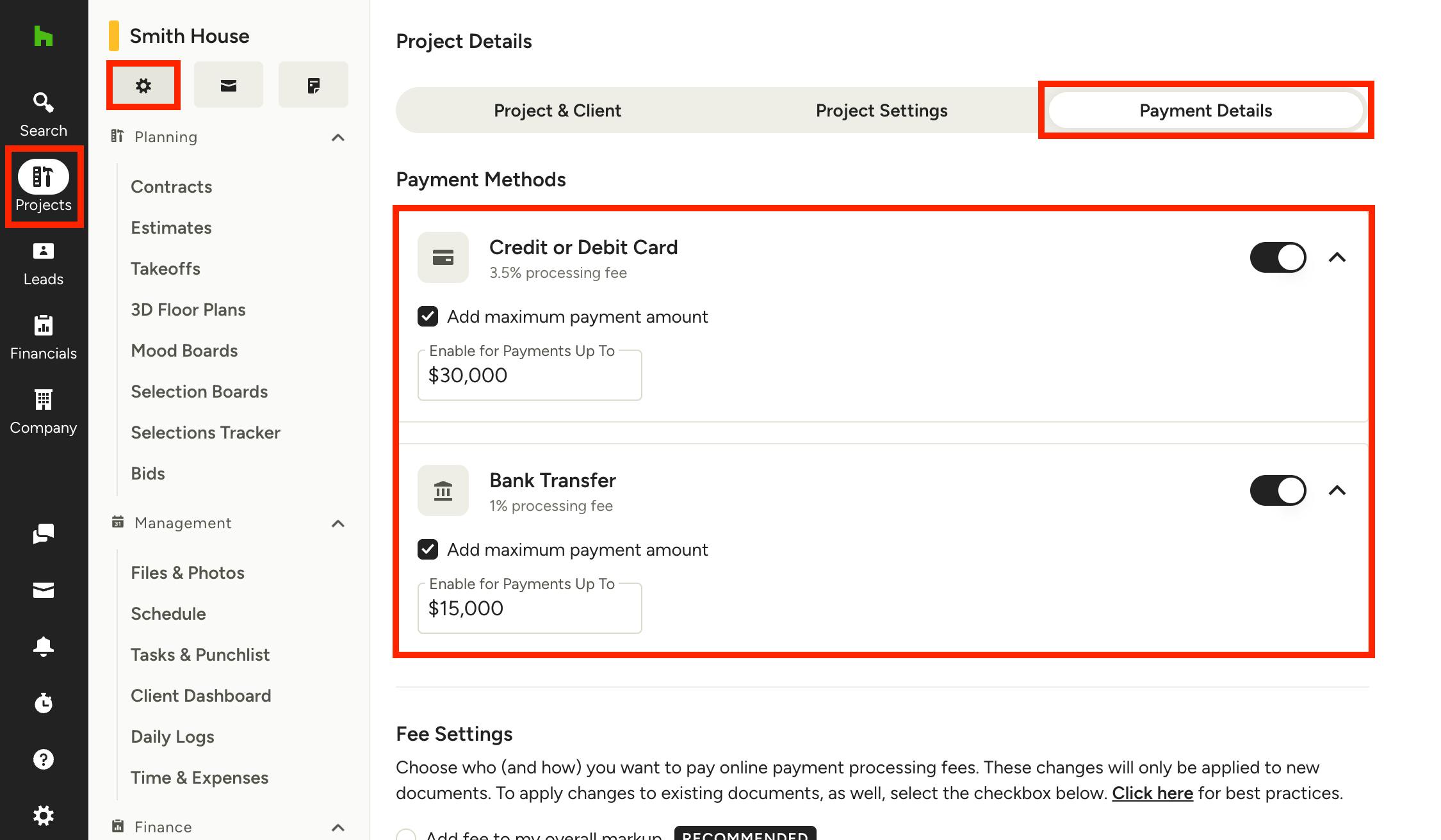
If you want to customize the payment method preferences for a specific project instead, you can do this too. Team members who have online payment administrative permissions can edit the payment method settings at the project level.
To start, select the Projects icon in the left menu, then select the relevant project. Once on the project overview page, select the Gear icon underneath the project name.
Within the project details page, select the Payment Details tab to view payment method settings.
Here, you can toggle on and off payment methods as needed, as well as adjust the maximum dollar amount for each method. Be sure to Save Changes at the bottom of your screen.
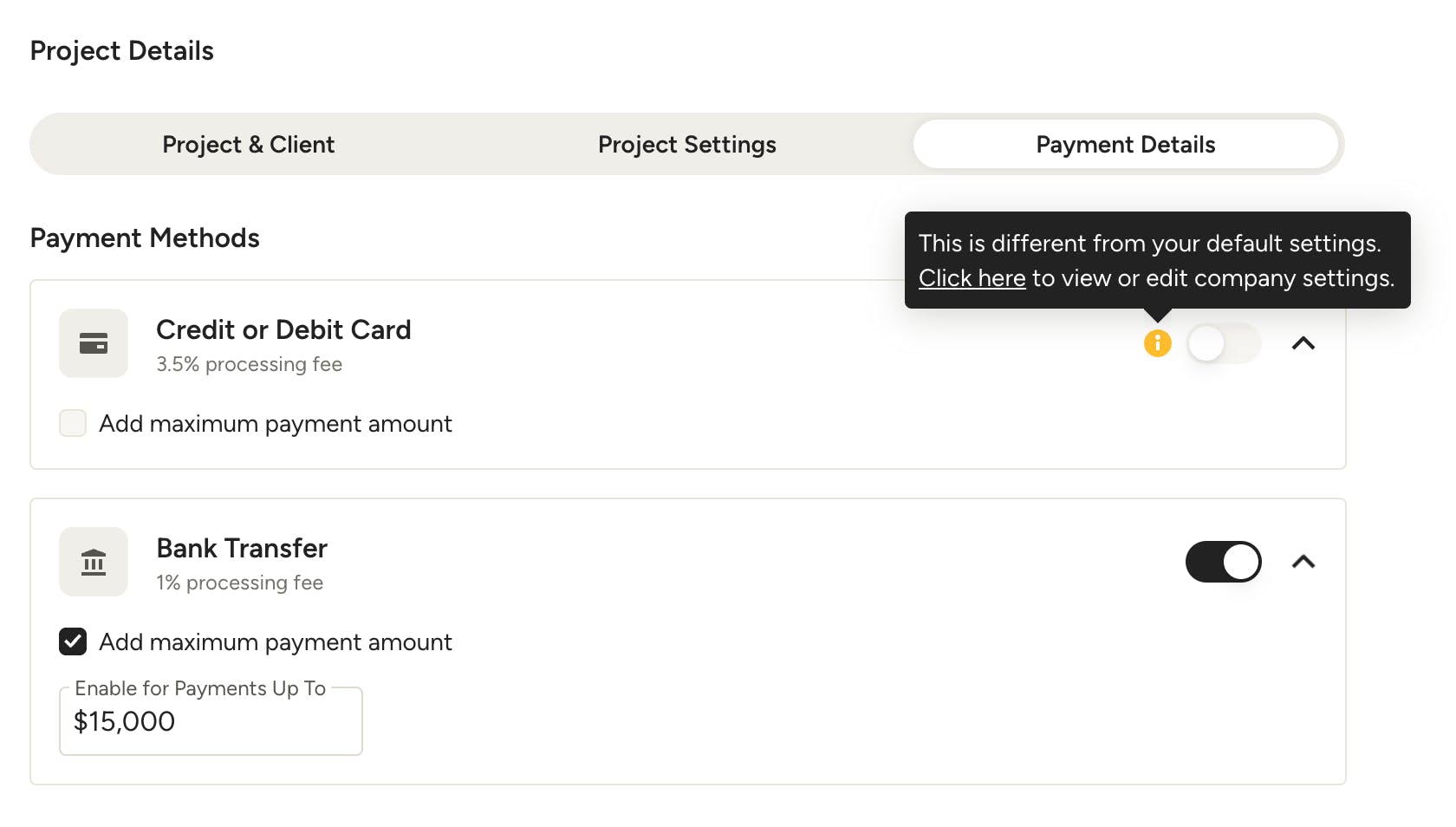
As a reminder, changes made here will only impact that one project. If your payment method for this project differs from your default company settings, you will see a small i icon appear to notify you of the discrepancy. If you would like to view or edit your company-level payment methods, select Click Here.
Edit Bank Details
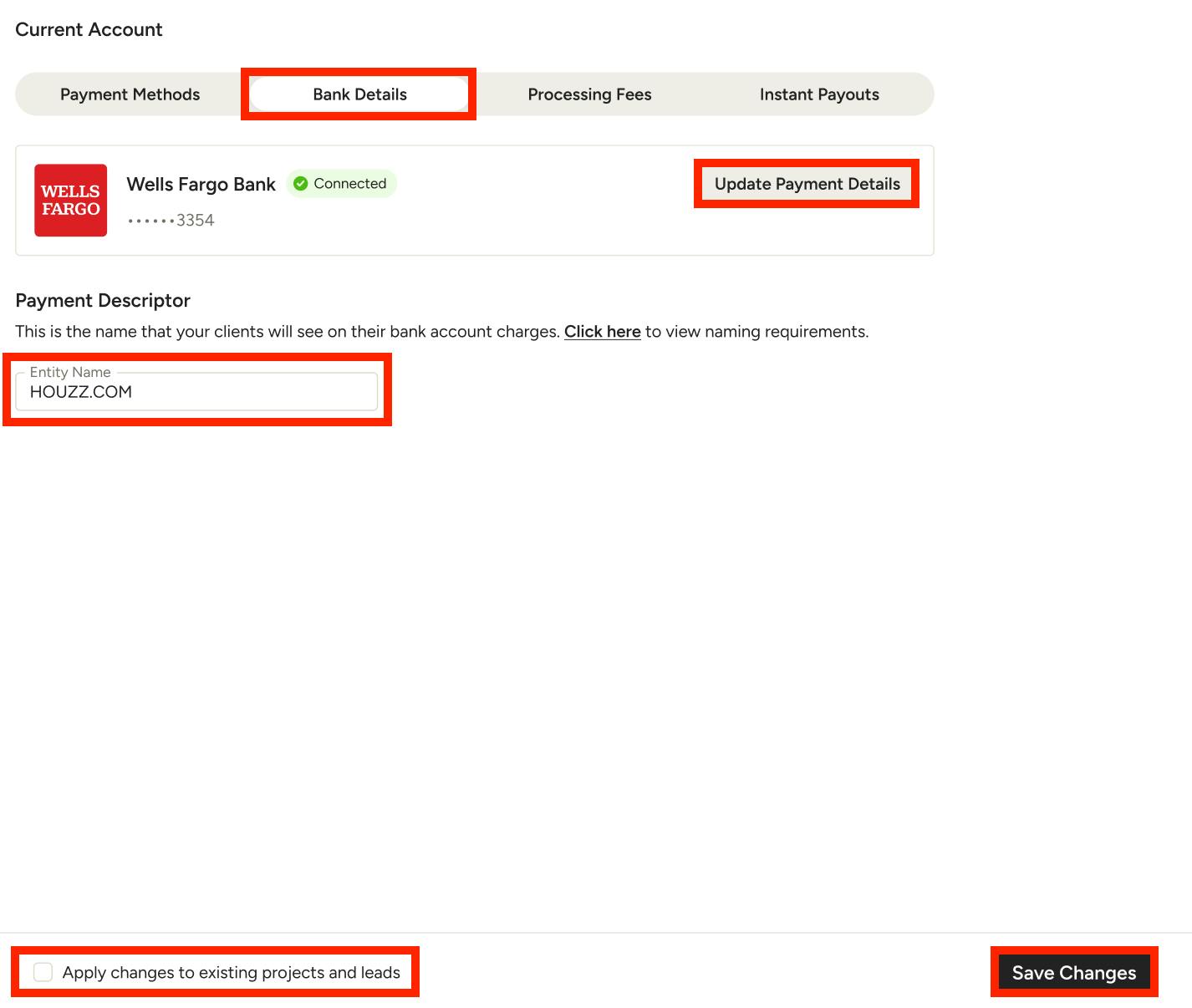
Within the Bank Details tab, you are able to view your connected bank account for receiving online payments. To edit your bank account or identification information, select Update Payment Details. You can also update the entity name that will appear on your client's bank account charges.
By default, your changes will only impact future projects and leads. If you would like to apply changes to existing projects and leads as well, be sure to check the Apply Changes to Existing Projects and Leads box at the bottom of your screen.
Once complete, click Save Changes at the bottom.
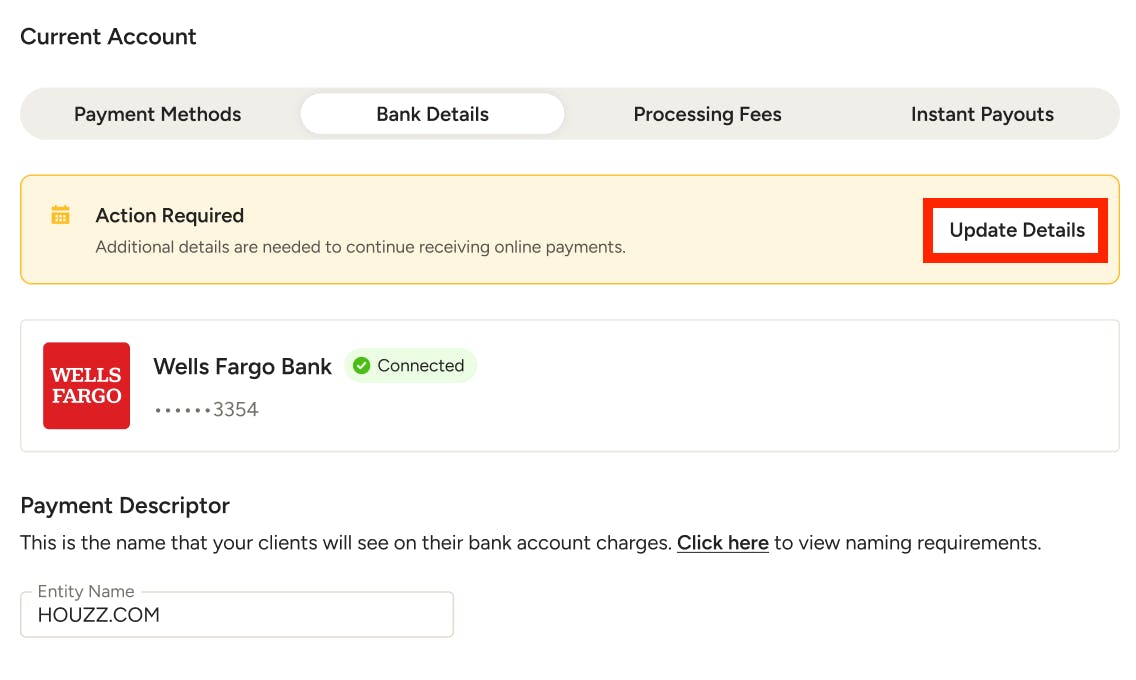
If there is an issue with your connected bank account, you will notice a yellow or red banner at the top of your Bank Details page. This means that your bank account was disconnected or requires additional information. Select Update Details to resolve the issue.
To learn more about bank account issues, read Why Are Online Payments Disconnected on My Account.
Edit Processing Fees
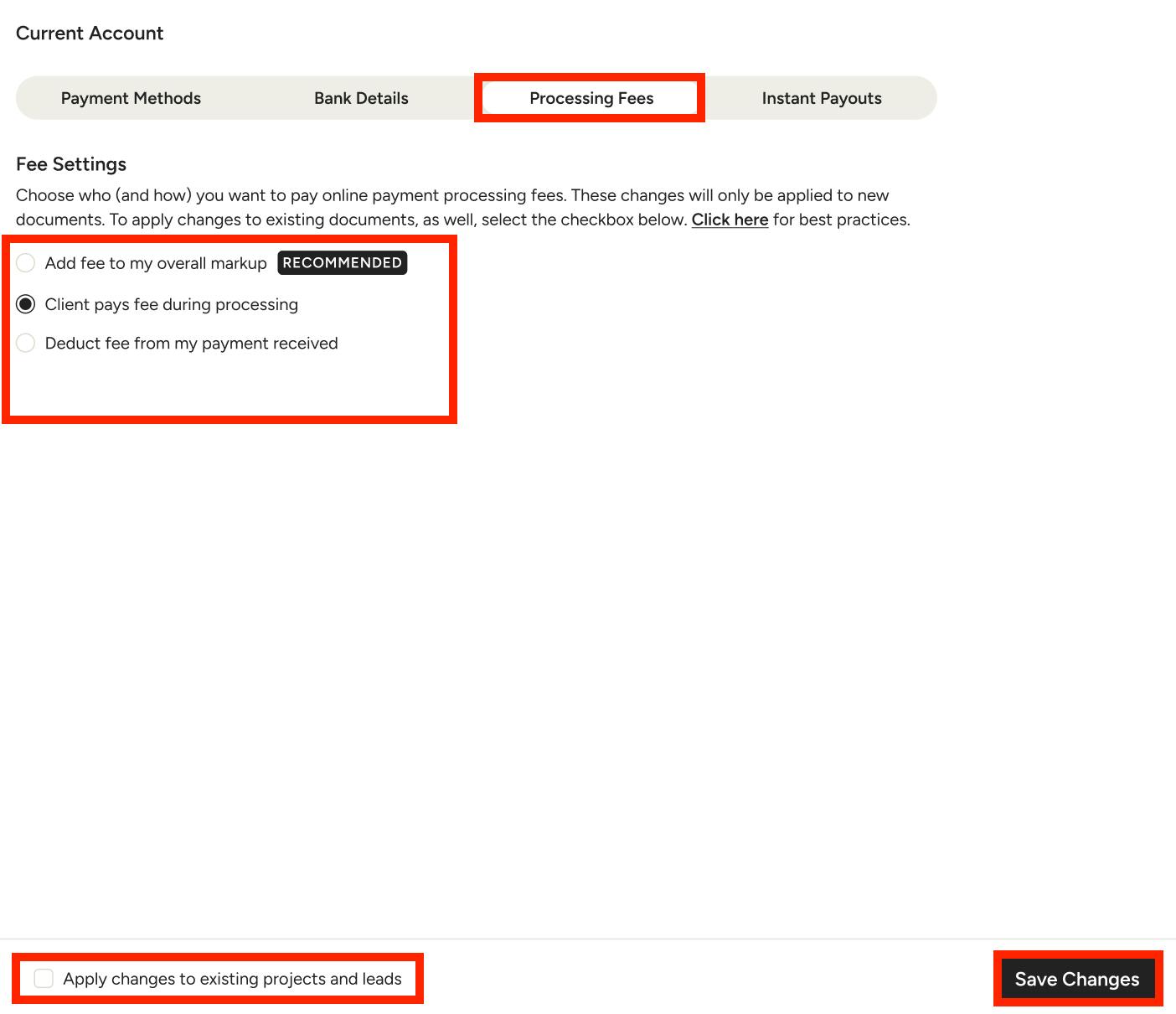
Within the Processing Fees tab, you are able to determine how you want to pay online payment fees for both ACH/bank transfer and credit card payments. Options include:
- Add fee to my overall markup (RECOMMENDED) — Automatically add a markup percentage that covers ACH or credit card fees. You will absorb the processing fees and discreetly pass the cost to clients. Read How to Move Processing Fees to Your Markup to learn more.
- Client pays fee during processing — Pass the processing fees to clients; your client will be able to view the fee breakdown when making an online payment. Read How to Offset the Transaction Fee to Your Client to learn more.
- Deduct fee from my payment received — Absorb the processing fees yourself without passing the cost to clients.
Select the circle next to the relevant option. By default, your changes will only impact future projects and leads. If you would like to apply changes to existing projects and leads as well, be sure to check the Apply Changes to Existing Projects and Leads box at the bottom of your screen.
Once complete, click Save Changes at the bottom.
Processing fees can be adjusted on an individual document, a project, or an account level. To learn more about making changes, read How to Move Processing Fees to Your Markup.
Edit Instant Payouts
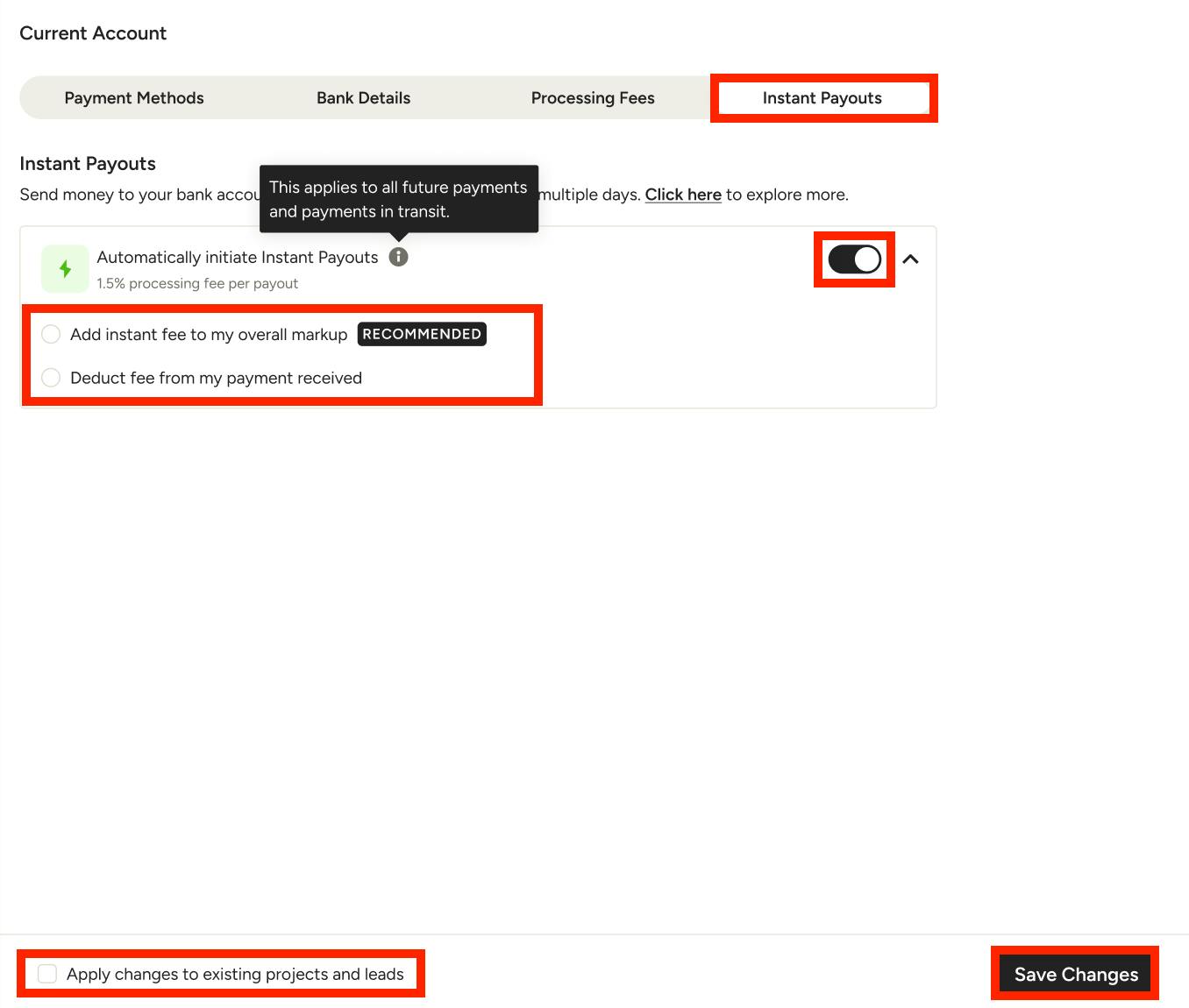
Within the Instant Payouts tab, you can easily enable or disable instant payouts for all your projects. If you enable instant payouts, you will pay an additional 1.5% fee to receive your client’s payment within 30 minutes (timing can vary by bank, not all banks support instant payouts). Read Instant Payouts with Online Payments to learn more.
If you want to enable Instant Payouts, turn on the toggle. If you want to disable Instant Payouts, turn off the toggle.
On this page, you are also able to determine how you want to pay Instant Payout fees once enabled (only for US professionals who aren't already enrolled in automatic instant payouts). Options include:
- Add instant fee to my overall markup (RECOMMENDED) — Automatically add a markup percentage that covers the instant fees. You will absorb the fees and discreetly pass the cost to clients. Read How to Move Processing Fees to Your Markup to learn more.
- Deduct fee from my payment received — Absorb the instant fees yourself without passing the cost to clients.
Select the circle next to the relevant option. By default, your changes will only impact future projects and leads. If you would like to apply changes to existing projects and leads as well, be sure to check the Apply Changes to Existing Projects and Leads box at the bottom of your screen.
Once complete, click Save Changes at the bottom.