How to Get Paid on Houzz Pro
There are several different ways you can take advantage of Houzz Pro Online Payments to get paid on the spot.
After you set up online payments, you can:
- Have your client submit an online payment on a document or using a payment request link
- Submit an online payment yourself on behalf of your client
- Pay on iPhone with either Tap to Pay or QR code
- Pay by QR code on a printed PDF
Your clients can pay using any Houzz Pro payment method options, including ACH (bank transfer), credit card, Apple Pay, and Google Pay.
Have Client Submit Payment Online
Your clients can submit payment online in several ways — directly from a financial document like an estimate, proposal, invoice or change order, or via a payment request link without creating a document at all.
Make Payment From Document
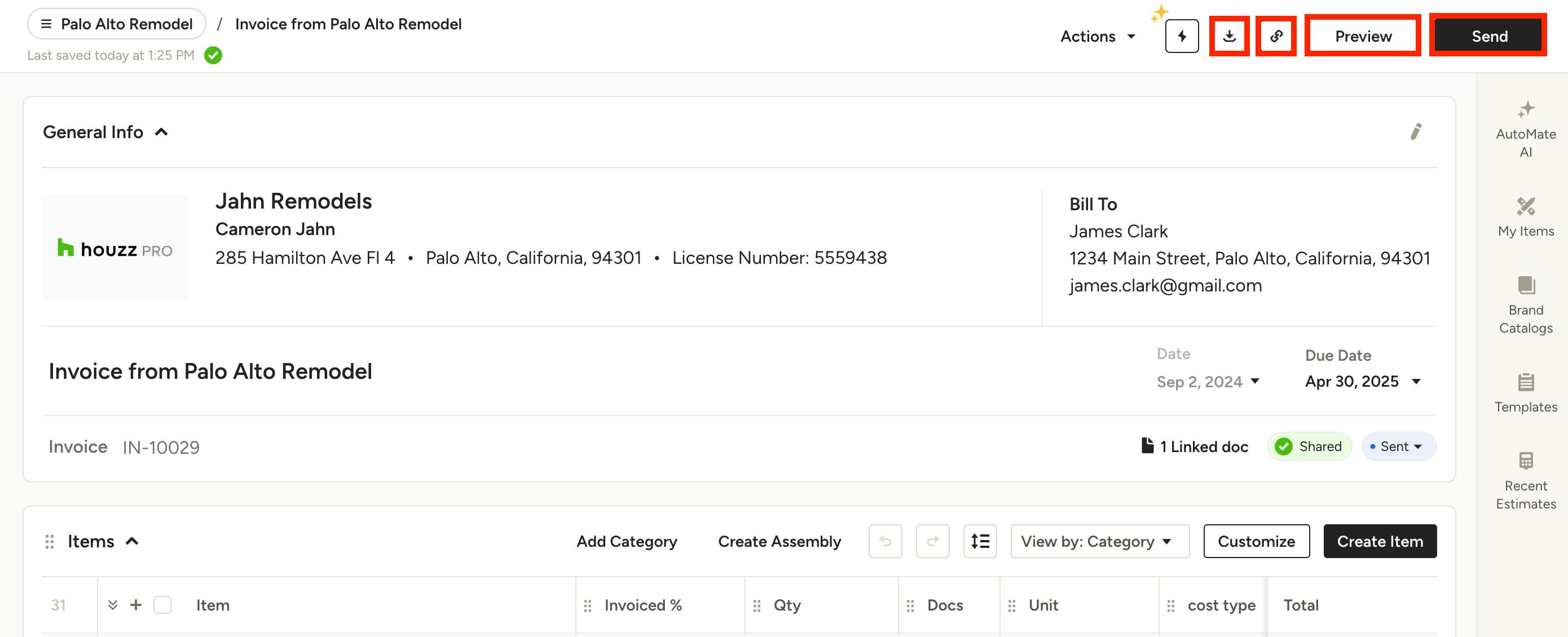
To pay from a financial document, you will need to send an estimate, proposal, invoice or change order to your client through email. To do this, open up the relevant document. There are several ways to share:
- Download PDF: Click the Download as PDF button next to Copy Link. You can then share the PDF with the client via email or even print out if needed.
- Copy Link: Click the Copy Link button next to Preview. You can then paste the link into a separate email to share with the client.
- Send: Click the Send button in the top right. You can then format an email with subject line and written message to send to your client.
- Preview: Click Preview to see the client view of the document and customize before sending. This is recommended to make sure everything is correct.
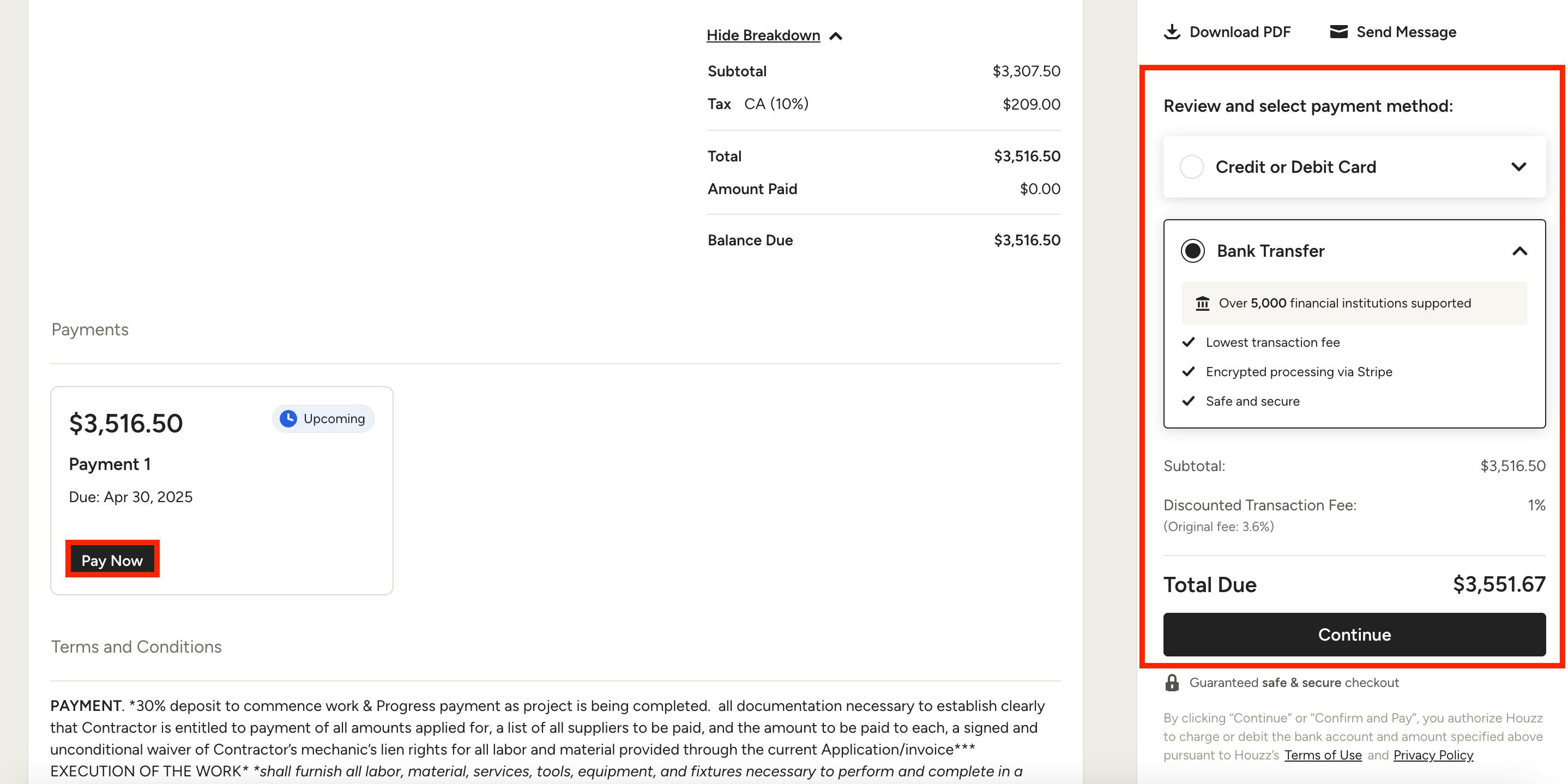
Once your client receives the document, they can open it, view details, and select the Pay Now options to the right of the document, or on the bottom of the document.
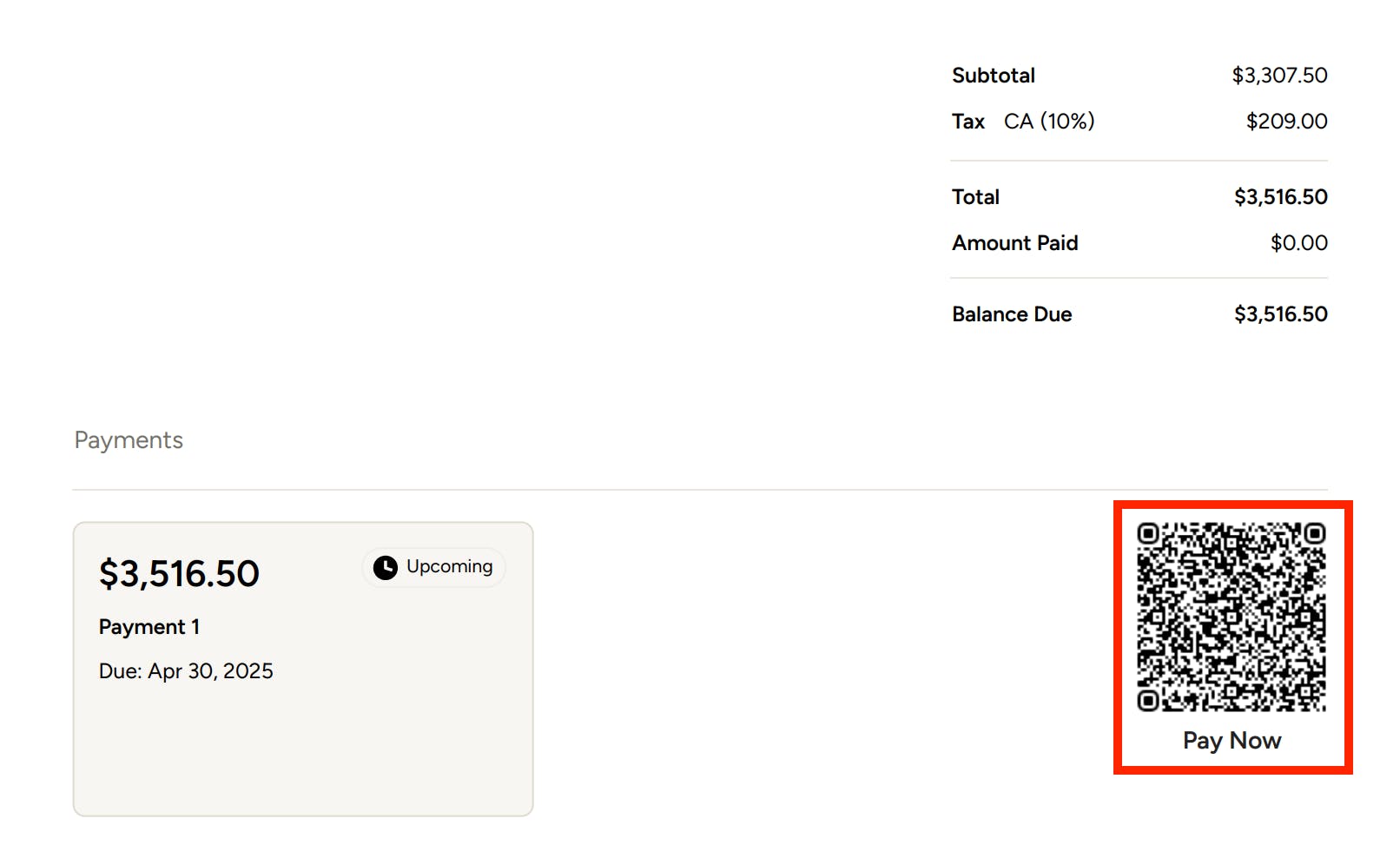
If you decide to send the PDF over email instead, your client can use the QR code if they prefer to pay that way (more about QR codes below).
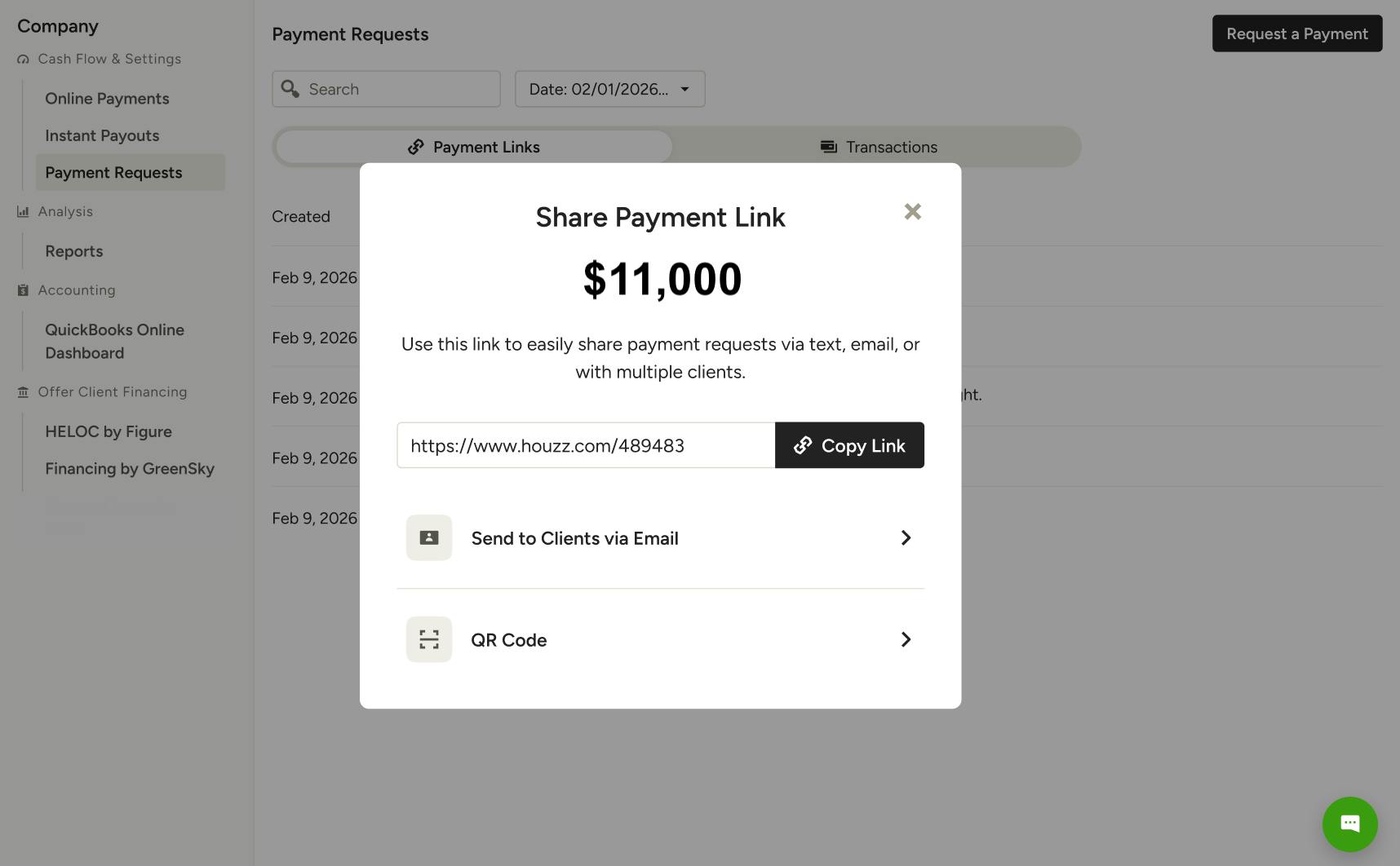
Make Payment From Link
Need to collect payment quickly without creating an estimate or invoice first? Use a quick payment request to send your client a secure payment link in just a few steps — no financial document required.
This is ideal for collecting deposits, reimbursements, or payments for small jobs where creating a full invoice isn't worth the extra steps. Once your client pays, the transaction is automatically recorded in Houzz Pro so your books stay up-to-date.
For full instructions on setting up and sending a payment request, read Quick Payment Requests in Online Payments.
Submit Payment for Client Online
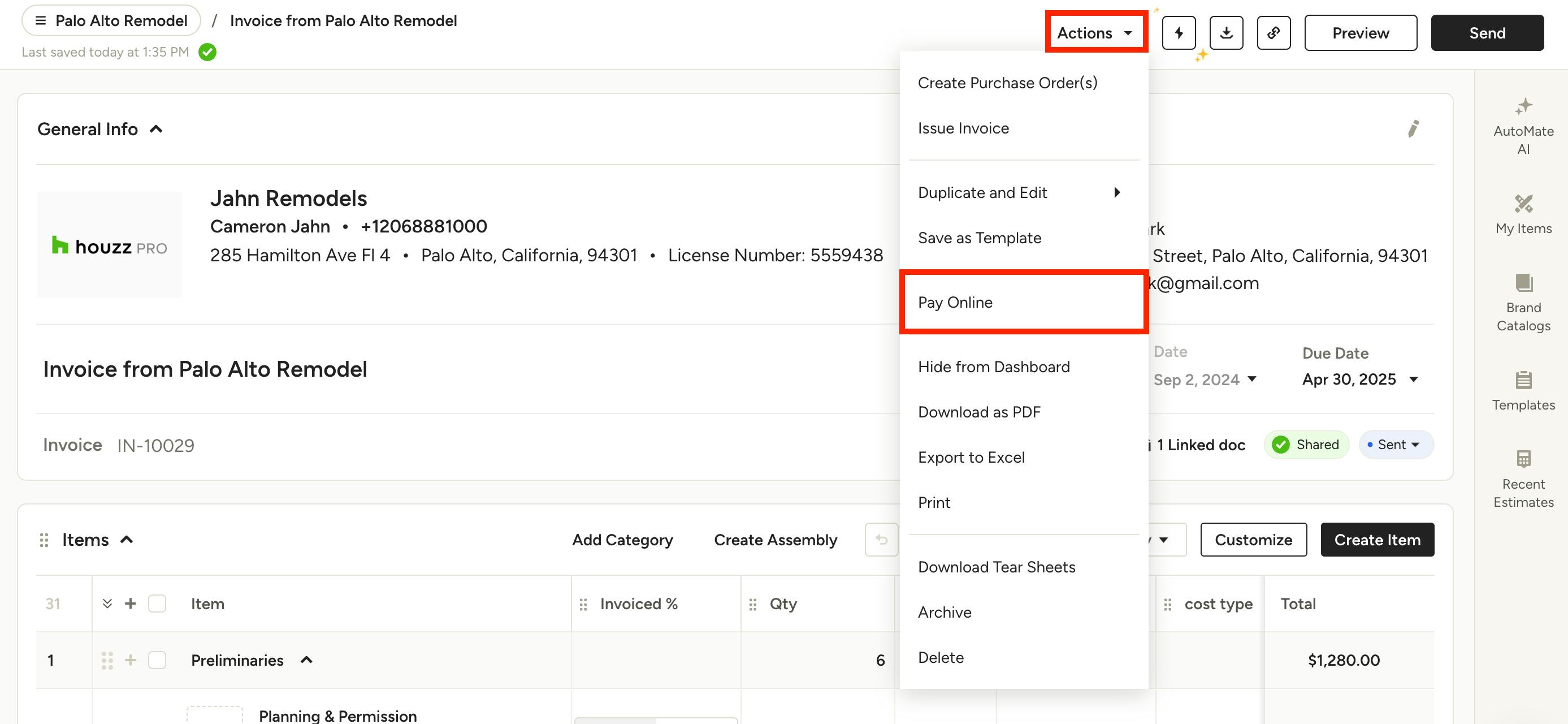
You can also easily input a payment yourself if your client requests. This is helpful when you’re meeting in person or on the phone and want to secure the payment right away.
To do this, simply select the Pay Online option in the Actions dropdown menu.
Pay on iPhone
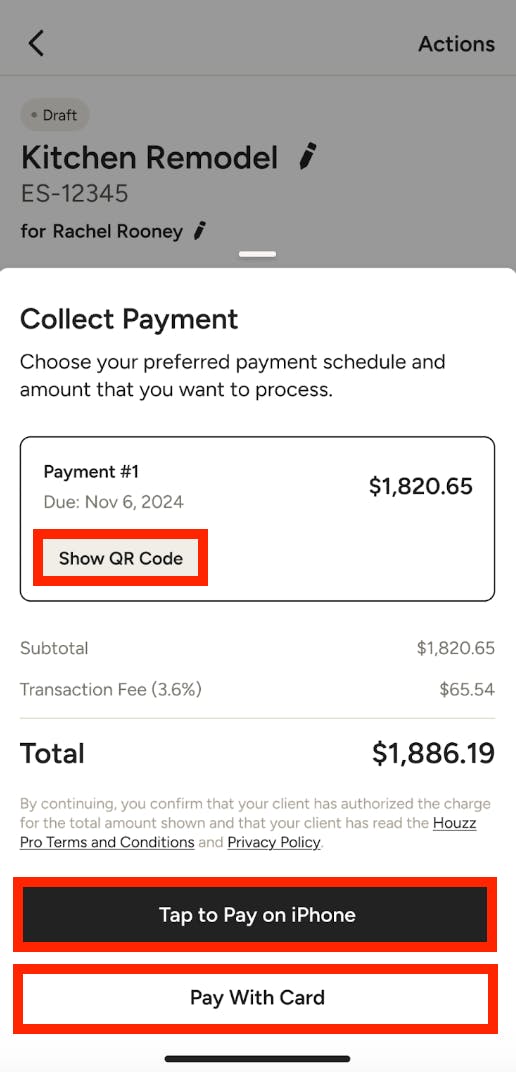
Another convenient payment option — especially when you're on-the-go or with your client — is to use the iOS app to collect a payment. Please Note: This is currently only for iPhone users and is not available on Android at this time.
To complete a payment, simply open a financial document on an iPhone, then click on a scheduled payment. A new screen will appear with all your payment options. You can choose to have your client pay in person through either a QR code or Tap to Pay, or you/your client can pay online using a credit card number at any time.
Show QR Code
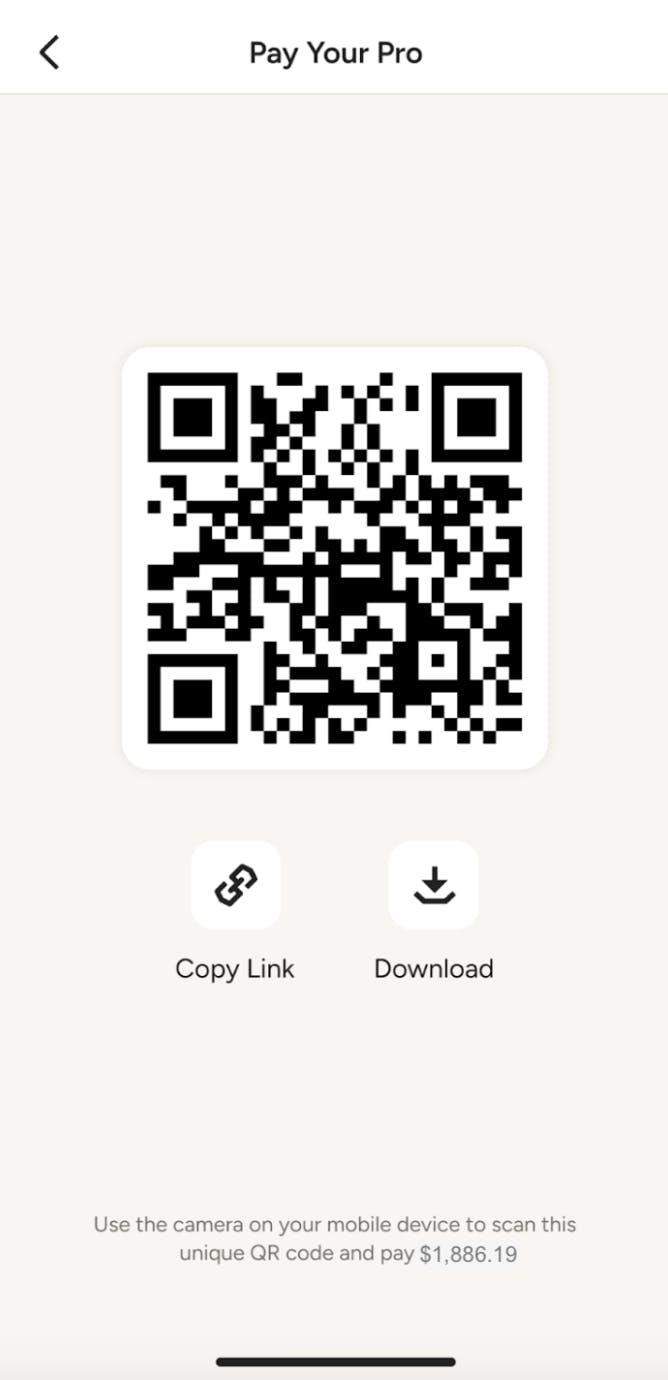
Clients can pay using the QR code. When you select this option, a new screen will appear where your client can scan the QR code to access the payment screen and make a payment. On this screen, you can also copy the link to share with your client over email or text, or download the PDF to share with your client.

Tap to Pay on iPhone
Clients can tap their credit card or debit card to your phone (their credit card or debit card must support contactless payments). Clients can also tap their iOS mobile device with a virtual wallet to your phone. This includes Apple Pay or Google Pay.
Please Note: At this time, pros must use an iPhone XS or later running iOS 16 or later to accept a Tap to Pay on iPhone payment. Accepting Tap to Pay payments on an Android device will be coming in the future.
To use this feature, make sure your company address is filled out in Houzz Pro. You can add in your address here.
Pay With Card
With this option, you or your client can input the credit card details to submit the payment immediately from a phone.
Pay by QR Code on Printed PDF
If you or your client prefers printed documents, you can easily click the Download as PDF icon in your estimate, proposal or invoice. From there, you can print your document. Your client can then conveniently scan the QR code with a mobile device to access the payment screen.
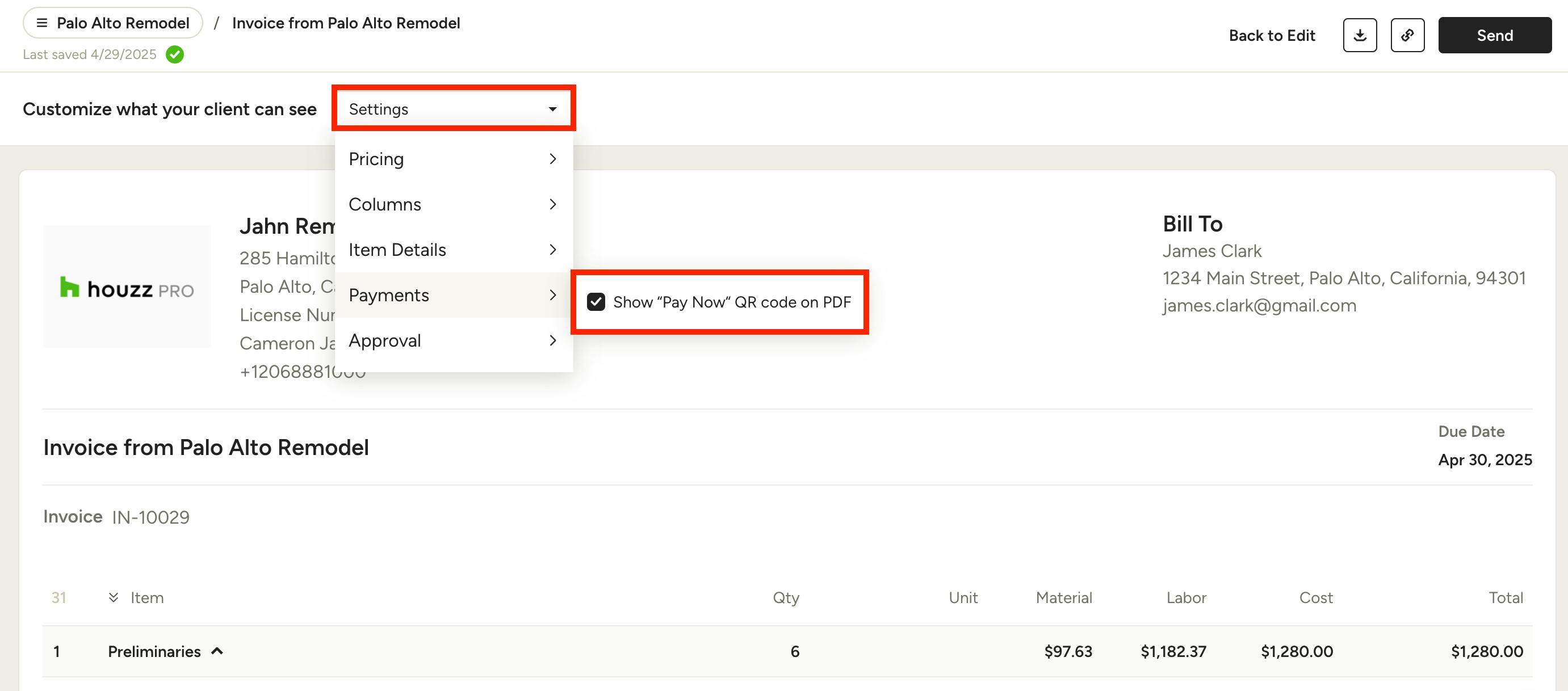
Please Note: By default, QR codes will appear on your PDF documents, but you can enable or disable this feature in your document customization settings.
To do this, open up your document, then select the Preview button at the top right. Once in preview mode, click the dropdown next to Customize What Your Client Can See, find Payments, then select Show Pay Now QR Code on PDF.
If the box is checked, the QR code will appear. If the box is unchecked, the QR code will not appear.