How to Offset the Processing Fee to Your Client
With Houzz Pro online payments, you have the ability to offset the processing fee to your client (except in AU and the UK). With one click, you can choose how you want to handle payment processing fees — you can push the processing fee to your client, absorb it yourself, or absorb it yourself but add the fee to your overall markup.
In order to take advantage of this feature, you will need to have online payments set up. Don't have online payments yet? Read How to Set Up Online Payments to help you get started.
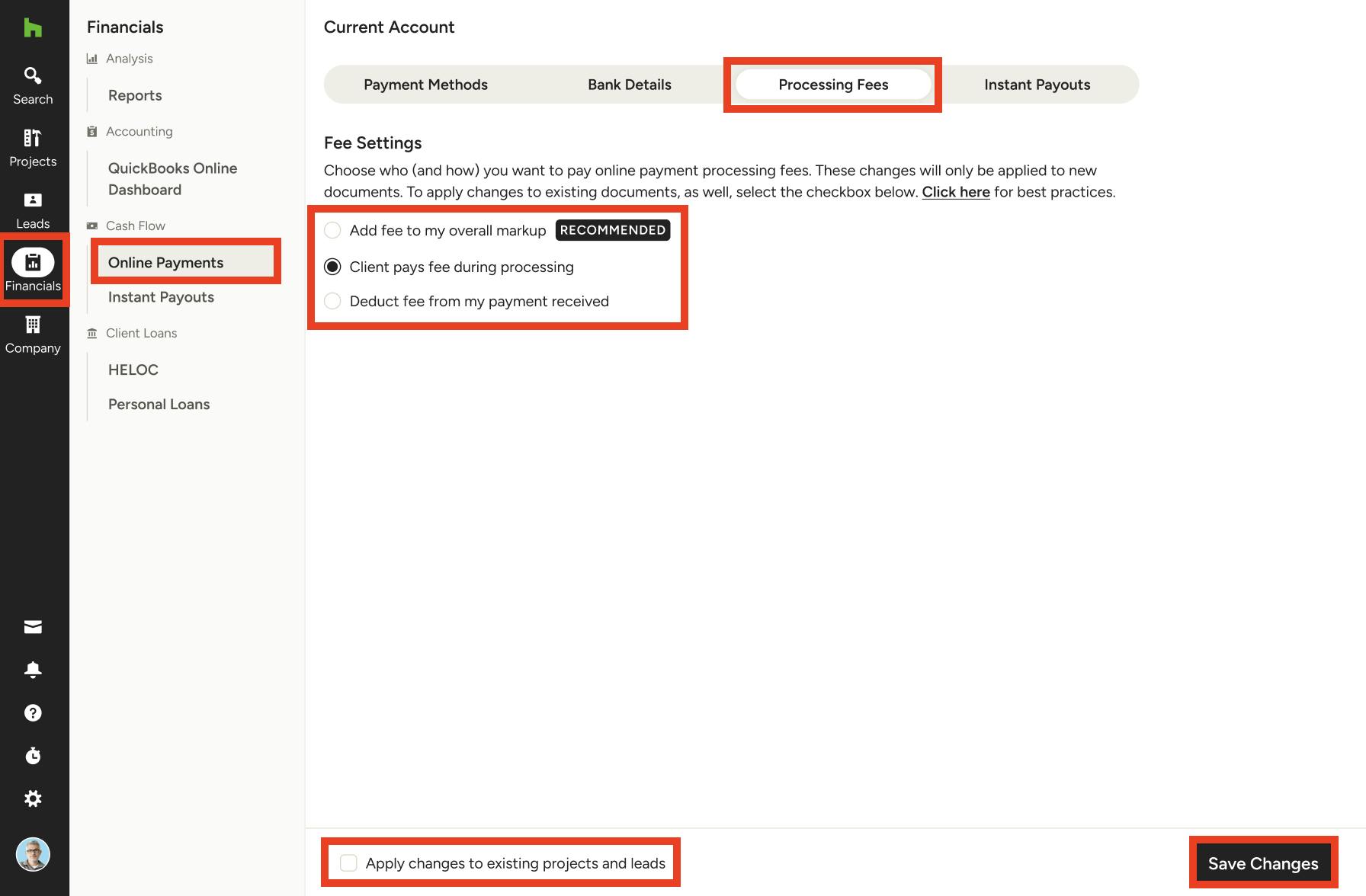
Offset Processing Fees at Company Level
If you would like to treat the processing fee the same for every project, you can set up a default within your online payment settings.
To start:
1. Select the Financials icon in the left menu, then select Online Payments. At the top of page, select the Processing Fees tab.
2. Here, you are able to determine how you want to pay online payment fees for both ACH/bank transfer and credit card payments. Options include:
- Add fee to my overall markup — Automatically add a markup percentage that covers ACH or credit card fees. You will absorb the processing fees and discreetly pass the cost to clients. Read How to Move Processing Fees to Your Markup to learn more.
- Client pays fee during processing — Pass the processing fees to clients; your client will be able to view the fee breakdown when making an online payment.
- Deduct fee from my payment received — Absorb the processing fees yourself without passing the cost to clients.
If you would like to offset the processing fee, select the circle next to Client Pays Fee During Processing.
By default, your changes will only impact future projects and leads. If you would like to apply changes to existing projects and leads as well, be sure to check the Apply Changes to Existing Projects and Leads box at the bottom of your screen.
Once complete, click Save Changes at the bottom.
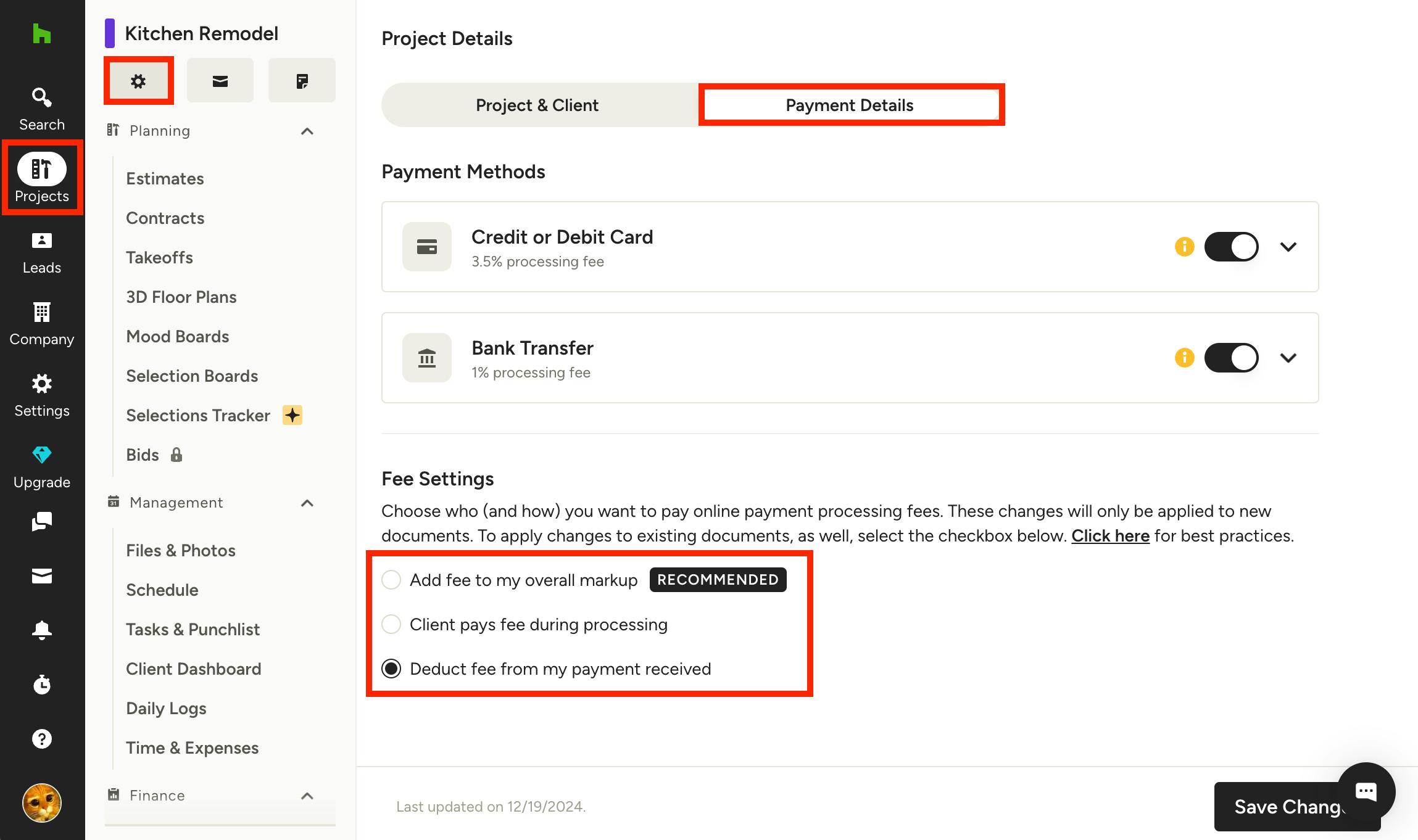
Offset Processing Fees at Project Level
If you want to customize the processing fee preferences for a specific project instead, you can do this too.
To start:
1. Find the Projects icon in the left navigation, and select the relevant project from your menu.
2. Once on the project overview page, click the gear icon at the top left of the page to edit project details. At the top of page, select the Payment Details tab.
3. Underneath Payment Methods, there is a Fee Settings section with three options:
- Add fee to my overall markup — Automatically add a markup percentage that covers ACH or credit card fees. You will absorb the processing fees and discreetly pass the cost to clients. Read How to Move Processing Fees to Your Markup to learn more.
- Client pays fee during processing — Pass the processing fees to clients; your client will be able to view the fee breakdown when making an online payment.
- Deduct fee from my payment received — Absorb the processing fees yourself without passing the cost to clients.
If you would like to offset the processing fee, select the circle next to Client Pays Fee During Processing.
Once complete, click Save Changes at the bottom.
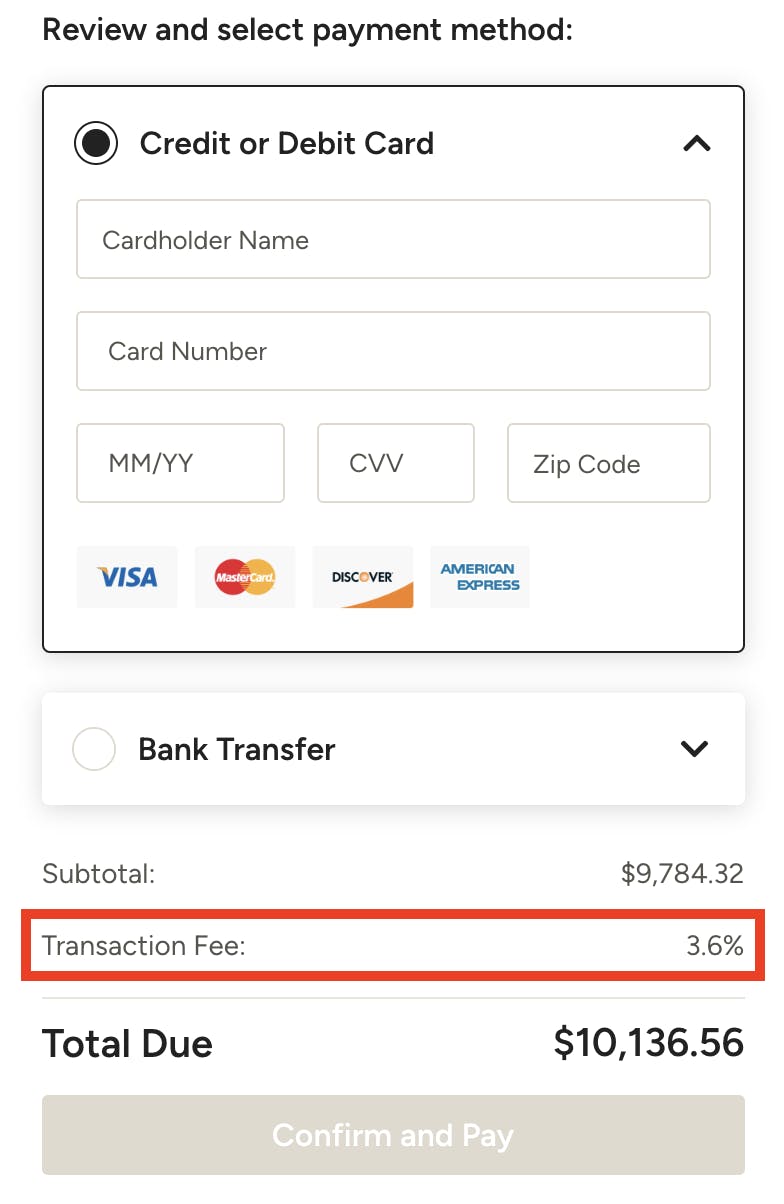
Client View of Processing Fees
When your client opens an estimate, proposal, invoice, or other document to pay online, they will see payment options to the right of the document.
They will able to select to either pay by ACH/bank transfer or by credit card. Each payment method will break down the total processing fee cost that your client will pay (credit card fee example shown below). If you choose to absorb the fees yourself, there will be no processing fee listed.
To learn more about Houzz Pro processing fee rates, read this article: Online Payment Processing Fee Rates