How to Show MSRP Discounts to Clients
When creating/editing a product, you have the ability to set the MSRP (retail price) on the item. The MSRP itself is typically not shown to clients, but used to calculate the discount to clients (the difference between the Client Price Per Unit and the MSRP). This client MSRP discount can be displayed on proposals, estimates and invoices.
Note: The discount off of MSRP feature is an optional feature and by default, the discount will not be shown to the customer until specifically enabled.
There are two methods to show the client MSRP discount:
From the Markup Column/Calculator: This allows you to show the MSRP discount per line item.
From the MSRP Column: This will show the MSRP discount on every line item that has a discount.
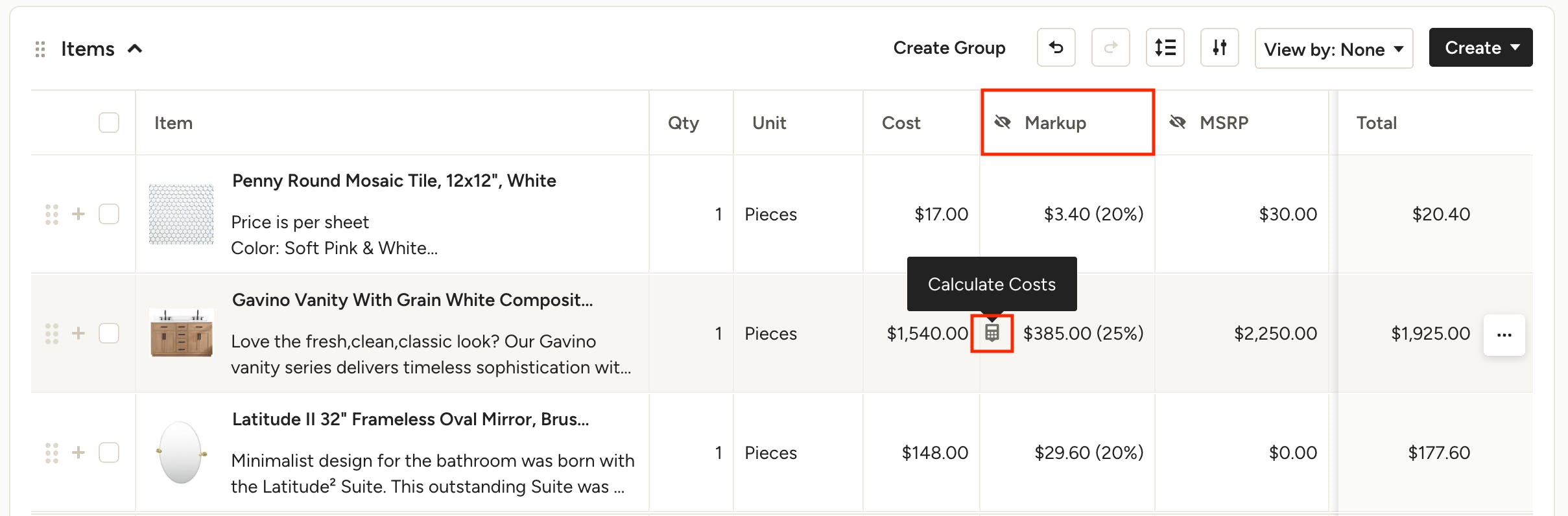
From the Markup Column/Calculator
If you have the Markup column toggled on in column settings, you can choose to show the client MSRP discount directly from it. Using this method allows you to show the MSRP discount on individual line items. To do so, navigate to the line item for which you want to show the discount. Hover over the Markup field — you will see a calculator symbol appear.
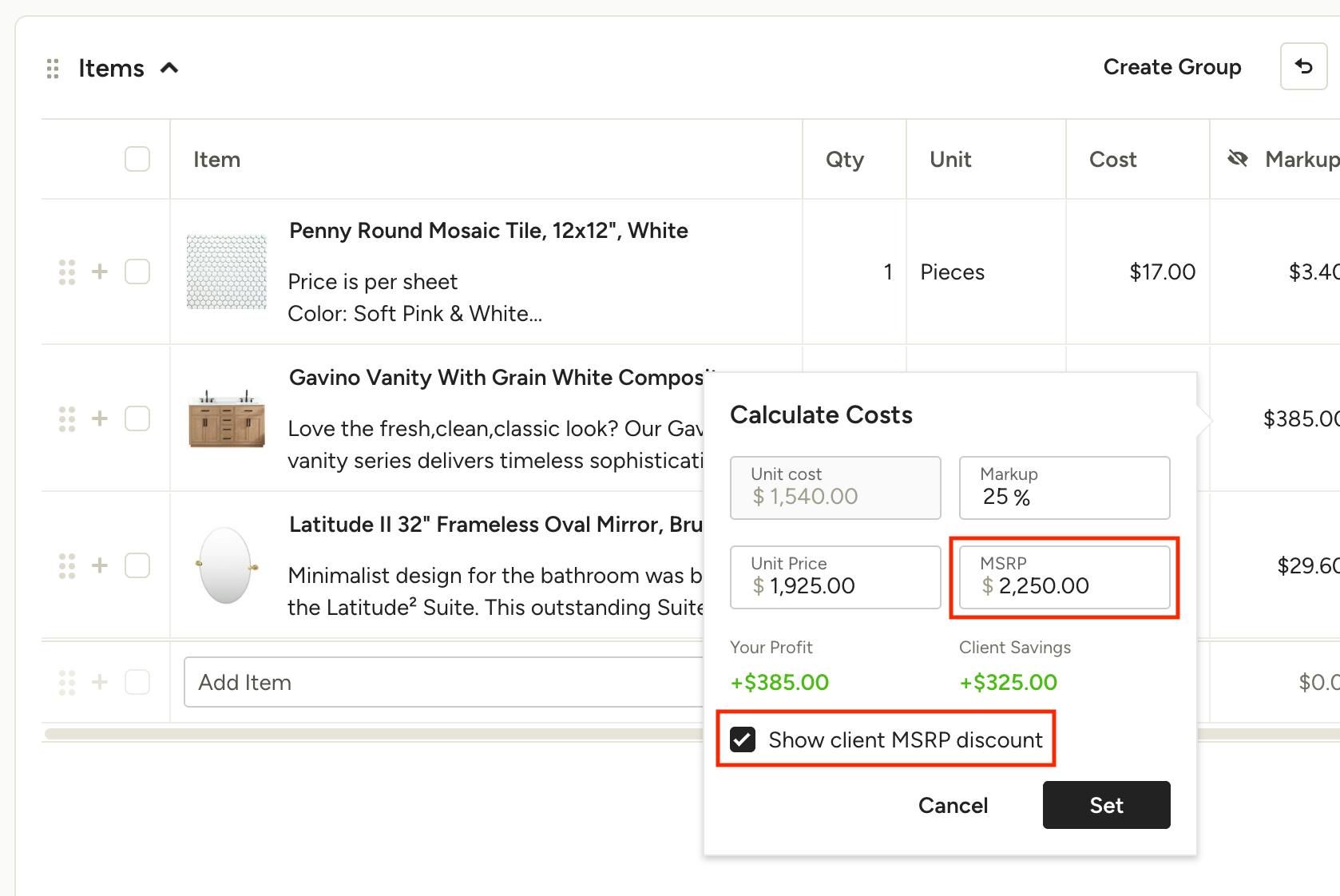
Click on the markup calculator icon. This will open up a cost calculator that shows the MSRP on the product. If you haven't set the MSRP, or need to edit it, you can easily do so here. Once entered, you will see the Client Savings value below — this is the difference between the Client Price Per Unit and the MSRP. To show this detail to the client, make sure the checkbox next to “Show client MSRP discount” is selected.
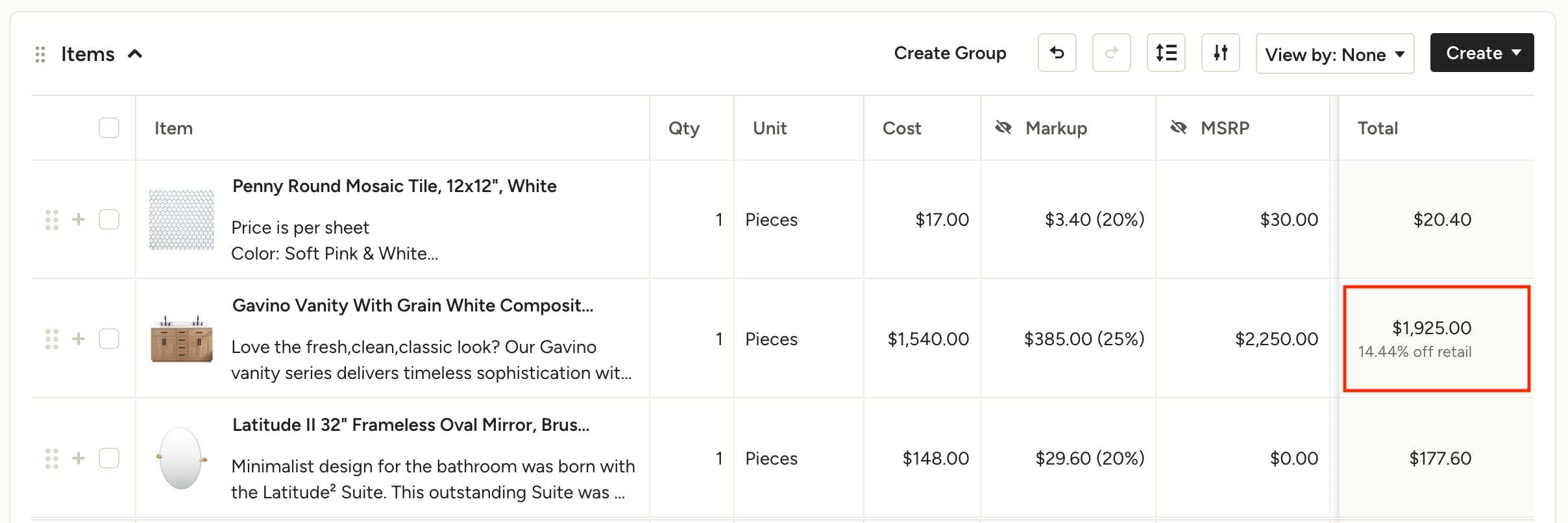
Once you enter/edit the MSRP per unit, click Set and you will see the discount shown in the item total on the right as "% off retail".
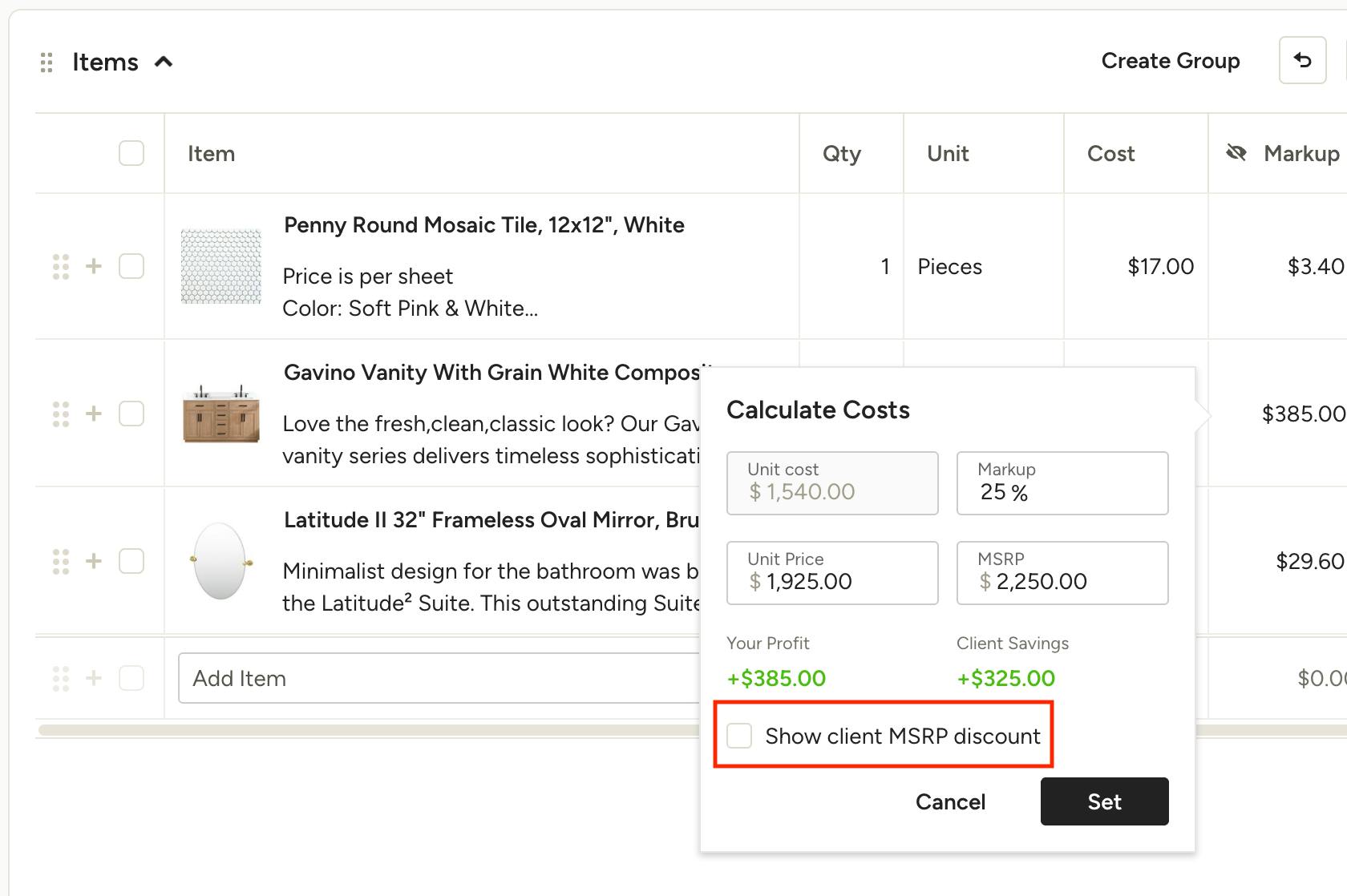
Hide MSRP Discount from Markup Calculator
To hide the MSRP discount from a client (after selecting to display) access the edit mode of your proposal, estimate or invoice, click the calculator in the Markup column of the relevant line item, and uncheck the box "Show client MSRP discount".
From the MSRP Column
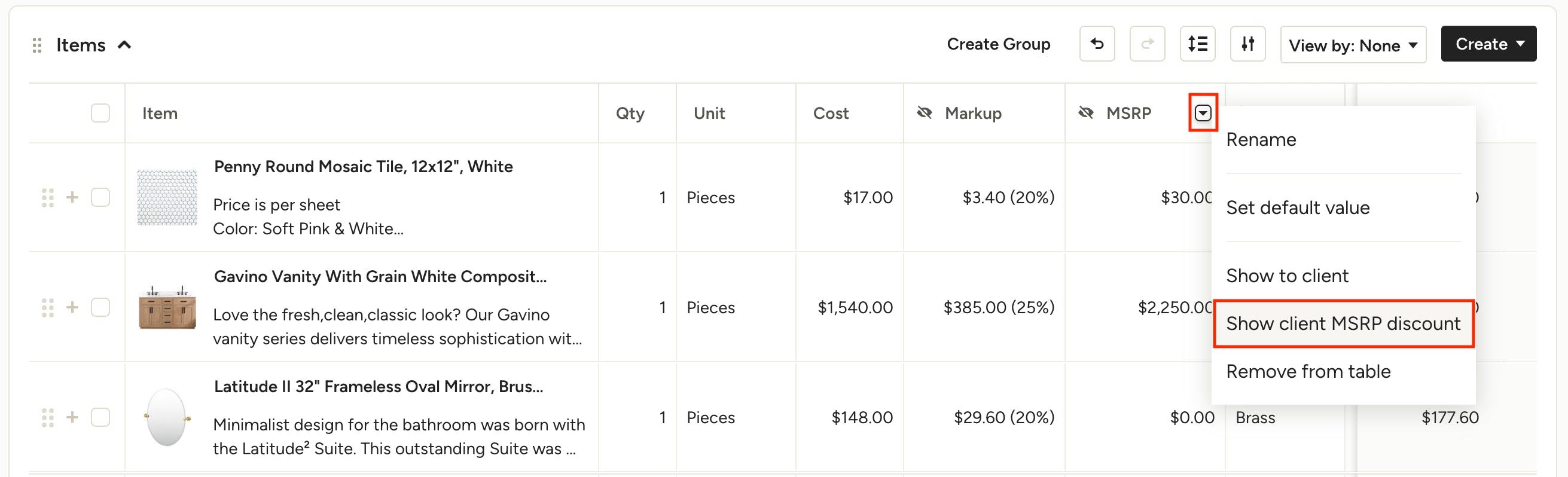
If you have the MSRP column toggled on in column settings, you can choose to show the client MSRP discount directly from it. Using this method will show the MSRP discount on every line item that has a discount. To do so, hover over the MSRP column and click the arrow to open your options. Select "Show client MSRP discount".
Note that the MSRP column is hidden from the client by default. Showing the client MSRP discount will not show the MSRP column itself. If you want to show the MSRP column to the client, click the eye icon at the top of the column, or Show to Client from the column options menu.
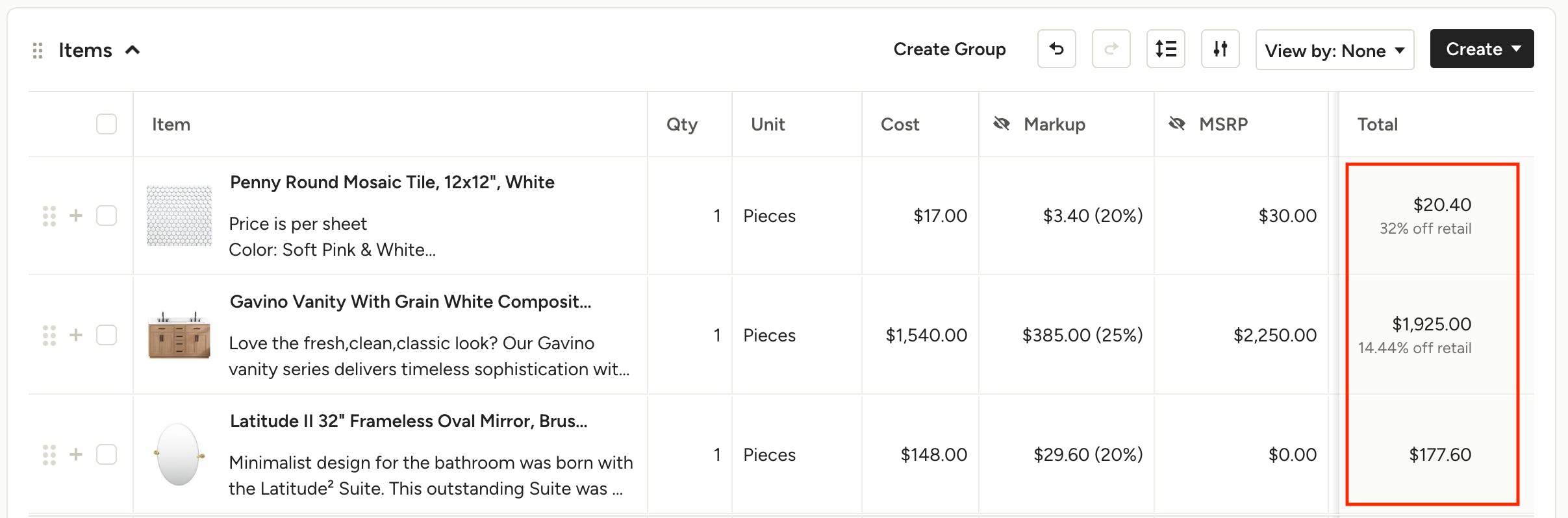
Once set, you will see the discount shown in the relevant item totals on the right as "% off retail". Only items with a client savings off MSRP will show this in the total column.
Hide MSRP Discount from MSRP Column
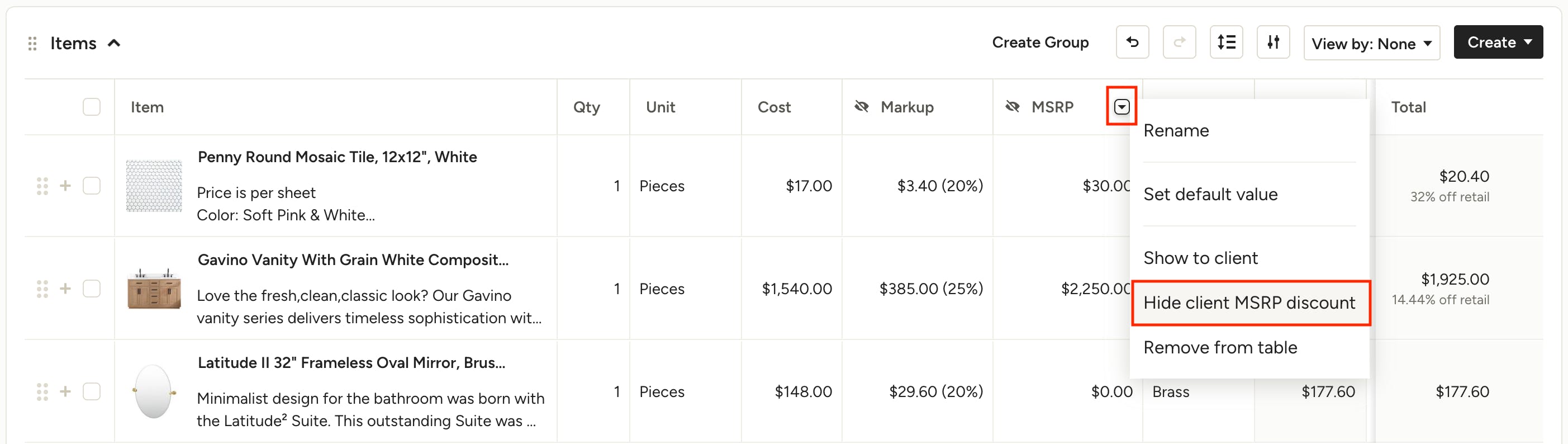
To hide the MSRP discount from a client (after selecting to display) access the edit mode of your proposal, estimate or invoice, click the menu options at the top of the MSRP column, and select "Hide client MSRP discount". This will hide it from all relevant line items in the document.
Client View Settings
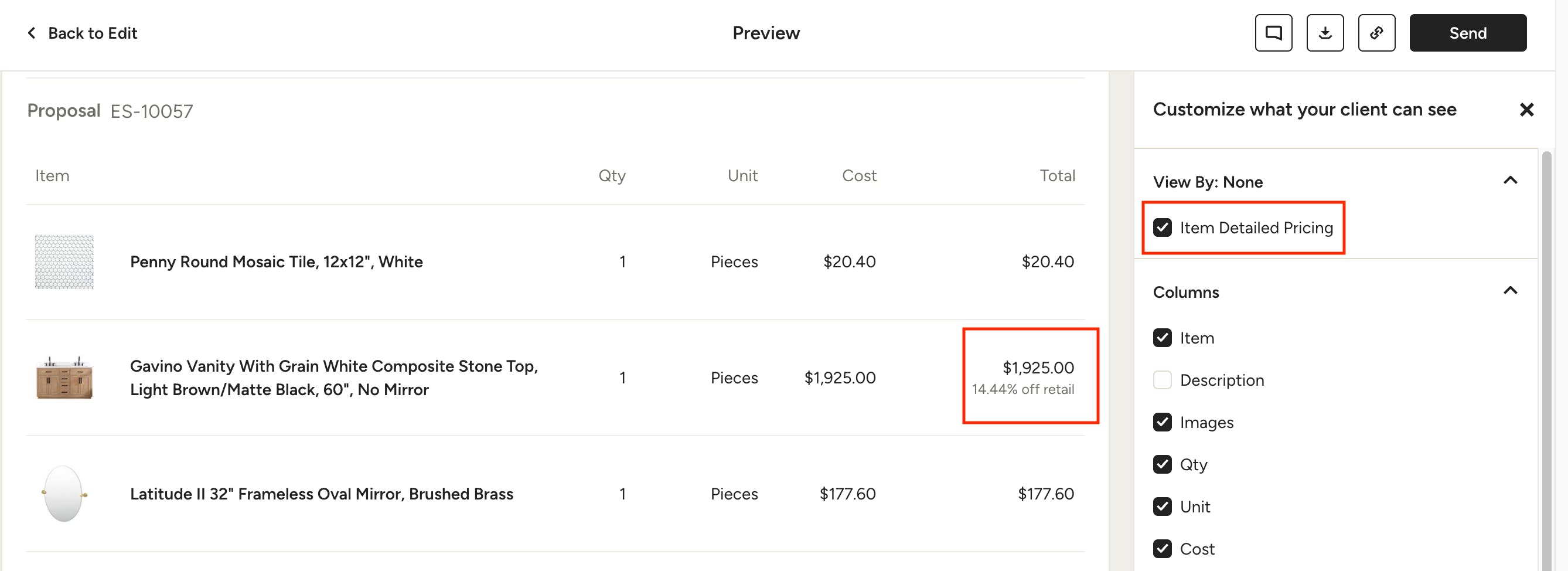
To confirm the MSRP discount is shown when the document is sent to your client, click Preview in the top right of the document. Then, under "Customize what your client can see" on the right, make sure “Item Detailed Pricing” is selected. You will now see the "% off retail" show in the item total(s) that you set this feature for — this preview is what your client will see when you share the document.