How to Turn Off Online Payments
Houzz Pro online payments are an easy, convenient and secure way to streamline your payment process from clients. Setting up online payments is fast and easy — read this article for a step-by-step guide.
If you have already set up online payments but would like to turn it off, there are several ways to do this. You can:
- Turn off the online payment option for all projects
- Turn off the online payment option for a specific project
- Turn off the QR code option for a document
Disable Online Payments for All Projects
If you would like to completely remove the online payment option for all projects, you can do this within the Financials section of your Houzz Pro account. Only admins have the ability to make this adjustment to all online payment settings.
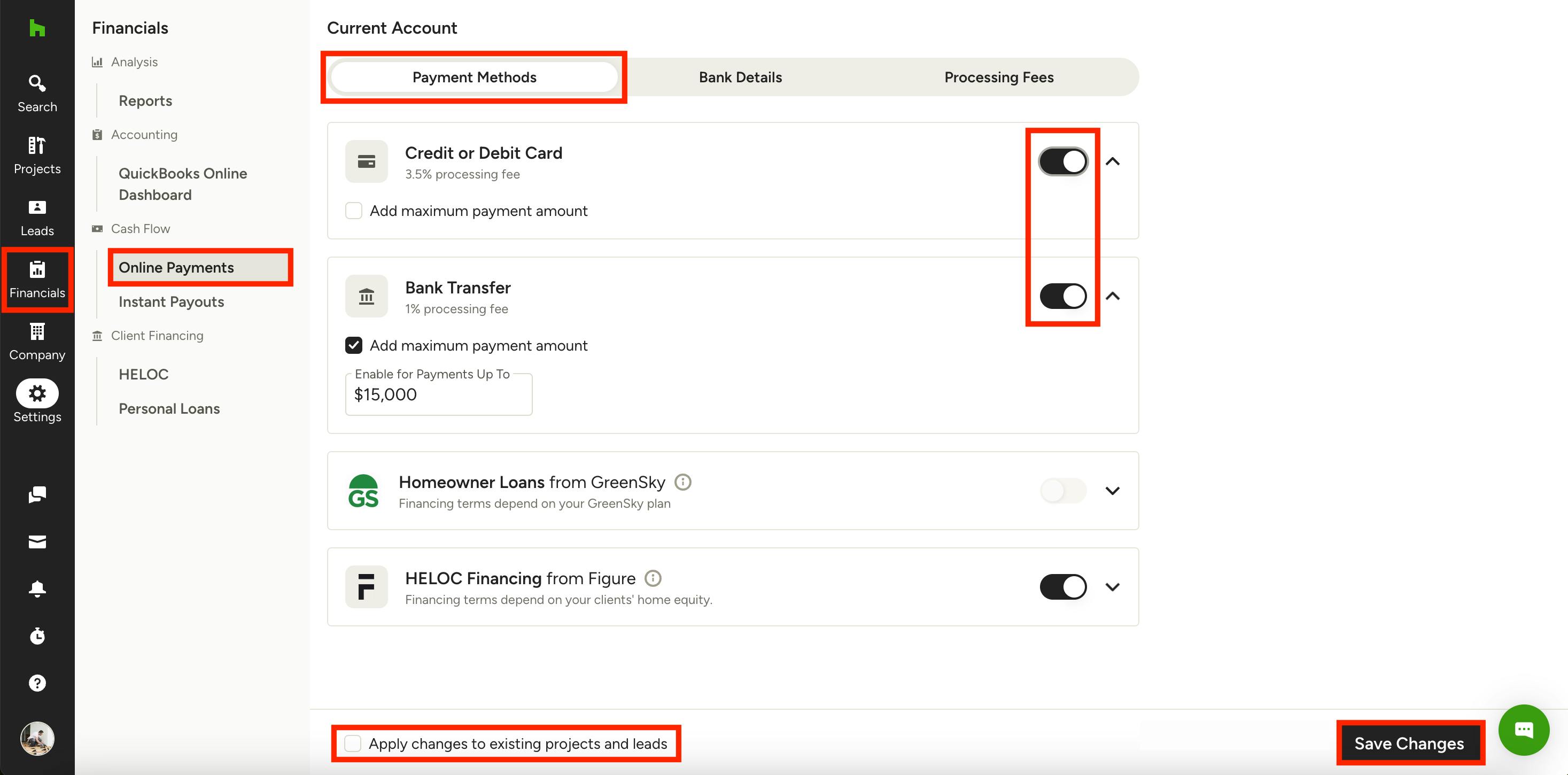
To start, click on the Financials icon in your left menu, then select Online Payments.
Under the Payment Methods tab, there will be a credit card section and an ACH/bank transfer section. If you want to remove both payment types and turn off online payments completely, turn off both the toggles.
By default, your changes will only impact future projects and leads. If you would like to apply changes to existing projects and leads as well, be sure to check the Apply Changes to Existing Projects and Leads box at the bottom of your screen.
Once complete, click Save Changes at the bottom.
Disable Online Payments for an Individual Project
If you would prefer to turn off online payments for an individual project instead of on a broader company level, you can do this within the project settings.
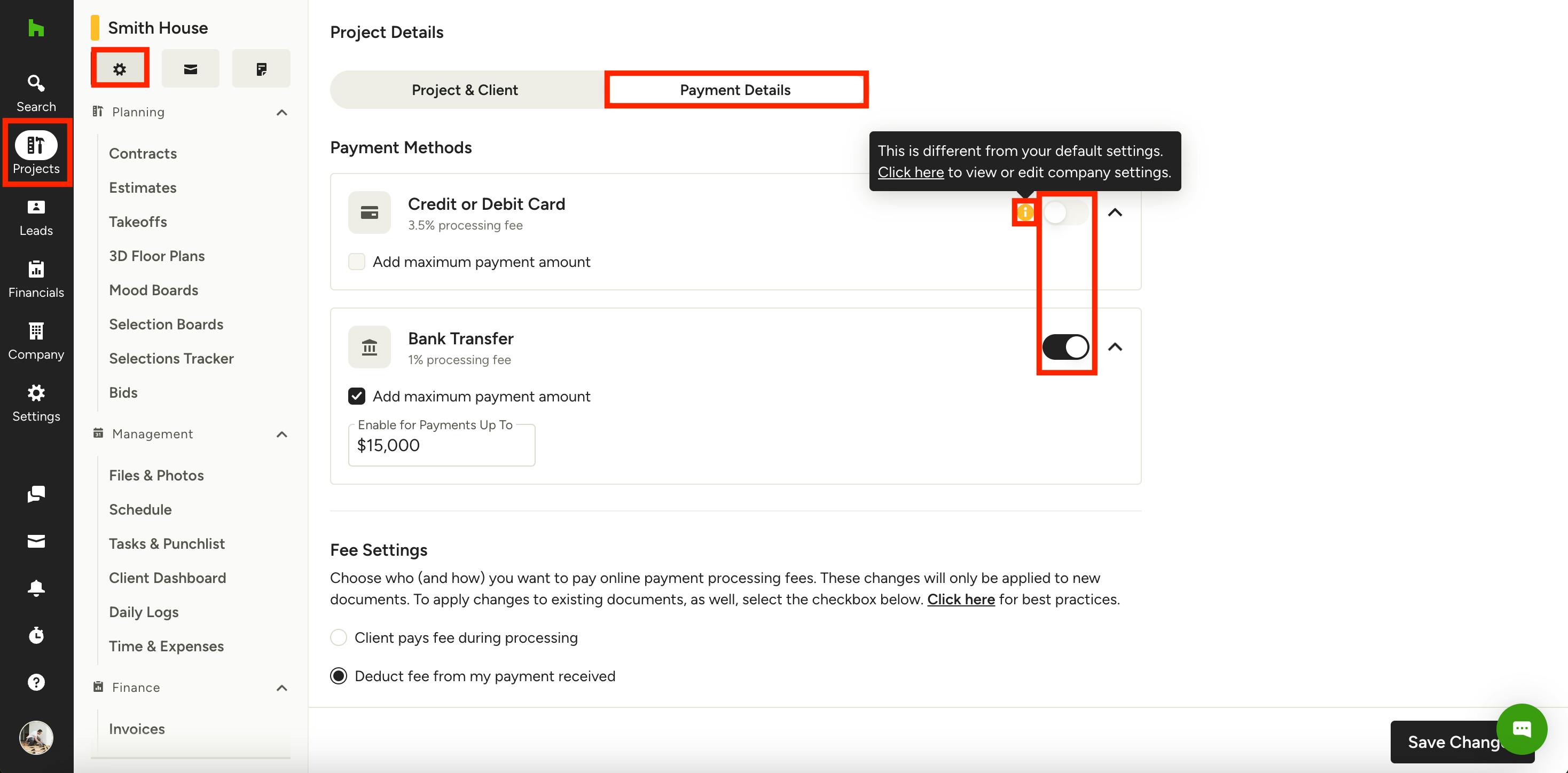
To start, click on the Projects icon in your left menu, then select the relevant project.
Once on the project overview page, click the gear icon at the top left of the page to edit project details. At the top of page, select the Payment Details tab.
Under the Payment Details tab, there will be a credit card section and an ACH/bank transfer section. If you want to remove both payment types and turn off online payments completely, turn off both the toggles.
Once complete, click Save Changes at the bottom.
As a reminder, changes made here will only impact that one project. If your payment method for this project differs from your default company settings, you will see a small i icon appear to notify you of the discrepancy. If you would like to view or edit your company-level payment methods, hover over the i icon, then select Click Here in the pop-up.
How to Disable QR Codes on Documents
If you have online payments enabled, QR codes are included on all PDF versions of documents for a quick and easy payment option. If you want to keep online payments active but prefer that clients don't have the option to pay by QR code, you can just remove the QR code from your document settings.
This will need to be done manually for each document — you can't turn off QR codes across all projects and documents.
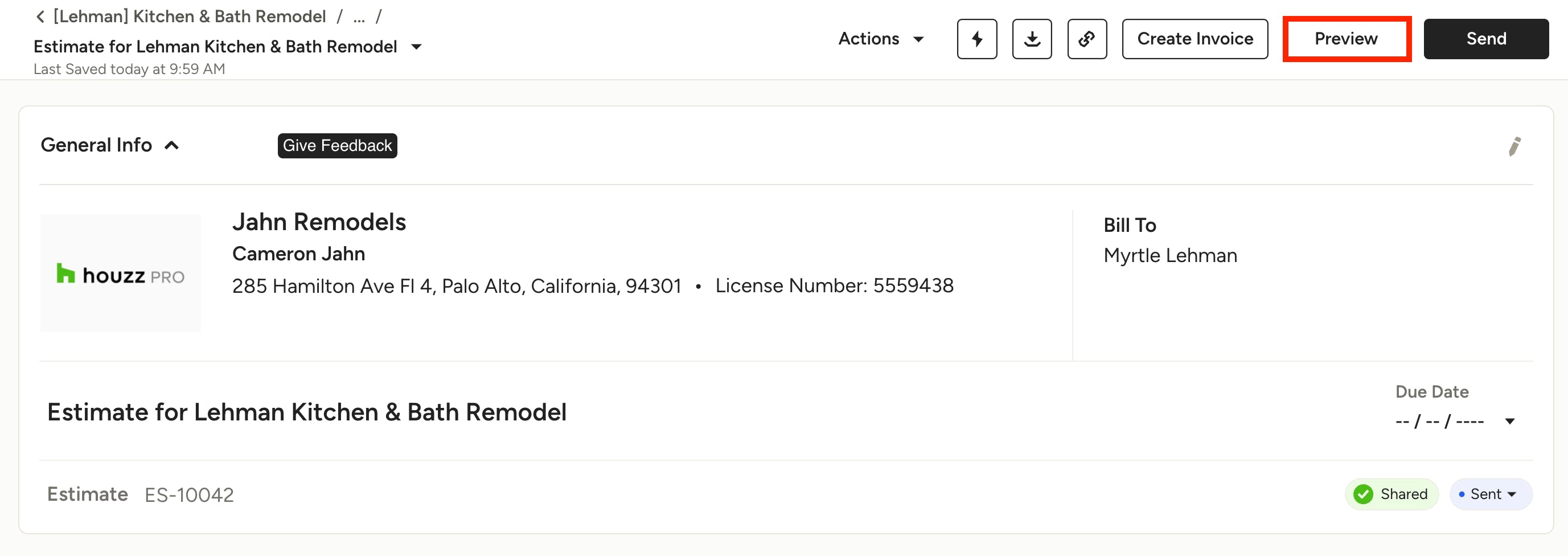
To start, open up the relevant document, such as an estimate, proposal or invoice. Select Preview in the top menu next to Send.
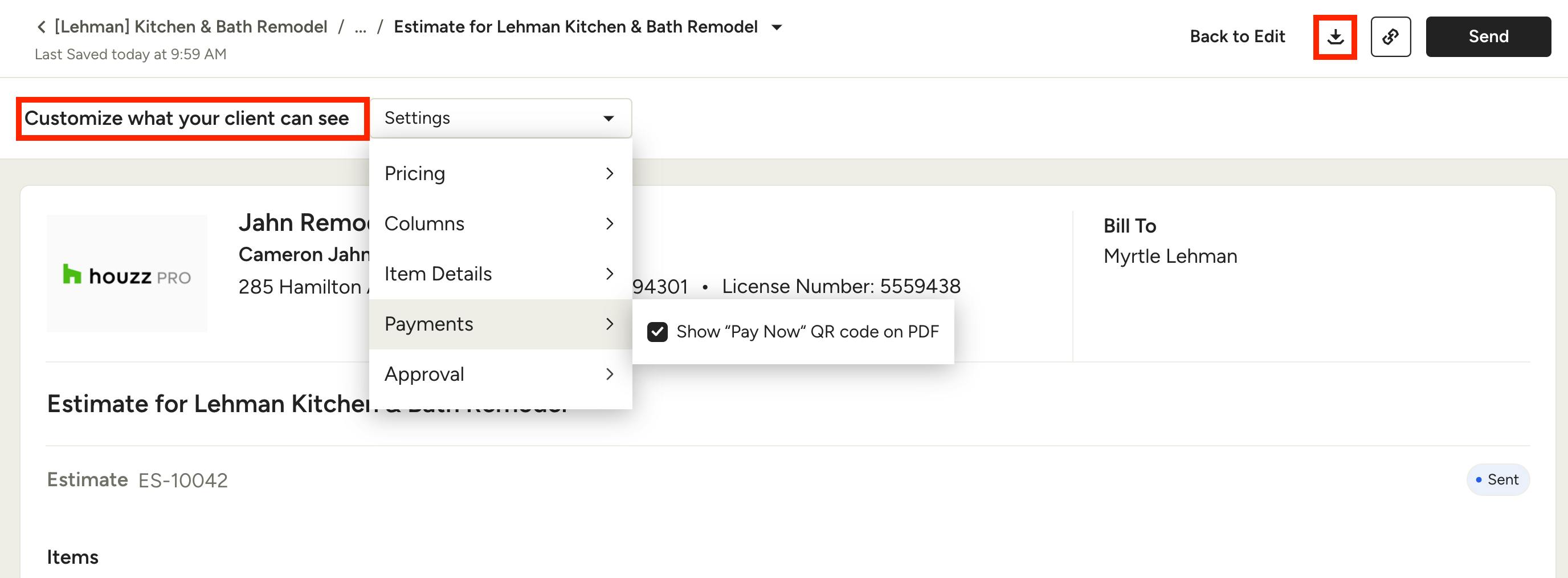
In the Customize What your Client Can See dropdown menu, find the Payments section. Under here, you will see an option to Show "Pay Now" QR Code on PDF.
If you check the box, a QR code will be included in the PDF of your document.
If you uncheck the box, a QR code will not be included in the PDF of your document.
Your changes will save automatically. To make sure that the QR code is not appearing, be sure to click the Download button at the top of your document to preview the PDF format.
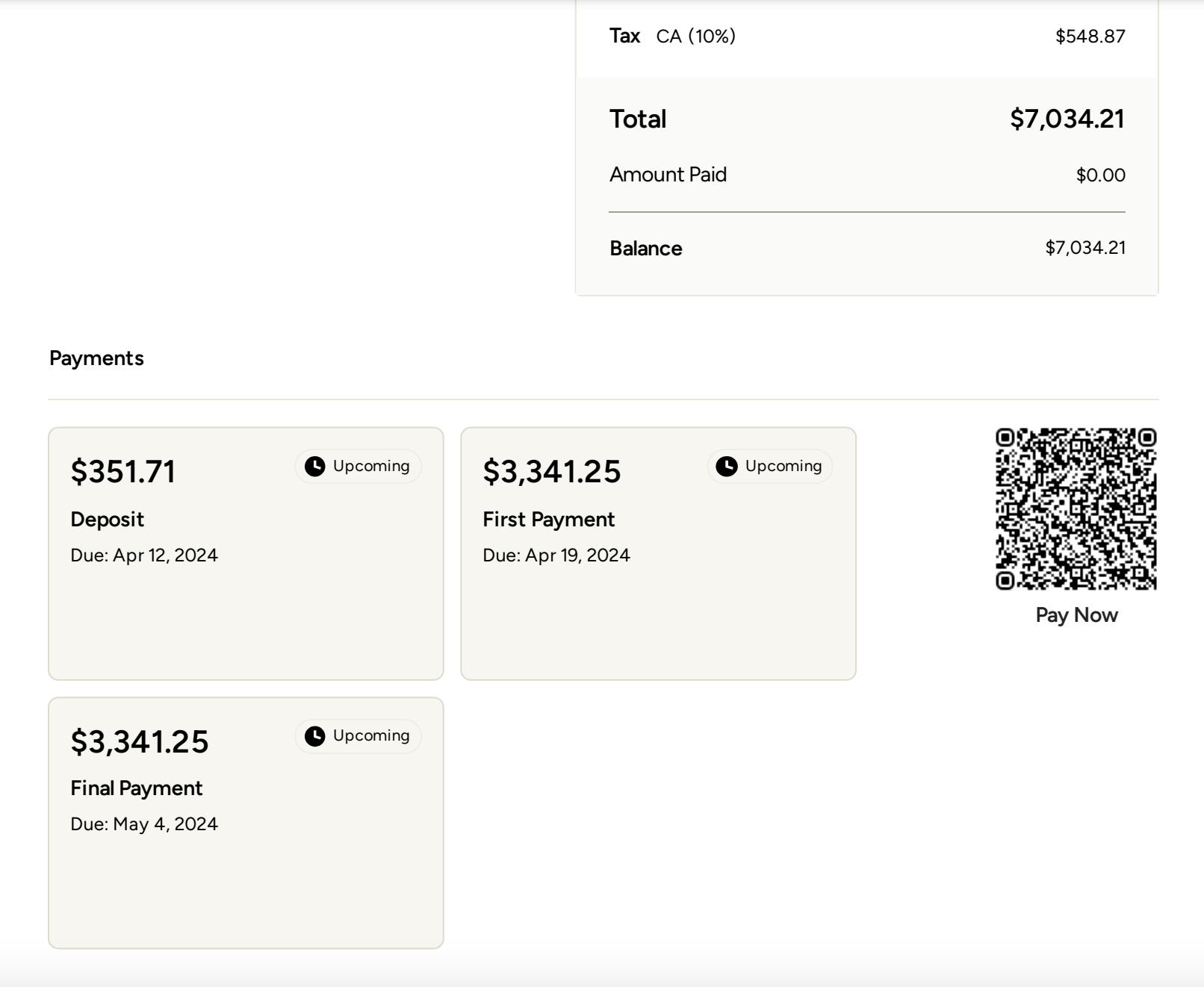
If you select to show a QR code, it will appear under the payment section of your document.
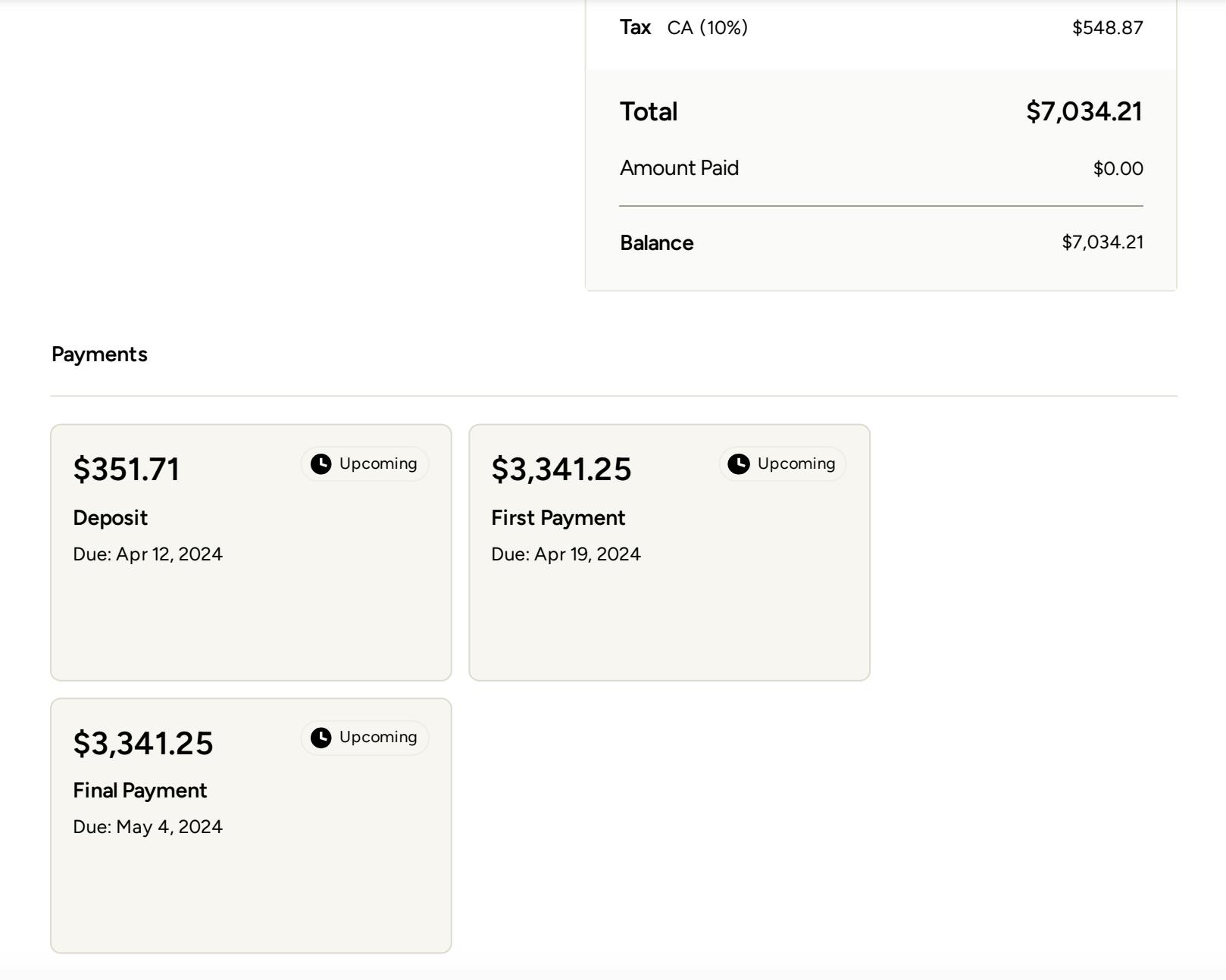
If you select to not show a QR code, it will not appear under the payment section of your document.