How to Handle Refunds
You cannot issue refunds directly in Houzz Pro. To refund a client you will need to return the funds outside of the platform in the method that works best for you and the client. However, you still need to ensure the proper steps are taken to account for any refunds correctly within Houzz Pro.
First, create a credit memo or overpayment for the item(s) that is being refunded. See How to Create a Credit Memo and How to Create Overpayments for detailed steps. You can also refund a paid retainer.
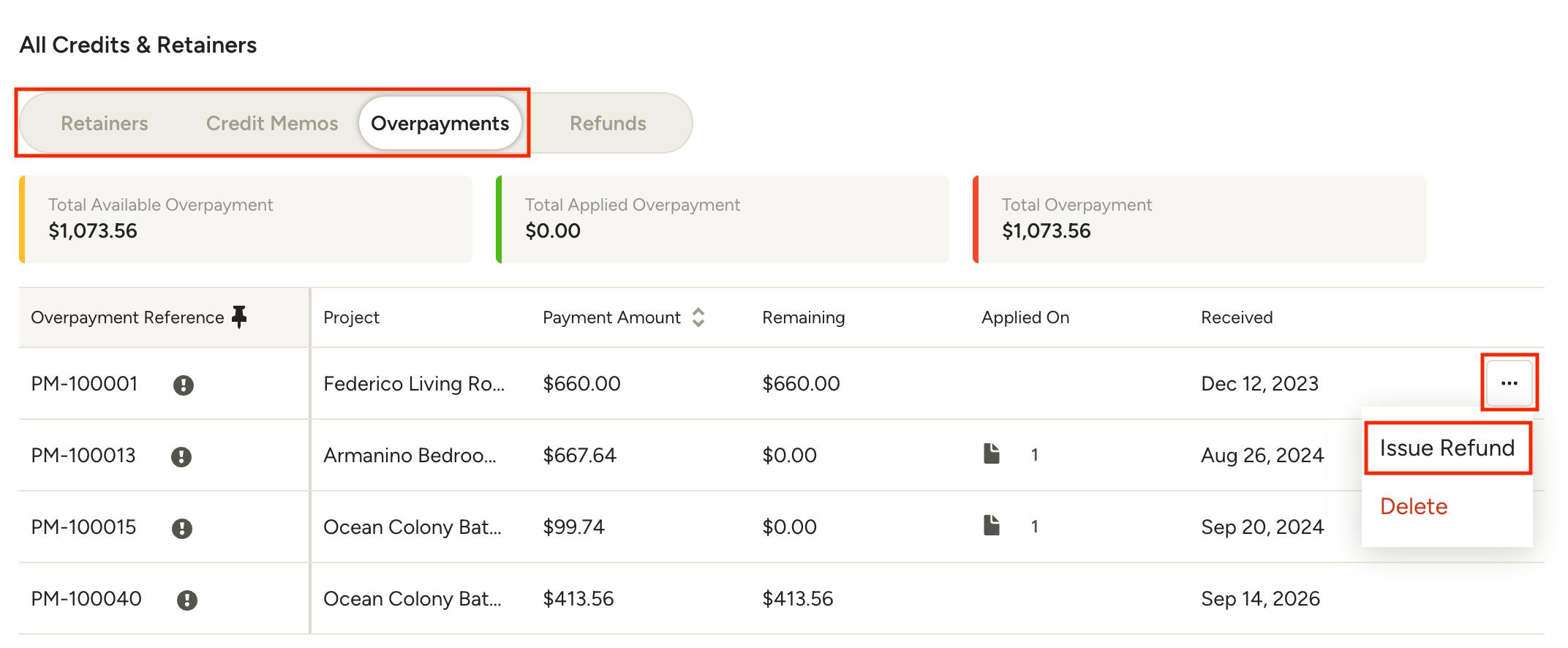
Once the credit memo, overpayment or retainer is created within Houzz Pro, locate it in the Credits & Retainers section found in the left-hand menu on project overview page, or the All Credits & Retainers page. Click the relevant tab at the top of the page, depending on what you are refunding.
Credit Memos must refunded directly from their document — learn how here.
Overpayments and Retainers can be refunded from their respective tabs. Next to the overpayment or retainer you are refunding, click the three dots on the far right, then select Issue Refund from the menu.
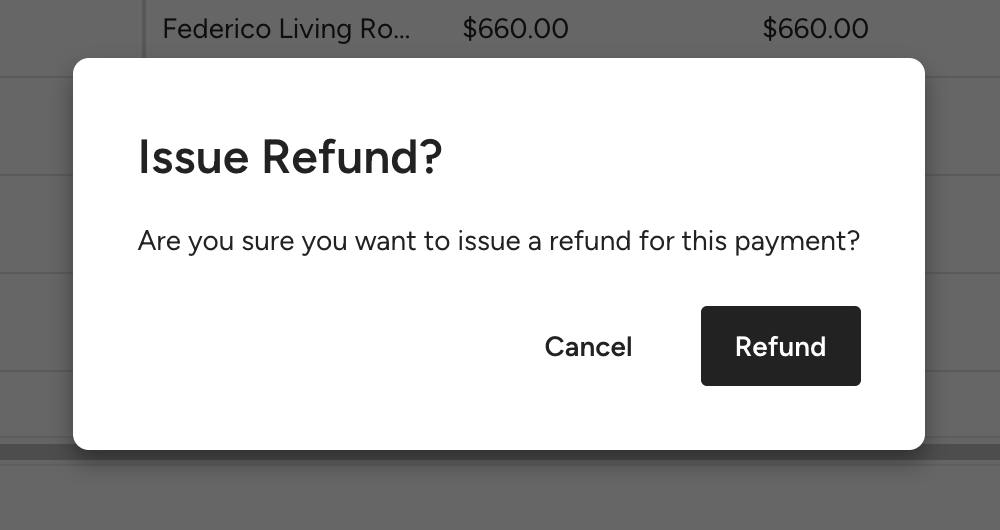
Click Confirm on the pop-up. This does not send any funds back to the client, it is only for record-keeping purposes.
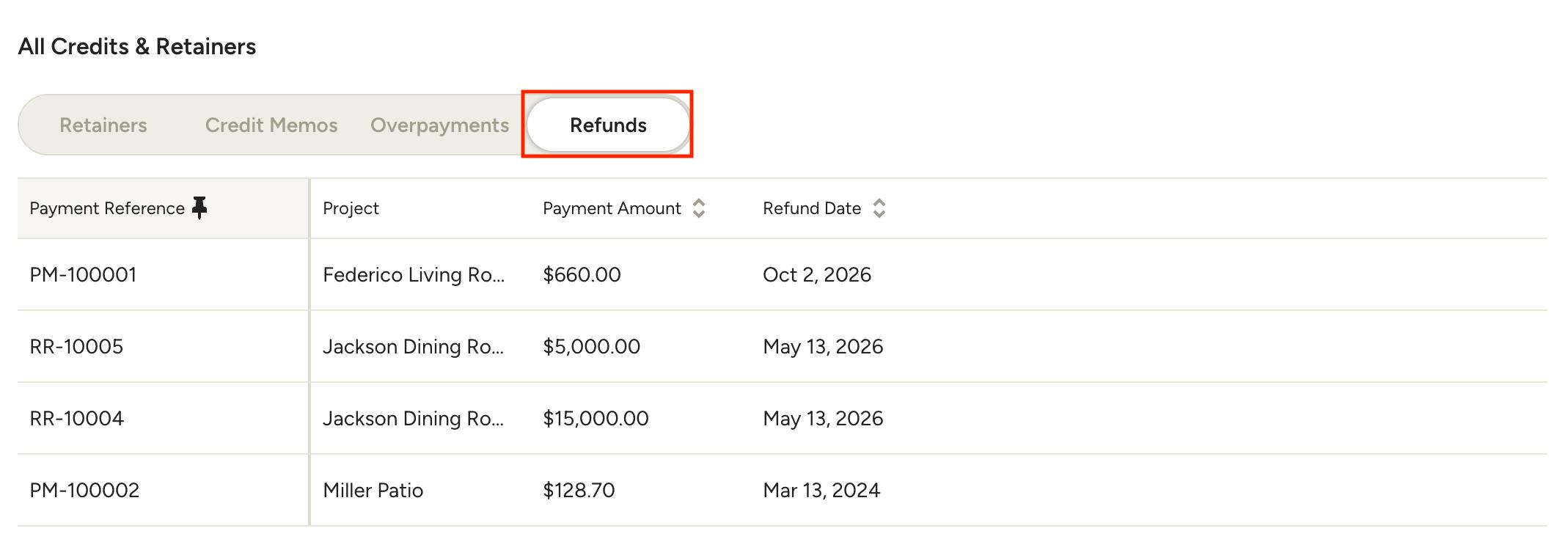
Switch to the Refunds tab at the top of the page and you will now see a record of your refund, including payment reference, amount and date.
Important final step: Return the funds to the client outside of the Houzz Pro platform, via check or other preferred method.