How to Integrate Houzz Pro With QuickBooks Online: Complete Guide
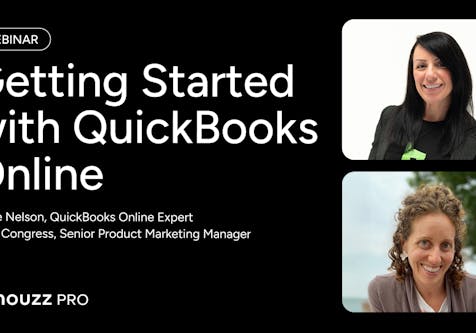
This webinar provides a detailed, step-by-step walkthrough on integrating Houzz Pro with QuickBooks Online to streamline financial management and bookkeeping.

The Houzz Pro-QuickBooks Online integration operates through a seamless one-way synchronization, pushing project estimates, proposals, invoices, purchase orders, vendor payments, and client receipts directly from Houzz Pro into QuickBooks.
This webinar covers the necessary pre-integration settings in QuickBooks Online, chart of accounts and category mapping, historical data syncing, bank feed transaction matching, and troubleshooting unsynced items to eliminate manual double data entry while keeping project-level and company-wide accounting aligned.
Some key insights and takeaways include:
- One-way sync architecture: The integration operates strictly one-way from Houzz Pro to QuickBooks Online. All project-related documents, invoices, payments, and client edits must be managed inside Houzz Pro, which then automatically updates QuickBooks.
- Recommended QuickBooks subscription: Houzz Pro connects with all versions of QuickBooks Online, but QuickBooks Online Plus (or higher) is recommended to enable Purchase Order (PO) syncing.
- Critical QuickBooks pre-integration setup: Before connecting, users must turn on Shipping (under Sales settings) for accurate sales tax calculations, enable Purchase Orders (under Expense settings), configure Automated Sales Tax, and disable all Automation features in QuickBooks Online to prevent QuickBooks from automatically applying credits or unapplied payments to older invoices.
- Granular account and category mapping: Houzz Pro allows detailed mapping of checking, deposit, credit card, and accounts payable accounts. Users can also map specific project categories (e.g., electrical, flooring) or cost codes to distinct QuickBooks Online income and expense accounts for detailed Profit & Loss (P&L) reporting.
- Historical data syncing: Users can set a custom historic sync date within Houzz Pro to retroactively push project financials, payments, and documents created prior to establishing the QuickBooks Online connection.
- Centralized sync dashboard: Houzz Pro includes a built-in QuickBooks Online Sync Dashboard that displays the real-time status of all documents (Complete, Pending, or Error), offers manual sync controls, and provides detailed error messages for self-service troubleshooting.
- Client and project hierarchy: Clients synced from Houzz Pro appear as top-level customers in QuickBooks Online, while individual projects associated with those clients are nested directly beneath them as sub-customers.
- Bank feed matching (avoiding duplicates): When reviewing downloaded transactions in QuickBooks Online's bank feed, users must match bank deposits or vendor payments to the synced Houzz Pro records rather than adding/categorizing them again, preventing duplicate accounting entries.
- Processing fee reconciliation: Online payments where credit card processing fees were deducted can be reconciled in QuickBooks Online's bank feed using the "Resolve Difference" tool to code the processing fee directly to a "Bank Charges & Fees" expense account.
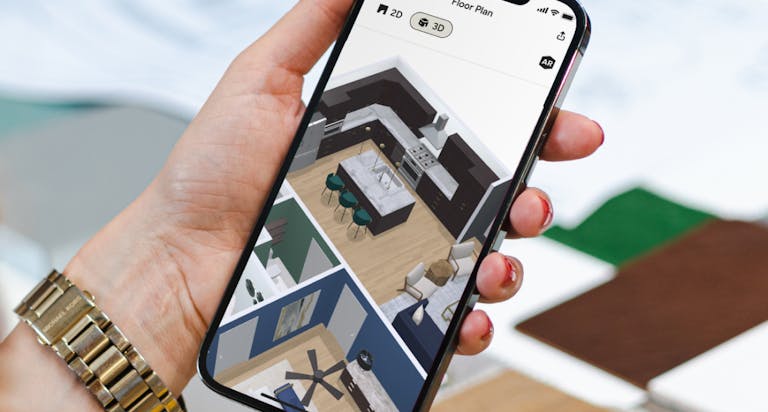
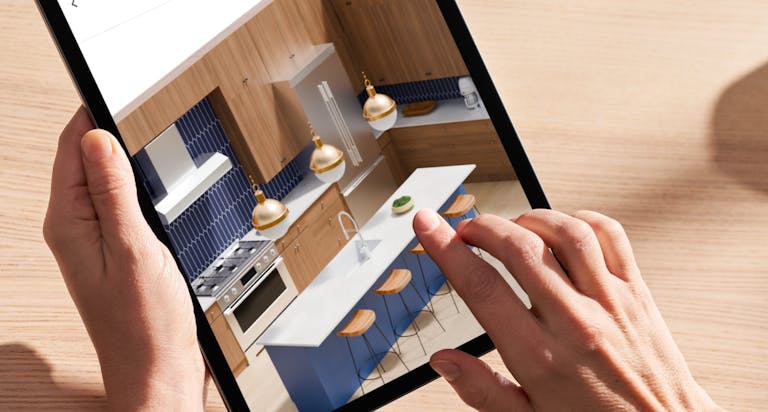
- Distinct roles for each platform: Houzz Pro serves as the front-end project management hub (client communication, estimations, mood boards, 3D floor plans, and project finances), while QuickBooks Online handles full-business financial operations (company overhead, payroll, tax reporting, and balance sheets).
Watch the video here


Want advice delivered to your inbox?
Unlock industry insights and updates for contractors and design pros
By signing up, I agree to the Houzz Terms of Use and Privacy Policy and that Houzz may use my information to contact me about relevant content, products, and services.