Where to Use Cost Codes in Houzz Pro
Using cost codes in Houzz Pro is an easy way to create an organized, consistent system for tracking project costs. By standardizing your cost tracking, they provide a clear picture of your finances so you can compare budgets, track actuals, and analyze performance over time.
Within Houzz Pro, cost codes integrate with multiple features, including Financial Documents, Selections, Time & Expenses, Budget and QuickBooks Online. If you are using cost codes for the first time, you will need to enable them first. Read How to Set Up Cost Codes in Houzz Pro to learn more. Once enabled, you can start incorporating them into your Houzz Pro workflow.
Let’s take a look at how cost codes work with each feature in Houzz Pro.
Cost Codes in Financial Documents
Cost codes are available to use within all Houzz Pro financial documents, including estimates/proposals, invoices, change orders, and purchase orders. You can manually add them to every document, or you can save time and create a template that includes cost codes. To learn more, read How to Save Your Estimates as Templates.
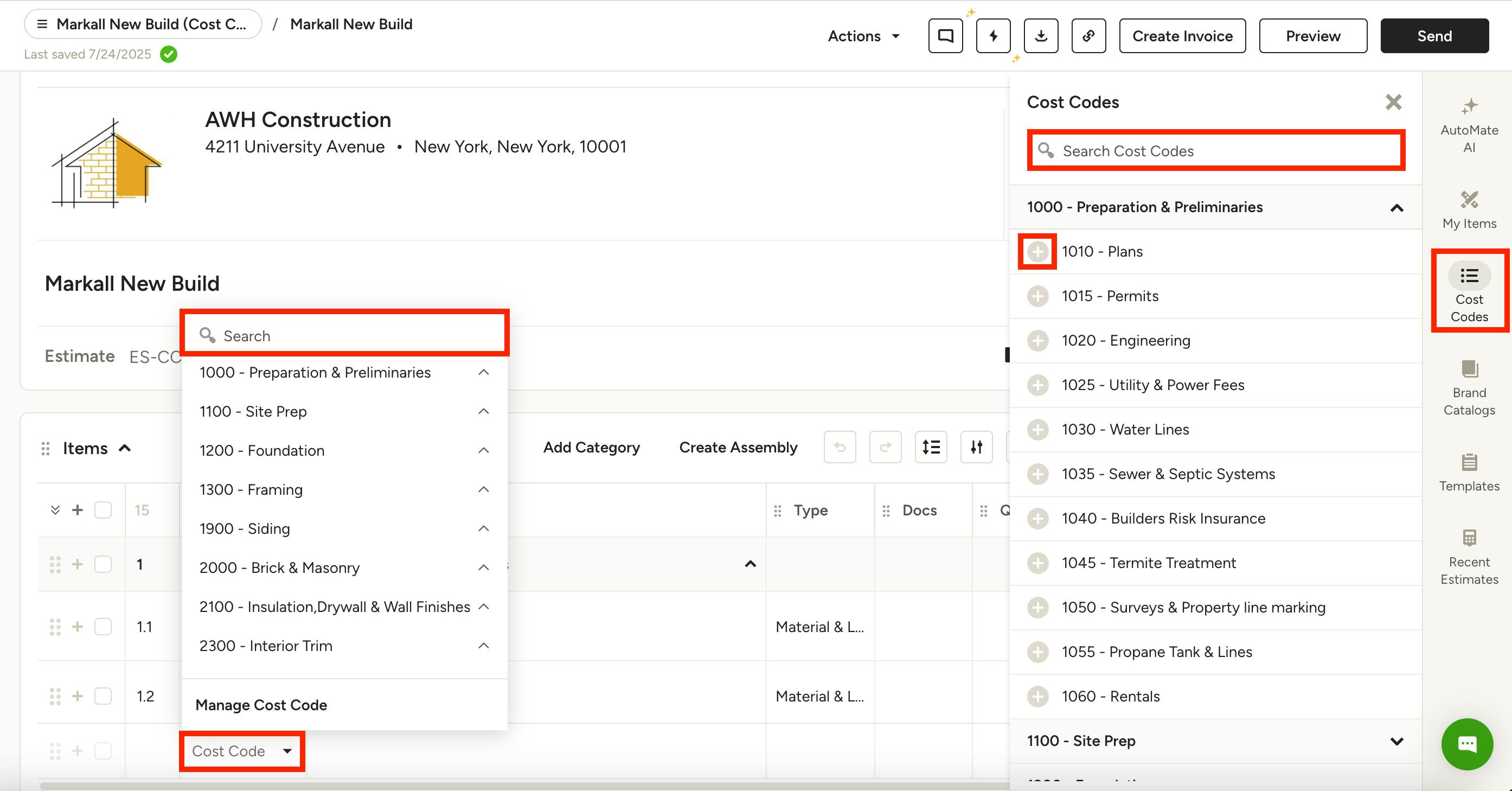
To start adding cost codes, open up a new or existing document. From the right menu, select the Cost Codes icon. Your existing cost codes list will appear. To add a cost code to your document, click the plus icon to the left of the relevant cost code, or input a new line item at the bottom of the document. In both instances, you can either select directly from the dropdown list, or you can use the search bar to find a specific cost code name or number.
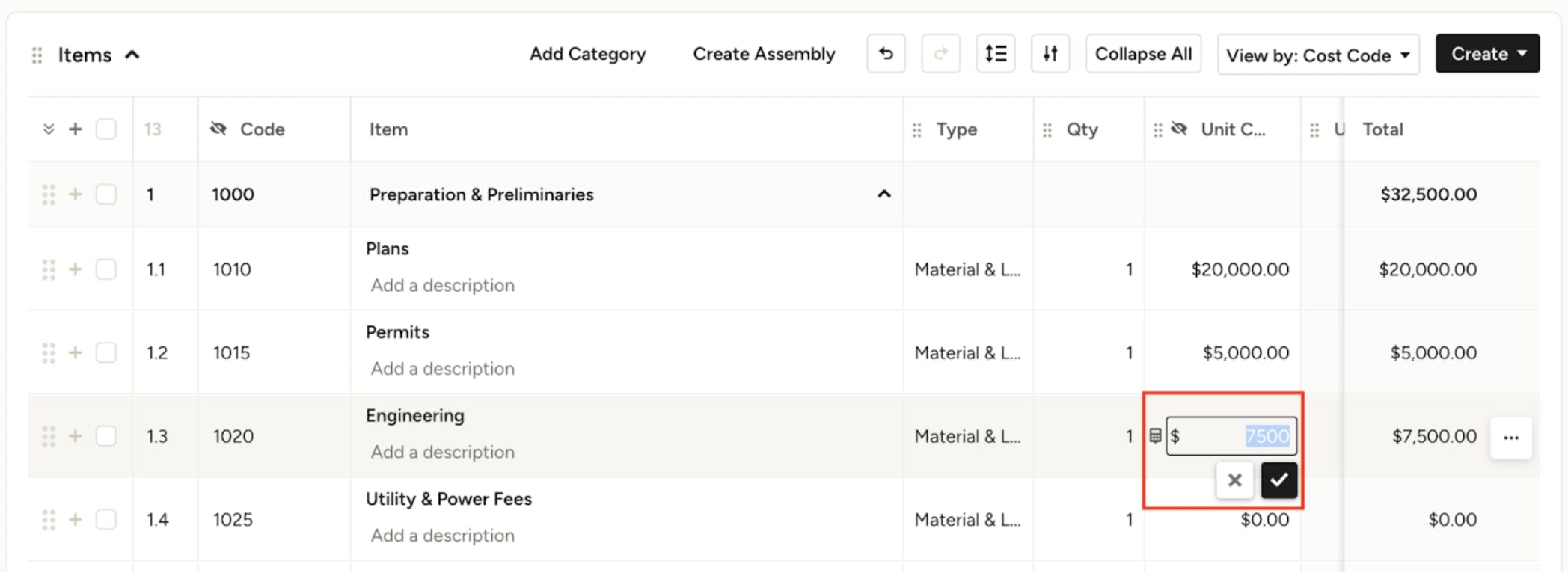
Once added to your document, you can edit the item description, type, costs, quantity and more as needed.
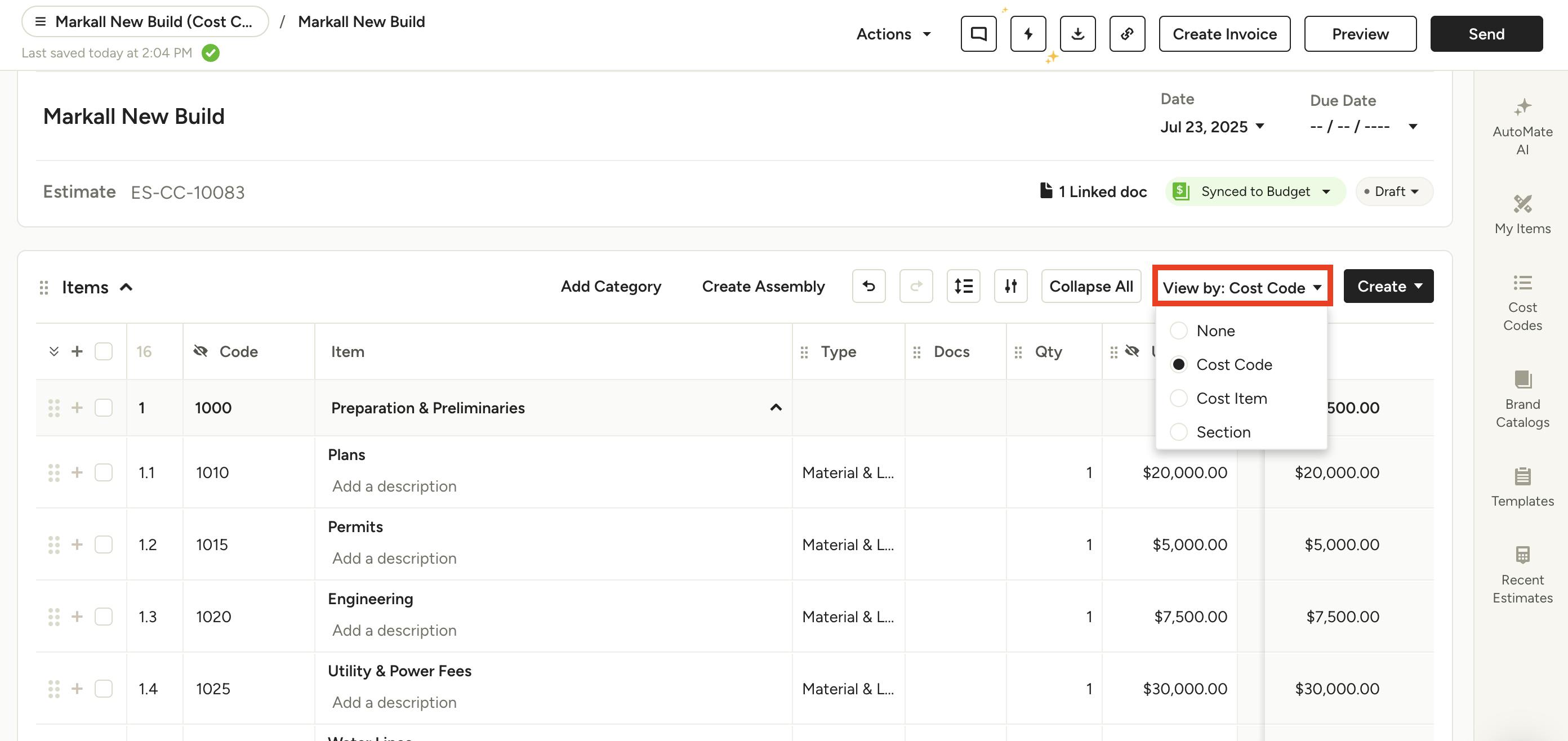
You can use the View By filter at the top to change how the items in your document are organized — by Cost Code, Cost Item, Section or None. During cost codes set up, you chose whether you prefer to Estimate by Cost Code or Cost Item; your View By setting should reflect that preference for consistency. If for a certain project you want to estimate by the alternate method, you can change the View By on any estimate to Code Code or Cost Item to reflect that method.
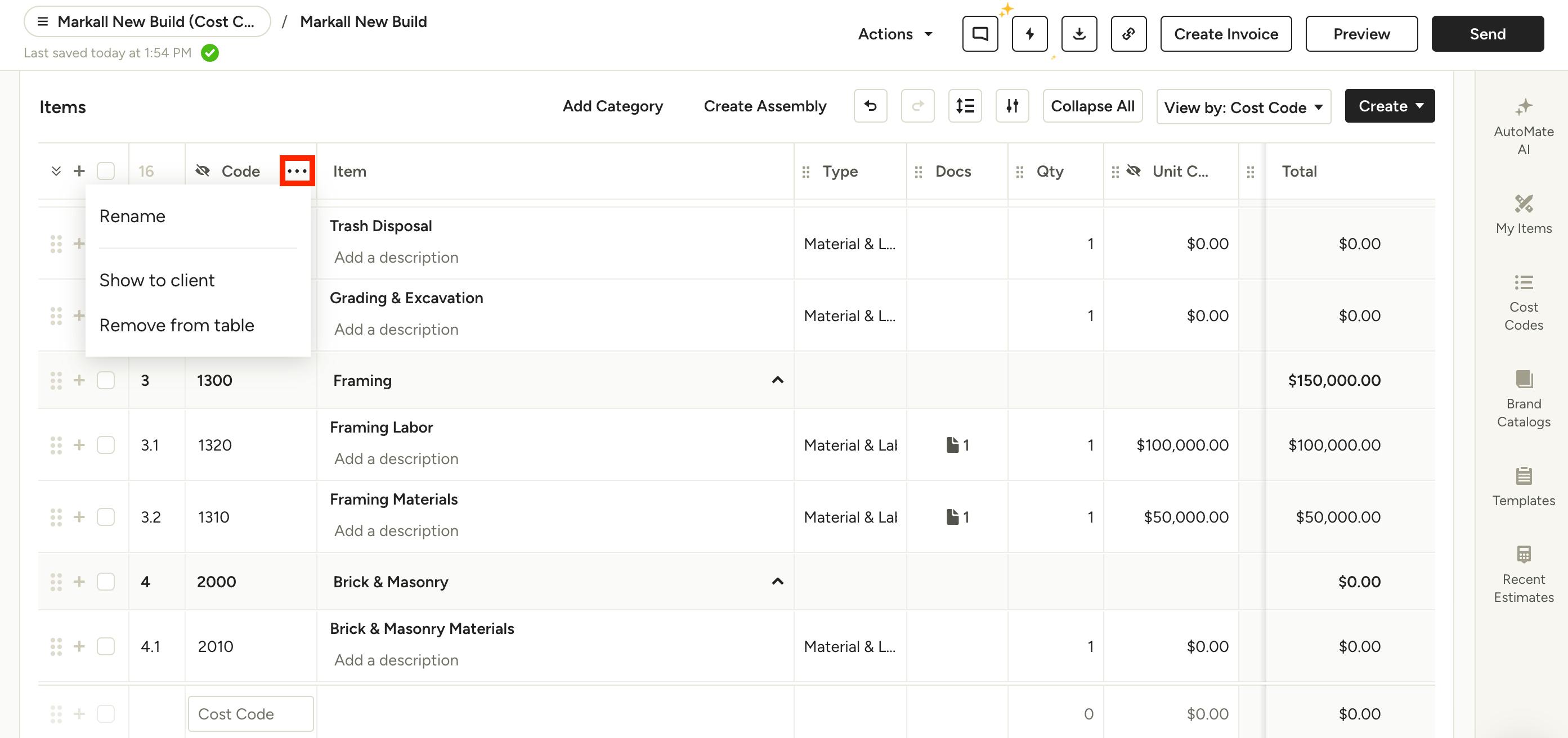
By default, the cost code column in documents will only be visible to you. If you would like to show that column to your client, click the three dots icon next to the column name, then select Show to Client from the dropdown menu. Here, you can also rename the column or remove it from the table completely.
Cost Codes in Selections
Once you get into the design process for your project, where you are working with specific selections (fixtures, materials etc.), you can use cost codes to organize everything. Instead of organizing your items by Categories, you will have your items organized by Cost Code. This will make it easy to sort and view items in the Selections Tracker, like selections that are pending approval for any chosen cost code, as well as quickly create FF&E schedules to share with clients and field crews according to their trade. Let’s take a look at how to view and assign cost codes in the tracker, and how to filter and sort for exporting.
View & Assign Cost Codes
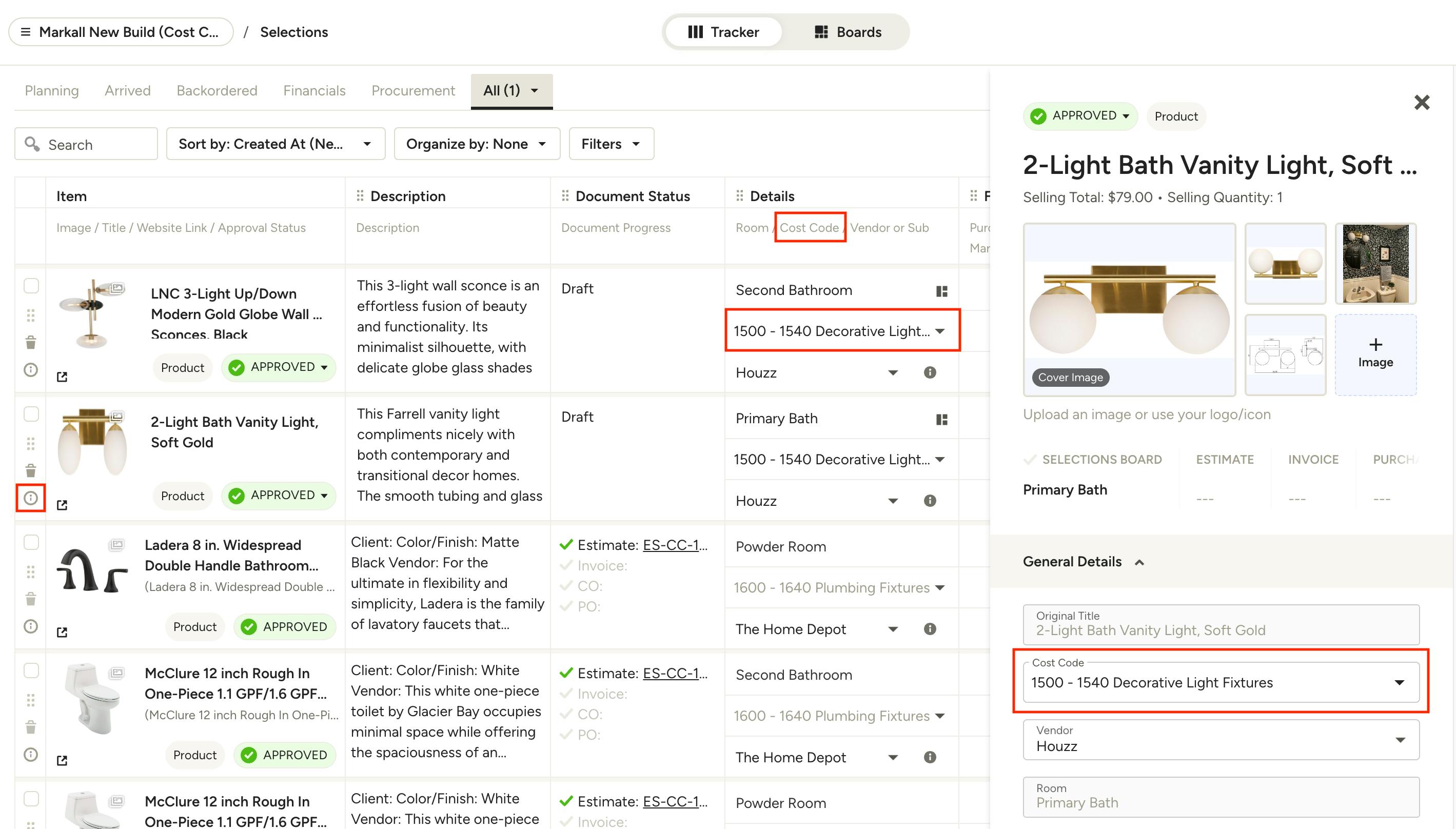
Depending on how items are added to the Selections Tracker, whether via Clipper, Selection Boards, or estimates, they may or may not already be assigned to a cost code. Cost codes can be found under the Details column, as well as in the item overview which is accessible via the info icon to the left of each item. You can set or change the cost code on items that are in Draft status, but items that are already in process must be changed from their linked document, found in the Document Status column. You can also quickly manage items assigned cost codes in mass from the My Items page.
Filter & Sort By Cost Code
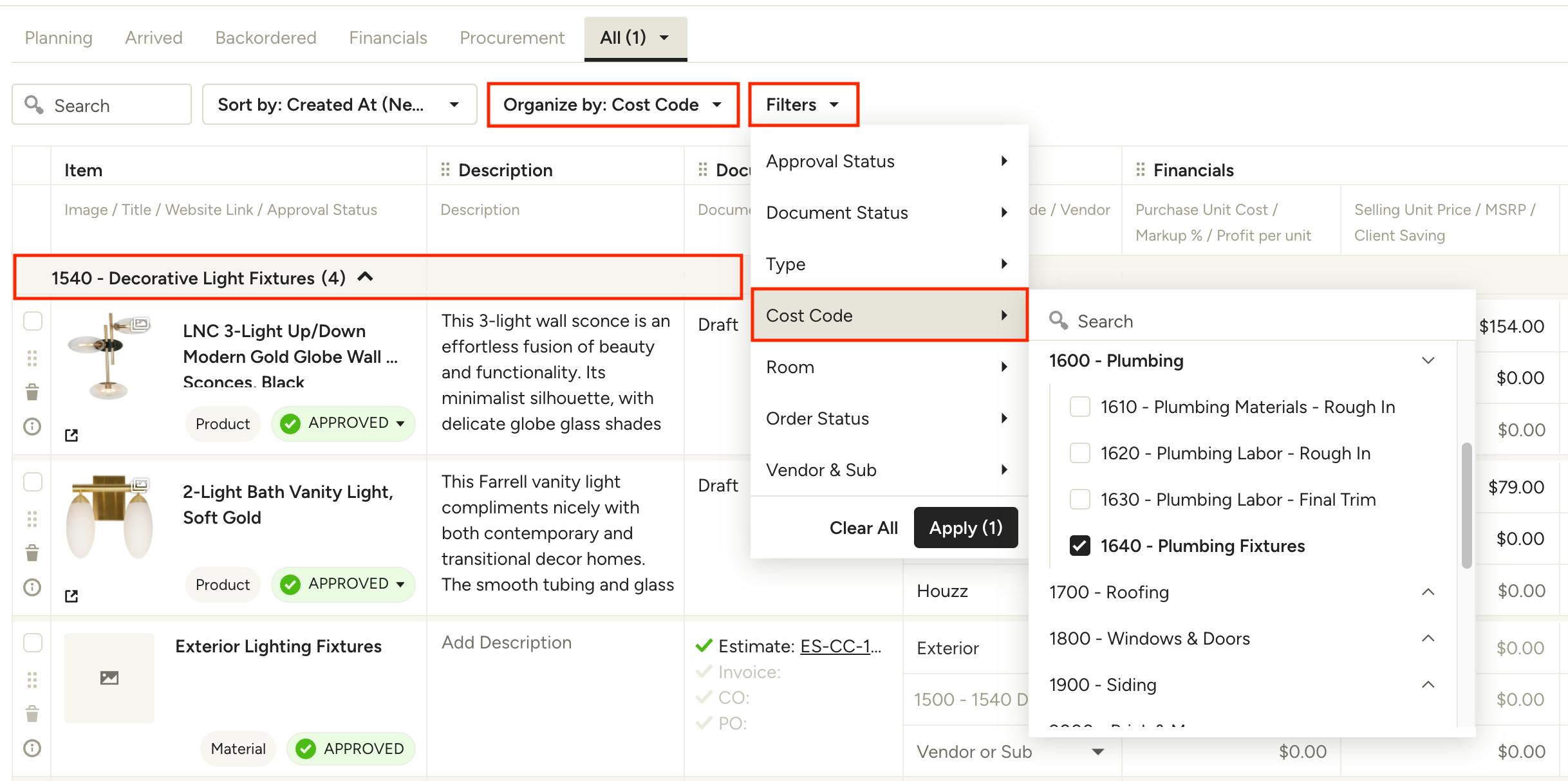
To sort your selections by cost code, you can use the Organize By dropdown and select Cost Code. You will see them sorted into sections under their codes for easy viewing. If you want to filter selections to only show specific cost codes (this is handy for exporting certain cost codes for relevant field crew) use the Filters dropdown, select the desired cost code(s) and click Apply.
Pro tip: Combine the Code Cost filter with the Approval Status filter to see pending items for a certain trade that need to be reviewed for approval.
Export FF&E Finish Schedules
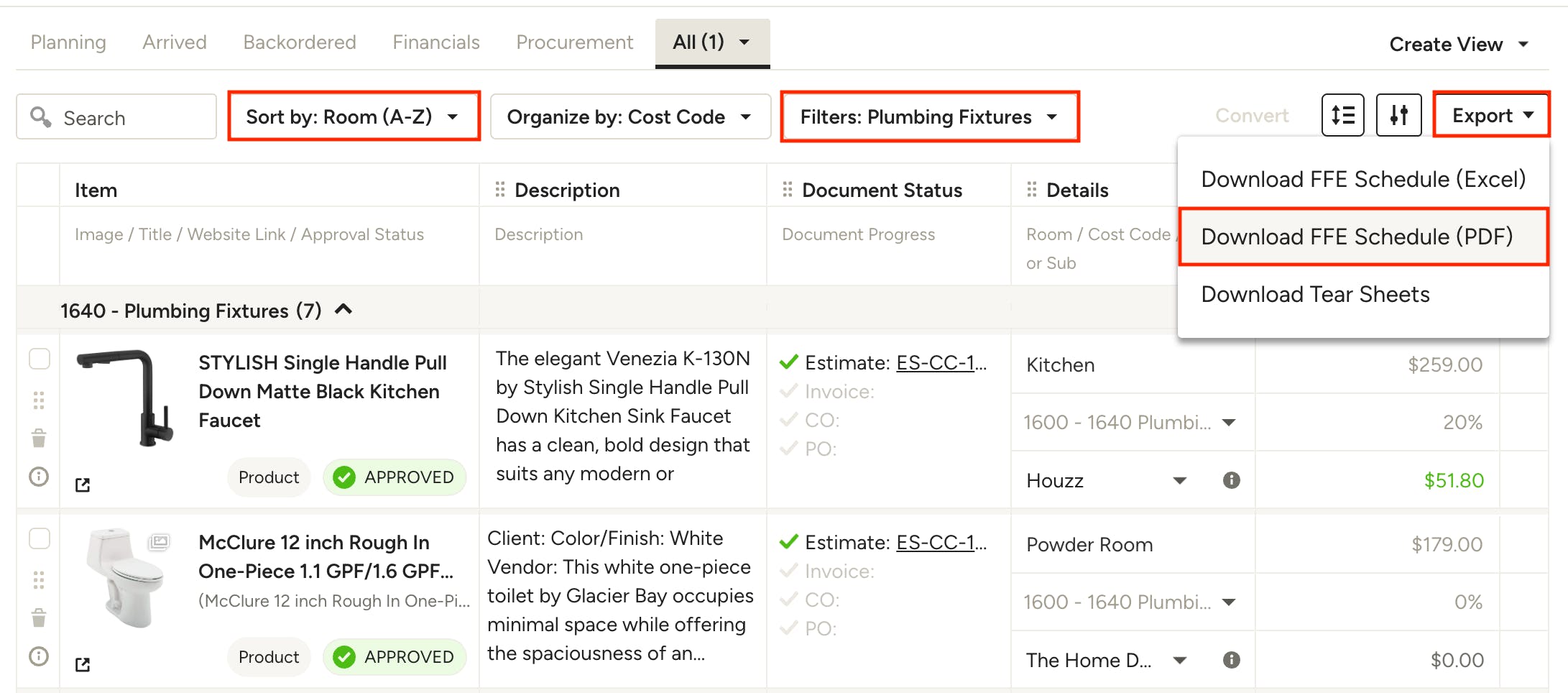
To create FF&E or finish schedules that are tailored to each subcontractor or field crew, use the filters to narrow down the relevant cost code (ex: Plumbing Fixtures). You can then use the checkboxes to the left of the items to select specific ones, or leave them unchecked to export all items in the current view. Next, choose Download FFE Schedule (PDF) from the Export menu.
Pro tip: Use the Sort By dropdown to sort by Room or Title depending on the order you want your items in.
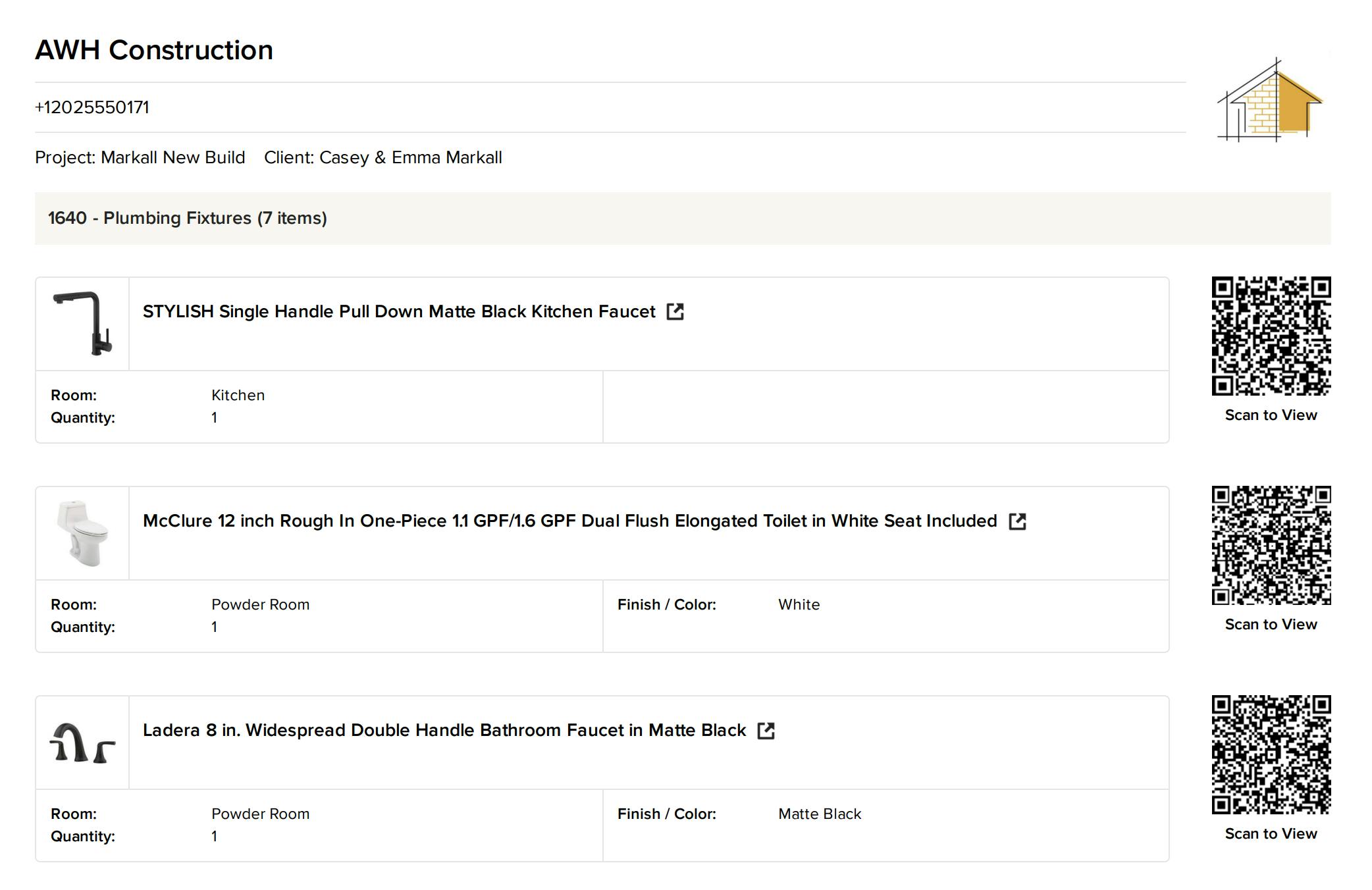
In the export options modal, customize exactly what you want to see in the FFE schedule. In addition to title and image, it can be helpful to include things like Room, Finish/Color, Quantity, and Product Link/QR code so your crew knows exactly what goes where and has access to any necessary product specs and install guides. Once you’ve made your customizations, click Download. You can then email it as an attachment or print and share a copy with the relevant stakeholders.
Cost Codes in Time & Expenses
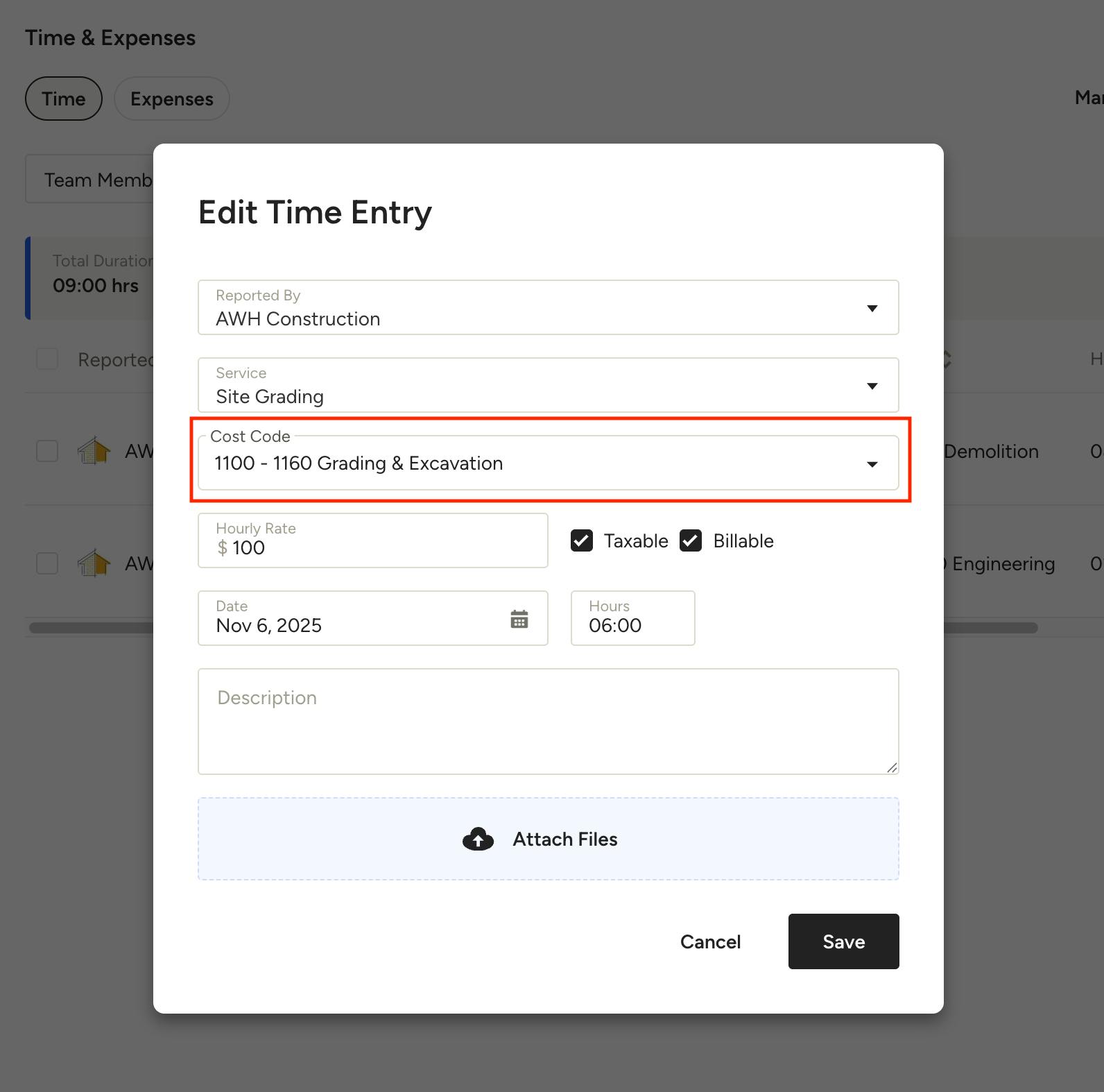
When Cost Codes are enabled, you will see an additional field in your Time & Expense entries for selecting a cost code. This Cost Code field is available to admins and is optional, but is recommended to fill out for keeping accurate records of time and money spent across each code.
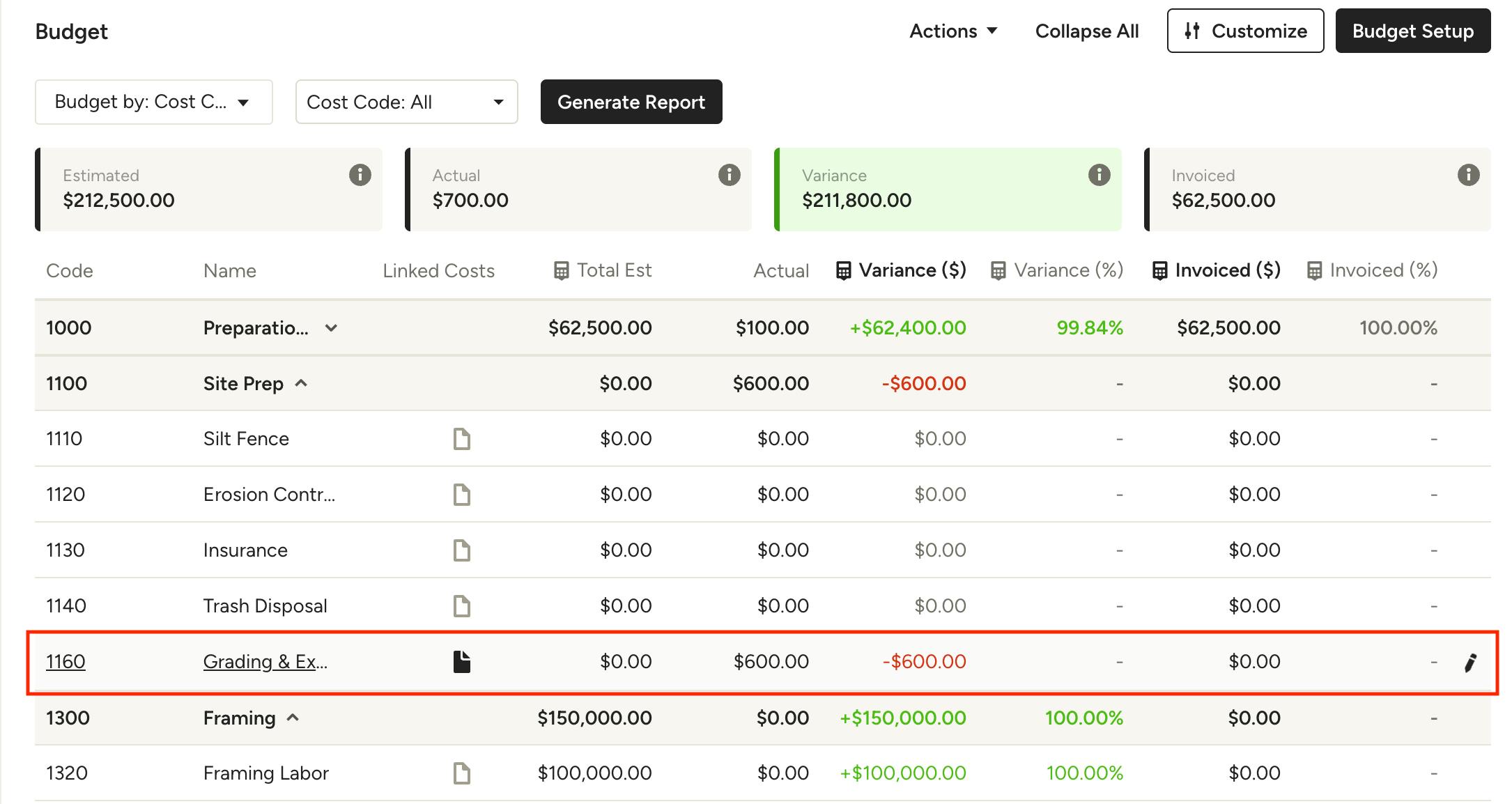
Once a time or expense entry is created, it will automatically sync to the project budget if there is a matching cost code already existing in the budget (for example, through a linked estimate). You can choose to unlink it from the budget, or link it to a line item under the same cost code (only if budgeting by Cost Item). Learn more about linking and unlinking Time & Expenses in the section below.
Cost Codes in Budget
To track costs by cost codes in your budget, you will first need to sync the relevant financial documents with the cost codes included.
Sync from Document
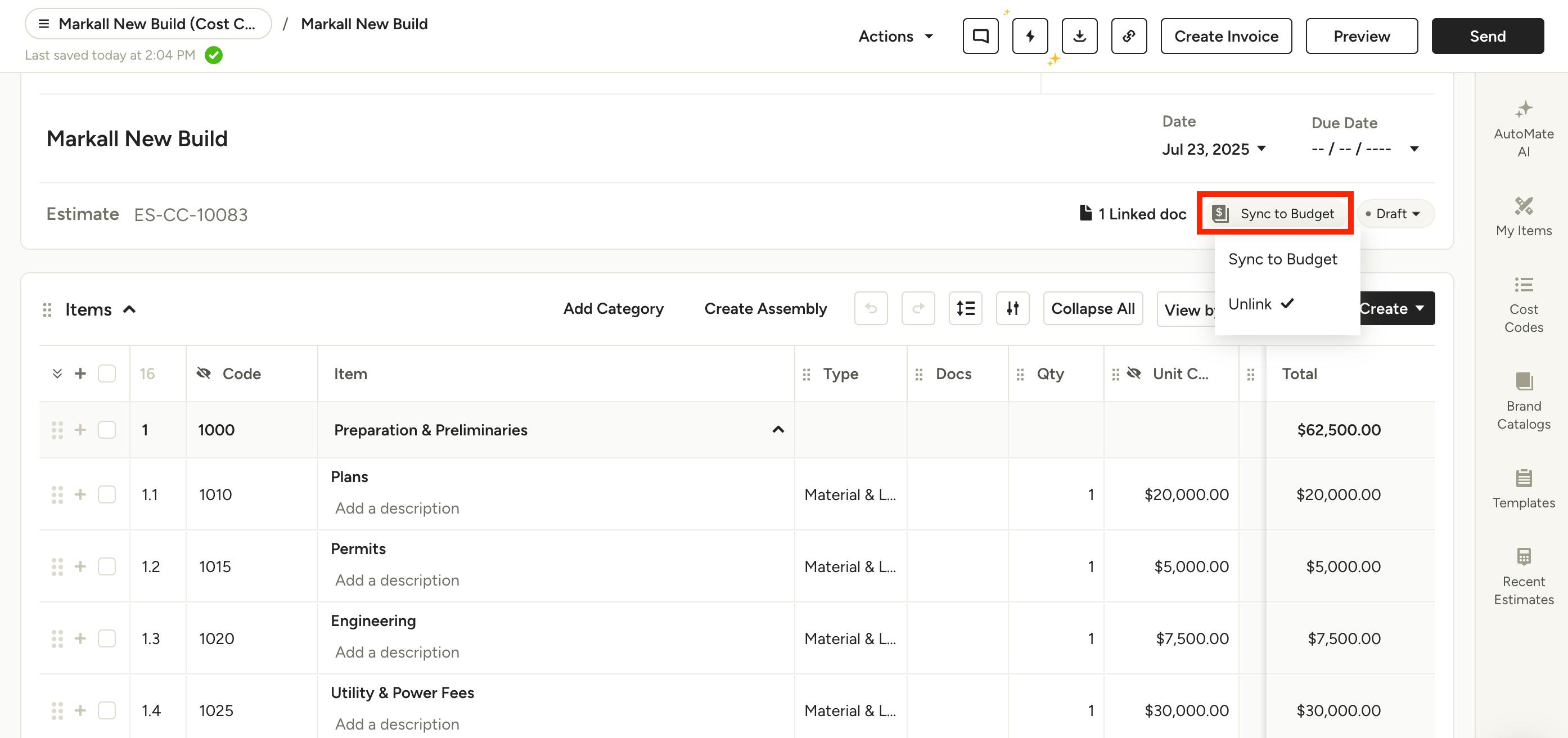
To start, open up the relevant document. At the top of the page, you will see a Sync to Budget icon — select Sync to Budget to add to your project budget. You can unlink from here at any time if needed.
Sync from Project Budget
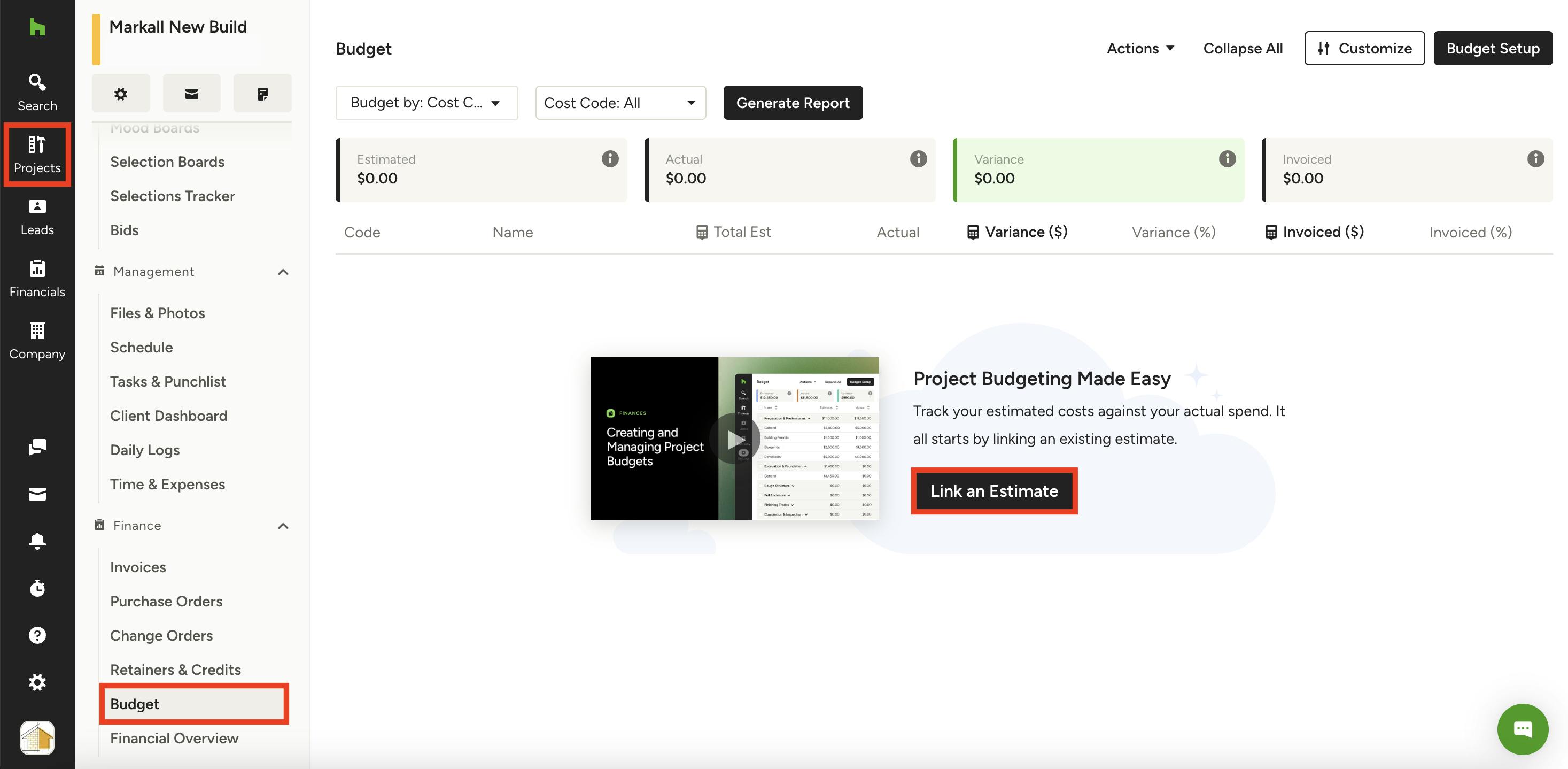
You can also sync a document directly from your project’s page. To start, click the Projects icon from your left navigation, then select the relevant project. Once on the project overview page, select Budget from the menu. If you are creating a budget for the first time, click Link an Estimate to find the relevant document and add to your budget.
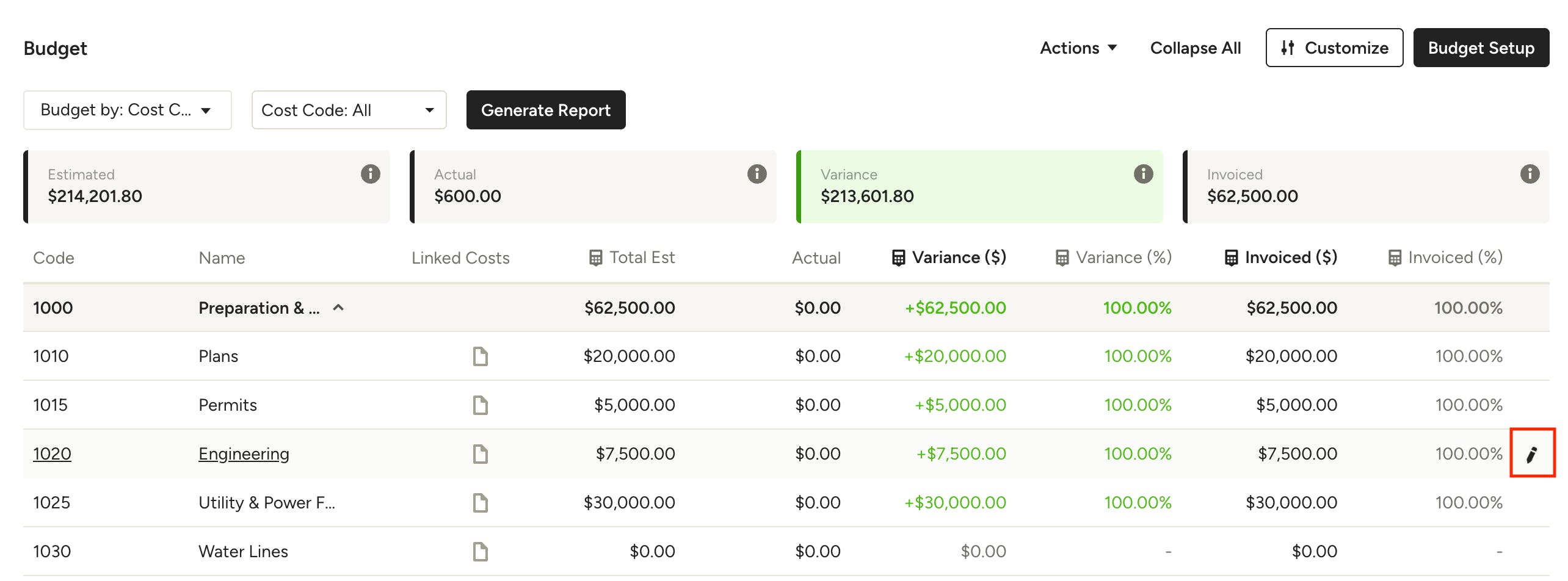
Once you sync your document(s), go to the Project overview page, and select Budget from the left menu. You will then be able to view your budget overview so you can review your estimated vs. actual costs.
To learn more about using the budget feature, read How to Manage Your Project Budget.
Sync Time & Expenses to Budget
If you want to add a time or expense entry to a specific cost code in the budget, you can either do this when creating a new time or expense entry, as mentioned in the Cost Codes in Time & Expenses section above, or by linking an existing entry directly within your project budget.
To link or unlink an existing time or expense entry in your budget, find the relevant cost code, hover over it and click the pencil icon on the right side.
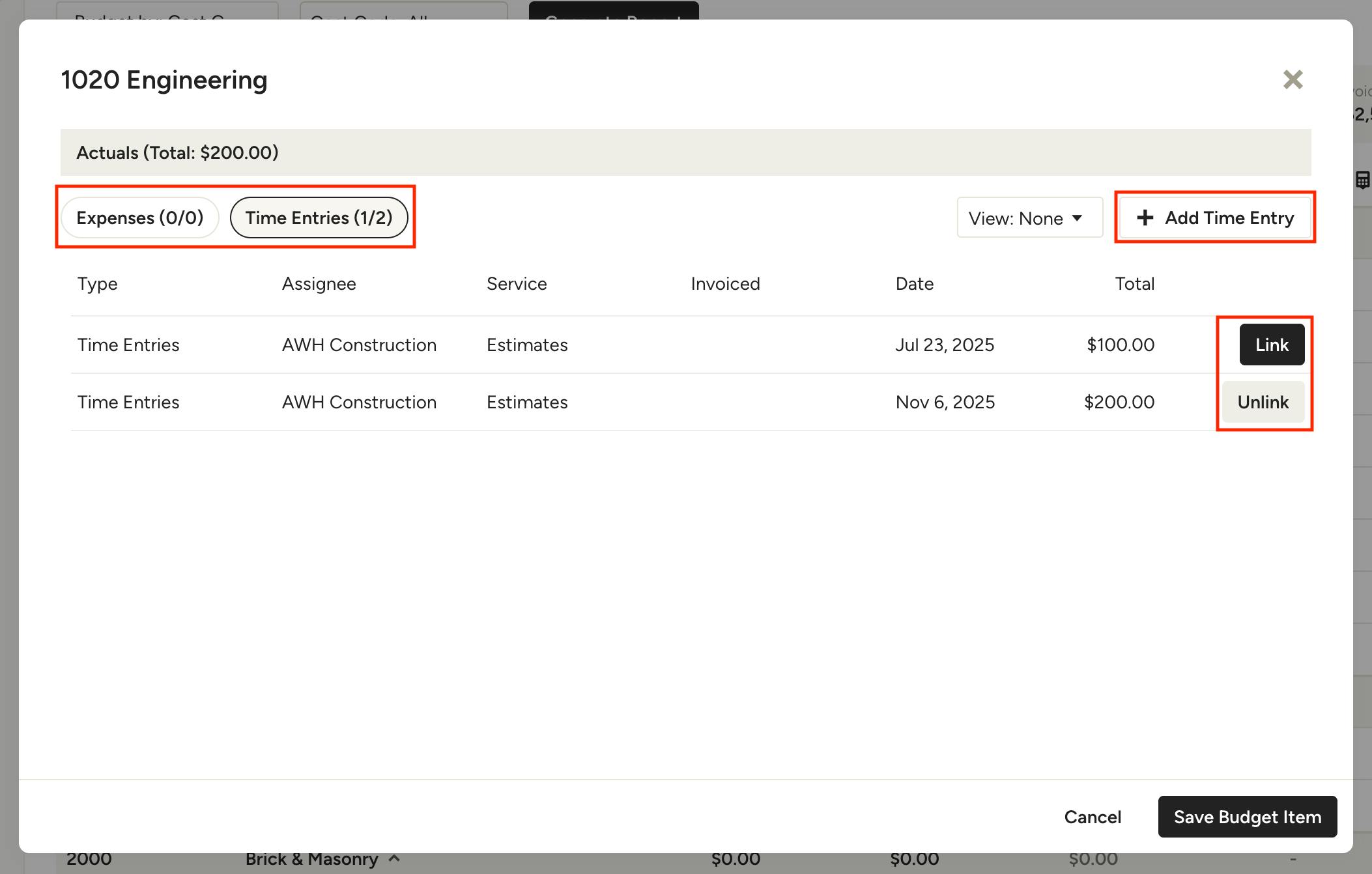
A new screen will appear where you can toggle between documented expenses and time entries for this project. You can also add a new entry within this screen if needed. From the list, click Link to add an entry to the selected cost code. Click Unlink to remove an entry from the budget.
Once all your time and expense entries are finalized, click Save Budget Item.
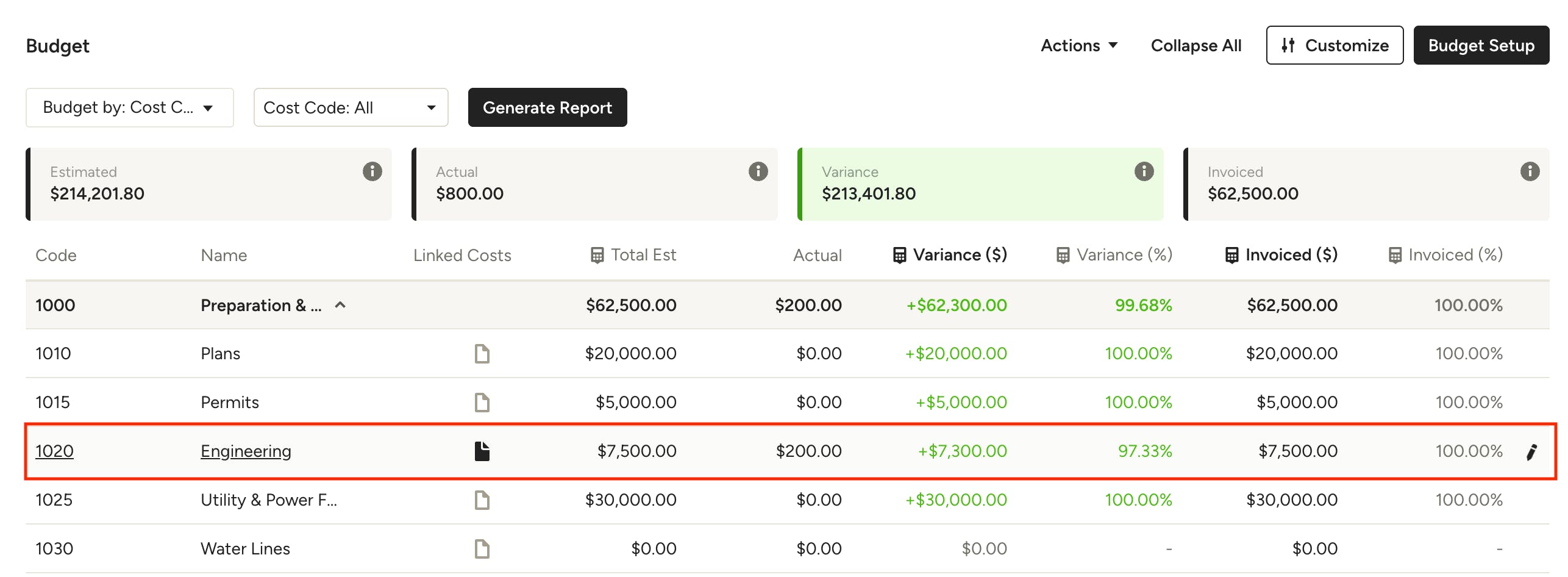
Your expenses will now appear in your project's budget under that cost code, as shown below.
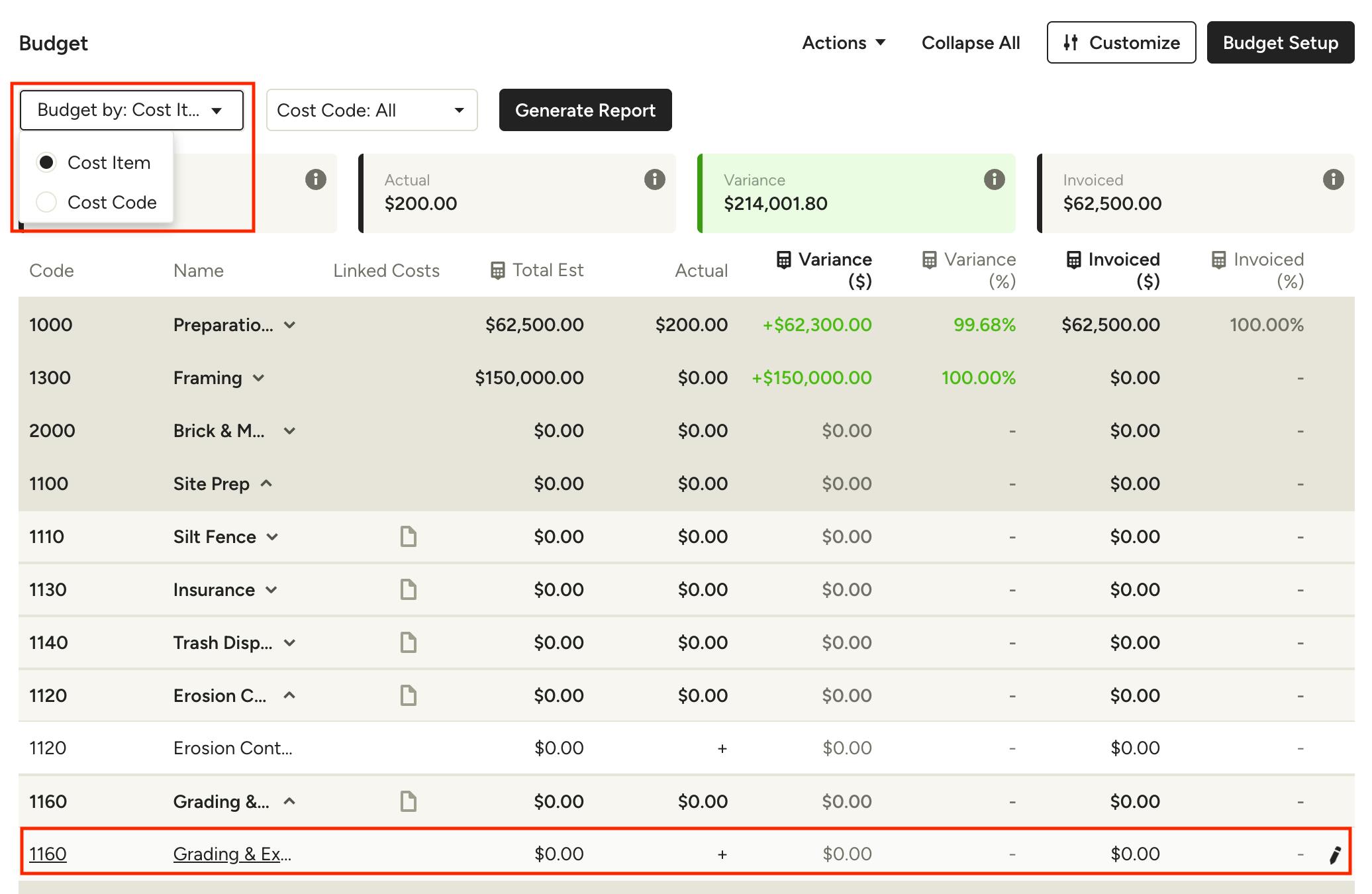
If you chose to estimate by cost item during your cost codes set up, you can link time and expense entries to individual line items within a cost code for more detailed reporting. To do so, your Budget By selection must be set to Cost Item.
Next, click on a specific line item and choose the time or expense entry(s) you wish to link.
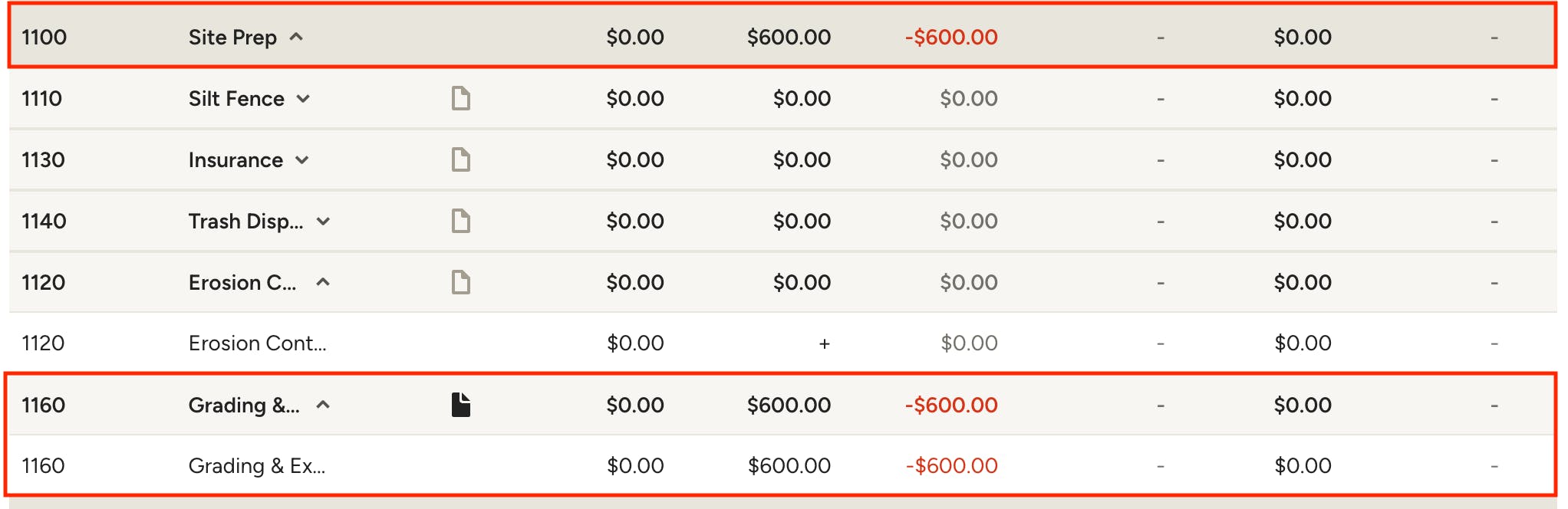
Once linked, you will see the budget reflect the entry(s) on the line item, cost code and cost category accordingly.
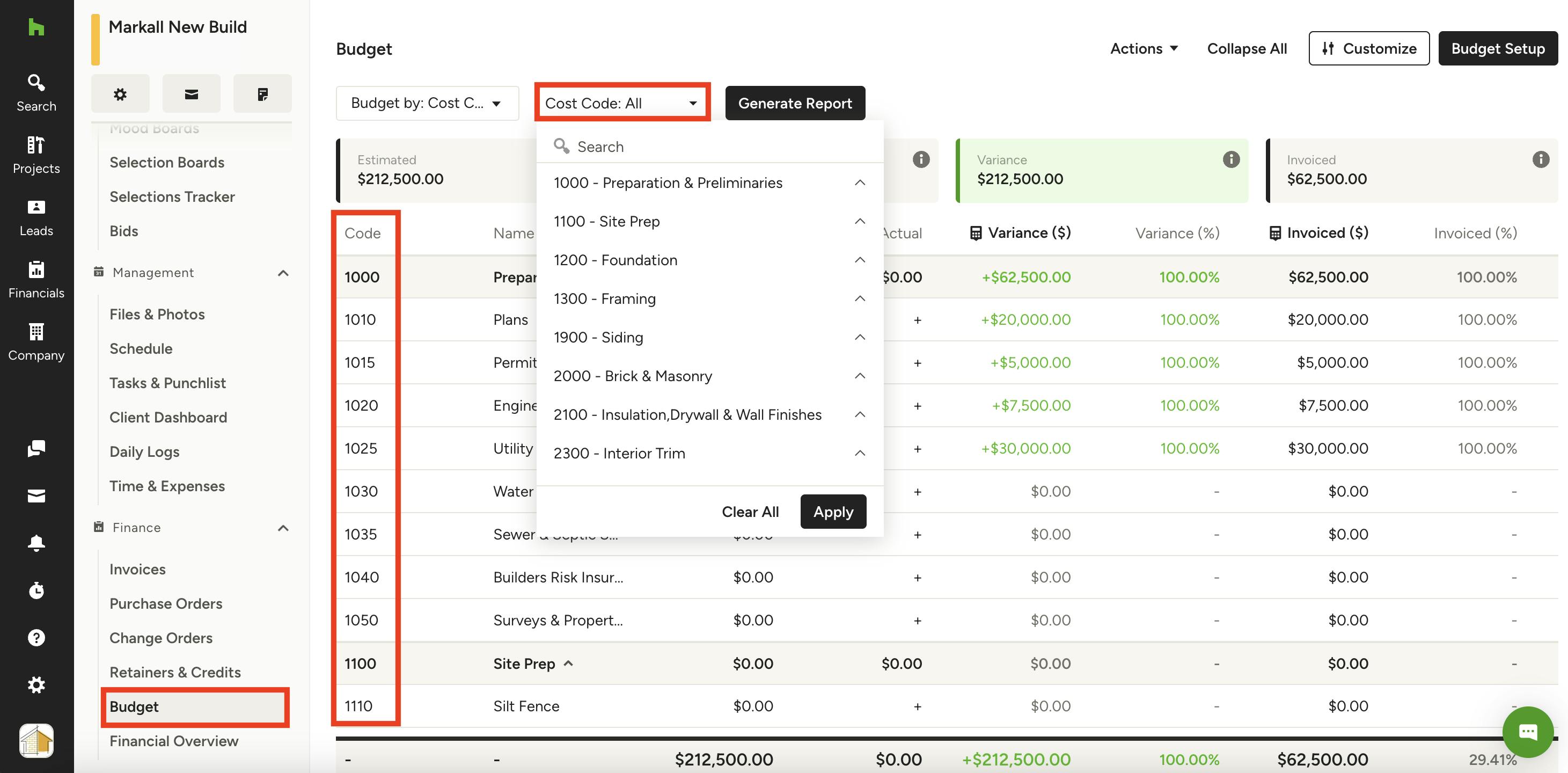
Filter Budget by Cost Code
If you would like to see the associated costs for a specific phase of the job, you can filter by cost codes. Select the Cost Code filter at the top of your budget, then select the relevant cost codes (you can select more than one). Click Apply to only show those cost code details within your budget.
Cost Codes in QuickBooks Online
Once you enable cost codes in Houzz Pro, they’ll be ready to sync with QuickBooks Online, if the integration is enabled (learn more about the set up process here). Cost codes will sync when they’re used on financial documents.
An important first step of the integration process is to review the account mapping from Houzz Pro to your QuickBooks Online account. This ensures that all cost codes stay intact for easy, consistent financial reporting for your bookkeeper or accountant. Please Note: Cost code mappings will only apply to new projects. Existing projects will still utilize your category-based mapping, if that was previously set up.
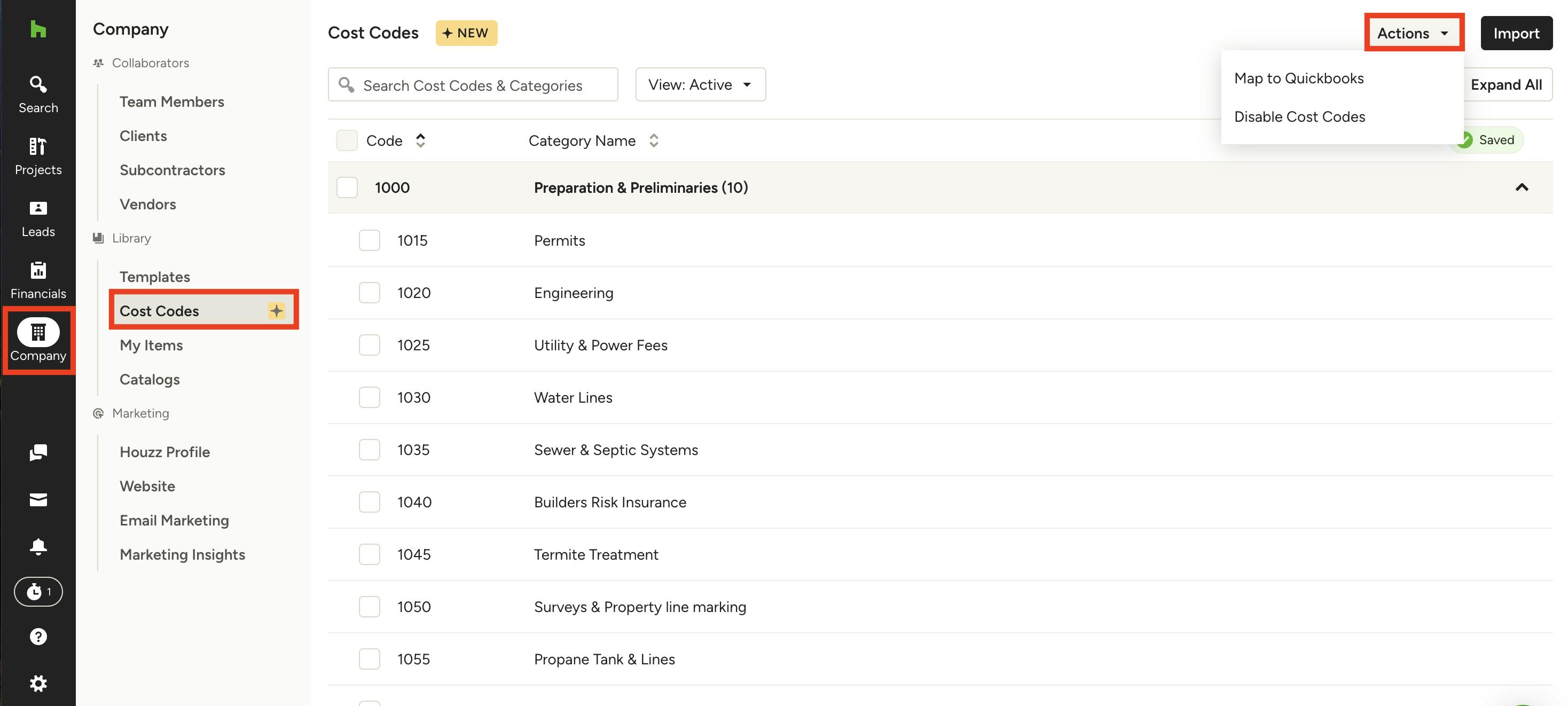
To map cost codes to QuickBooks Online, click on the Company icon in your left navigation, then select Cost Codes from the menu. At the top of the Cost Codes page, select Map to QuickBooks from the Actions dropdown menu.
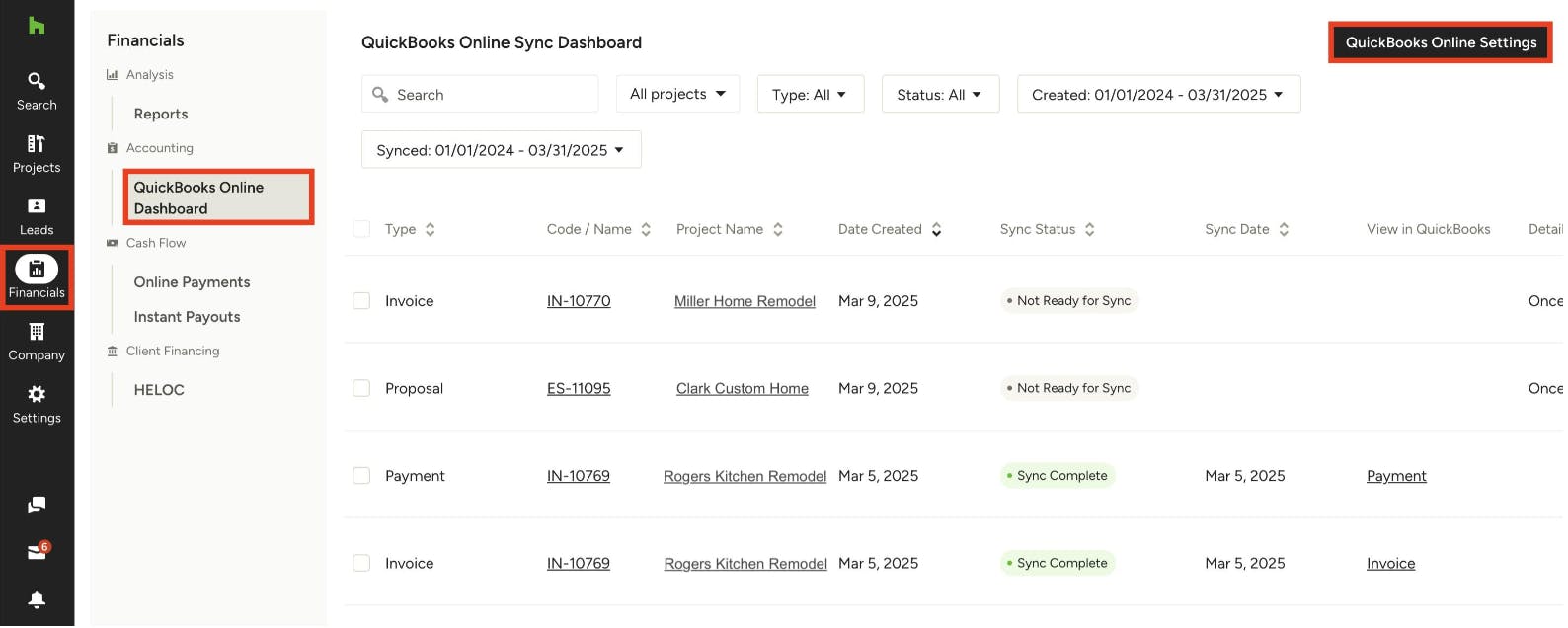
You can also access account mapping from the Financials icon in your left navigation, select QuickBooks Online Dashboard from the left menu, then click QuickBooks Online Settings at the top of the dashboard.
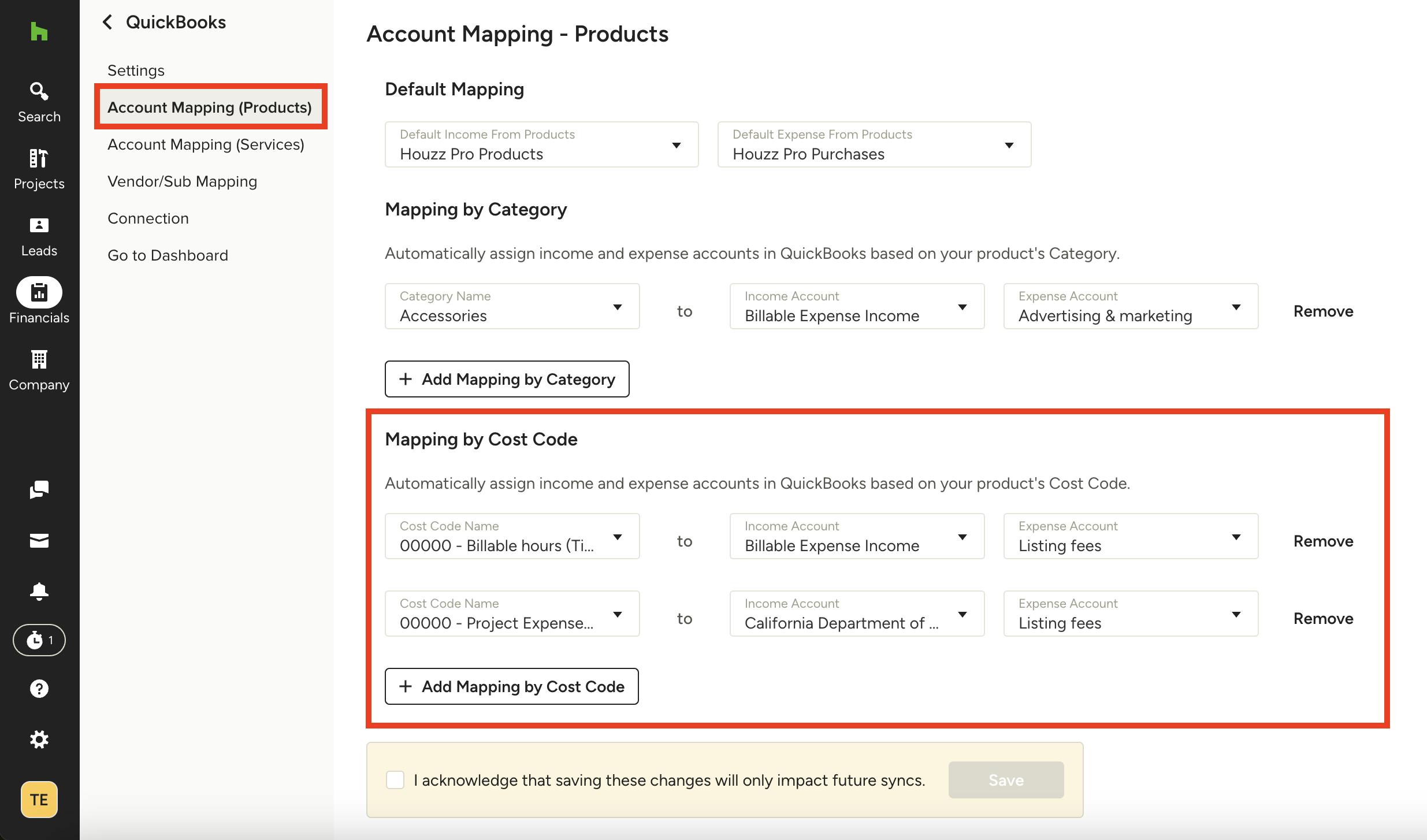
You will be directed to the Account Mapping - Products section within Houzz Pro. Under Mapping by Cost Code, you can review and assign income and expense accounts in QuickBooks Online based on your product’s cost code. You can decide to keep your products mapped to the default accounts, or you can use Custom Mapping, which will override the default mapping.
To learn more about the mapping process, read How to Map Houzz Pro to QuickBooks Online Chart of Accounts.
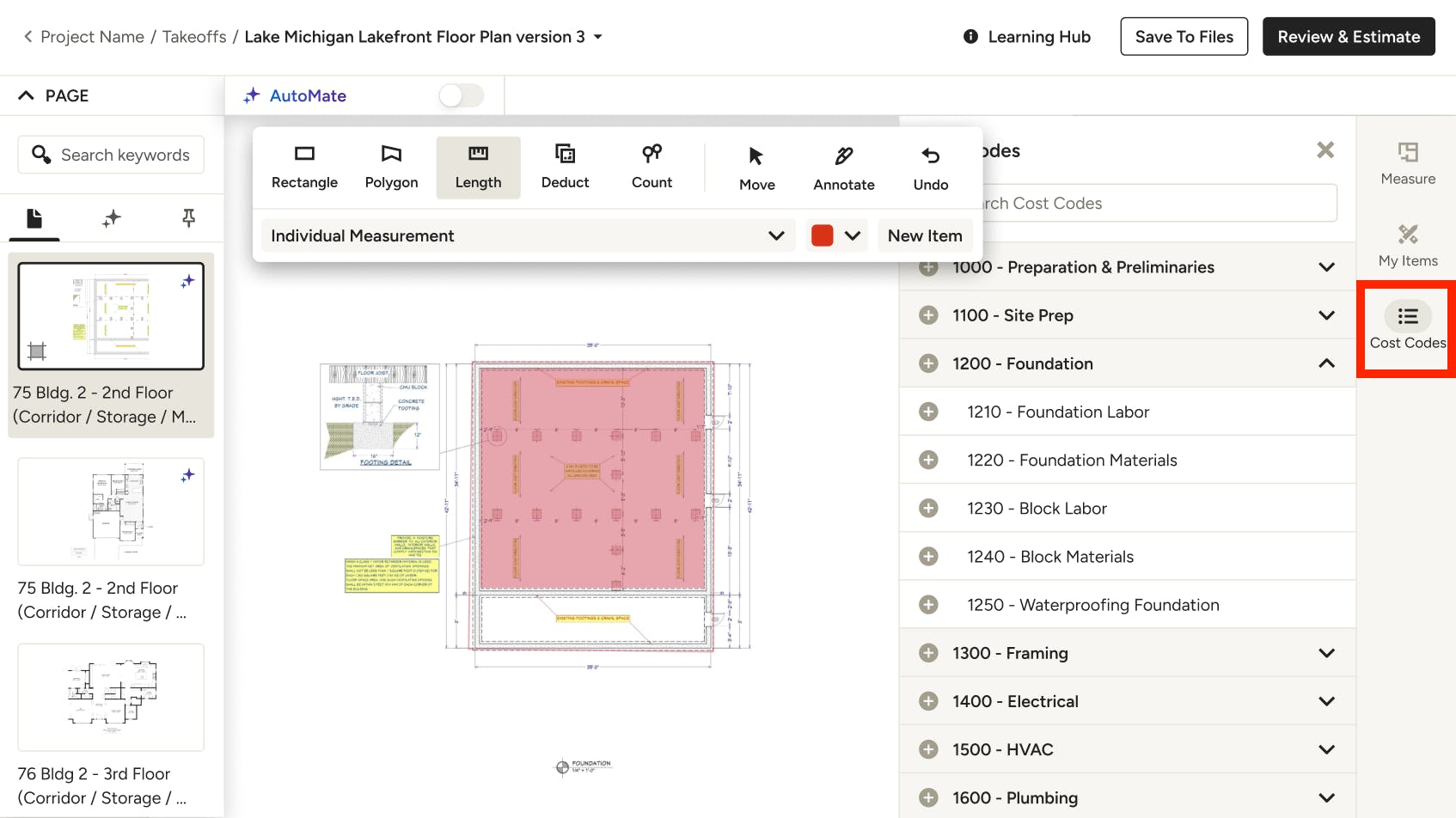
Cost Codes in Takeoffs
If you have cost codes enabled, you can integrate them into your takeoff workflow. This ensures consistency from your initial measurements through to your final estimate.
To start, select Cost Codes from the right menu. A list of your existing cost codes will appear. Click on the relevant cost code, or use the search bar at the top to find an exact match.
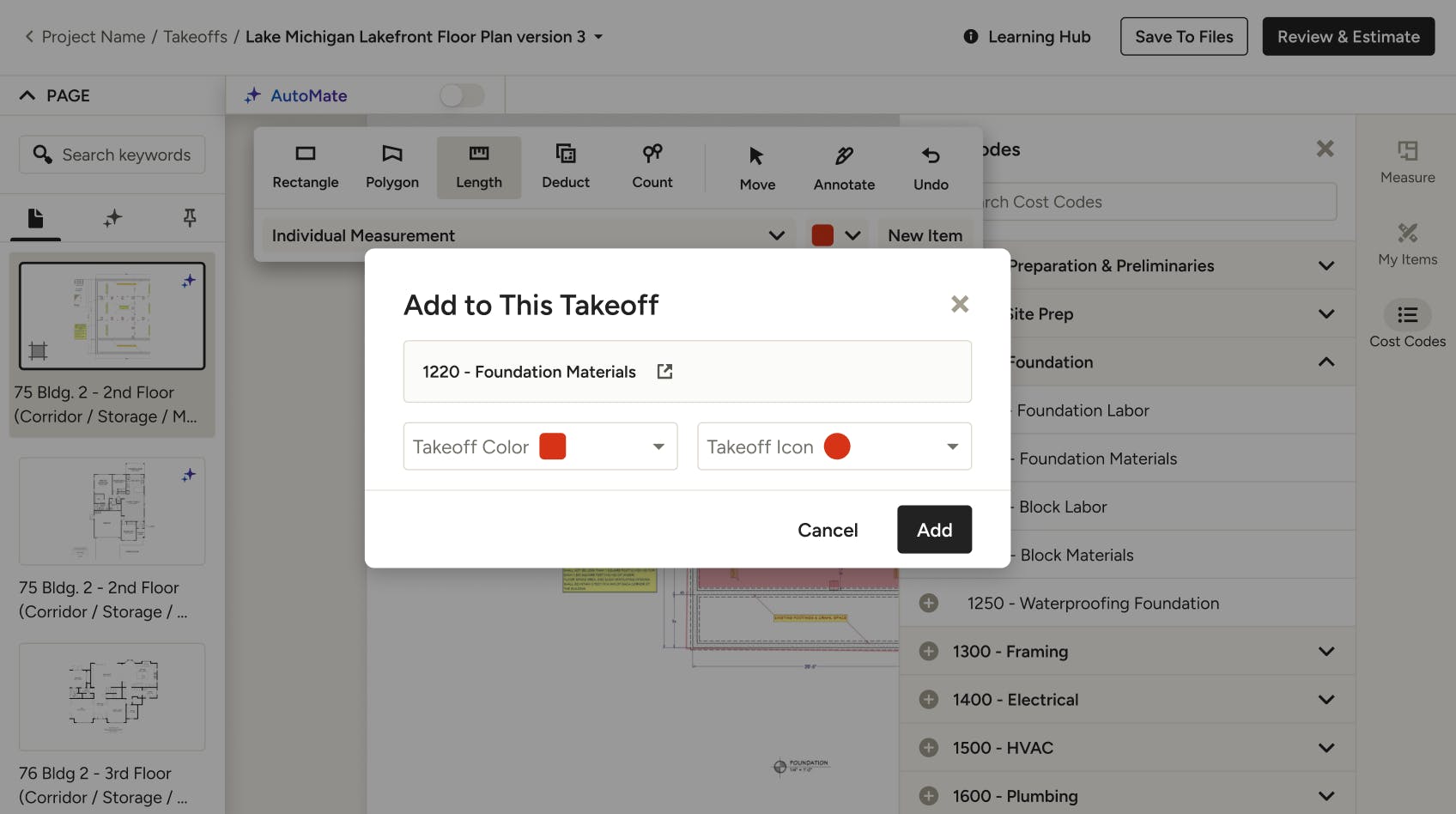
If it is the first time you are using that code in Takeoffs, you will be prompted to set a Takeoff Color and Icon for Count measurements (as shown below).
Once added, the cost code will appear as a new group in your measurement list. Read How to Use the Product Library in Takeoffs to learn more.