How to Set Up Cost Codes in Houzz Pro
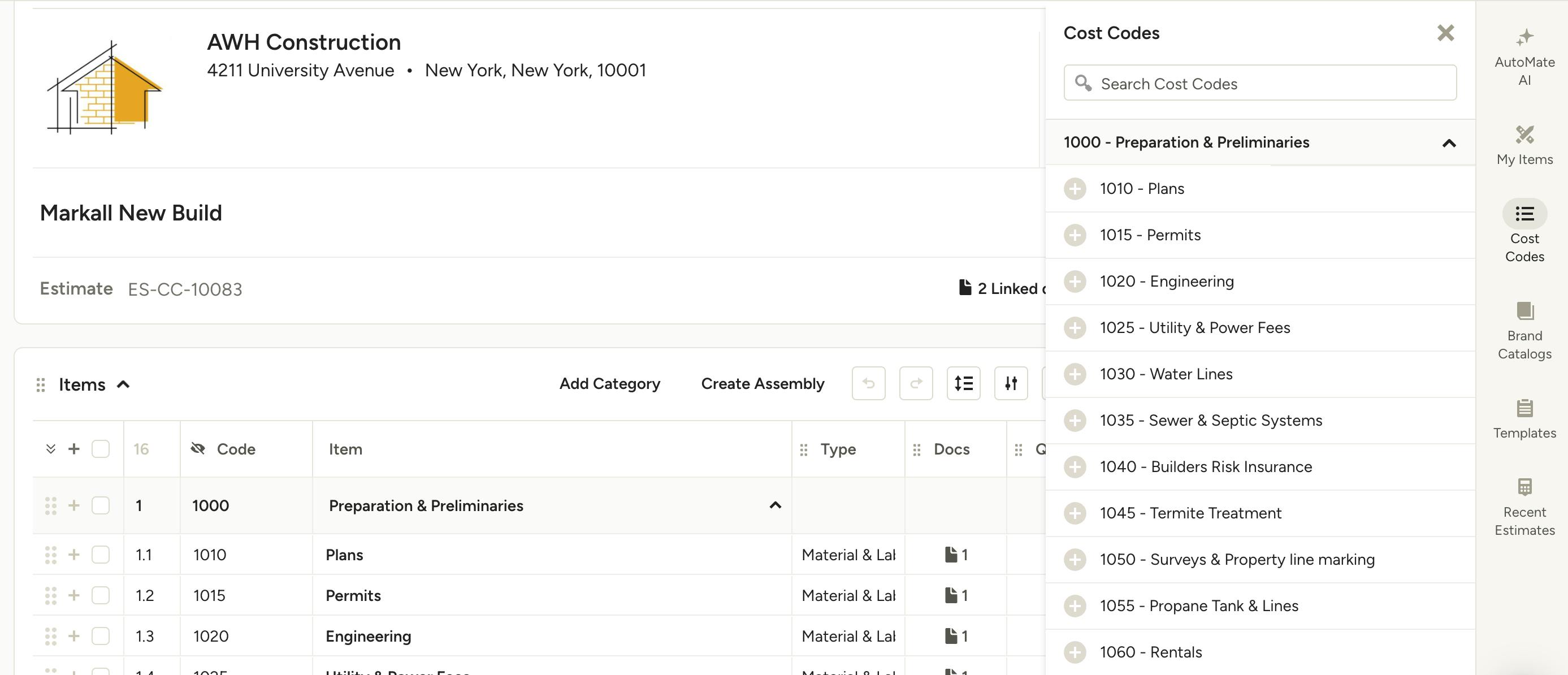
For contractors and builders who manage larger budgets, cost codes are an essential tool for organizing and tracking project costs. They ensure efficient bookkeeping across your entire operation so you get a clearer picture of your financials.
When you add your cost codes to Houzz Pro, you can consistently keep track of every dollar spent and easily compare estimated vs actual costs, streamline reporting, and analyze performance over time. Let’s go over what cost codes are, how to enable them, and how to incorporate them into Houzz Pro.
What are Cost Codes?
Cost codes are identifiers — a combination of numbers and key project phases — that help you organize and track project costs. Each cost code acts as a bucket or folder that groups similar expenses in one place. For example, you can have a unique cost code for every phase of the job, including pre-construction, sitework, foundation, framing, electrical, plumbing, and more.
The goal of cost codes is to create consistency across projects. Contractors and builders will typically create a master list of 80-120 cost codes. Cost codes follow the order of the build process, starting with Prep work and ending with Final punch. Not every cost code is used for every project — for example, if you have landscaping cost codes included in your base cost codes for a whole home project, but you are not doing landscaping for this project, no landscaping cost codes are needed for the project. At the same time, cost codes are standardized and aren’t created for one specific project — professionals use the same cost code list each time and don’t add new ones for each project.
Categories vs. Cost Codes
Contractors who want more control over their job costing, billing, and reporting may opt to move from Houzz Pro’s standard one-level category system to the more advanced cost code system. Unlike categories, which simply group line items by trade or phase, cost codes use a two-tier structure that mirrors how seasoned pros organize budgets and track actuals in the field. With cost codes, you can break down every phase of a project with more granularity, link it to time tracking, expenses, and change orders, and generate reports that give you true visibility into profitability. It’s a game changer for teams who are already working with bookkeepers or accountants, or for those ready to scale their operations with phase-based billing and deeper job cost tracking.
Cost Code Structure
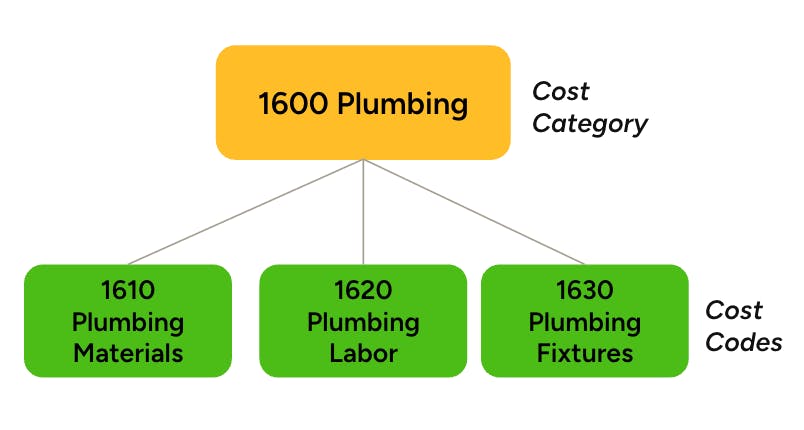
There are two distinct parts that make up a cost code system — a cost category and a cost code.
A Cost Category is a broader grouping that is used to organize cost codes into meaningful project phases, such as framing or plumbing. They can also combine a few phases that logically fit together based on the order of construction.
A Cost Code is a more specific grouping that is stored under a broader cost category, such as plumbing materials, plumbing labor, and plumbing fixtures.
Both cost categories and cost codes work together to create a cost code system — cost categories are the main drawers in the filing cabinet, while cost codes are the folders inside each drawer.
Estimating by Cost Codes vs. Cost Items
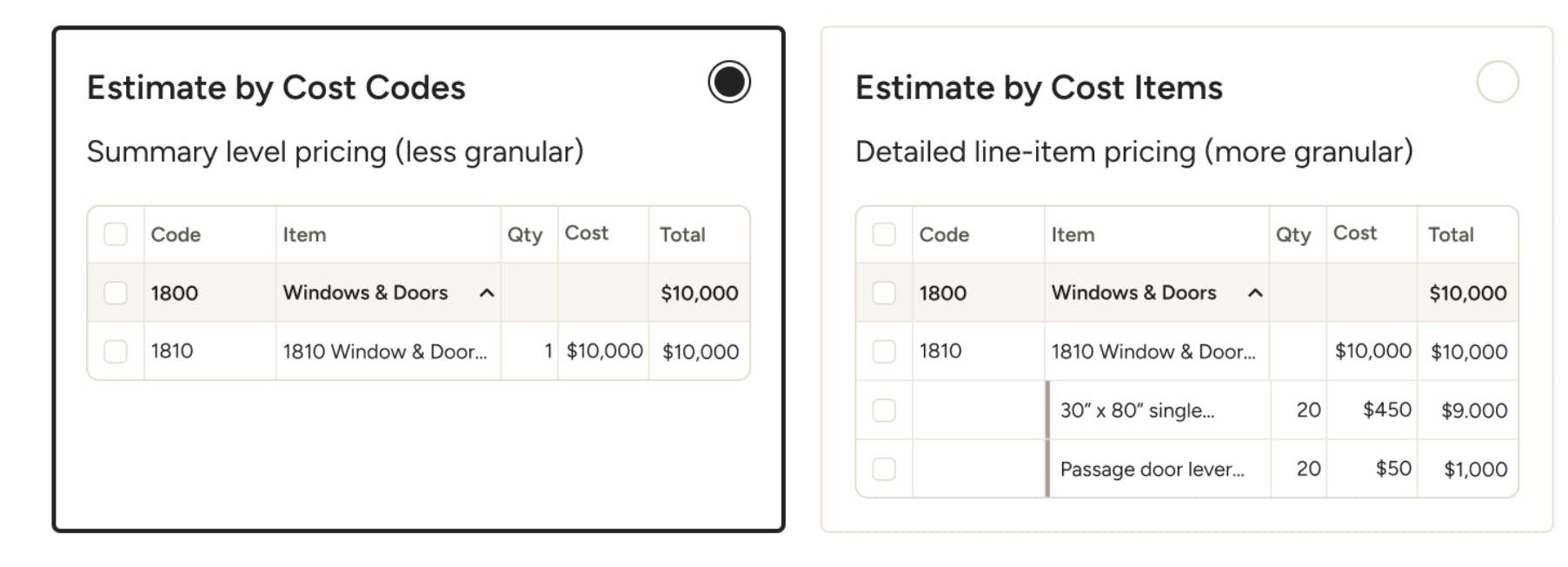
When you set up Cost Codes in Houzz Pro, you will need to decide to either Estimate by cost codes or cost items. You likely already follow one of the two methods in your Estimating. Here are the main differences to help you determine which method suits your Estimating process.
Estimating by Cost Codes
- Higher level, less granular approach
- Estimate each code and assign a cost to the dollar amount, without breaking down every cost (Example: 1800 Windows & Doors — $10,000)
- Often used by Pros who Estimate based on data from past projects or early bids for turnkey work
Estimating by Cost Items
- More detailed and granular approach
- Breaks down cost codes into granular costs, including specific materials and labor line items (Example: 2x4 lumber, framing nails, drywall sheets, labor hours)
Who Uses Cost Codes?
Cost Codes are mostly used by custom home builders, design-build firms, and home remodelers managing large jobs with detailed budgets.
Please Note: Because cost codes affect the bookkeeping and overall financial organization of your business, please consult your bookkeeper or accountant before implementing them for the first time. Cost codes are meant for Pros who are familiar with them and actively job costing for their projects.
How to Enable Cost Codes
If you are using cost codes for the first time in Houzz Pro, you will need to enable them first. Enabling cost codes will only impact future projects and not current projects.
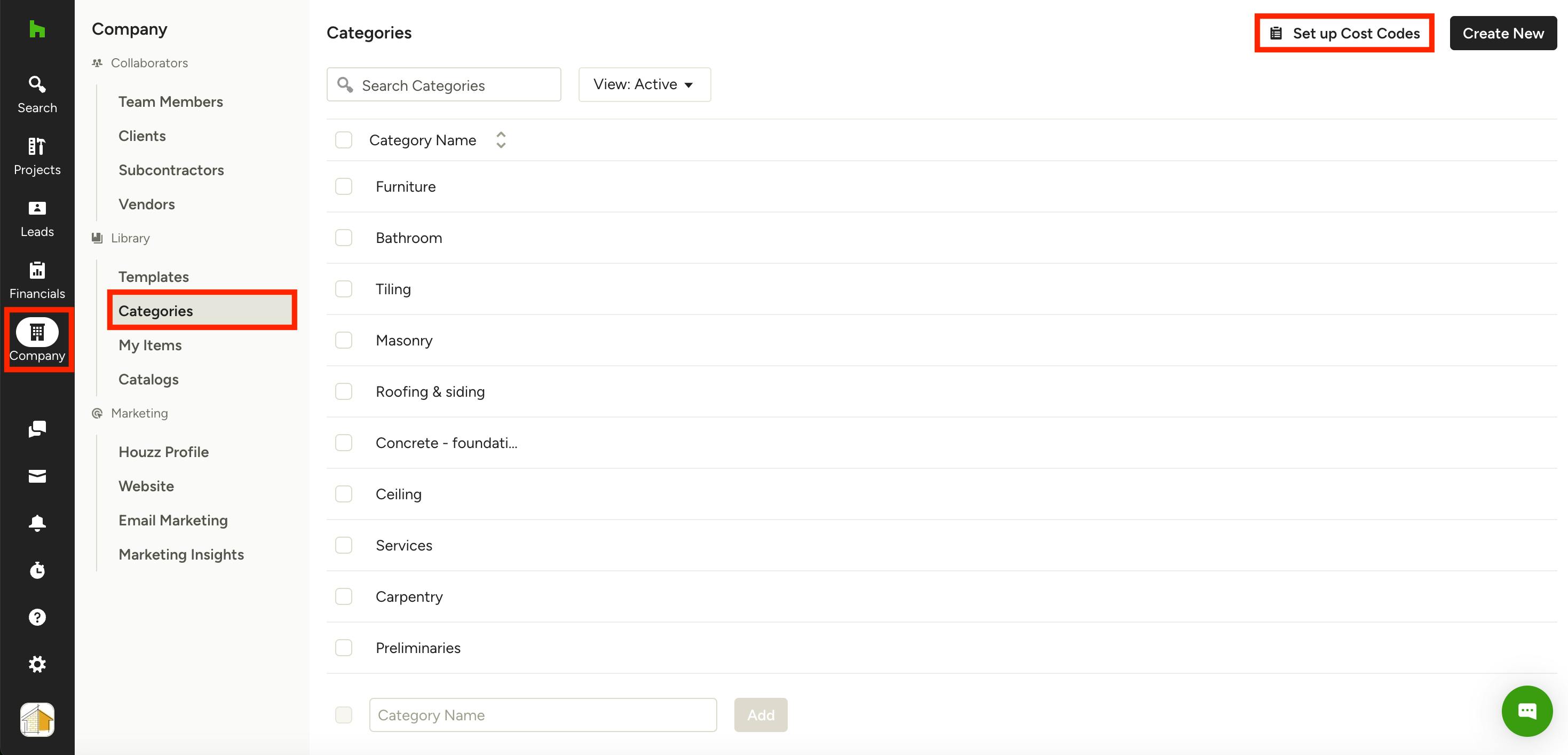
To start, click on the Company icon in your left navigation, then select Categories from the menu. At the top of the Categories page, select Set Up Cost Codes.
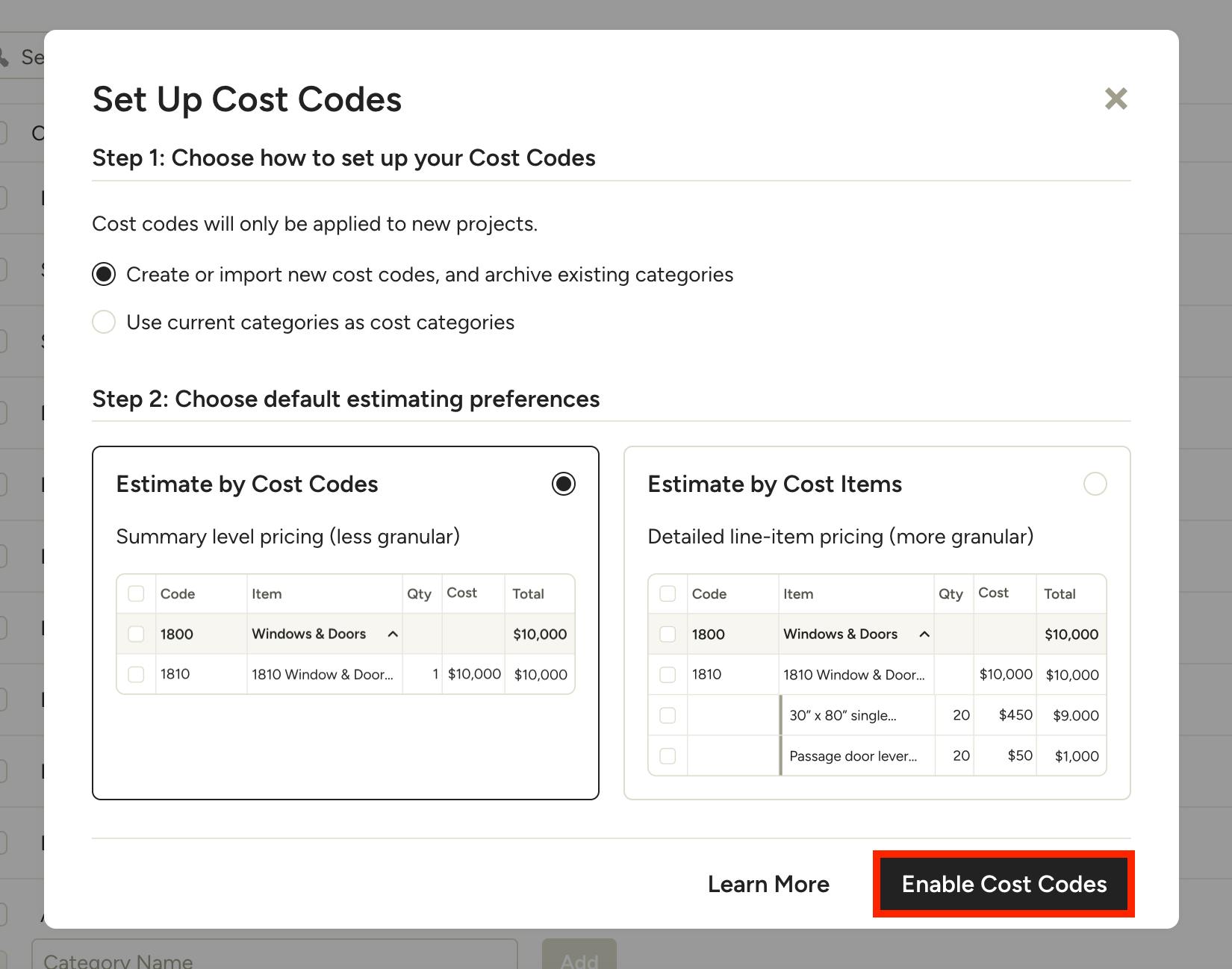
A new screen will appear. In Step 1, you can choose from two options:
- Create or import new cost codes: This option will allow you to import an existing list of cost codes, use the Houzz Pro cost codes template (not available for Canadian pros at this time), or manually create a new cost code list. By selecting this option, you will archive any existing categories that you currently use. You will also uncategorize all your items in My Items — you will need to reassign those items to cost codes (learn more here).
- Use current categories: This option will use your existing categories in Houzz Pro, and you can add cost codes to those categories. This is the best option if you’ve already been adding cost code numbers to your existing categories.
In Step 2, you will need to choose your default estimating preference (read Estimating by Cost Codes vs. Cost Items above to learn more). You can:
- Estimate by Cost Codes: Summary-level pricing that is less granular
- Estimate by Cost Items: Detailed line-item pricing that is more granular
Select the circle next to the preferred option, then click Enable Cost Codes.
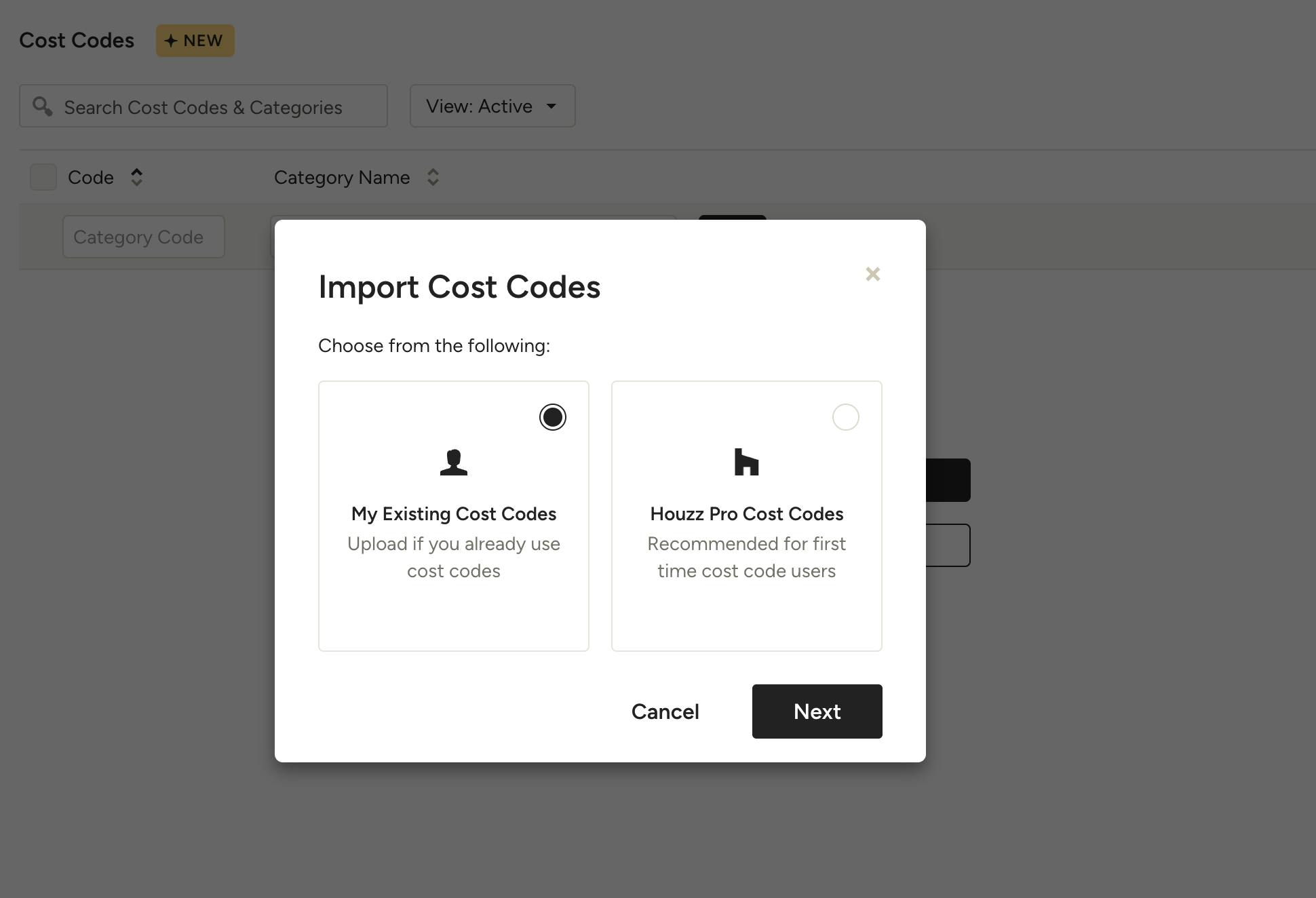
If you select create or import new cost codes, you can use:
- My Existing Cost Codes: Import a list of your existing cost codes
- Houzz Pro Cost Codes: Use the Houzz Pro cost codes template (not available for Canadian pros at this time)
- Create New Cost Codes: To start manually adding individual cost codes, click the x in the popup to get back to the cost codes page.
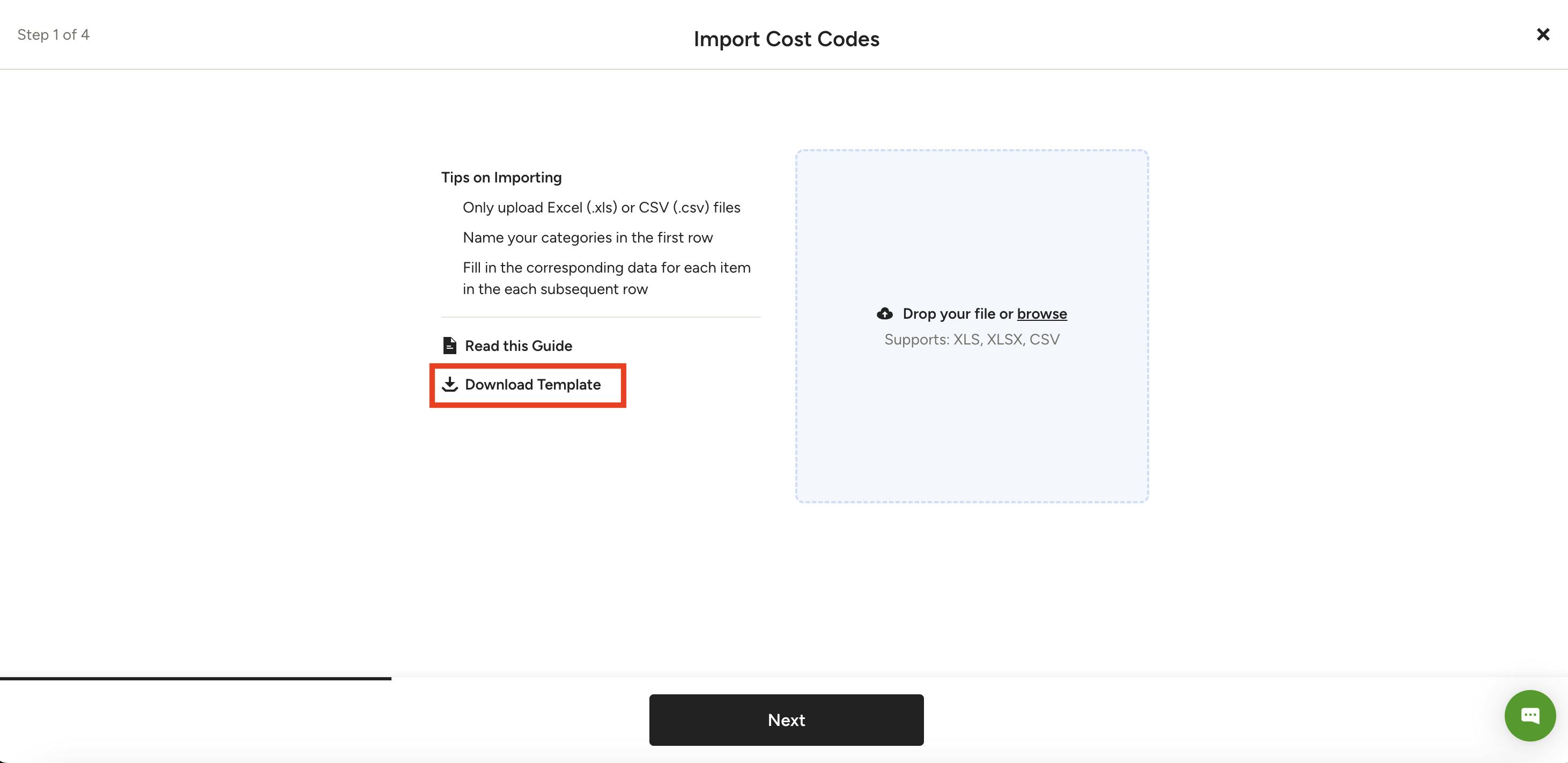
Import Cost Codes
If you select My Existing Cost Codes, you will need to upload a file of existing cost codes that you would like to add to Houzz Pro. Be sure to click Download Template to ensure your file follows the correct format.
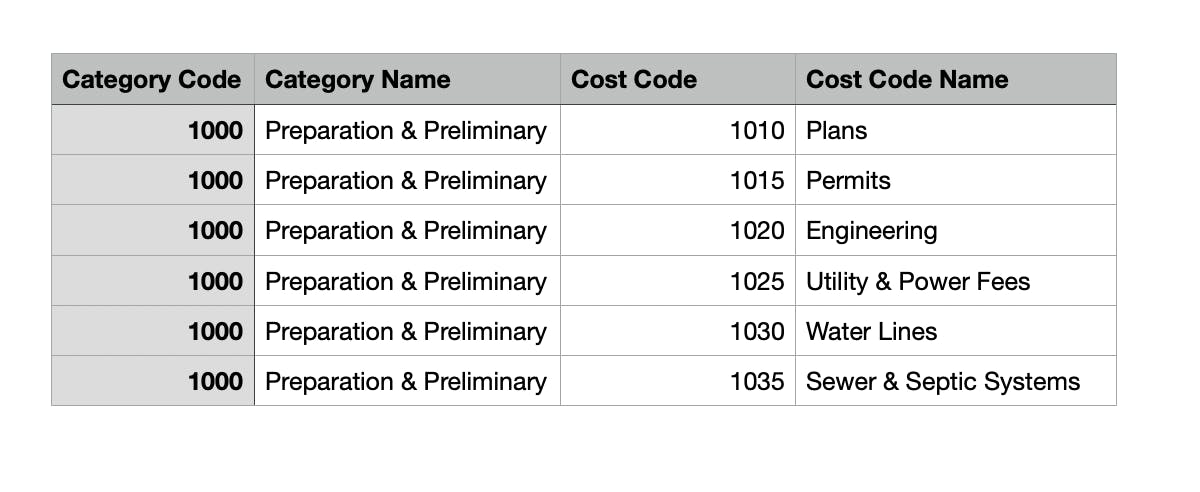
Open the template and input your cost code data into the appropriate fields, or copy the template formatting on your own file to match.
For a successful import, be sure:
- Each entry has the required fields — Category Code, Category Name, Cost Code, Cost Code Name.
- The file is either in an Excel or CSV format.
- The file has a maximum of 500 entries.
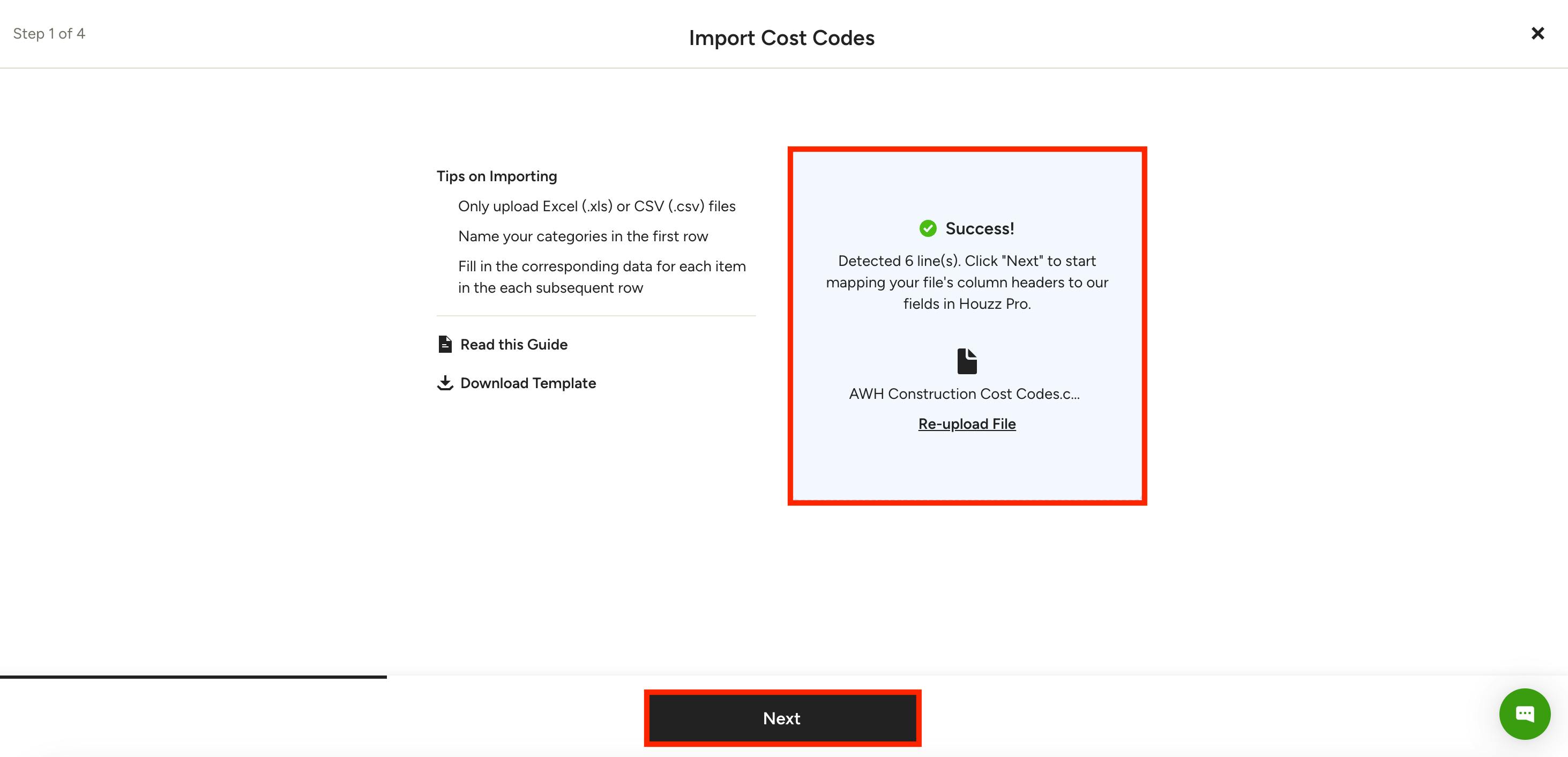
Once complete, save the completed file as CSV or Excel. In the import screen, click Browse and attach the file, or drag and drop the file into the box.
If successful, you will see a message noting how many lines the system detected in your file. Click Next.
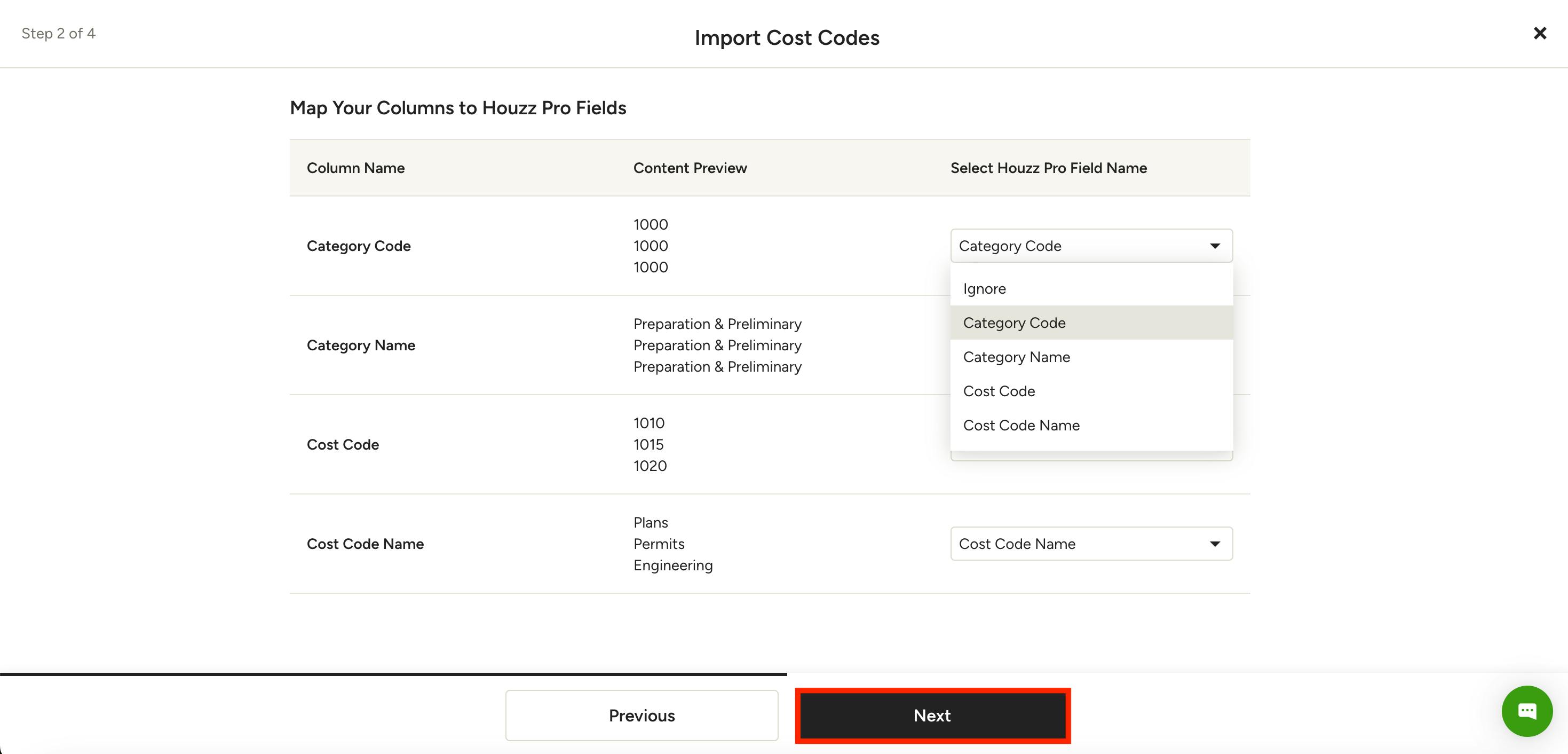
In the next screen, you will need to map your file’s columns to Houzz Pro fields. Review the mappings to ensure your columns align with the correct Houzz Pro fields. Only the columns you map will be imported; you can choose Ignore in the dropdown to skip importing certain columns. Click Next when you are finished mapping.
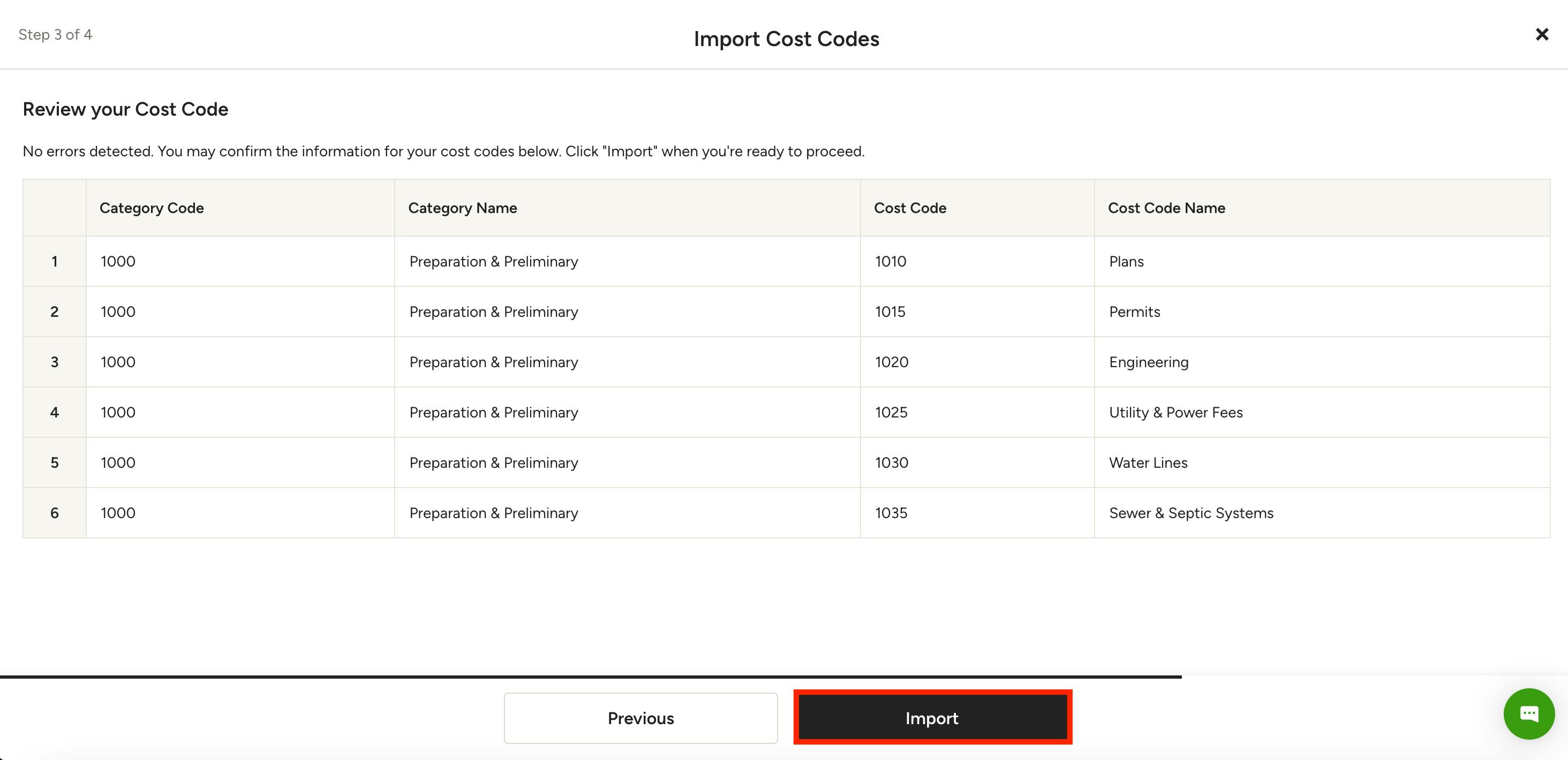
Review a summary of your cost code details, then click Import once complete.
If your file was imported successfully, you will see a confirmation of how many records were successful. Click Done to return to the Cost Codes & Categories page.
If you use QuickBooks Online, you will want to set up your QuickBooks Online mapping next, since this is an important step to the process. Read Cost Codes in QuickBooks to learn more.
Use Houzz Pro Cost Codes
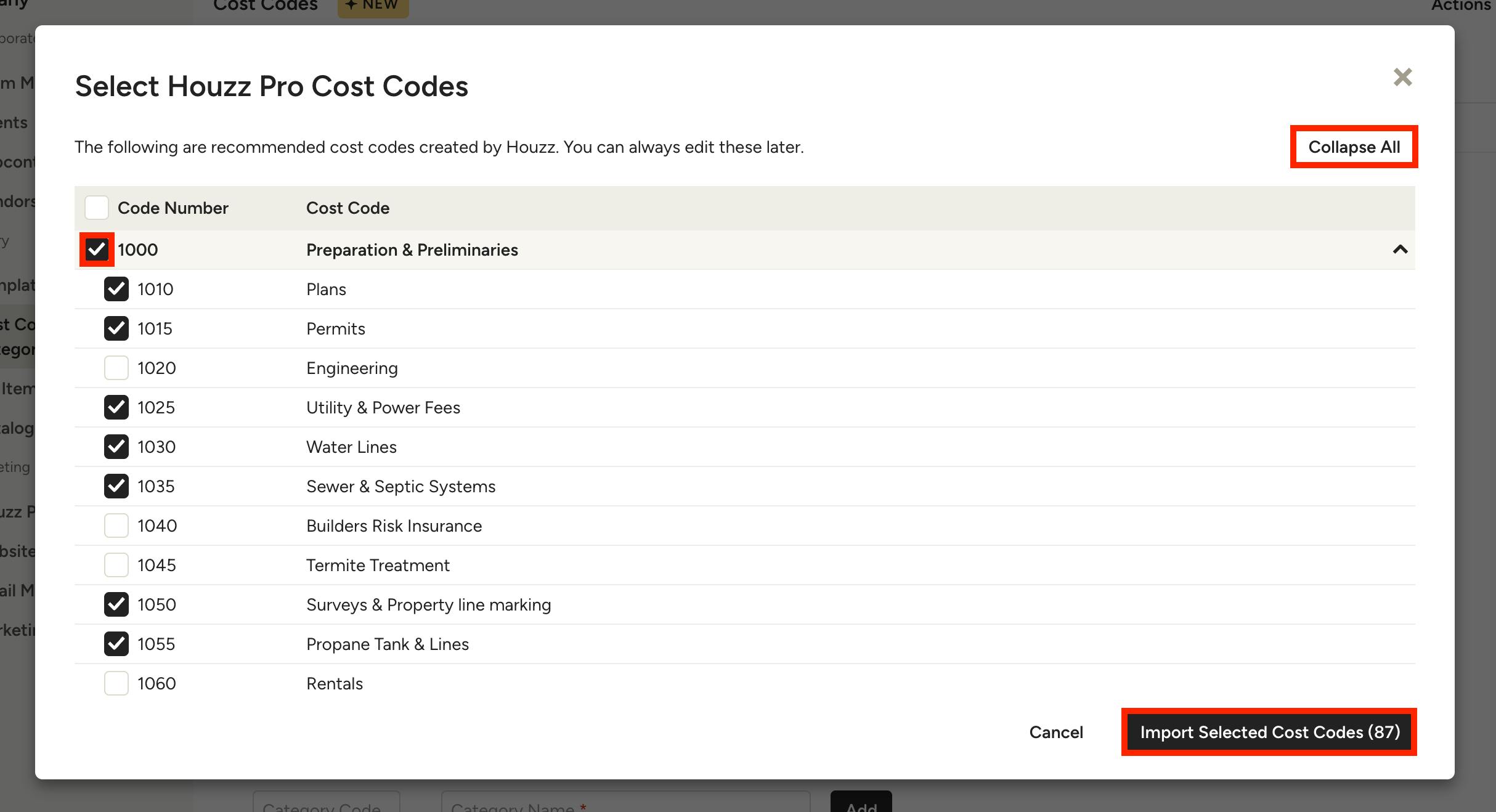
If you select Use Houzz Pro Cost Codes, you will be able to select from a list of suggested cost codes from the Houzz Pro template. Note that this option is not available for Canadian pros at this time.
Select the checkbox next to the relevant cost codes — you can de-select any cost category or cost code that you would like to remove. Select Collapse All to only see the broader cost categories and not the more specific cost codes. Expand All will allow you to see everything at once.
Once you have selected the relevant cost codes for your company, select Import Selected Cost Codes.
The selected Houzz Pro Cost Codes will now appear in your account to use — you can continue to make edits or add new cost codes if needed.
Create New Cost Codes
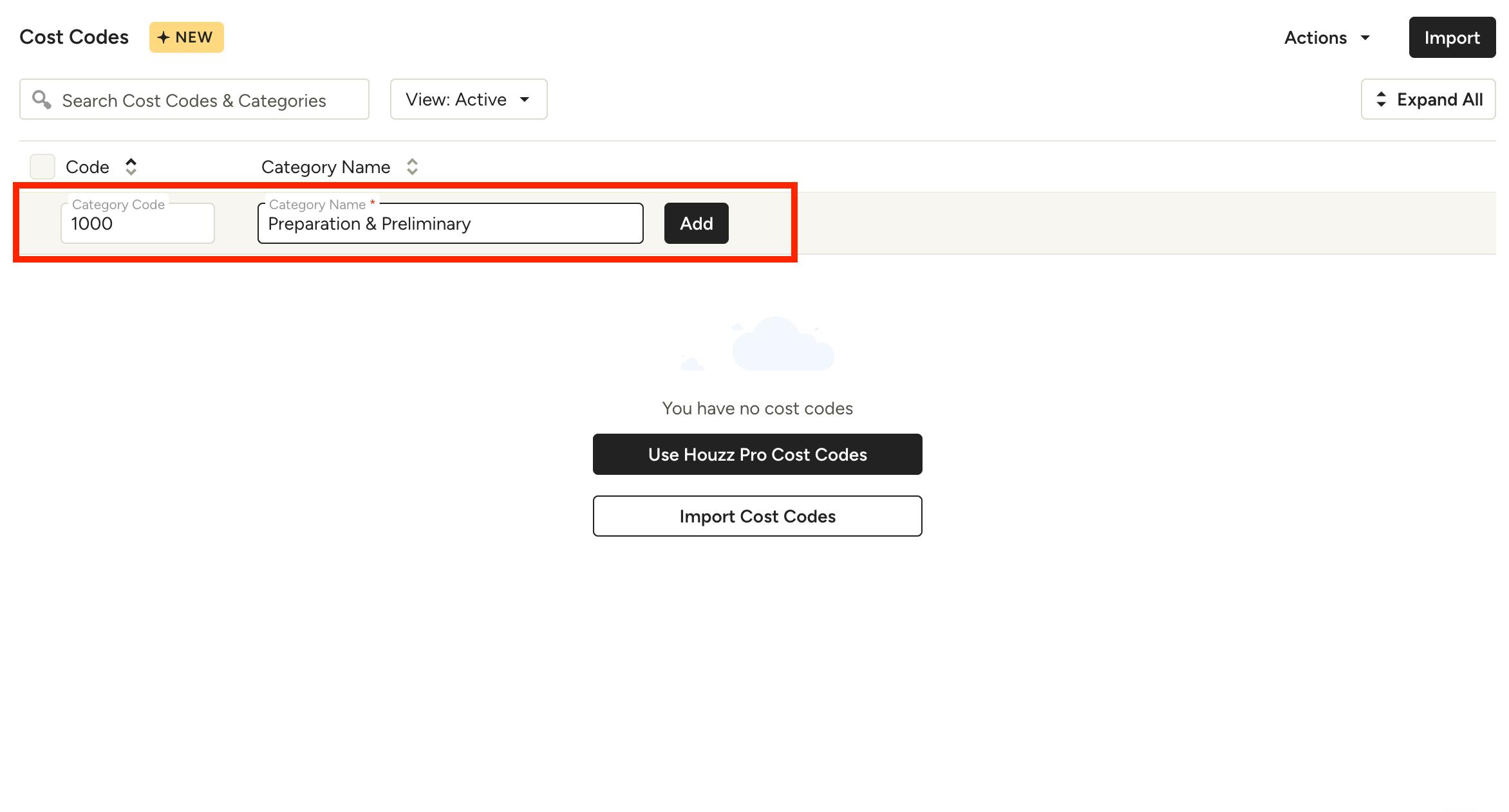
If you decide to manually create all your cost codes directly within Houzz Pro, you can do this as well.
To start, go to the Cost Codes page, then type in the Category Code and Category Name that you would like to create. Click Add.
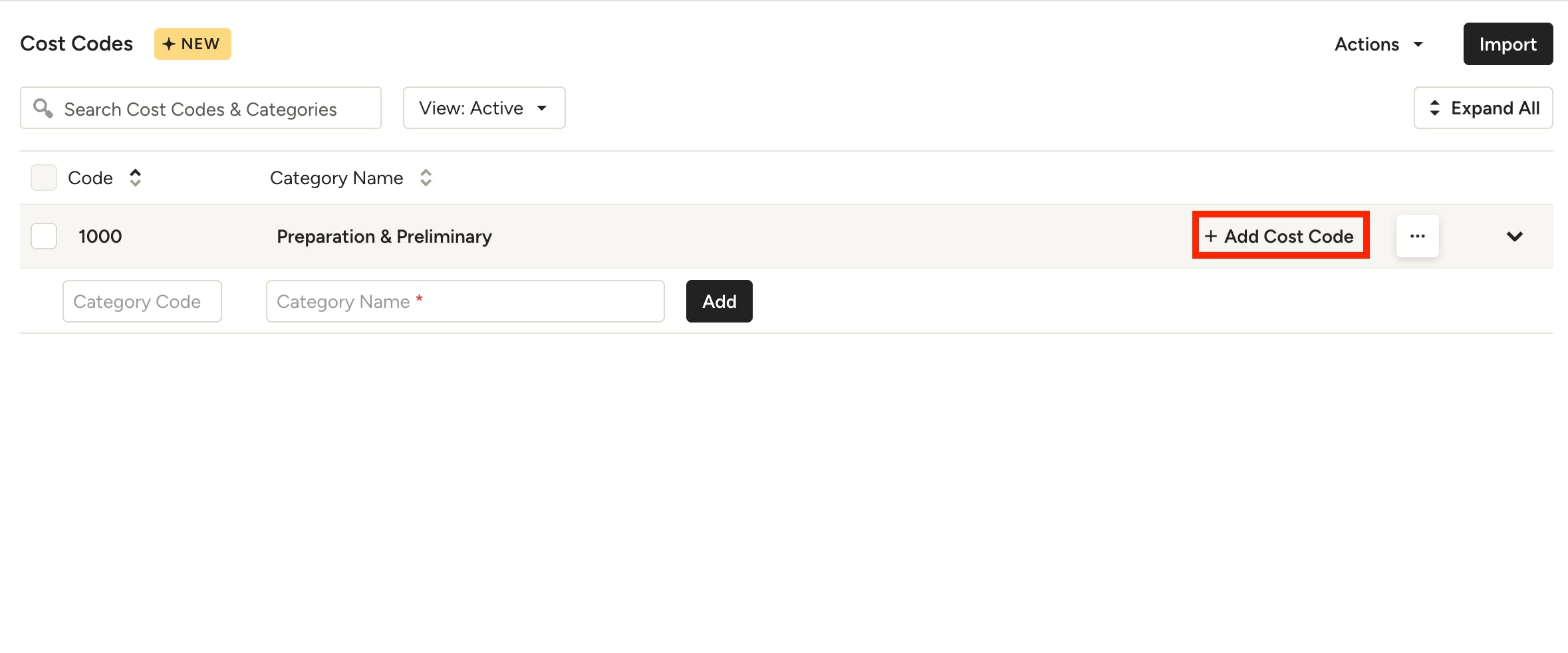
The new category name will appear under your Cost Codes list. To add more specific cost codes underneath this category, click Add Cost Code.
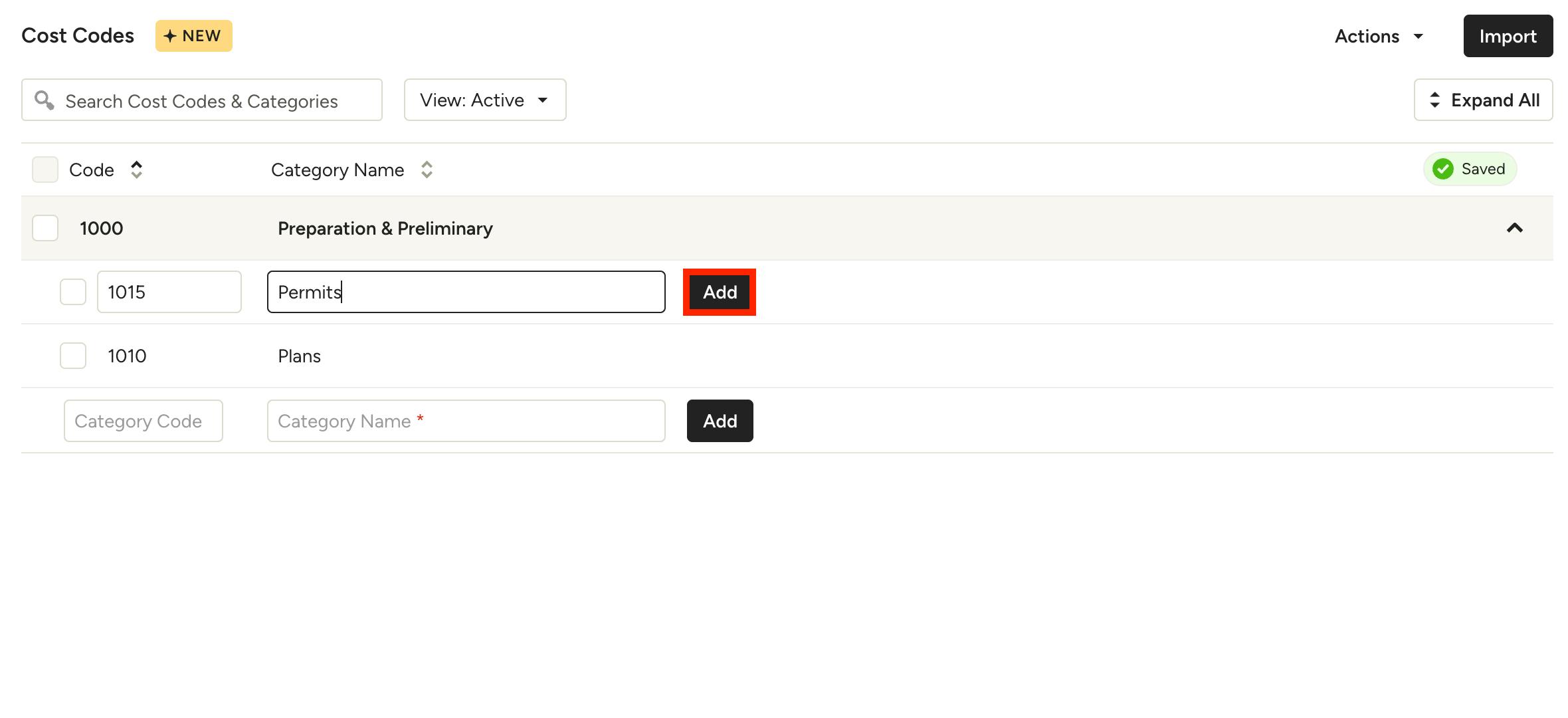
Type in the Cost Code number and name, then click Add.
You can continue to build out your categories and cost codes until your master list is complete.
Delete Cost Codes
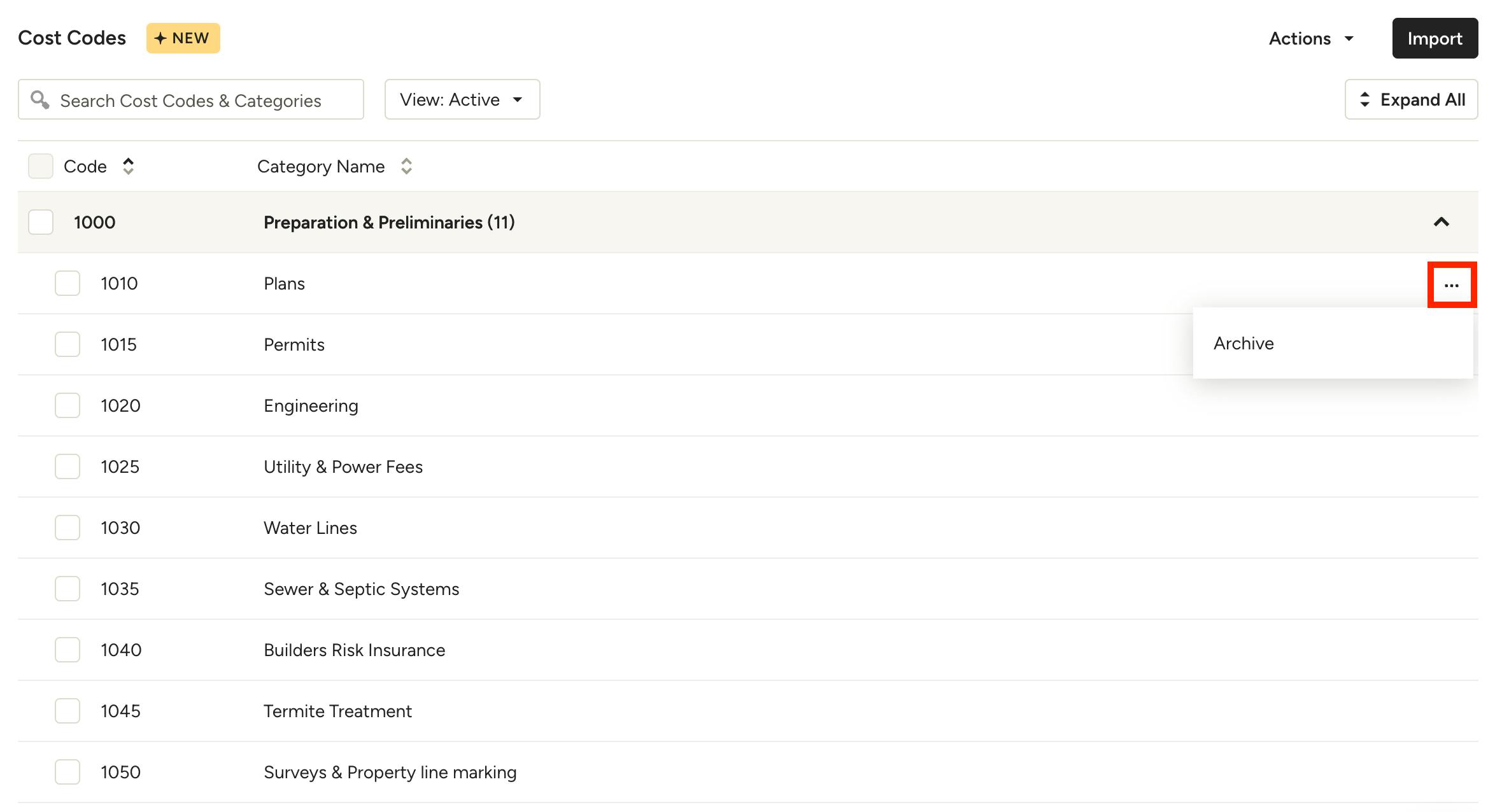
If you would like to delete a category or cost code (regardless of how it was added), you can do this from the Cost Codes page.
To start, find the relevant category or cost code you want to remove. Find the three dots icon on the right side, then select Archive.
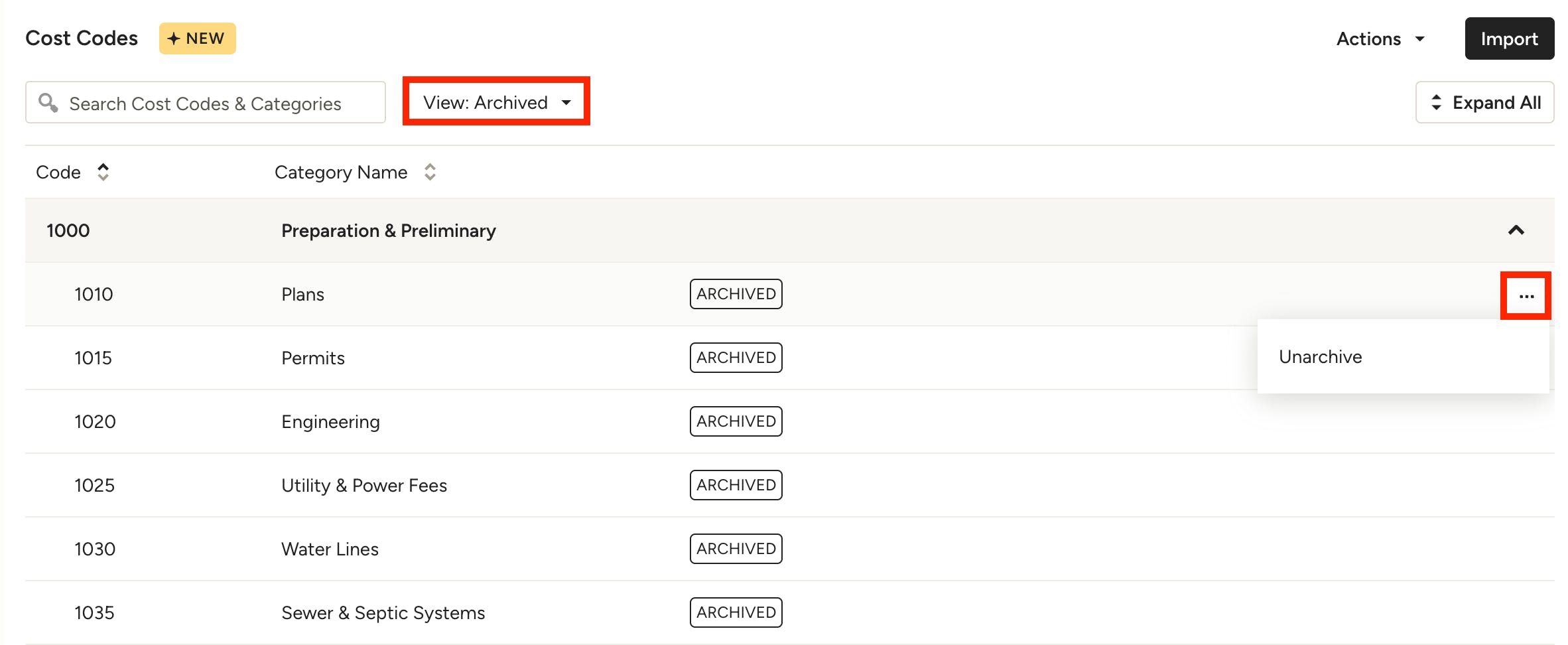
This category or cost code will now be removed from your active list of cost codes — this means you will not be able to use it in financial documents or across other Houzz Pro features.
If you would like to unarchive and activate again, find the View filter at the top of the Cost Codes page, then select Archived from the dropdown menu. Click the three dots icon on the right side of the relevant cost code, then select Unarchive.
The cost code will be enabled again and available for future use.
Disable Cost Codes
If you enable cost codes and decide that it isn’t the right fit for your company, you can disable the cost code system completely. This will remove all cost code numbers from future projects, though it will not impact existing projects that already use cost codes.
Please Note: Switching back and forth with cost codes is not recommended, because it could impact document organization and your bookkeeping and/or accounting records.
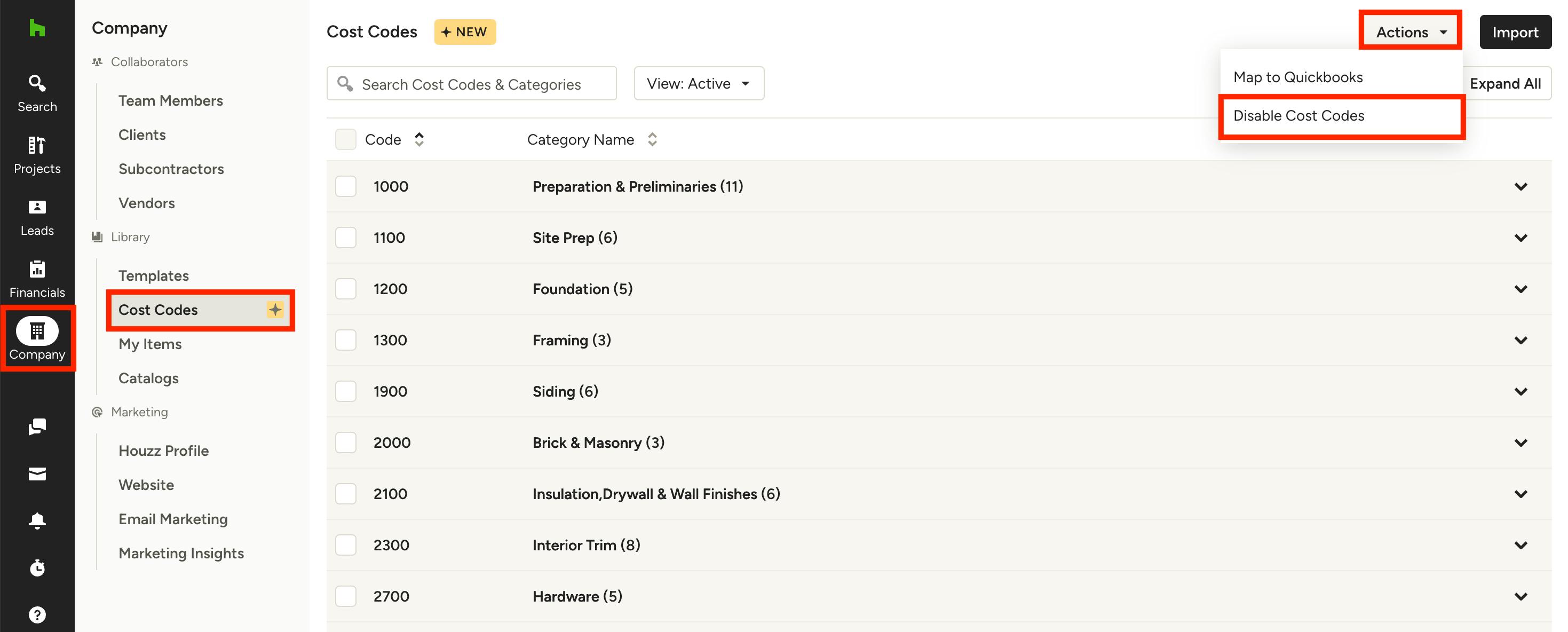
To disable cost codes, click the Company icon in the left navigation, then select Cost Codes in the menu. Once on the Cost Codes page, select Disable Cost Codes from the Actions dropdown.
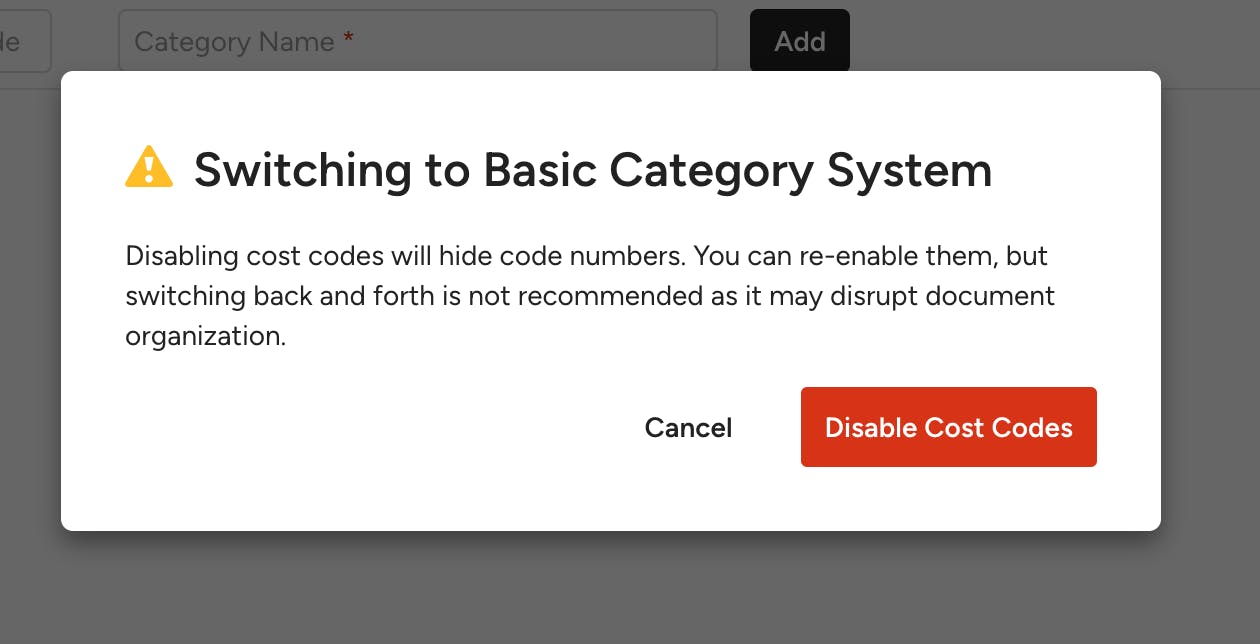
A new screen will appear to confirm you would like to disable cost codes. Click Disable Cost Codes to continue.
Your account will now switch back to the basic category system without cost codes.
Using Cost Codes Throughout Houzz Pro
Once you have built out your cost code master list, you are able to use cost codes throughout Houzz Pro — within Financial Documents, Selections, Budget, and QuickBooks Online. Read Where to Use Cost Codes in Houzz Pro to learn more.
By default, cost code permissions will be enabled for all team members. This will allow them to create, edit or delete cost codes. If you would like to disable access for specific team members, read Setting Team Member Permissions to learn more.