How to Scan a Room With the Mobile App
The Houzz Pro 3D Floor Plan Measurement Tool lets you quickly create accurate floor plans by scanning a room with your device.
Using the mobile app, you can capture measurements and key features like floors, doors, and windows, then instantly generate a floor plan you can edit in either 2D or 3D. Once you're back at the office, you can refine the plan on your desktop and show clients a clear visual of their space and your ideas.
Please Note: These instructions are only for non-LiDAR iOS and Android scanning devices. If you have an iPhone Pro 12 or newer or an iPad Pro 4th generation or newer running iOS 16 or later, you can use the new LiDAR room scanner instead (read this article for more information).
Create Room Scan
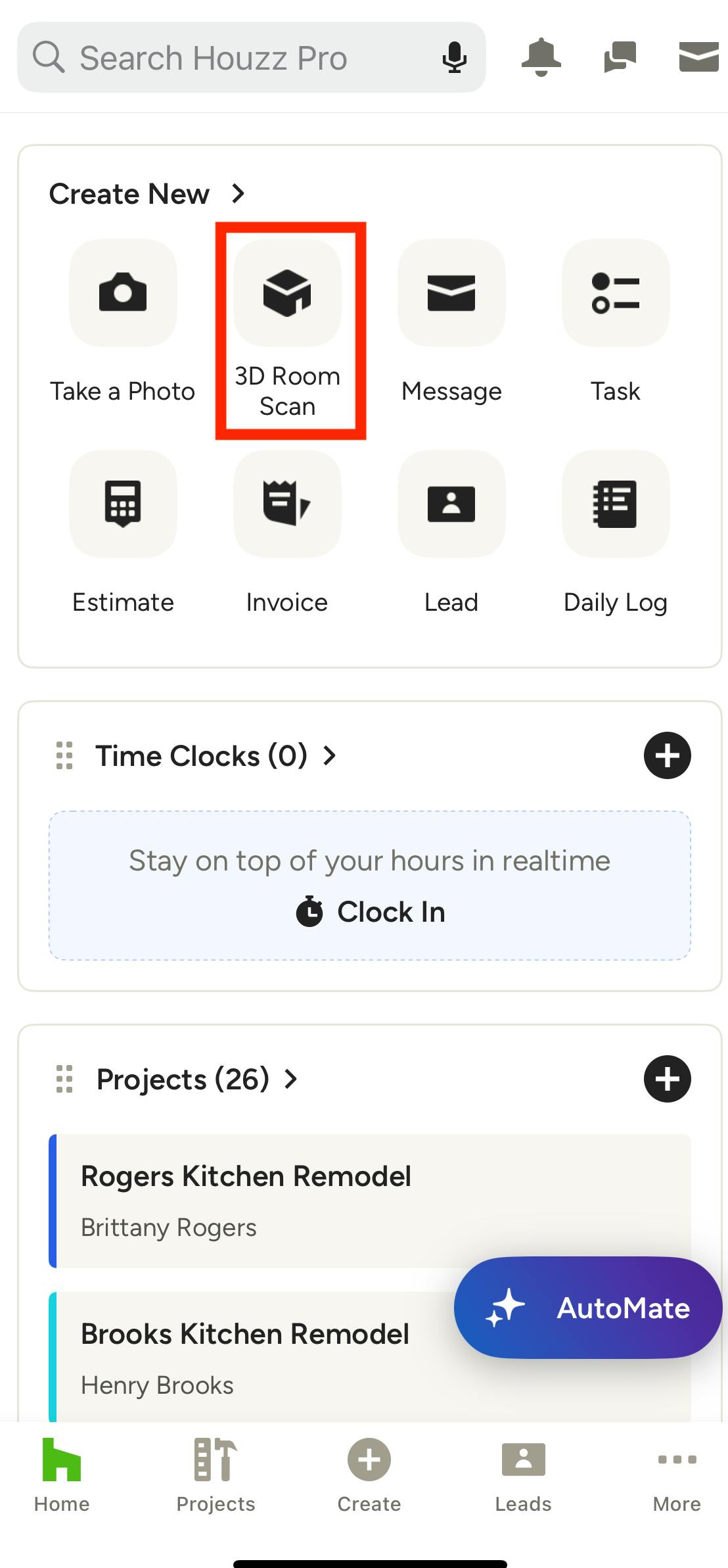
To scan a room, open up the Houzz Pro mobile app, then select 3D Room Scan from your homepage.
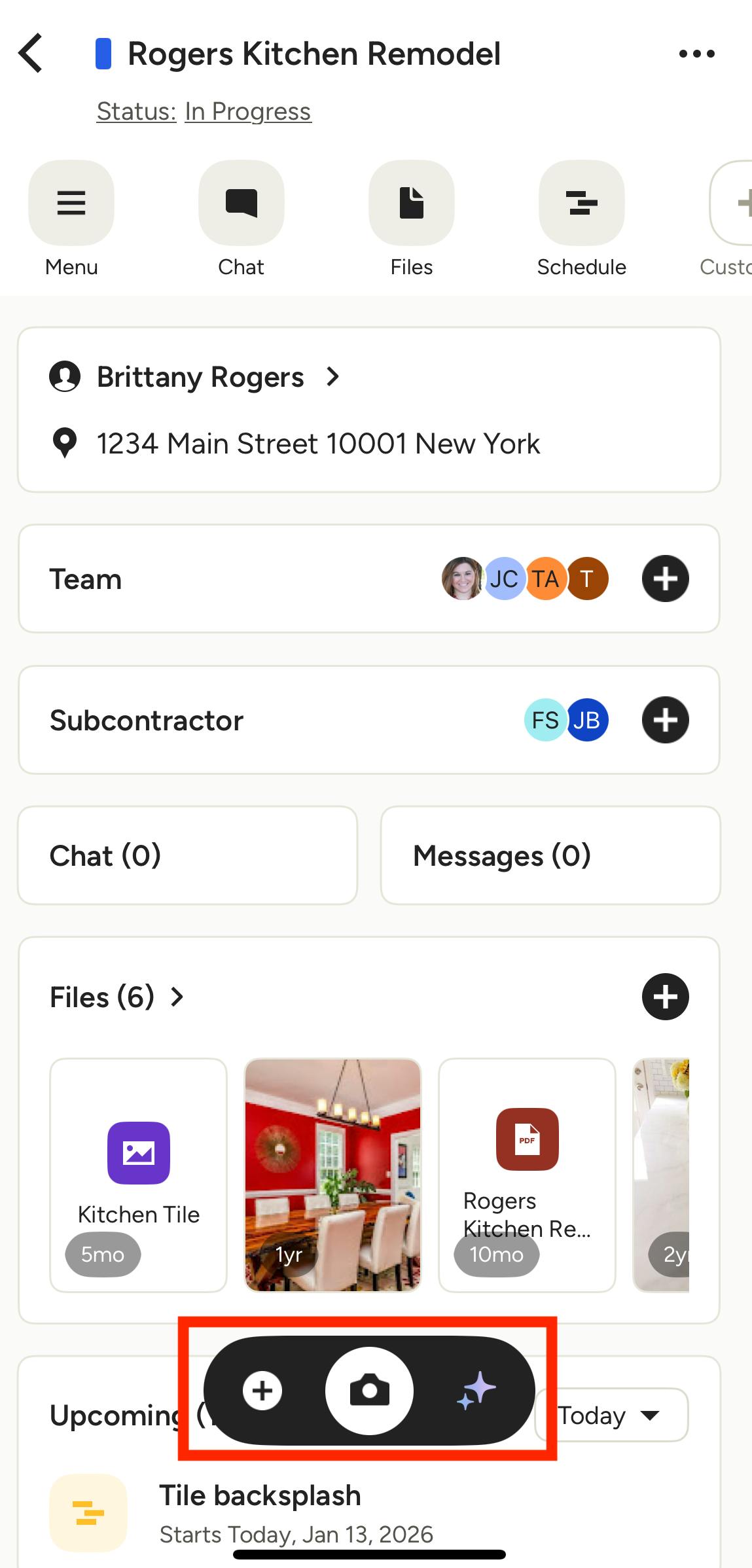
You can also open up an individual project or lead, tap the + icon, then select 3D Room Scan from the menu.
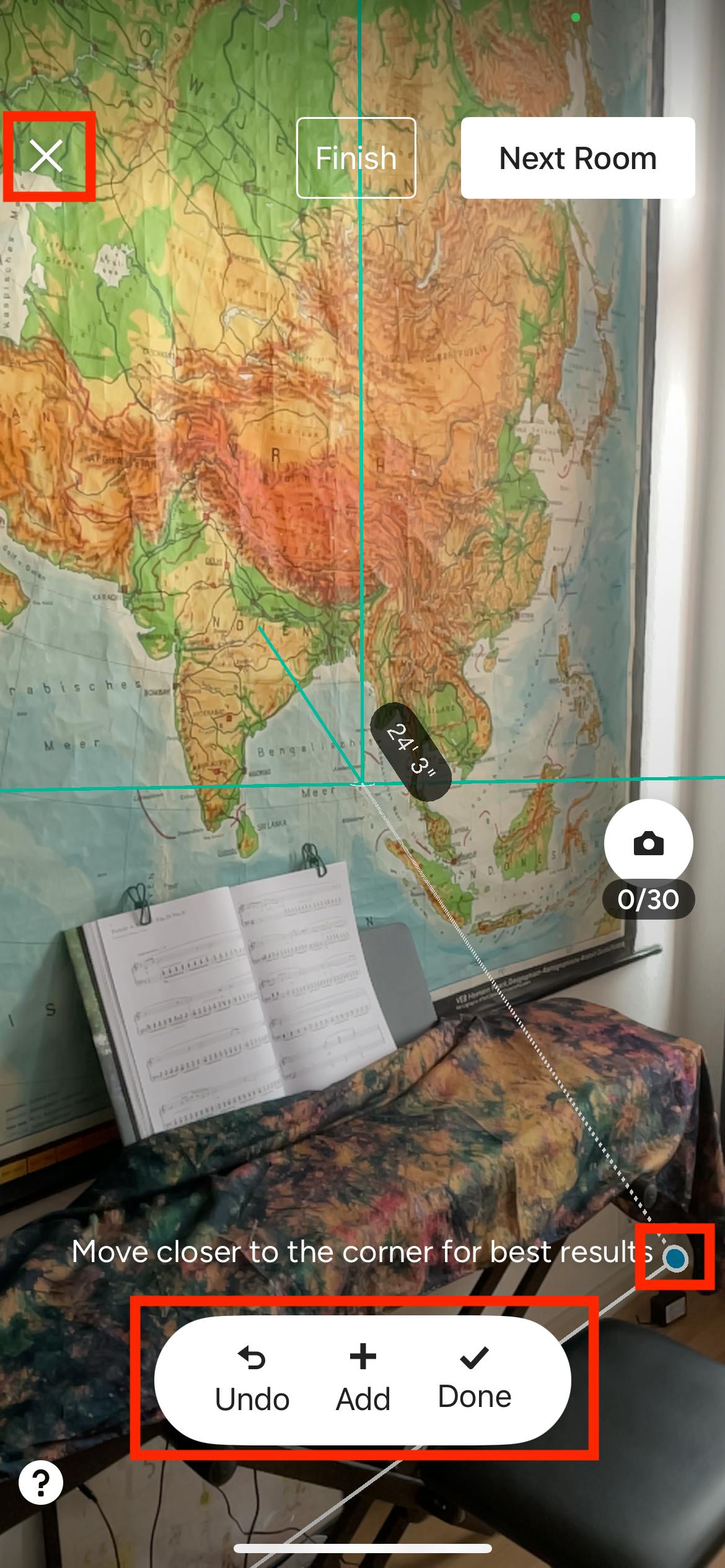
Before you begin to scan your space, make sure the room is well lit — this will ensure you produce a high-quality scan.
To start the scanning process, slowly tilt your phone to scan the floor, and move at a steady pace. You can tap the X in the top left corner at any time to cancel the scan.
As you go, tap + Add to create points at the room's corners on the floor. Windows and doors will be added in the next step, so ignore those for now. If you make a mistake when adding a point, tap the Undo button.
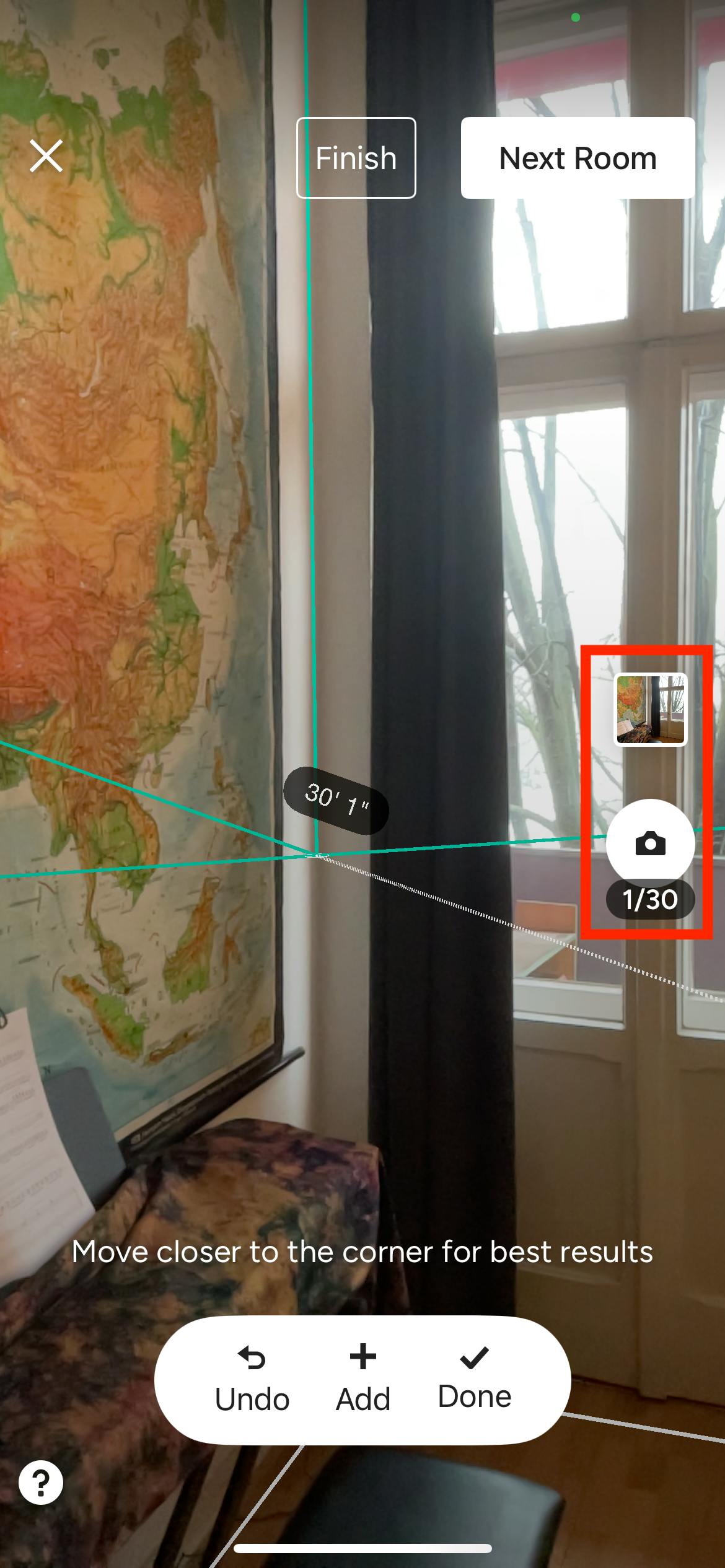
As you scan, tap the Camera icon on your screen to take a photo of important job site details that you would like to remember.
These photos will appear on your scan but will not interrupt the room scan. You can later view them by selecting the photo icon directly on your floor plan (more details below). They will also automatically save to that project's files and photos.
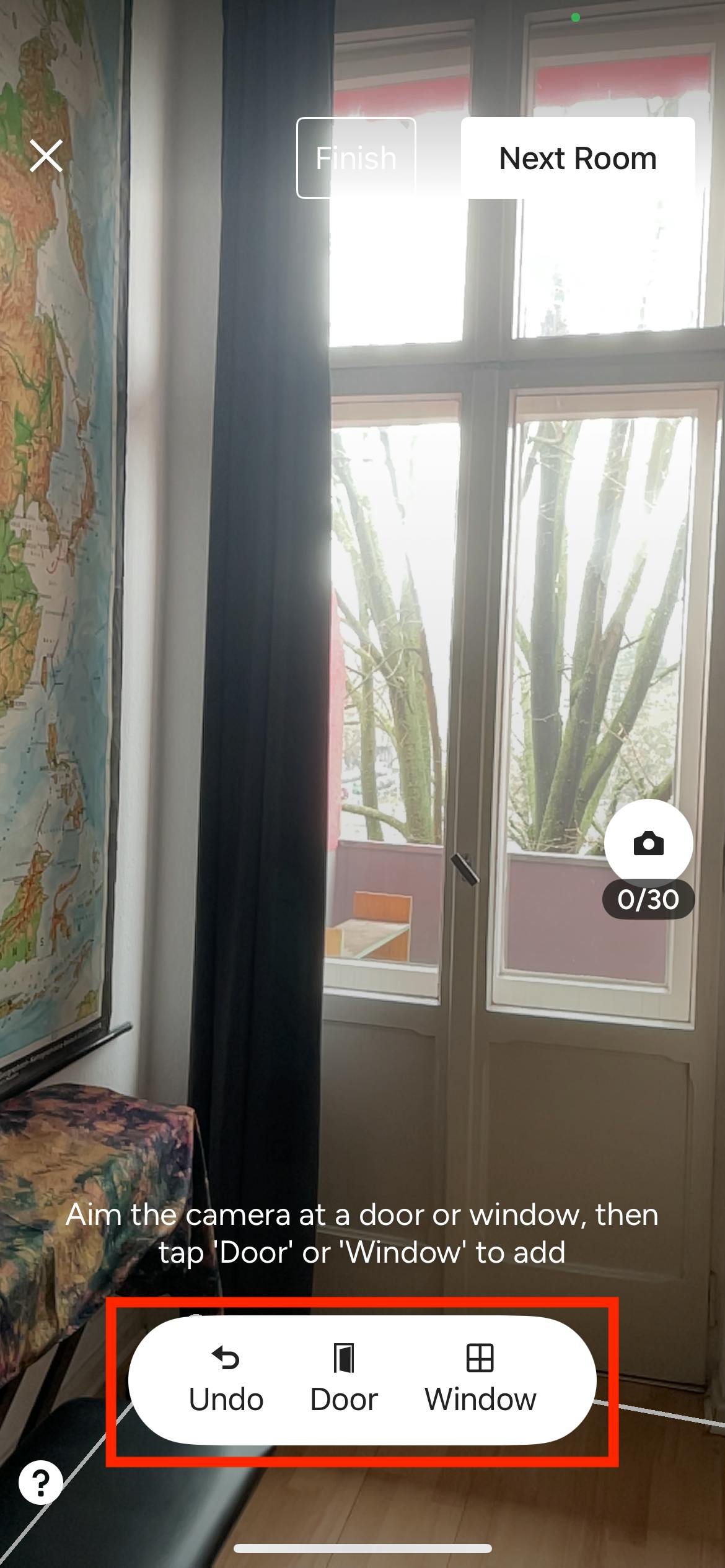
Once all the corner points are added to fully enclose the room, a new menu will appear on the bottom that includes Door and Window icons. Please Note: If it doesn't appear automatically, click Done for it to appear.
Now, you can add the windows and doors in the room. Aim the camera at the door or window you would like to add to the scan, then tap the relevant icon.
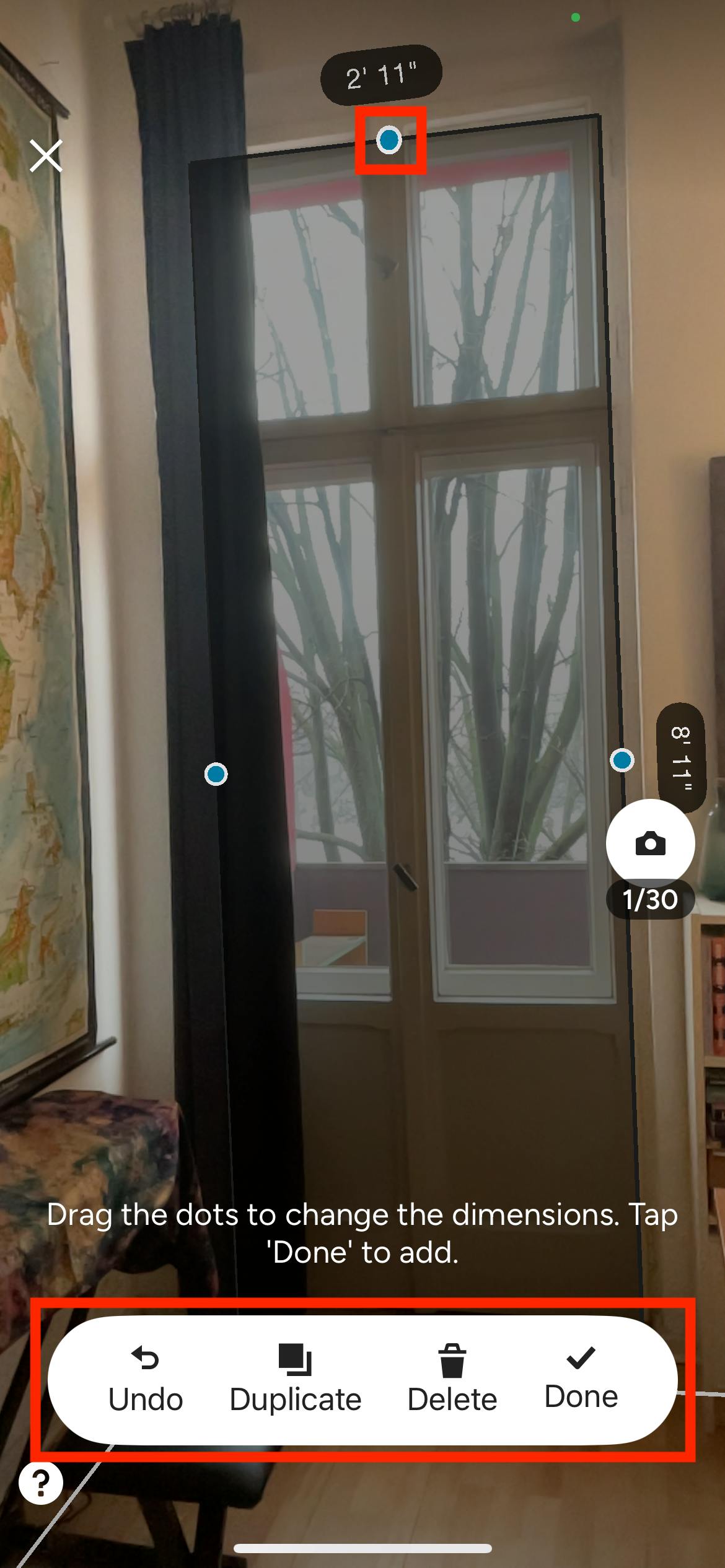
The points around the window/door will appear automatically. You can then drag the points to adjust the window/door size and match the dimensions. If you make a mistake, click Undo to revert the last change. You can also Delete or Duplicate an entire window/door measurement.
Once that window/door is complete, click Done, then move onto the next one (if relevant).
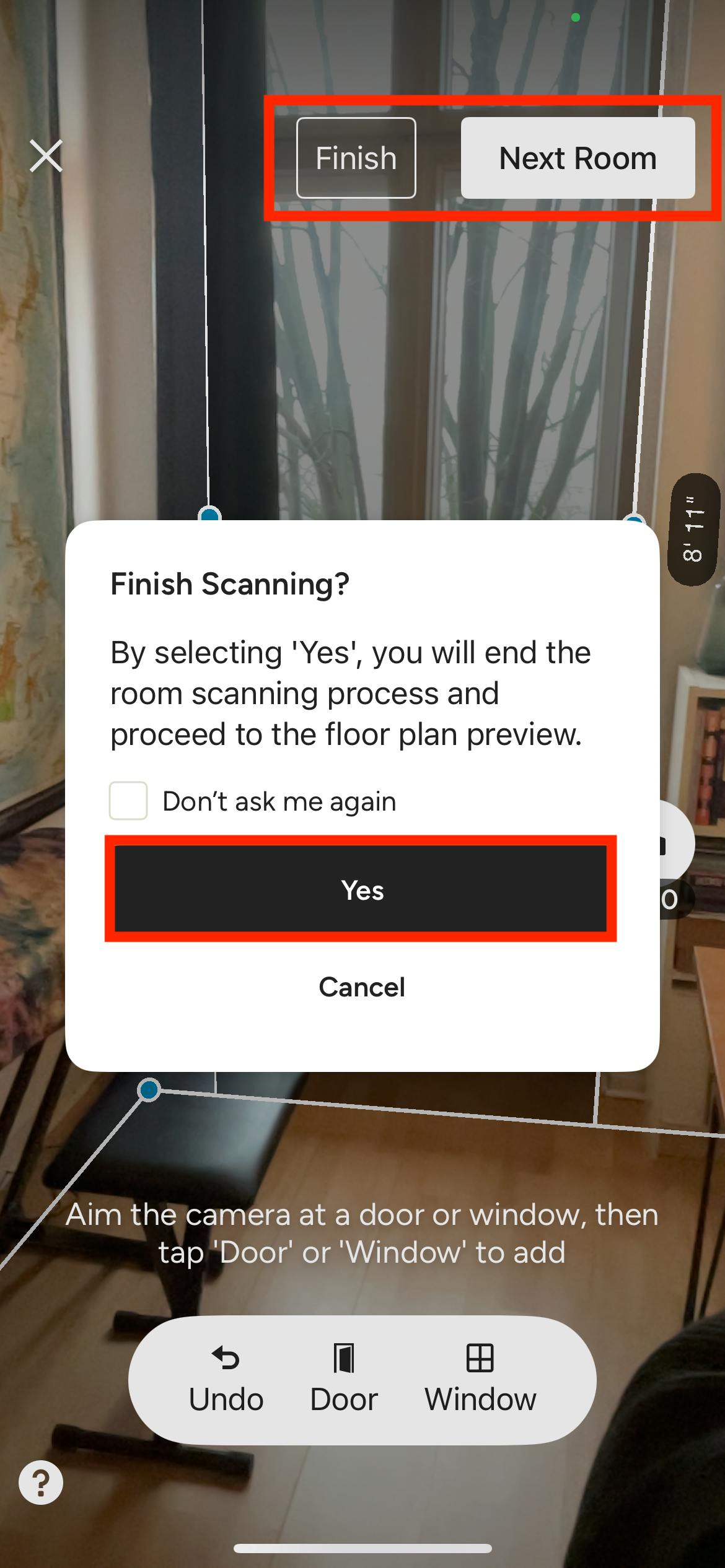
If you would like to capture another room, tap Next Room at the top of your screen, and continue to scan that space.
If you are completely done with your room scan, tap Finish. A new confirmation screen will appear — tap Yes to complete the scan.
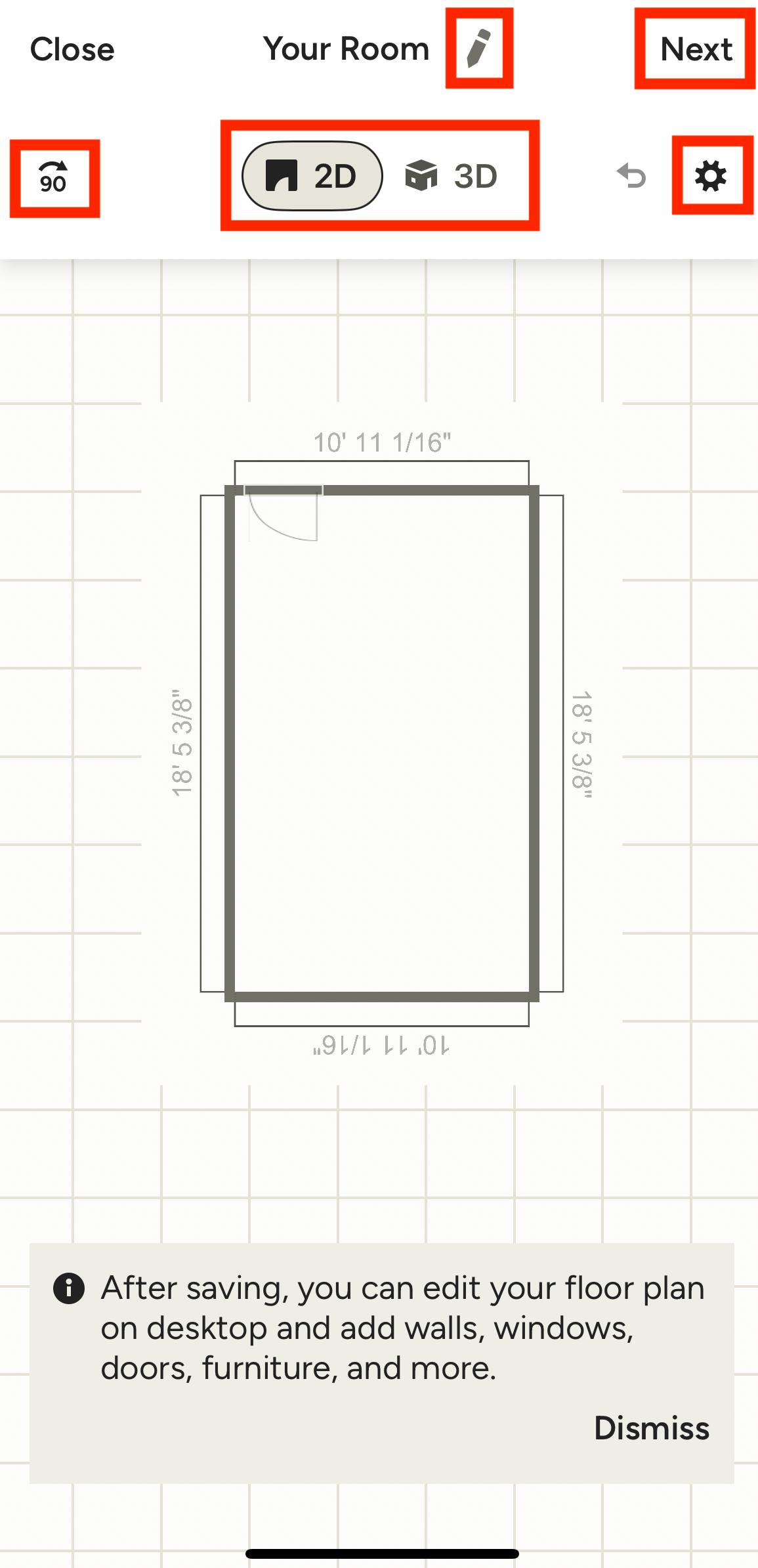
Your completed 3D room scan will now appear as a floor plan. On this screen, you can:
- Rename using the pencil icon
- Rotate your floor plan using the 90-degree icon
- Change from 2D to 3D view
- Adjust floor plan settings using the gear icon
- Adjust the walls by selecting a wall and typing in the measurements
Be sure to tap Next in the top right corner to move towards saving your floor plan.
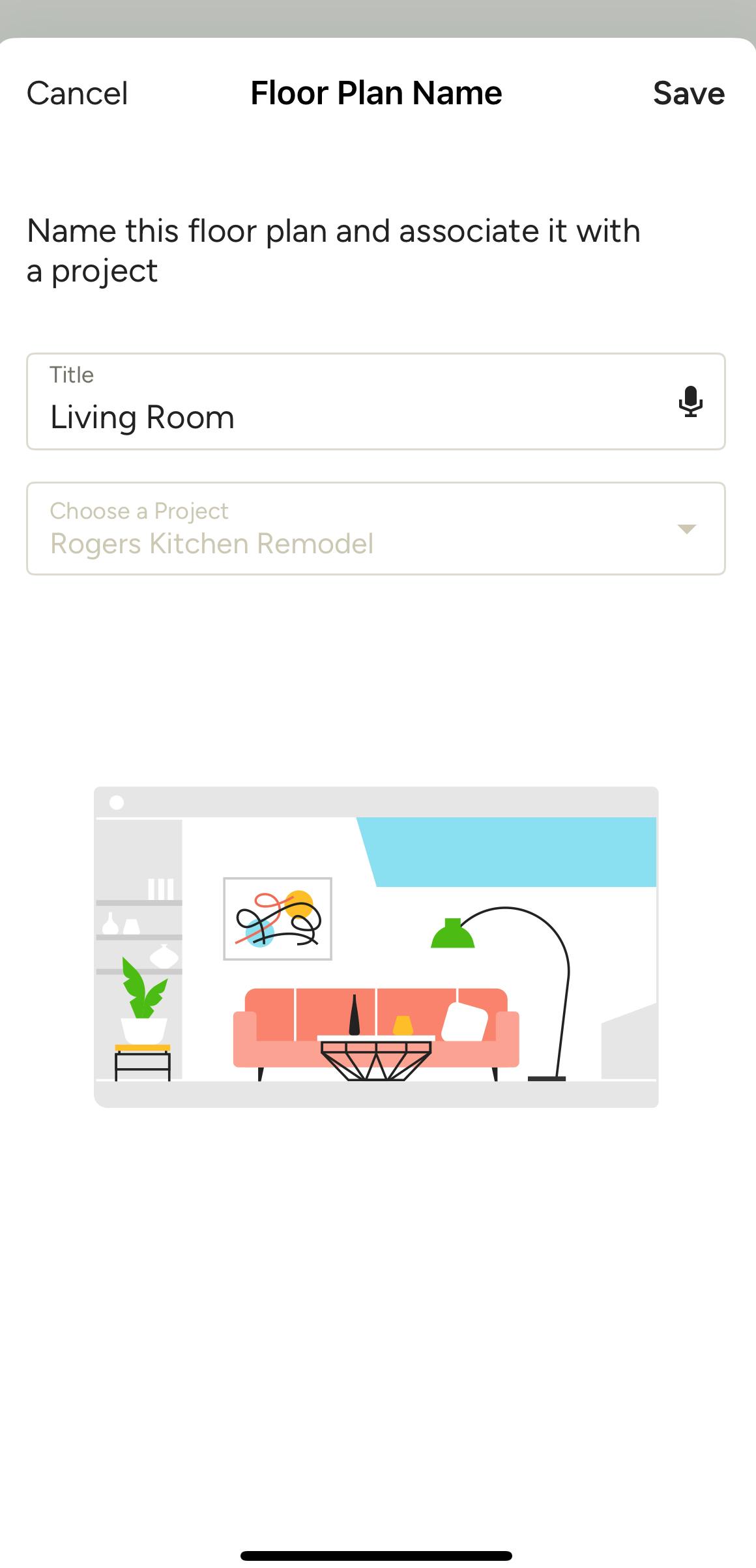
In the next screen, you will then need to name the floor plan and associate it with a lead or project (if not already selected). Tap Save at the top to complete the scan.
View Room Scan
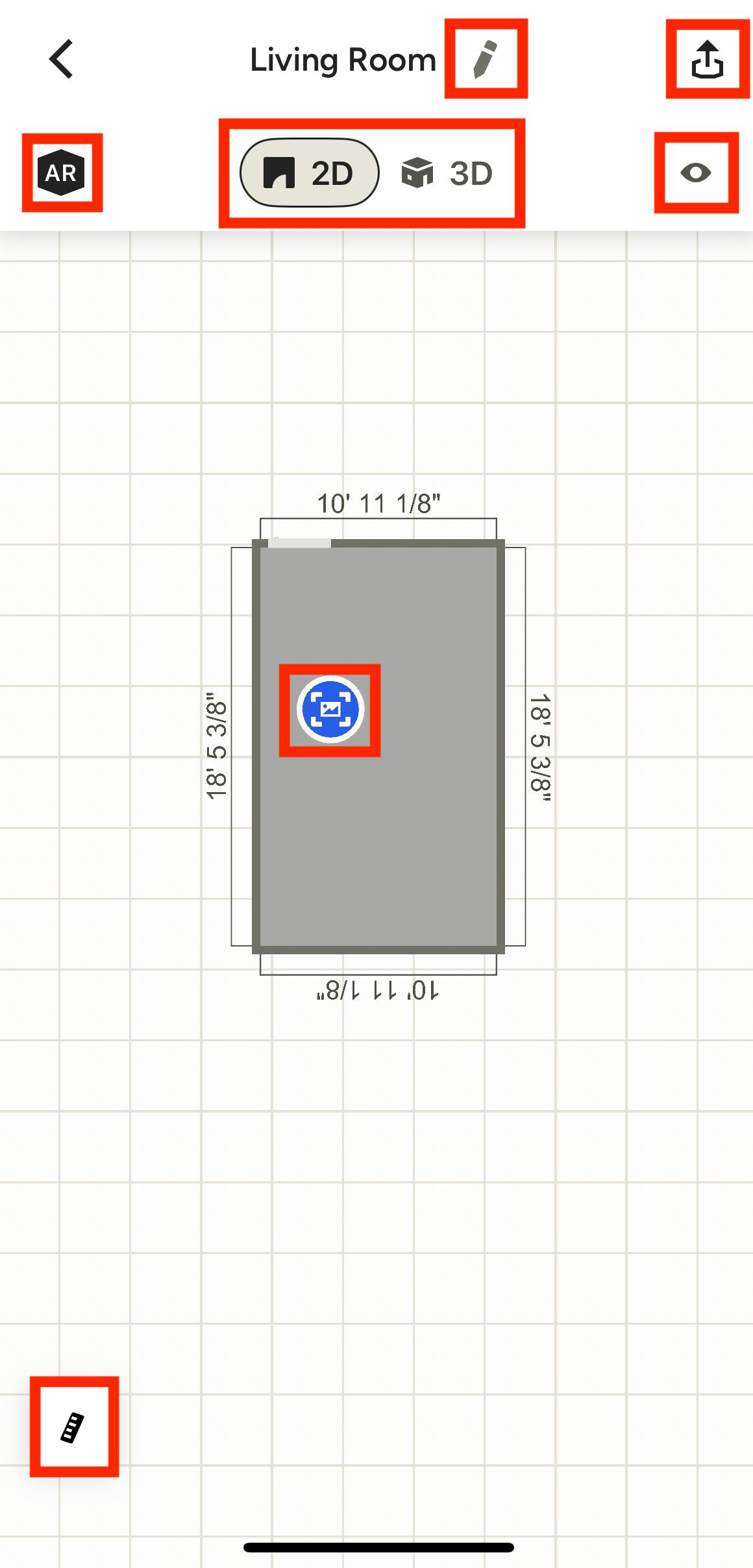
Once the room scan is saved, you can easily view it in the 3D Floor Plans section of that project or lead. On the mobile app, you can:
- Rename the plan by tapping the pencil icon next to the title.
- Share the plan by tapping the share icon at the top of your screen.
- Open up the AR scanning experience by tapping the AR icon.
- View the plan in 2D or 3D mode by selecting the relevant mode.
- Adjust view settings, measurement units, and toggle on and off camera icons by tapping the eye icon at the top of your screen.
- View any photos you took during the scan. Each photo will be pinned to the precise location they were taken.
- Zoom in and out of the plan by pinching with two fingers directly on the plan itself.
- Make ruler measurements directly on your plan by tapping the ruler icon at the bottom of your screen.
Please Note: If you would like to edit and further customize your 3D floor plan, you will need to do that from a desktop computer. To learn more about mobile capabilities, read How to Use the 3D Floor Plan on Mobile. To learn more about desktop capabilities, read How to Create a 3D Floor Plan.