How to Scan a Room Using LiDAR Technology
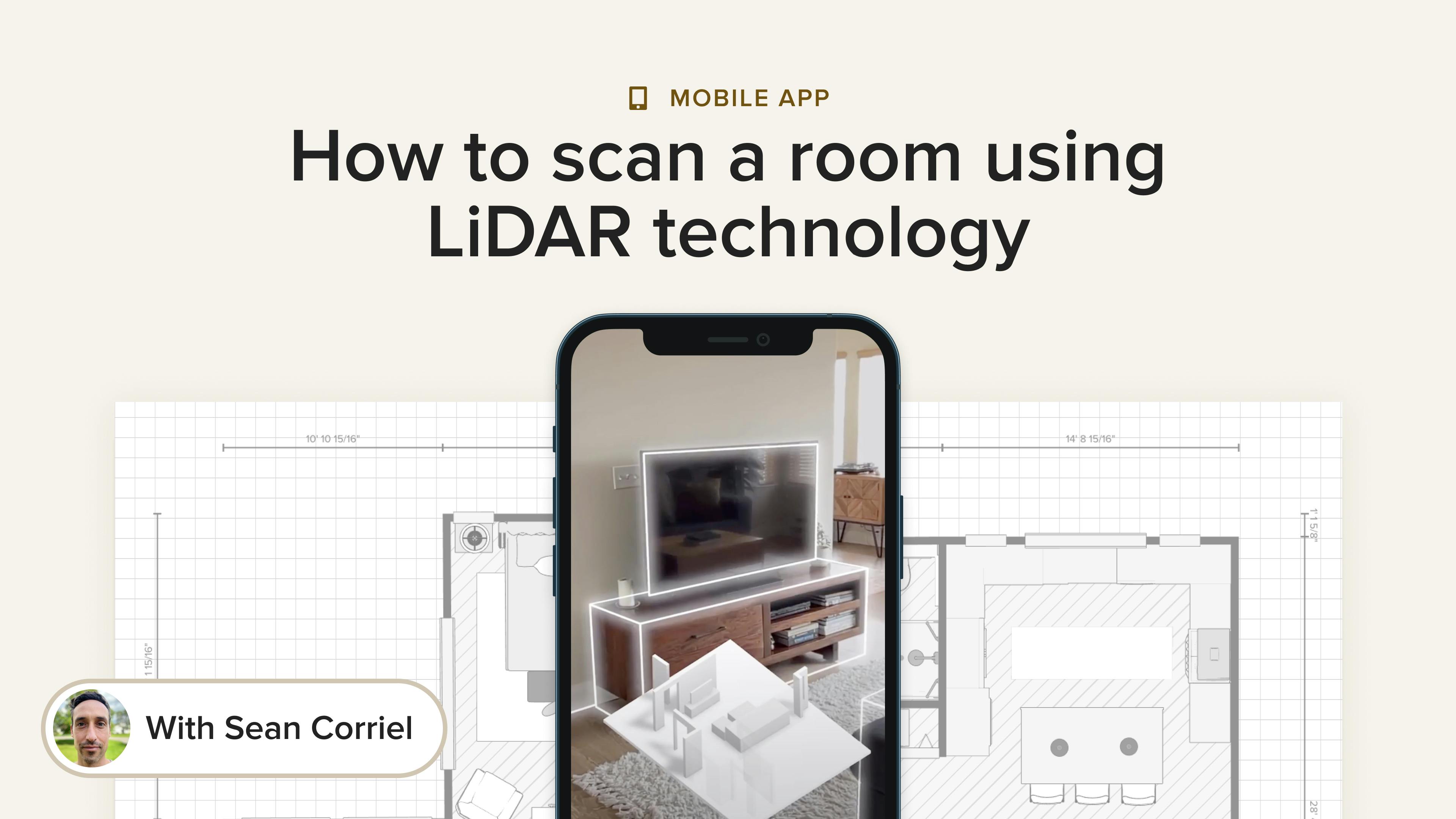
With Houzz Pro's 3D Room Scan, creating accurate, lightning-fast floor plans is as simple as scanning a room with your phone.
When you visit a client’s home, you can use the Houzz Pro mobile app to quickly capture every detail of their space — from walls and architectural features to furniture placement — and instantly generate a floor plan right before your eyes. It’s the perfect way to present clients with a realistic, visual representation of what is possible with their space.
Room Scan Overview
Powered by the combined innovation of Apple’s RoomPlan API and LiDAR (Light Detection and Ranging) technology, the 3D Room Scan feature gives design and renovation pros an unparalleled edge. LiDAR uses precise laser measurements to sense and map out objects, which ensures your floor plans are both fast and incredibly accurate.
Once scanned, you can choose to show or hide existing furniture, as well as toggle between 2D and 3D views to suit your workflow. Back at the office, open your saved floor plan scans on your desktop computer to refine the layout and bring your remodeling ideas to life.
Please Note: LiDAR scanning is only available on iPhone 12 Pro or newer or an iPad Pro (4th generation or newer) running iOS 16 or later. To create a room scan on all other devices, see this article.
Create Room Scan
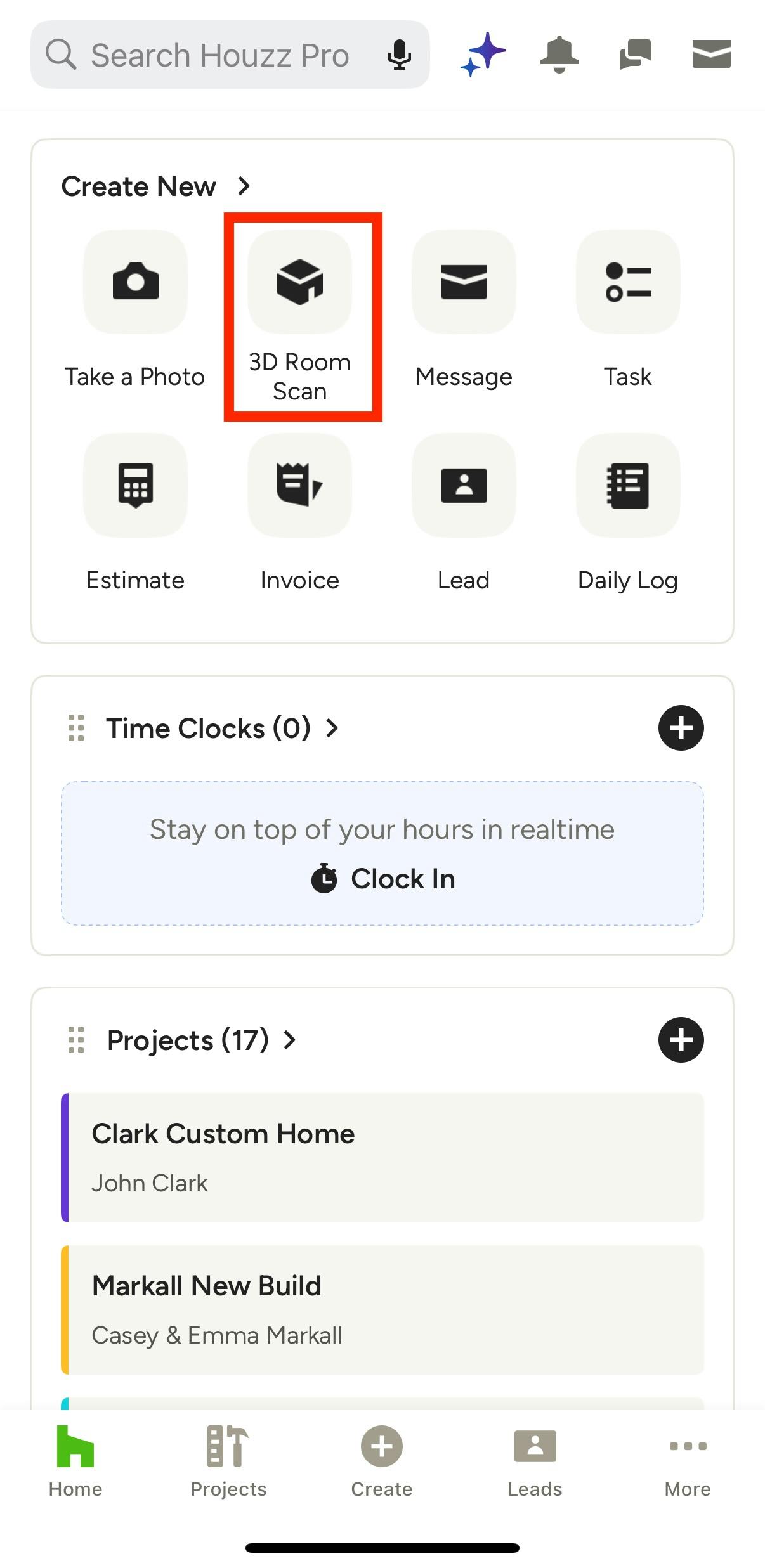
To scan a room, open up the Houzz Pro mobile app, then select 3D Room Scan from your homepage.
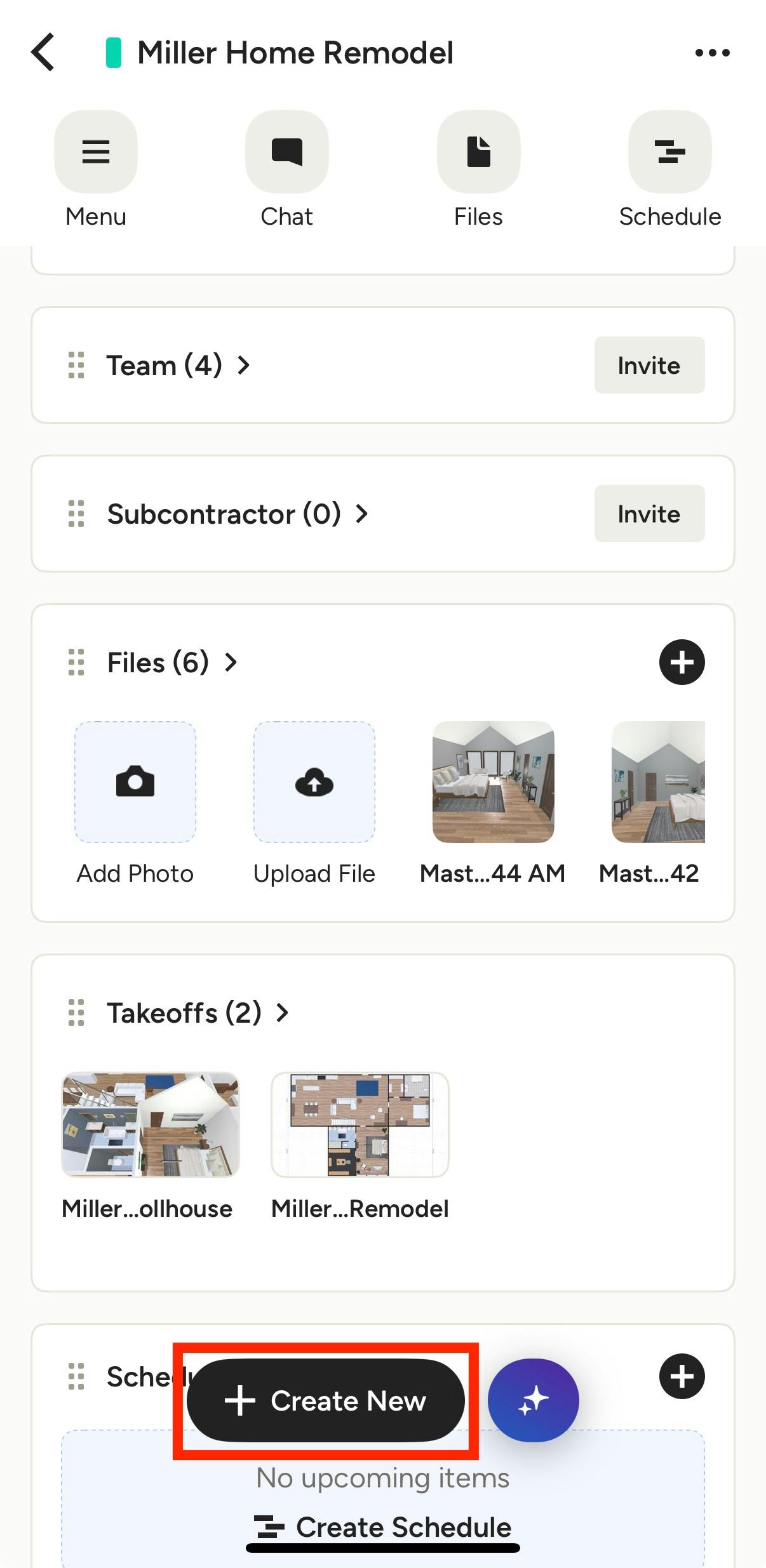
You can also open up an individual project or lead, tap Create New, then select 3D Room Scan from the menu.
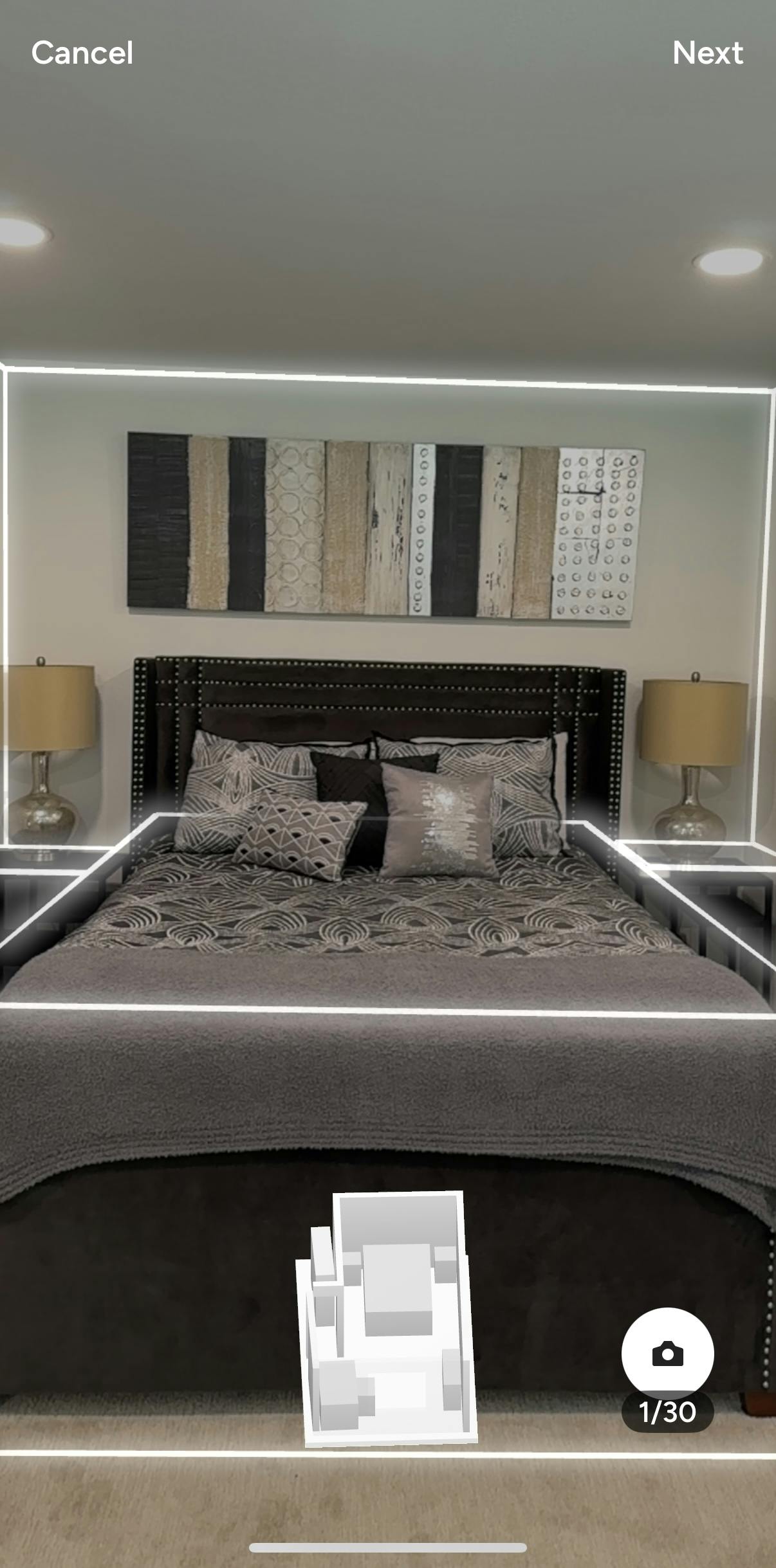
Before you begin to scan your space, ensure the room is well lit — this will ensure you produce a high-quality scan. Position yourself far enough away from the walls so you can properly capture all the details.
As you start, scan the room at a steady pace, gently moving your iPad or iPhone Pro up and down to capture every angle. Be sure to capture all the corners and edges of your ceiling, flooring and architectural features in the space. The scan will also capture the furniture in the room, which you can decide to include or remove later on.
Pro Tip: Kitchen cabinets captured during a scan will be automatically recognized as true base, wall, and tall cabinets. Because scan technology can't always tell individual cabinets apart in a row, some cabinets may appear stretched to match the full row width. Once the scan is complete, you can resize and edit them as needed on your desktop computer — read more about editing cabinets here.
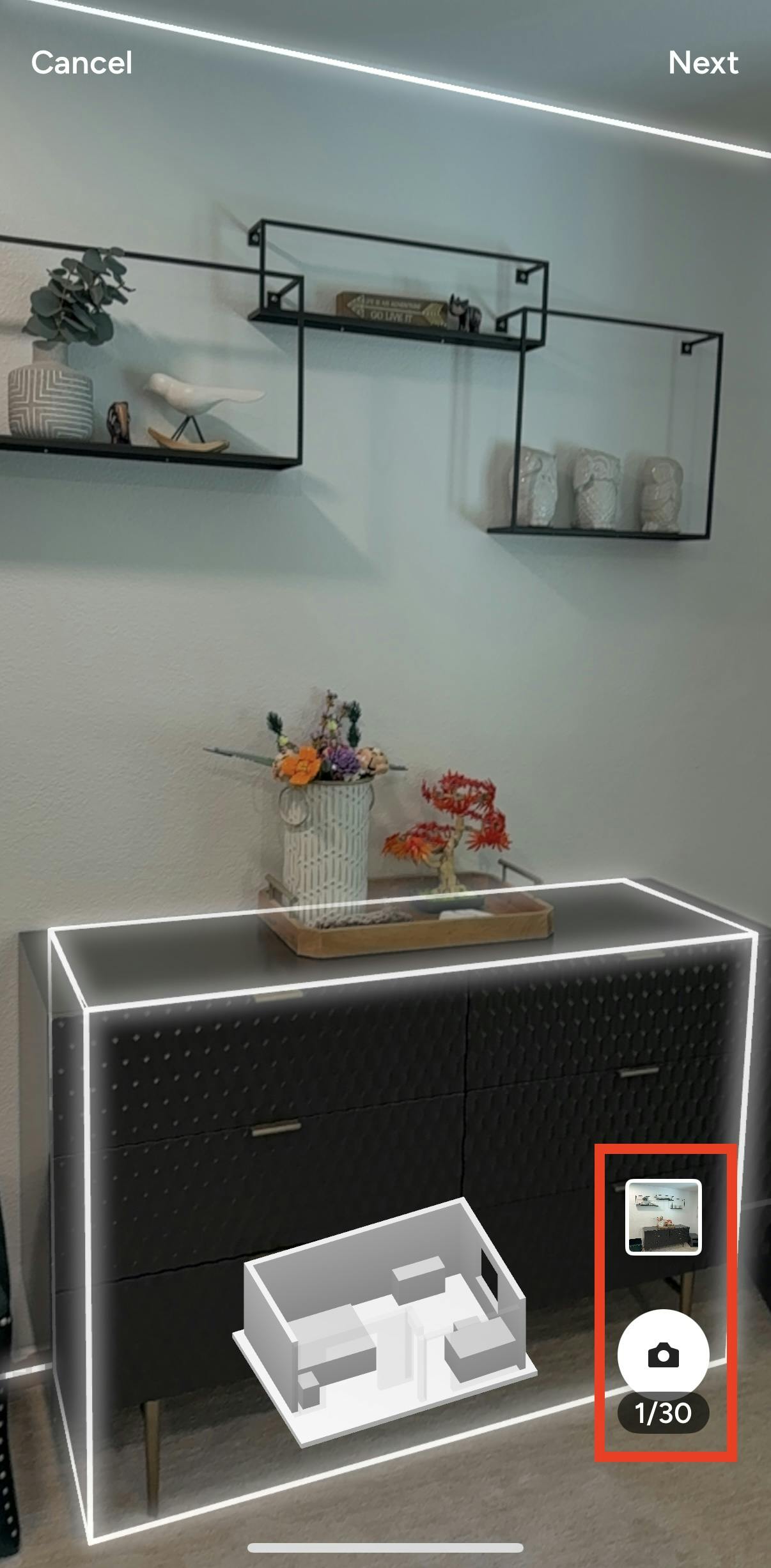
As you scan, tap the Camera icon on your screen to take a photo of important job site details that you would like to remember.
These photos will appear on your scan but will not interrupt the room scan. You can later view them by selecting the photo icon directly on your floor plan (more details below). They will also automatically save to that project's files and photos.
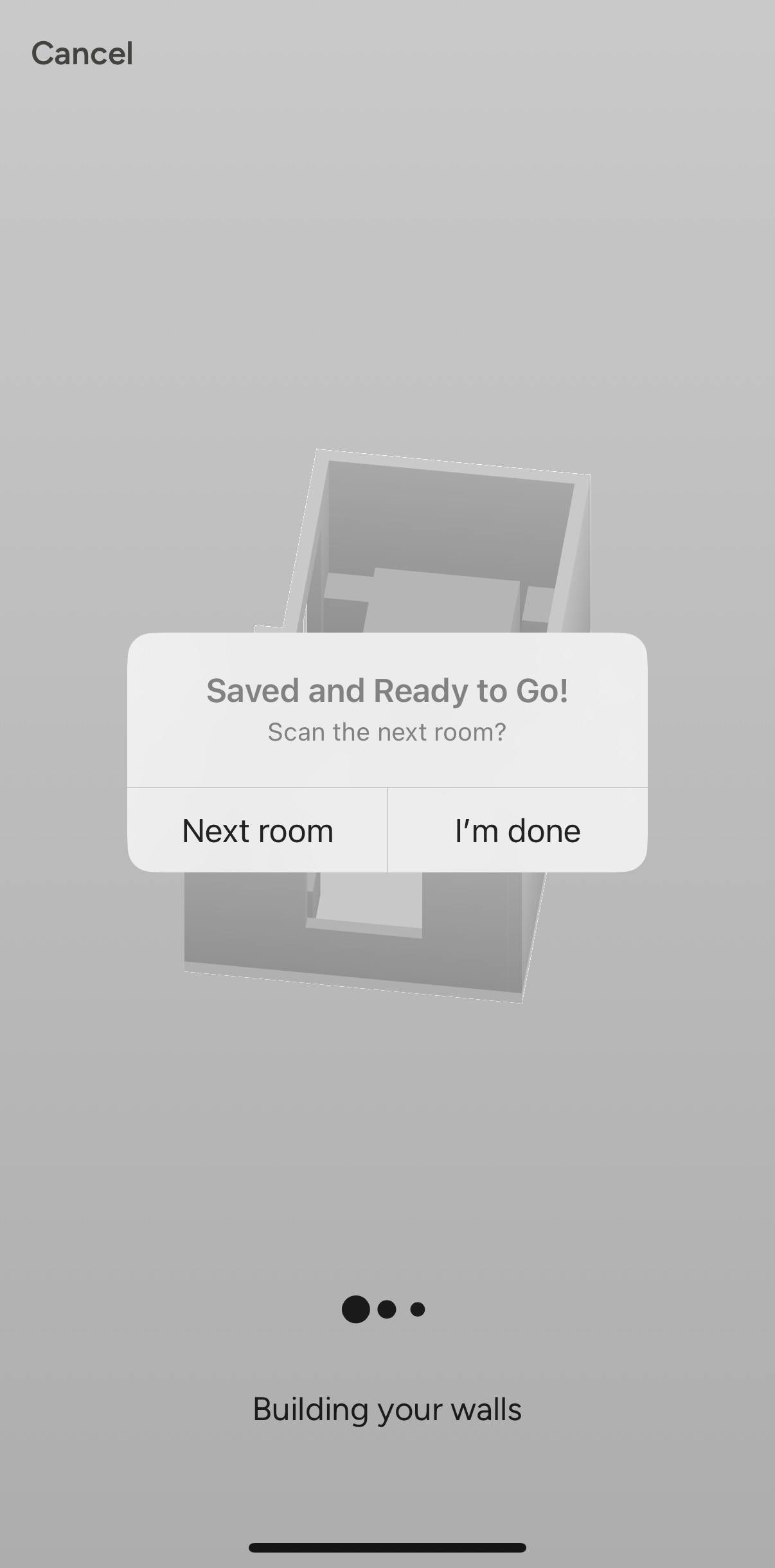
When your scan is complete, tap Next at the top of your screen. If you would like to scan another room, tap Next Room. If you are done with your scan, tap I'm Done.
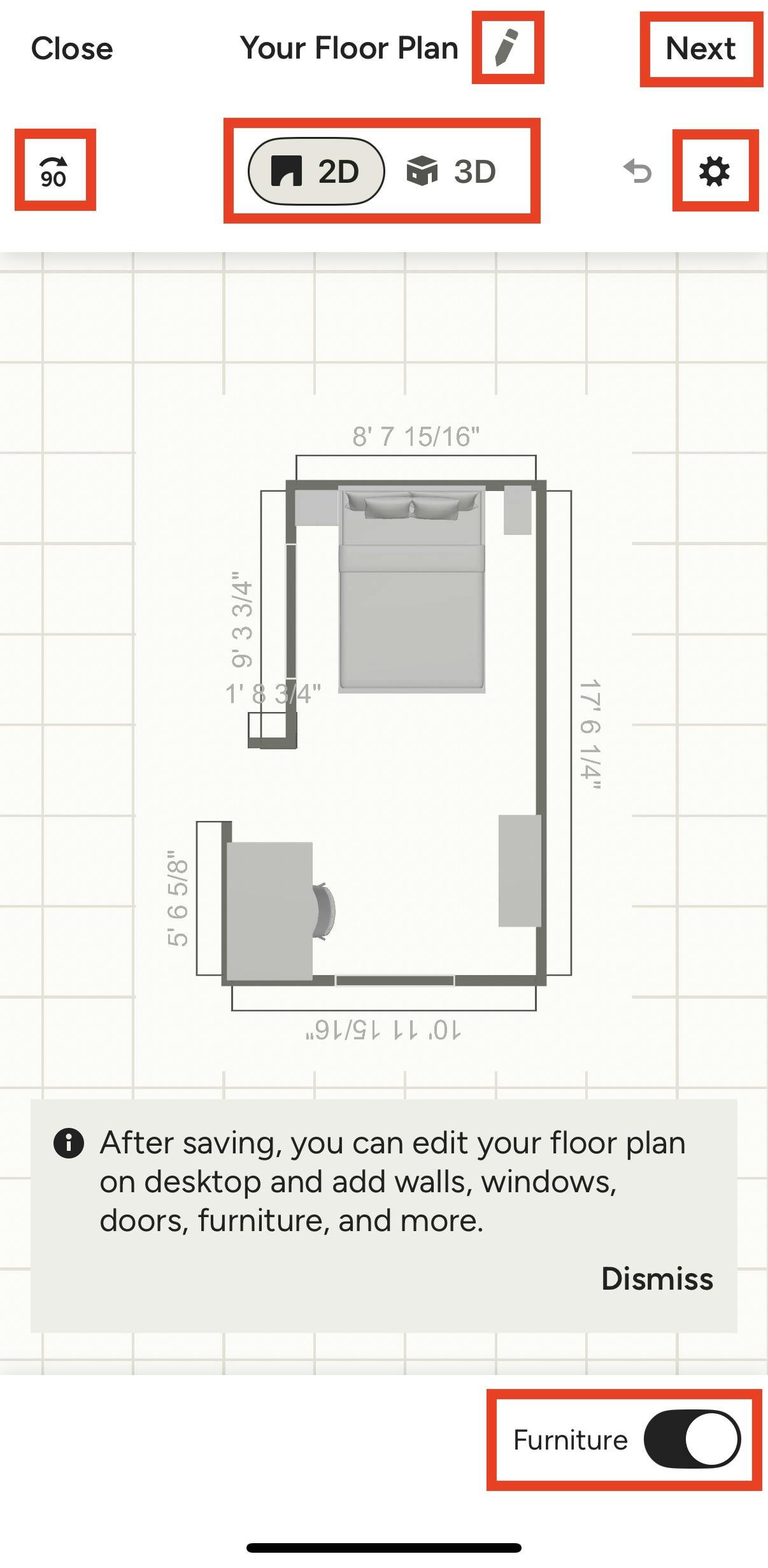
Your completed 3D room scan will now appear as a floor plan. On this screen, you can:
- Rename using the pencil icon
- Rotate your floor plan using the 90-degree icon
- Change from 2D to 3D view
- Toggle on and off the furniture in the room
- Adjust floor plan settings using the gear icon
Be sure to tap Next in the top right corner to move towards saving your floor plan.
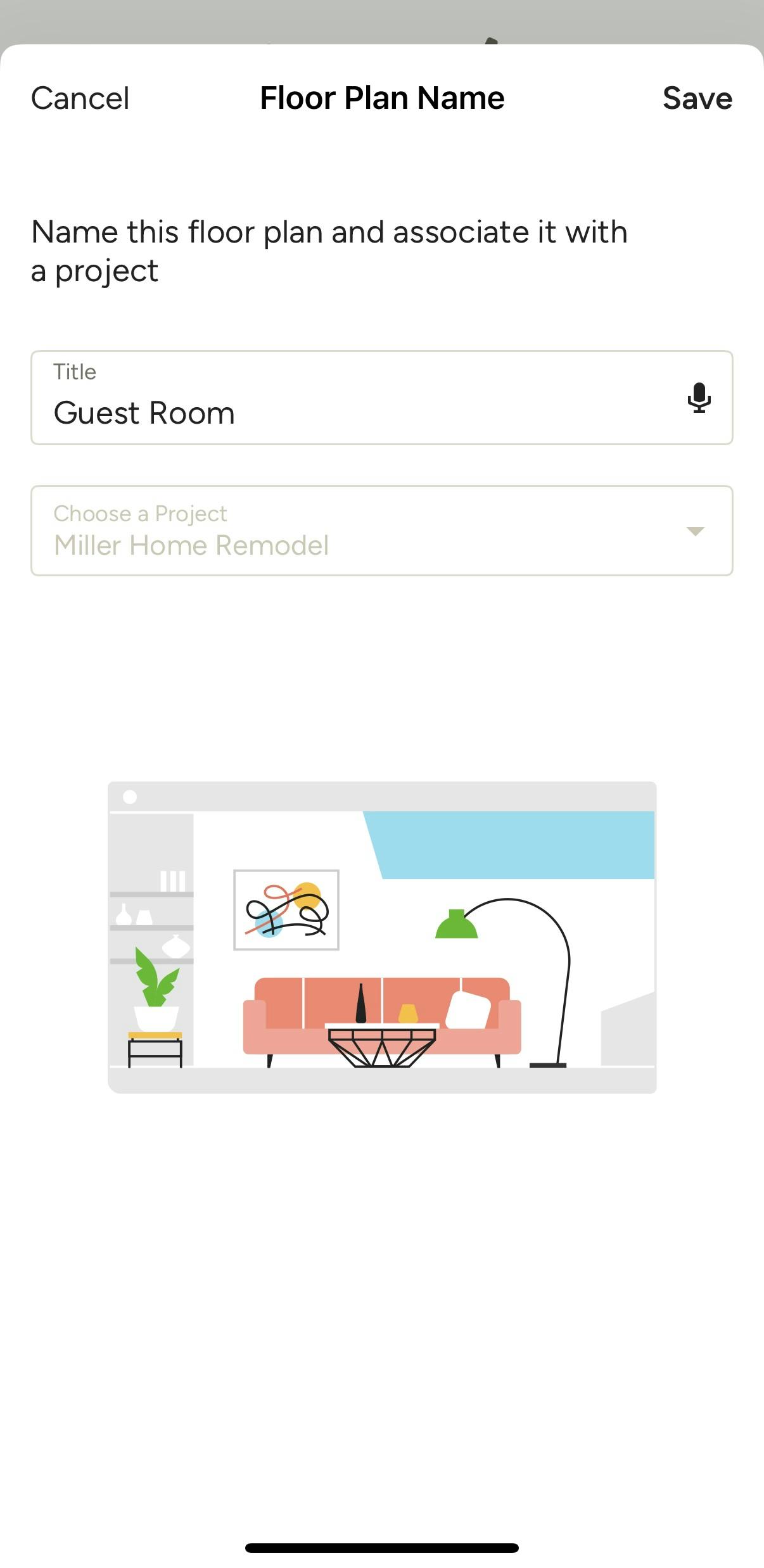
In the next screen, tap Yes to save furniture, and No to not save the furniture. You will then need to name the floor plan and associate it with a lead or project (if not already selected). Tap Save at the top to complete the scan.
View Room Scan
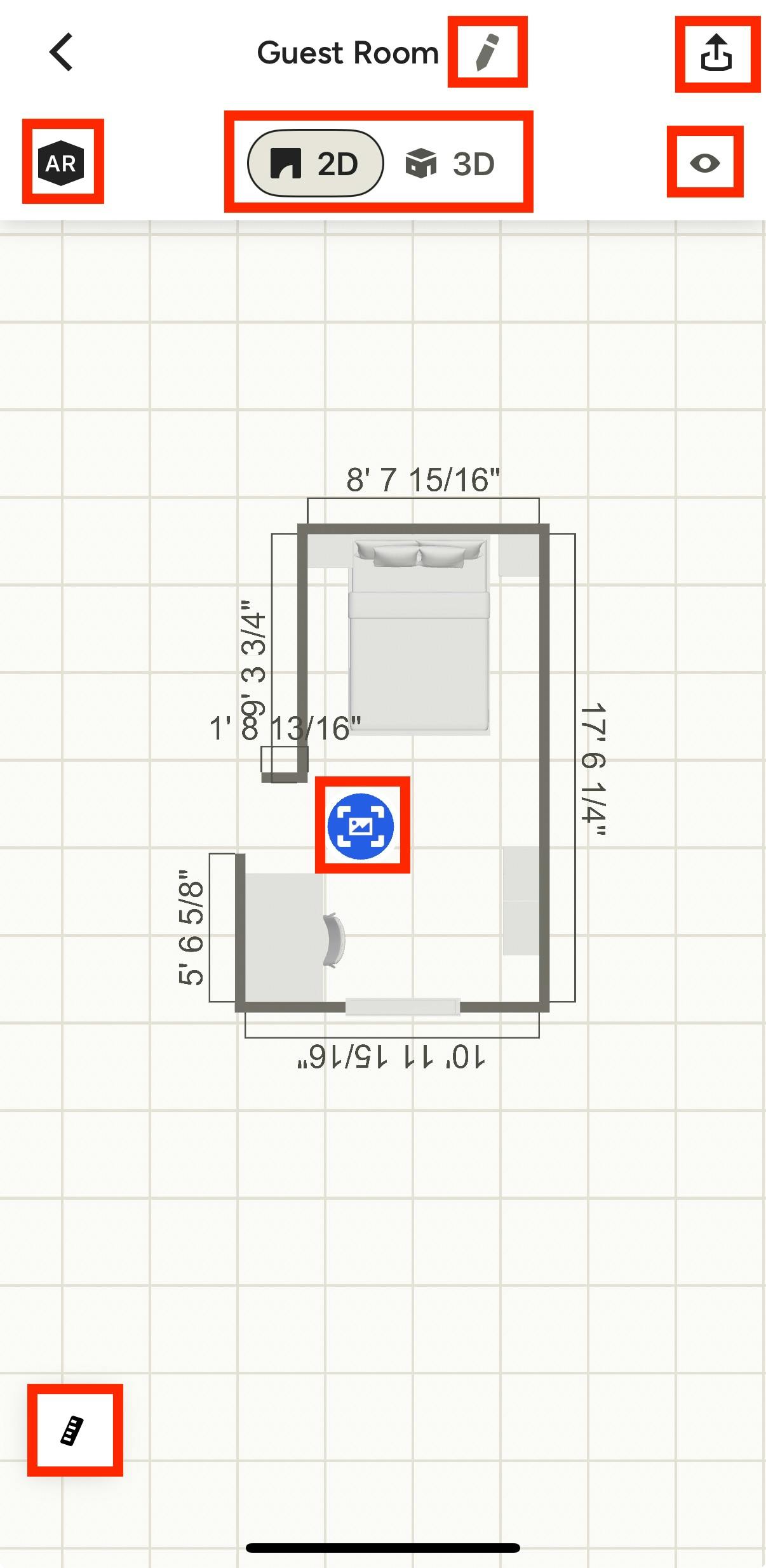
Once the room scan is saved, you can easily view it in the 3D Floor Plans section of that project or lead. On the mobile app, you can:
- Rename the plan by tapping the pencil icon next to the title.
- Share the plan by tapping the share icon at the top of your screen.
- Open up the AR scanning experience by tapping the AR icon.
- View the plan in 2D or 3D mode by selecting the relevant mode.
- Adjust view settings and measurement units by tapping the eye icon at the top of your screen.
- View any photos you took during the scan. Each photo will be pinned to the precise location they were taken.
- Zoom in and out of the plan by tapping directly on the plan itself.
- Make ruler measurements directly on your plan by tapping the ruler icon at the bottom of your screen.
Please Note: If you would like to edit and further customize your 3D floor plan, you will need to do that from a desktop computer. To learn more about mobile capabilities, read How to Use the 3D Floor Plan on Mobile. To learn more about desktop capabilities, read How to Create a 3D Floor Plan.