How to Add an Additional Address for a PO
When creating a purchase order, the Ship To field allows you to direct shipments exactly where they are needed. You can easily select from your saved project, company, vendor, or subcontractor addresses, or you can enter a one-time custom address.
Below are the methods you can use to add or update a shipping address on your purchase order:
Add Company Shipping Addresses
In your company settings you can add one or more company-wide shipping addresses that will be available across all projects. This is an ideal spot to add an office address or receiving warehouse that you commonly use to ship orders to. These shipping addresses will appear as options in the Ship To area in all of your purchase orders, so you don't need to create new addresses for each project.
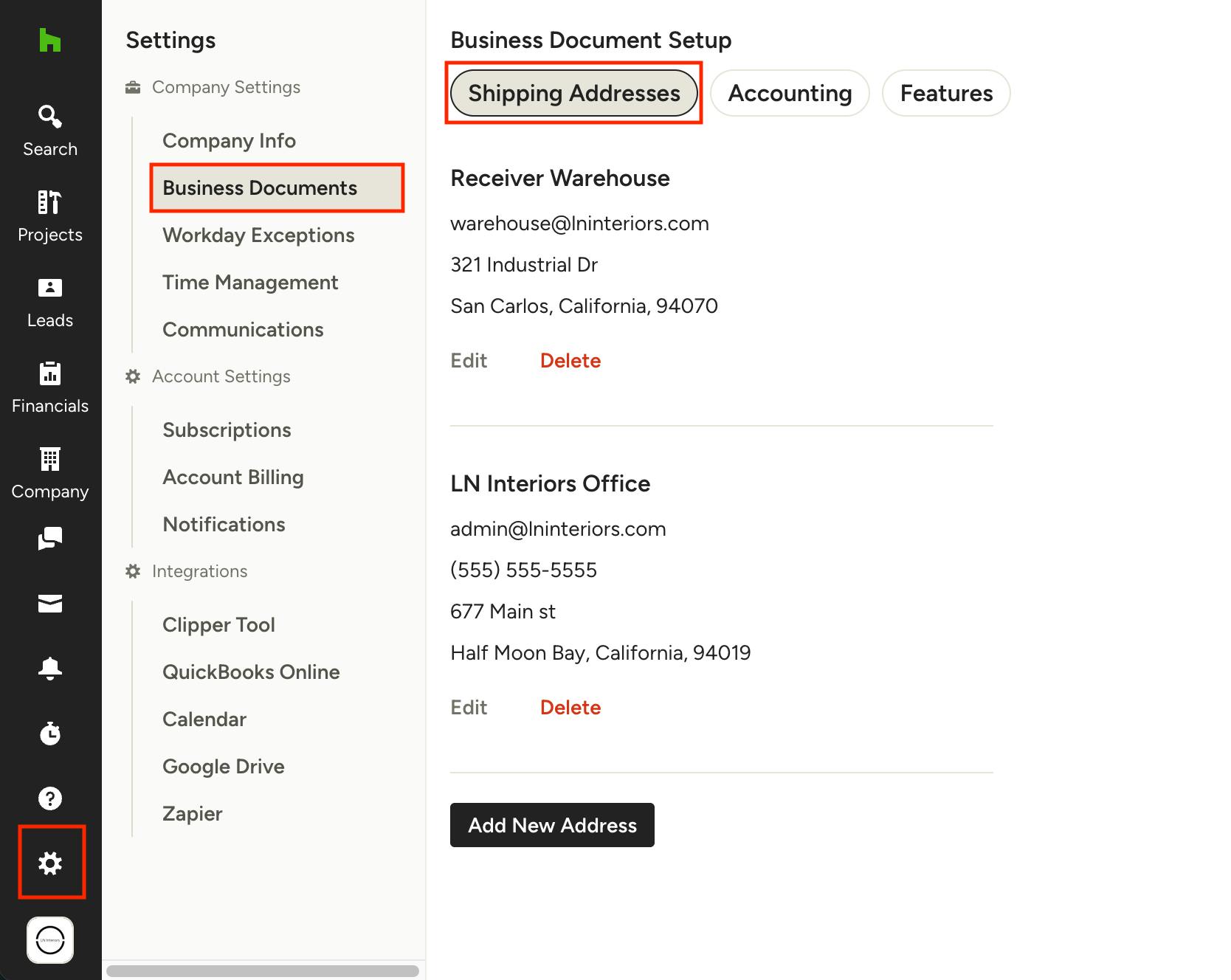
To add a company shipping address, go to your Settings (the gear icon in the left navigation) then select Business Documents from the left menu. Click the Shipping Addresses tab at the top, and you can add a new address or edit an existing one.
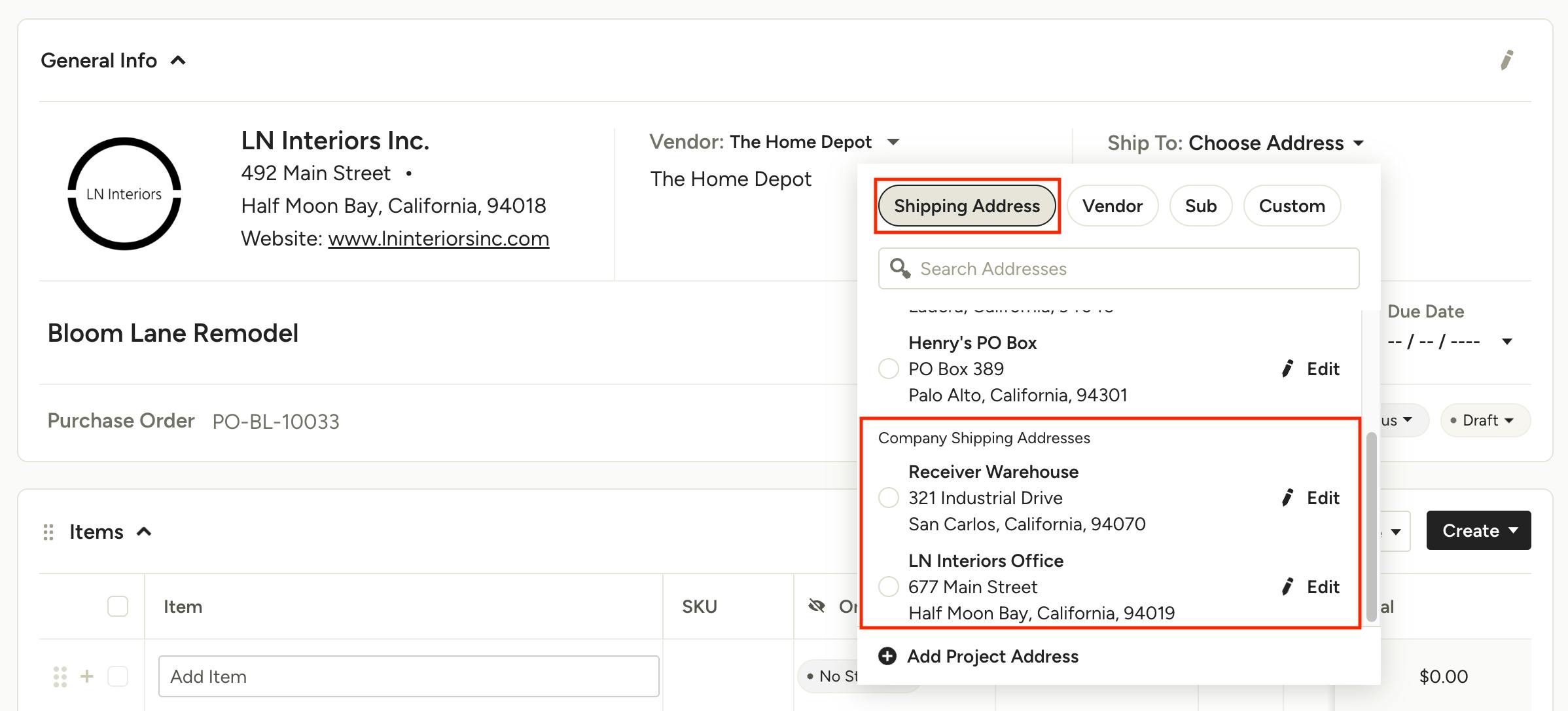
You will be able to choose these Company Shipping Addresses on your purchases orders by using the Ship To dropdown menu while in edit mode.
Add Address Directly From Purchase Order
If you want to add an additional shipping address specific to a project, you can either add a project address or a custom address directly in a purchase order.
Add Project Address
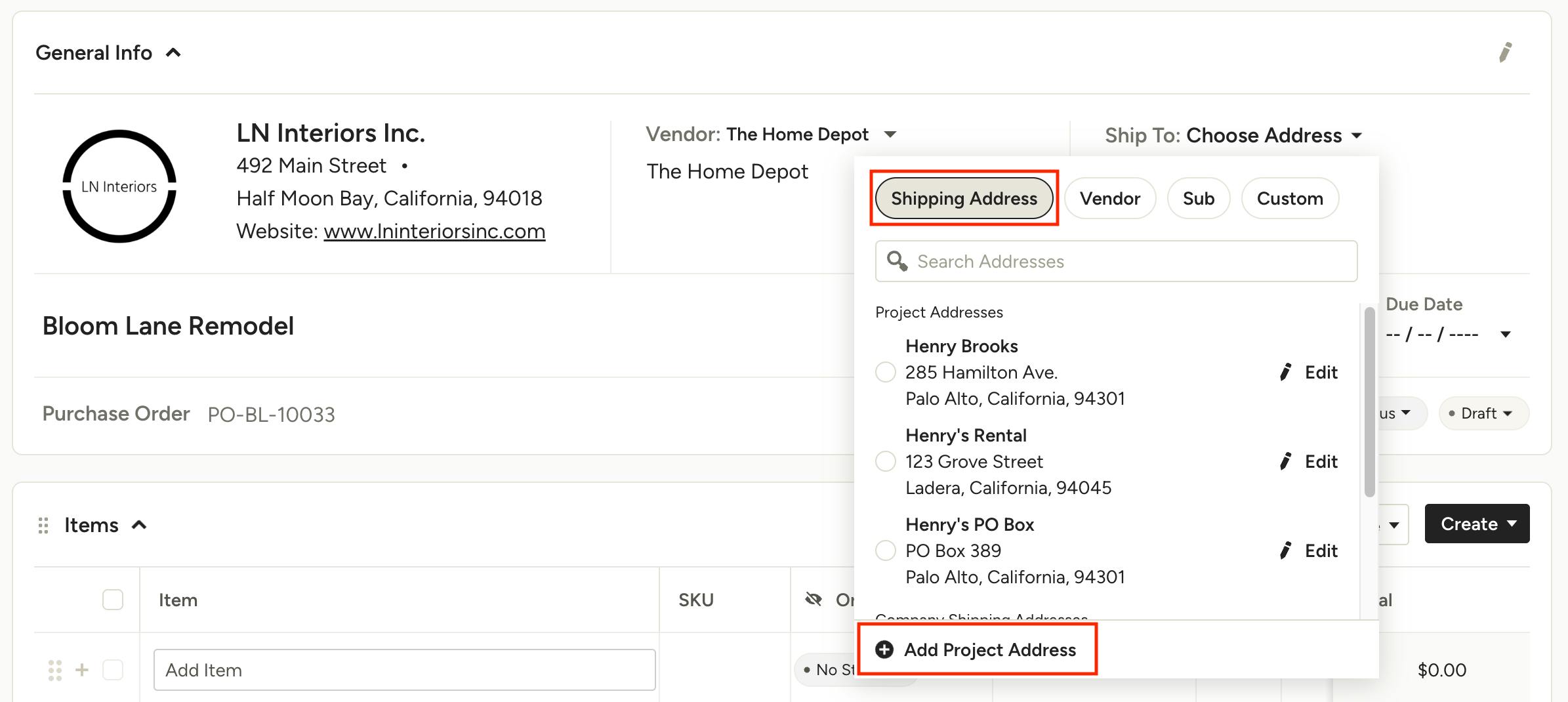
Within a purchase order, open the Ship To menu and select Add Project Address at the bottom of the Shipping Address tab. Enter the relevant details, click Save, and the new address will now be applied to the Ship To section and will appear in the dropdown under Project Addresses. This address will also be saved to the project to use across all other documents.
Learn more about using project addresses in How to Add Multiple Addresses for a Project.
Add Custom Address
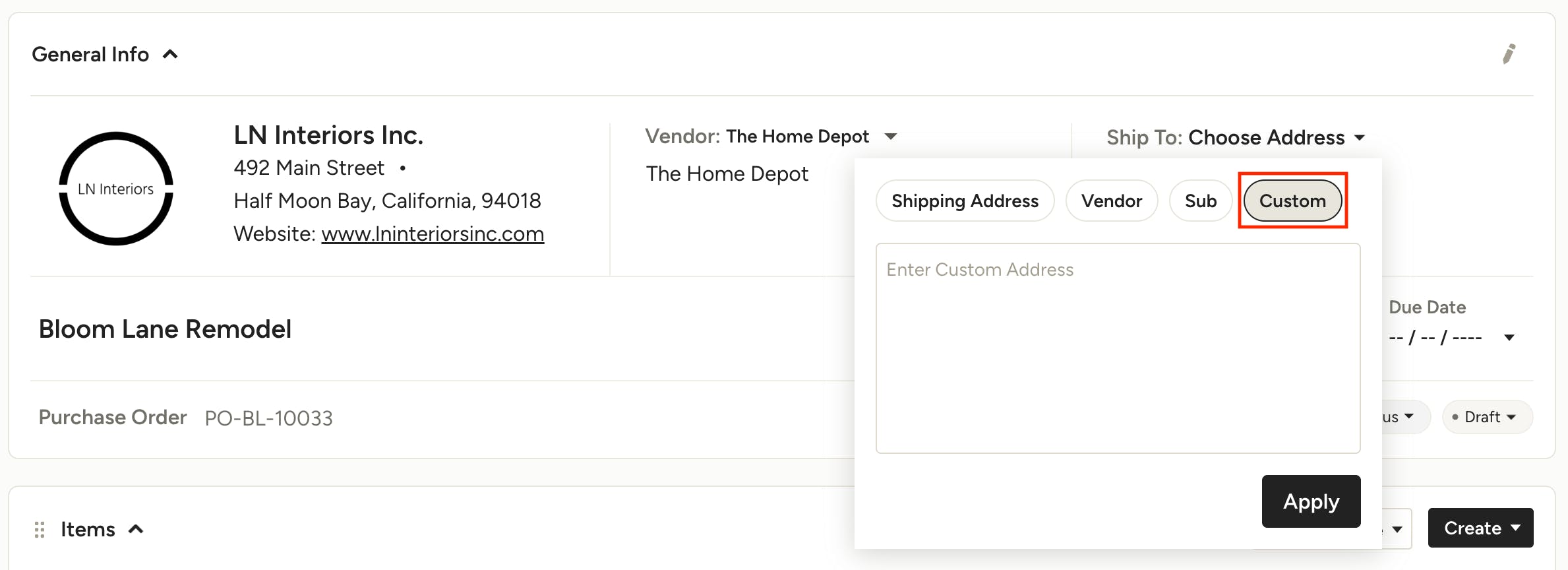
You can add a custom shipping address to a purchase order that will apply to that document only. Within a purchase order, open the Ship To menu and select the Custom tab. Enter the address, click Apply, and the new address will now appear in Ship To section. This address will not be saved for use across other documents — it is custom to the specific purchase order it was applied to.