How to View Your Project Financial Overview
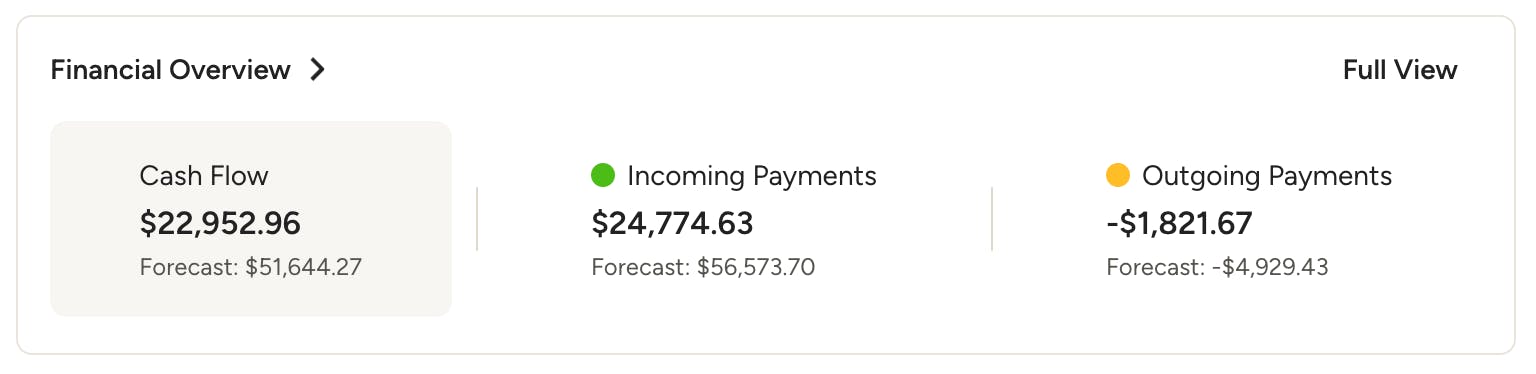
With Financial Overviews on Houzz Pro, you can clearly see how individual projects are performing financially.
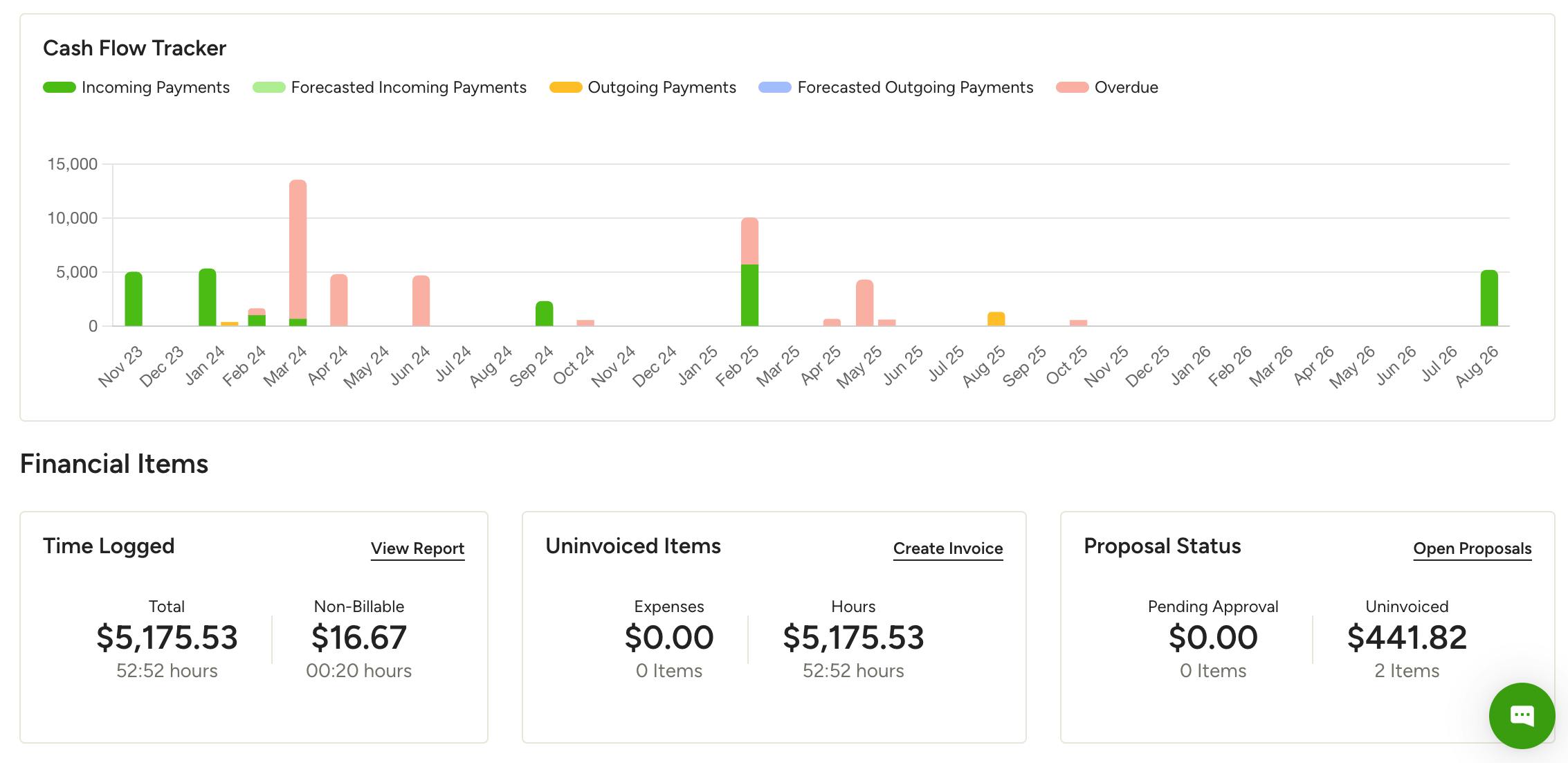
The overview dashboards give you a deeper look into your business’ income and expenses for a particular project, showing profitability, cash flow and a breakdown of ingoing and outgoing payments.
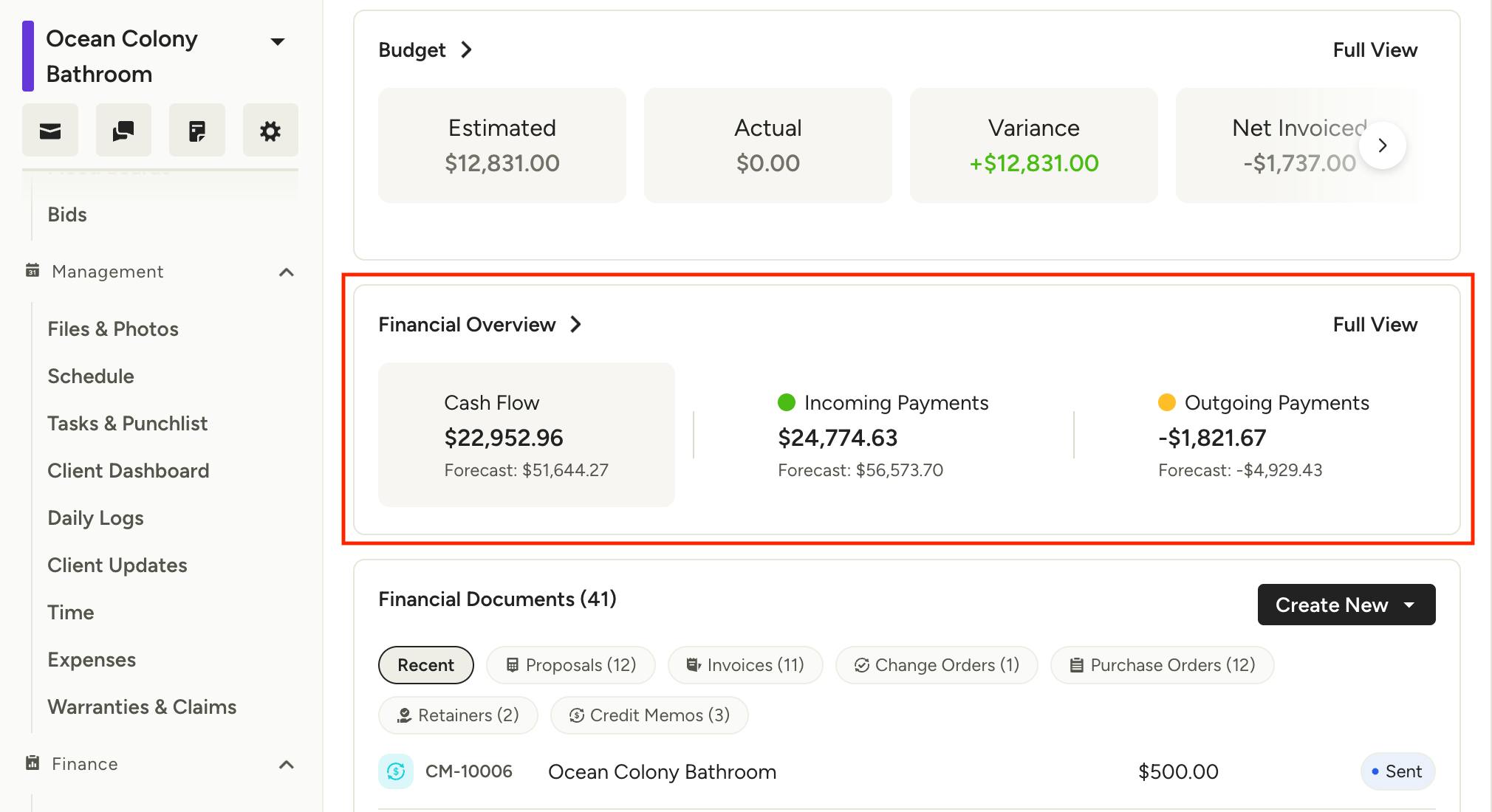
Accessing Project Financial Overviews
To access your project financial overview, open a project and on the overview page you’ll see a tile called Financial Overview with a summary of your project finances, including cash flow, incoming payments and outgoing payments, along with a forecast for each one.
If you don't see the Financial Overview on the project overview page, open the customize settings and toggle it on.
View Full Financial Overview
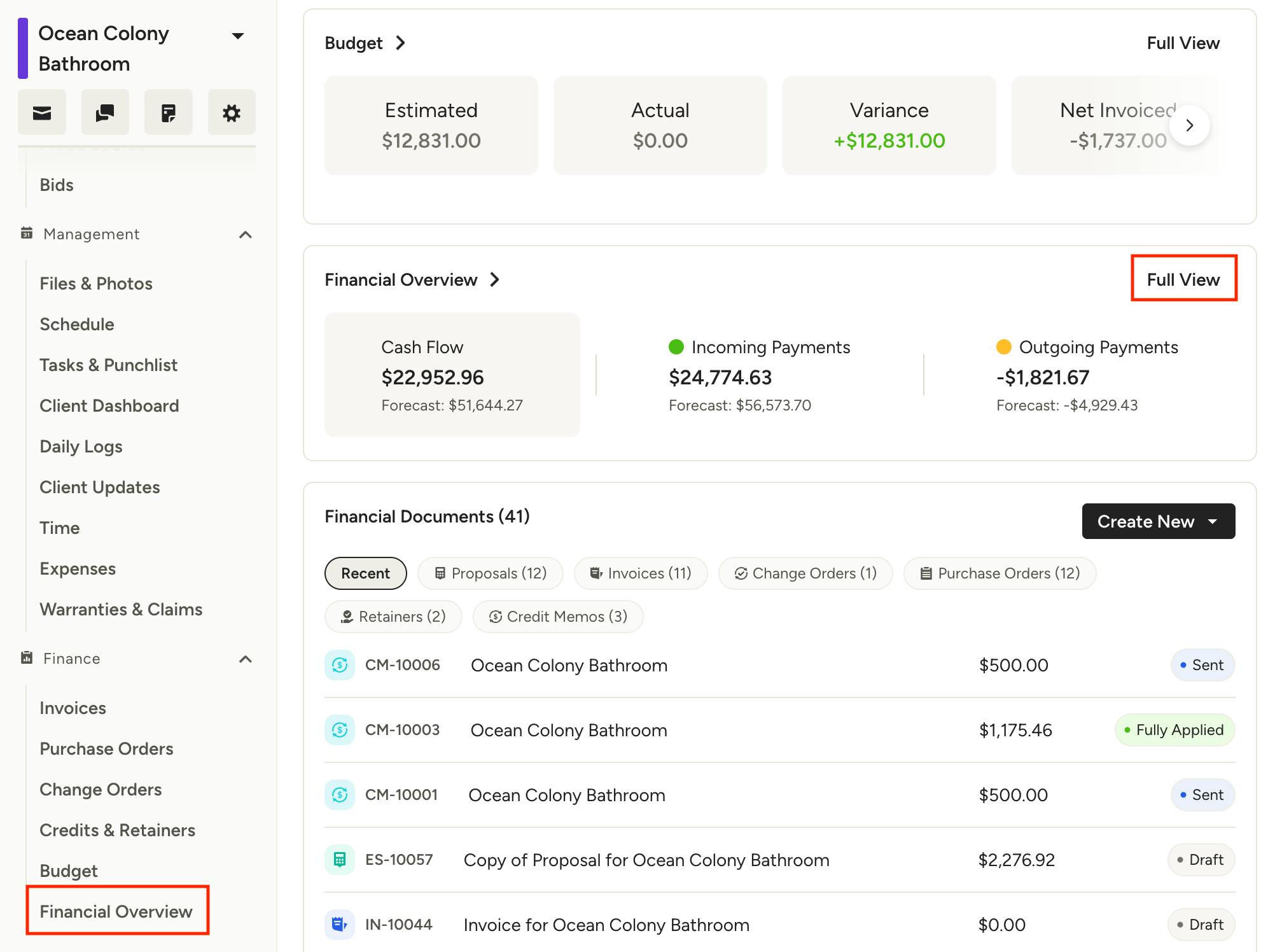
The Full View of your financial overview (available for select packages only) includes basic details like cash flow, incoming payments and outgoing payments, but also provides more specific data including project profitability, uninvoiced expenses, hourly breakdowns and more.
To access a project's full financial overview, click the Full View button in the upper right of the Financial Overview tile, or click on the Financial Overview section within the project menu on the left.
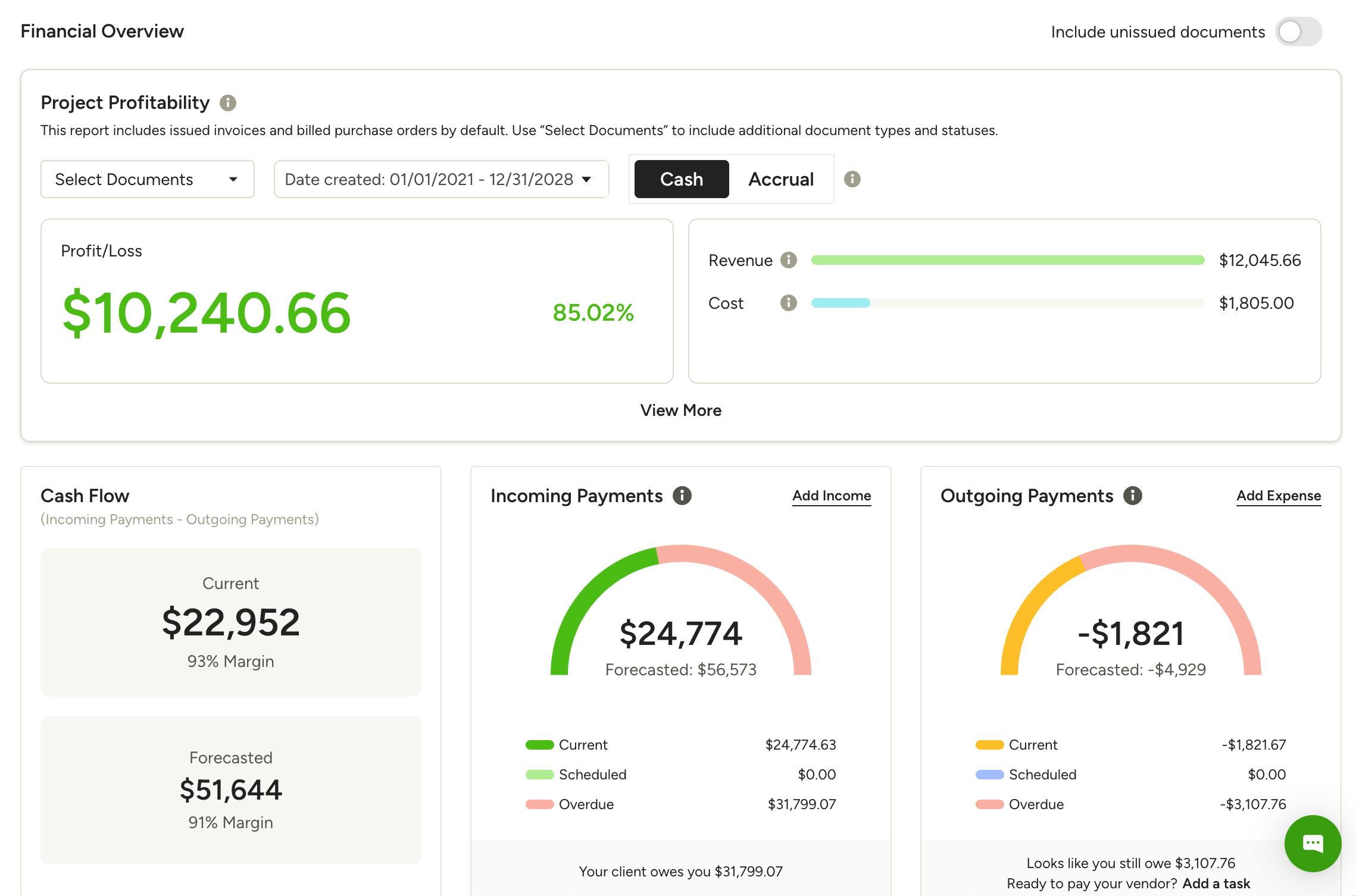
On the Full View, you'll see a more detailed breakdown of the project's finances, as well as messaging reminding you of any overdue payments or expenses. The Project Profitability section at the top can be expanded to reveal more details of the revenue and cost.
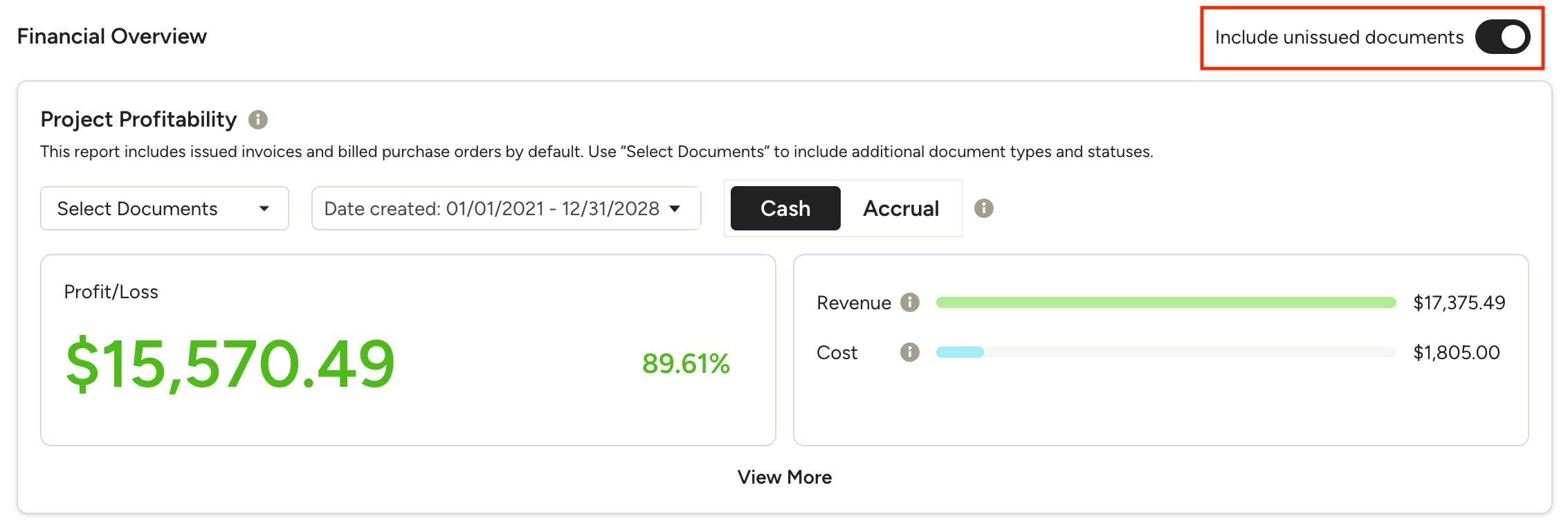
By default, unissued documents do not appear in your financial overview, but you can toggle on the "Include unissued documents" button in the upper right to include these.
Team Member Permissions
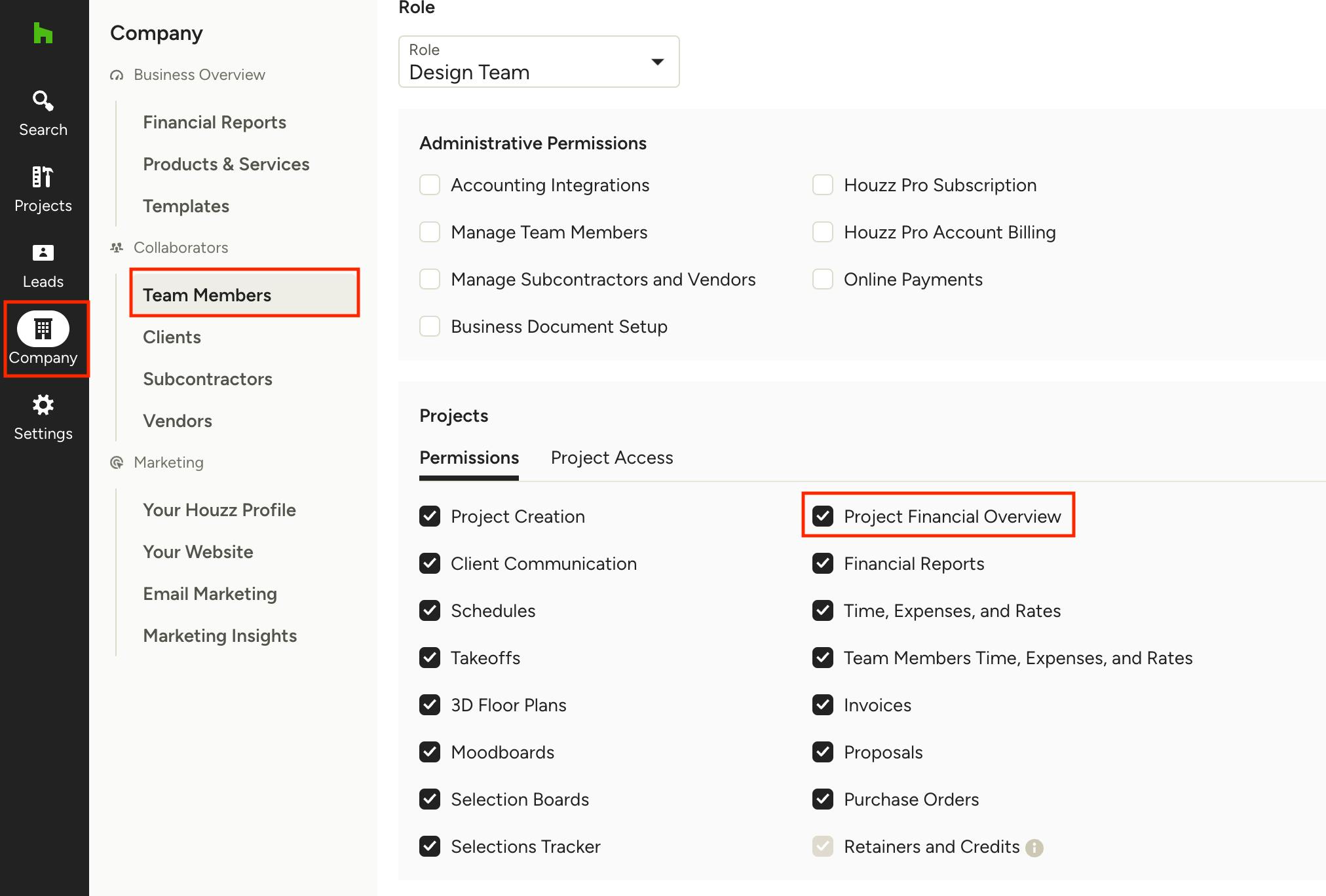
The financial overview is only available to team members who have the Project Financial Overview permission. To grant or deny access to a team member, follow these steps:
- Click on Team Members under the Company icon in the left navigation
- Click Edit next to the team member whom you wish to adjust permissions for
- Select or deselect the checkbox next to Project Financial Overview in the Projects section
- Click Save Changes
Learn more about setting team permissions in this article.