How to Print or Download Your Documents
There are multiple ways to print or download documents in Houzz Pro, including bulk downloads. Note that both the print view and download view will be the same as the client view, which you can see and update by clicking Preview at the top of any document.
To learn more about this view, read How to Customize What Your Client Sees on Financial Documents.
Print a Document
There are several ways to print a document, including directly from a document and from a list:
From Document
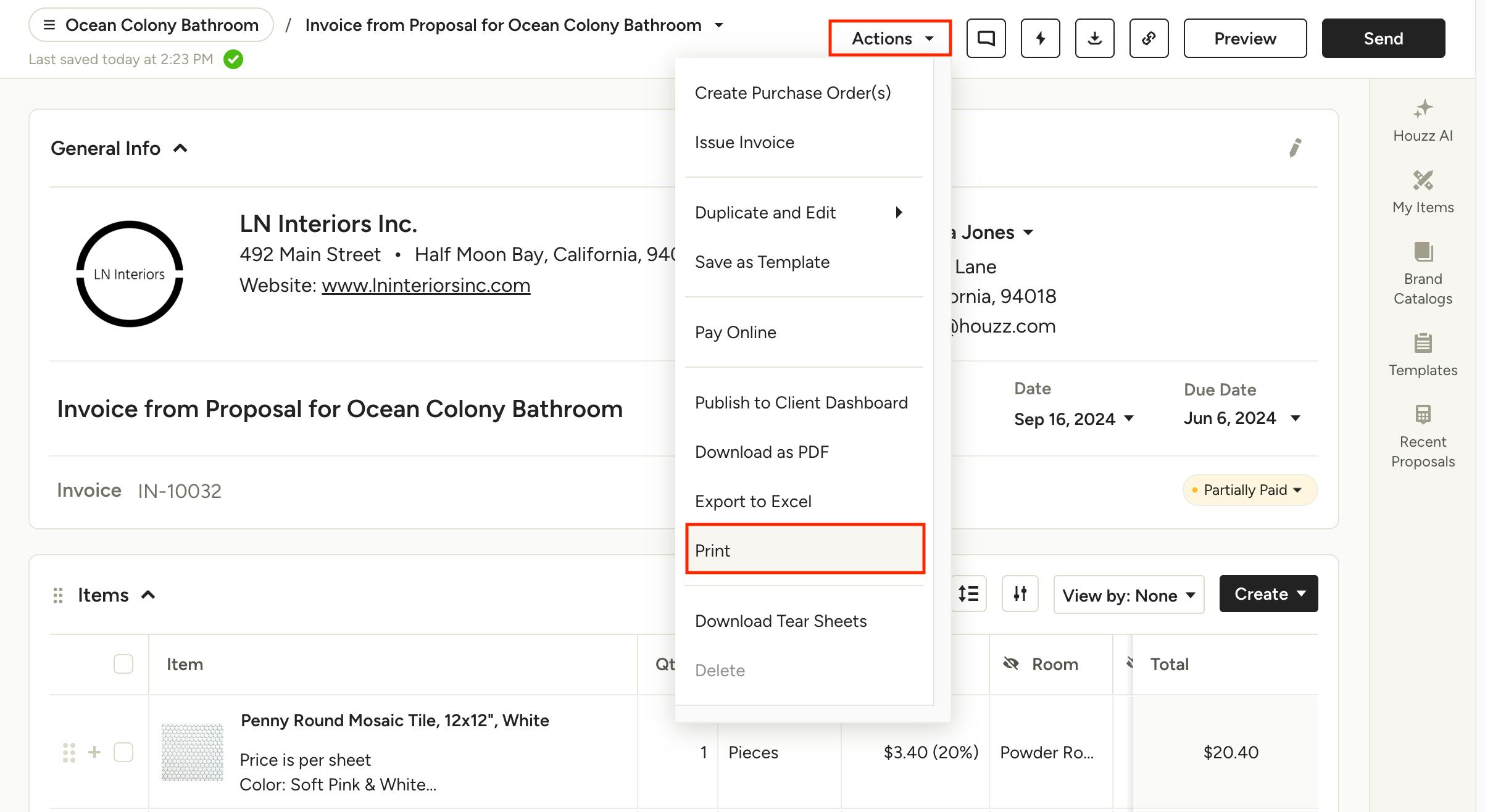
To print directly from your document, open the Actions menu at the top of the page and select Print.
From List View
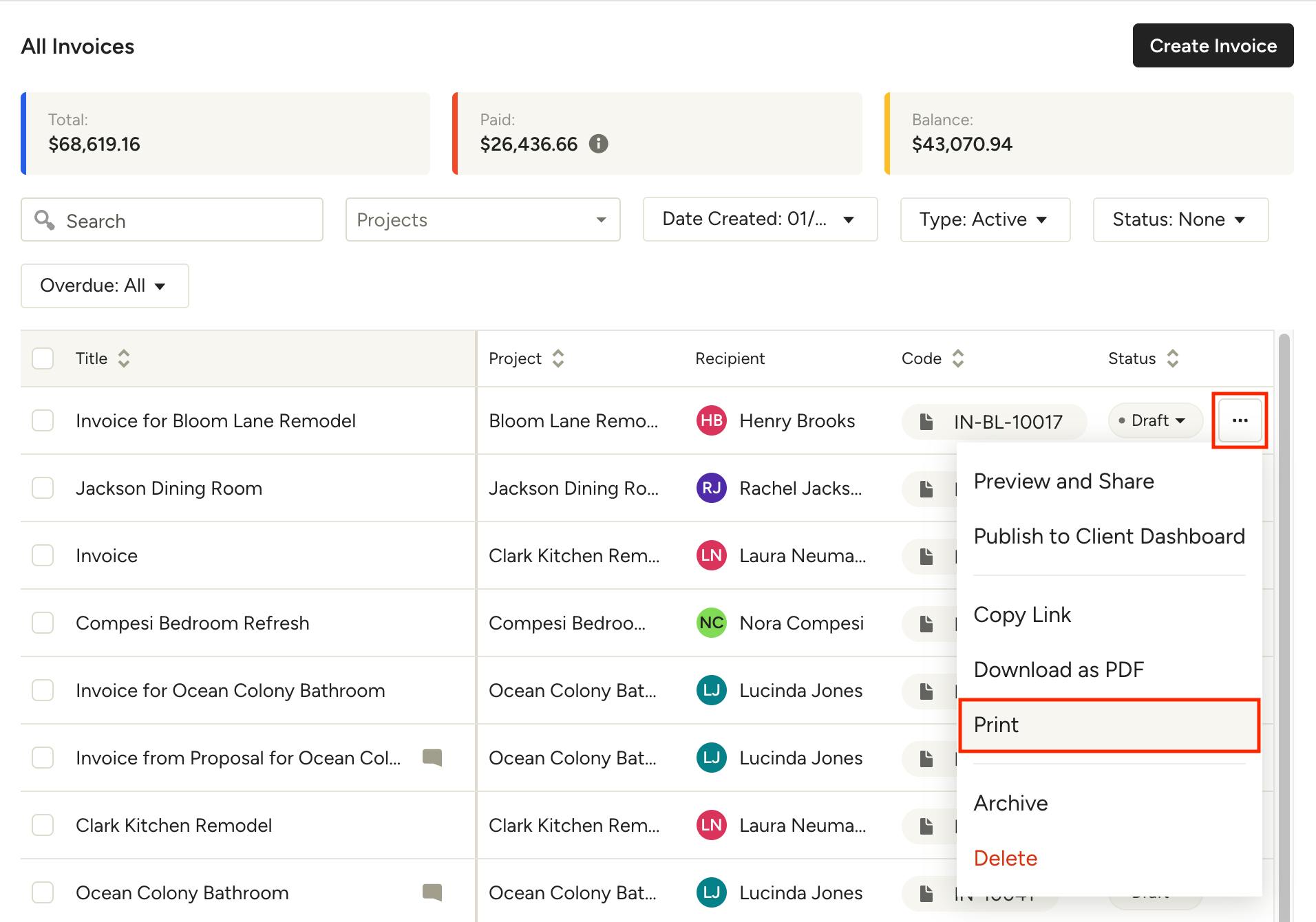
To print a document from a list, hover over the document and click the three dots menu to the right. Select Print from the options.
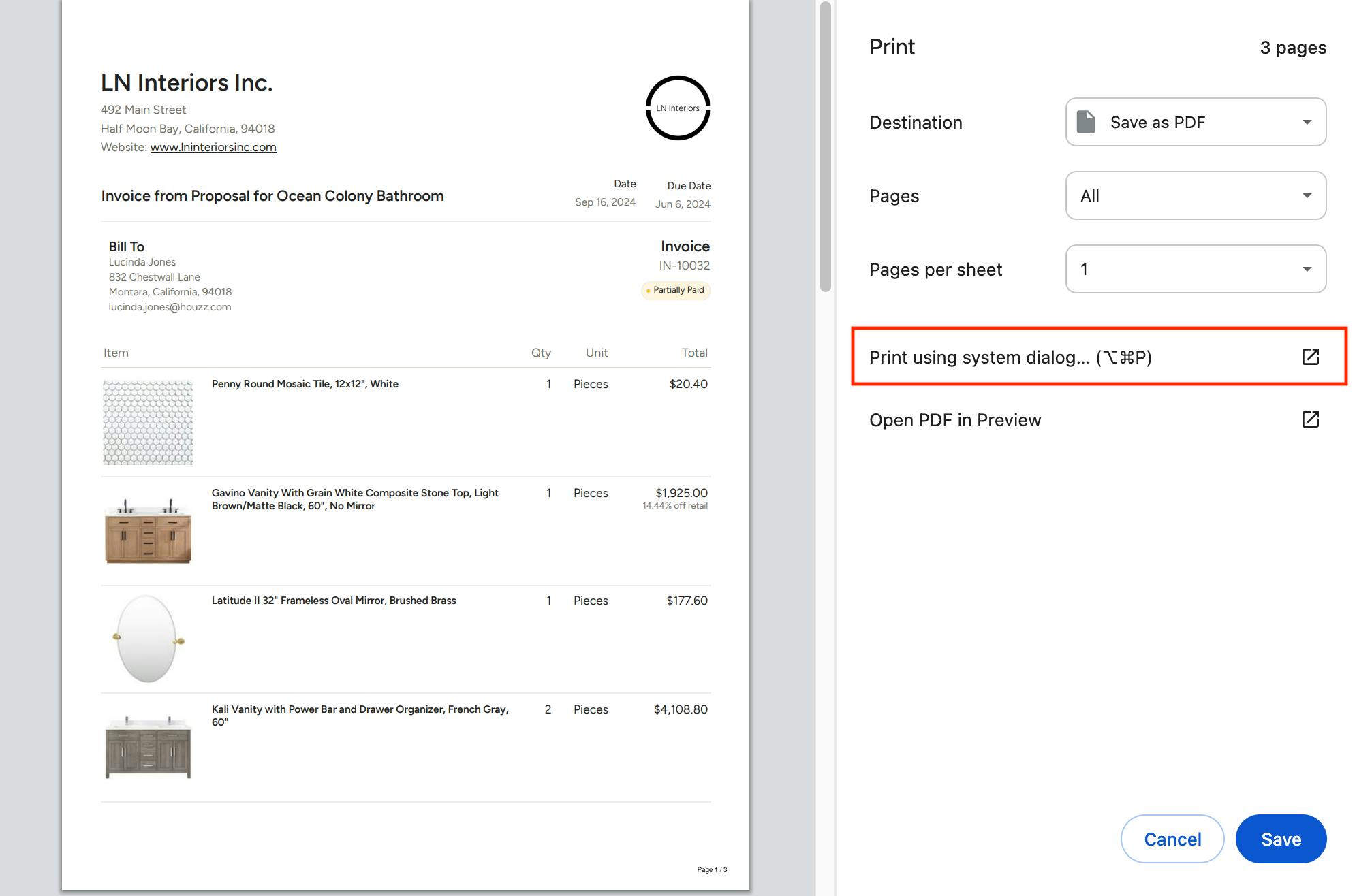
Both options will open the document in your systems print dialog. Depending on your computer's settings, you may need to select 'Print using system dialog' to open the print screen.
Download a Document
There are several ways to download a PDF, including directly from a document and from a list:
From Document
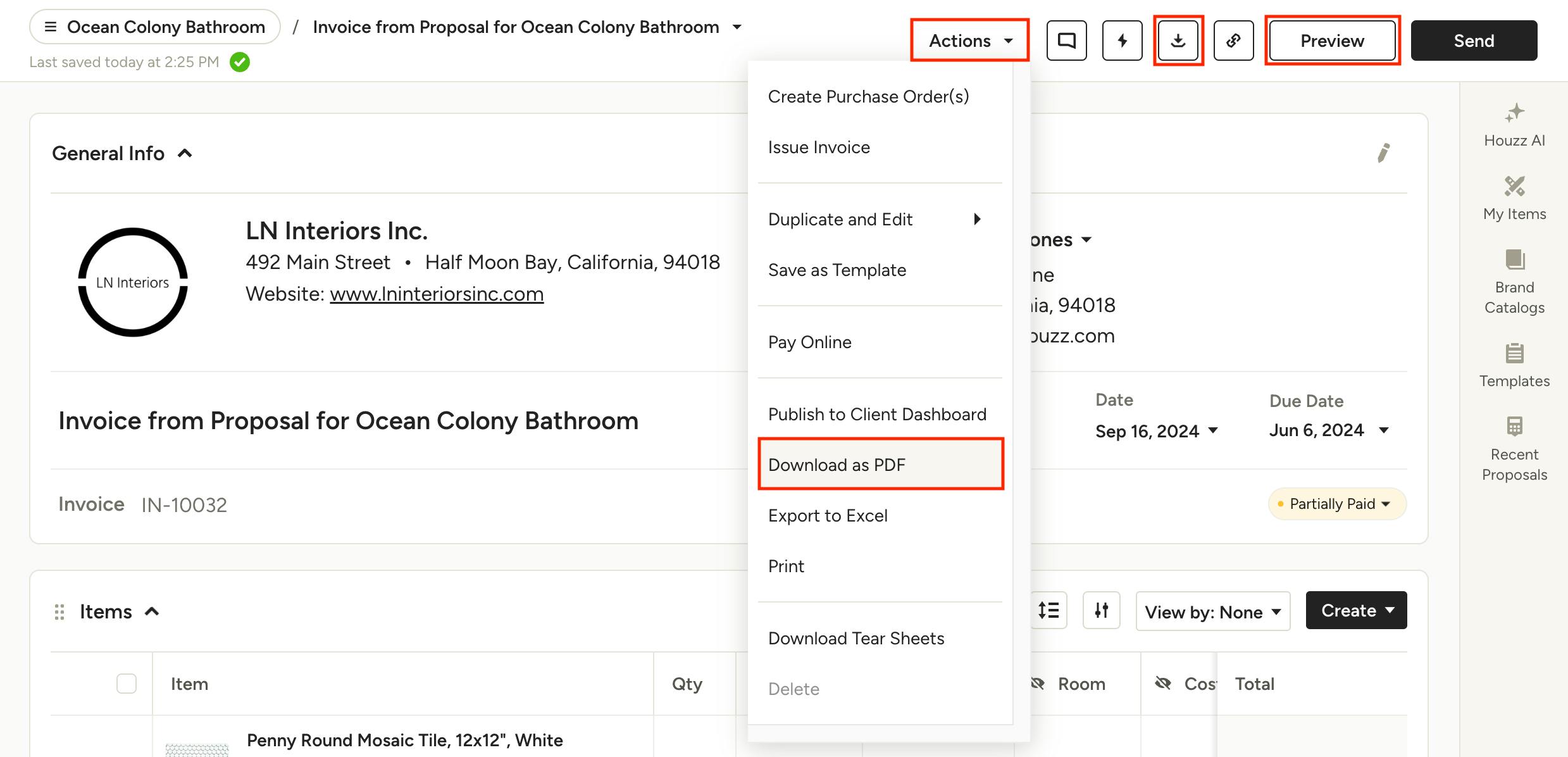
1. Click the Download as PDF icon at the top of your document.
2. Select Actions, and click on Download as PDF in the dropdown menu.
3. In Preview mode, select the Download as PDF icon at the top of your document.
With all options, your PDF will download directly to your device.
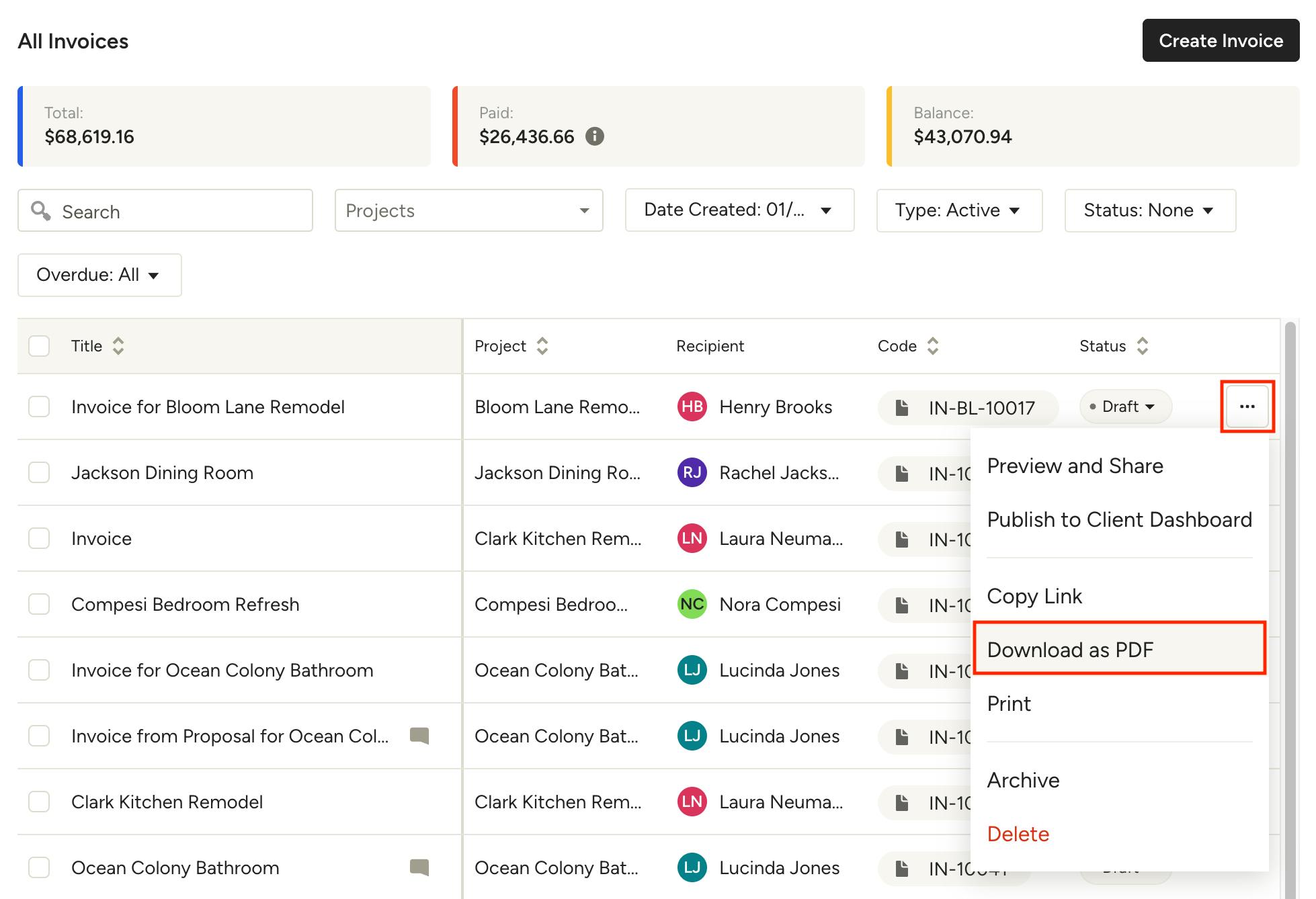
From List View
To download an individual document from a list, hover over the document and click the three dots menu to the right. Select Download as PDF from the options. Your PDF will download directly to your device.
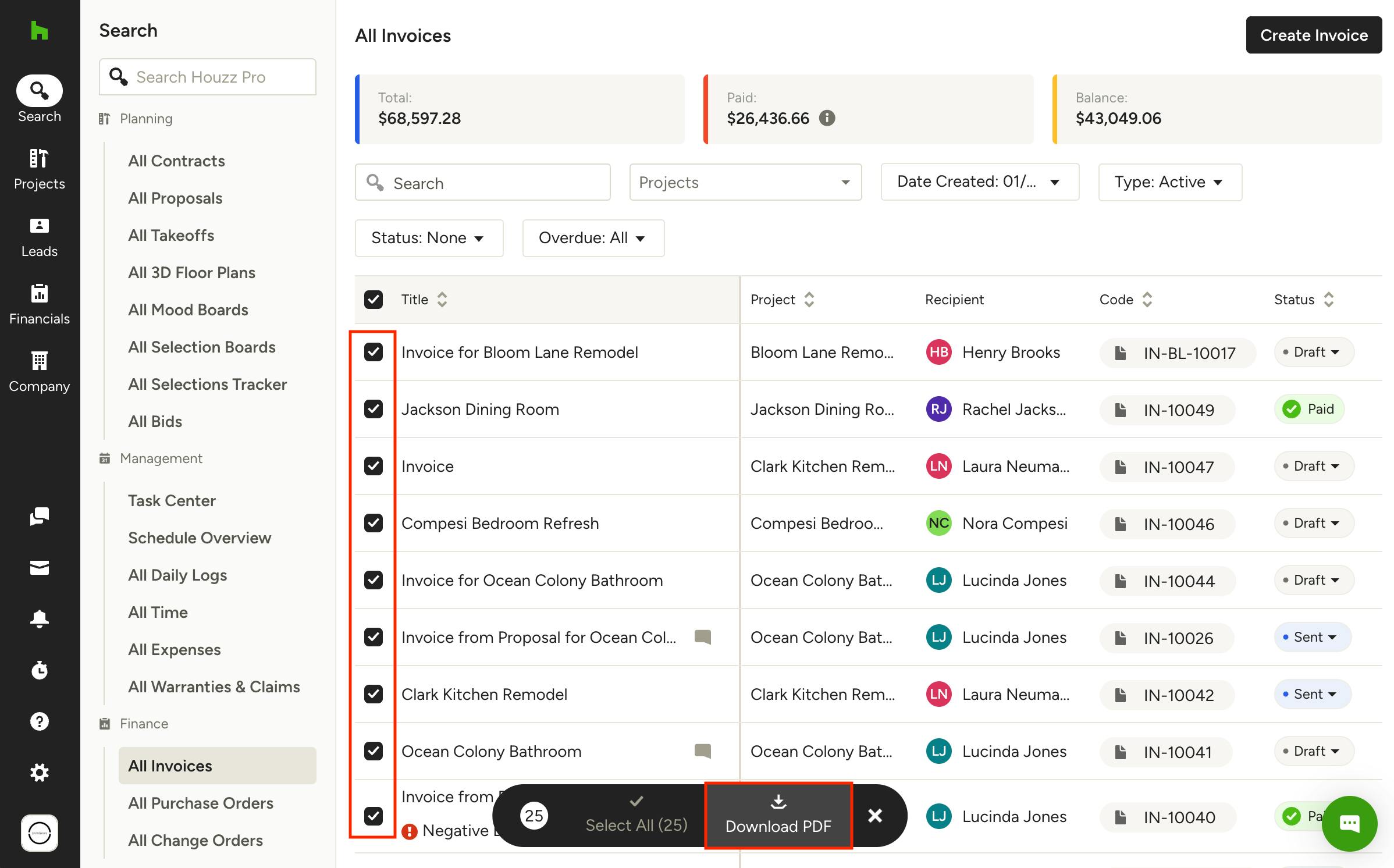
Bulk Download Documents
You can download multiple documents at once from any list view. To do so, use the checkboxes on the left to select the documents you want to download. Next, click Download PDFs from the options that appear at the bottom of the page.
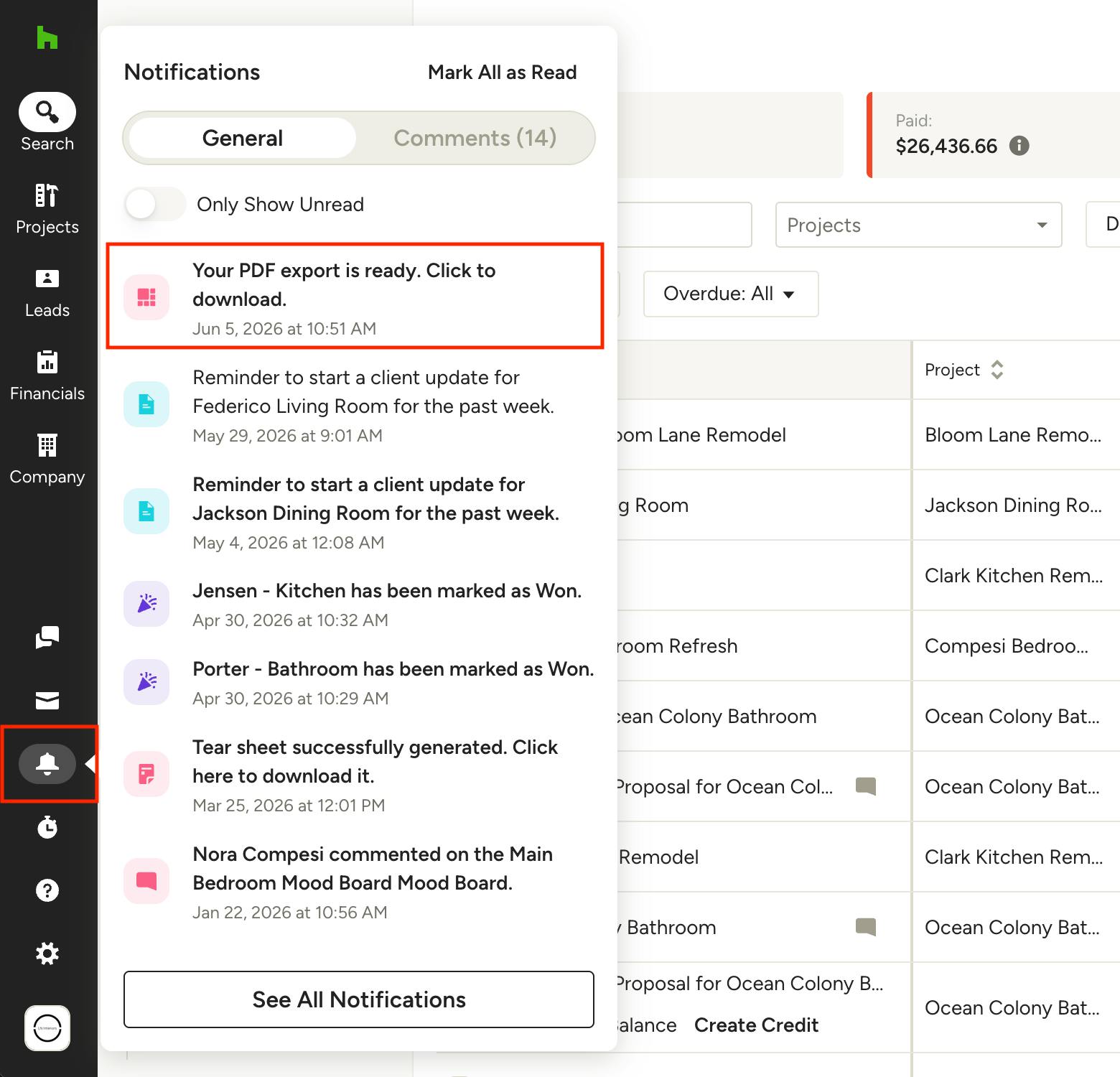
The selected documents will be exported as individual PDFs contained in one ZIP file. You'll receive a notification in the bell icon in the left navigation with the download link when they're ready. Click to download the documents to your device.
Note the download link will be good for 24 hours. If you need to access the download after that time, you will need to generate the download again following the same steps above.