How to Generate Payments Reports
With the Payments Report on Houzz Pro, you can easily keep track of all the individual payments coming in and going out of your business. The Payments Report data is based on your Online Payments and manually logged payments.
You will see client charge date, payment method, totals for payments received, payments invoiced and liabilities, which is money you received but haven’t yet applied to an invoice or retainer. To narrow your results, use the various filters. As you do so, your data will adjust accordingly.
Access the Payments Report
You can access the payment report multiple ways: From the Reports section and from the Payouts Report.
From Reports
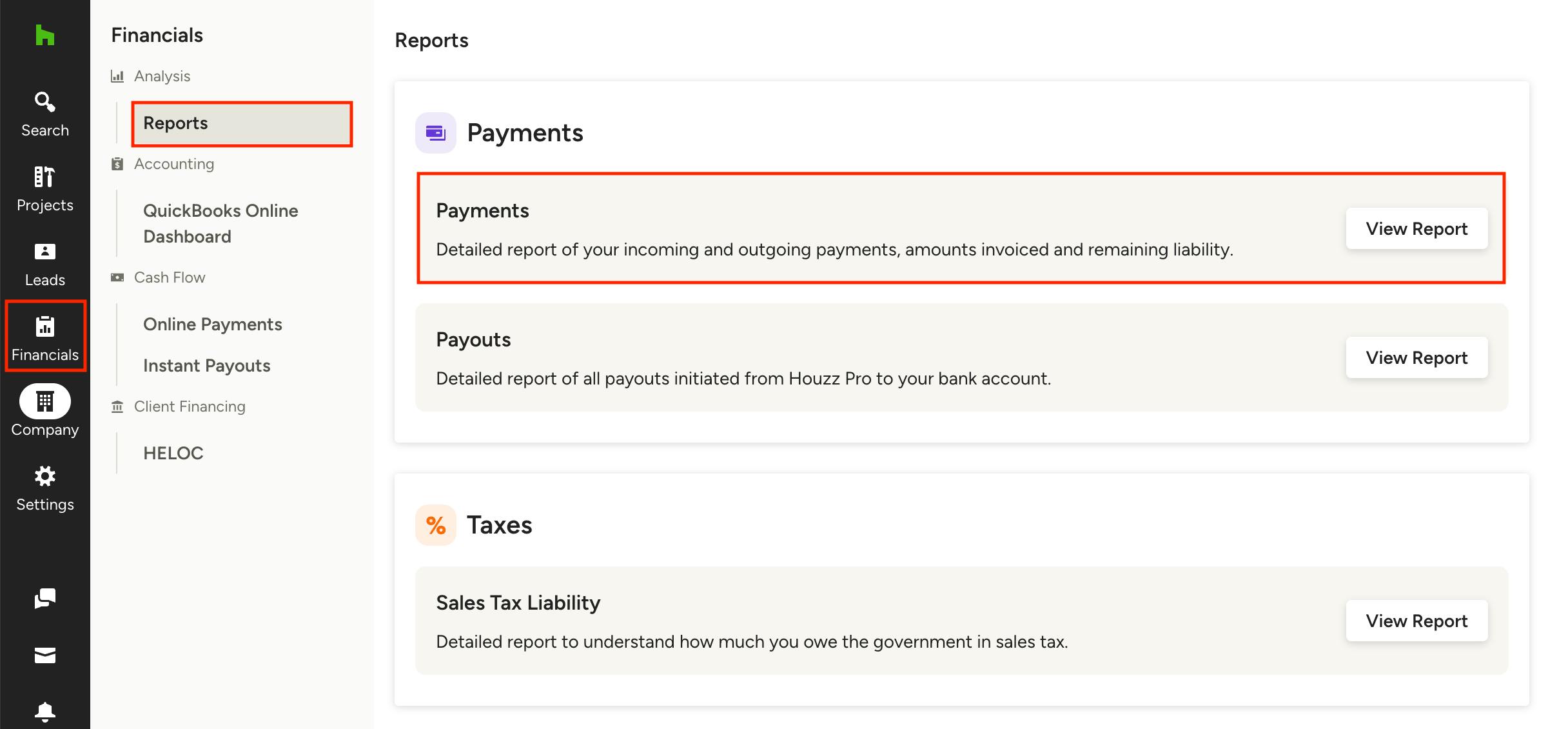
Select the Financials icon from the left navigation, then select Reports from the left menu. Click View Report on Payments in the Payments section.
From Payouts Report
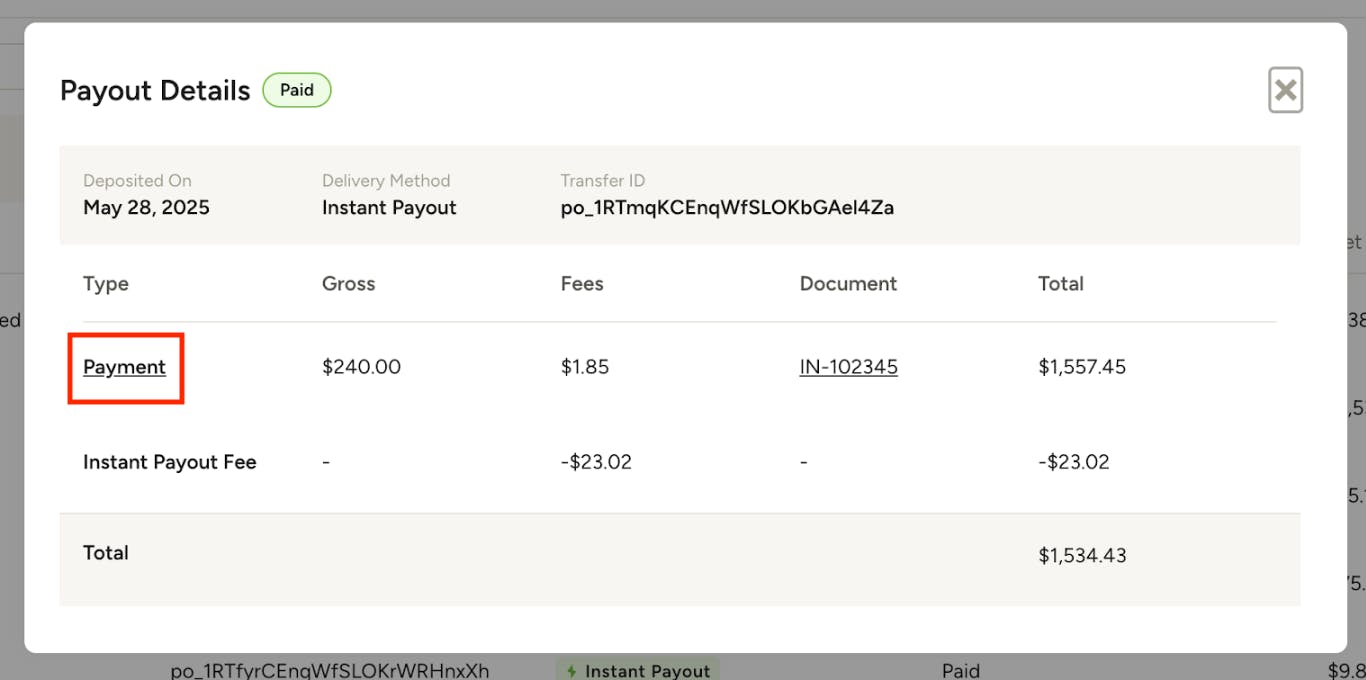
To see payment details for a specific online payment directly from the Payouts Report, click a payout to open the details screen, then click Payment in the Type column on the row you want more information for. This will take you directly to the details for that payment in the payments report.

Understanding the report categories
When you open your payments report, you will see five categories below the filters.
- Total Received: Total sum of payments received. This can include retainers not yet applied to invoices.
- Total Invoiced: Total sum of payments applied to invoices.
- Total Liability: Total sum of payments that have yet to be invoiced or returned to the client.
- Total Payouts Received: Total sum of payouts received (online payments only).
- Total Instant Payouts Received: Total sum of instant payouts received (online payments deposited via Instant Payout).
Filtering the report
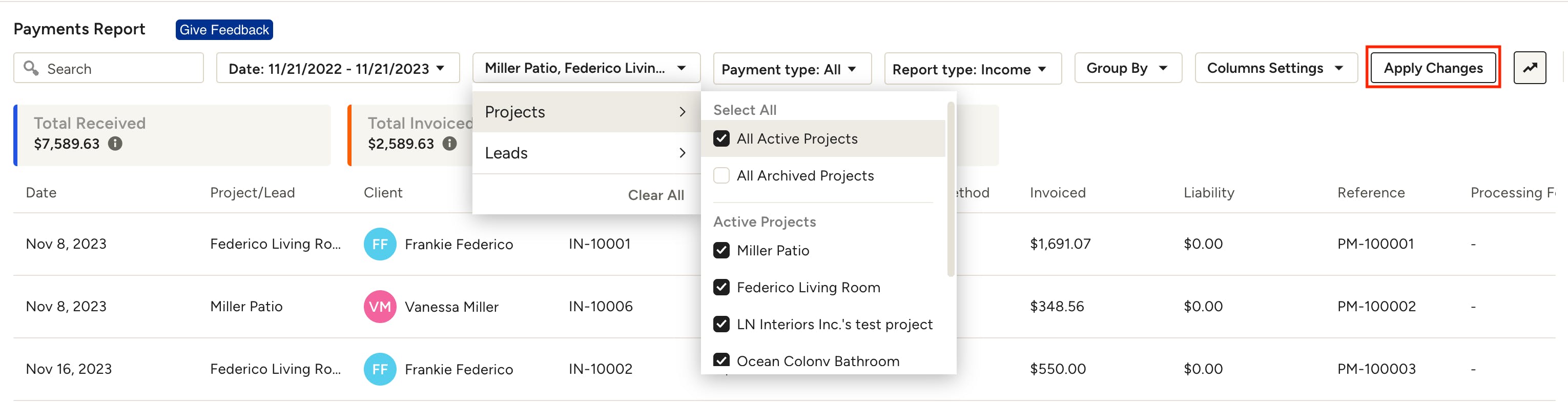
You can filter the report by date, project, payment type and report type (this will switch between Income and Expense — Income will show any money received and Expense will show any money paid, like to subcontractors or vendors.)
You can also narrow down results shown by using the search bar.
To sort the results, use the Group By feature to easily organize the payments by client, project, month etc.
Make sure to click Apply Changes to update the report view.
Adjust column settings
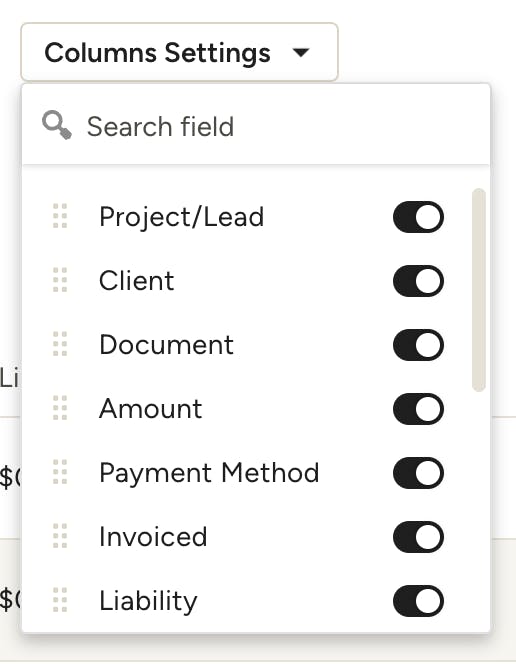
To customize which columns are shown in your payments report, open the Columns Settings dropdown and toggle on/off the ones you want to show or hide. To rearrange the columns, click and drag them up or down within the dropdown to position them accordingly.
Make sure to click Apply Changes to update the report view.
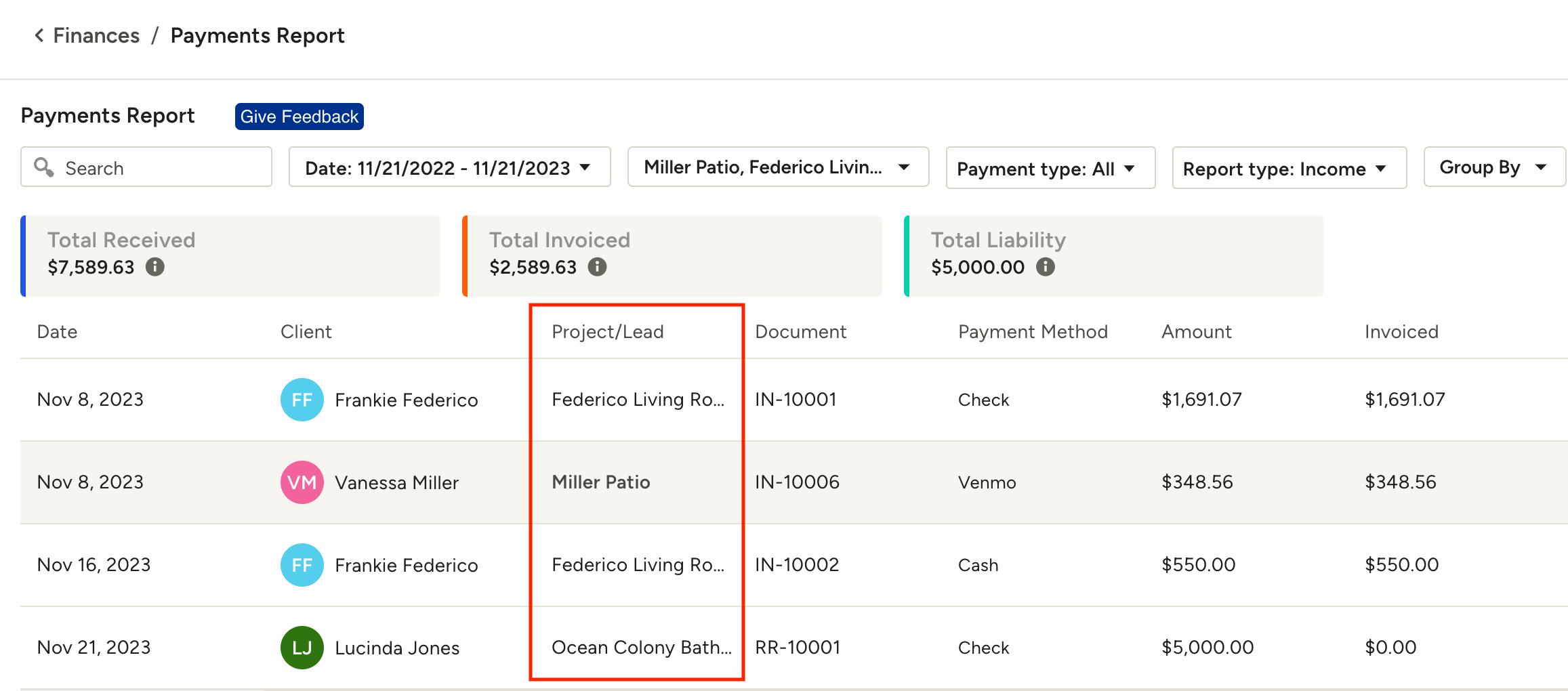
Opening a project from within the report
To quickly open a project directly from the payments report, simply click on the desired project name in the Project/Lead column. You will be sent to the selected project's overview page.

Export the Payments Report
You can also export the Payments Report as an Excel spreadsheet by clicking the Export Excel button on the top right of the report. Here’s an example of how the exported spreadsheet will look:
Frequently Asked Questions
1) When will my money be deposited?
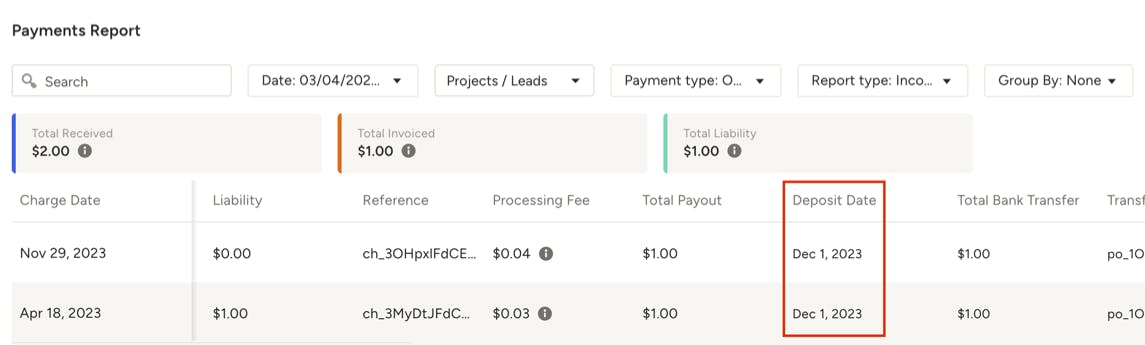
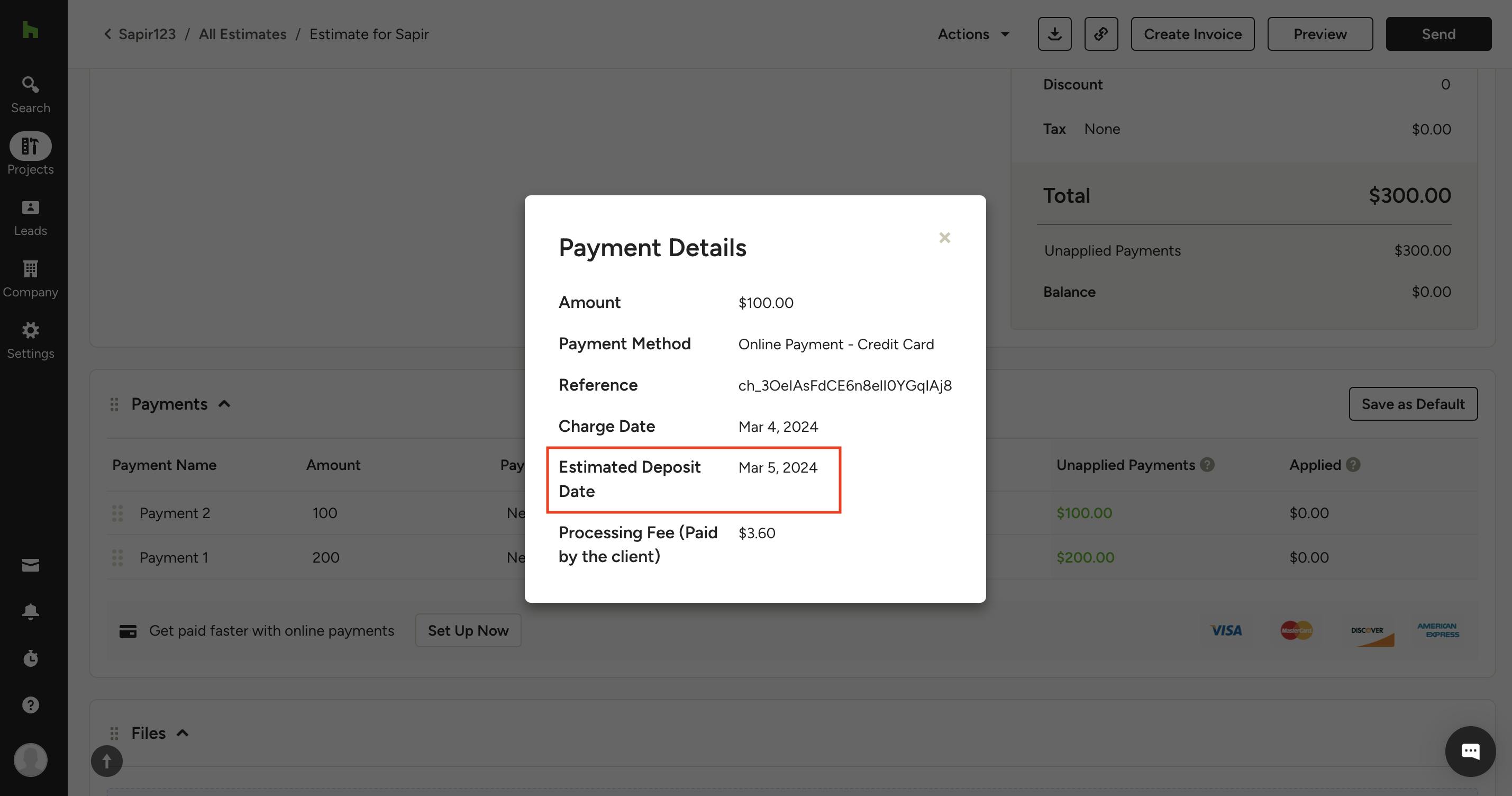
Looking for when an online payment will hit your bank account? You can check the Estimated Deposit Date in your Payments Report, under the Deposit Date column, or by clicking on a payment in the document it was made on and viewing the Payment Details pop-up.
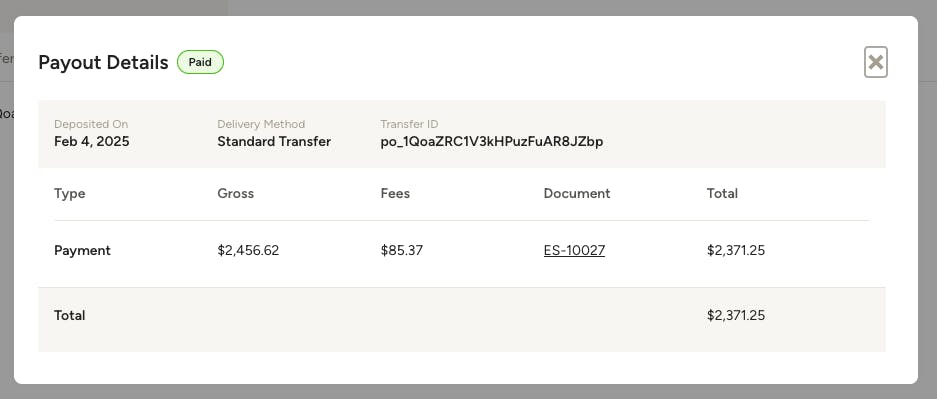
You can also track online payments with the Payouts Report. To see payout details for a specific online payment from the Payments Report, click the ID found in the Transfer ID column.

This will take you directly to the payout details for that payment in the Payouts Report.
2) What's the difference between the Payments Report and the Payouts Report?
The Payments Report allows you to keep track of all the individual payments coming in. You will see the client's charged date, invoiced amount, payment method, liabilities and more. The Payments Report data is based on your Online Payments and manually logged payments.
The Payouts Report allows you to keep track of the deposits that reach (or failed to reach) your connected bank account. It consolidates multiple payments, refunds, and any instant payouts into a single view.
More Resources
How to Track Payments with the Payouts Report
Introduction to Financial Reports on Houzz Pro
Set Up Online Payments to Get Paid Faster
Online Payment Transaction Fee Rates
How Long Does It Take to Get Paid With Online Payments?
Instant Payouts with Online Payments