How to Customize Your Cost Type in Financial Documents
Houzz Pro allows you to customize your financial documents to ensure you show all the relevant information in exactly the format you need. You can easily adjust columns, line items, and descriptions, and you can even customize what your client sees.
Now, you can also adjust the cost columns in your financial documents to customize your cost breakdown. This ensures that material and labor costs are represented in the way you want. You can either:
- Combine labor and material costs into one Unit Cost column
- Separate labor and material into two individual columns
While you can always adjust your cost breakdown settings, it is recommended to choose one method to use across all your financial documents. This ensures that there are no discrepancies, especially for your tax calculations.
Let's go over how to make the change in your settings, as well as the differences between the two options.
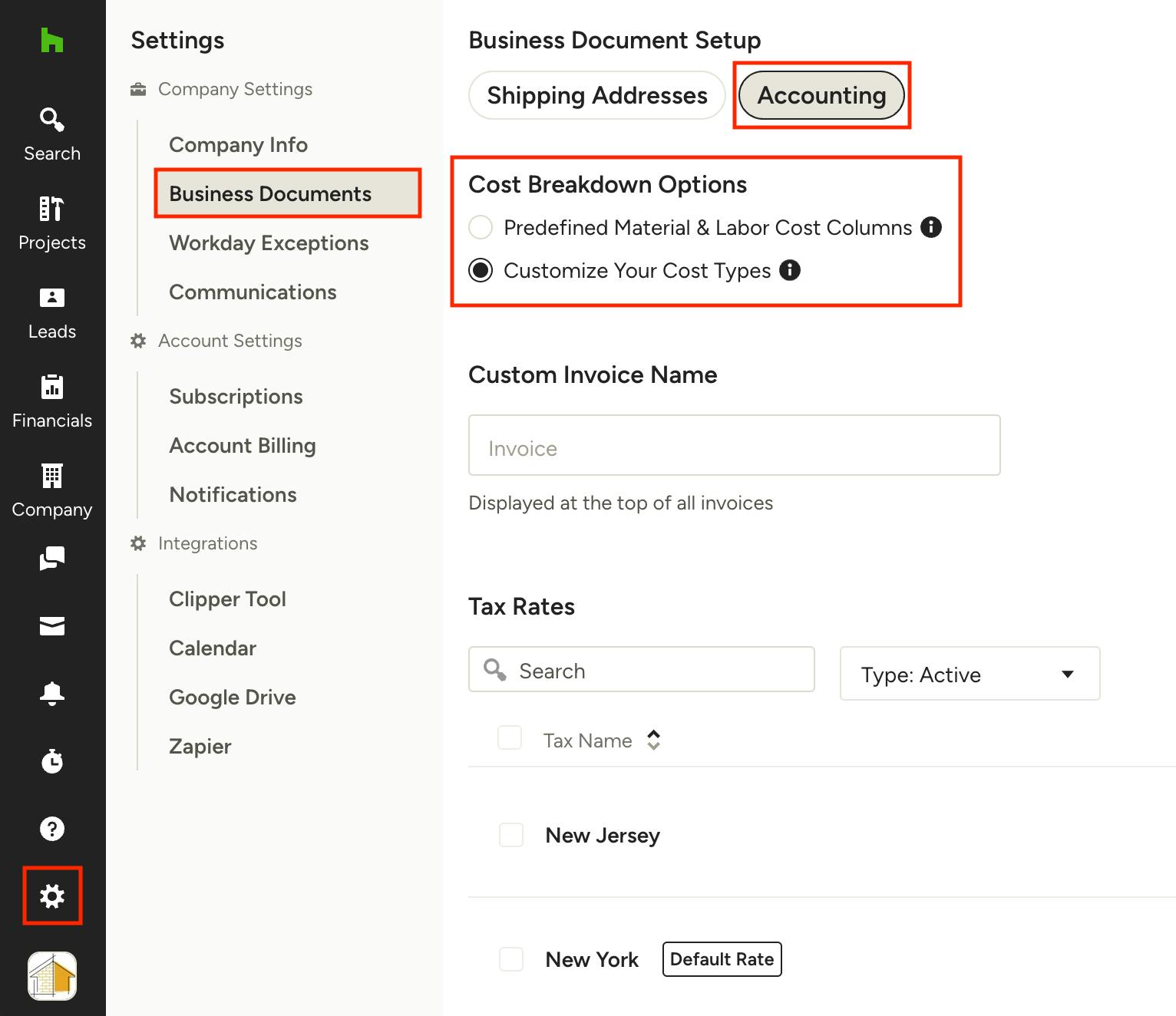
Cost Breakdown Settings
Your cost breakdown settings can be found in the Business Documents settings within your account.
To start:
1) Select the Settings icon at the bottom of your left navigation.
2) Click on Business Documents in the left menu, then select Accounting from the top of your screen.
3) Here, you will see a section called Cost Breakdown Options where you can select your preferred method.
- Predefined Material & Labor Cost Columns if you would like to keep two separate columns.
- Customize Your Cost Types if you would like to combine them into one Unit Cost column.
4) Your selection will now be applied to all new documents. Existing documents will keep the previous settings.
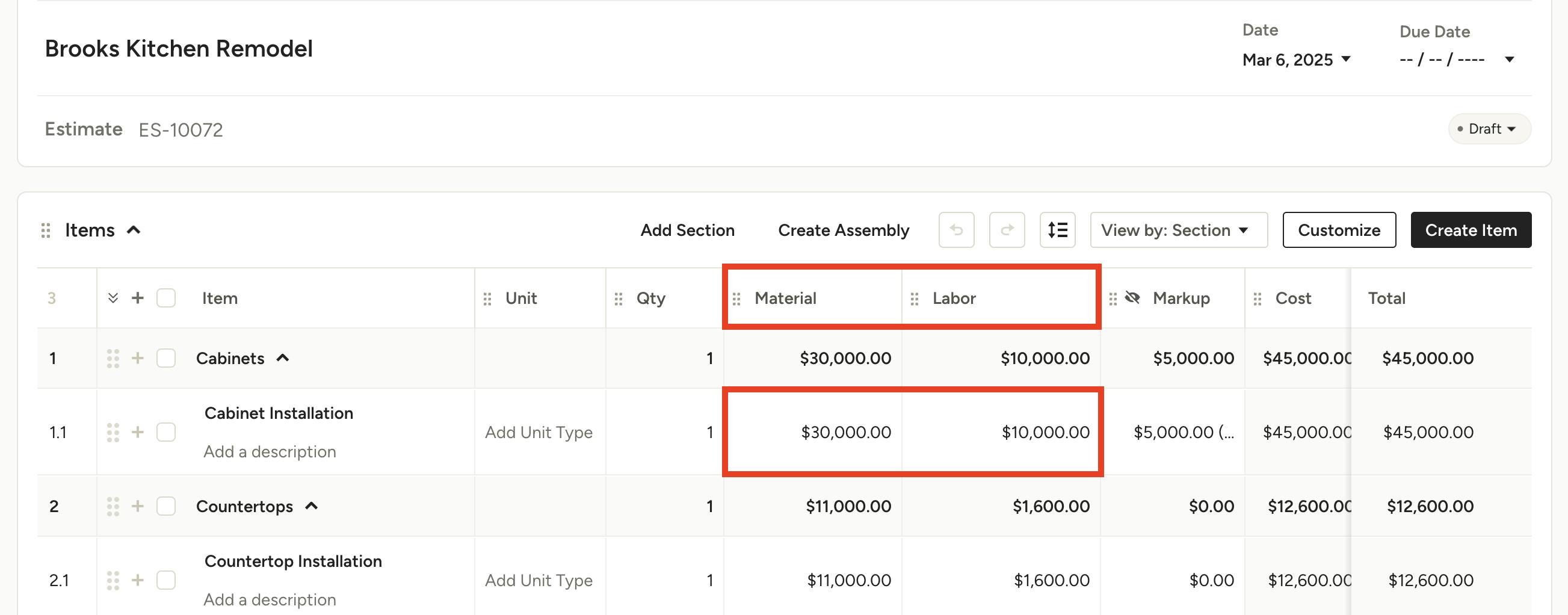
Separate Labor and Material Columns
If you decide to have predefined labor and material cost columns, your labor and material costs for each line item will be divided into two different columns, as shown below. You can easily adjust the cost amount in each column.
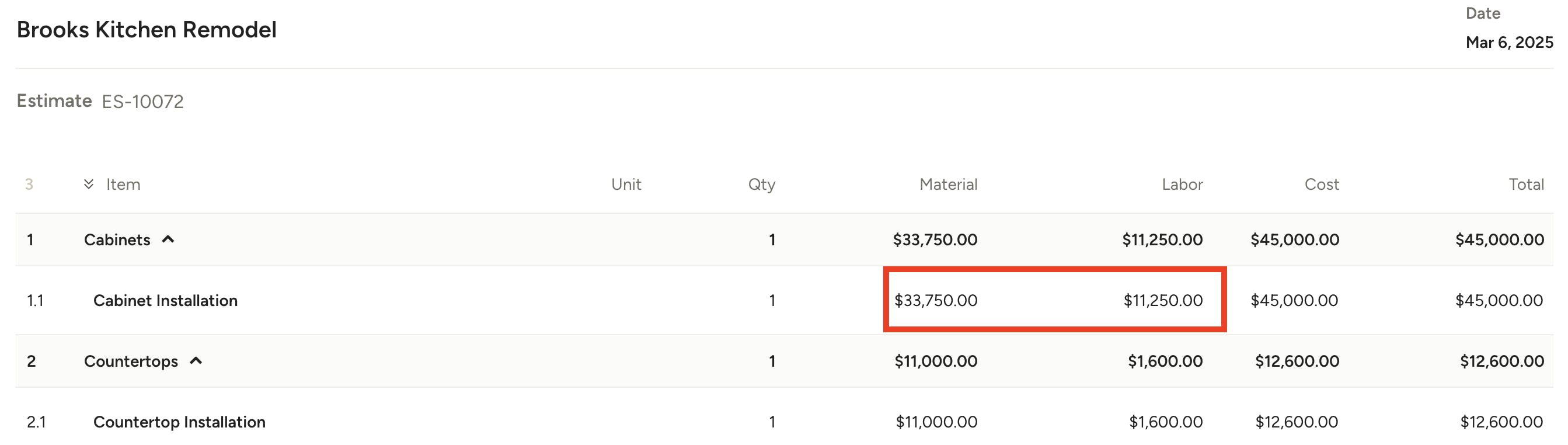
When your client views the document, they will be able to see the material and labor cost breakdown if those columns are visible — no need to make any adjustments on your end.
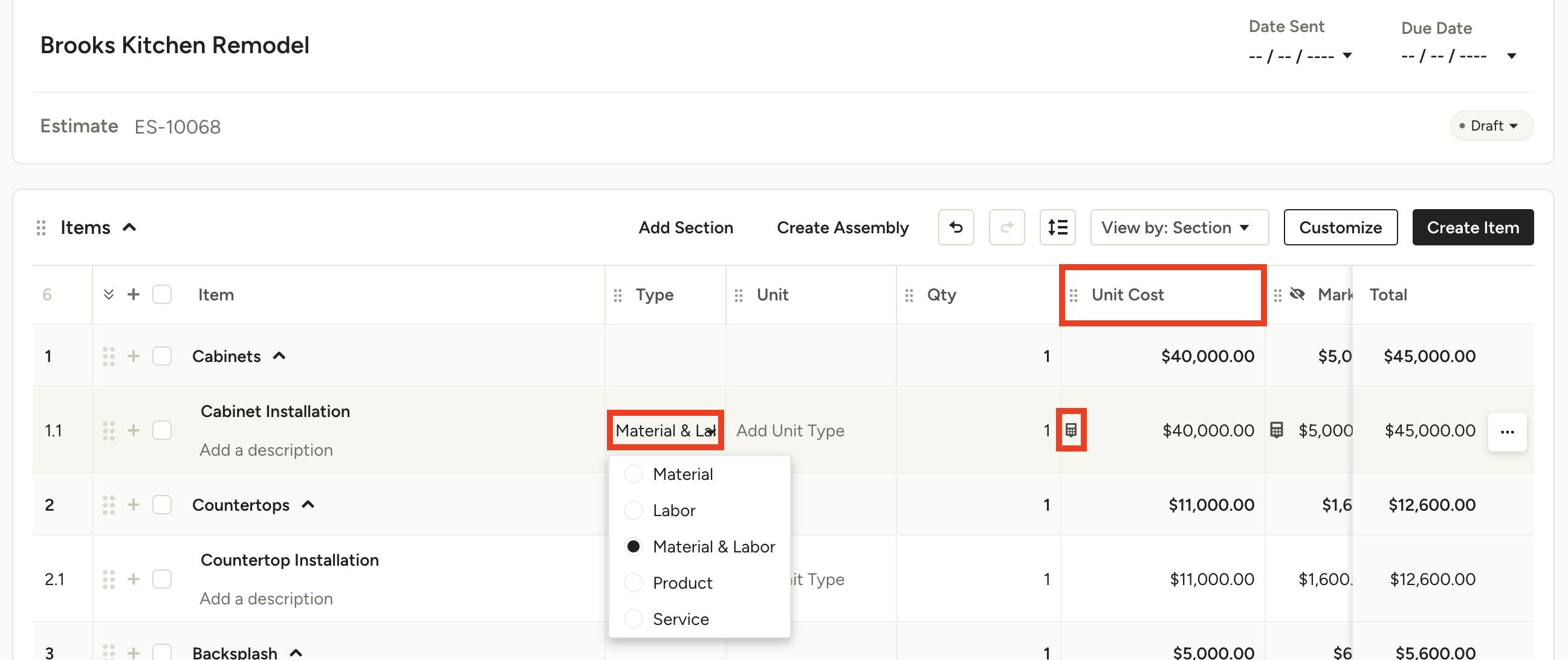
Combined Unit Cost Column
If you decide to customize your cost types, your labor and material costs for each line item will be consolidated in one Unit Cost column.
For this line item, you have the option to label the cost type in the Type column. You can classify it as Material, Labor, Material & Labor, Product or Service.
If Material & Labor is selected, a calculator will appear in the Unit Cost column.
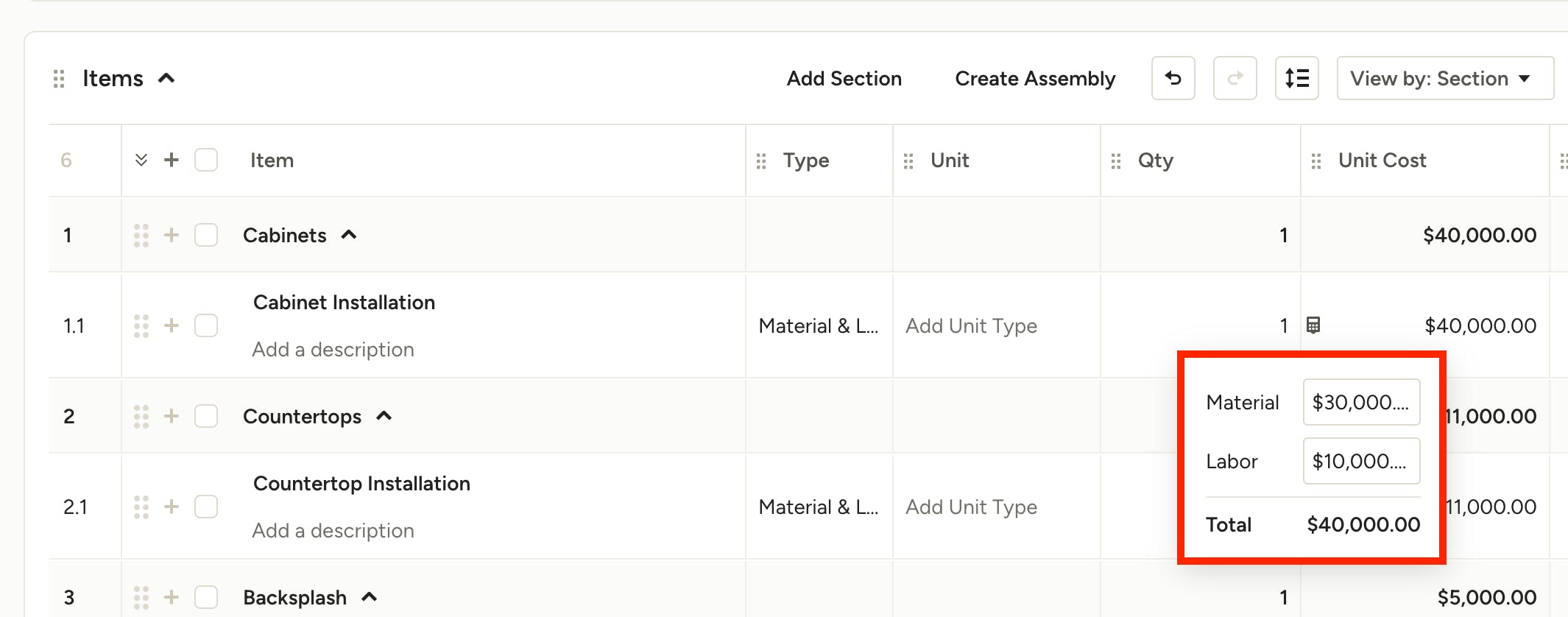
Once you click on the calculator, you can split the material and labor costs as needed. If you don't use the calculator to manually adjust the split, it will split 50/50 by default.
Note: QuickBooks Online will reflect Material and Labor on separate lines if "Material & Labor" is the Type selected.
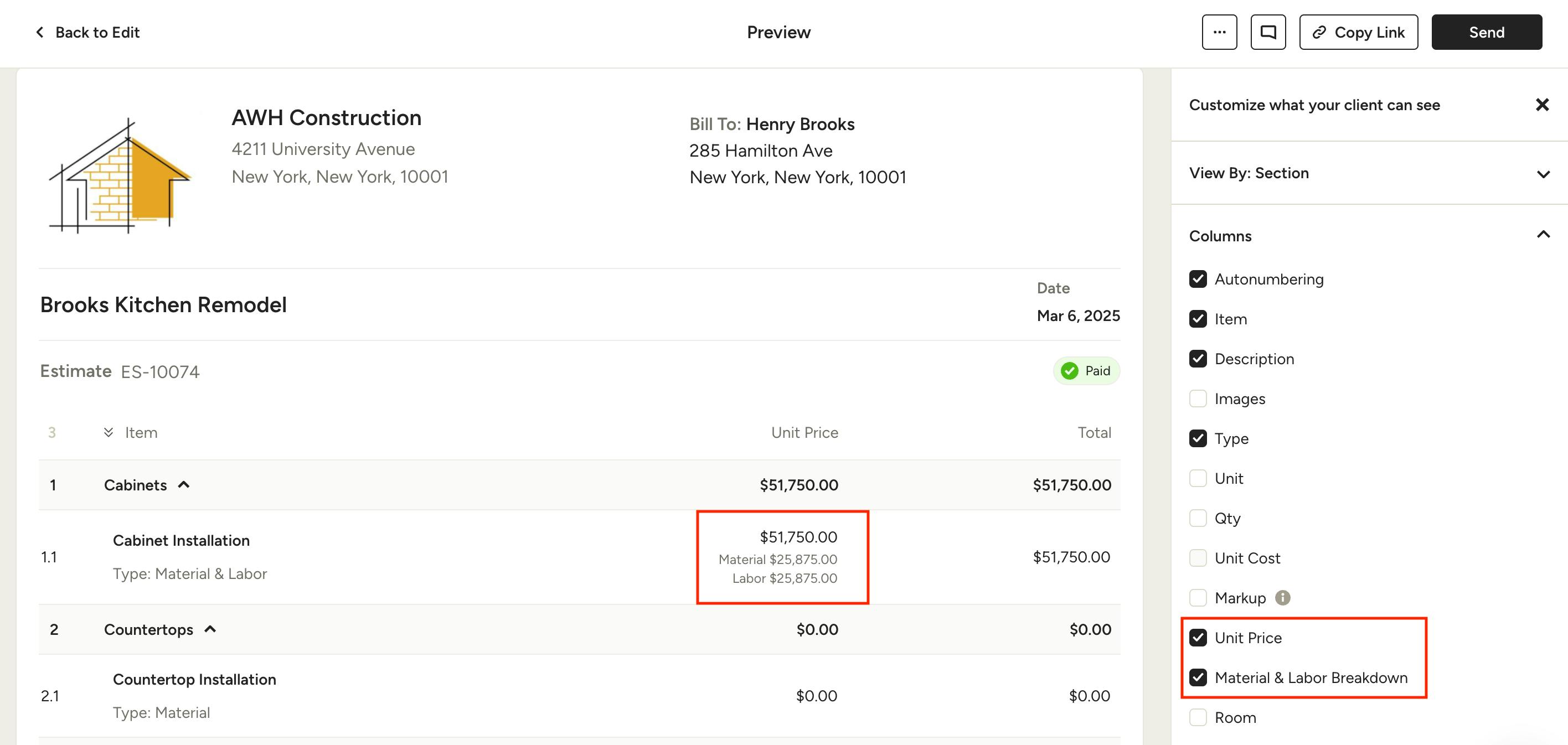
If you would like clients to be able to see the material and labor breakdown for that line item, you will need to customize the preview settings.
To do this, click the Preview button at the top right of your document. In the "Customize what your client can see" settings on the right, make sure Material & Labor Breakdown is checked under the Columns section. This option is only available if Unit Price column is selected as well.
Once you make that change, your line items will show the Unit Price total with the material and labor prices underneath, as shown below.