Find Top Brands in the Houzz Pro Catalog
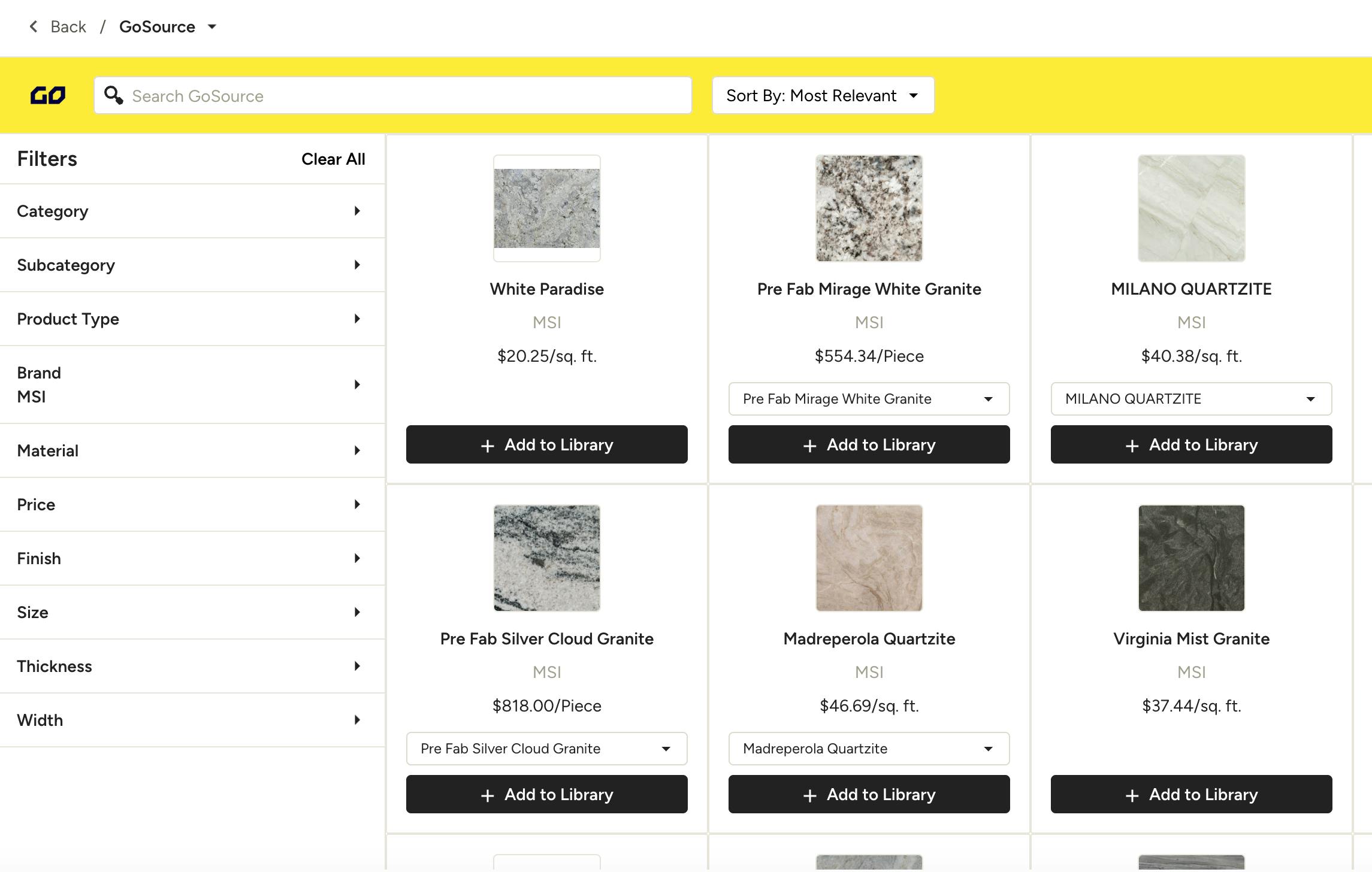
Sourcing specialty materials — such as slabs, tile, and flooring — often means jumping between vendor websites, price sheets, and phone calls to local suppliers. The Houzz Pro Catalog brings products from many more brands into one place, including MSI, Daltile, Caesarstone, Cambria, and Dekton.
You can browse products, add them to estimates, proposals, invoices, purchase orders, change orders, and selections, and request a trade quote — all within Houzz Pro.
Add Products to Financial Documents
Brand products are automatically available to add within your estimates, proposals, invoices, purchase orders, and change orders.
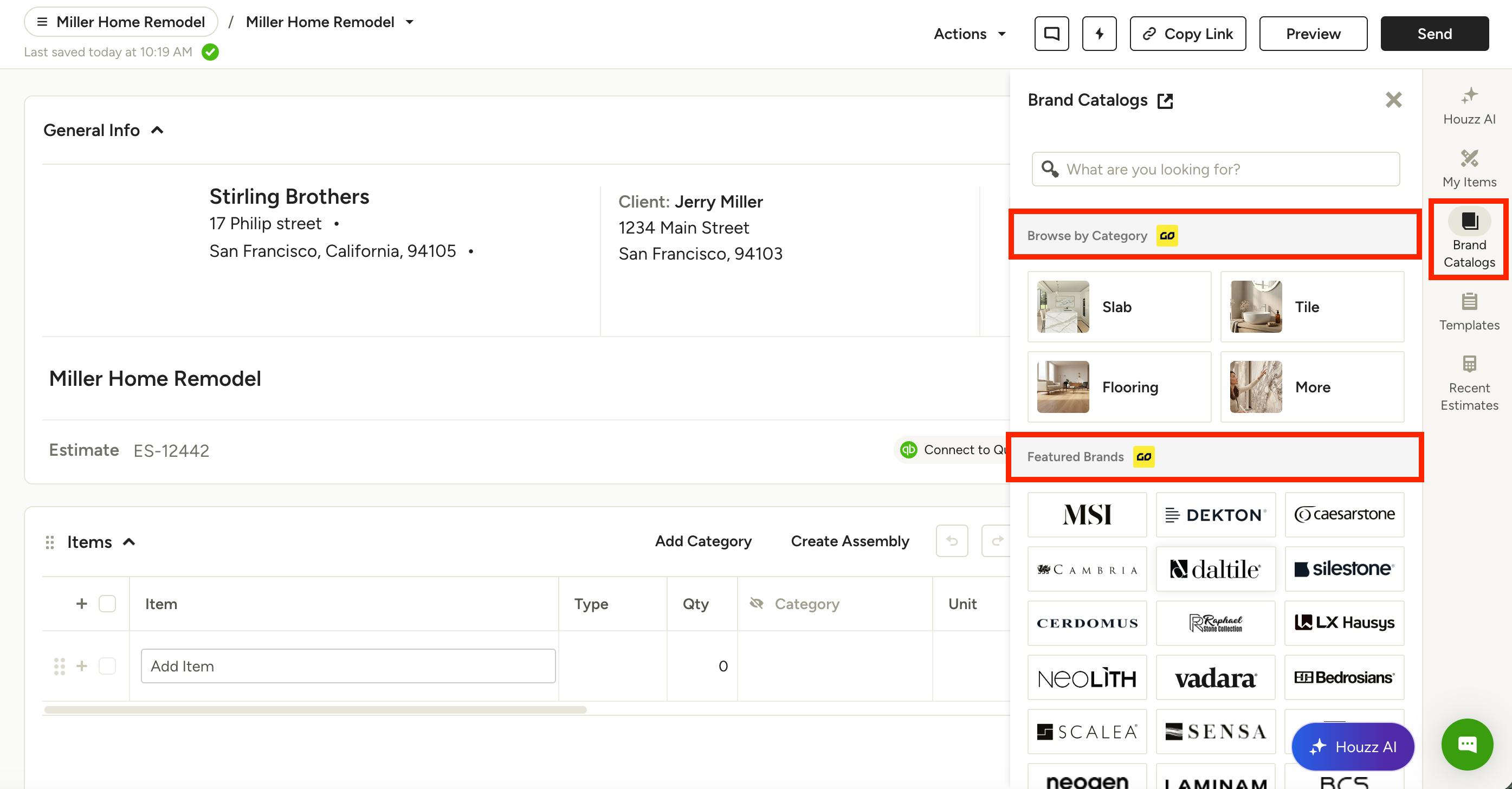
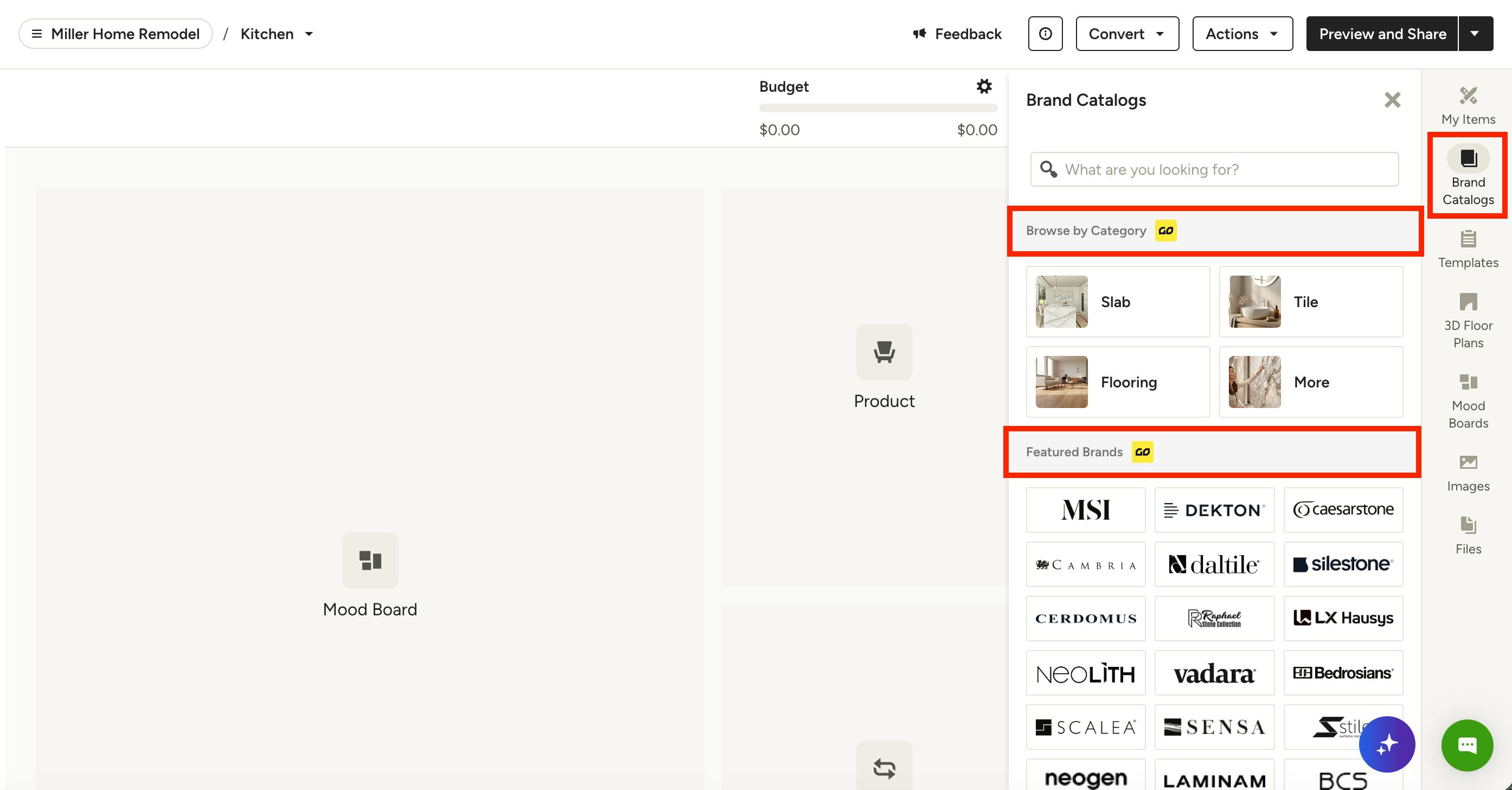
To start, open a new or existing document. From the right menu, select Brand Catalogs.
At the bottom of the Brand Catalogs menu, there are two options — Browse by Category and Featured Brands.
- Browse by Category: View items by product type, including slabs, tile, flooring, cabinets, appliances and more. Click the relevant product category in the menu — selecting More will show you a list of more product categories to choose from.
- Featured Brands: View items by popular brands instead of by product type. Click the relevant brand in the menu.
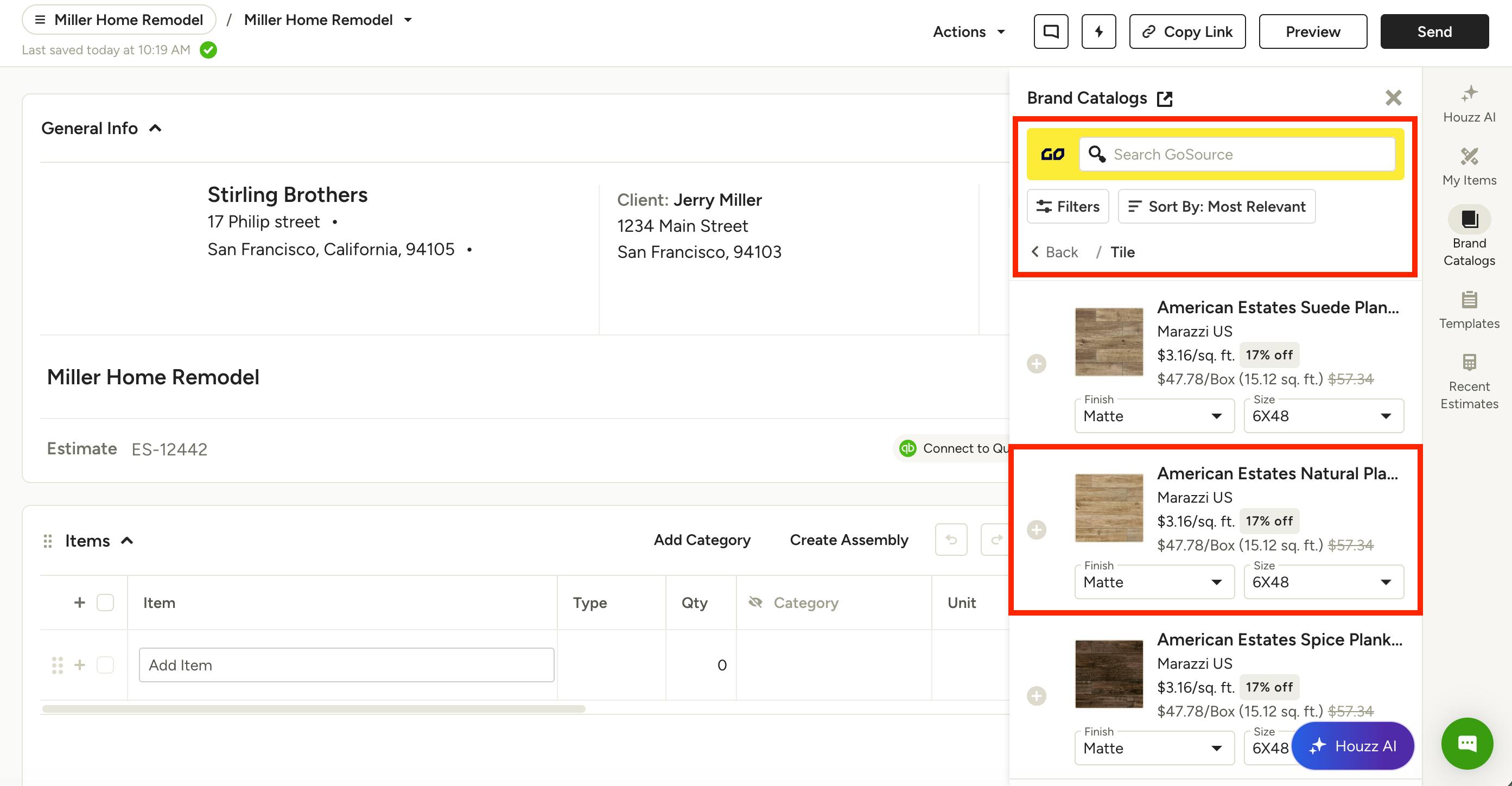
Once you select the product category or brand, you can then browse the whole catalog (as shown below).
To narrow down options, use the search bar at the top to look by keyword, or adjust the sort by most relevant or by price. Use the filters to narrow down by subcategories, brands, material, price and more.
Click the Back button at the top of the page to return to the Brand Catalog main menu.
Each product shows a starting price, brand, and any active sale pricing. You can quickly adjust the size or finish, or click the + icon to add to your document.
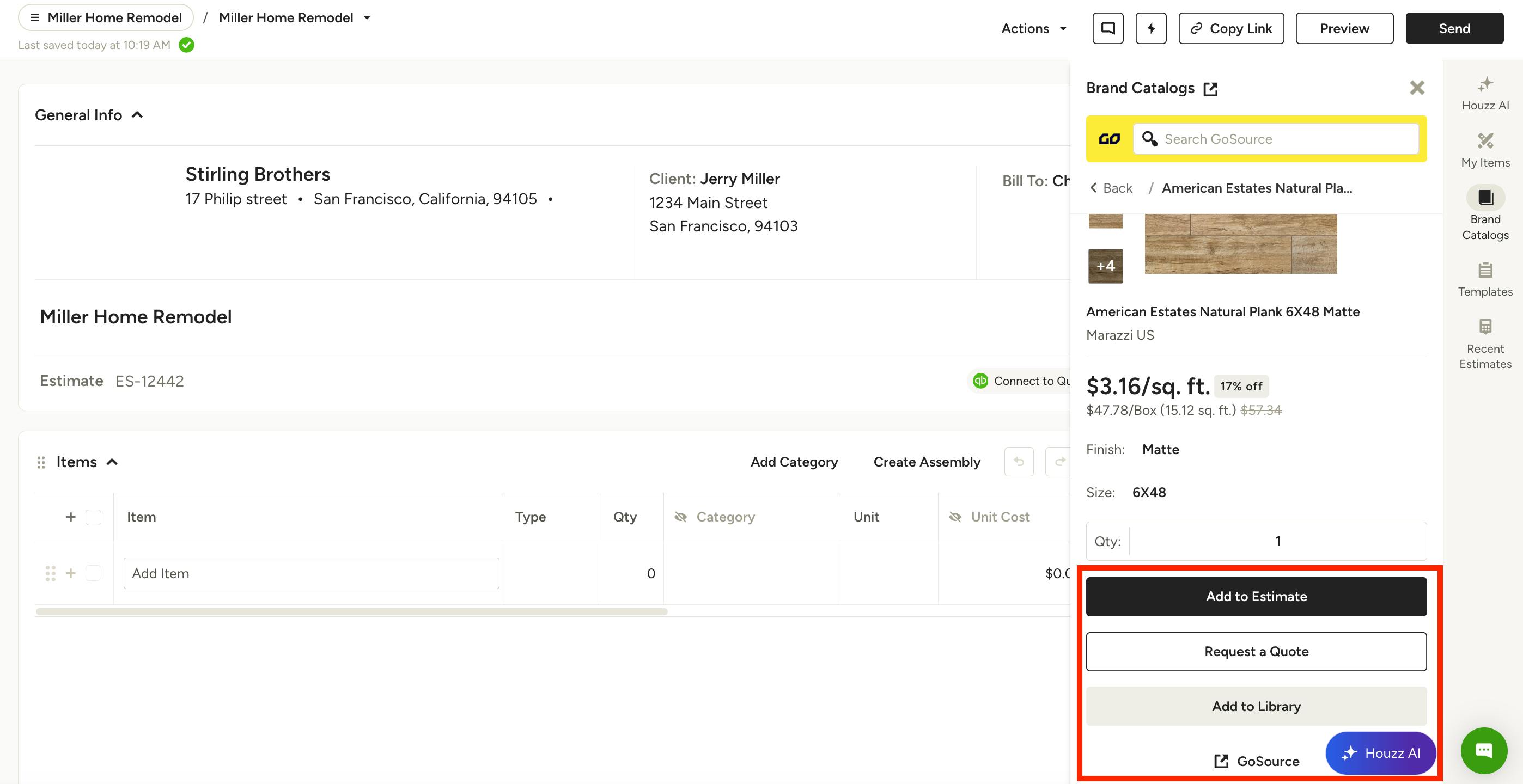
You can also click a product to open its full detail page.
Here, you can view additional images, choose any size or finish variations, and set a quantity. You can also Add to Estimate (or other document type), Request a Quote (more details below), Add to Library, or select GoSource to view directly on the GoSource website.
If you select Add to Library, that product will appear in the My Items section of your account for quick access on future projects.
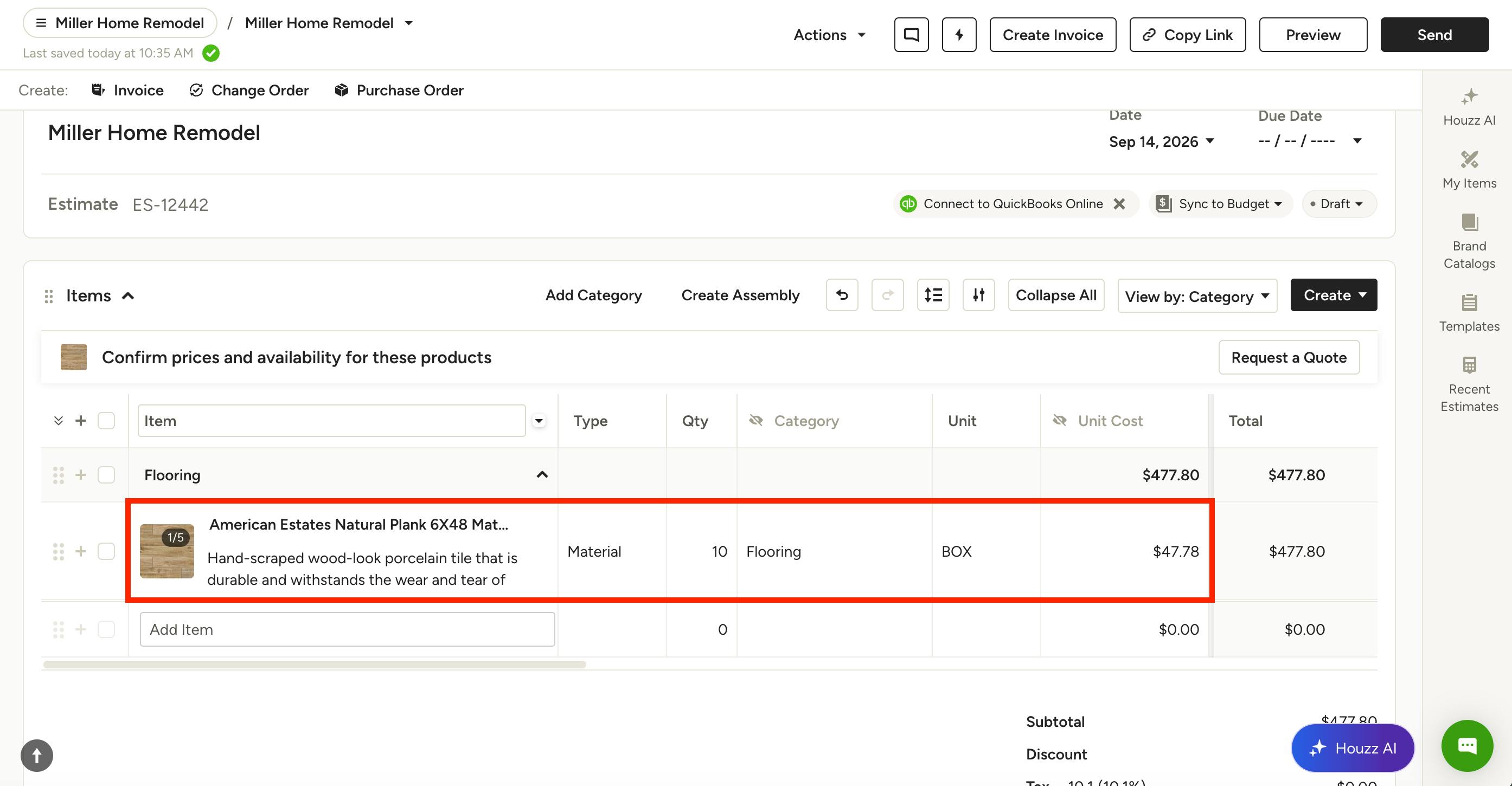
If you select Add to Estimate (or other document type), that product will appear in your document as a line item, as shown below.
Add Products to Selections
Brand products are also automatically available to add within your selection boards or selections tracker.
To start, open a new or existing selections board or tracker. From the right menu, select Brand Catalogs.
At the bottom of the Brand Catalogs menu, there are two options for the brand catalogs — Browse by Category and Featured Brands.
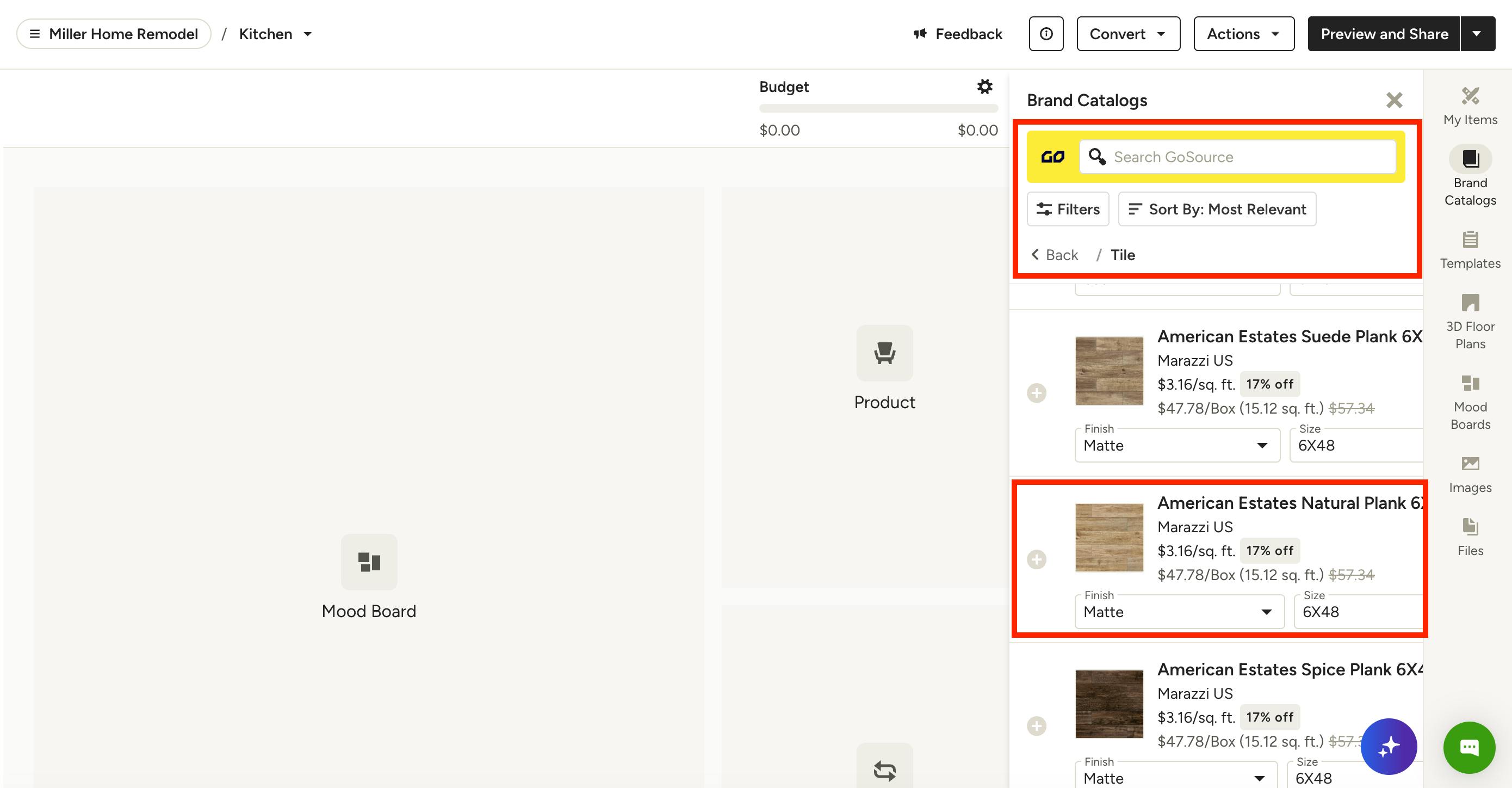
Once you select the product category or brand, you can then browse the whole catalog (as shown below).
To narrow down options, use the search bar at the top to look by keyword, or adjust the sort by most relevant or by price. Use the filters to narrow down by subcategories, brands, material, price and more.
Click the Back button at the top of the page to return to the Brand Catalog main menu.
Each product shows a starting price, brand, and any active sale pricing. You can quickly adjust the size or finish, or click the + icon to add to your board or tracker.
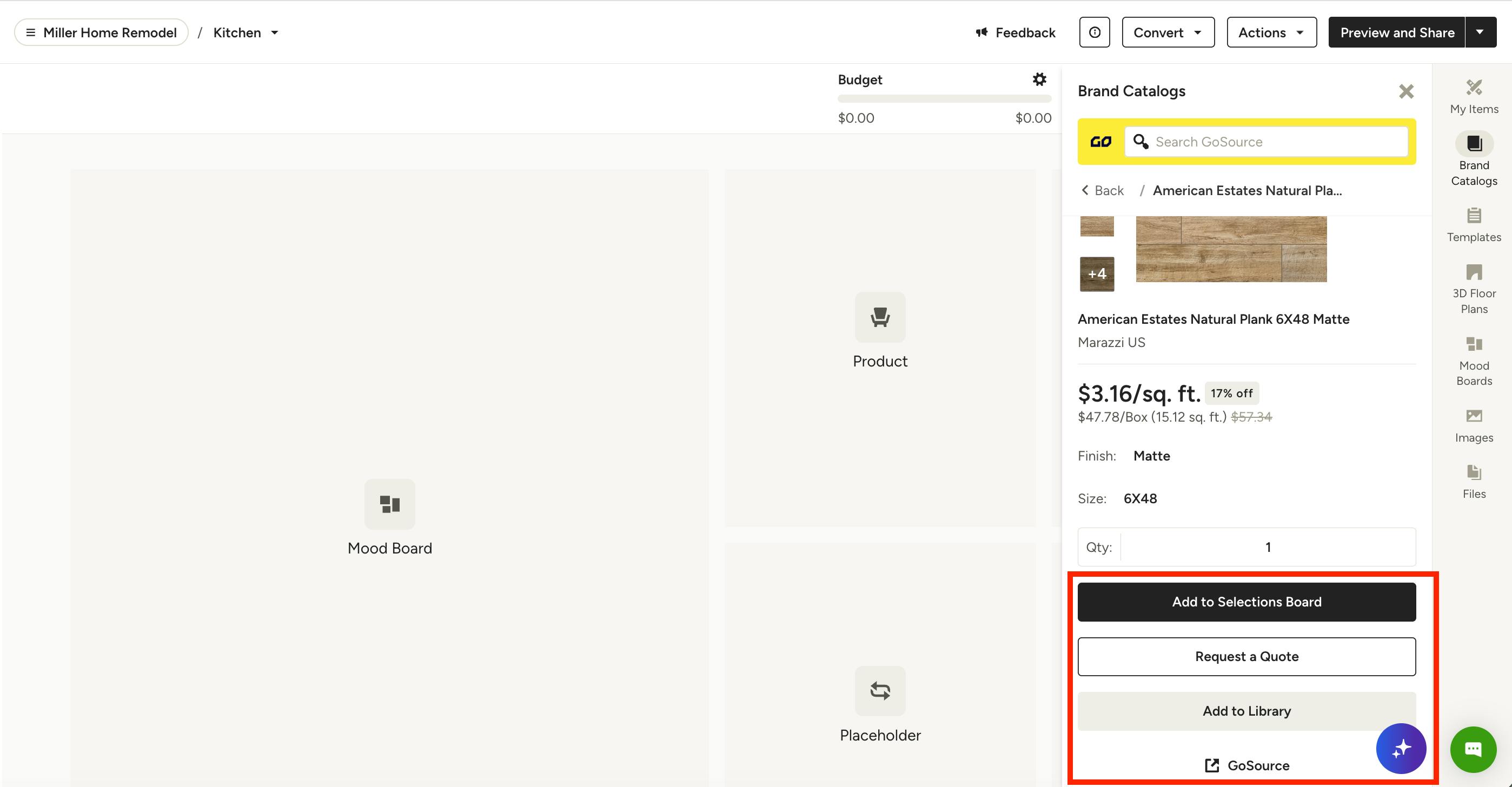
You can also click a product to open its full detail page.
Here, you can view additional images, choose any size or finish variations, and set a quantity. You can also Add to Selections Board (or Tracker), Request a Quote (more details below), Add to Library, or select GoSource to view directly on the GoSource website.
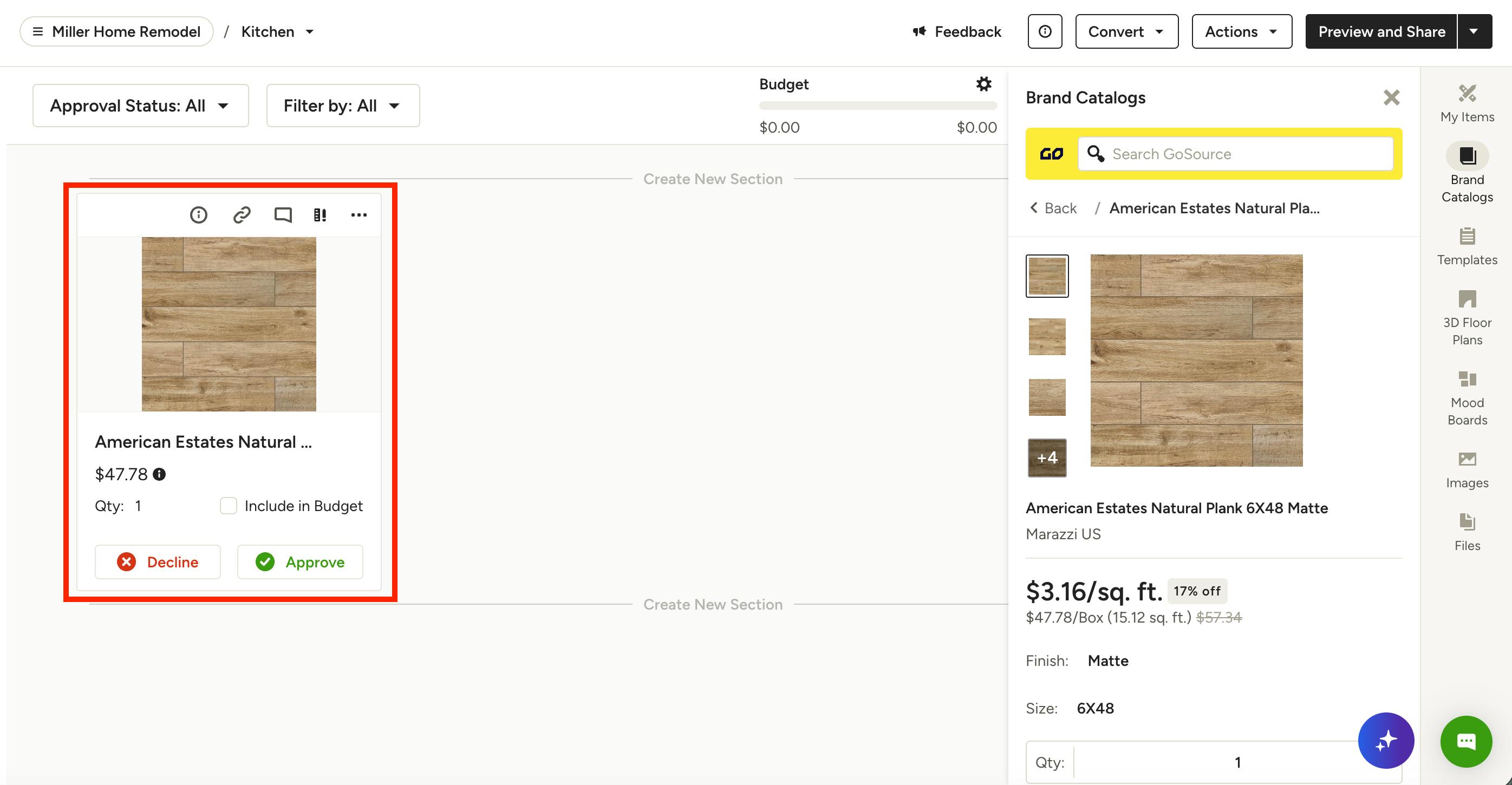
If you select Add to Library, that product will appear in the My Items section of your account for quick access on future projects.
If you select Add to Selections Board (or Tracker), that product will appear in your board or tracker, as shown below in a board.
Request a Quote
Houzz Pro works with GoSource to help you get trade quotes for catalog products. Because pricing and availability can vary, orders are finalized with GoSource rather than through online checkout.
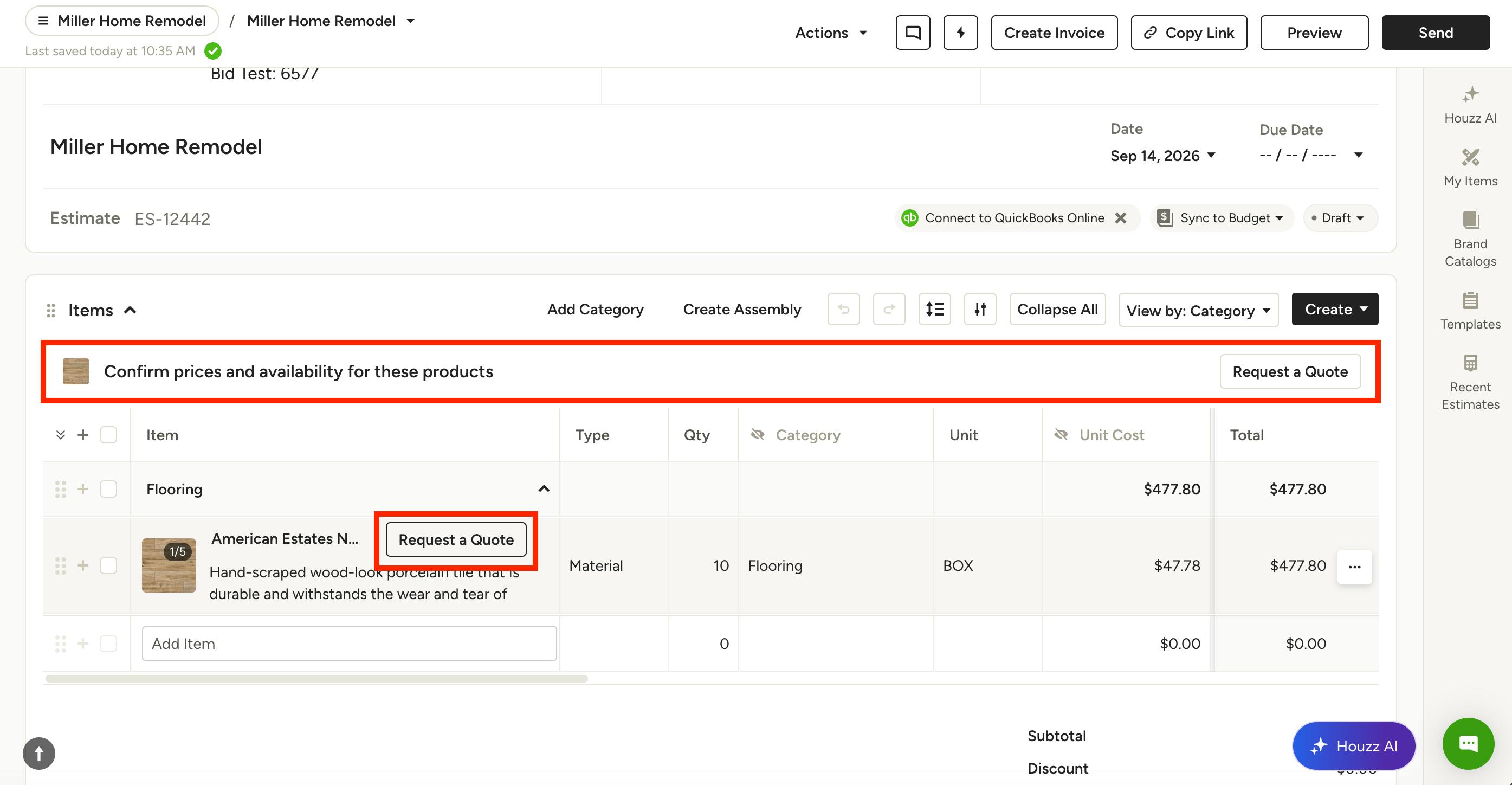
You can request a quote from the Catalog, a financial document, a Selection Board or the Selections Tracker. Select the product and click Request a Quote. If the product is already a line item in a financial document, you can also click Request a Quote at the top of the document or hover over the line item (as shown below).
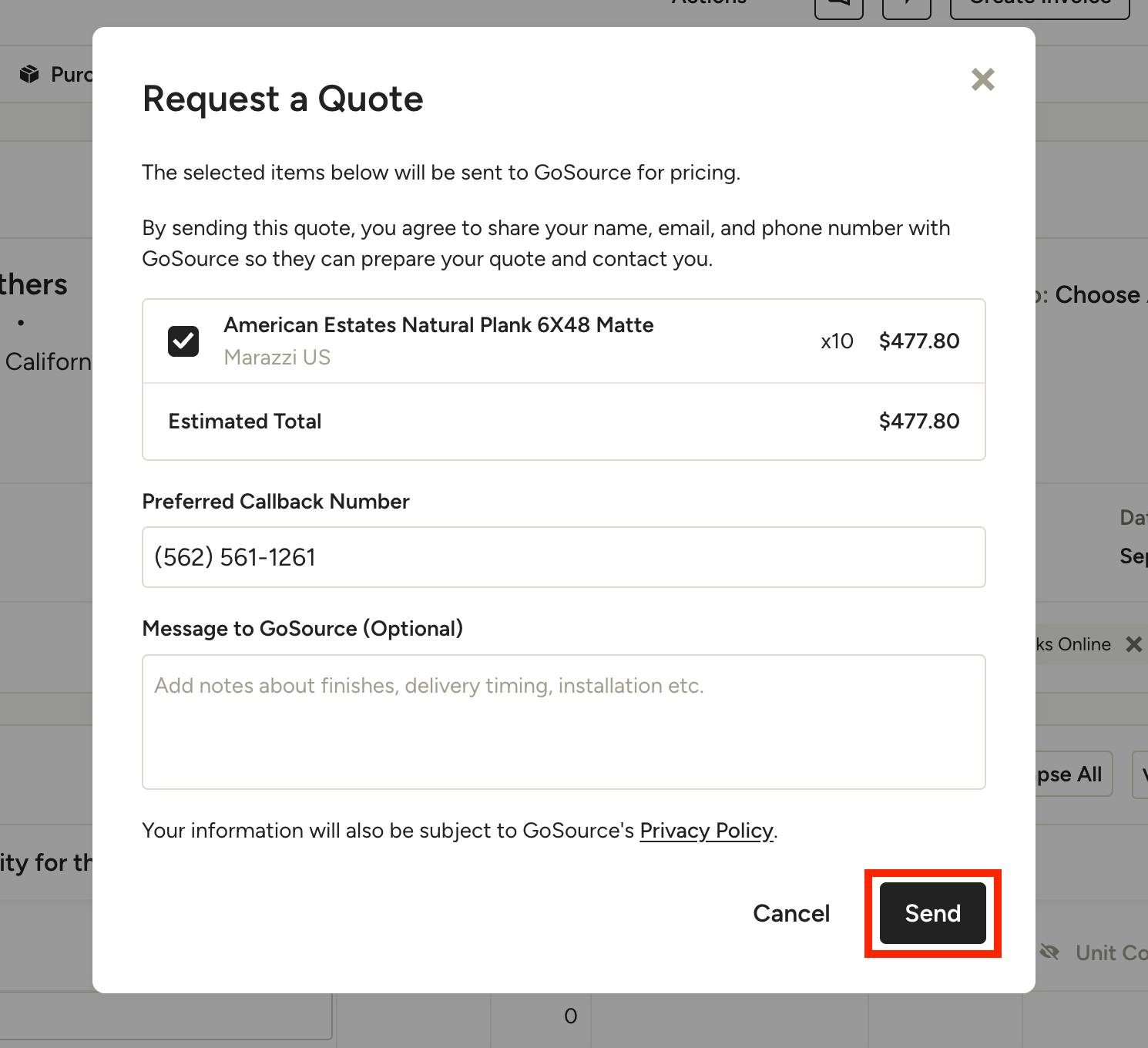
On the request screen, select the items you want a quote for. If you have multiple items, GoSource can bundle them into one request. You can also update your callback number or add an optional message.
After you submit the request in Houzz Pro, GoSource will contact you within 48 hours to confirm pricing and availability and help finalize your order. Requesting a quote does not place an order or charge your client.
Add Products From Brand Catalog
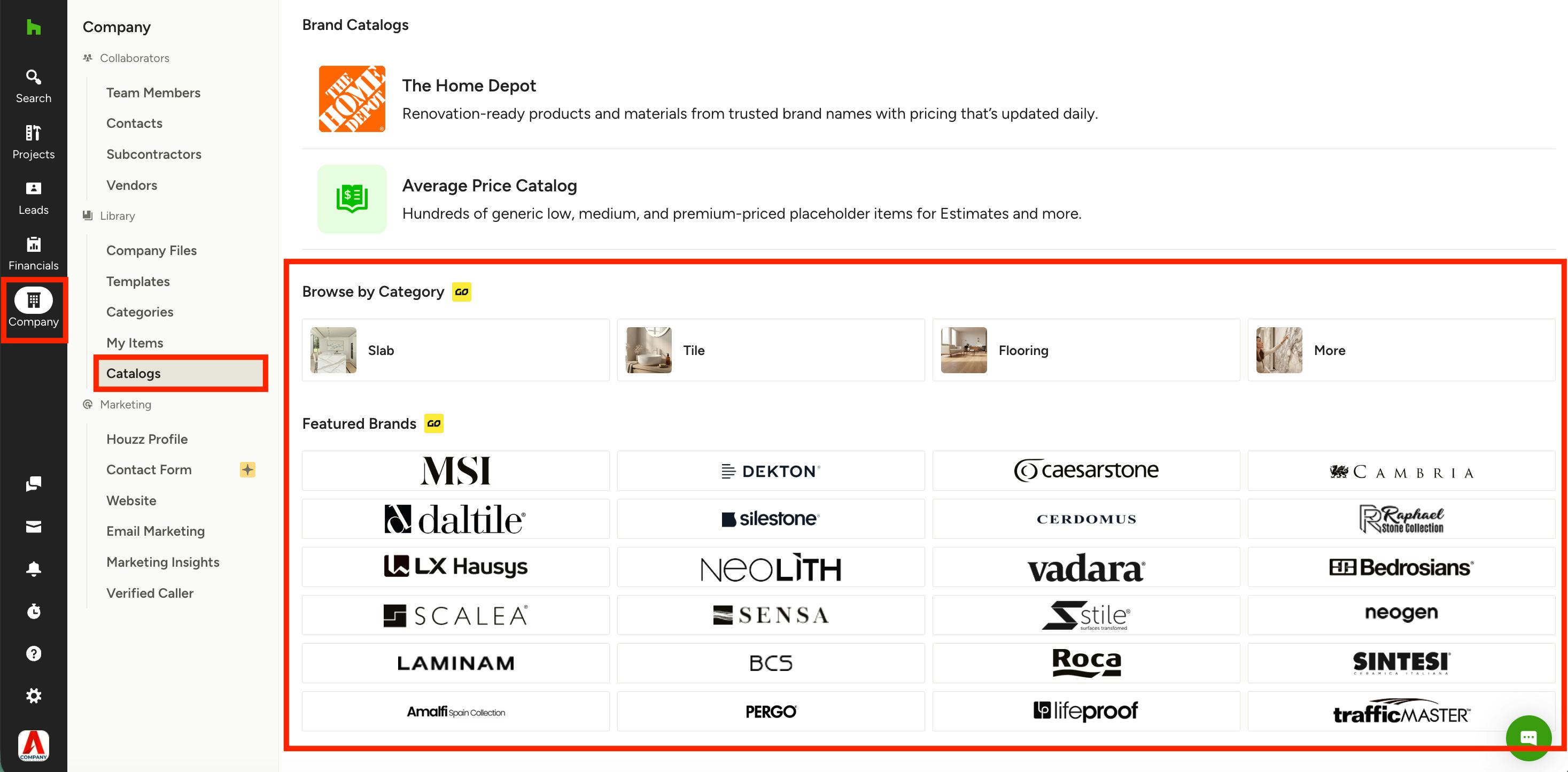
Finally, brand products are available for general browsing in the Catalogs section of Houzz Pro. Here, you can request a quote and add products to your My Items library, but you are not able to add to a financial document or selections. To do this, you will need to go to the specific project, then open up the relevant document or selections board/tracker.
To find the catalog, select the Company icon in your left navigation, then select Catalogs from the menu. At the bottom of the Brand Catalogs page, there are two options for the brand catalog — Browse by Category and Featured Brands.
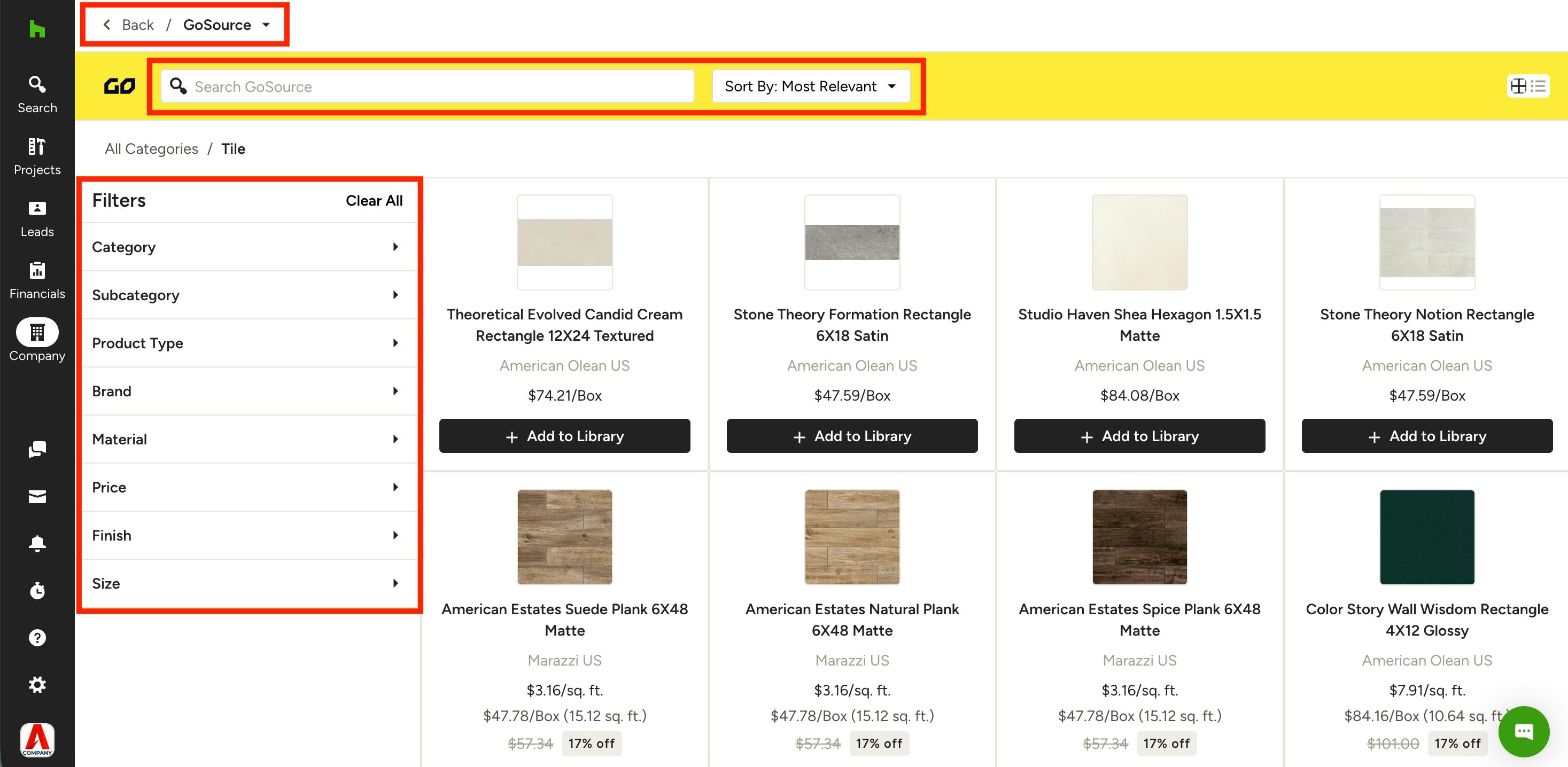
Once you select the product category or brand, you can then browse the whole catalog (as shown below).
To narrow down options, use the search bar at the top to look by keyword, or adjust the sort by most relevant or by price. Use the filters on the left to narrow down by subcategories, brands, material, price and more.
Click the Back button at the top of the page to return to the Brand Catalog main menu.
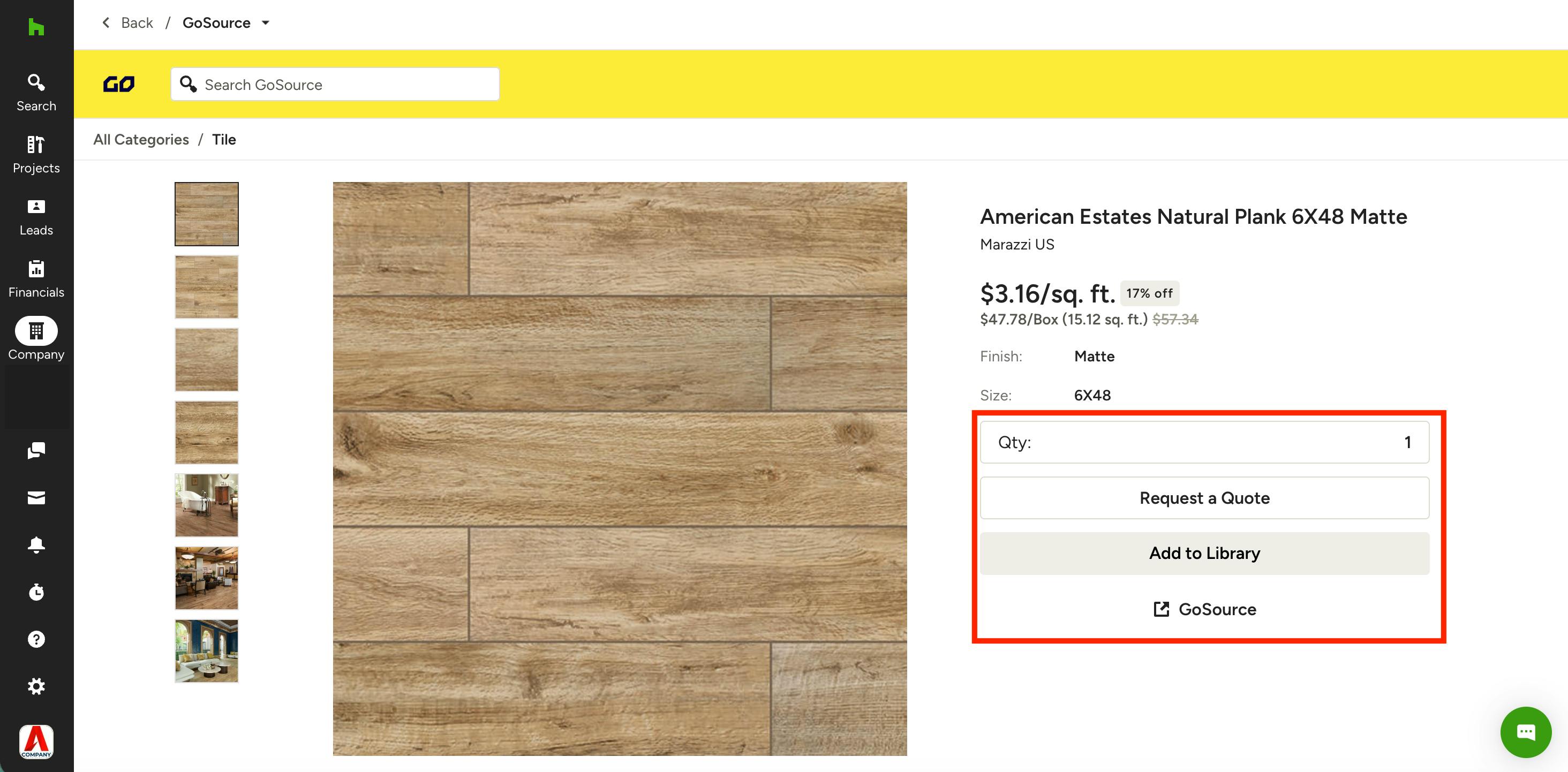
Each product shows a starting price, brand, and any active sale pricing. Tap a product to open its full detail page.
Here, you can view additional images, choose any size or finish variations, and set a quantity. You can also Request a Quote, Add to Library, or select GoSource to view directly on the GoSource website.
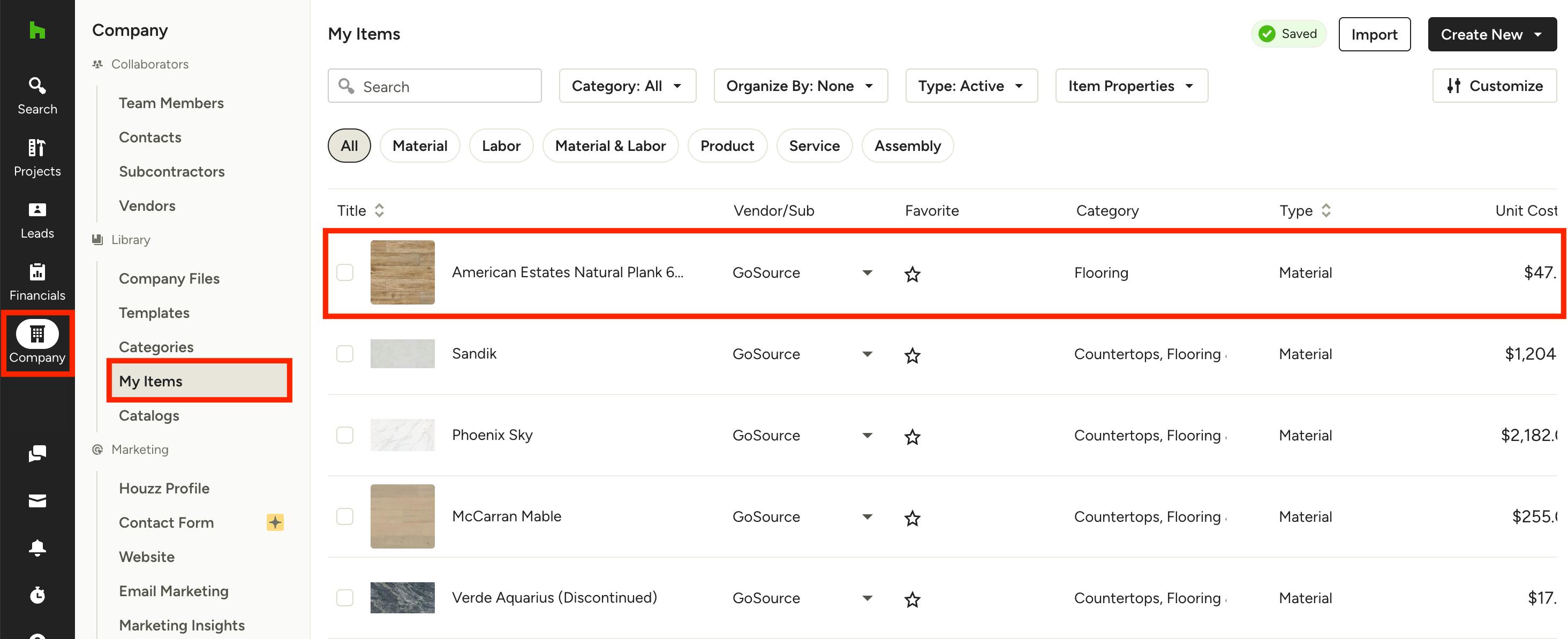
If you select Add to Library, that brand product will appear in the My Items section of your account for quick access on future projects (as shown below).