How to Complete your Houzz Profile
Your Houzz profile is the first introduction potential clients have to you and your work. Here’s how you can make it shine!

On Houzz, there are a couple different ways Clients can discover your profile. One way Clients may find you is through browsing the “Find Professionals” on Houzz.com. Alternatively, a client already familiar with your business might type your business name into Houzz search.
Either way a Client finds you, the best way to turn a potential client into a promising lead is through completing your Houzz profile with information and compelling photos that highlight you and the great services you offer.
Here are the steps to updating your profile:
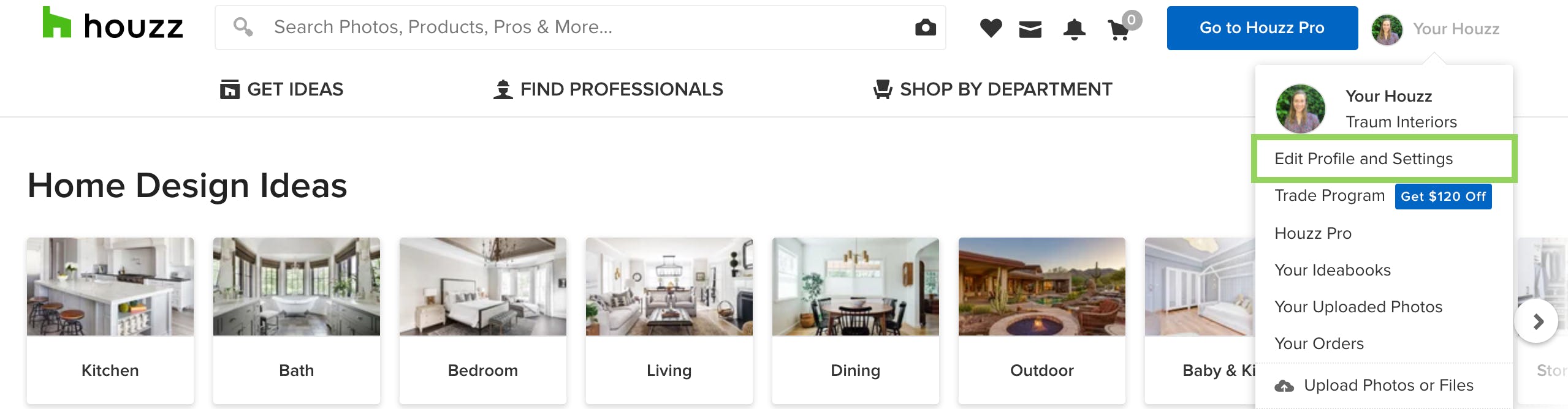
1. Sign into your Houzz Pro account. Click on “Your Houzz” in the top right corner and select “Edit Profile and Settings.”
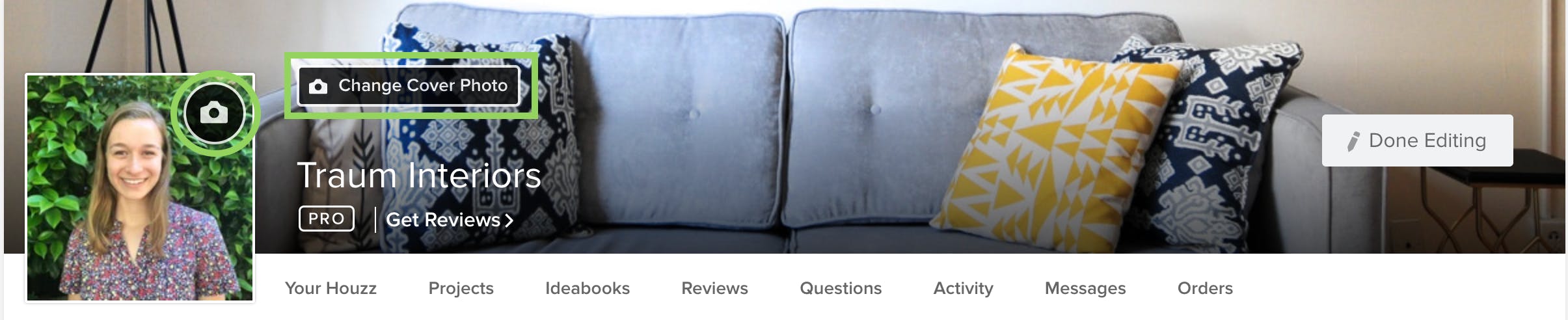
2. Upload a Profile Photo. Hover over the headshot icon on the top left of your screen and click on the photo icon to add an image to represent your business. Headshots work well, or you can provide a business logo. Crop and center your photo. High-quality photos are key to attracting leads.
3. Add a Cover Photo. To do so, click “change cover photo” above your profile name. You can select a photo from one of your public projects in the dropdown menu. Alternatively, you can choose a photo from Houzz under the “Houzz Gallery” dropdown. Select a photo, and click “use photo."
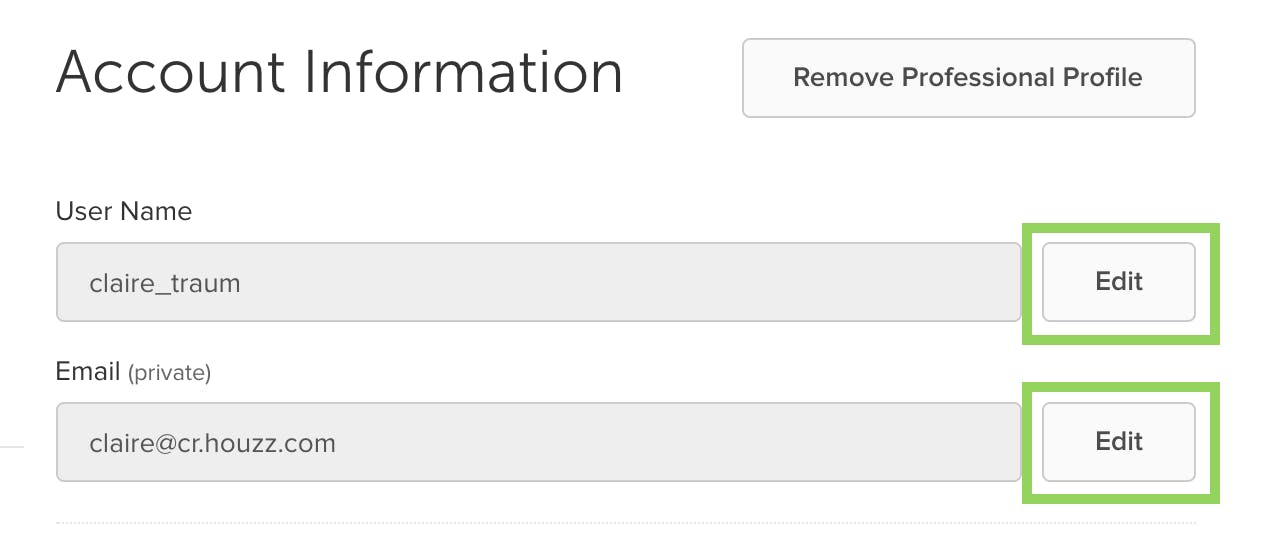
4. Complete your Account Information. Your username will be the handle that identifies you when others leave a review on your page or when you write a review for another Pro on Houzz. You can change or customize your username by clicking the edit bar next to the username. You can also make changes to your email address in this section.
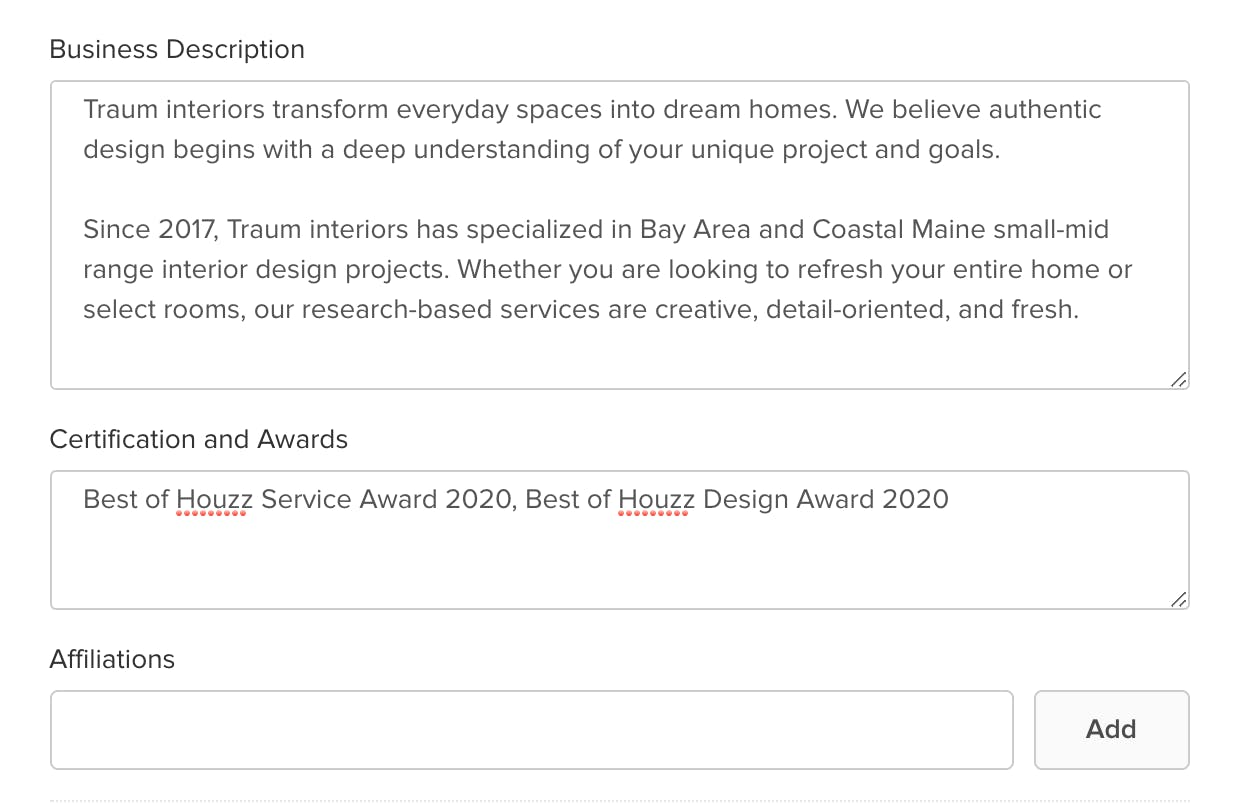
5. Fill out your “Public Business Information” Section. Provide the name of your business, the category or type of work you provide, and a link to your website if you have one. Subscribing to Houzz Pro grants you access to Houzz’s custom website services. You can also add a license number, description of your business, and list of certificates and awards.
6. Check all relevant services and locations in the Services Provided and Areas Served sections.
7. Under the Typical Job Cost section, provide a range of monetary values your business targets for projects. You can elaborate on your cost range if desired.
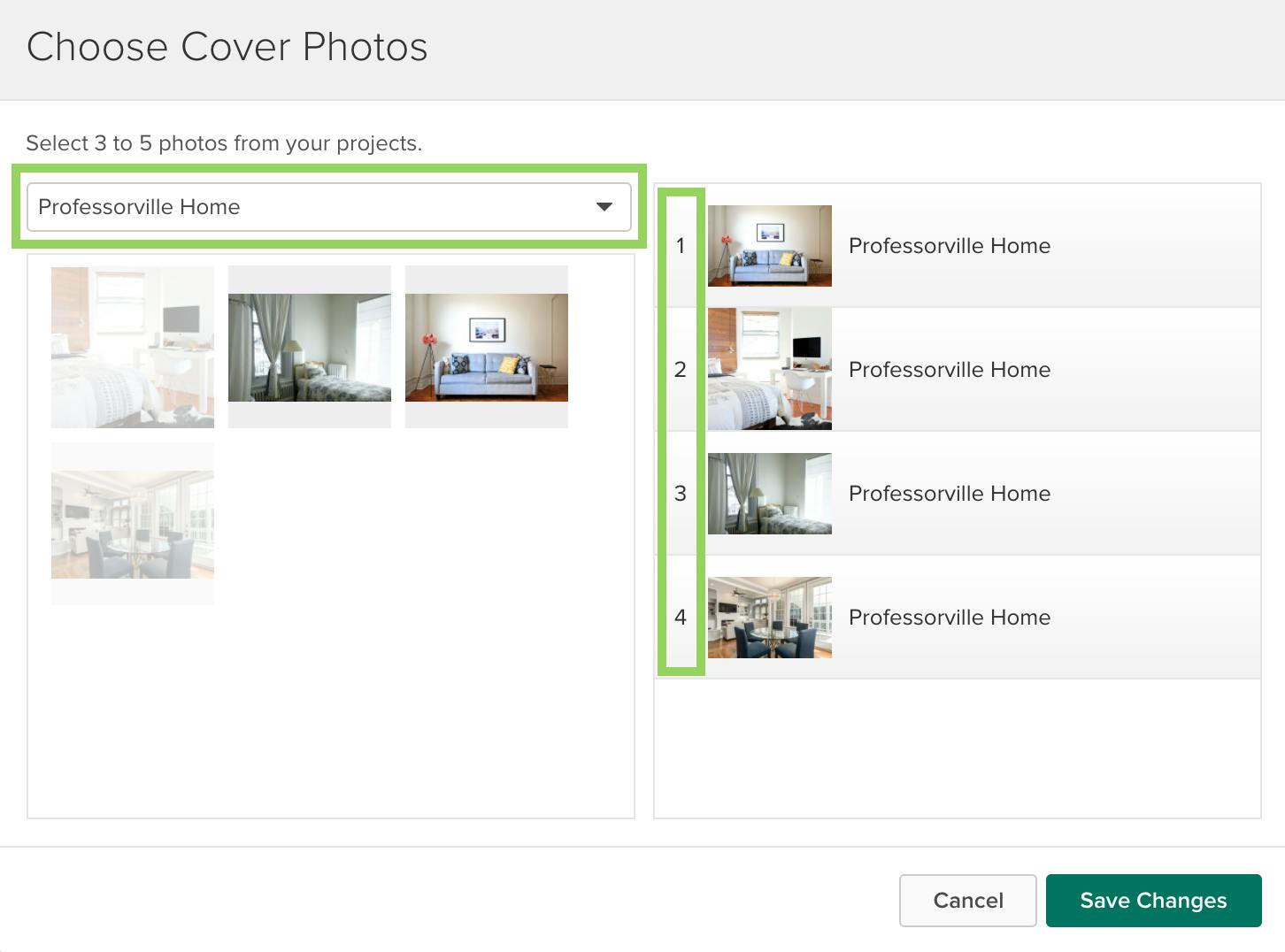
8. Select cover photos. Cover photos will appear under your business listing when users browse Houzz. Click on the cover photo section to select and rank photos from your projects. Save changes when you are done.
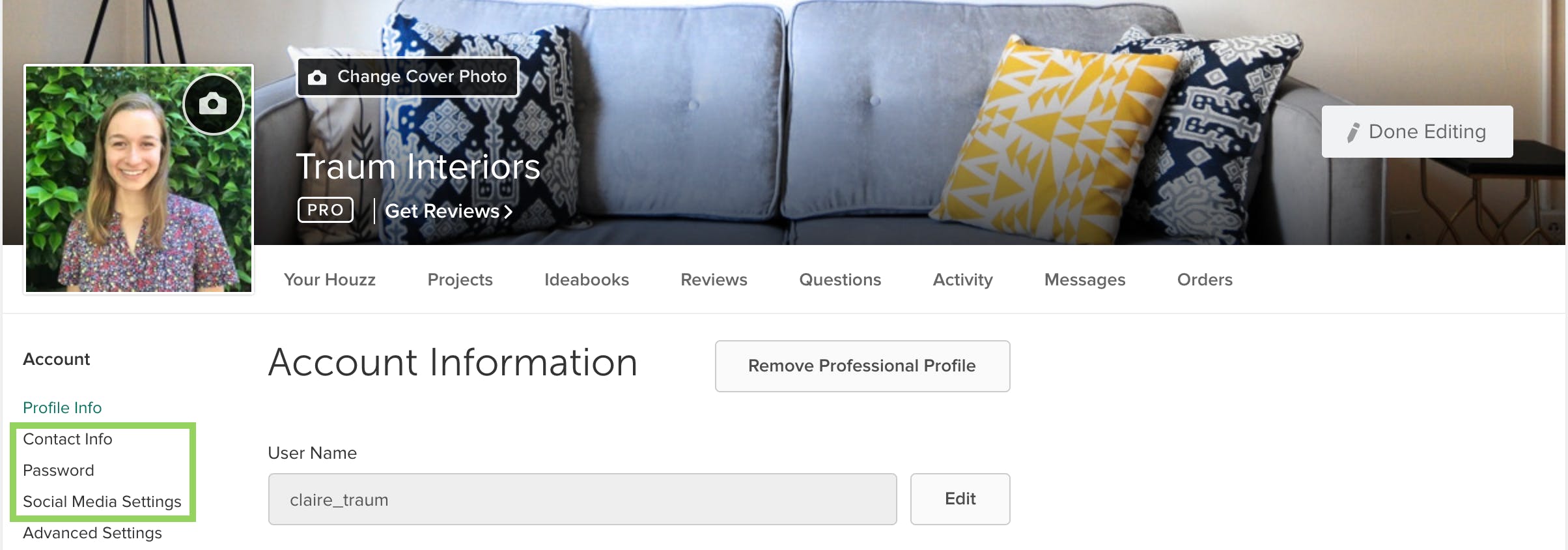
9. Click “Update” to save all of the information you just loaded into your profile section.
10. Update your contact information by navigating to the top left tabs on your profile. If needed, change any information in this section and click update.
11. Link your social media under the “Social Media Settings” left tab of your profile. Click update to save your changes.
Now you’re done! Congrats on updating our Houzz profile.


Want advice delivered to your inbox?
Unlock industry insights and updates for contractors and design pros
By signing up, I agree to the Houzz Terms of Use and Privacy Policy and that Houzz may use my information to contact me about relevant content, products, and services.