How to Use the Subcontractor Dashboard
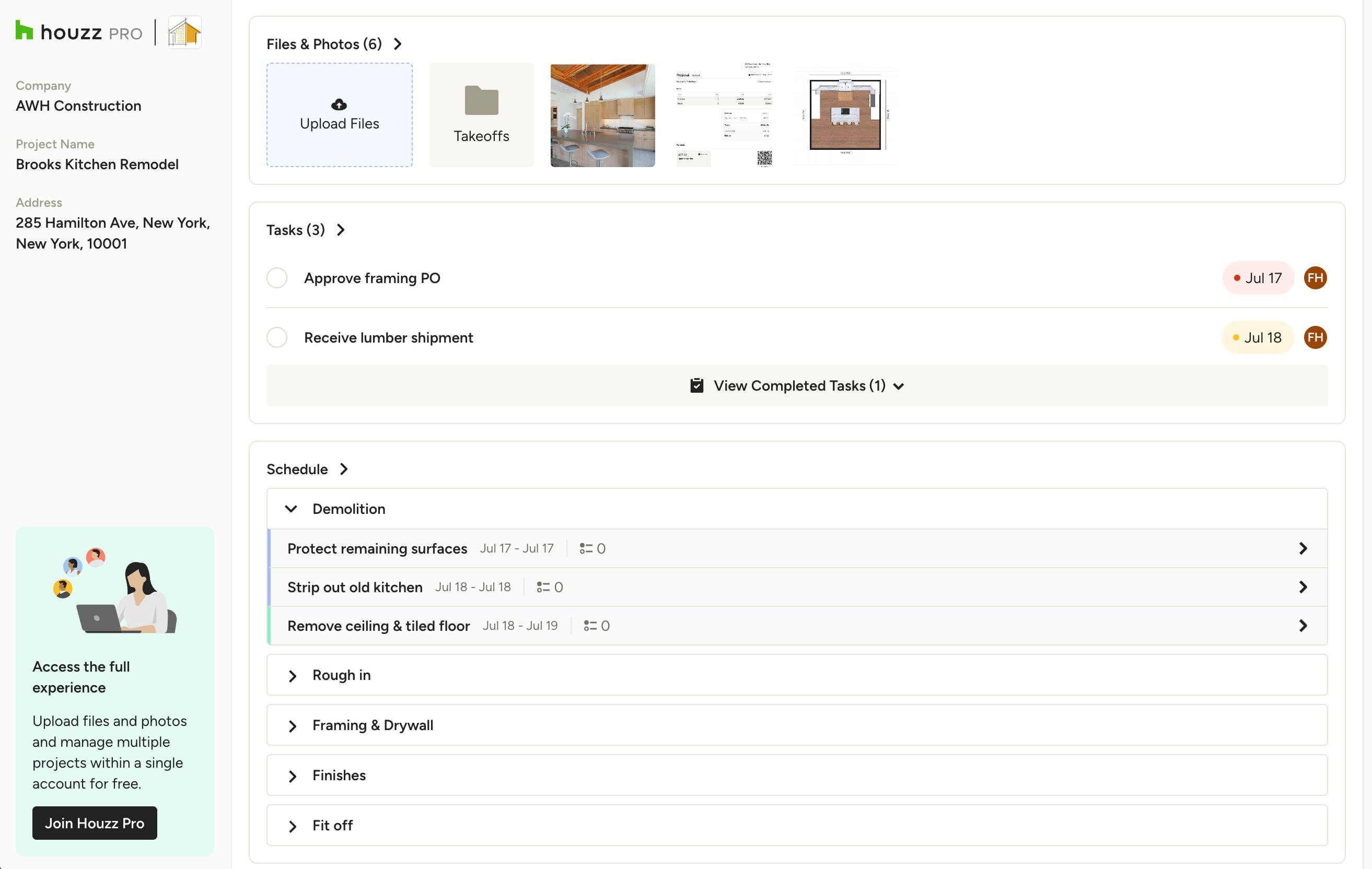
Your subcontractor dashboards on Houzz Pro provide you with an overview of project-specific items and information that pertain directly to you, the subcontractor. Each project has a unique dashboard that displays things like files, photos, tasks, schedules, daily logs and chats, depending on what the pro has shared with you, and you can access it without having to sign up or log in. Here we'll go through all aspects of your dashboard so you can dive right into your work without skipping a beat.
Access Your Subcontractor Dashboard
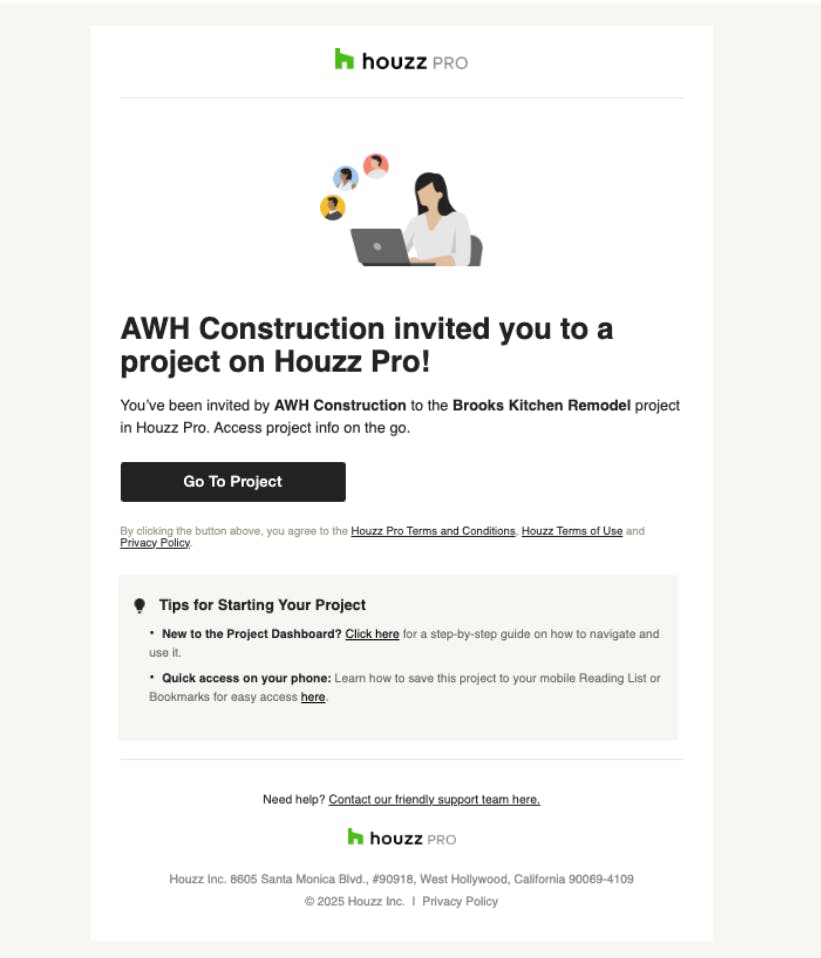
When a pro invites you to collaborate on a project, you will receive an email, similar to the one shown below, with a unique link to your personal subcontractor dashboard for that specific project. You can access your dashboard at any time by clicking the link in the email — no login required.
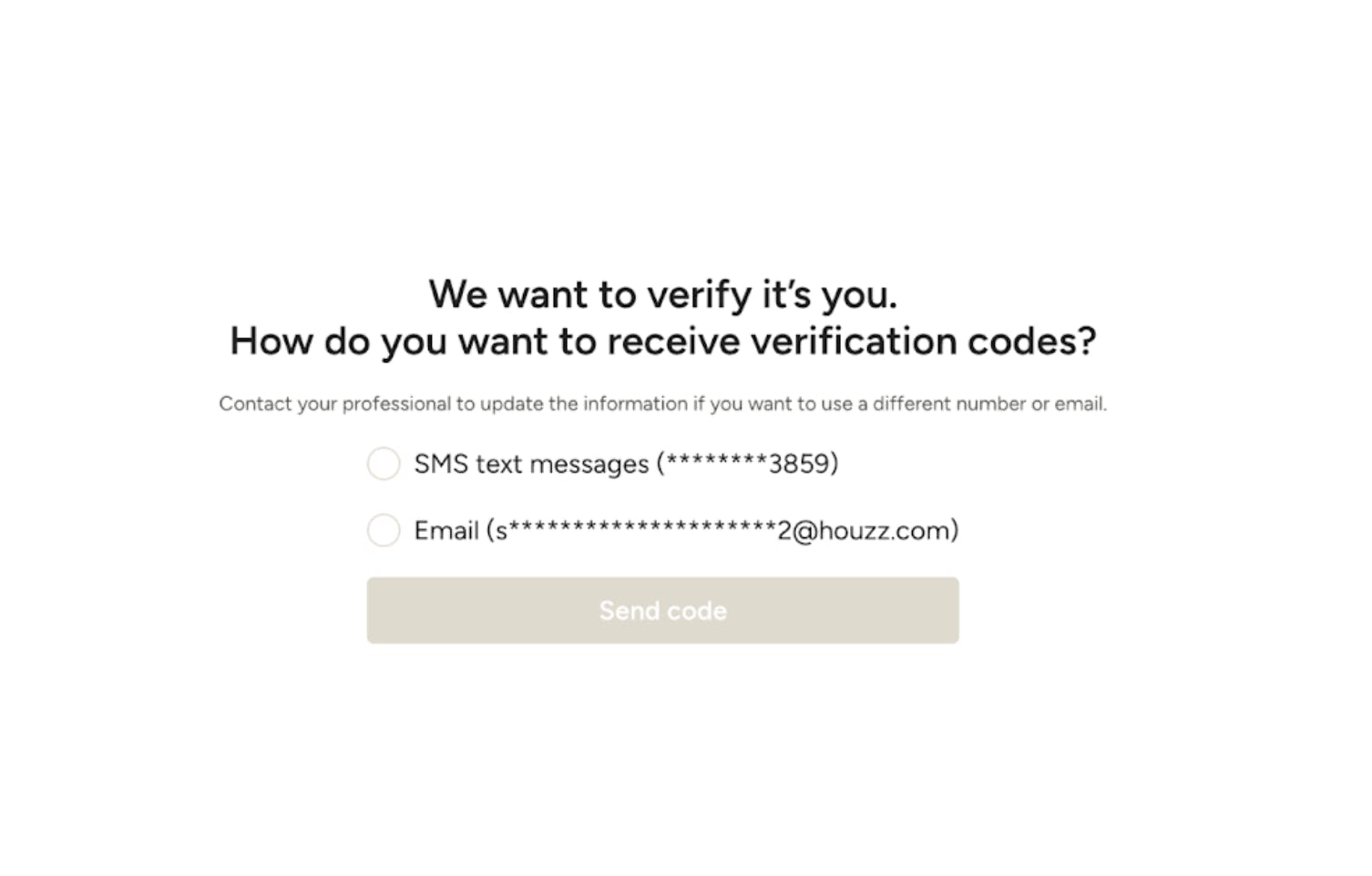
For security purposes, once you click the Go to Project button in the email, you will be asked to verify that it's you trying to access the dashboard. Select where you want your verification code sent (SMS text or email) and click Send Code. The options available are dependent on the information the pro has saved for you in Houzz Pro; if you need these updated please reach out to them directly.
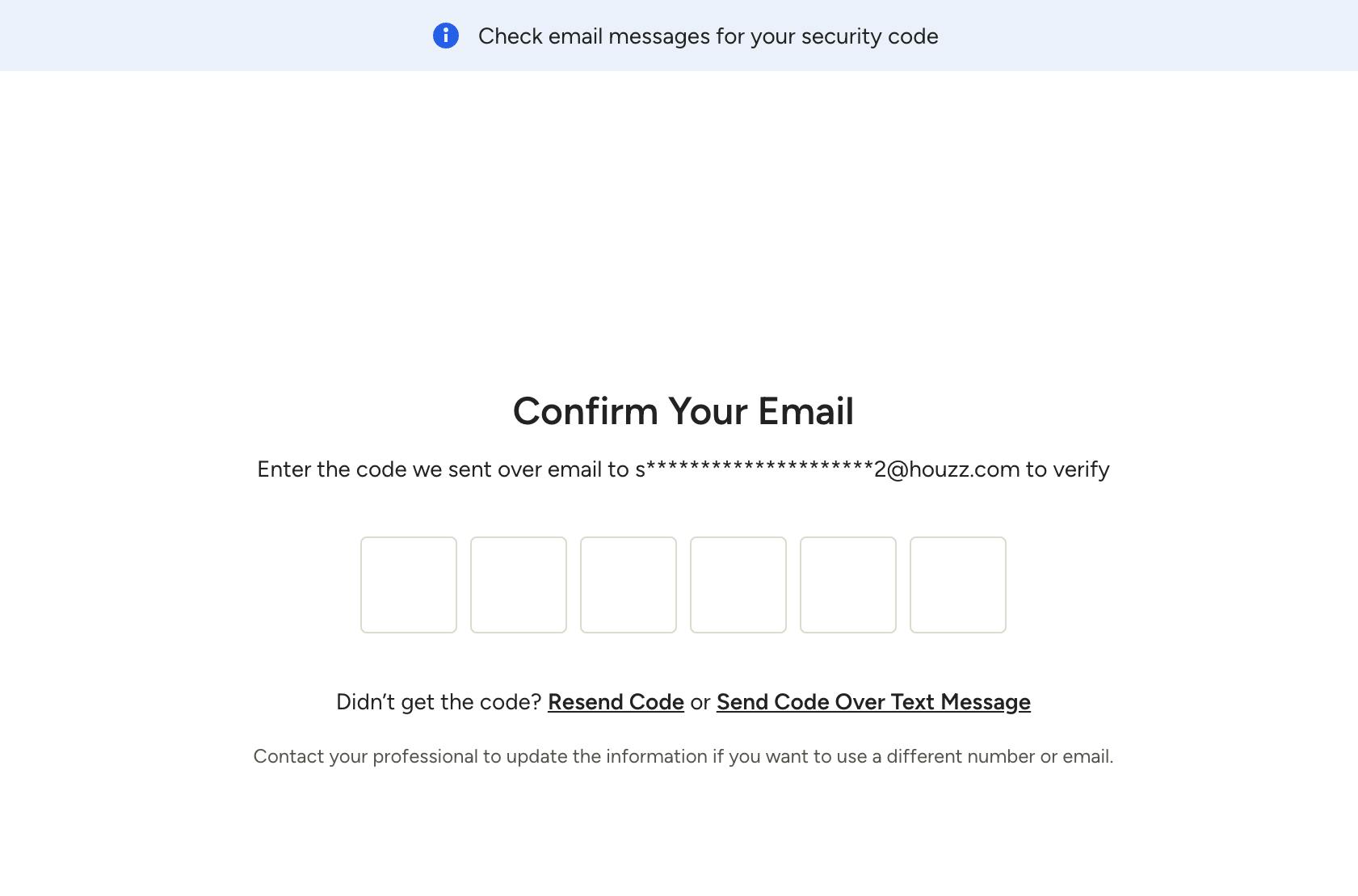
Enter the verification code you receive on the next screen. You can click Resend Code or choose another method to receive the code if needed. If the correct code it entered, you will be taken to your dashboard.
If you choose not to sign up for a free or paid Houzz Pro account, we highly recommend bookmarking each dashboard link on your mobile device and/or desktop for quick access. Learn how to do this in the Save Dashboard Link as Bookmark section.
If you have a free or paid Houzz Pro account, you can sign in easily from any dashboard to view the full experience and switch between multiple projects if applicable. Learn more about this in the last section, Switching Between Teams and Projects When Signed In.
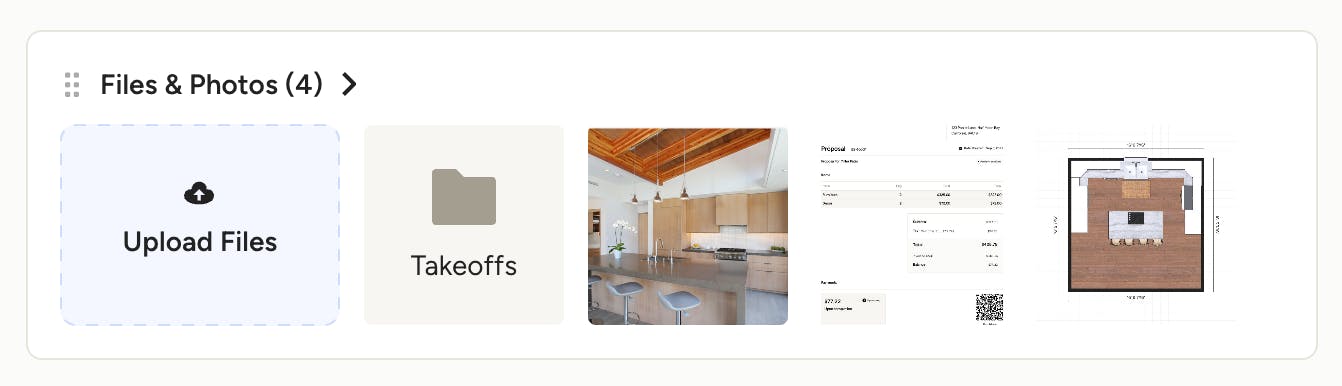
Files & Photos
Within your subcontractor dashboard you will be able to view, download, and upload files and photos that are relevant to each project. Any folders or individual files/photos that the pro has granted you access to will appear in the Files & Photos section.
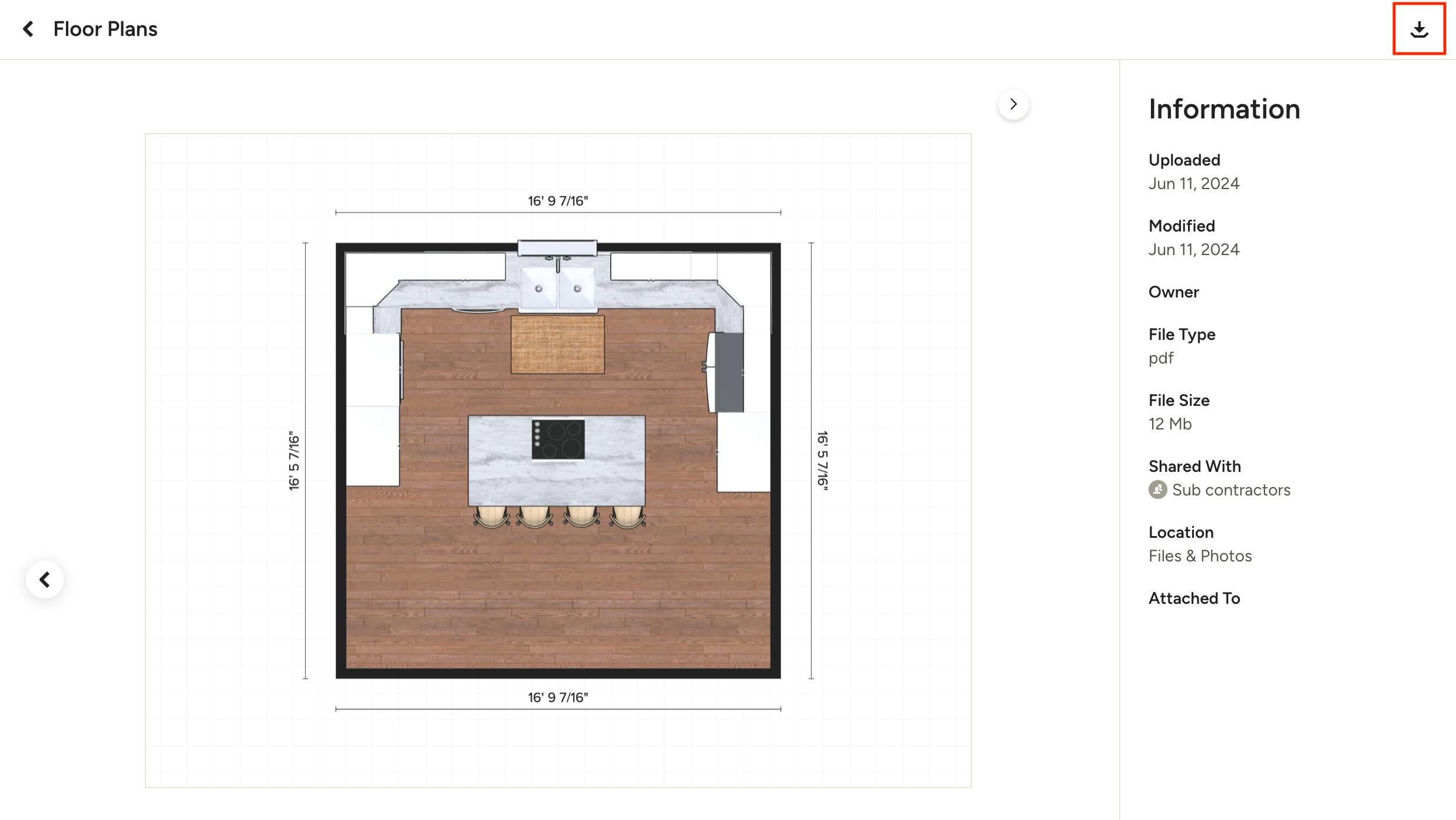
You can click to view each item and download as needed by using the download icon at the top of the item.

Contracts
If you have been sent any contracts, you will see them in their project-specific dashboard, along with their status. You can click a contract to open and sign, or view the signed copy.
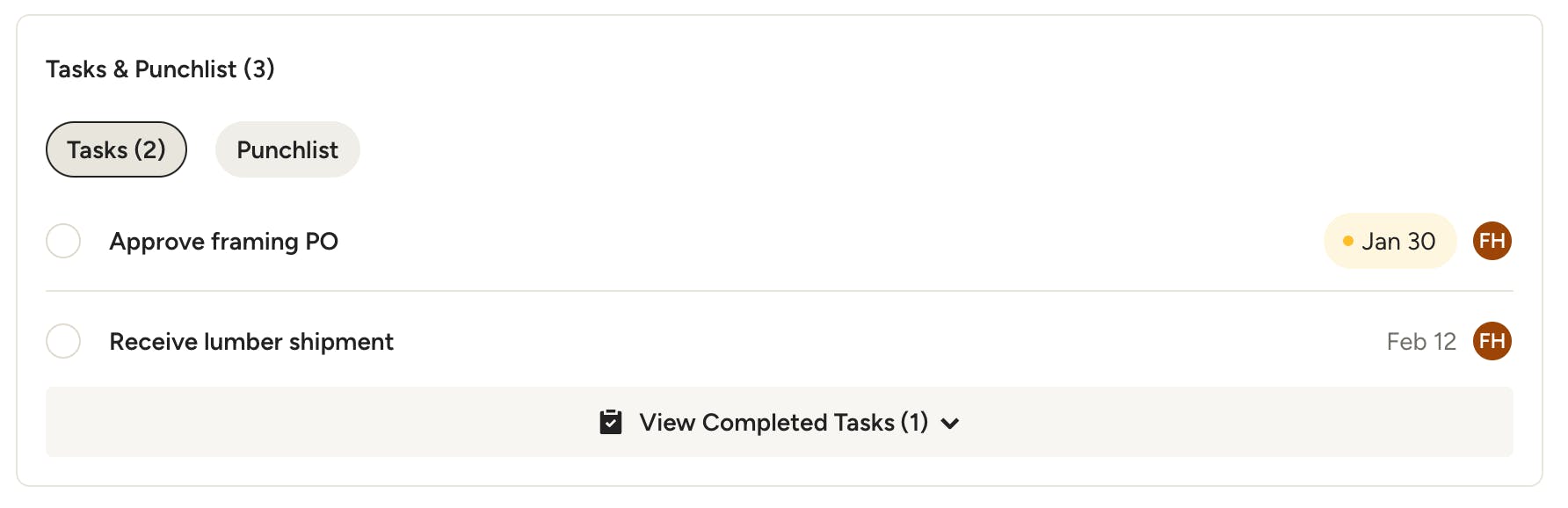
Tasks & Punchlist
You will also have the ability to view tasks and punchlist items that have been assigned to you and mark them as done, as well as add notes and photos to each task. Signed in subcontractors will also have the ability to create tasks.
Upcoming tasks will appear in the Tasks & Punchlist section, and you can click the circle next to a task to quickly mark it as completed. You can see completed tasks by expanding the View Completed Tasks section.
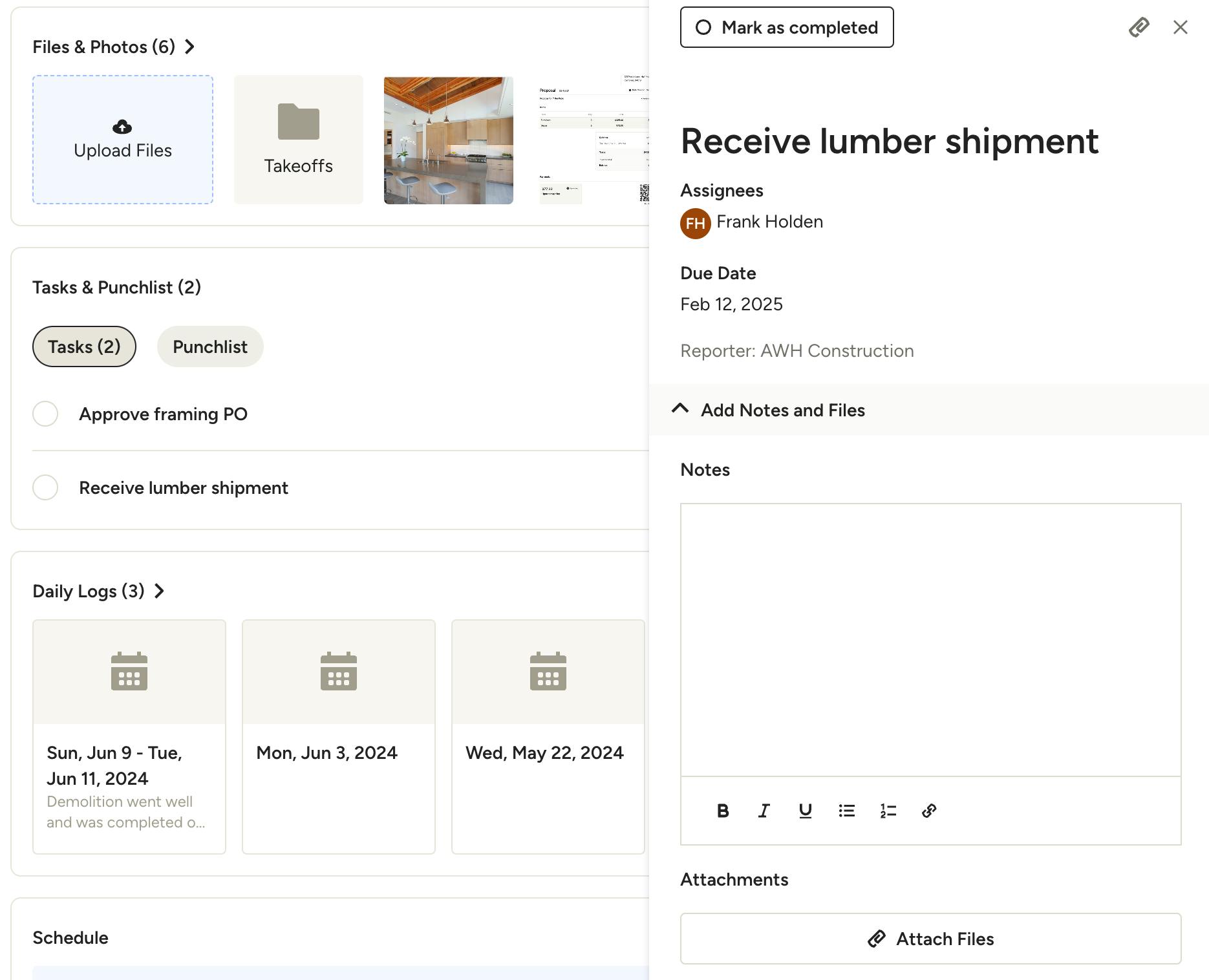
You can click the task title to open and view the details. Here you can add any notes, attach files and mark as complete.
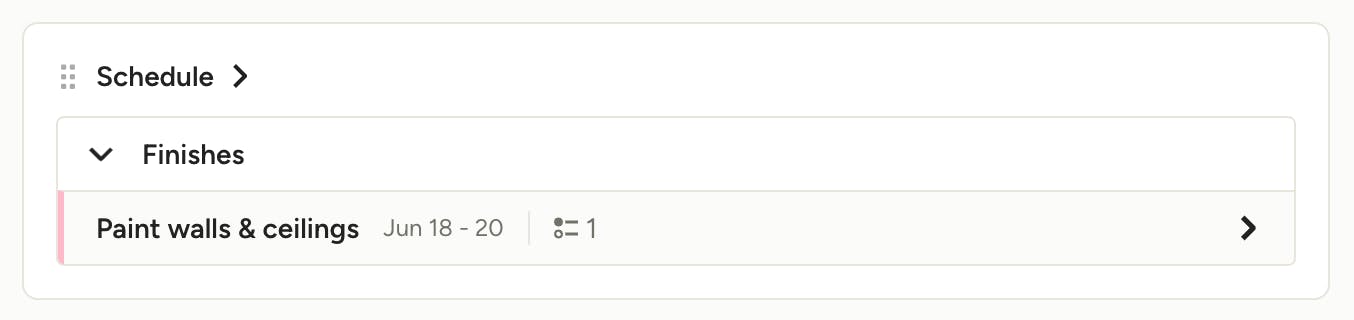
Schedule
Project schedule items that are assigned to you will be viewable under the Schedule section — you can click on them to view and mark as complete.
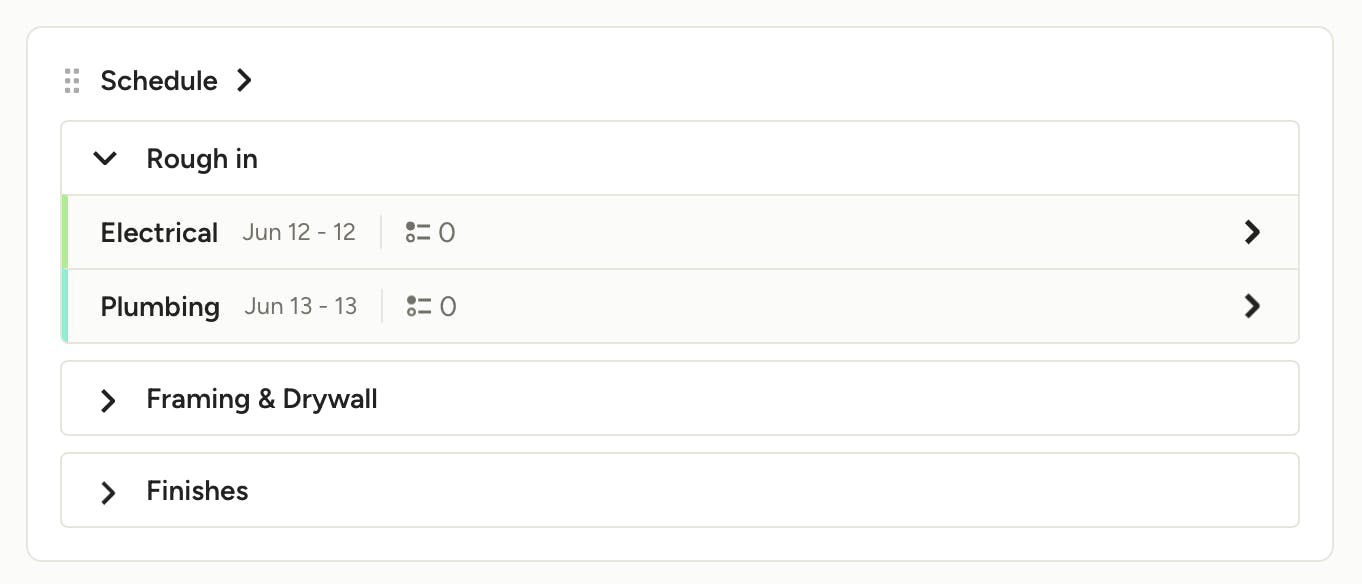
If the pro has shared their full schedule view with their contractors, you will be able to see an overview of all other upcoming schedule items as well. Click on any item to open the schedule for a complete look at the whole project timeline.
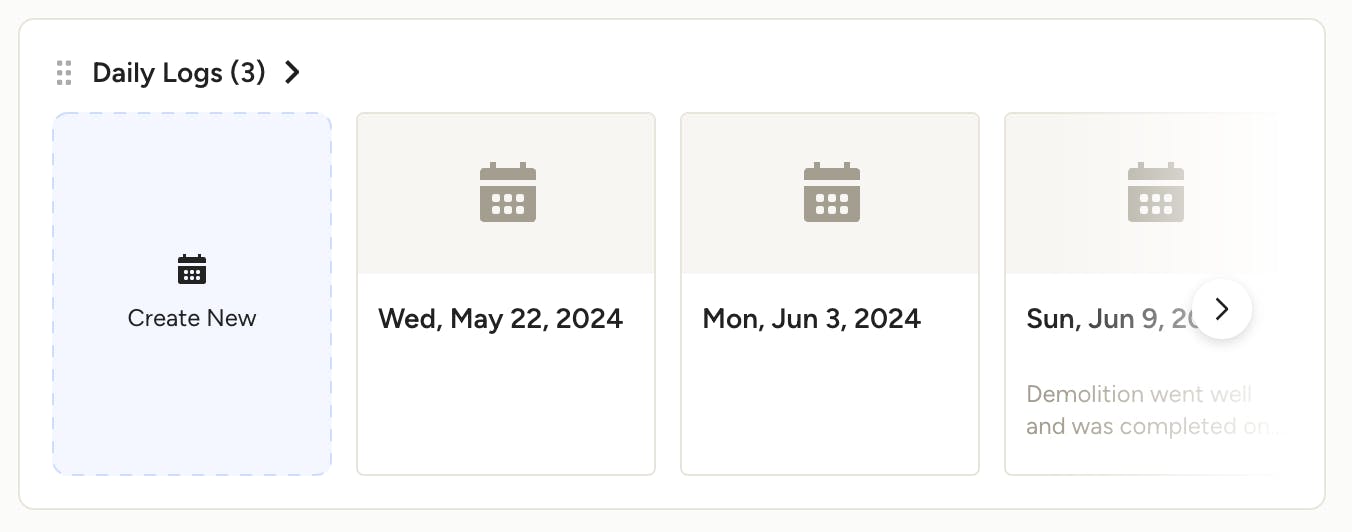
Daily Logs
Daily logs are created by the pro and/or their team and are a summary of what happened at the job site on a certain day. If the pro shares their daily logs with their subcontractors, you will have access to them within each project. Subcontractors who have a free or paid Houzz Pro account also have the ability to create daily logs (while signed in) to keep the team updated with daily progress.
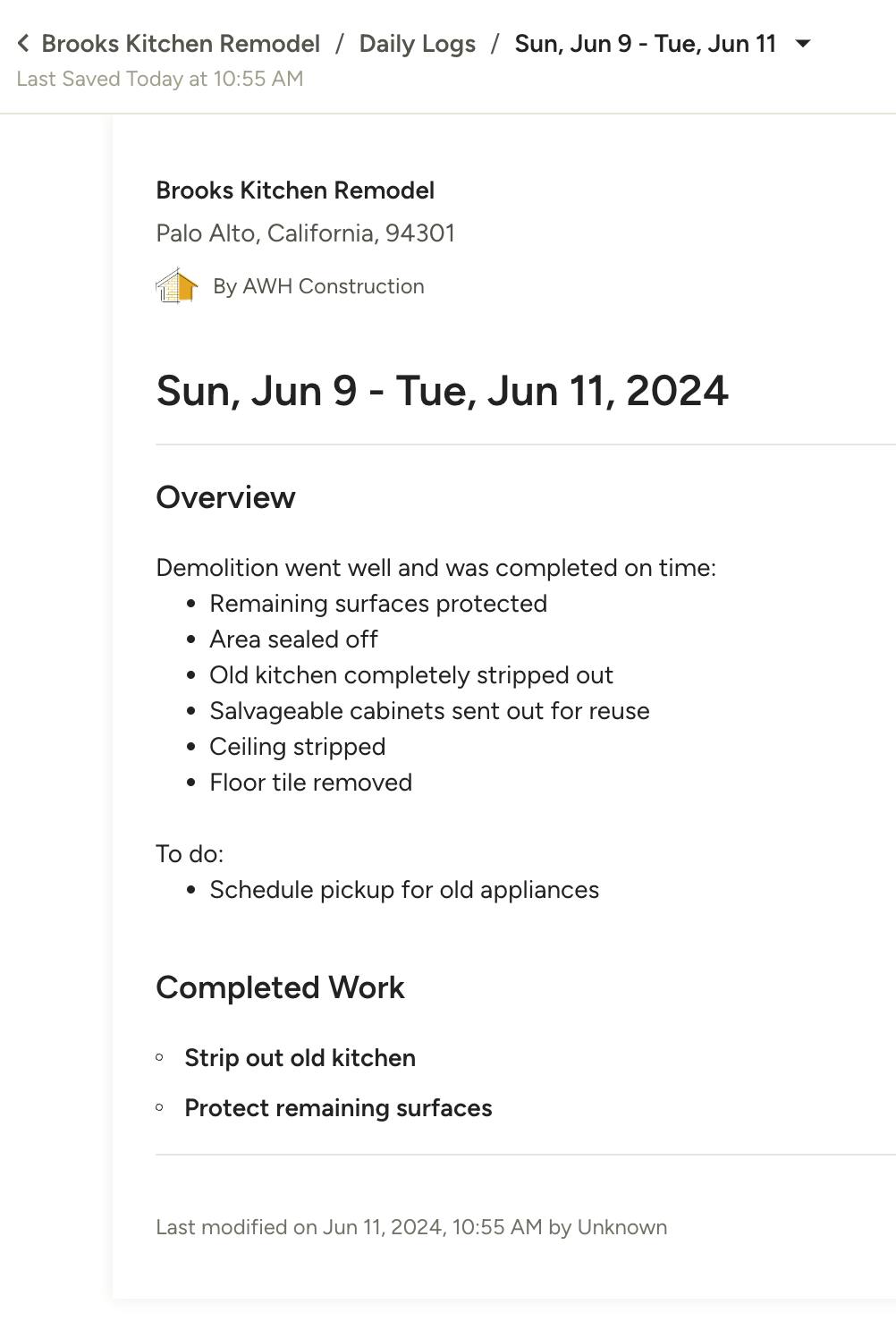
Click on any available daily log to open and view the details the pro and team chose to record and share.

Purchase Orders
Purchase orders sent to you will be displayed in your dashboard, as well as the Total and Paid amounts, so you can track if you've been paid for the work that was ordered. Click on any PO to open and view the details.

Bids
Any bids that have been sent to you will show in your dashboard, along with their due date and status. Click on a bid to view the details and make any changes.
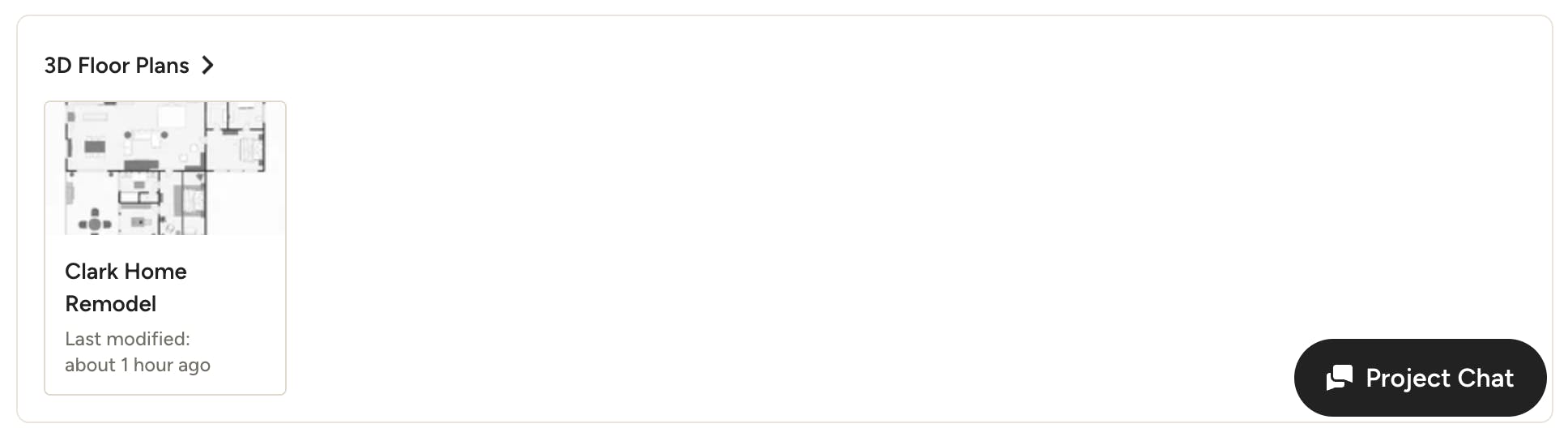
3D Floor Plans
Pros can share view-only access to 3D floor plans with you, giving you more visibility into the project's vision. Click into a plan to view it.
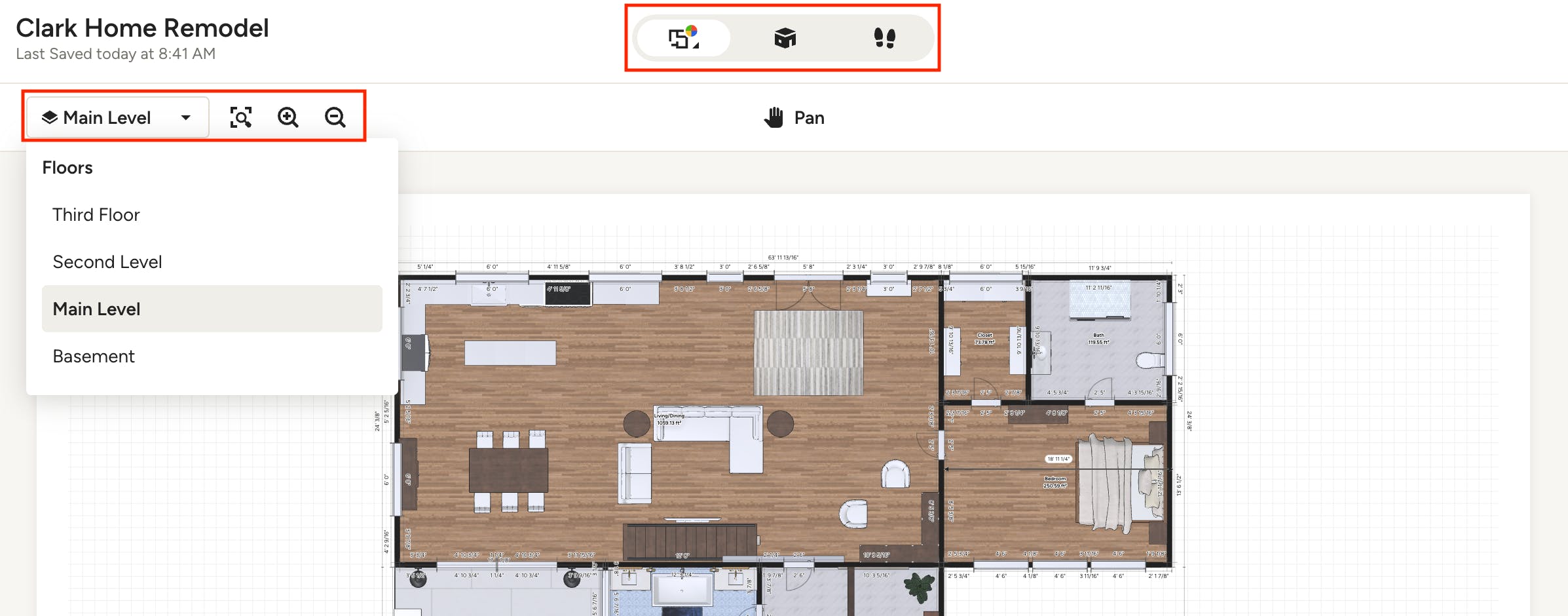
Within a shared 3D floor plan, you can switch between view modes at the top (Floor Plan, Dollhouse or Walkthrough), change floor levels using the dropdown on the left (if applicable) and zoom in/out.
Chats
When you are added to a project, you will have the ability to send and receive project chats from both the desktop and mobile version of the subcontractor dashboard.
Pros will be able to send you a direct chat conversation or add you to a group chat, which you can view and respond to. When a new chat message is sent, you will receive both an email and a notification in Houzz Pro (if you have a free Houzz Pro account).
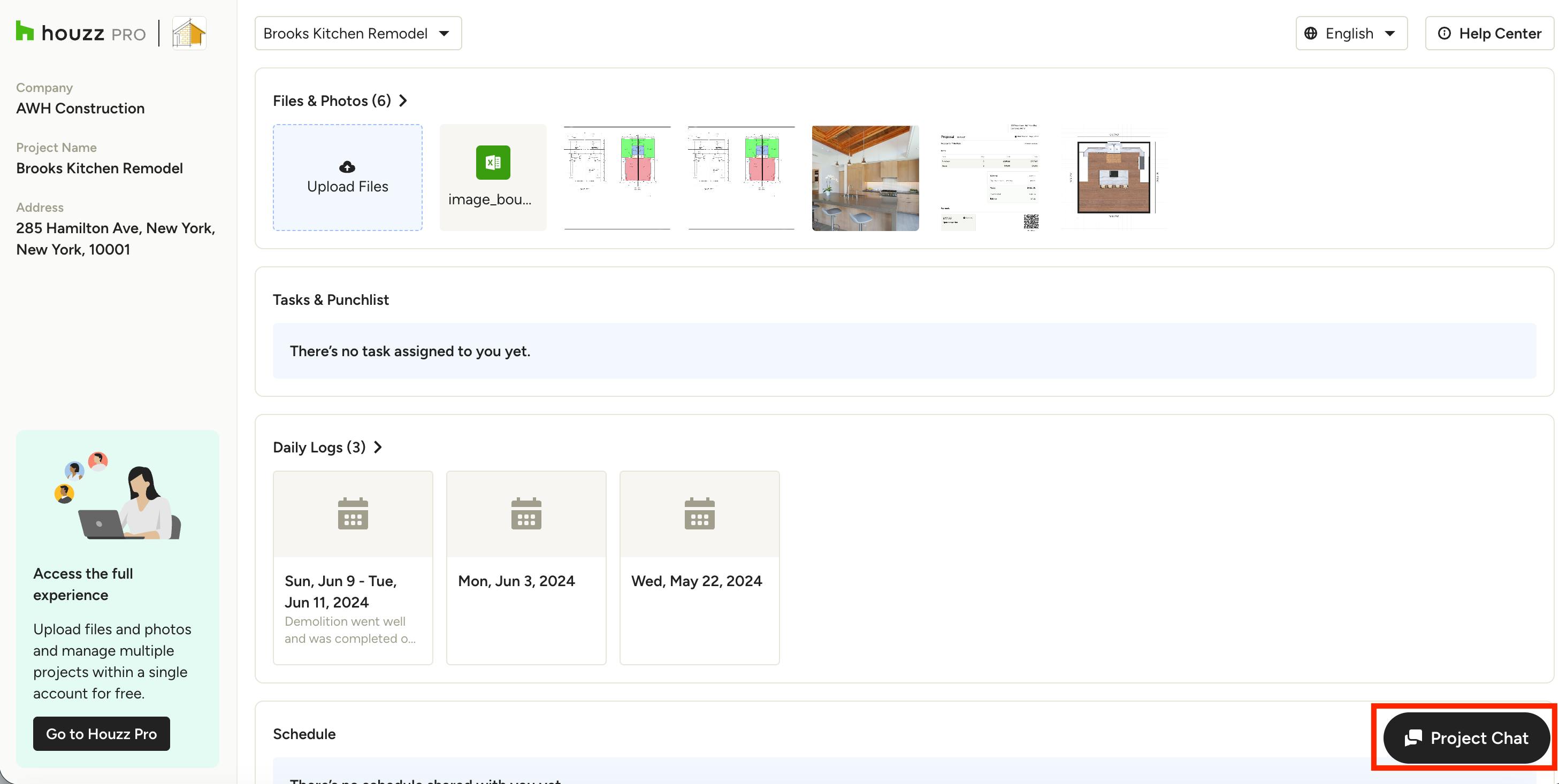
To access chat from your dashboard, select the Project Chat button at the bottom right.
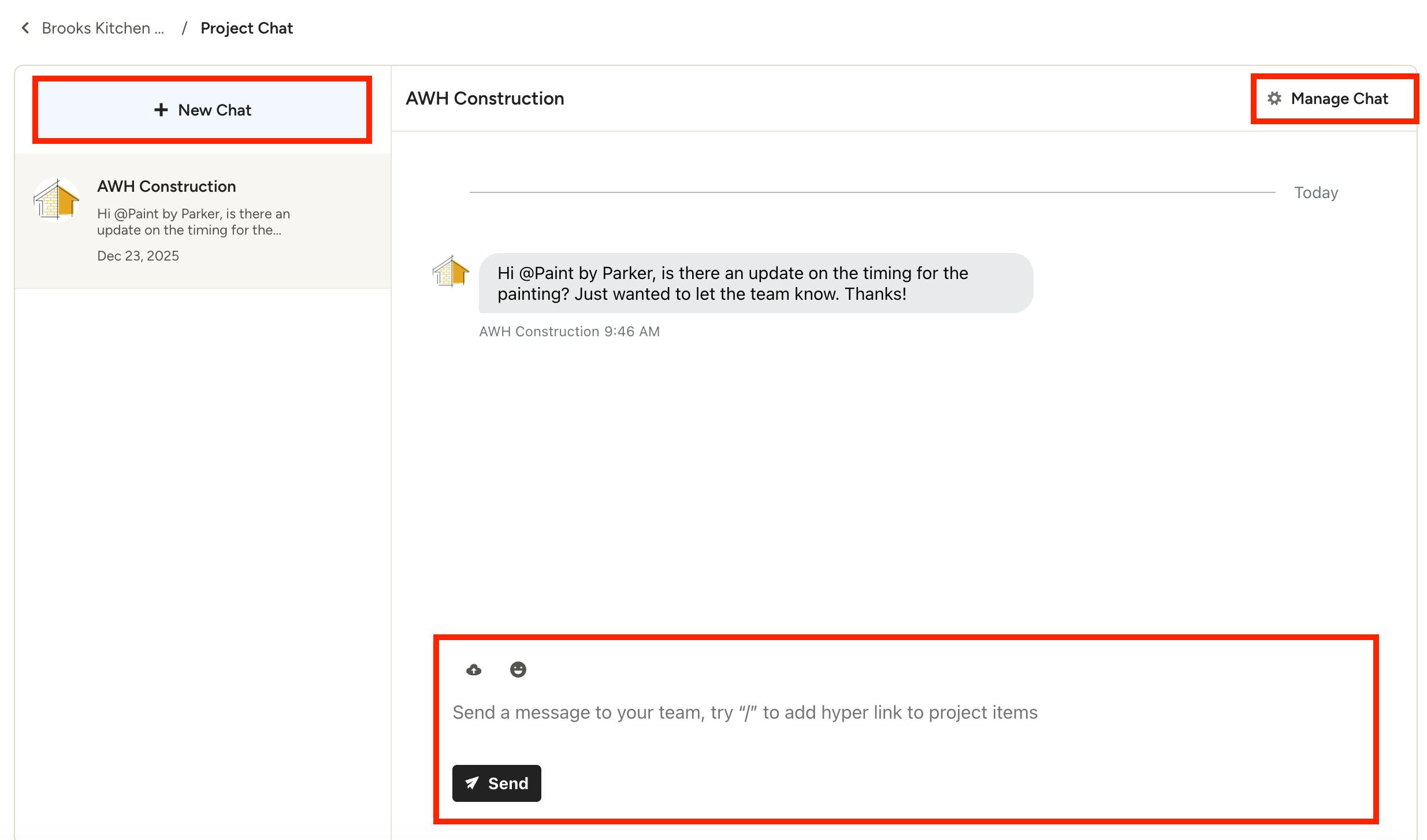
Within chat, you will be able to respond to chats, start a new chat with any team member who is part of the project, add people to chats that you create, and leave a chat that you've been invited to. You are not able to start a chat with another subcontractor or with the client, and you can't remove people from chats or delete a chat.
Signed Out vs Signed In Access
While accessing your subcontractor dashboard does not require you to be signed in, there are a few benefits to using a free or paid Houzz Pro account to view your project dashboard(s), including the ability to quickly access multiple projects in one place, create tasks, and create daily logs. Here's an overview of what you can do on your dashboard as a signed out versus signed in subcontractor:
Signed out:
- Project(s): access one team's projects at a time
- Files & Photos: view, download, and upload files and photos
- Tasks: view, add notes, add photos, mark as done
- Schedule: view assigned schedule items and mark as done, view full schedule
- Daily Logs: view daily logs
- Contracts: view and sign contracts
- Purchase Orders: view purchase orders
- Bids: view and manage bids
- 3D Floor Plans: view plans
- Chats: send and receive project chats
Signed in:
- Project(s): access multiple teams and projects in one place
- Files & Photos: view, download, and upload files and photos
- Tasks: view, add notes, add photos, mark as done, and create tasks
- Schedule: view assigned schedule items and mark as done, view full schedule
- Daily Logs: view and create daily logs
- Contracts: view and sign contracts
- Purchase Orders: view purchase orders
- Bids: view and manage bids
- 3D Floor Plans: view plans
- Chats: send and receive project chats
How To Create an Account or Log In From Your Sub Dashboard
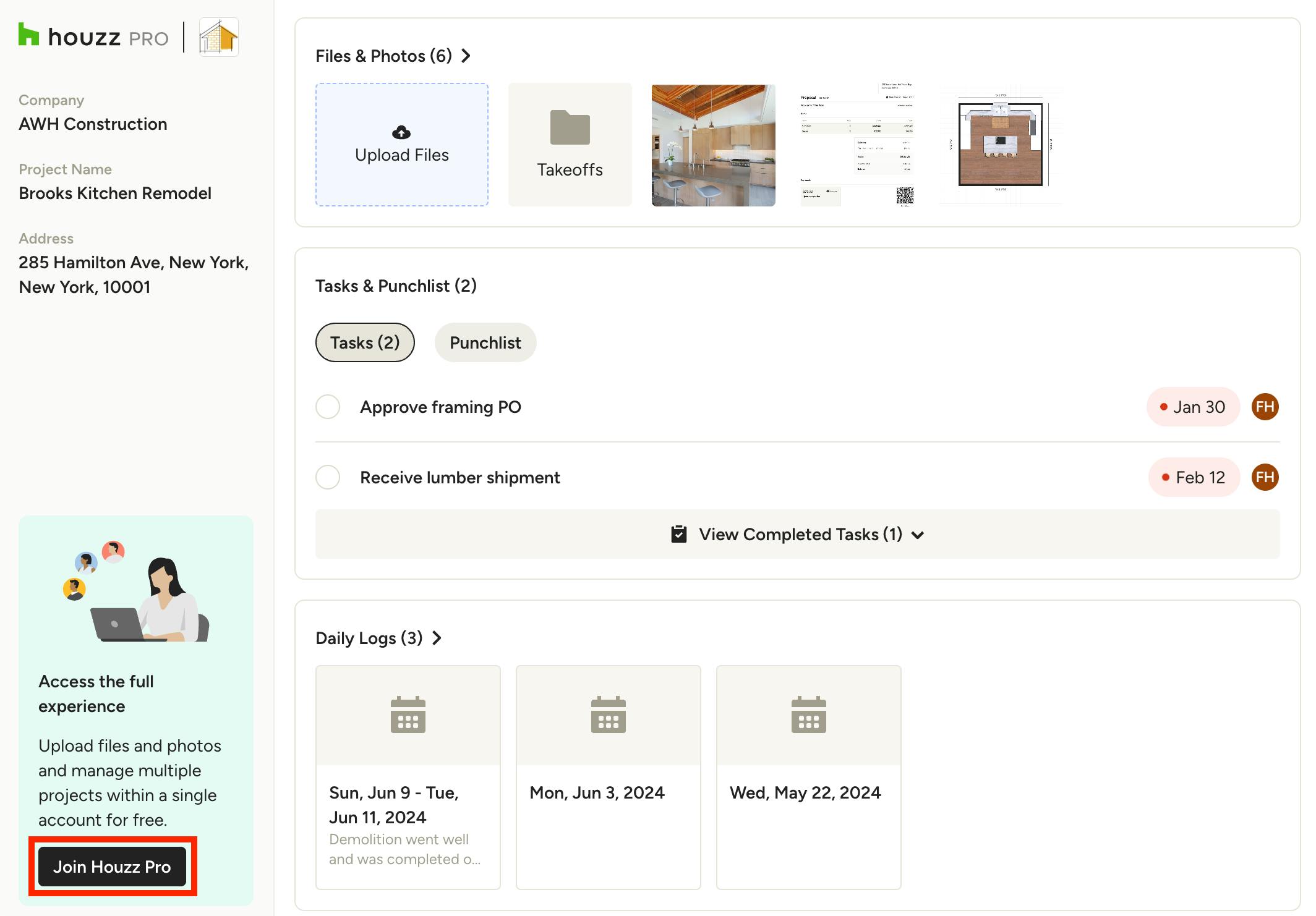
Creating a free Houzz Pro account, or logging into an existing one, directly from a subcontractor dashboard is easy — simply click the "Join Houzz Pro" button in the bottom left of a dashboard.
*Note if you are already logged in, this button will say "Go to Houzz Pro" — click it to be directed to your signed in view of the project.
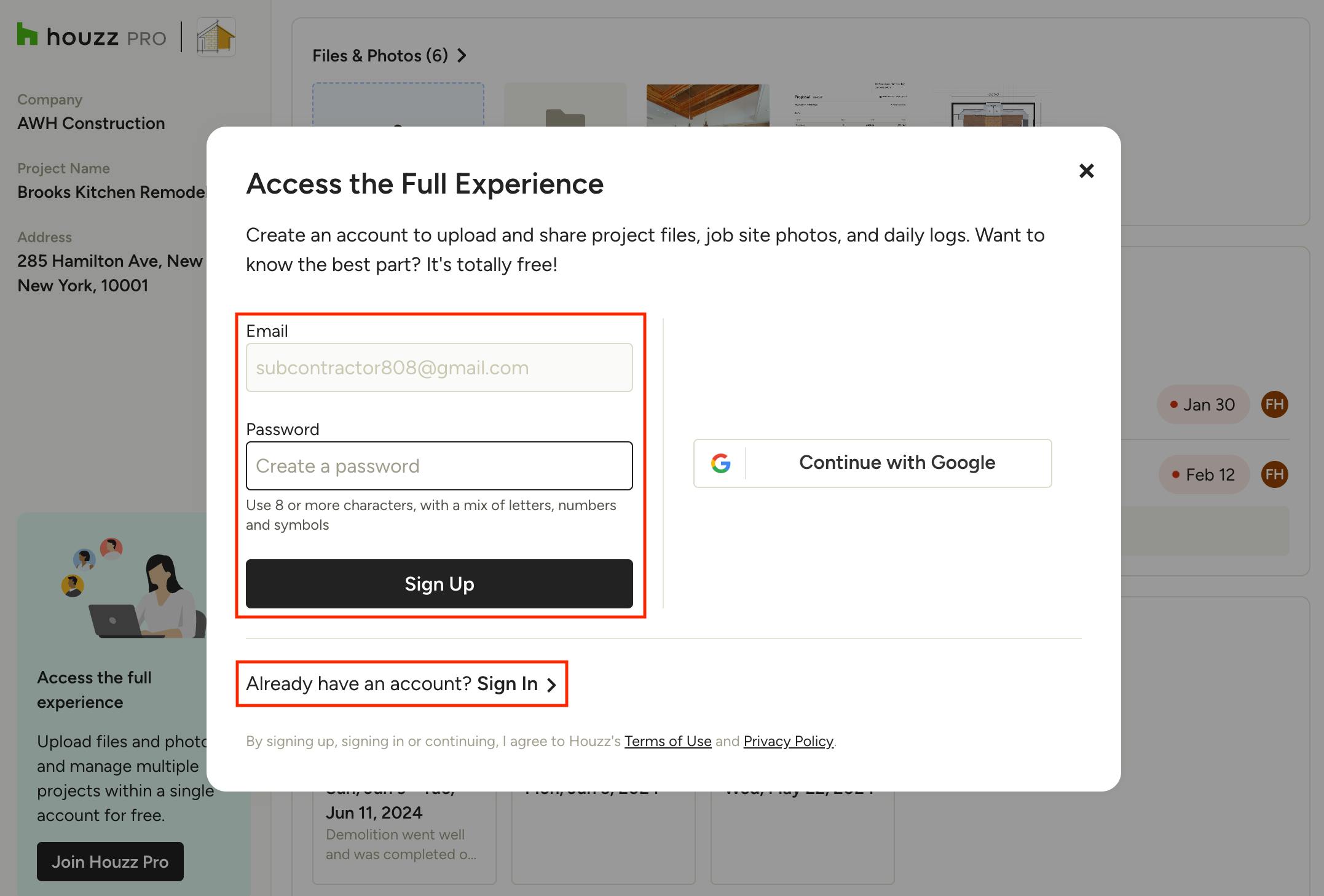
In the screen that appears you will notice the email address used to access the dashboard is pre-populated in the email field, so all you need to do is create a password and click Sign Up to create a free account.
If you already have a Houzz Pro account, click Sign In > below to enter your login information and access your existing account.
Switching Between Teams and Projects When Signed In
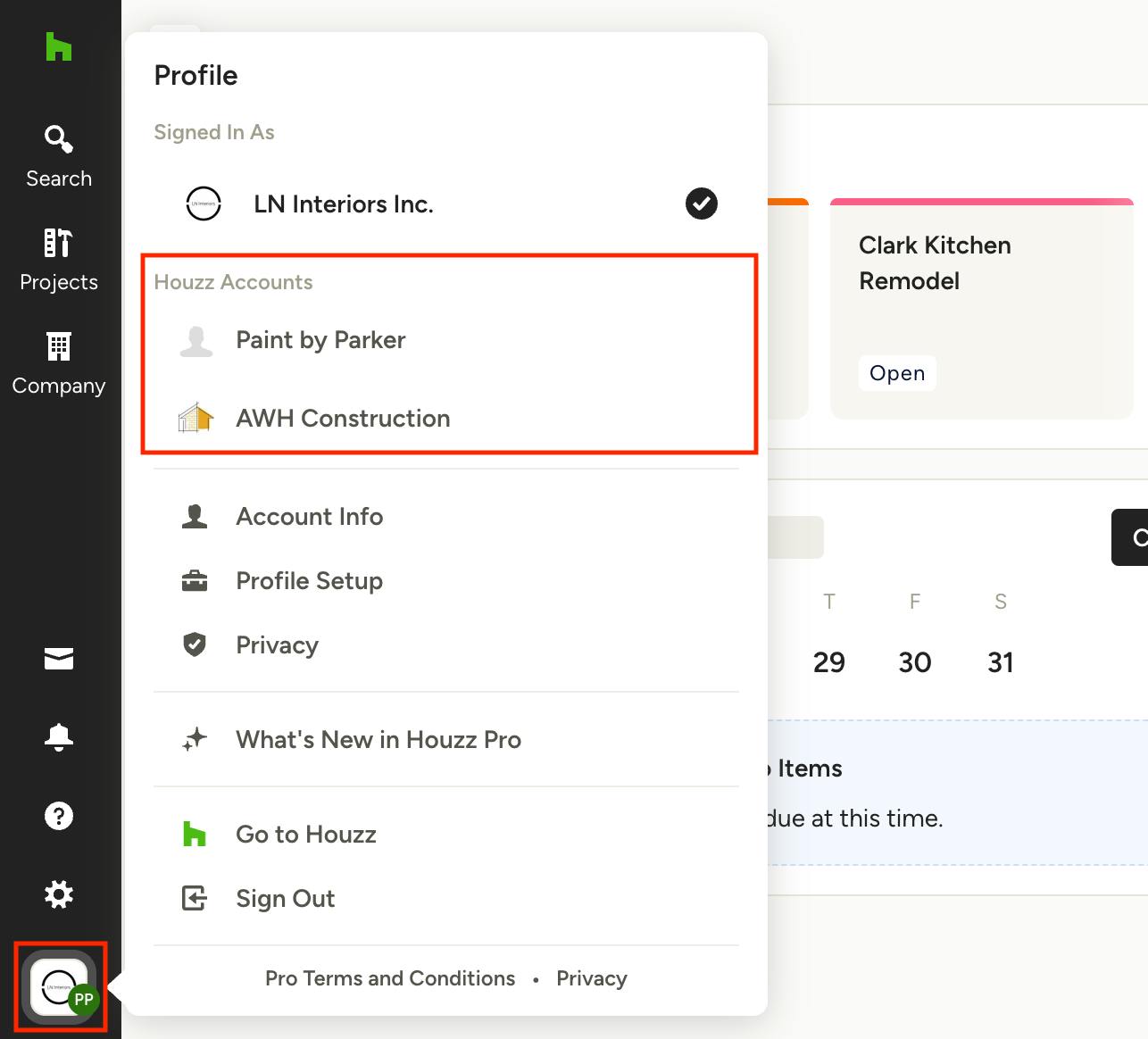
If you have a free or paid Houzz Pro account, you will be able to easily view and switch between multiple team dashboards when signed in. To view your project dashboard(s) from a pro within your own subcontractor account, there are two quick ways to do so.
One option is to hover over the business icon in the bottom left corner of your account, then click team you want to switch to under Houzz Accounts.
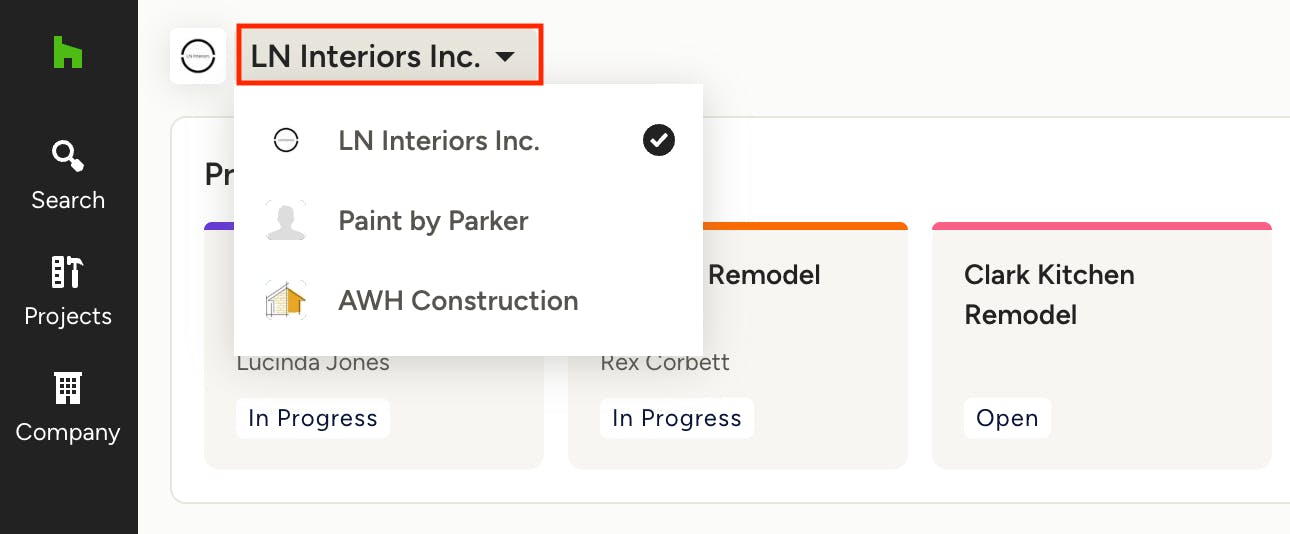
The other option is to click the team name at the top of your homepage and select the team you want to switch to from the dropdown. With either method of switching teams, you can then access any project the pro has invited you to from the Projects icon on the left navigation.
Mobile App
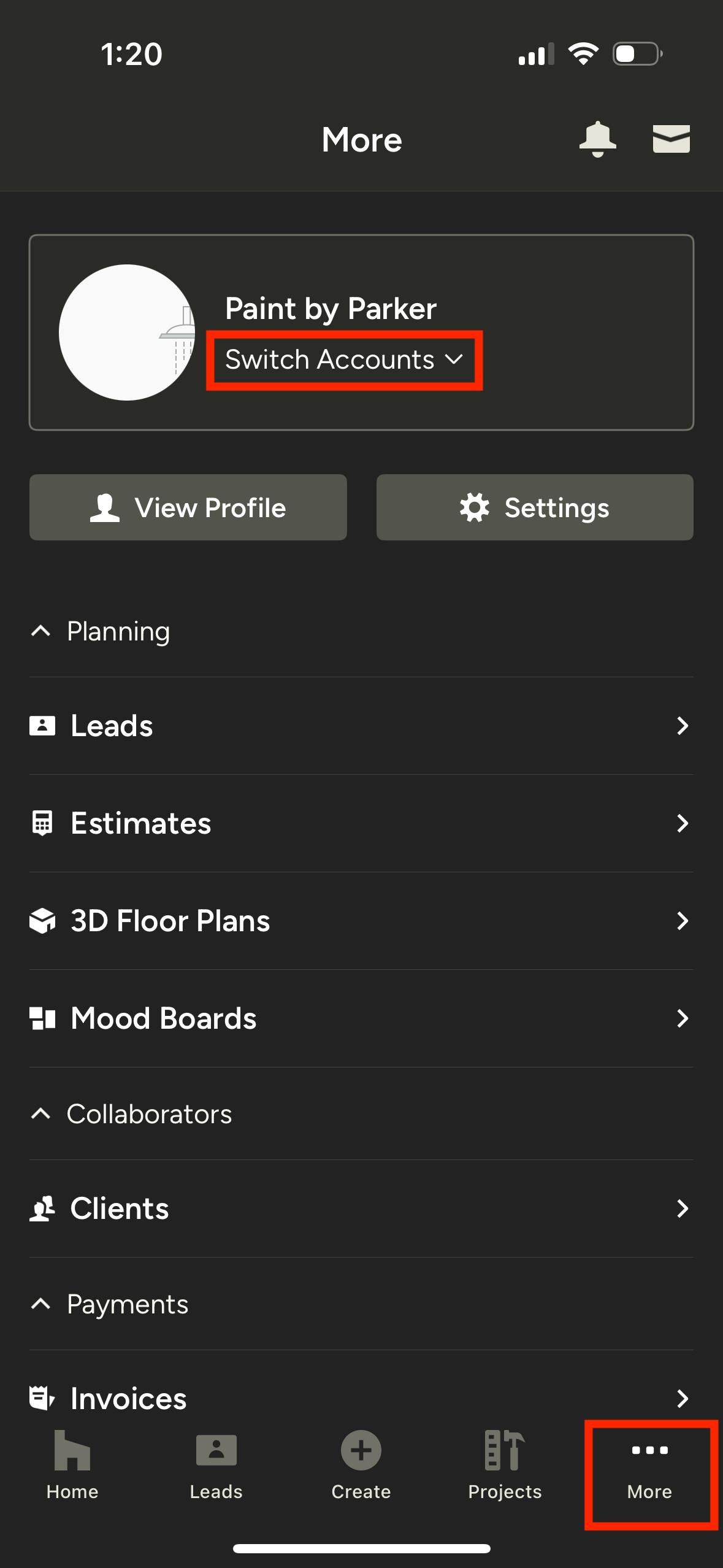
On the Houzz Pro mobile app, tap the More icon on the bottom menu. From here, you'll see the current team at the top. Tap Switch Accounts to change which team you're viewing in the app.
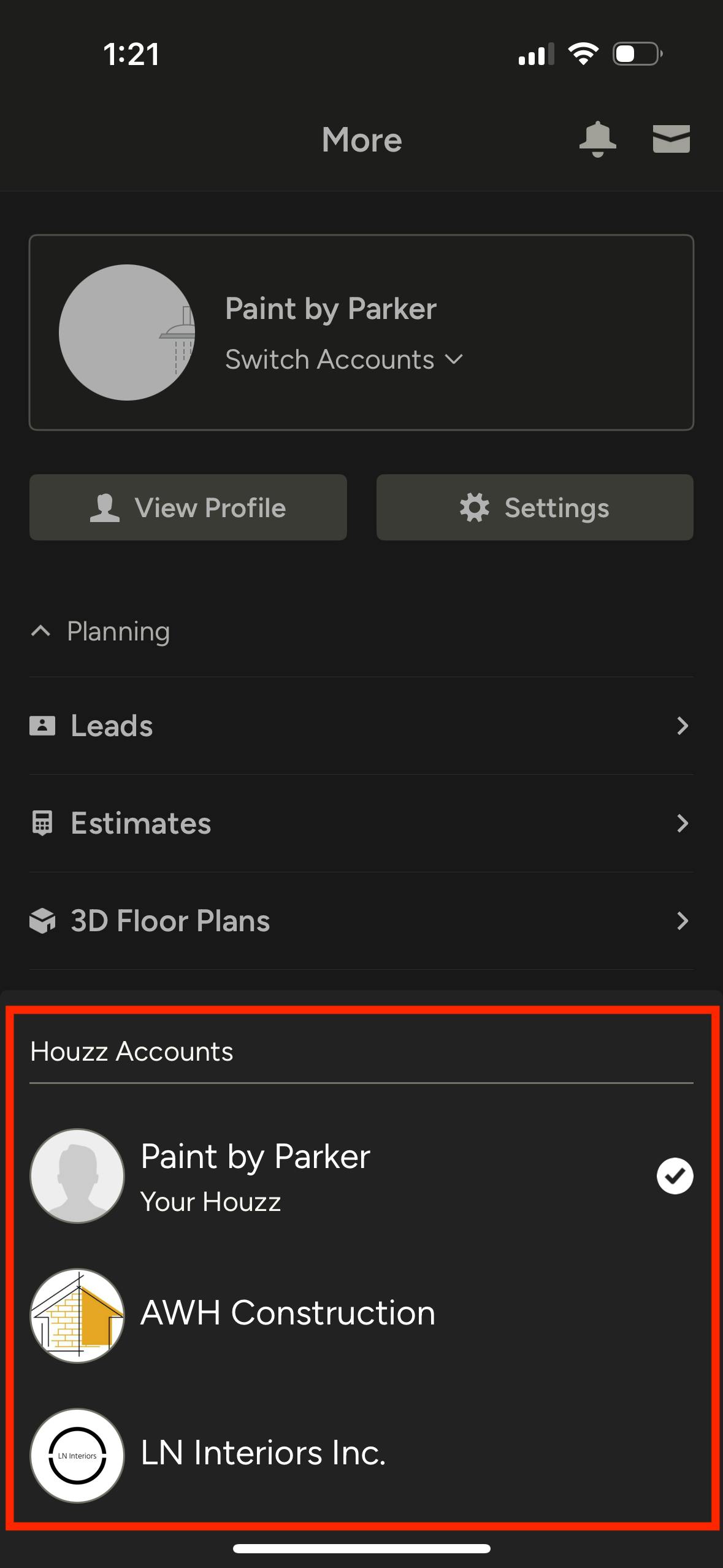
Select the team you wish to switch to from the menu, and you will now see the updated team at the top of your page.

Switching Between Projects Without a Houzz Pro Account
If you've opted not to sign up or log in with a Houzz Pro account, you can only access one team dashboard at a time. Within that team dashboard, you can access any project within said team that you've been invited to simply by using the project dropdown at the top of your dashboard. This works on both the desktop and mobile view of a dashboard.
Save Dashboard Link as Bookmark
For quick access to a specific project's dashboard, we recommend saving the unique link to your home screen or as a bookmark on mobile, and bookmarking on your desktop. Here are a few options:
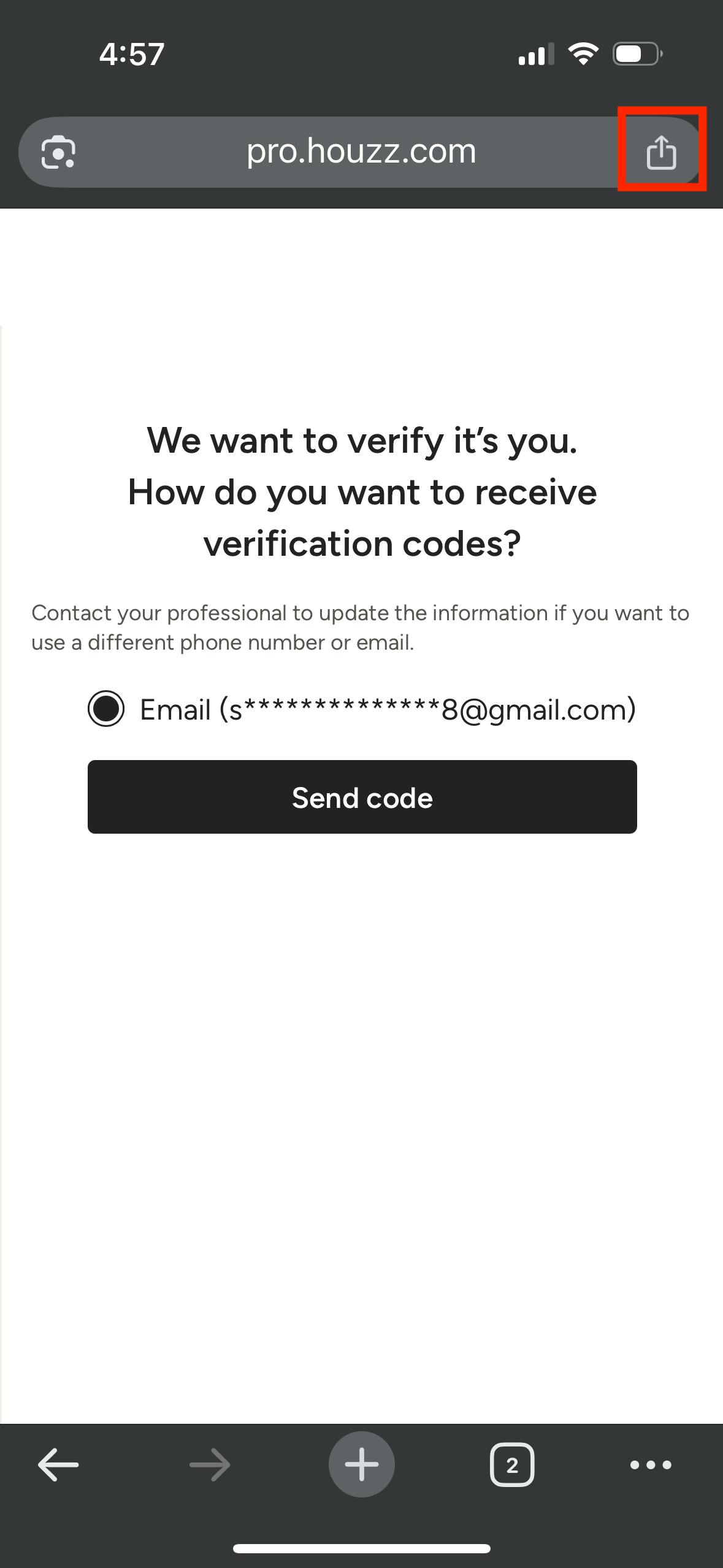
Mobile — Save to Home Screen
To save a dashboard to the home screen on your mobile device, open the email and tap on the Go to Project button. This will open the dashboard authentication screen, which is the one you need to save. On this screen, tap the Send icon, located at the top or bottom of your screen depending on the browser.
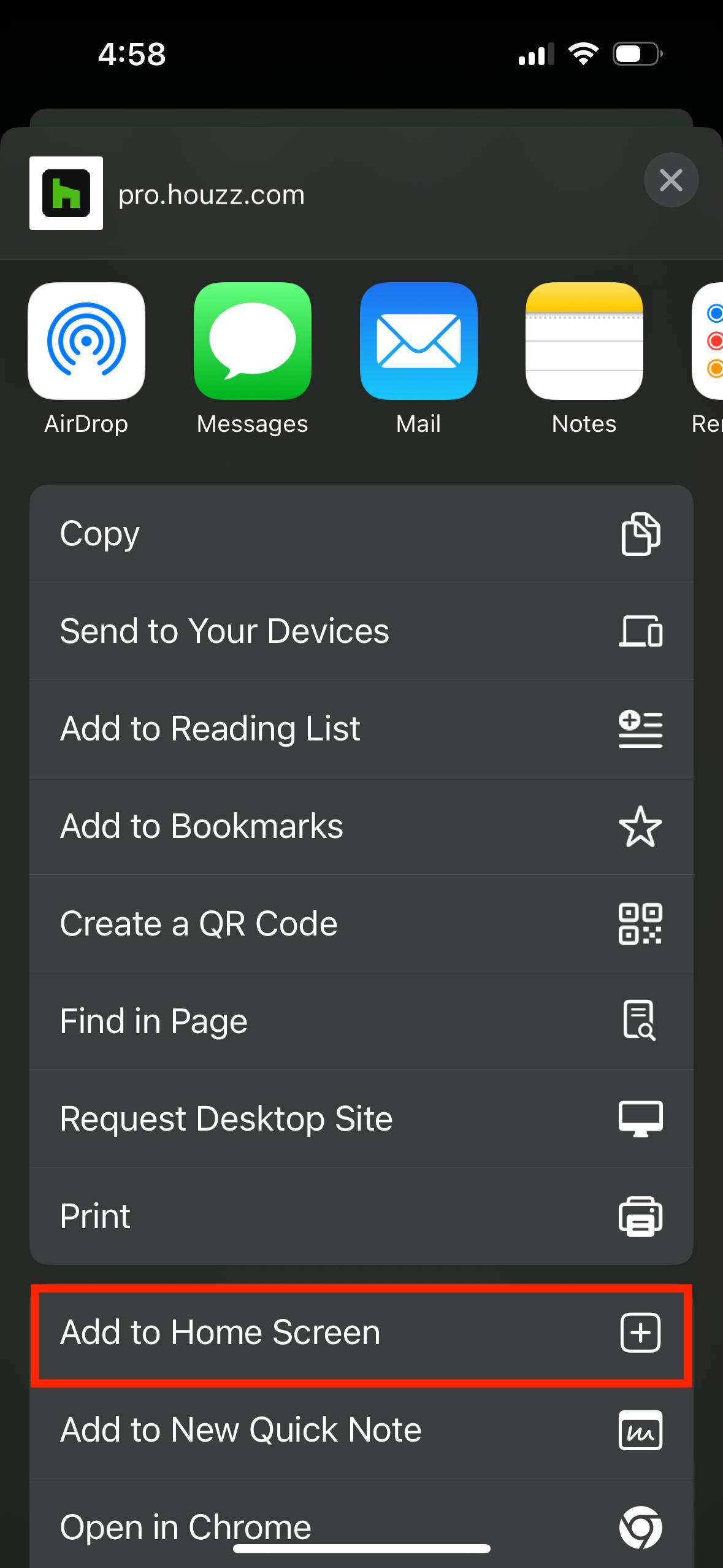
In the menu that appears, find and tap Add to Home Screen. Type in a name for your dashboard, like the project name, and tap Add.
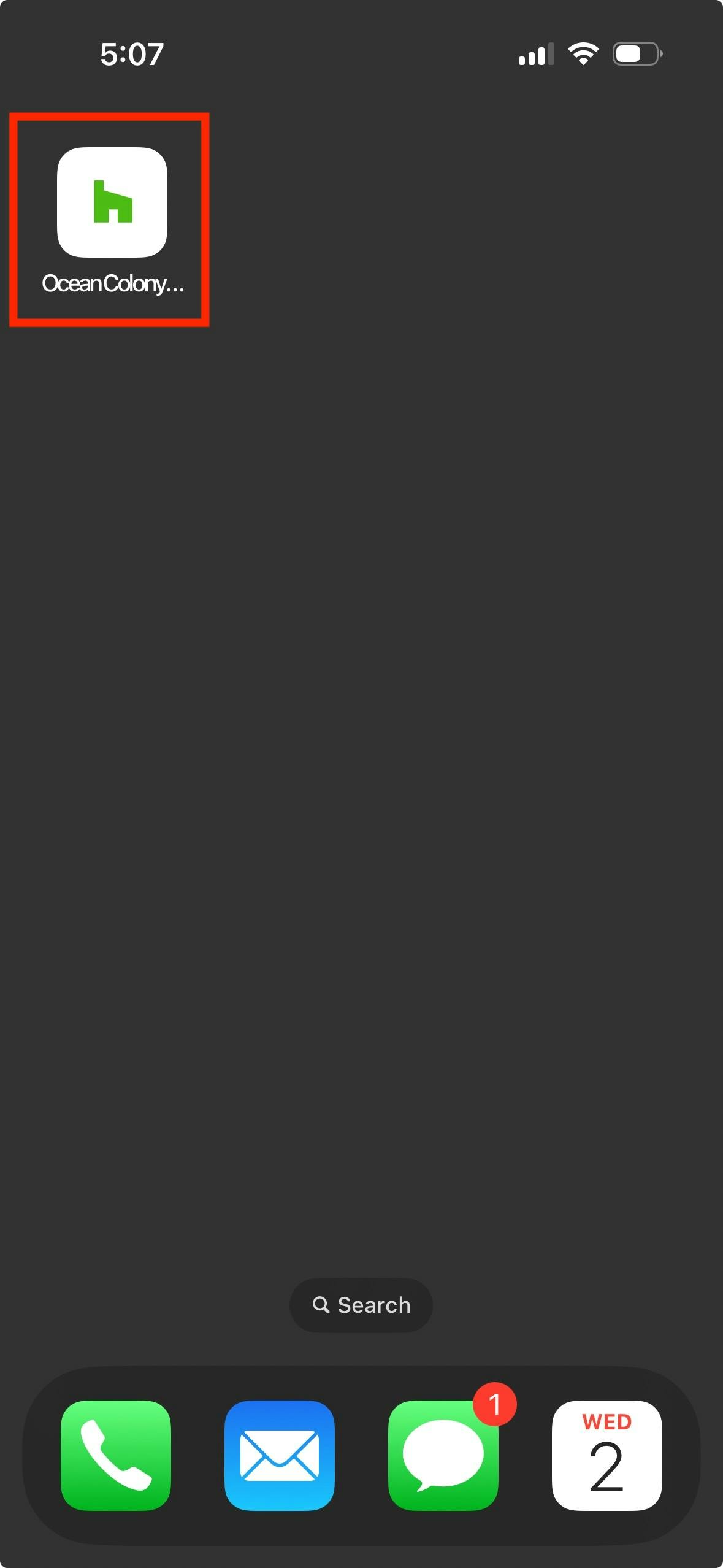
Your project dashboard will now appear on the home screen of your mobile device, as shown below, so you can access it with a single tap.
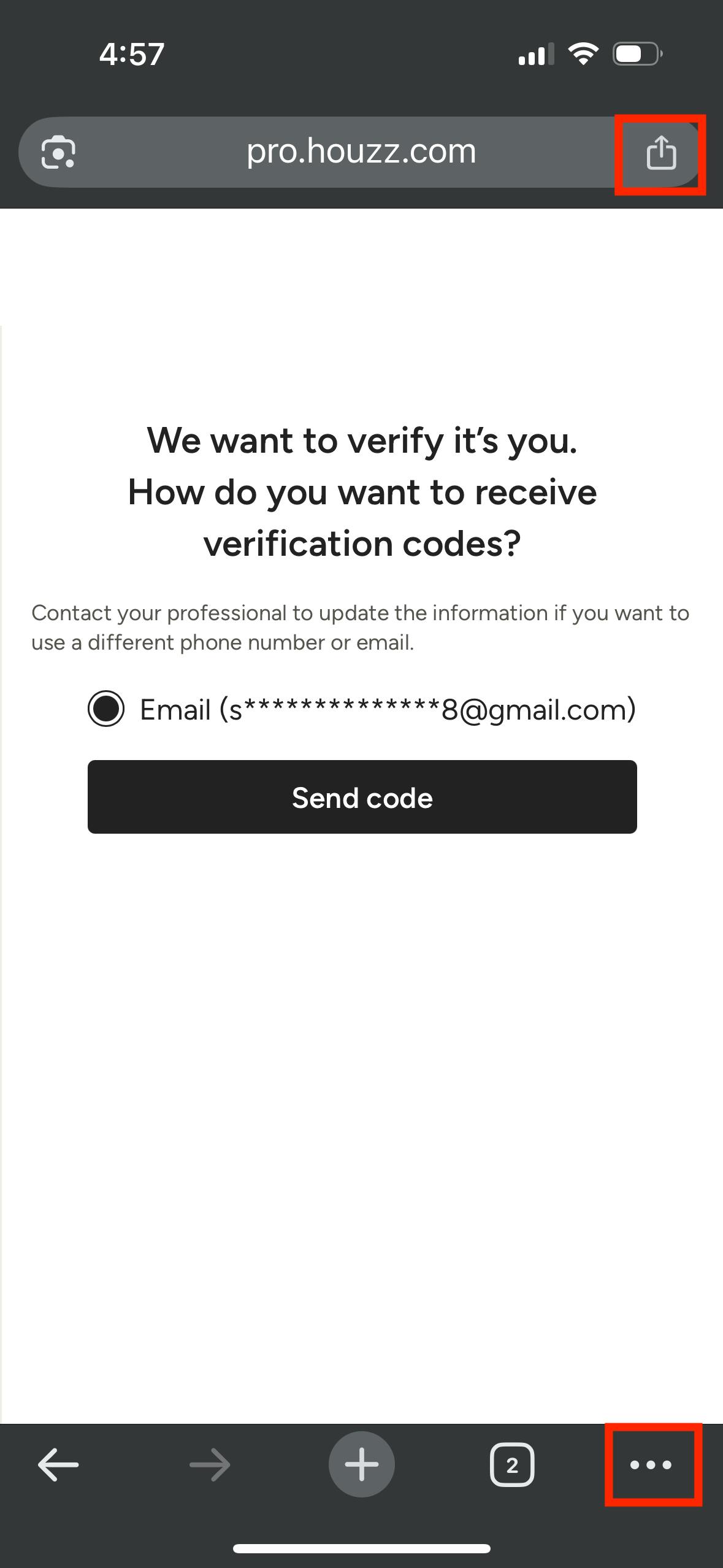
Mobile — Bookmark in Browser (Safari & Chrome)
To create a bookmark in your mobile browser app (like Safari or Chrome), first open the dashboard from your email. The dashboard authentication screen, shown below, is the one you need to bookmark. Use the navigation menu at the top or bottom to open your options (send icon or three dots icon).
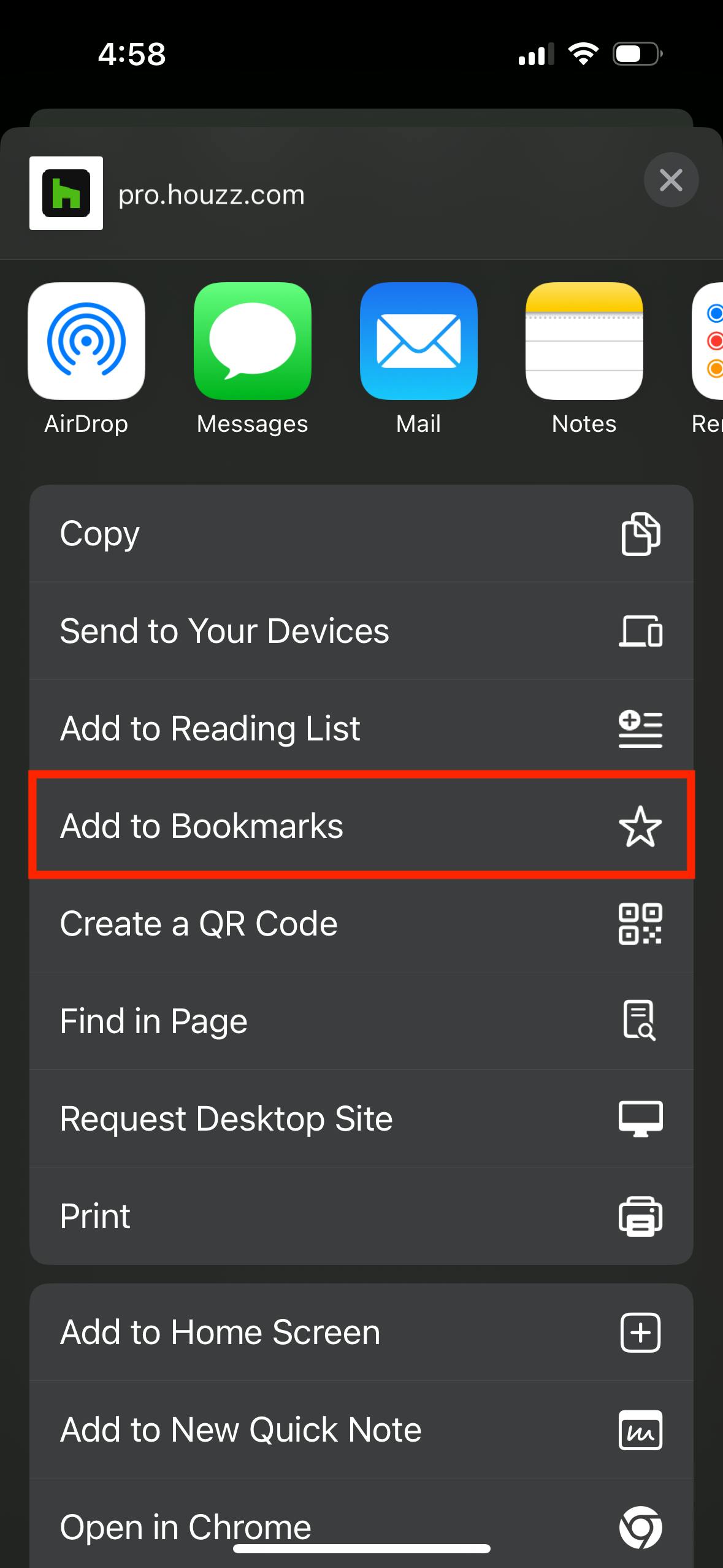
From the menu, select Add Bookmark. Make any desired changes to the bookmark name and tap Save.
Desktop — Bookmark Link
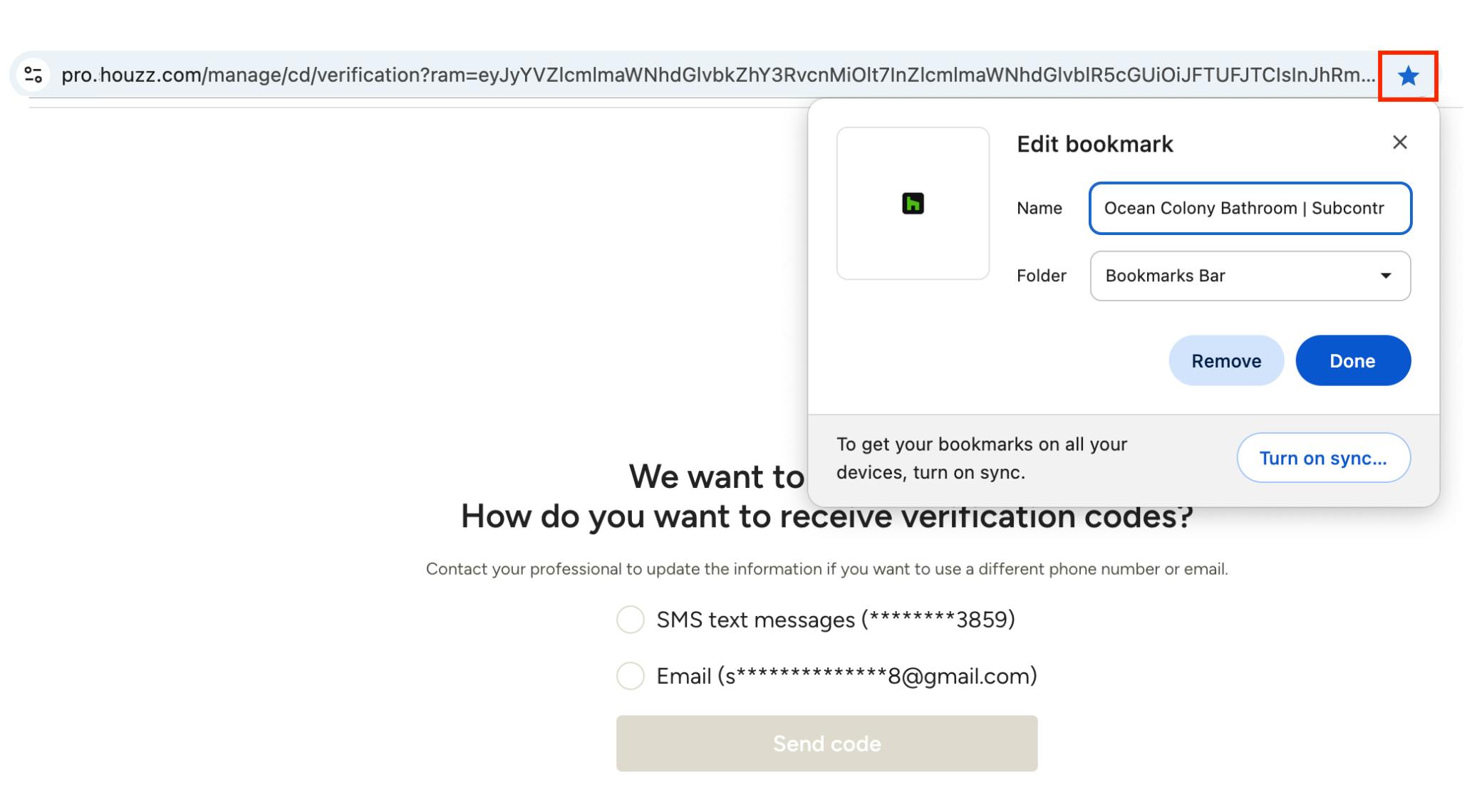
For quick access on a desktop computer, you can add the dashboard link as a bookmark. The following instructions are for Chrome, our recommended browser. You can find instructions for bookmarking websites in Safari on a Mac here.
To bookmark a dashboard on the desktop version of Chrome, open the link from the email. The dashboard authentication screen, shown below, is the one you need to bookmark. Once on this screen, click on the star icon in the far right of the URL bar. Rename if desired and choose a folder for the bookmark as needed. Click Done.