How to Customize What Your Client Can See on Their Selections Board

When sharing a Selections Board with a client, you may not want to disclose certain sensitive information, such as pricing or an item's URL. Houzz Pro makes it easy for you to customize what your client sees when they view a board.
To test your client's view, click on "Preview and Share" located in the upper right-hand corner.

From the preview page, you will be able to customize what your client can (and can’t) see on the Selections Board via the "Customize what your client can see" panel on the right side. You can toggle on/off every setting within a section (like Pricing) at the top right of the section, or you can use the checkboxes next to individual settings (like Item Pricing) for more granular control.

If you don't see the right panel on the preview page, click the customize icon in the top right to open the client view settings.
Client View Settings Breakdown
The client viewing settings are divided into three sections: Pricing, Item Details, and Approvals. Let's take a look at what each one does.
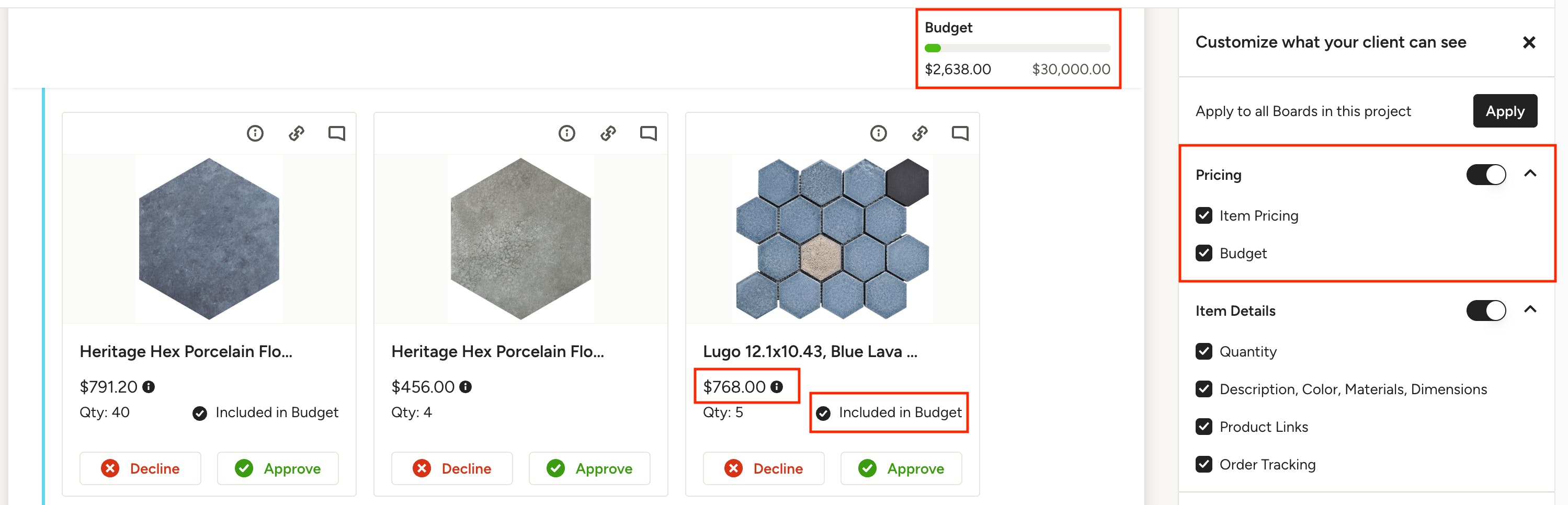
Pricing
Under Pricing, you have the option to show or hide:
- Item Pricing: Selling price of an item
- Budget: The overall project budget, section budget(s) and whether an item is included in the budget
Item Details
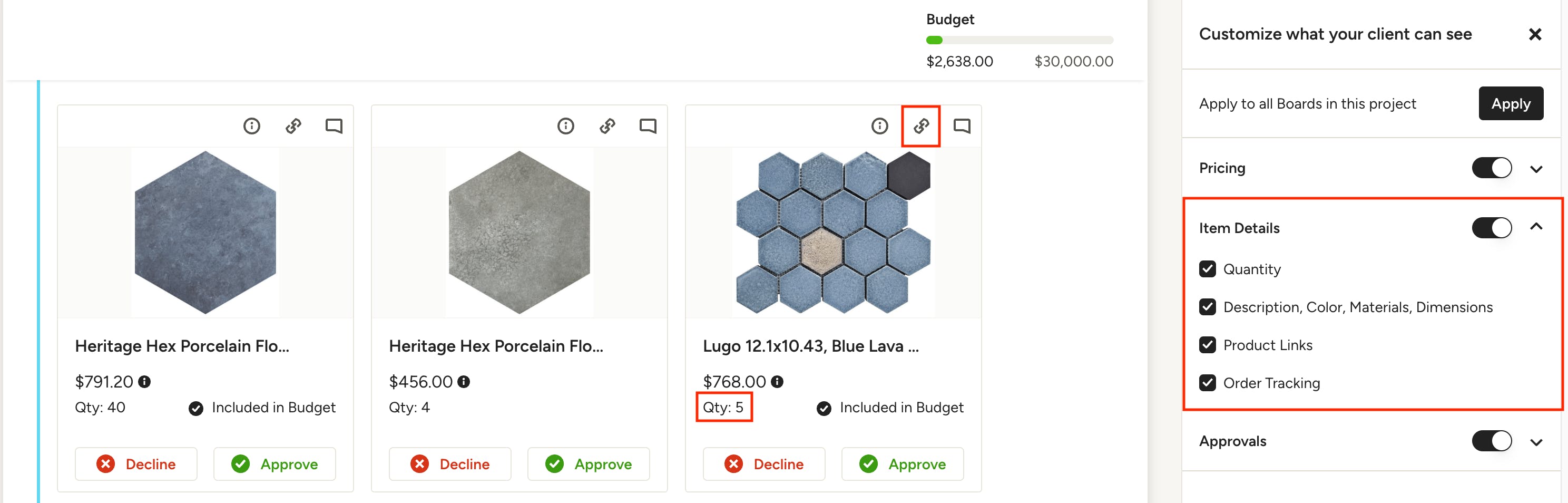
This section covers everything related to the items and their details. You can set preferences for:
- Quantity
- Description, Color, Materials, Dimensions: Shown in item overview if applicable. (See Item Overview Example below).
- Product Links: If you wish to share an item's URL with your client for them to shop themselves, check this box, and the link will be visible for the relevant items.
- Order Tracking: If selected, clients will be able to see Order Date, Ship Date and Delivery date on approved items, if you have entered any order tracking information via Selections Tracker. (See Item Overview Example below).
- Attachments: If selected, clients will see an attachment icon on the item card, as well as a dedicated Attachments section within the Item Overview when they click into an item. They can view and download the relevant files.
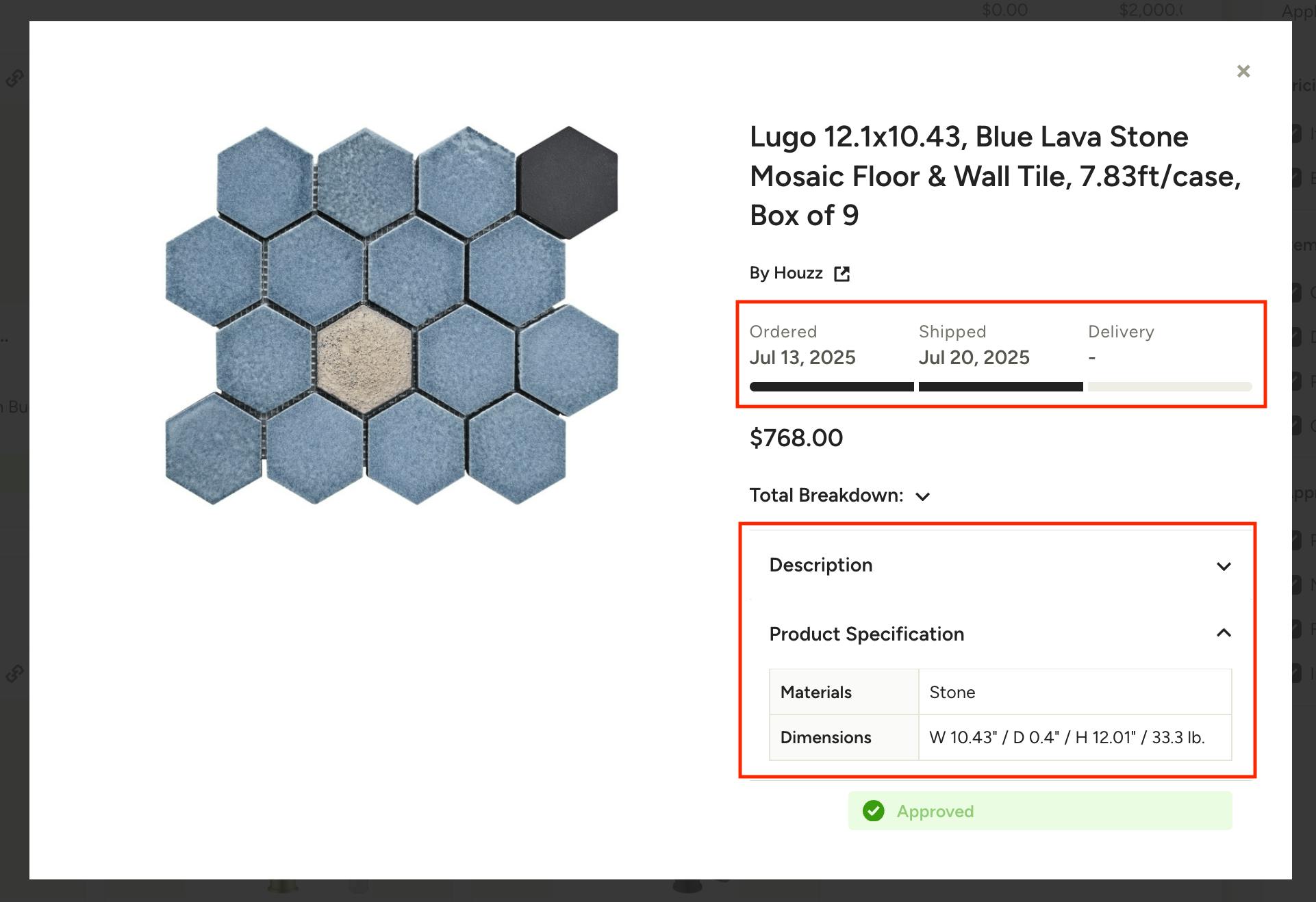
Item Overview Example: (Description, Color, Materials, Dimensions and Order Tracking enabled)
Approvals
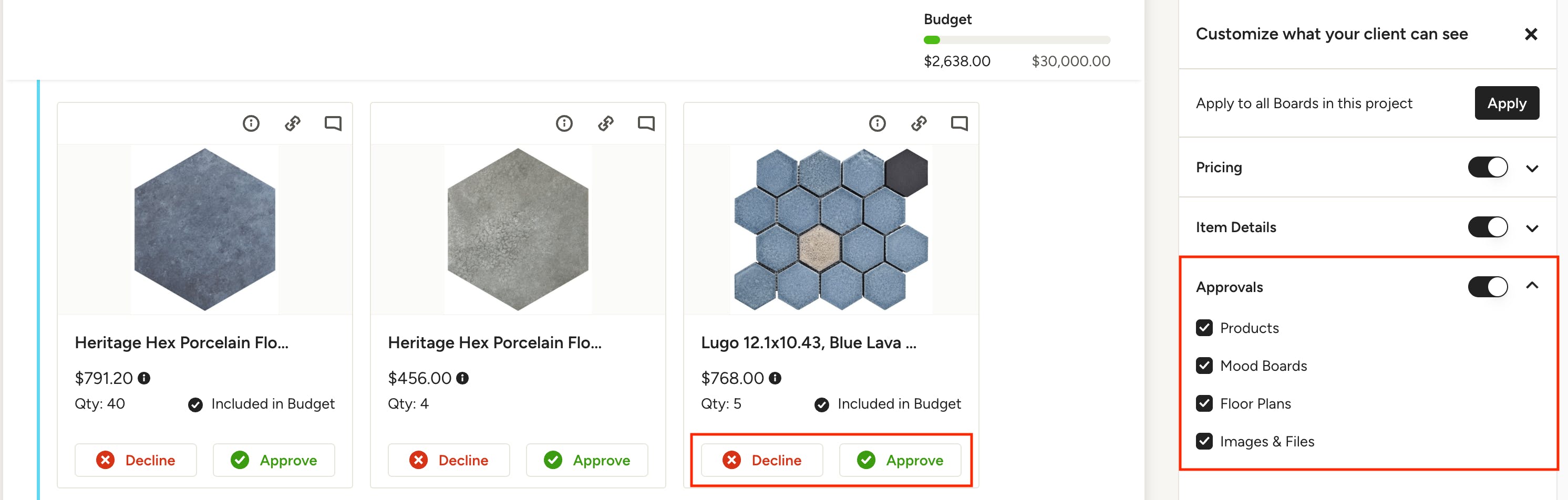
If you want your client to approve and decline items to make a final selection, navigate to this setting. The options are sorted by the type of item that can be added to a Selections Board:
- Products & Services: Check this box if you want your client to approve or decline products that you have added through your Library or Project Items.
- Mood Boards: Check this box if you want your client to approve or decline the Mood Boards you have created for them in Houzz Pro.
- Floor Plans: Check this box if you want your client to approve or decline the Floor Plans you have created for them in Houzz Pro with the 3D Floor Planner.
- Images & Files: Check this box if you want your client to approve or decline images and files that you have imported.
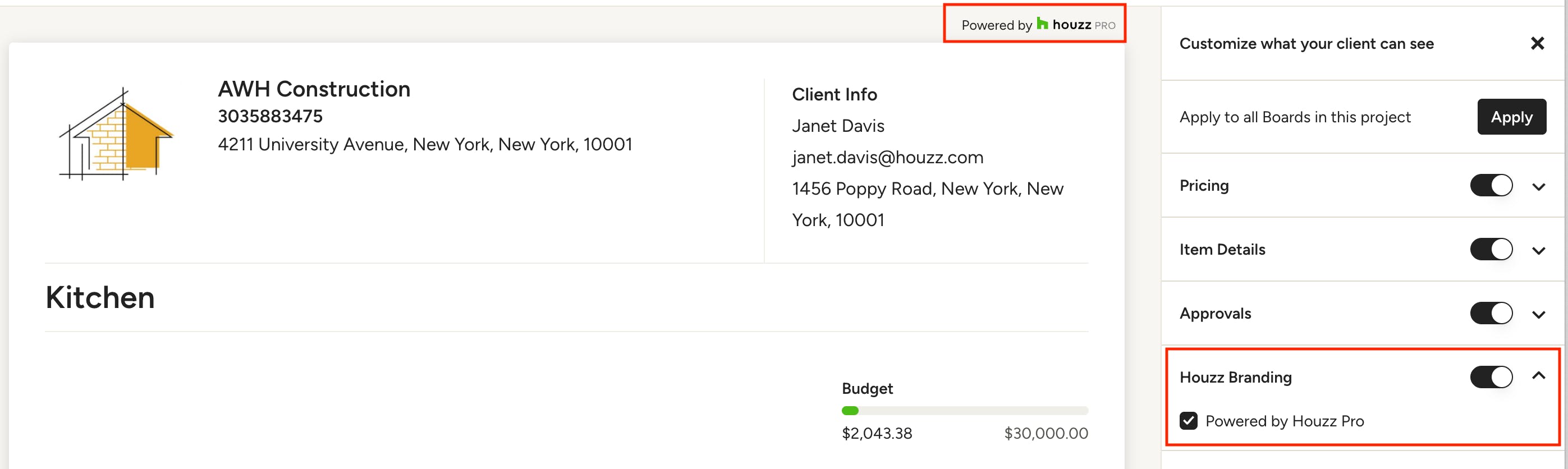
Houzz Branding
- Powered by Houzz Pro: If enabled, "Powered by Houzz Pro" will appear on all shared versions of the selections board.
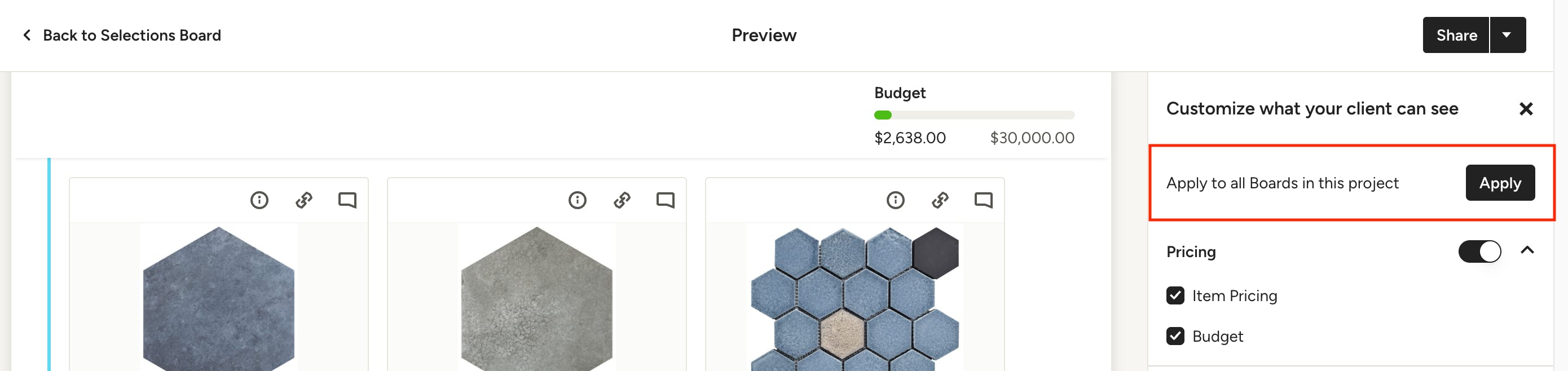
Apply View Settings to All Boards
To maintain consistency across all boards in a project, you can apply your client view settings to all boards in the project. Once you have the view settings dialed in under "Customize what your client can see", simply click Apply next to "Apply to all Boards in this project".

You will be asked to confirm the action. Note that this will overwrite the settings in all Boards in this project. You can always change settings per Board later if needed.