How to Access and Organize Your Project Files
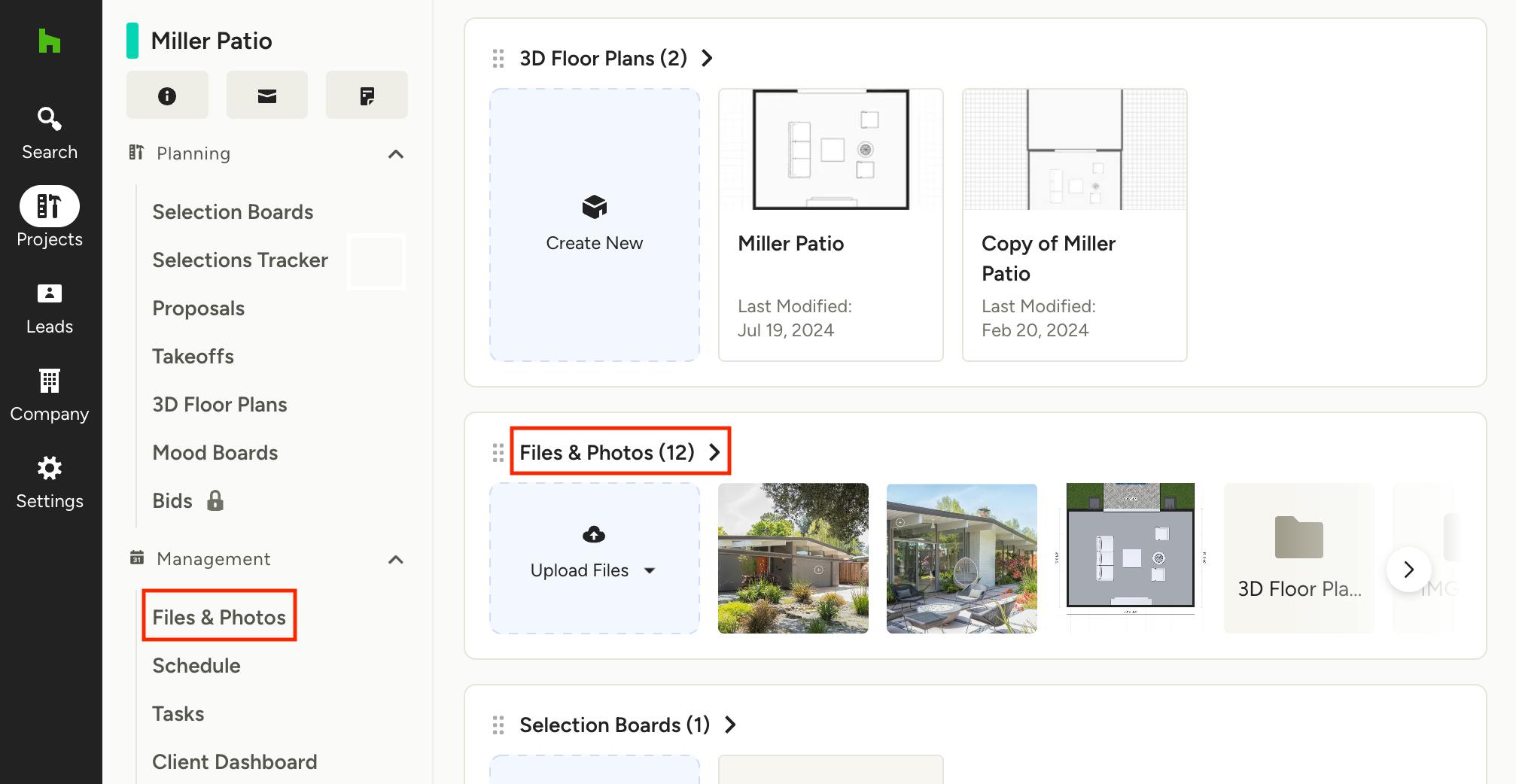
Within each project, you’ll see all your associated files and photos that have been uploaded and attached across tools and documents in your Files and Photos section. Here you can organize your files with folders, upload multiple files at once, preview every file with a click, leave comments, and manage file permissions with ease.
Access Files and Photos
To access your files and photos for a specific project, navigate to the project overview page, then click on Files & Photos under the Management section in the left navigation. You can also click the title in your Files & Photos tile on the project page.
Upload Files
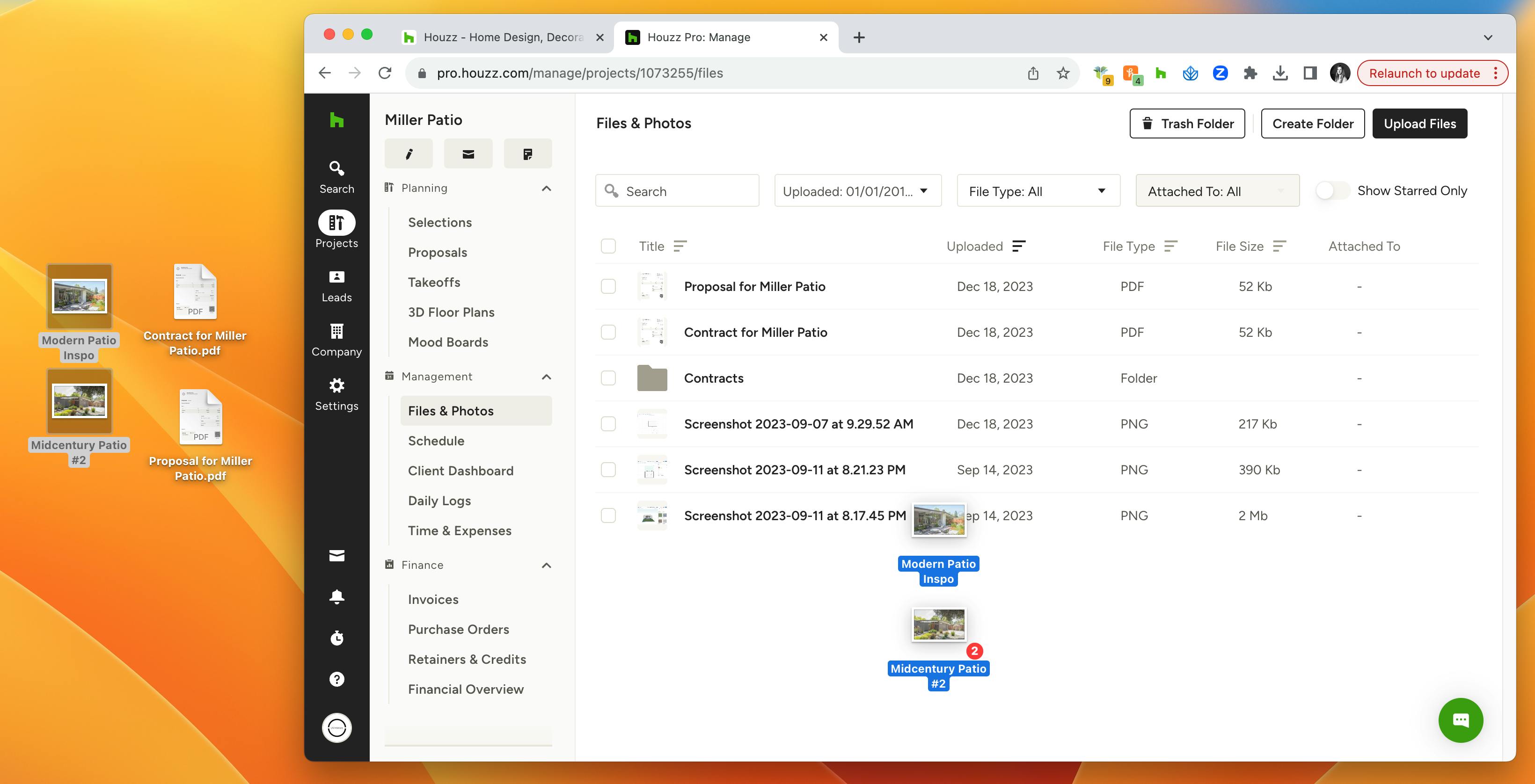
There are several ways to upload new files, and you can upload multiple files at once. File types that can be uploaded include: images, videos, PDFs, Word documents, Excel spreadsheets, and text files, plus you can integrate with Google Drive. Any files added to your project via attachment in a document, selections board or daily log, for example, will also appear in your Files & Photos section.
Note: HEIC images will only display a thumbnail preview if uploaded directly from your mobile device.
Drag and Drop: You can drag and drop files directly from your computer to the project’s Files page. Select and drag multiple files at once to save time.
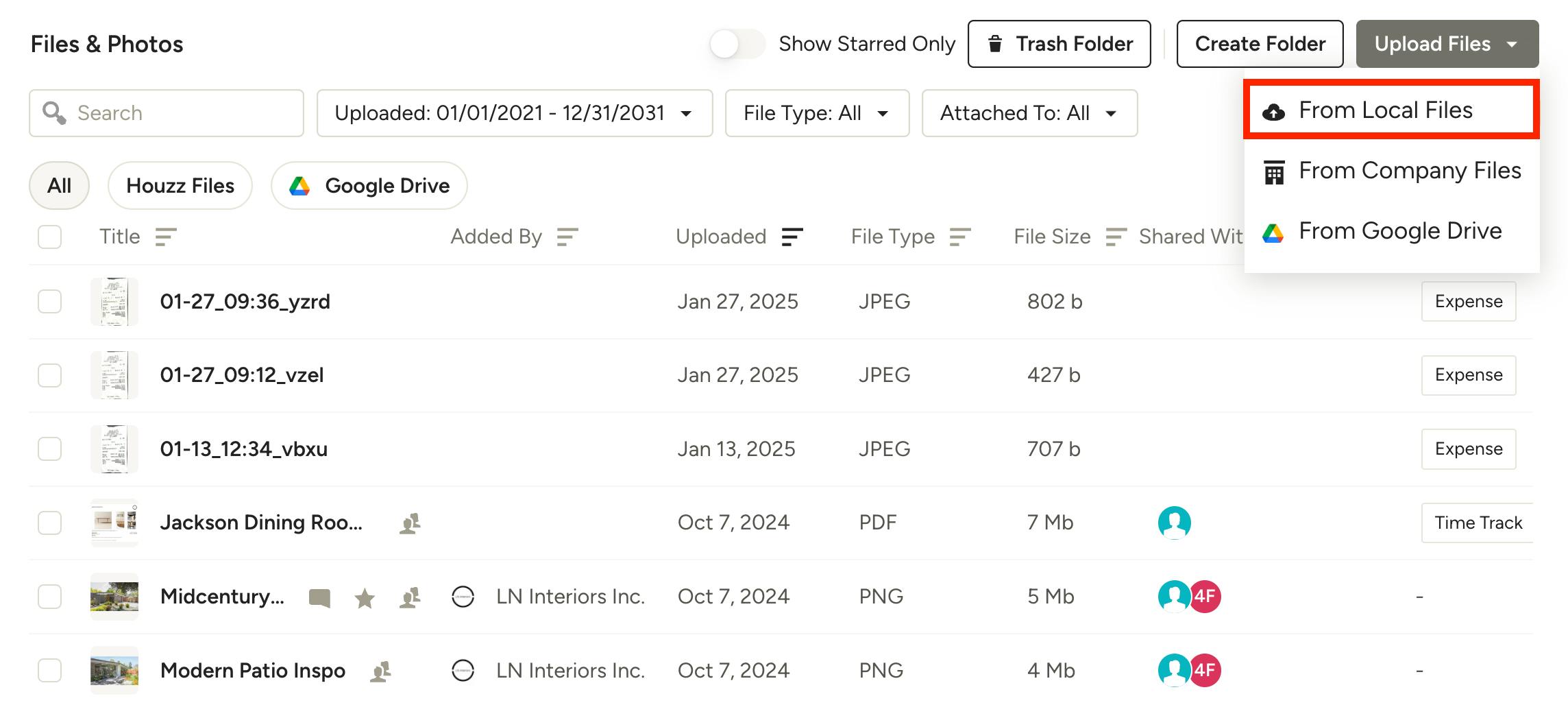
Upload Local Files: To upload local files from your system's browser, click Upload Files in the top right, then choose From Local Files. Select the item(s) you want to upload from your computer’s files.
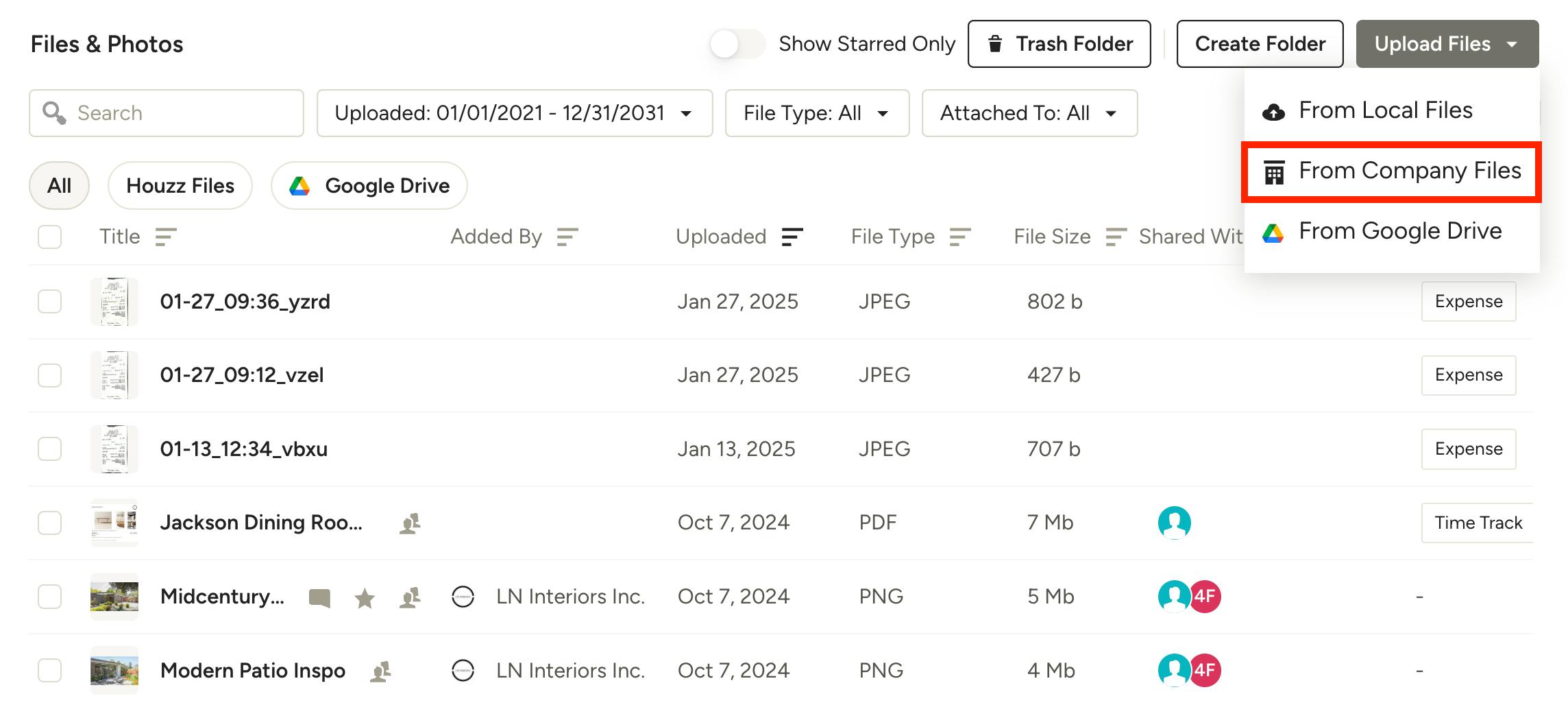
Upload Company Files: To upload existing files from your company files library, click Upload Files in the top right, then choose From Company Files. Select the existing item(s) you want to your project.
Learn more about using company files here.
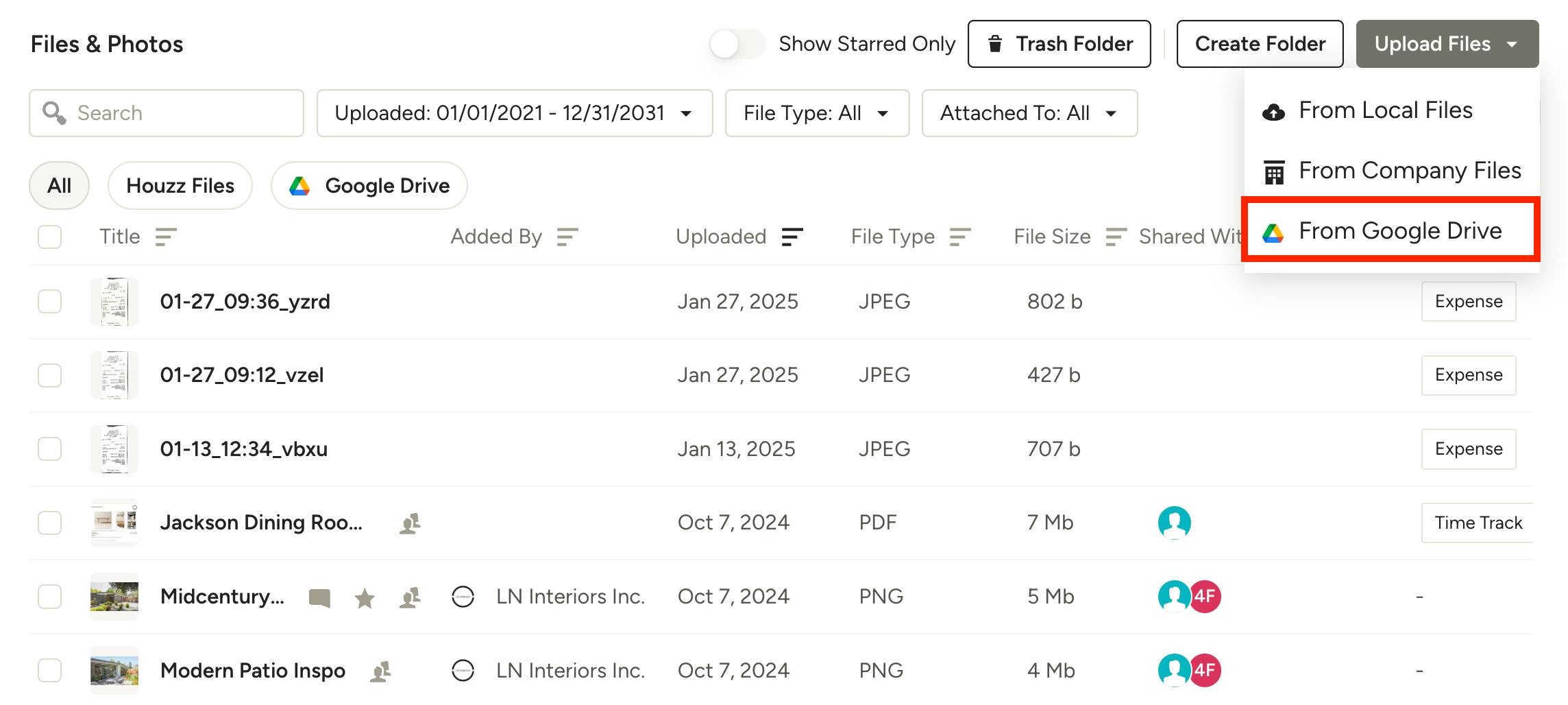
Upload from Google Drive: To upload files from Google Drive, click Upload Files in the top right, then choose From Google Drive. You may need to sign in to your Google account via Houzz Pro to continue. Select the item(s) you want to upload from your drive.
Learn more about connecting to Google Drive here.
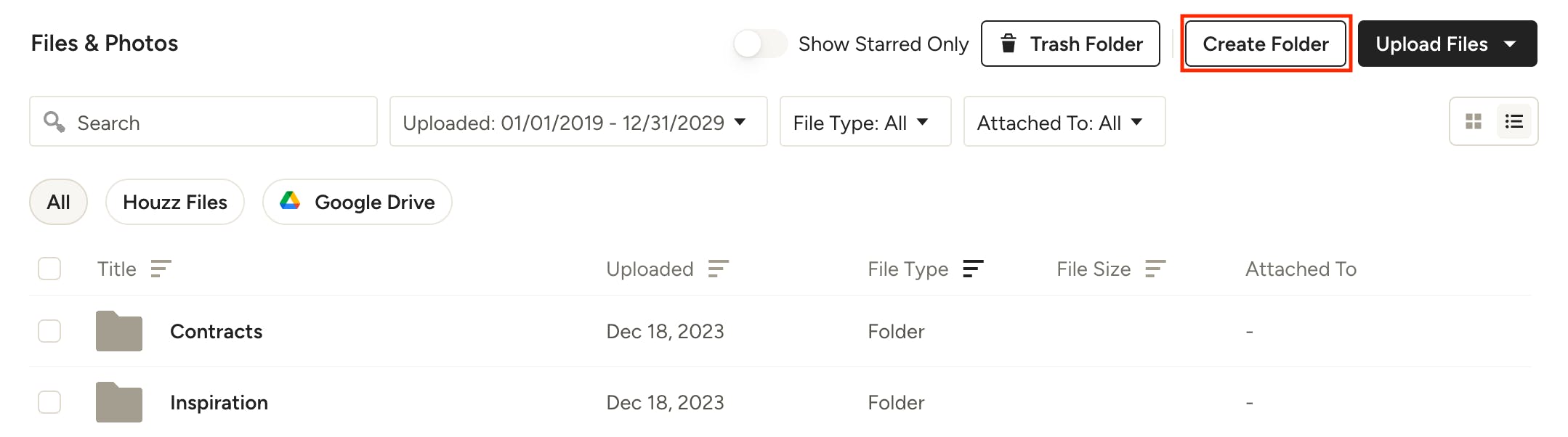
Organize with Folders
Create folders and even folders within folders to keep your project organized. Just click the Create Folder button in the top right of the page, add a folder name, then click Create. You can customize the folders names, viewing permissions, and star your favorites.
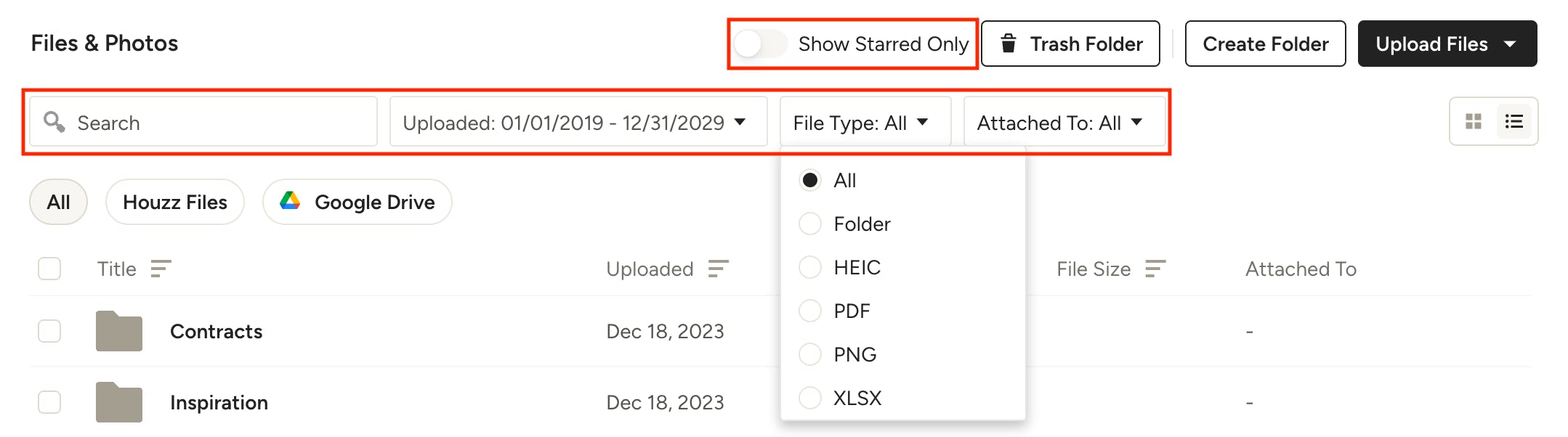
Search and Filter Through Files
Search for a file or folder name, or filter by upload date, file type, or to which documents the file is attached, such as an estimate, proposal, invoice, or daily log. You can also turn on the “Show Starred only” toggle to narrow down the list to only your favorite files.
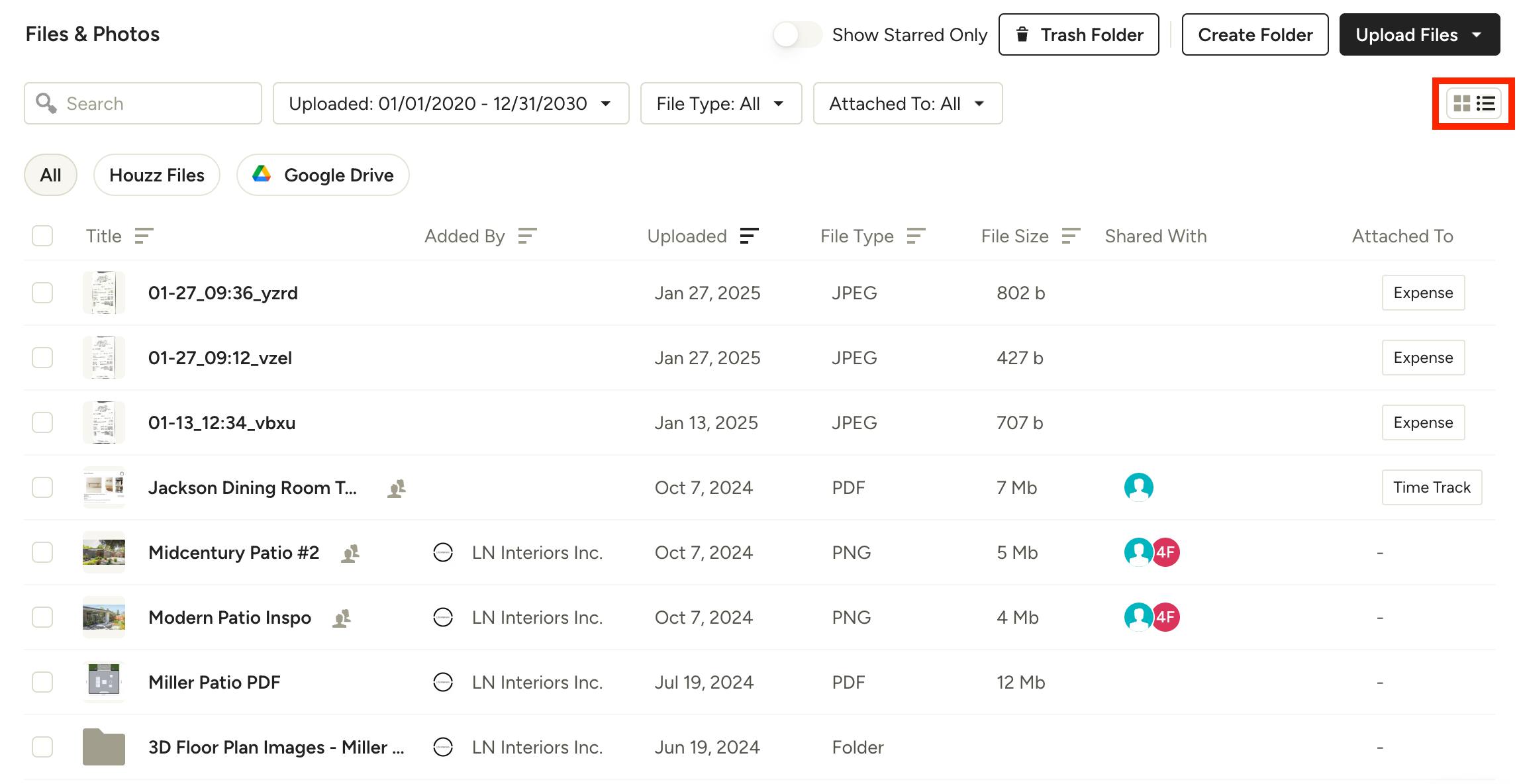
Adjust View of Files and Photos
You can easily toggle your view of your files and photos between a list or grid layout by using the icons in the top right.
List View: You can see a quick overview of all the relevant info pertaining to each item, including who added the file, when it was uploaded, file type, file size, who it's shared with, and if it's attached to any documents. Click on a column header to sort the files by that category.
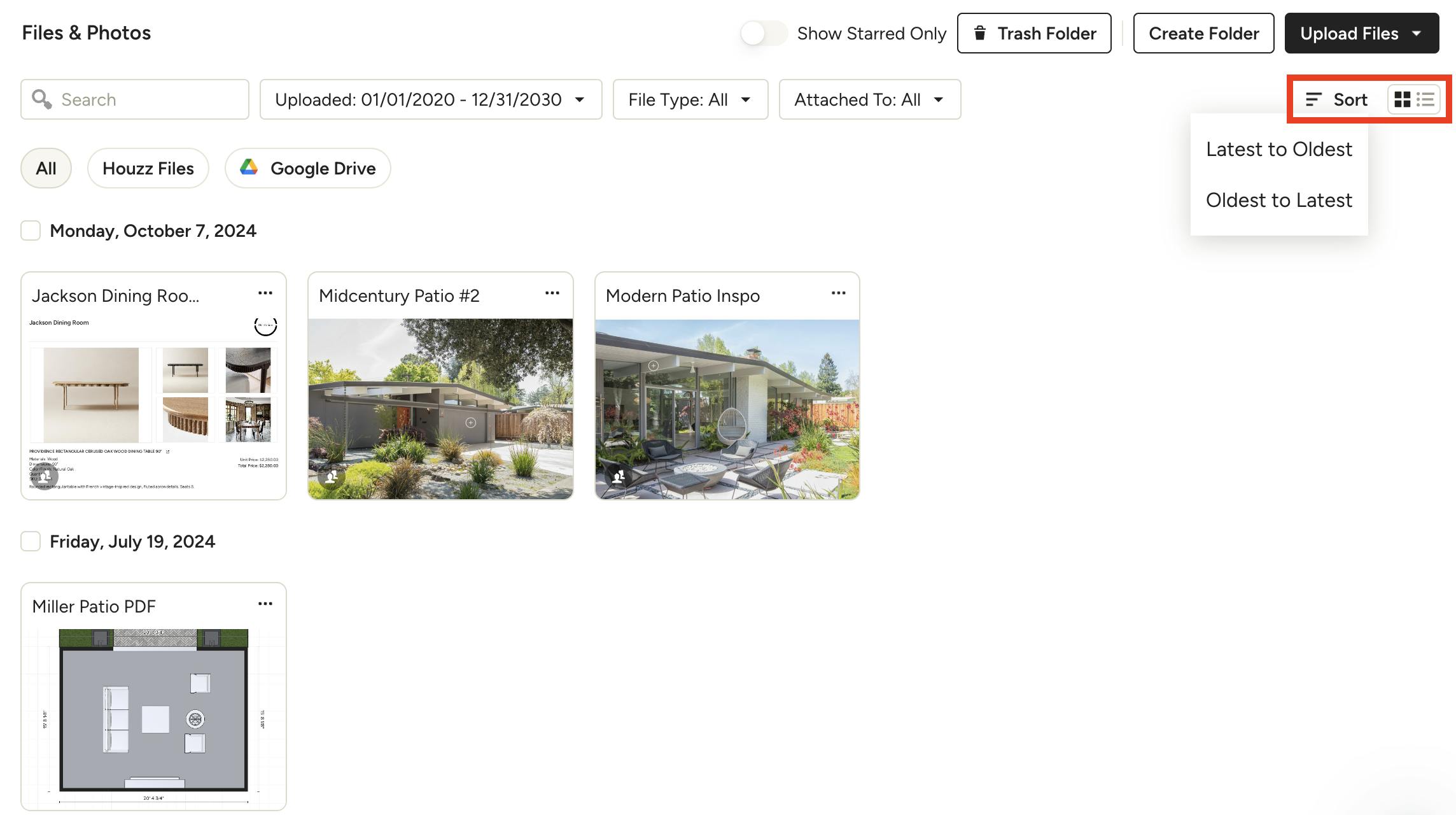
Grid View: You'll see larger thumbnails of each file, making it easy to find photos or preview files without having to open each one. You can sort by upload date (oldest to latest or latest to oldest) in grid view by using the Sort menu in the top right.
Preview Your Files
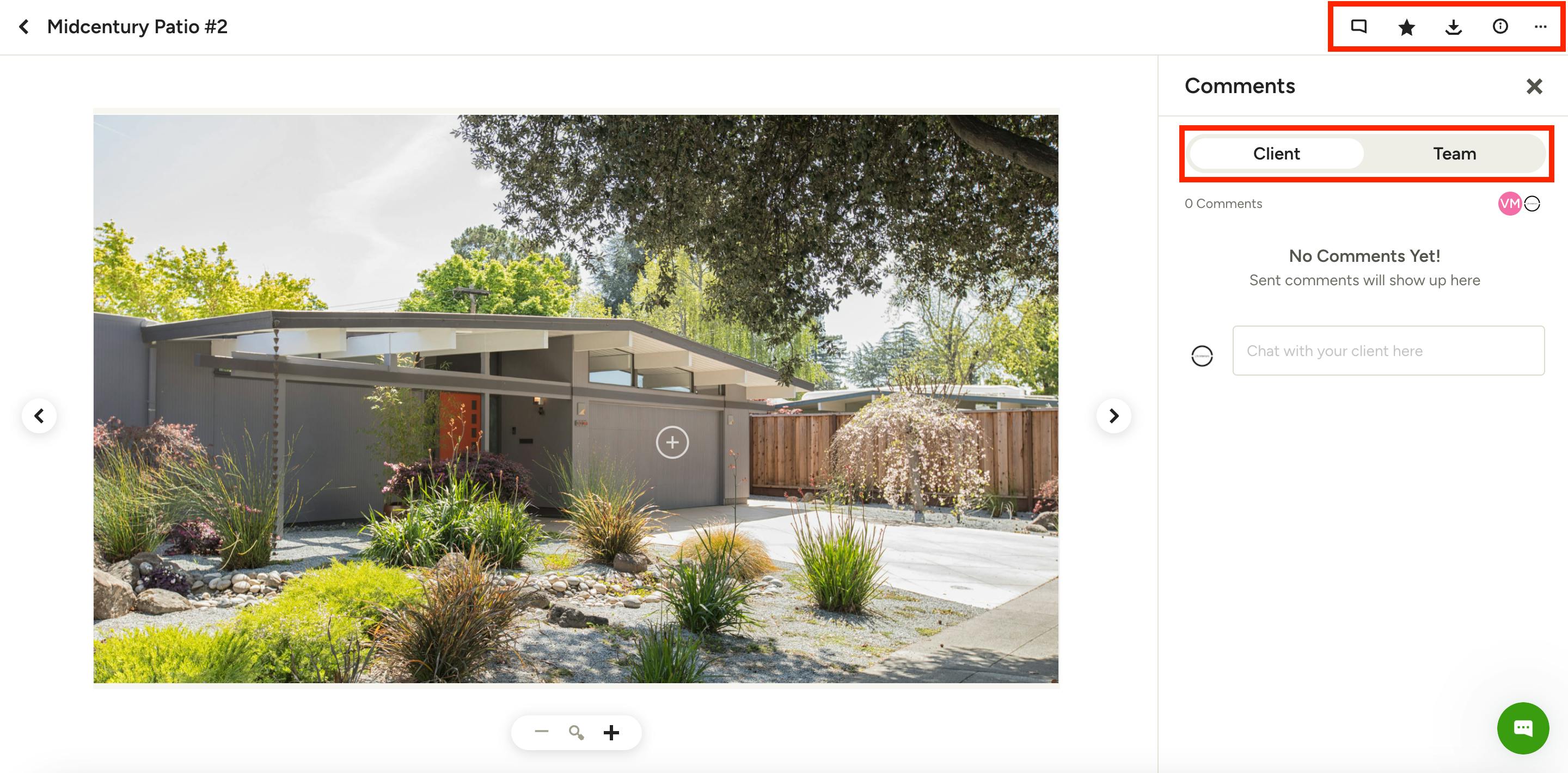
Just click on a file to open its preview. Here, you can view comments for the file — select Client to view client comments, or Team to view team comments.
At the top of your preview, you can:
- Select the comments icon to navigate back to comments.
- Select the star icon to favorite a file.
- Select the download icon to download a file.
- Select the i icon to view file details like upload date, last modified date, file owner, file type, file size, who the file is shared with, and file location.
- Select the three dots icon to manage permissions, move, duplicate, unstar/star, rename or delete.
Manage File Access
You can control who has permission to view specific files, and entire folders, in a few ways.
Individual File Permissions
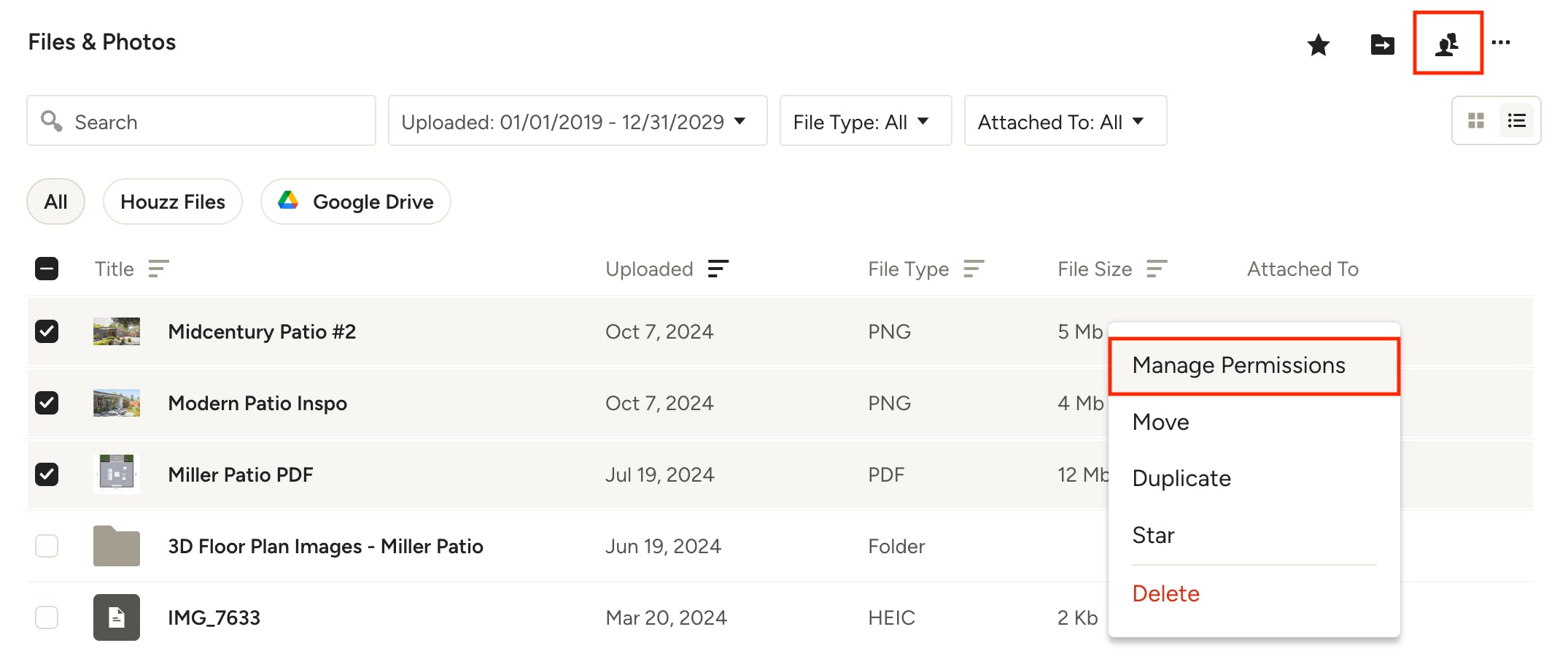
To manage permission on an individual file, hover on the file and right-click, or click the three horizontal dots, and choose Manage Permissions from the dropdown. You can also access these permissions by selecting the checkbox on a single file and clicking the team icon in the top right of the page.
Bulk Change File Permissions
This method is ideal for managing multiple files in one action. If you need to make bulk changes to file permissions, simply select the checkboxes to the left of the desired file names, right-click or click the three horizontal dots on the right, and choose Manage Permissions from the dropdown. You can also click the team icon in the top right. This method will apply the same permissions to all files selected.
Folder Permissions
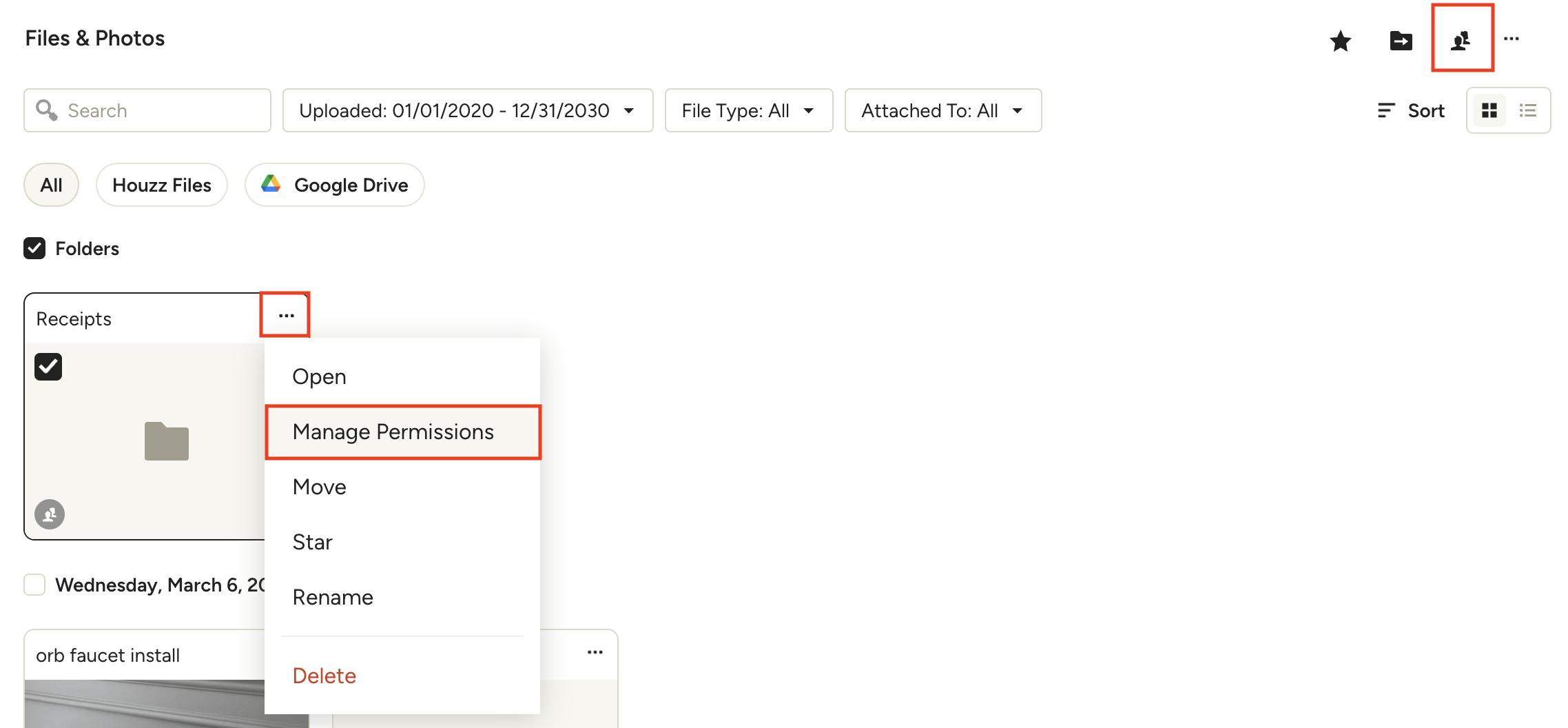
You can share an entire folder, and its contents, with your client or subcontractor(s) by following the same steps as individual file permissions: hover on the folder and right-click, or click the three horizontal dots, and choose Manage Permissions from the dropdown. You can also access these permissions by selecting the checkbox on a single folder and clicking the team icon in the top right of the page.
From here you can manage folder permissions for the client and subcontractors with current access to the project.
Important to Note:
- Sharing a folder will also share any files inside the folder.
- Removing folder level permission will remove file level permissions (for those files within said folder) but won’t remove permission of files in said folder which were manually shared previously. ex: if you manually shared File 1 from inside Folder A to the client dashboard, then shared Folder A to the dashboard, then later removed Folder A from the dashboard, File 1 would still be shared.
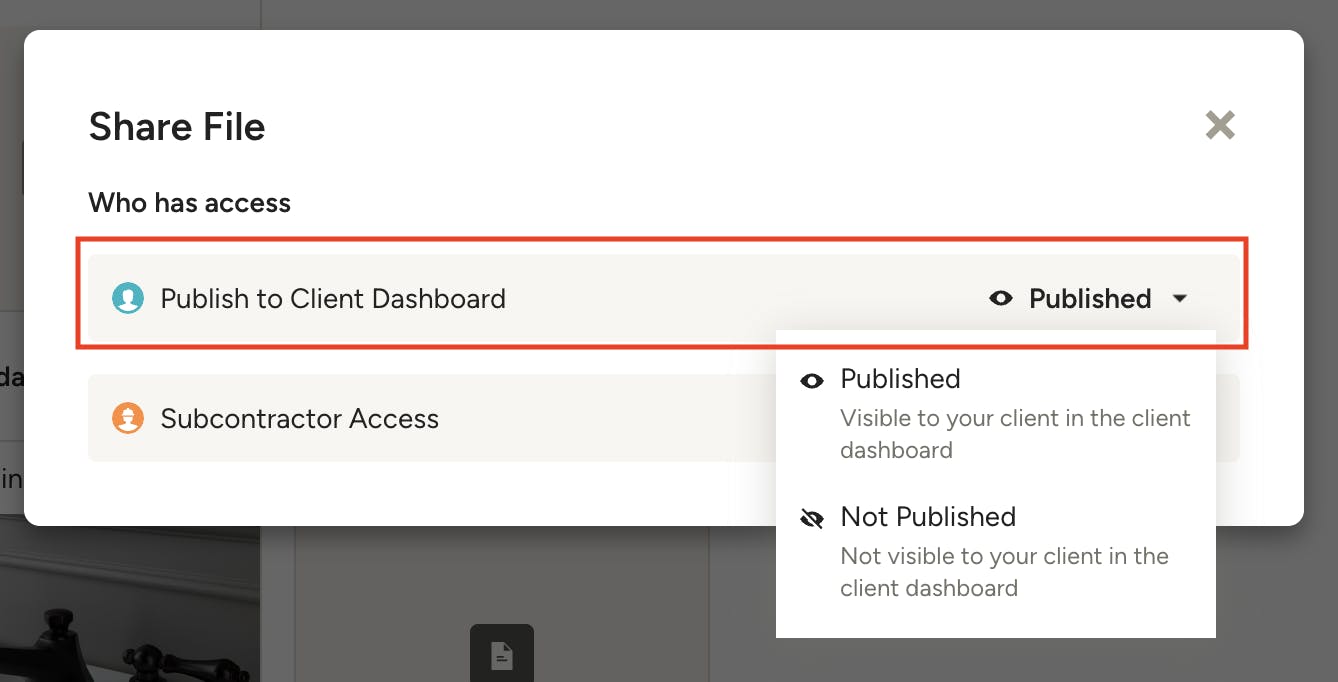
Client Access
If you allow your client access to a file(s) or folder in their project, they will be able to view it within the client dashboard. Select Published to make the file/folder visible on the client dashboard, or Not Published to revoke file/folder access. Read more about the client dashboard in this article: Preview and Share the Client Dashboard
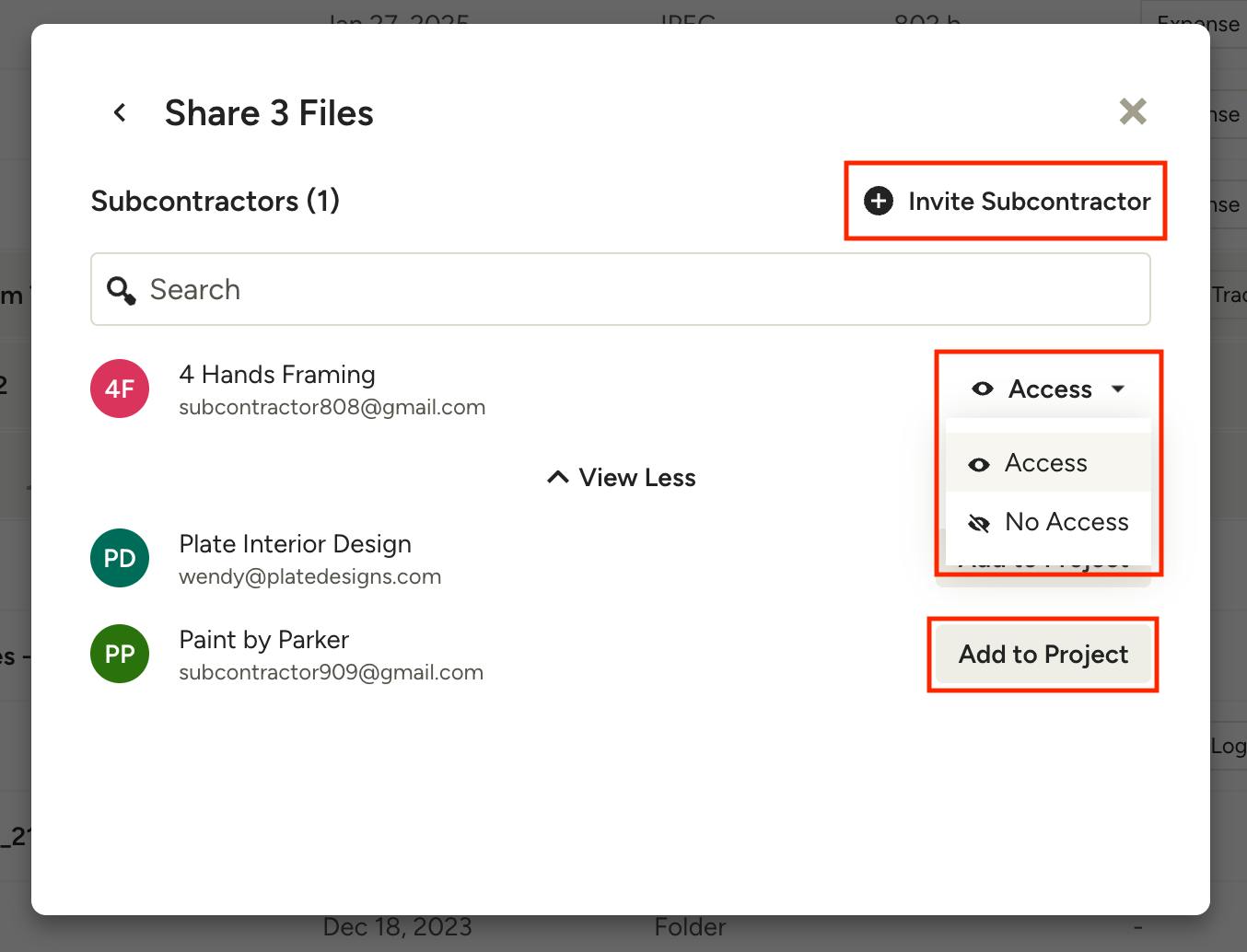
Subcontractor Access
For subcontractors, you can grant access to files/folders on an individual basis. To set individual access, select Subcontractor Access in the Share modal. You will see the subs currently invited to the project listed, and can set Access/No Access on each one individually.
Click View More to see your subcontractors who are not invited to the project — you can add them with one click and set their access. You can also invite a new subcontractor to your team by clicking Invite Subcontractor in the top right.
Read more about subcontractor access in this article: How to Invite and Collaborate with Subcontractors
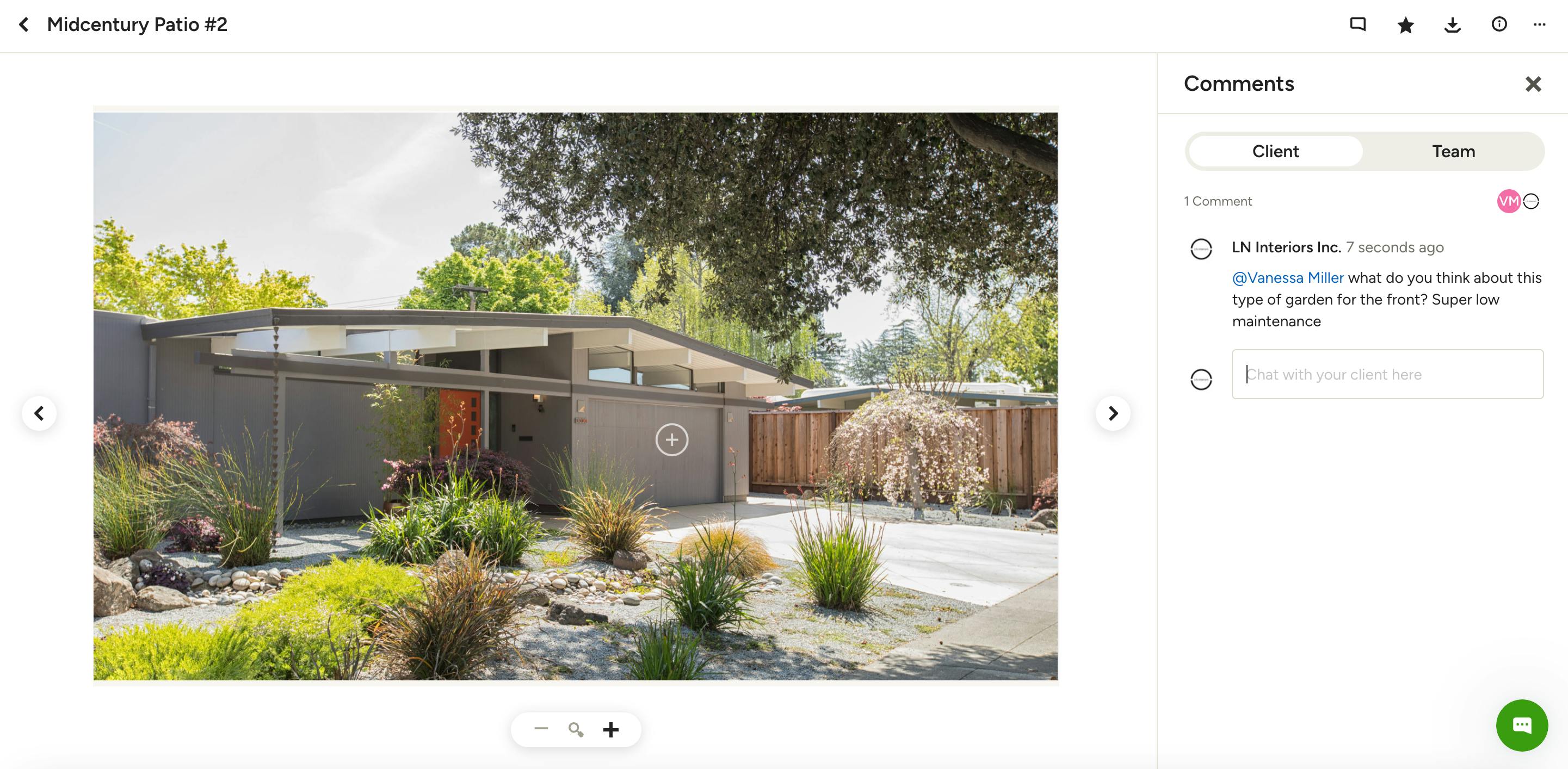
Commenting on Files and Photos
You can communicate with clients and team members directly on files and photos by using the comments feature. To leave a comment on a file follow these steps:
- Open the preview by clicking on the file title.
- On the righthand side of the preview, you will see the Comments section. Make sure you choose Client or Team, depending on who you wish to view your comments.
- Type your comment in the text box and click Submit when you're done.
- Your client, or team member, will receive a notification about the comment and be able to open the file to reply.
Pro Tip: Mention a client or team member in a comment by typing '@' or clicking the '@' icon to the left of the textbox and selecting the desired person. This is helpful if you want to make sure a specific team member or client sees the comment, as they will also be notified.
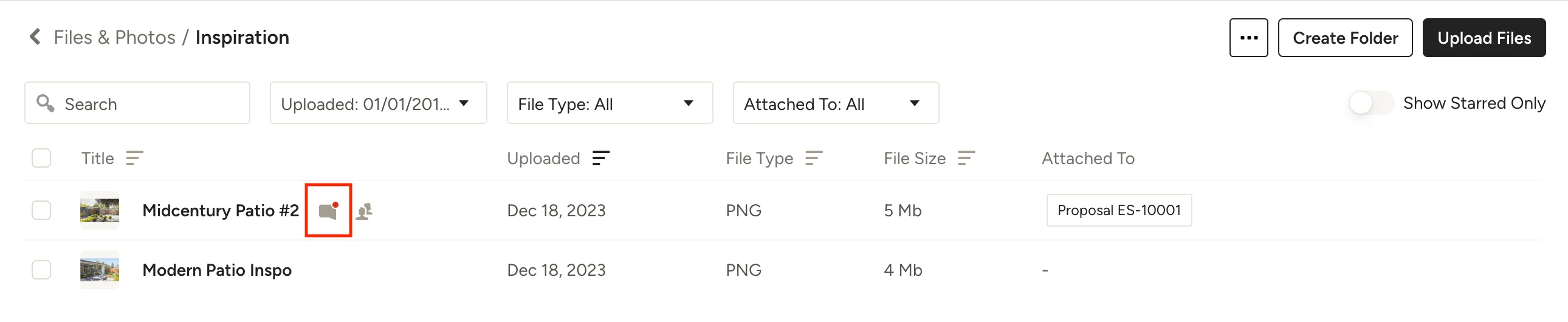
When a client or team member adds a comment to a file, you will be notified via email, as well as seeing a red notification indicator on the file title as shown in the image below.
Access Deleted Files
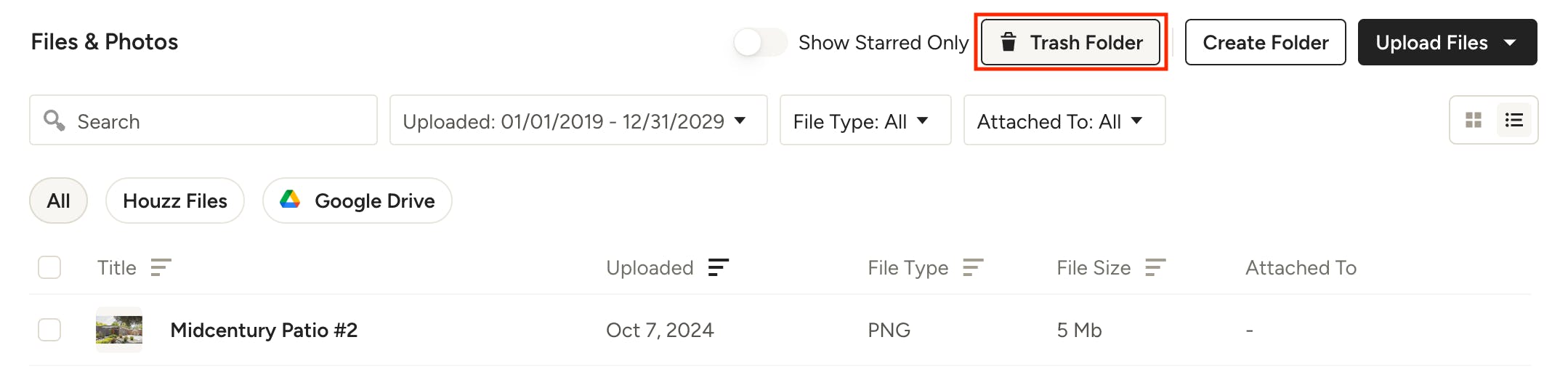
By clicking the Trash Folder button in the upper-right, you can access deleted files at any time.
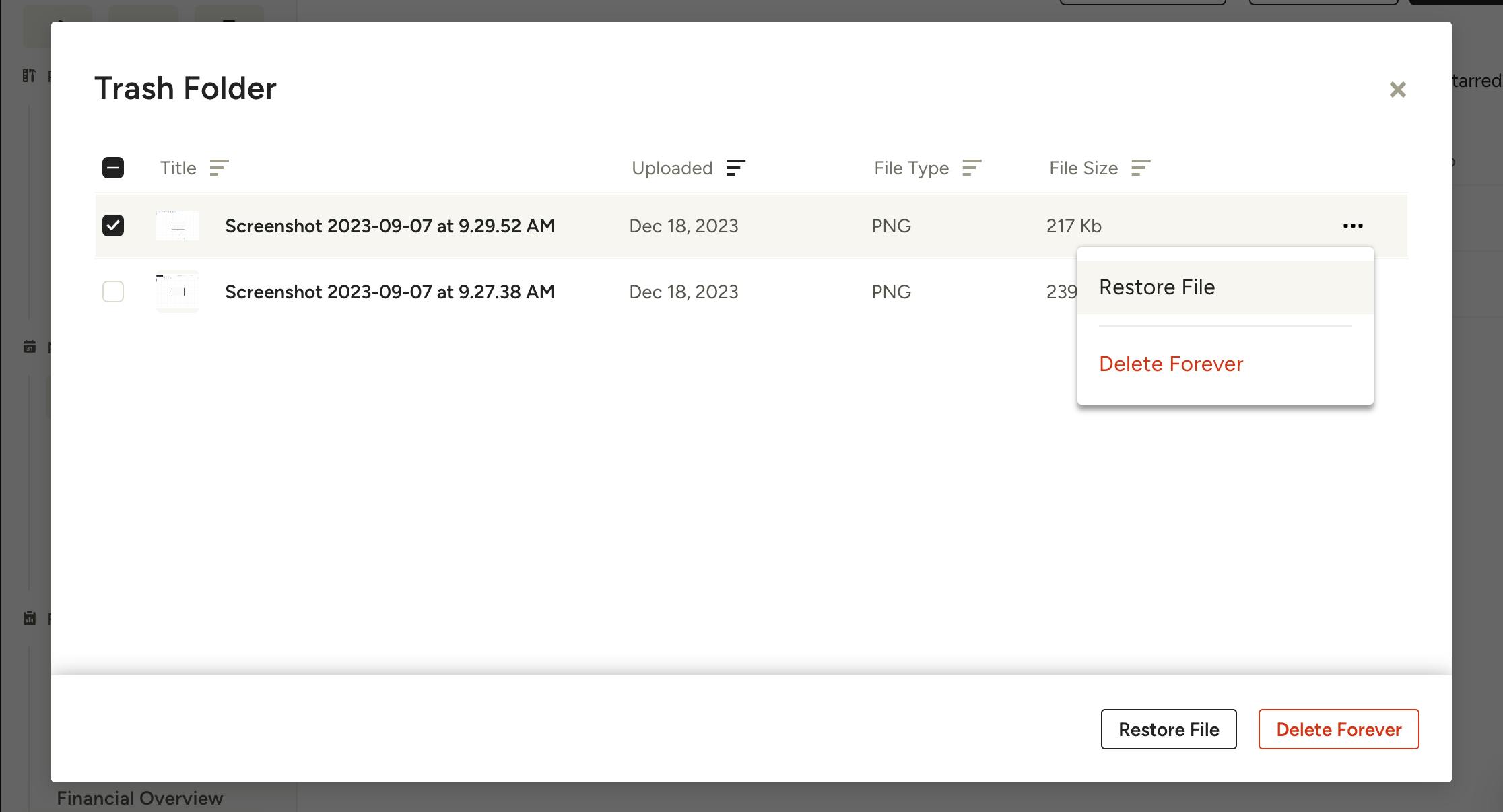
By hovering on a deleted file, you’ll see 3 horizontal dots where you can access more actions, such as restoring the file or deleting it forever. You can also select multiple files by using the checkbox to the left of each one, then restore or delete them in bulk by using the buttons at the bottom of the modal.
Access More Actions
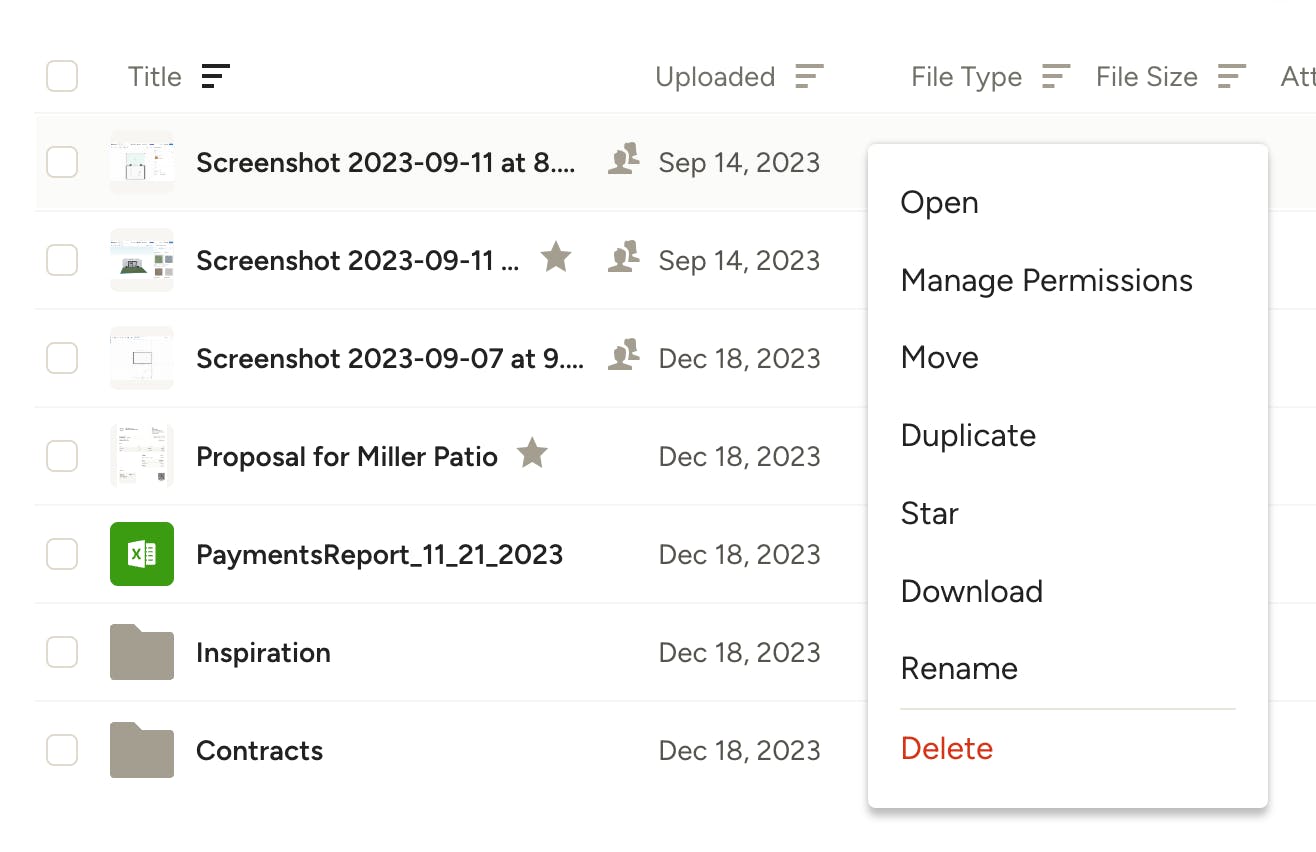
Right-click on a file for more actions, including opening the file, managing the file permissions of who can view it, moving the file to a different folder or out of a folder, duplicating the file, starring the file to your favorites, downloading the file to your computer, renaming the file, or deleting the file. To access these actions, you can also hover on the file and click the three horizontal dots on the right or select the checkbox on the left of the file name and select from the actions that appear in the upper-right.
Attaching Files and Photos
Throughout Houzz Pro, there are numerous places to attach existing project files and photos or upload new ones, including:
- Financial documents (estimates, proposals, invoices etc)
- Selection boards
- Daily logs
- Tasks
- Time and expenses
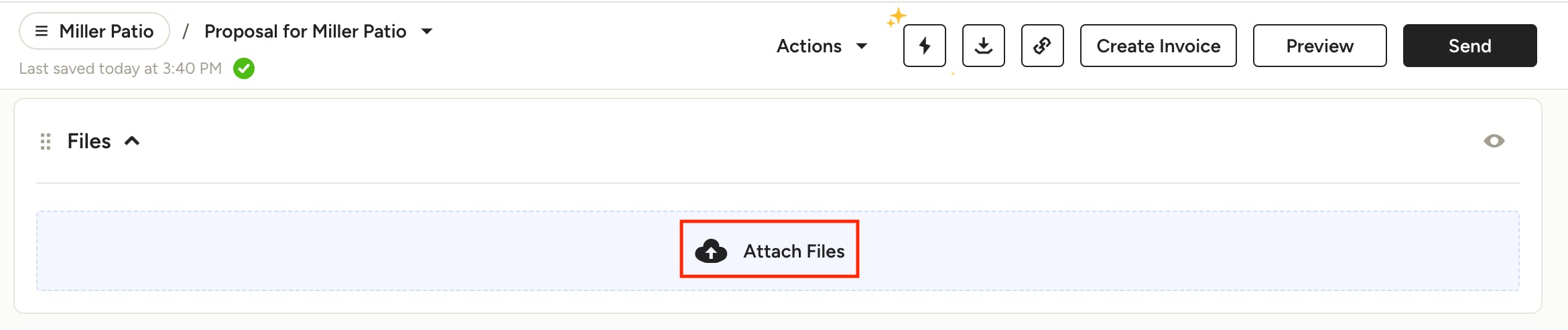
Look for the attachment icon or Attach Files area on documents, daily logs, tasks and time/expenses.
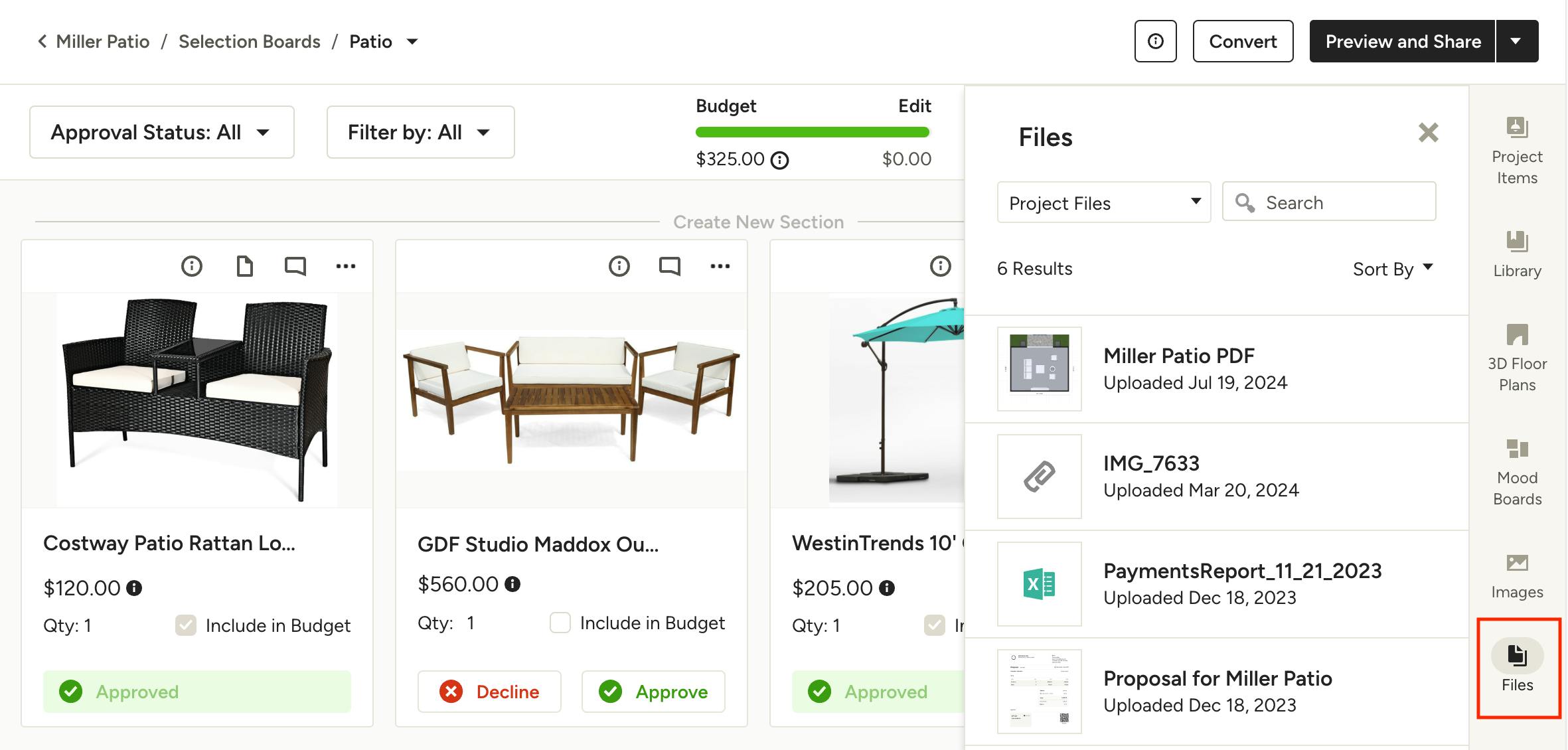
In design and selection tools, look for the Files icon to add new and existing files and photos.