How to Use Placeholders for Selections
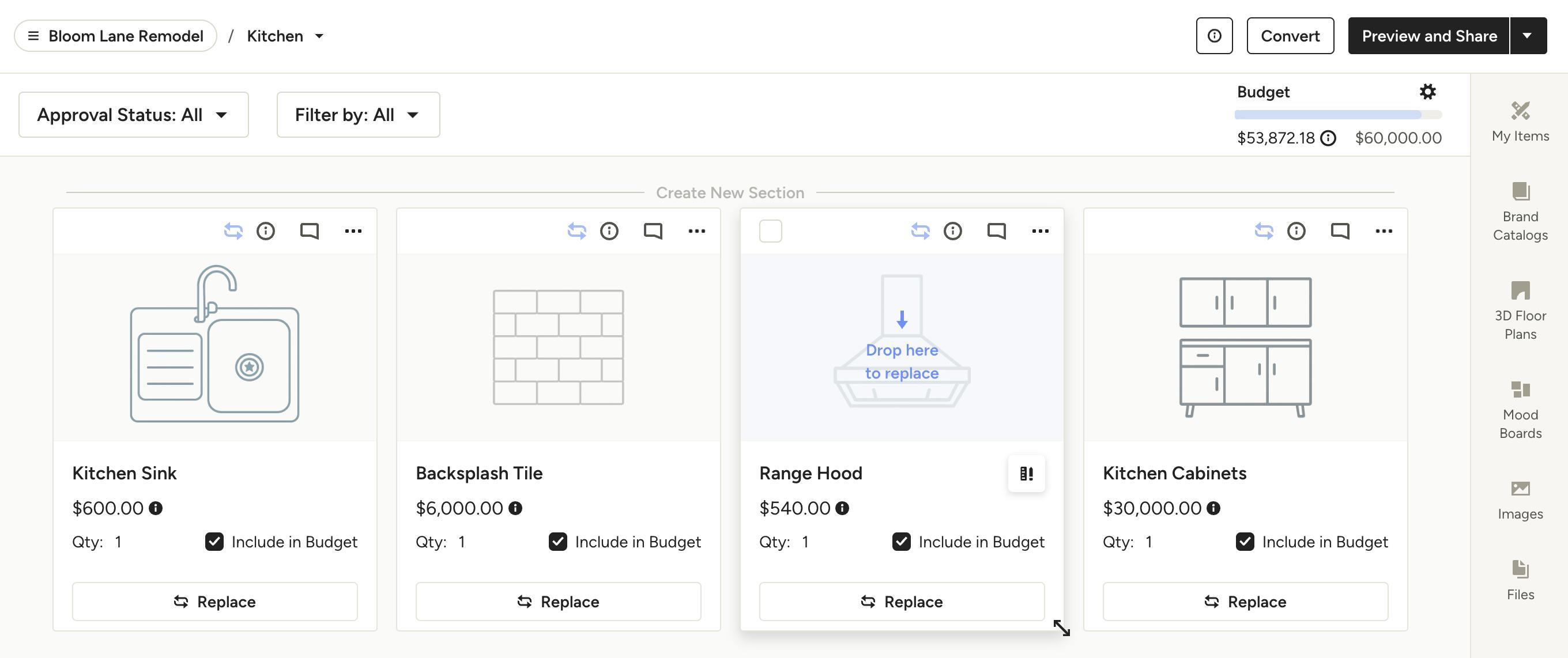
Placeholders are temporary stand-ins for products in Selection Boards and the Tracker. They allow you to plan for and communicate about selections before every product is finalized. By using placeholders early on in your project, you can ensure you build a complete list of necessary items (think rough selections, like “sofa” or “kitchen faucet”) and set clear allowances and budgets, before specific products are chosen. Then, once you've sourced the real product, the placeholders can be easily replaced without losing quantities or budget info, keeping you organized and professional throughout the whole selection process.
Note: Placeholders are only for use in Selection Boards and Trackers. They cannot be converted to financial documents (proposals, estimates etc).

Create Placeholders
Placeholders can be created from your My Items page, as well as directly within any selections board or tracker.
From My Items Page
On the My Items page, which can be found under the Company icon in the left navigation, click the Create New button in the top right, then select Placeholder from the menu.
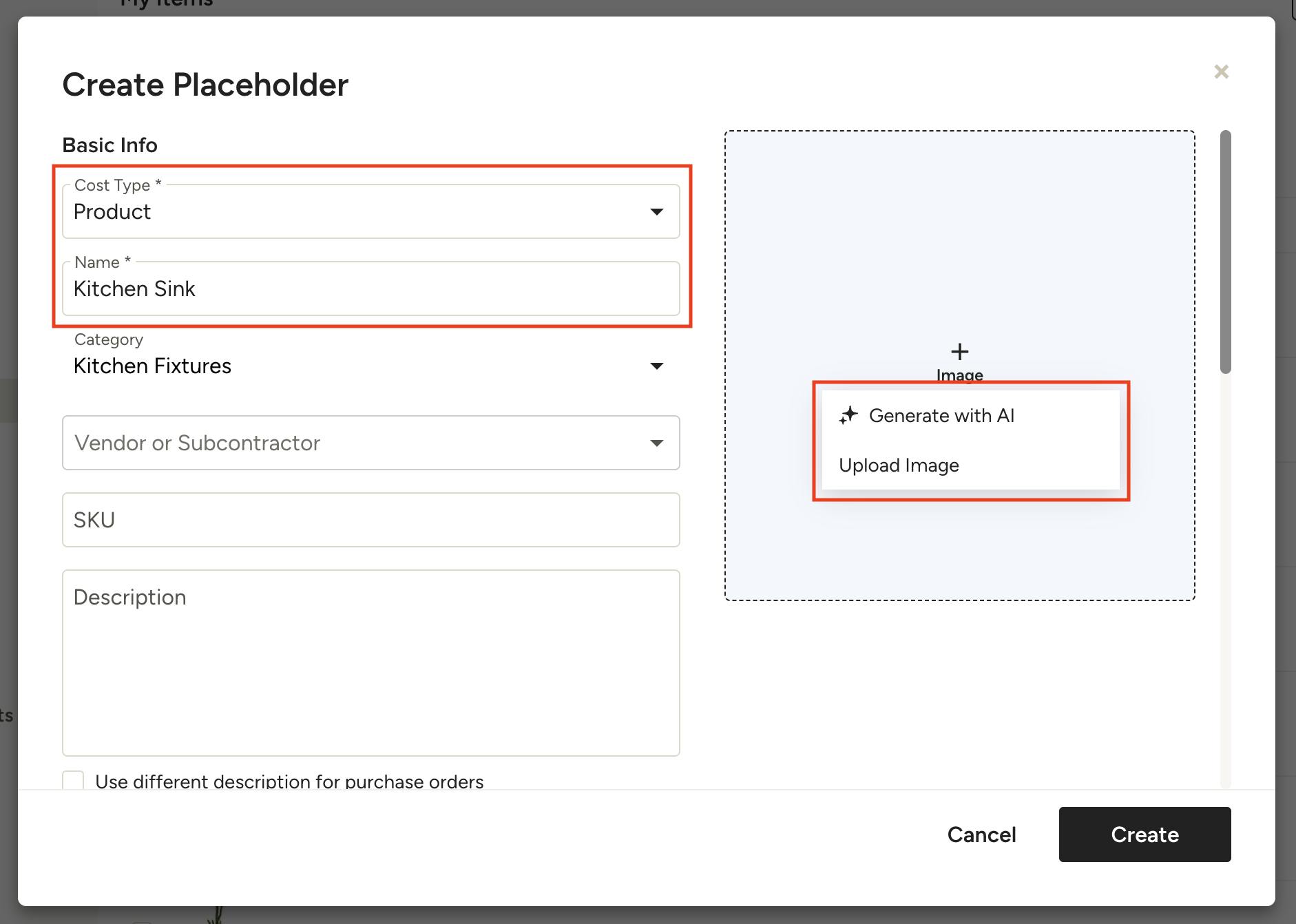
Select a cost type and add a name for your placeholder (like Kitchen Sink) and fill in as much additional info as you'd like. Placeholders are meant to be generic and you can add/update details like cost once they are on a selections board, so you don't need to get too granular at this stage. Upload an image or use our AI to generate one (more on Adding Images below). Click Create when you're done.
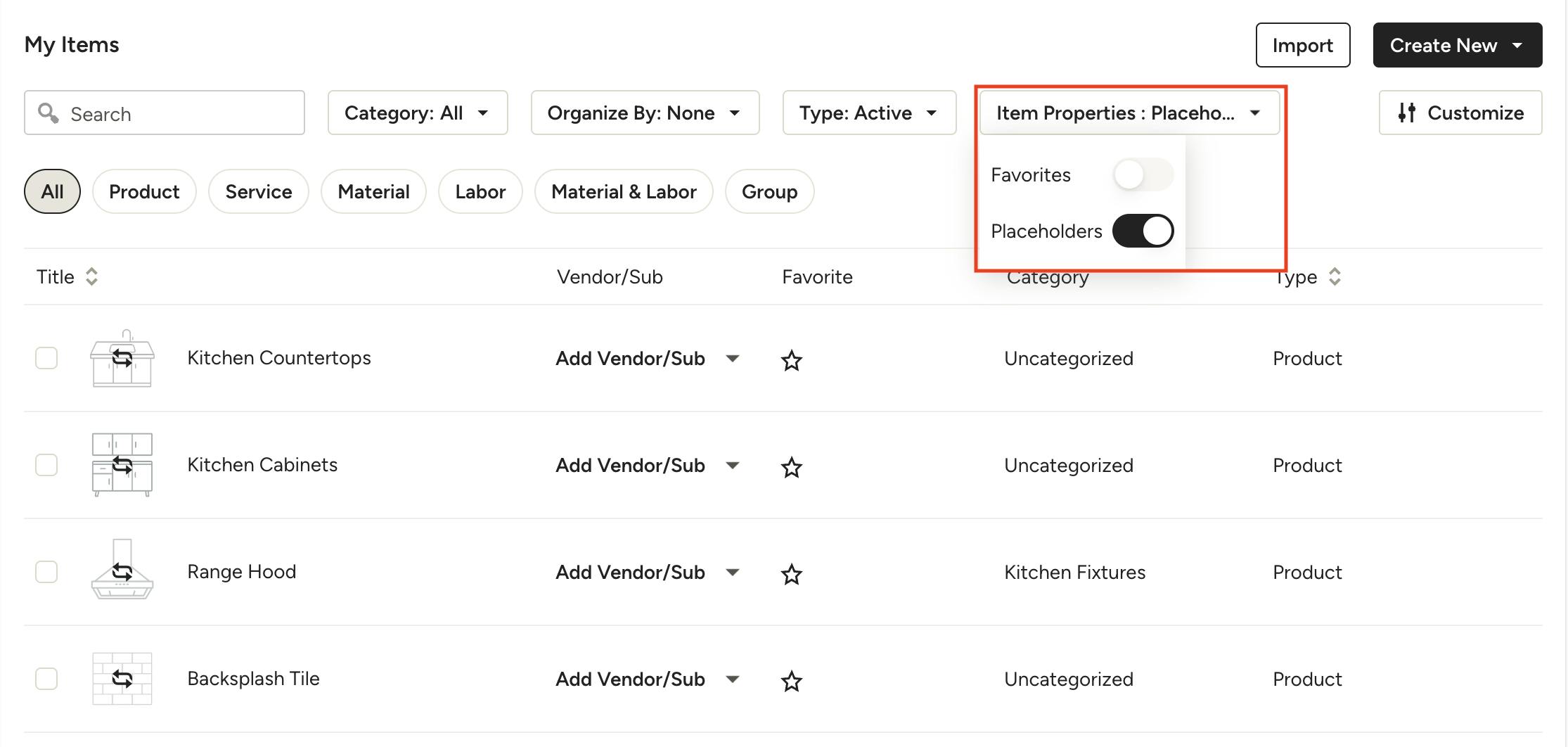
Your newly created placeholders will appear in your My Items page. To view just your placeholders, use the Item Properties filter and toggle on Placeholders. You can click into any one to update details.
From Selection Boards and Trackers
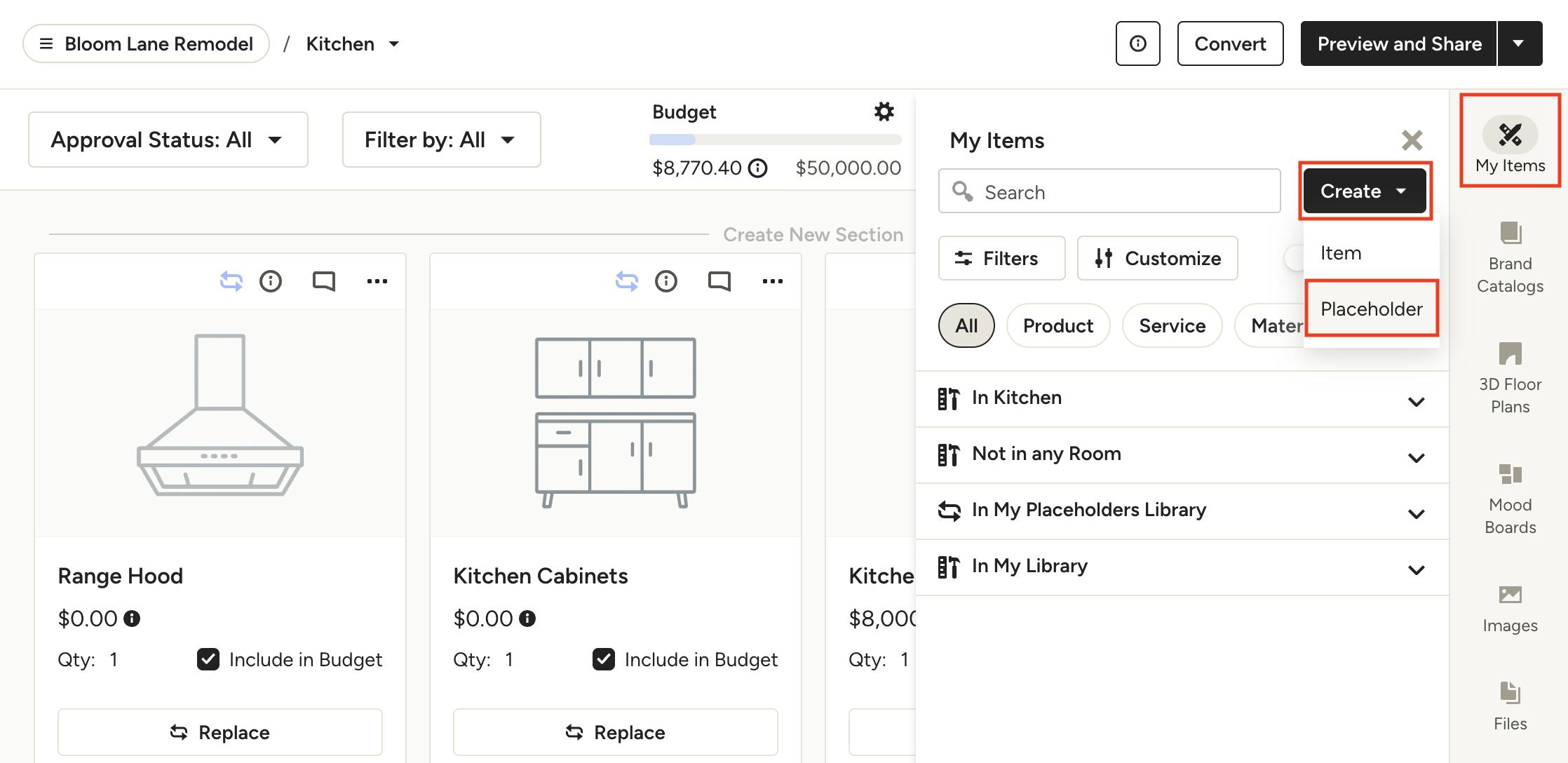
Within a selection board or tracker, click on My Items in the right panel, then use the Create dropdown to select Placeholder.
Select a cost type and add a name for your placeholder (like Kitchen Sink) and fill in as much additional info as you'd like. Placeholders are meant to be generic and you can add/update details like cost once they are on a selections board, so you don't need to get too granular at this stage. Upload an image or use our AI to generate one (more on Adding Images below). Click Create when you're done, and the placeholder will be added to your board and tracker, as well as your Placeholders Library for future use.
Adding Images
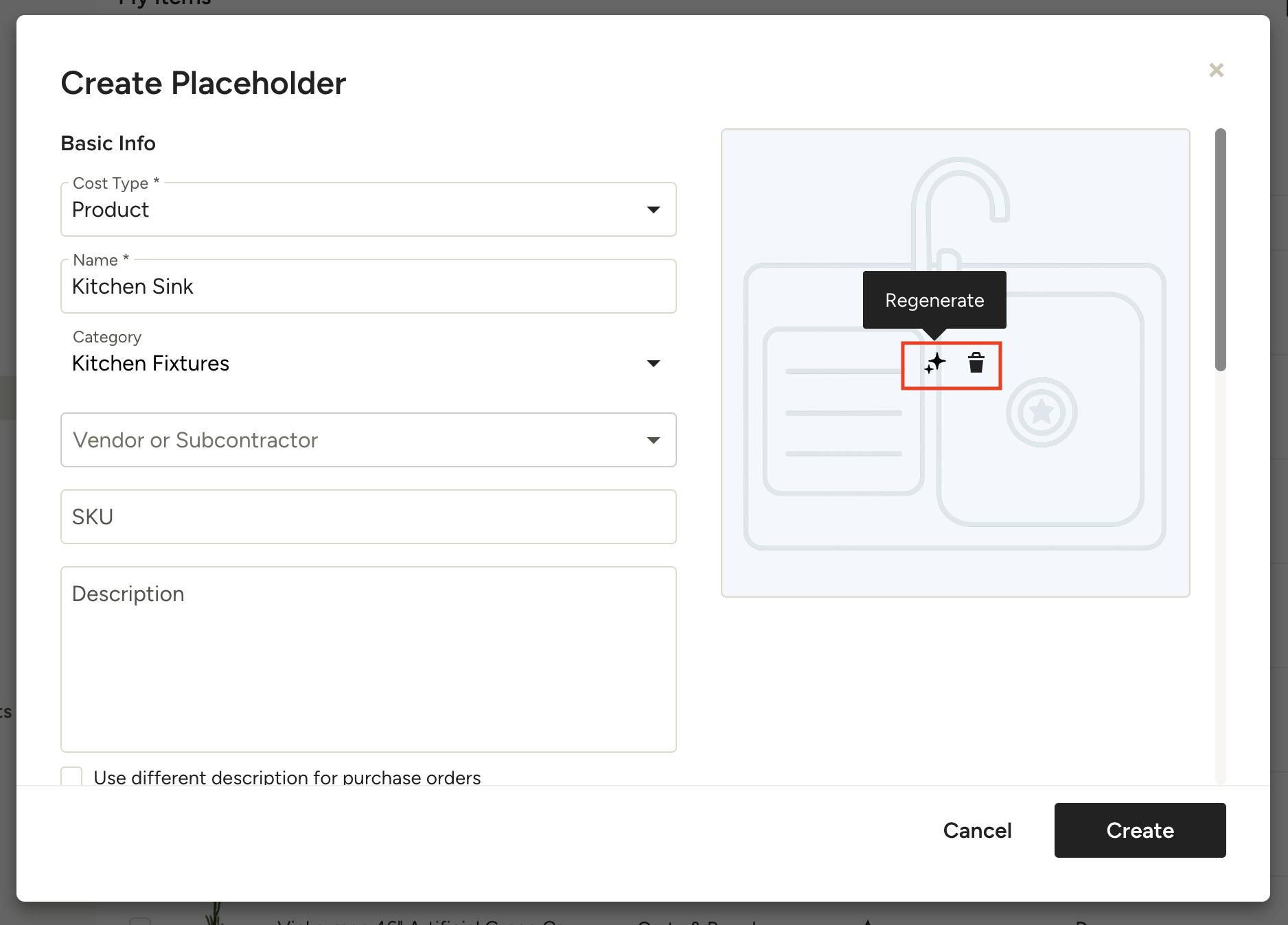
To present your placeholders professionally, we recommend you add a generic image that is representative of the item. You can upload your own image, or you can select Generate with AI and let our AI create an image based off of the title you've entered. With the AI option, all images generated will be created in the same style and color, so all of your placeholders will have the same look, for a cohesive feel.
Once generated, you can opt to regenerate for a different option, or delete the AI image and upload your own or continue without one.
Insert Placeholders
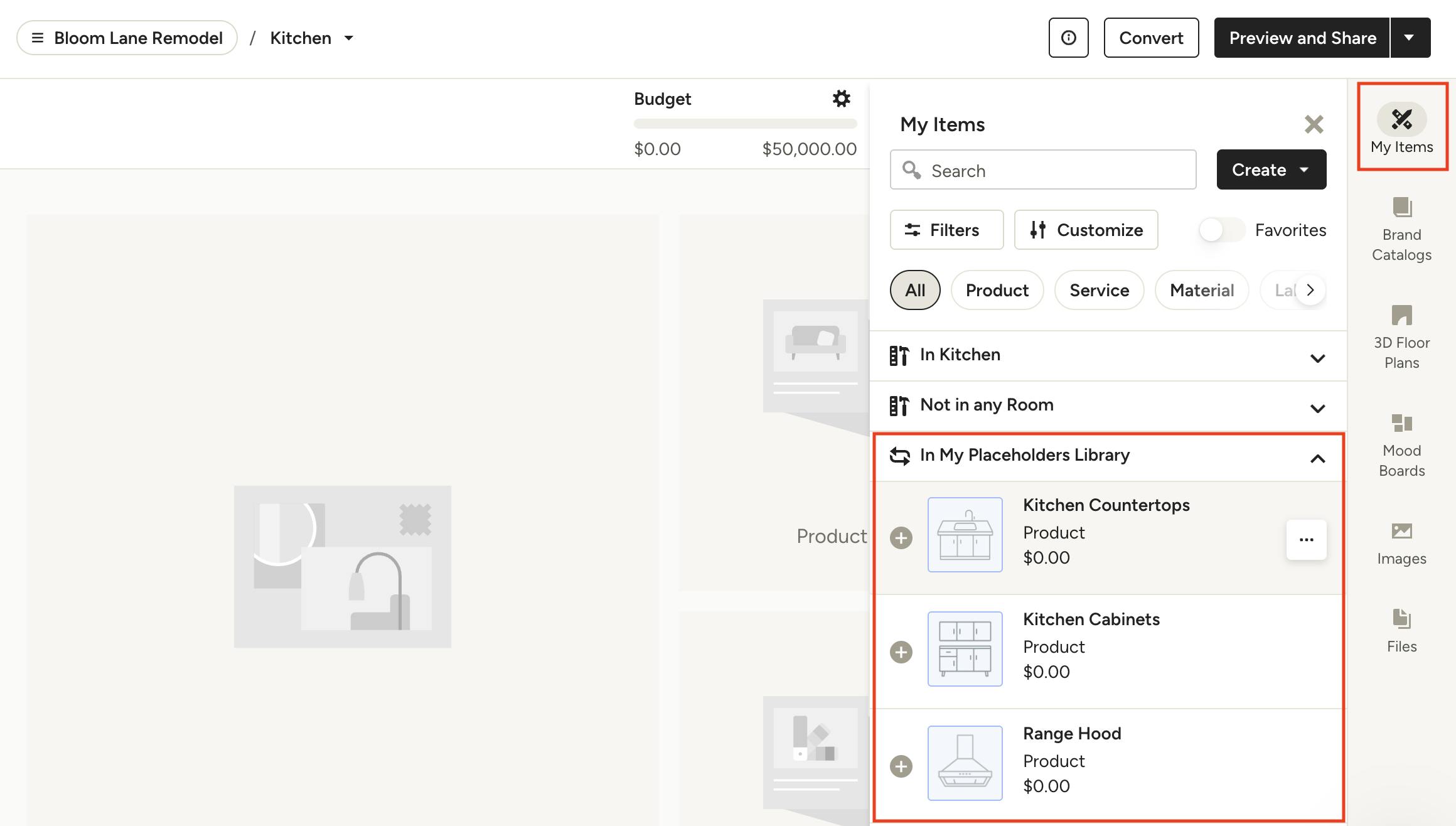
To insert placeholders in your selection boards or tracker, click on My Items in the right panel, then click on a placeholder from the In My Placeholders Library section.
Edit Placeholder Details
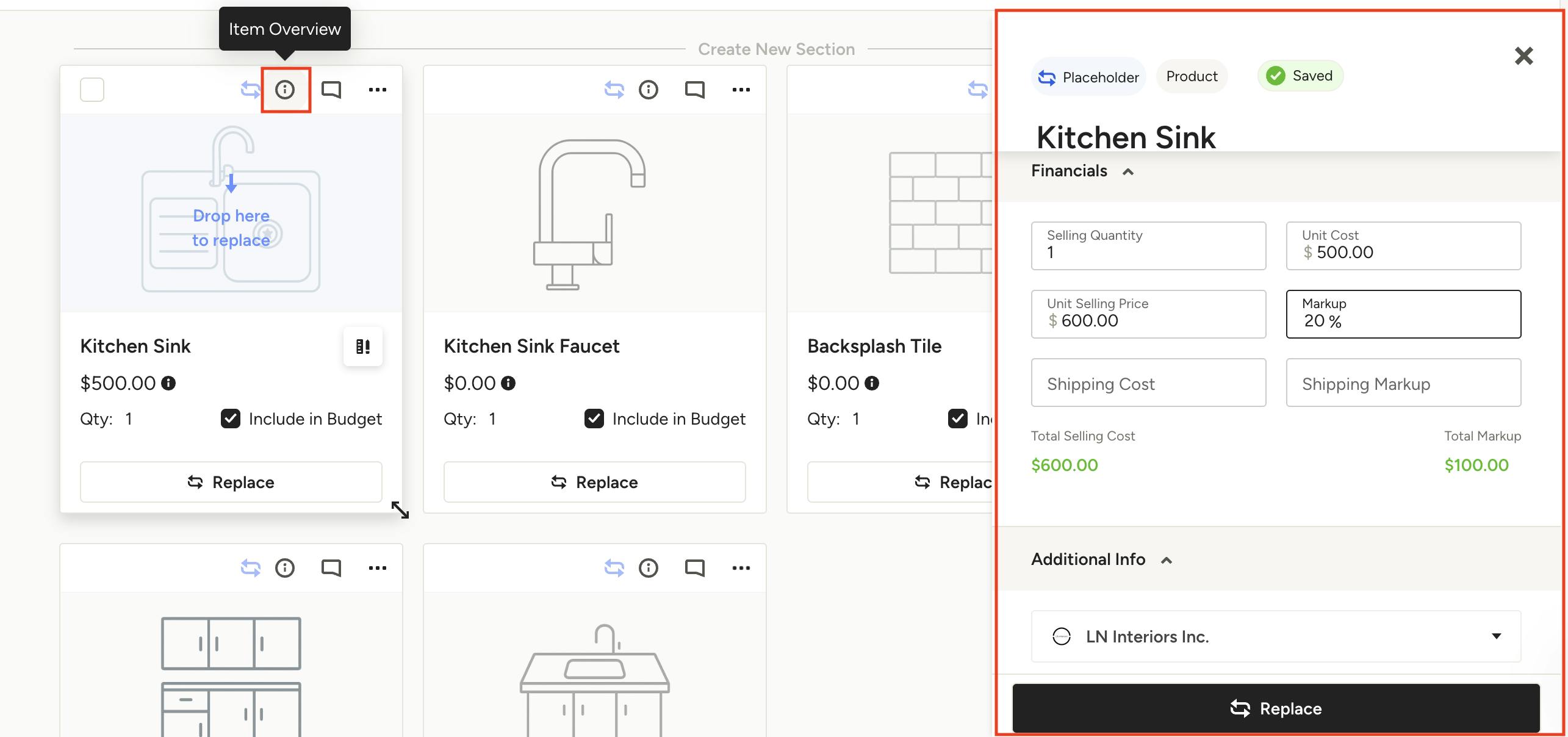
Once added to your selections board, you can edit the placeholder to reflect accurate details for the specific project. To do so, click the (i) at the top of the placeholder card to open the Item Overview on the right. Adjust any necessary details, like cost and markup, that will help give the team and client clear expectations for the future selection, including budget. Details edited here will only reflect on the placeholder for the specific project and will not change the placeholder in your library.
Include Placeholders in Budget
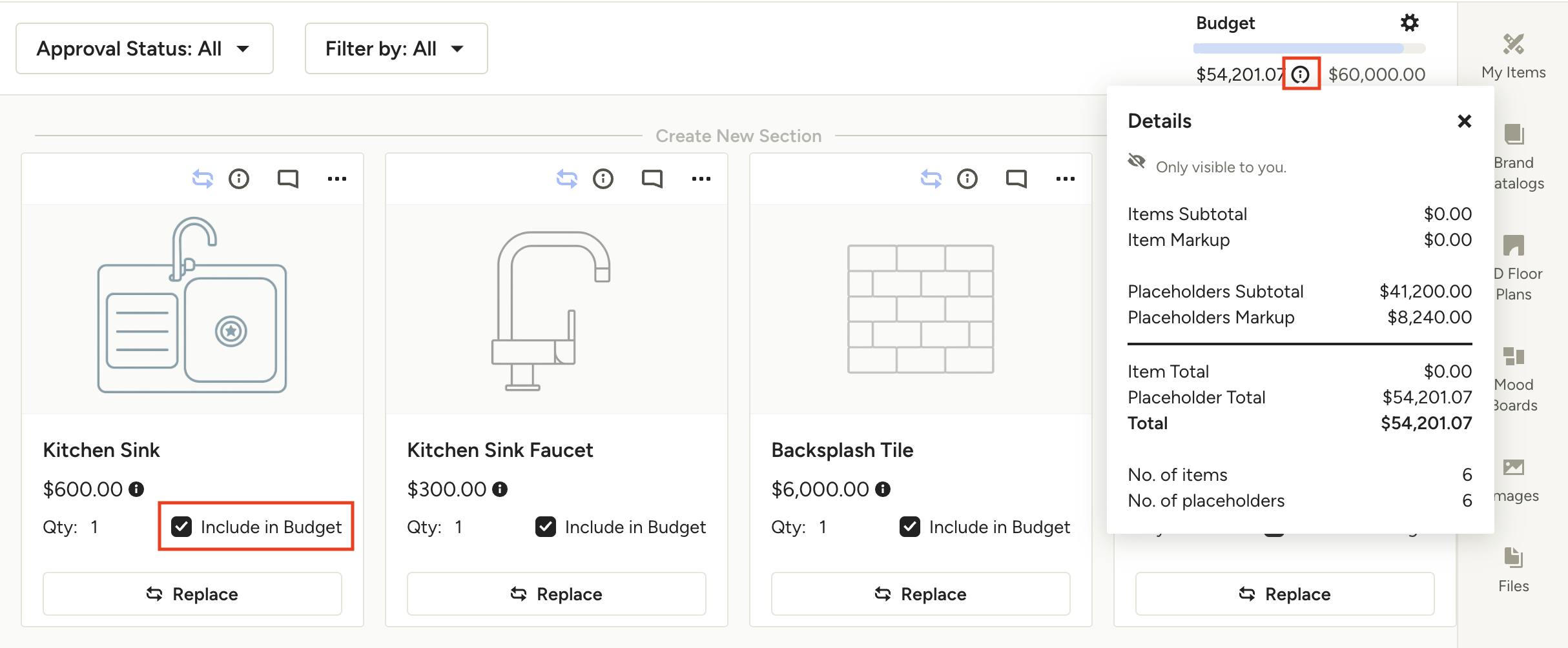
To ensure placeholders are factored into your budget, make sure you select the checkbox next to Include in Budget on the placeholder cards. If you click the (i) under the Budget in the top right of the board, you will see a breakdown of actual item and placeholder subtotals, markup and totals to help you and your team stay on track.
Replace Placeholders with Exact Items
Placeholders can be replaced with real products without losing quantities or budget info. You can replace items on a selections board or tracker, or directly from the Clipper while sourcing items.
Replace on Selections Board
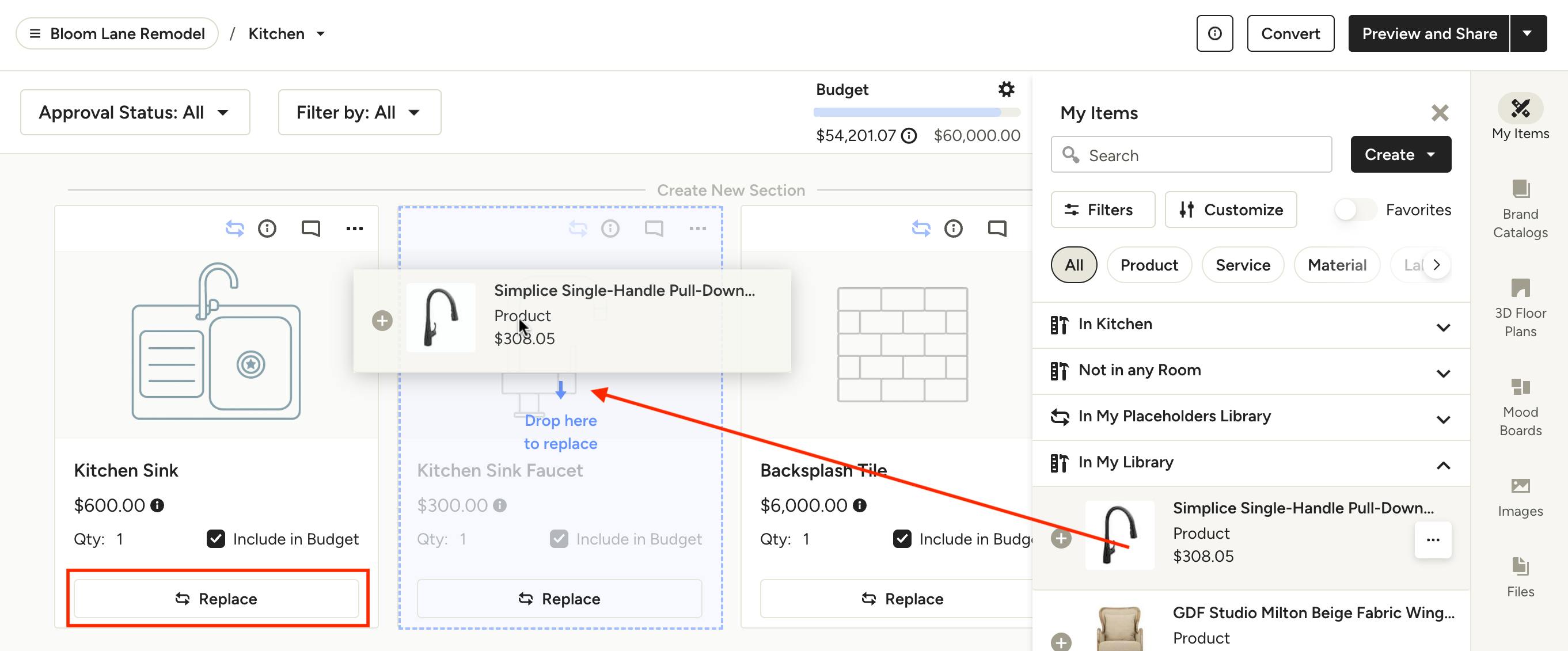
On your board, you can drag and drop a replacement product directly onto the placeholder card, or you can click Replace at the bottom of the card. For both methods, you will be asked to confirm the action.
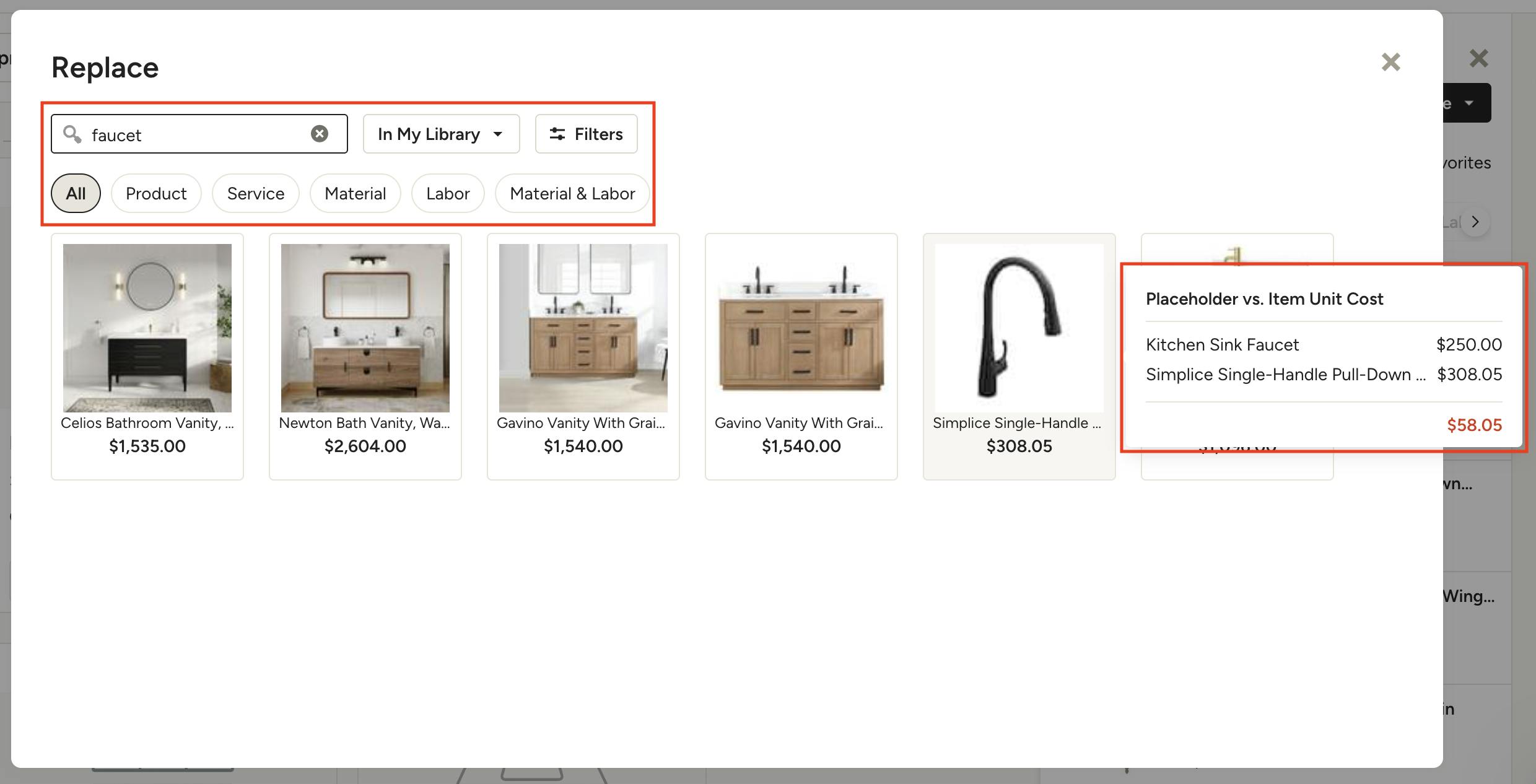
If you click Replace on the placeholder card, or in the Item Overview panel, a Replace modal will appear where you can browse your entire My Items library to select a replacement. Use the search and filters at the top to quickly locate the item you're looking for. Hover over an item to see Placeholder vs. Item Unit Cost comparison. Click an item and confirm to replace the placeholder.
Replace in Selections Tracker
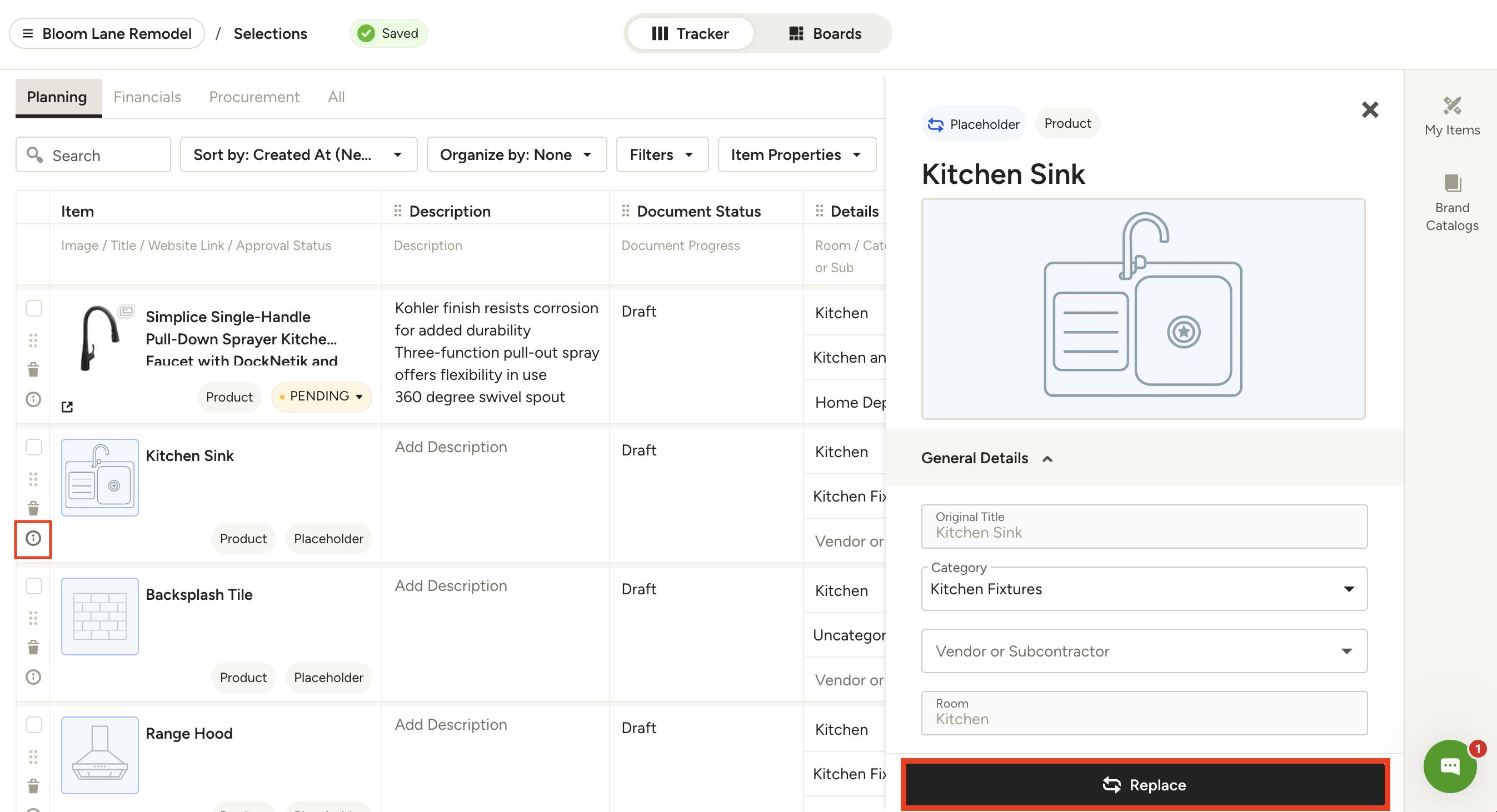
In your tracker, click the (i) to the left of the placeholder you want to replace. This will open the Item Overview on the right where you can click Replace at the bottom.
A replace modal will appear where you can browse your entire My Items library to select a replacement. Use the search and filters at the top to quickly locate the item you're looking for. Hover over an item to see Placeholder vs. Item Unit Cost comparison. Click an item and confirm to replace the placeholder.
Replace via Clipper
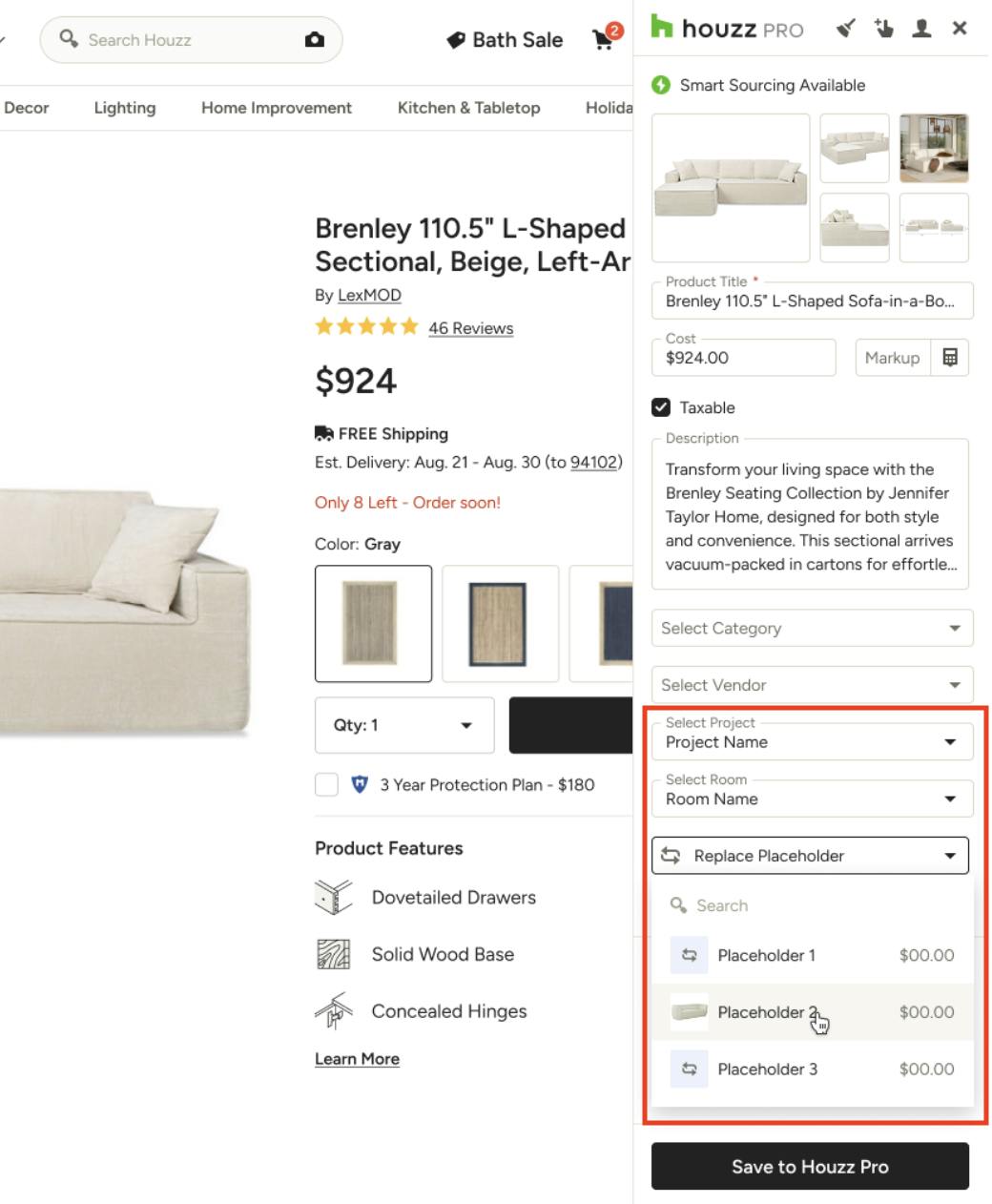
To replace a placeholder while clipping products, you first need to select a project and room, as well as check off "Add to Selections Board". If there are available placeholders in the project and room, a Placeholders dropdown will appear. Select the Placeholder you wish to replace and it will be swapped out once you finish clipping the product.