How to Use Mood Boards on the Mobile App
Mood Boards can be viewed and shared through the Houzz Pro mobile app, allowing you to present your vision to clients using your phone or tablet — no computer needed. If you want to create and edit mood boards, you will need to use the desktop version of Houzz Pro.
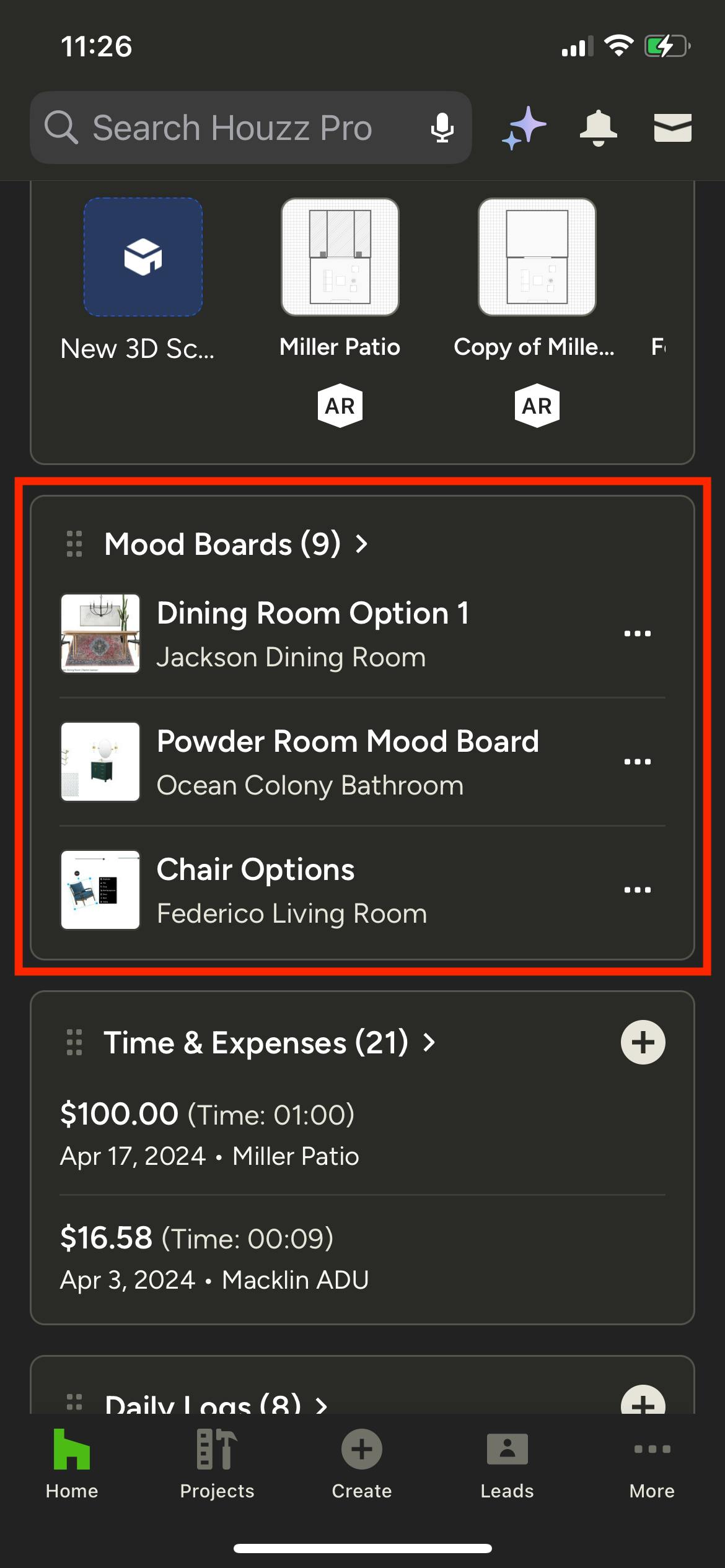
Access and View Mood Boards in the Mobile App
You can access your existing mood boards from the Mood Board section on either the homepage of the app (all mood boards) or a project overview page (project-specific mood boards). You may need to scroll down to find the Mood Board section. From there you can tap on an individual mood board to view it or tap the Mood Board title to see a complete overview.
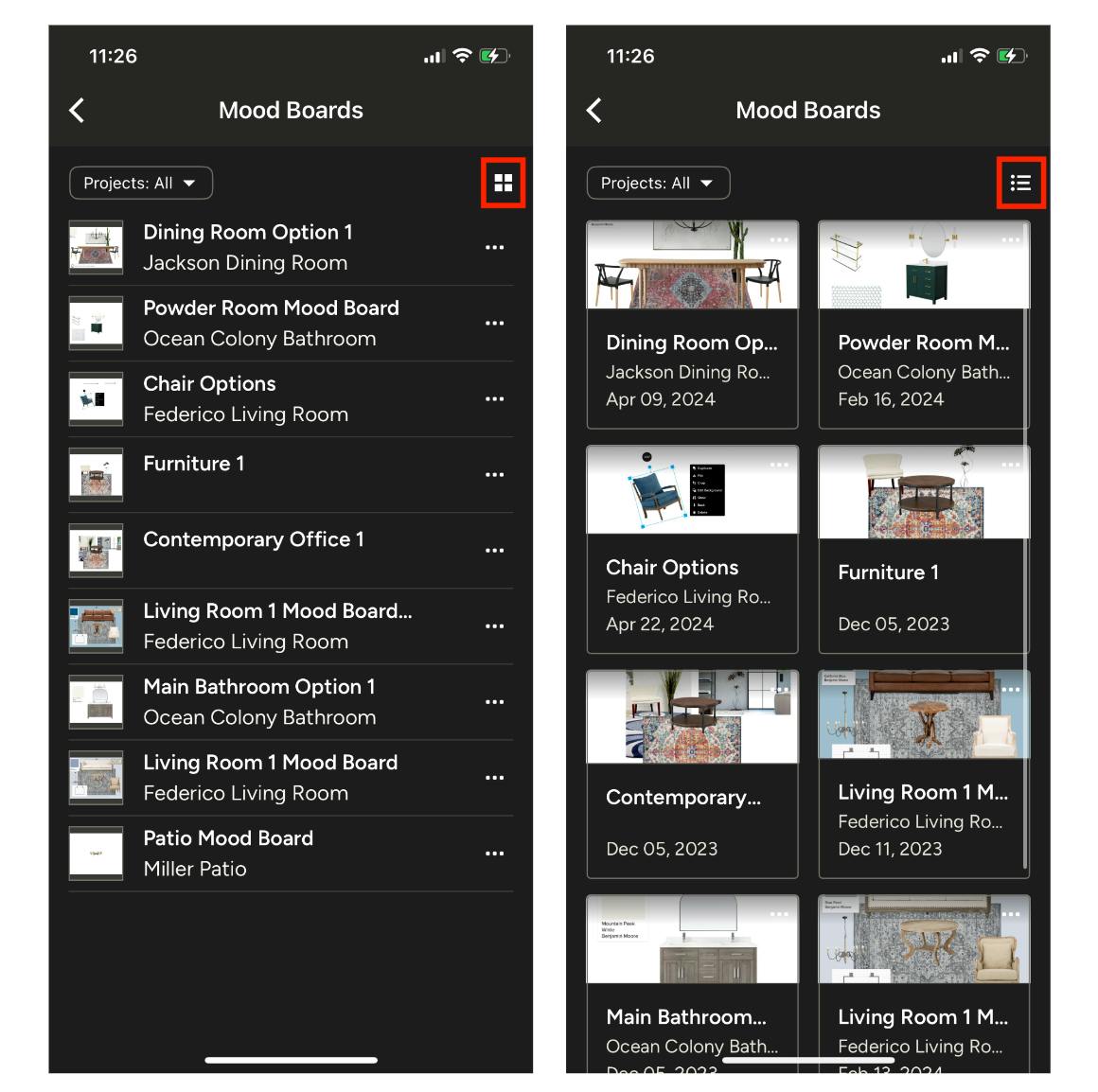
Your Mood Board overview can be displayed in a list view (left) or a grid view (right). Tap the icon in the top right to switch between views.
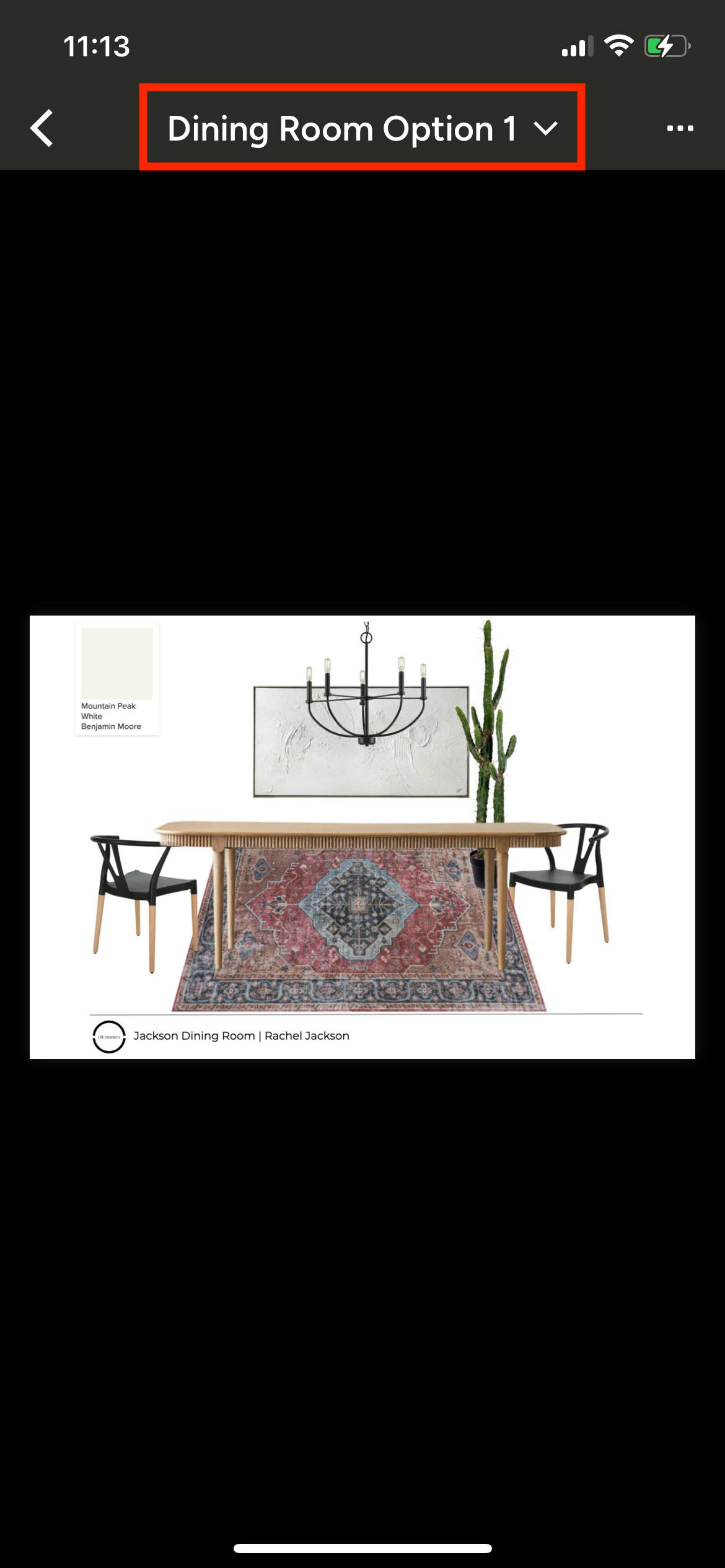
When viewing a mood board, you have the ability to quickly jump to other mood boards within the same project by tapping the title at the top to bring up Mood Boards From This Project, then tapping the one you want to switch to.
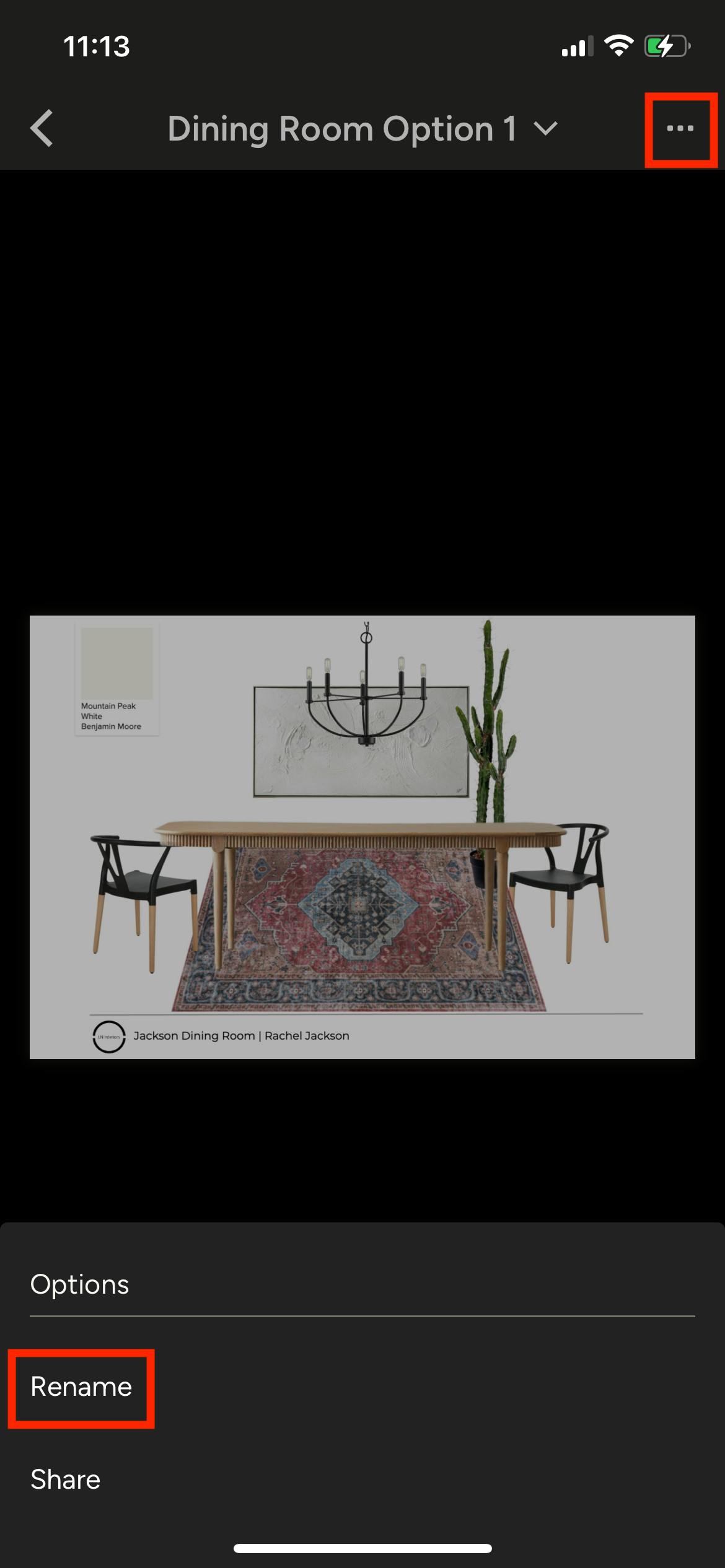
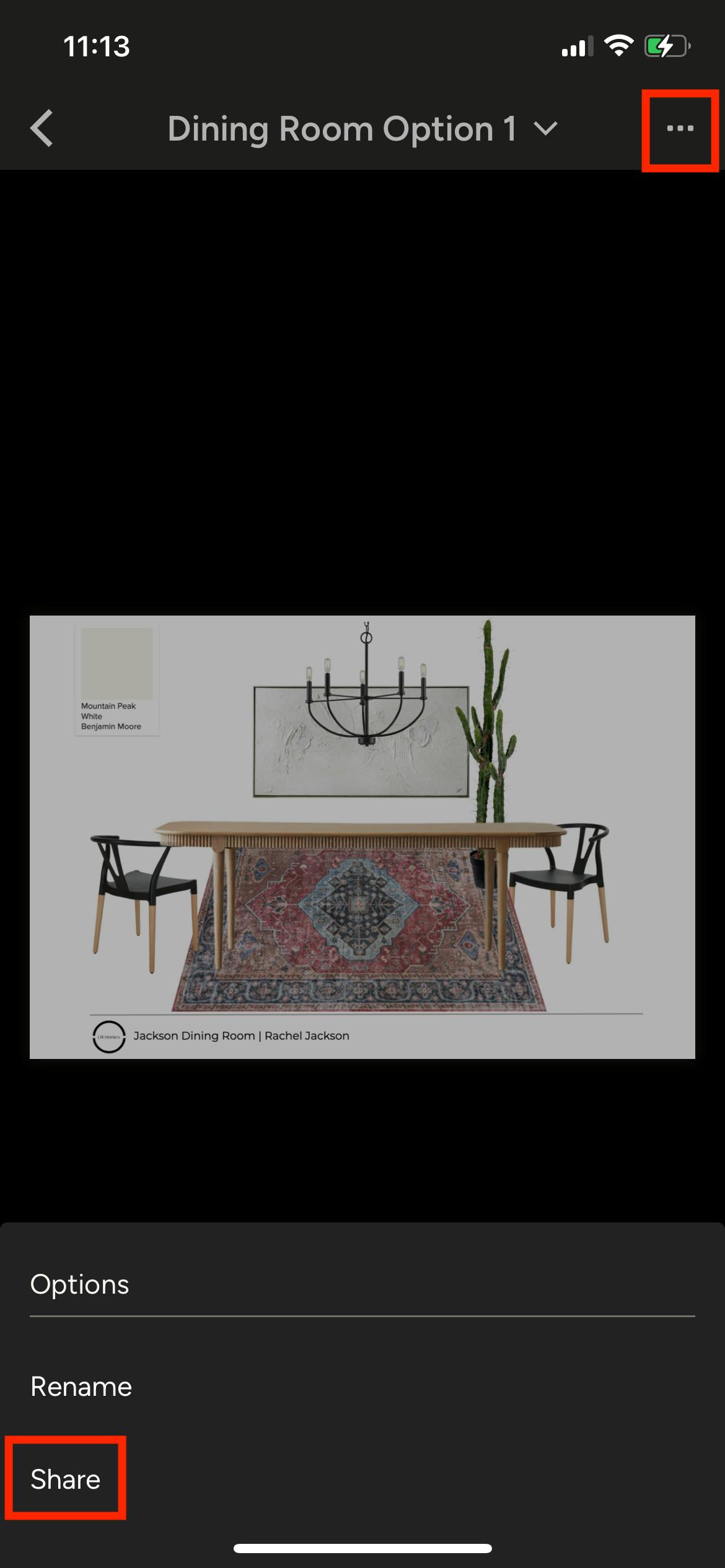
You can also rename a mood board in the app by tapping the Options icon (three dots) and choosing Rename from the menu. Any further edits need to be made in the desktop version.
Share Mood Boards with Clients in the Mobile App
To share a mood board from the app, tap the Options icon (three dots) in the top right of the board and select Share from the menu.
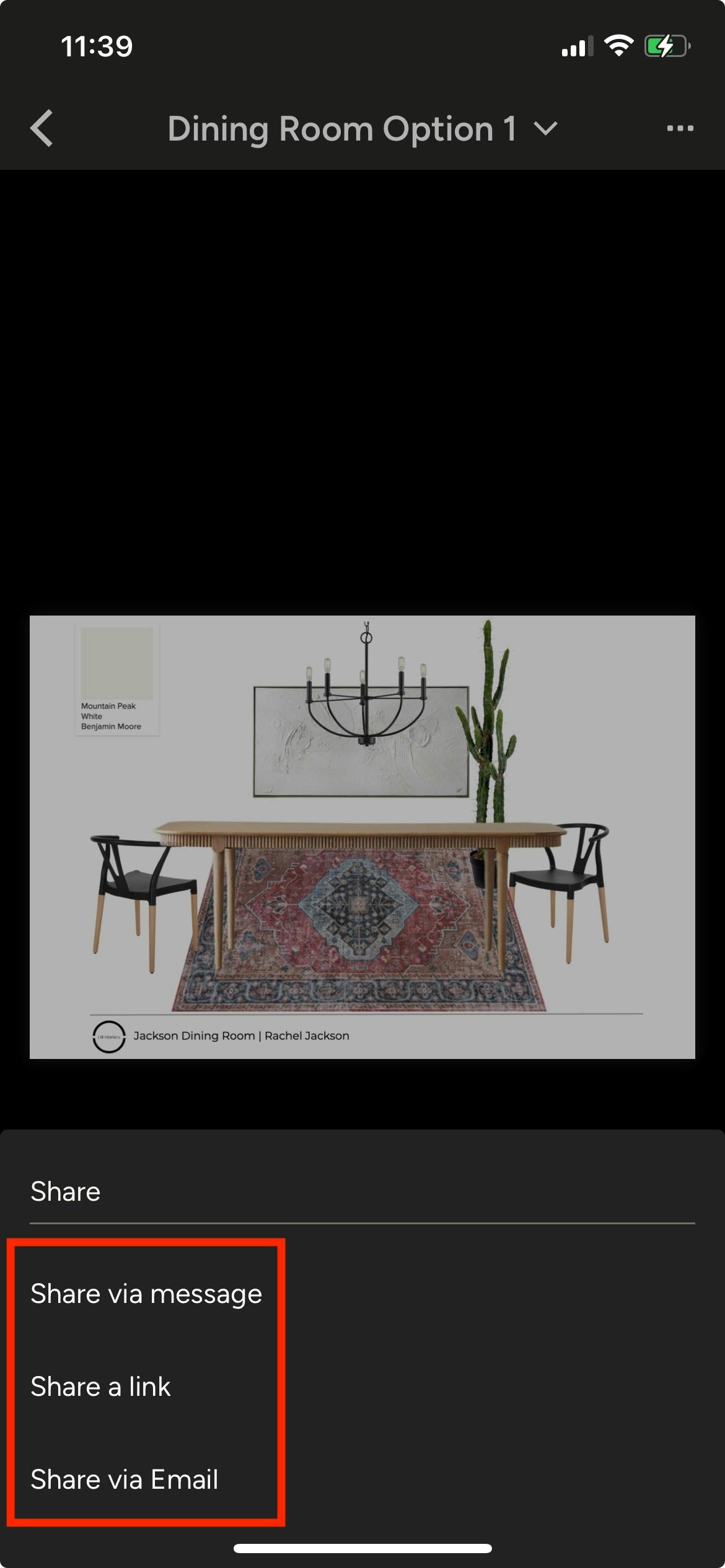
Next, choose the method you want to use to share the mood board: via message, via link, or via email.
Follow the prompts on your phone or tablet for the option you selected, and your recipient will have access to the mood board in no time.