How to Use the Houzz Pro API — Beta
The Houzz Pro API lets you build your own custom integrations between Houzz Pro and the other tools you use to run your business. It's designed for developers or technical users who are comfortable working with APIs. This article covers how to set up access in your Houzz Pro account.
For authentication, available endpoints, scopes, rate limits, and example requests, visit the Houzz Pro Developer Documentation.
Looking for a ready-made integration instead? Houzz Pro offers built-in connections with Mailchimp, Pipedrive, HubSpot and Zoho. See How to Connect Third-Party Apps.
Before You Start
To use the Houzz Pro API, you'll need:
- Access to the API Integrations page in your account settings. If you're a team member, ask your account owner or super admin to grant you access from the Team Permissions page.
- To accept the Houzz API Terms of Use. The first time you open API Management, you'll be asked to accept the terms. Each person who uses API Management needs to accept them individually.
- Experience working with REST APIs.
Get Your API Credentials
To authenticate with the Houzz Pro API, you need to create an API client.
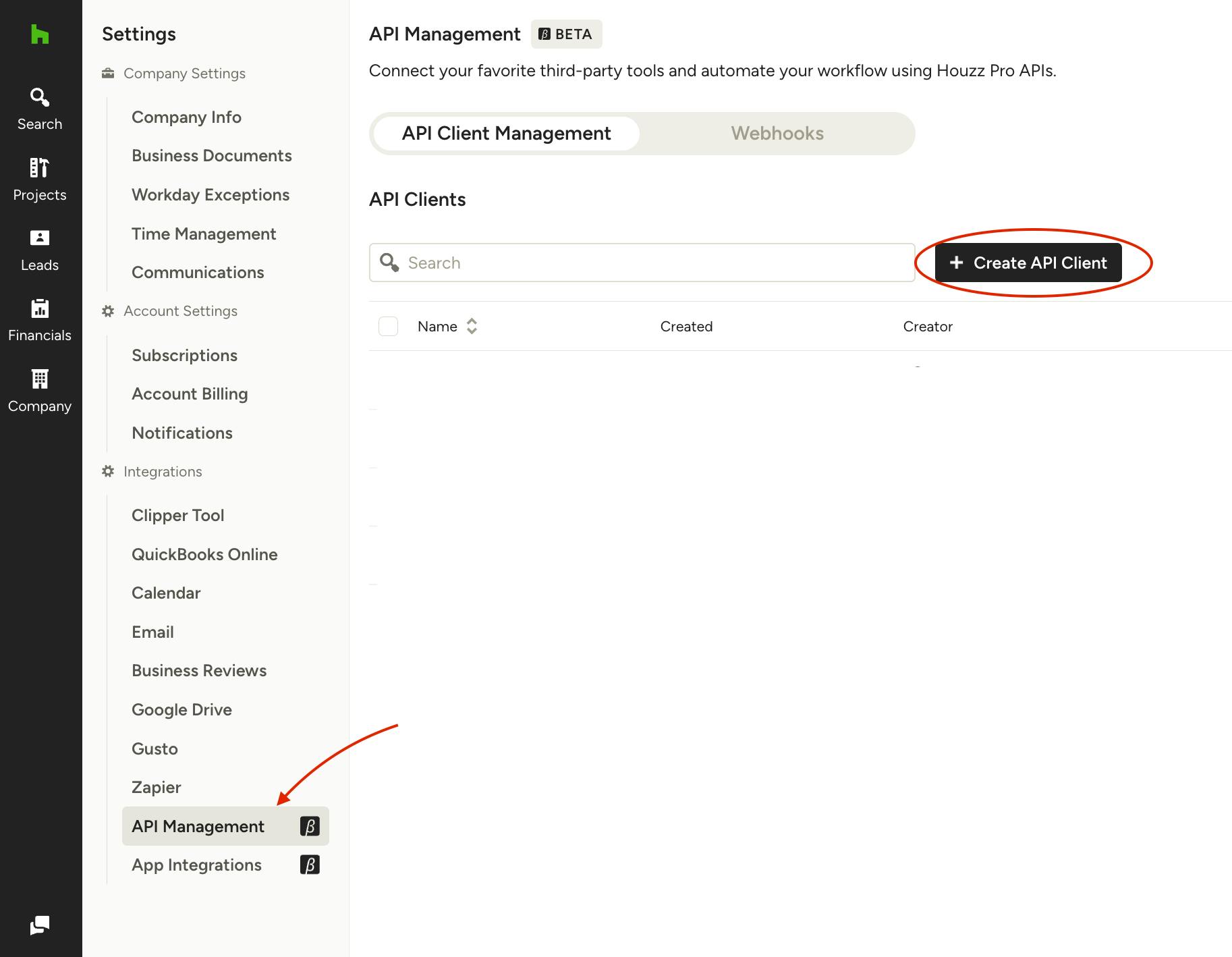
1. Click the Settings icon in the left navigation, then select API Management.
2. Click Create API Client.
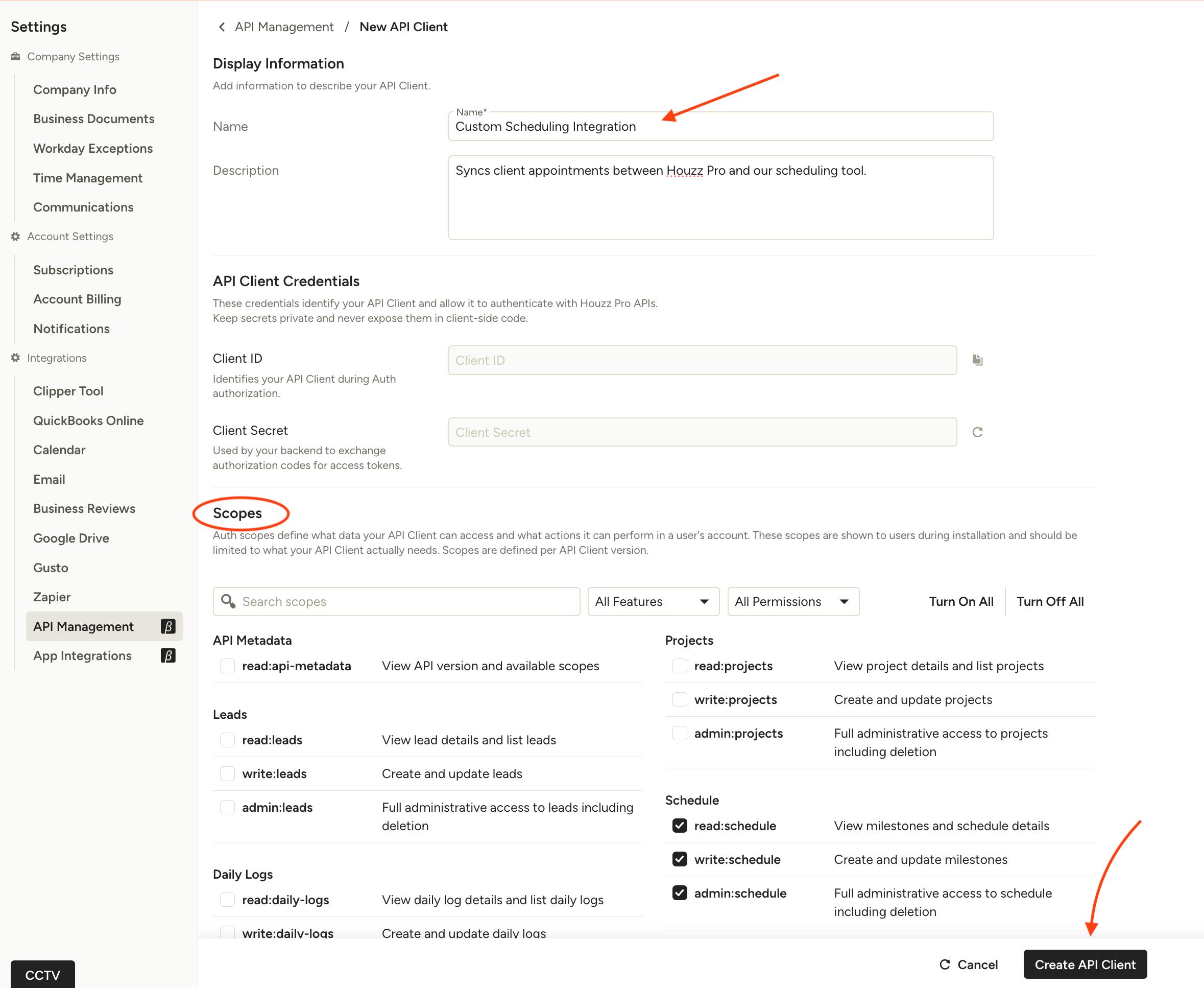
3. Enter a Name and an optional Description for your API client.
4. Select the scopes your integration needs. Scopes control which Houzz Pro data your integration can read or change, so only turn on the ones you'll use.
5. Click Create API Client at the bottom of the page. Your Client ID and Client Secret will appear.
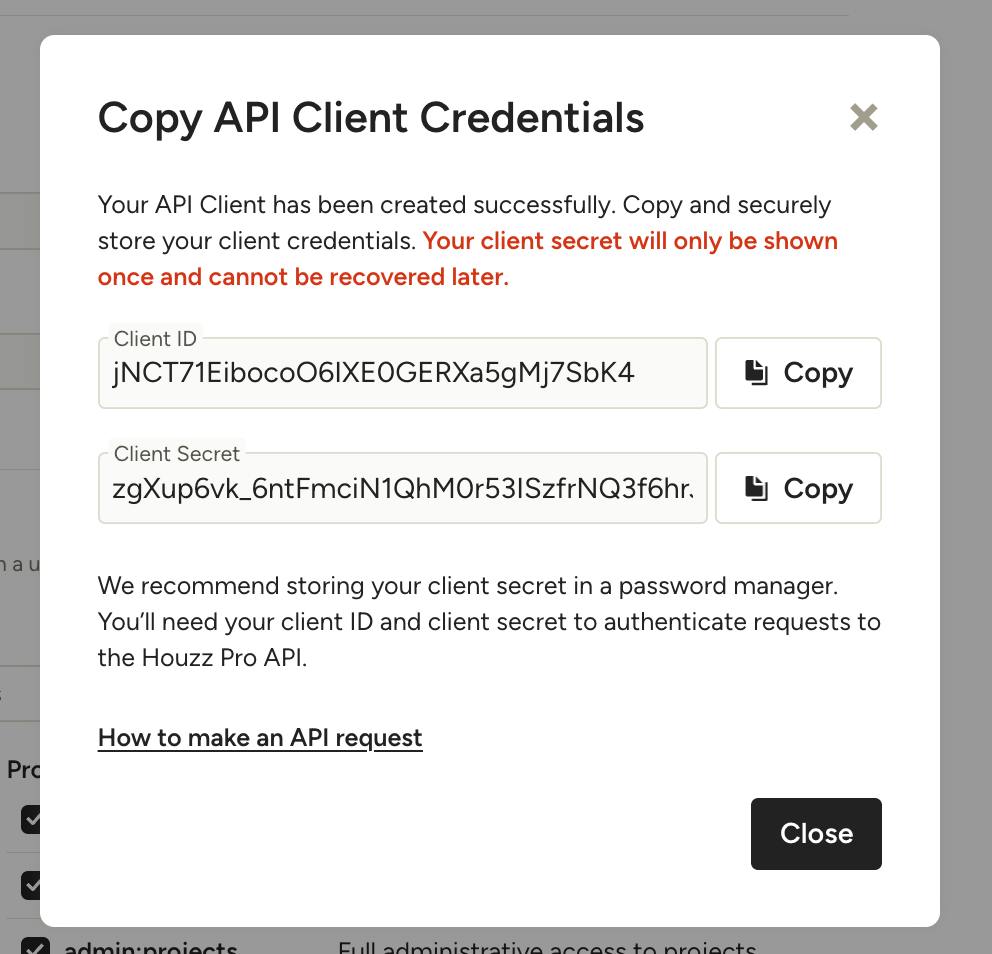
6. Copy your Client ID and Client Secret. You'll use them to authenticate your API requests.
Important: Keep your Client Secret private and treat it like a password. Don't share it or store it anywhere public.
Delete an API Client
If you no longer need an API client, you can delete it.
- Click Edit on the API client you want to delete.
- Scroll to the bottom and click Delete [API client name].
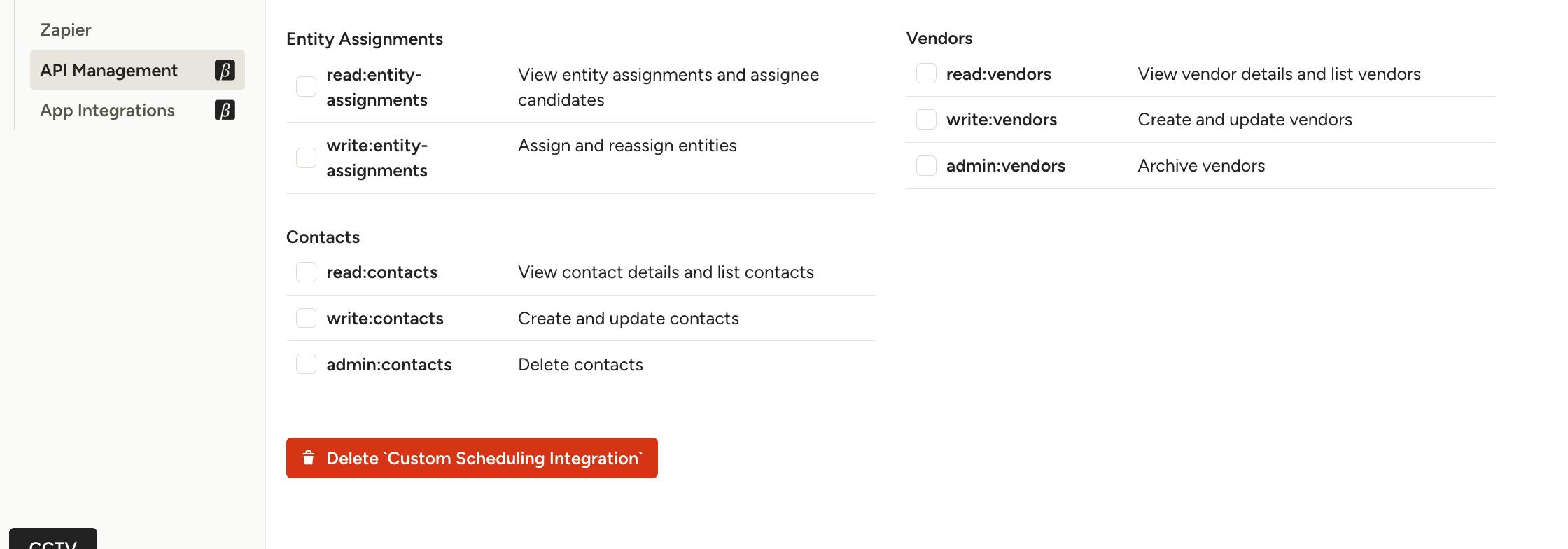
Important: Deleting an API client can't be undone. Any integration still using its Client ID and Client Secret will stop syncing and show failed syncs. If you use the same API client for several integrations on the App Integrations page, all of them will stop working at once. Before you delete it, make sure no active integrations rely on it.