How to Connect Third-Party Apps to Houzz Pro — Beta
If you use other tools to run your business, you can connect them directly to Houzz Pro to automate your workflow. Integrations keep your data in sync across tools and save you hours of re-entering the same information.
Houzz Pro currently integrates with Mailchimp, Pipedrive, HubSpot and Zoho.
Want to build your own integration instead? See How to Use the Houzz Pro API.
Before You Start
To connect a third-party app, you'll need:
- Access to the API Management page in your account settings. If you're a team member, ask your account owner or admin to grant you the API Management permission from the Team Permissions page.
- Your company's agreement to the Houzz API Terms of Use. The first time you open API Management, you'll be asked to accept the terms on behalf of your company. Once they're accepted, anyone on your team with access can create API clients.
- Experience working with REST APIs.
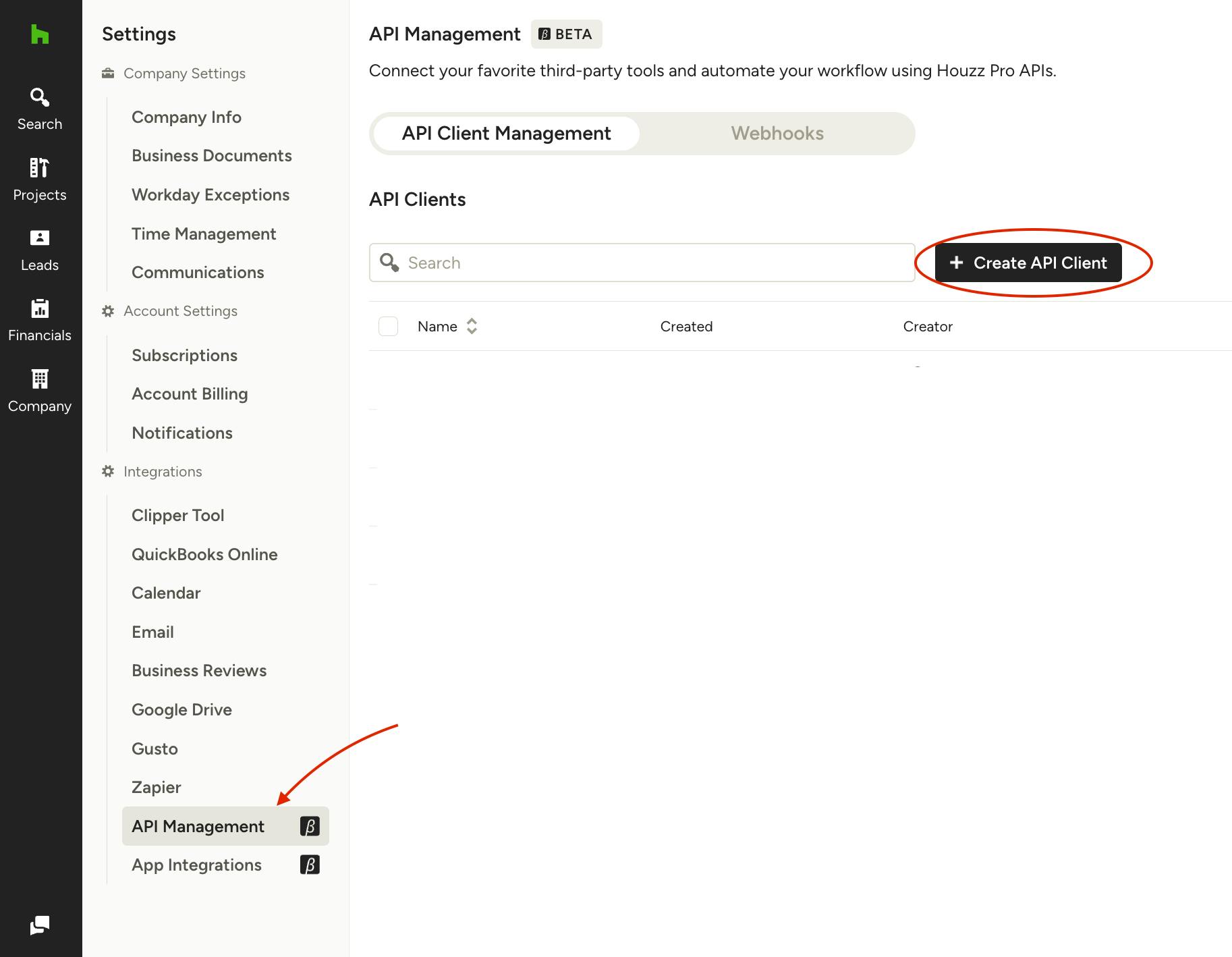
Create an API Client
Before you connect an integration, you need to create an API client. You can reuse the same API client for every integration on the App Integrations page.
1. Click the Settings icon in the left navigation, then select API Management.
2. Click Create API Client.
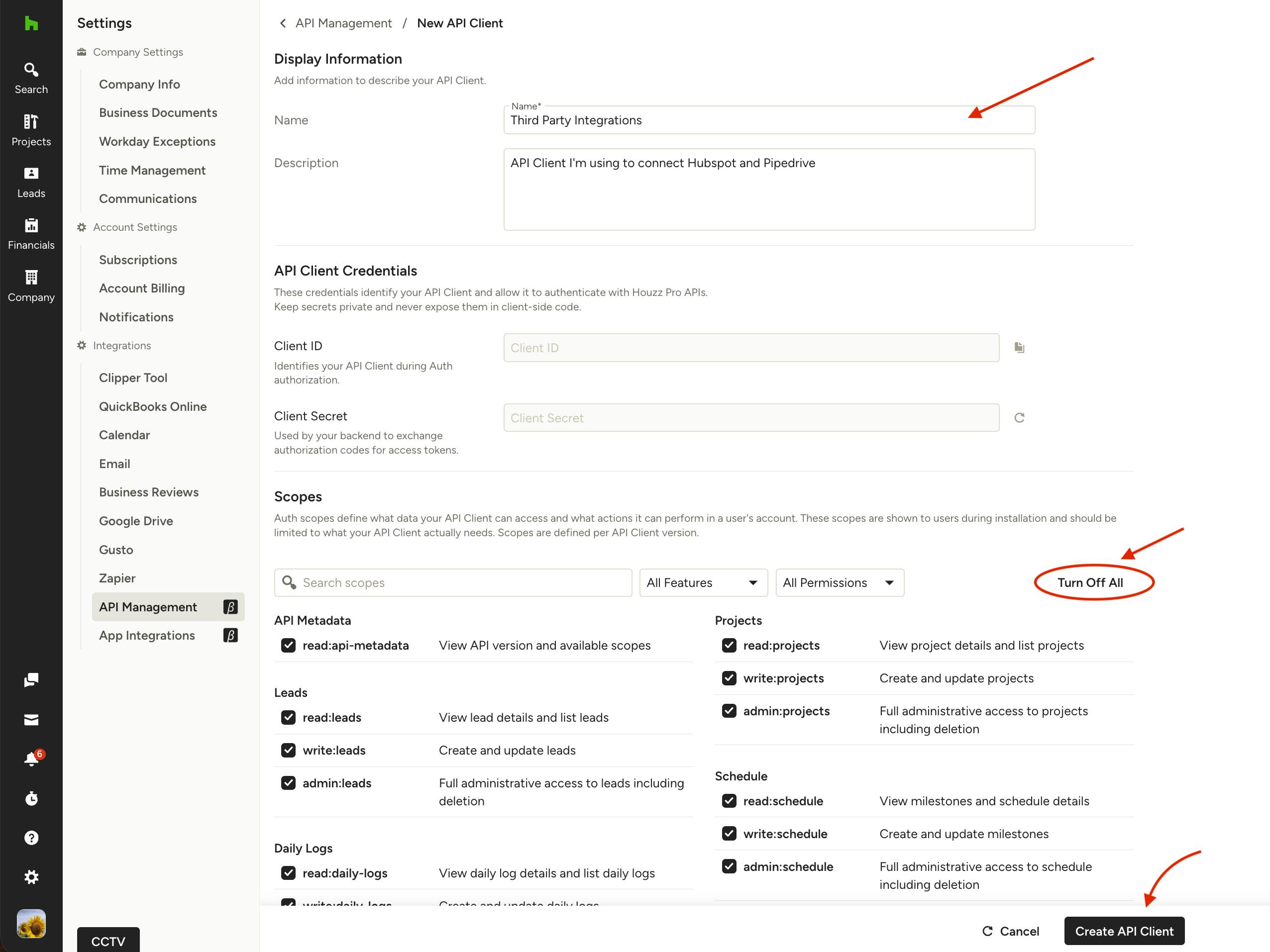
3. Enter a Name and an optional Description. For example, you could name it "Third-Party Integrations" so it's easy to recognise later.
4. Select your scopes. Scopes control which Houzz Pro data your integrations can access.
Click Turn on All to select every scope at once, so your integrations have the access they need to sync.
5. Click Create API Client at the bottom of the page. Your Client ID and Client Secret will appear.
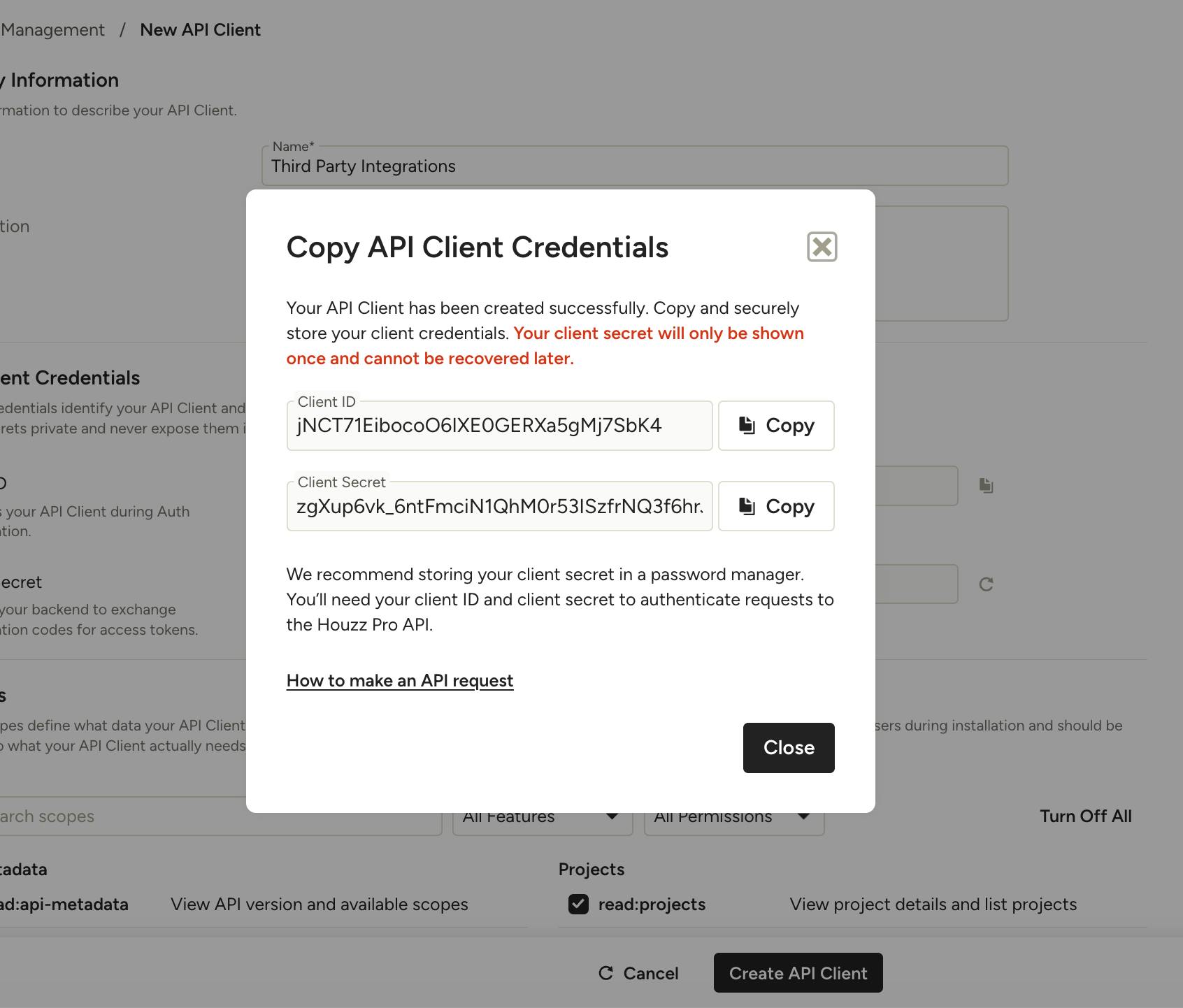
6. Copy your Client ID and Client Secret. You'll use them in the next step.
Important: Keep your Client Secret private and treat it like a password. Don't share it or store it anywhere public.
Tip: If you want to give an integration different access than your others, create a separate API client for it with only the scopes it needs.
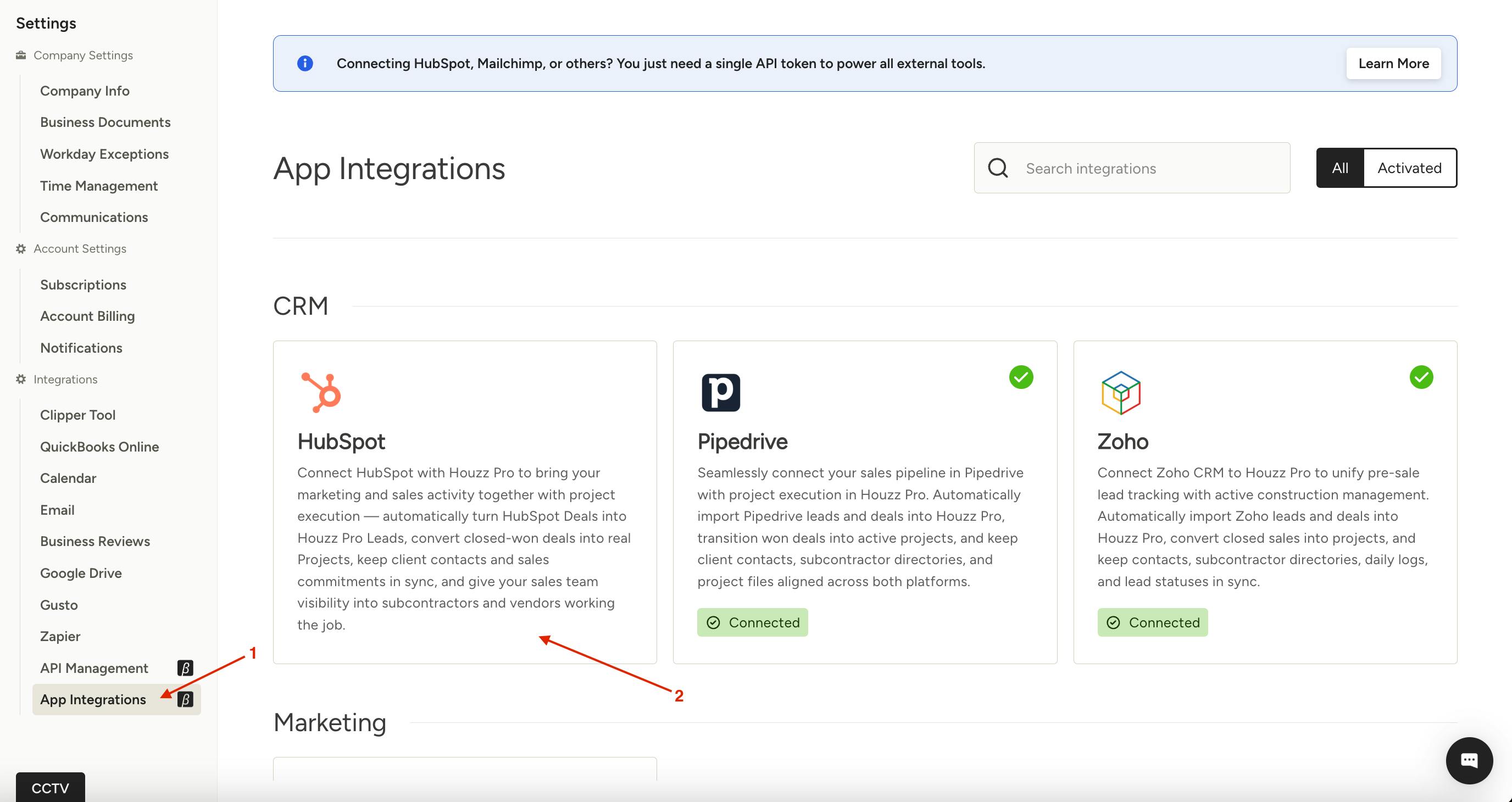
Connect an Integration
1. Click the Settings icon in the left navigation, then select App Integrations.
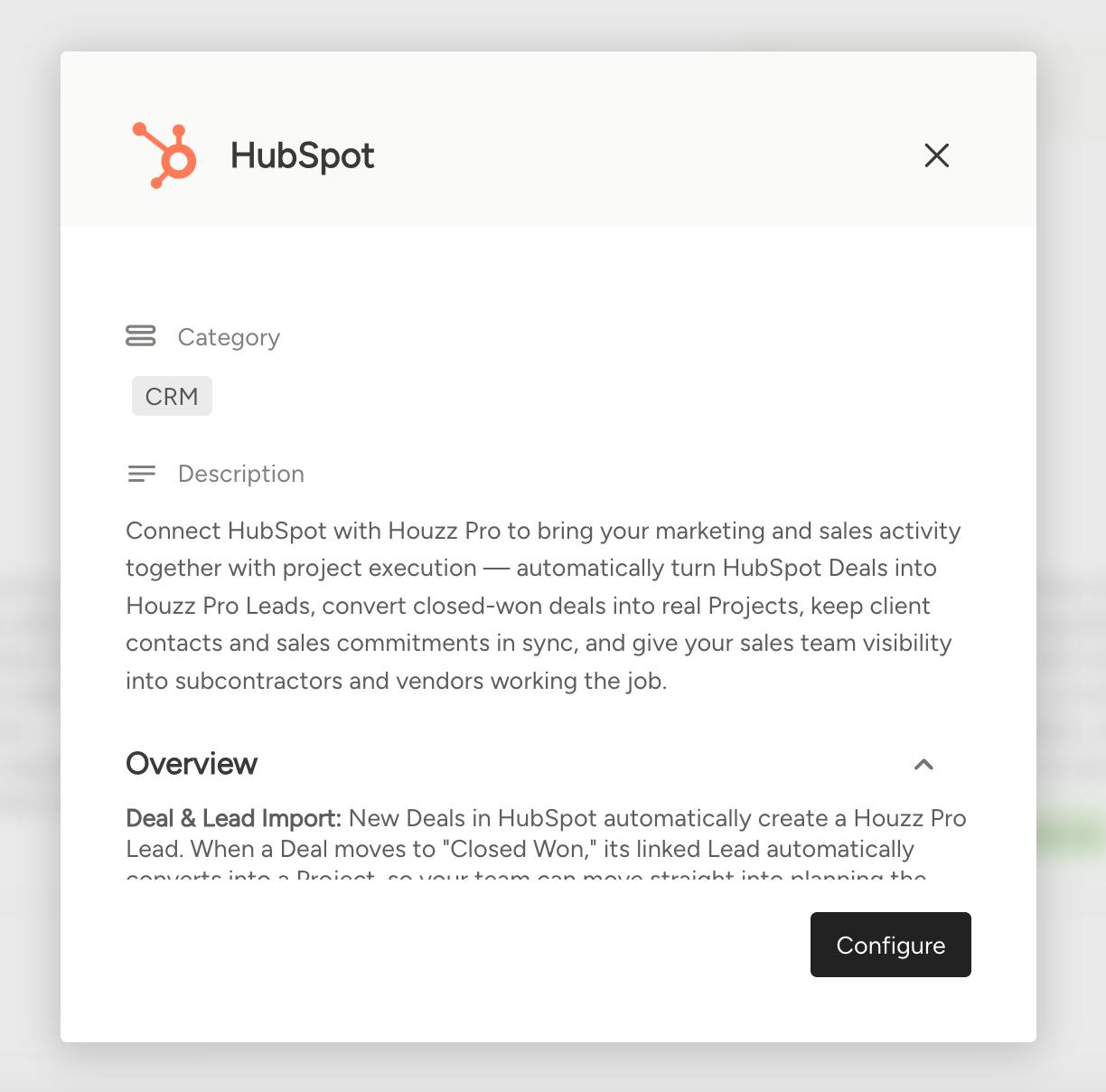
2. Click the integration you want to connect, then click Configure.
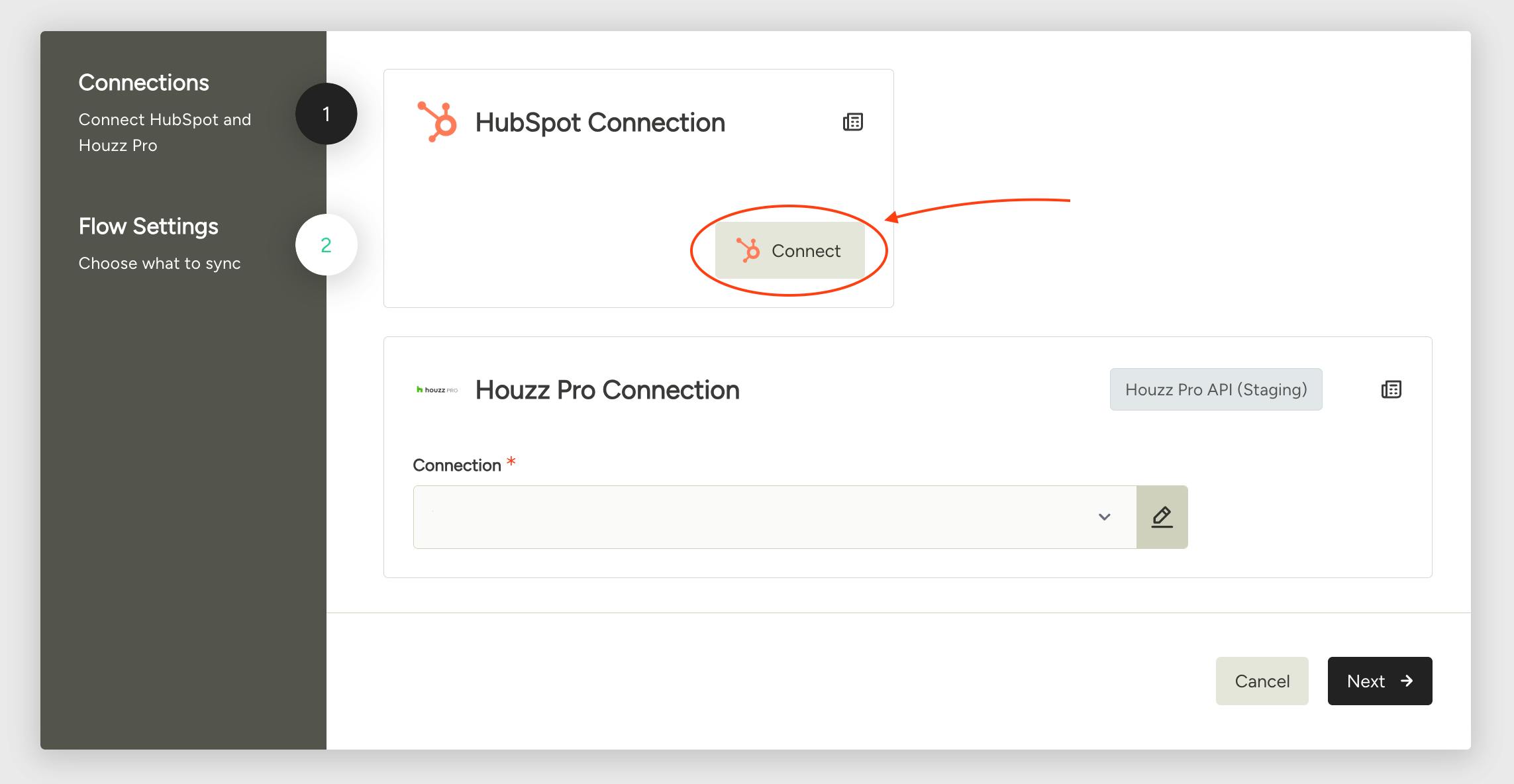
3. Under [App] Connection (in our example under Hubspot Connection) click Connect. You'll be taken to your account for that app. Sign in if prompted, then authorize Houzz Pro to connect. When you see Authorization completed successfully!, close that page and return to Houzz Pro.
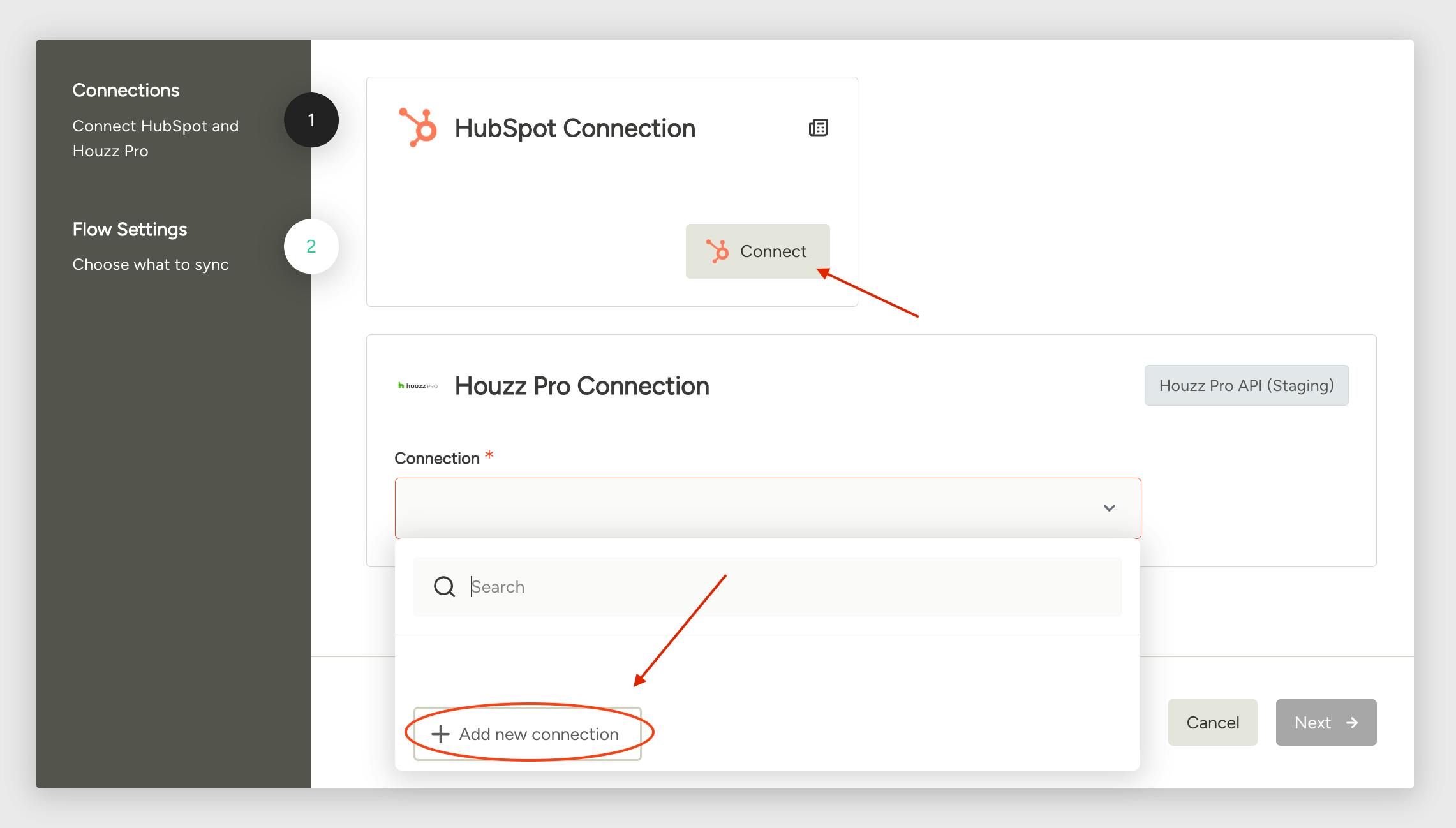
4. Under Houzz Pro Connection, open the Connection dropdown and click + Add new connection.
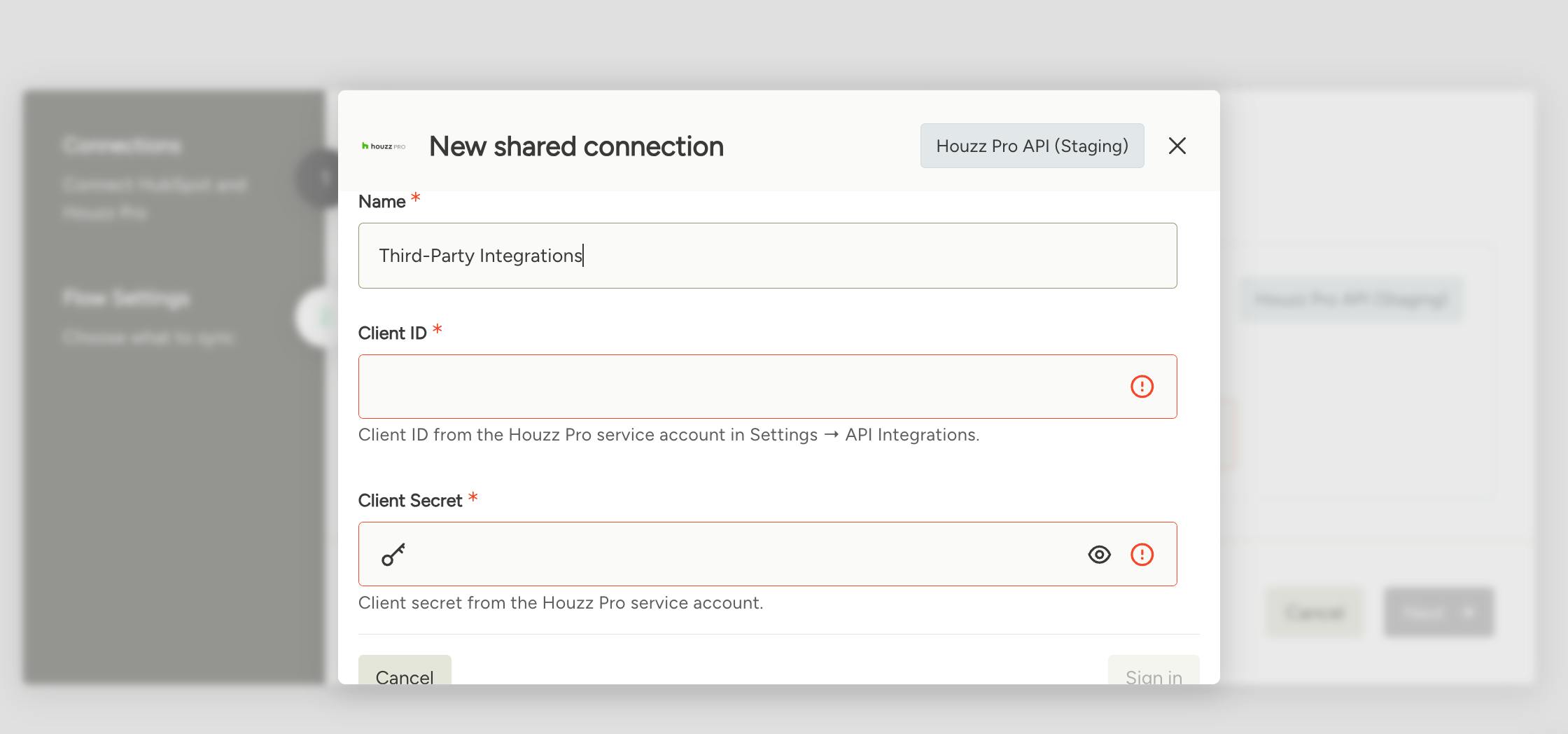
5. In the window that appears, enter a Name, your Client ID, and your Client Secret, then click Sign in. Use the same name you gave your API client, such as "Third-Party Integrations," so it's easy to recognize. If you haven't created an API client yet, follow the steps in Create an API Client above.
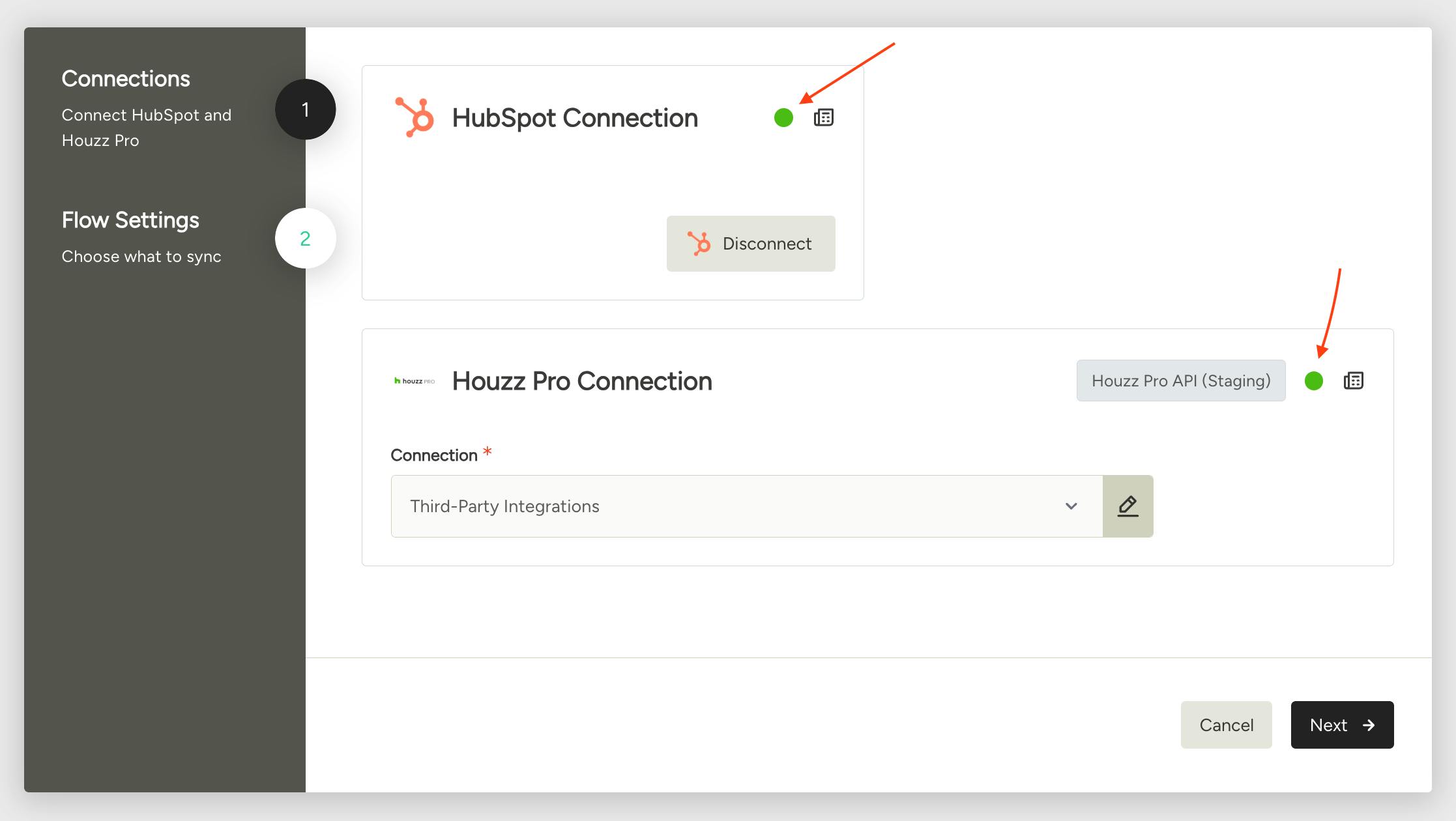
6. A green dot next to each connection means both connected successfully. Click Next to choose what you want to sync.
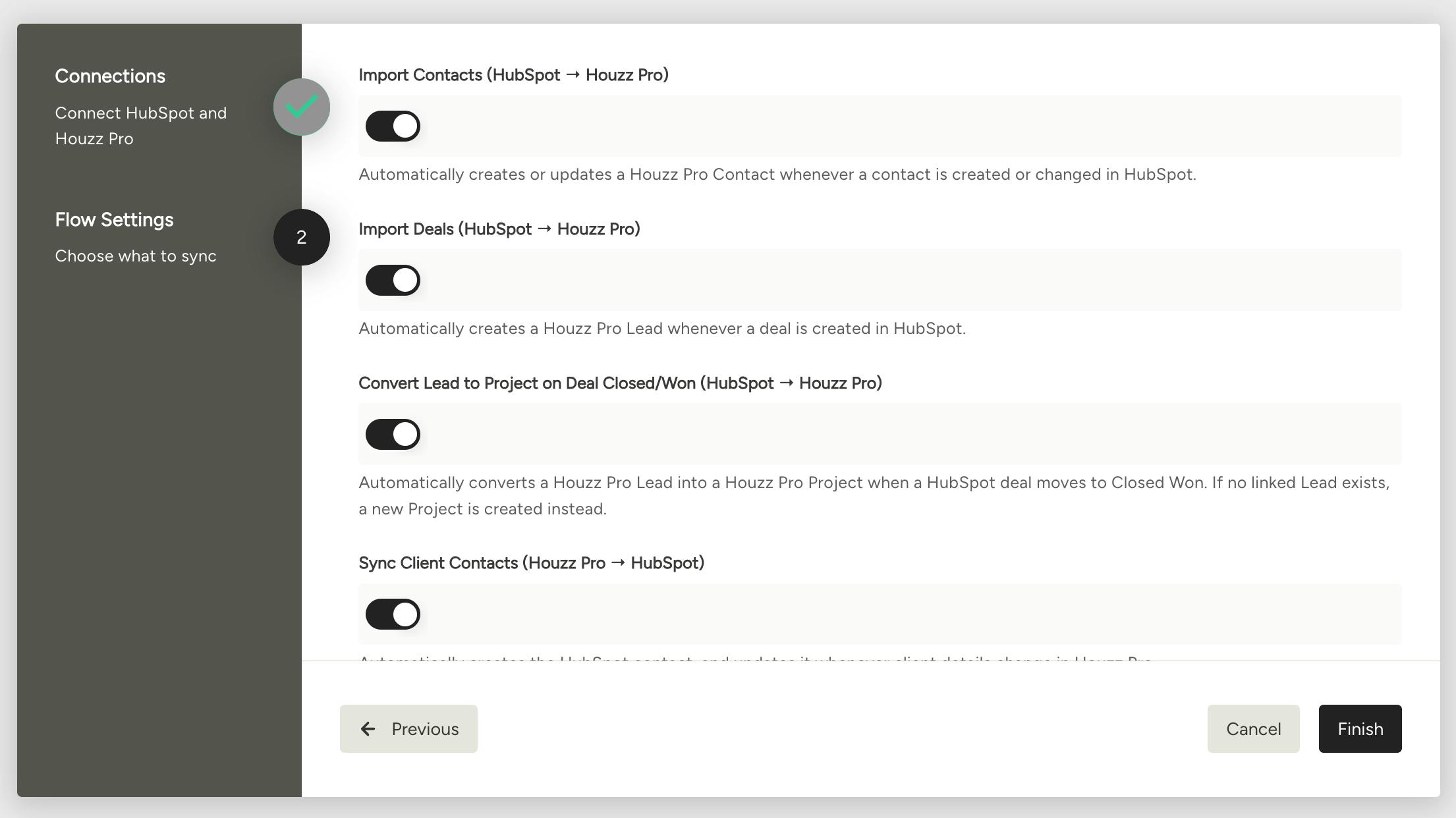
7. Choose what you want to sync. Each toggle controls one sync flow, and its description explains what it does. Turn on the flows you want to use and turn off the ones you don't need, then click Finish.
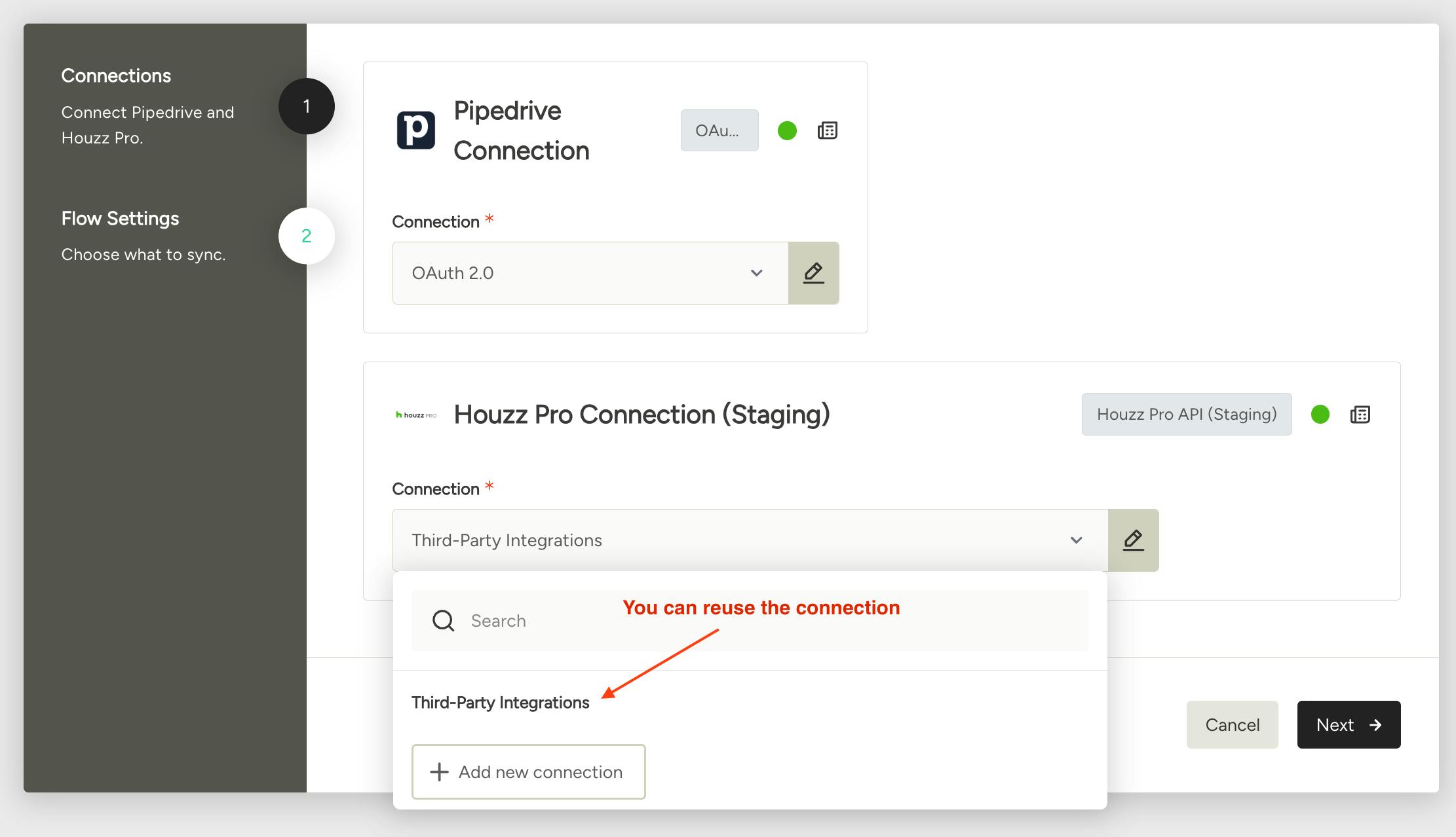
Pro tip: When you set up your next integration, you don't need to add a new Houzz Pro connection.