How to Use Custom Fields in Contracts
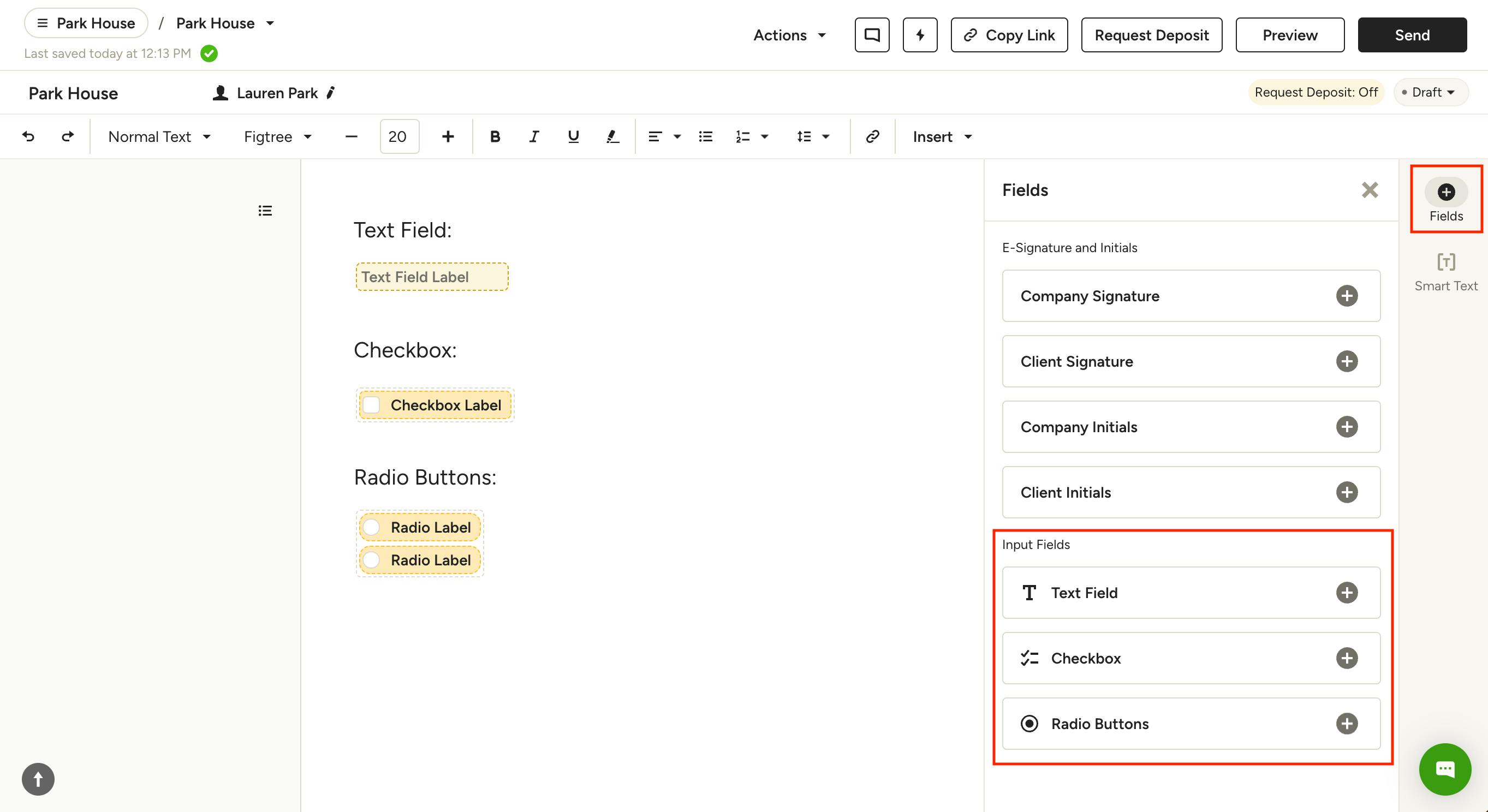
Custom fields let you add input fields to a contract so your clients can enter information, make selections, and confirm details directly in the document. You can add text fields, checkboxes, and radio buttons, and set whether each field is required, optional, or read only for the recipient.
To add a custom field in a contract, follow these steps:
- Open a contract.
- In the right toolbar, click Fields.
- Click in the contract exactly where you want the field to appear — you can reposition the custom field later.
- Select the field type you want to add: Text, Checkbox, or Radio Button.
- Configure the field's settings.
Once a custom field is inserted, you can drag and drop it to a new location if needed.
See below for more on each field type and their specific settings.
Text Field
Use a text field when you need your client to type in information, such as a name, an address, a date, or a reference number.
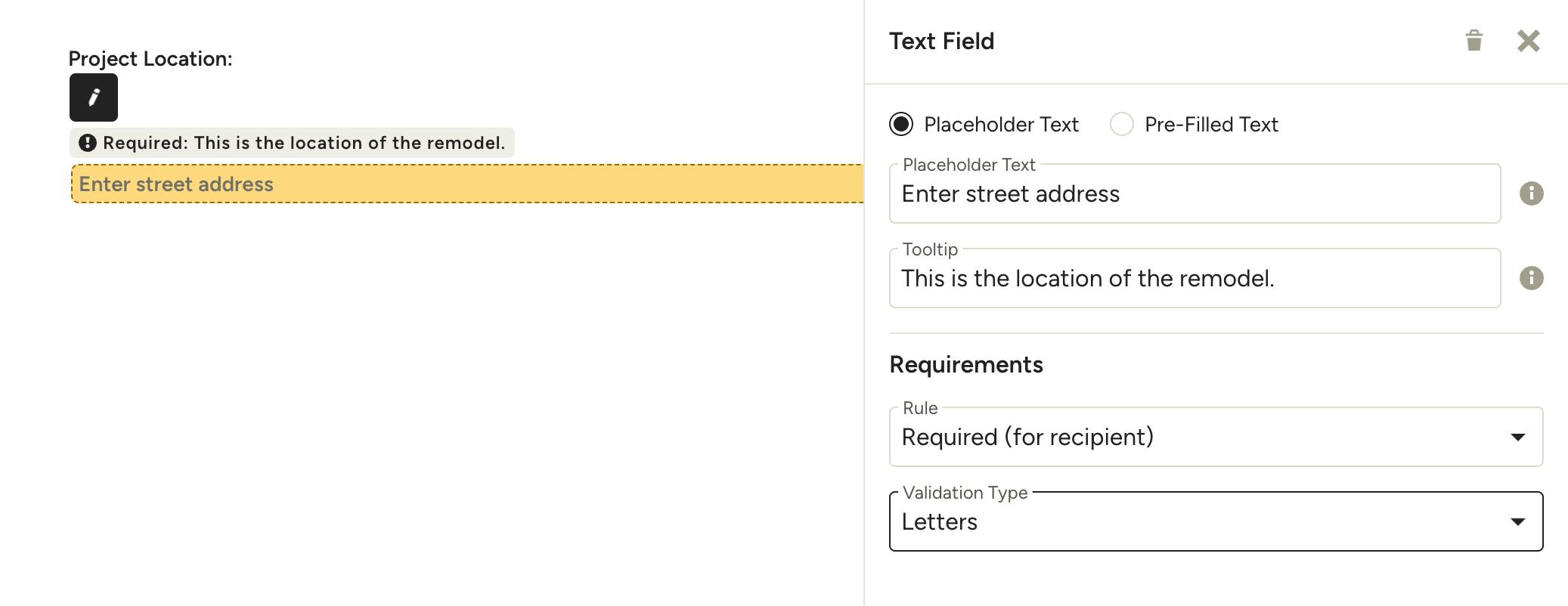
You can adjust the following settings on a custom text field:
Placeholder or Pre-filled Text: Choose one of the following:
- Placeholder Text: Temporary text that appears inside the box before the user types (e.g. 'Enter street address...')
- Pre-filled Text: Pre-fills text for the recipient, which they can still edit if needed.
Tooltip: An explanation on what the recipient should enter here. This will appear when the user hovers over the text field to give them more context about the field.
Requirements: Choose one of the following:
- Required: The recipient must complete the field.
- Optional: The recipient can leave the field blank.
- Read Only: The recipient can see the field but cannot edit it.
Validation: Limit what the recipient can enter. Options are:
- None
- Date
- Numbers
- Letters
Resizing
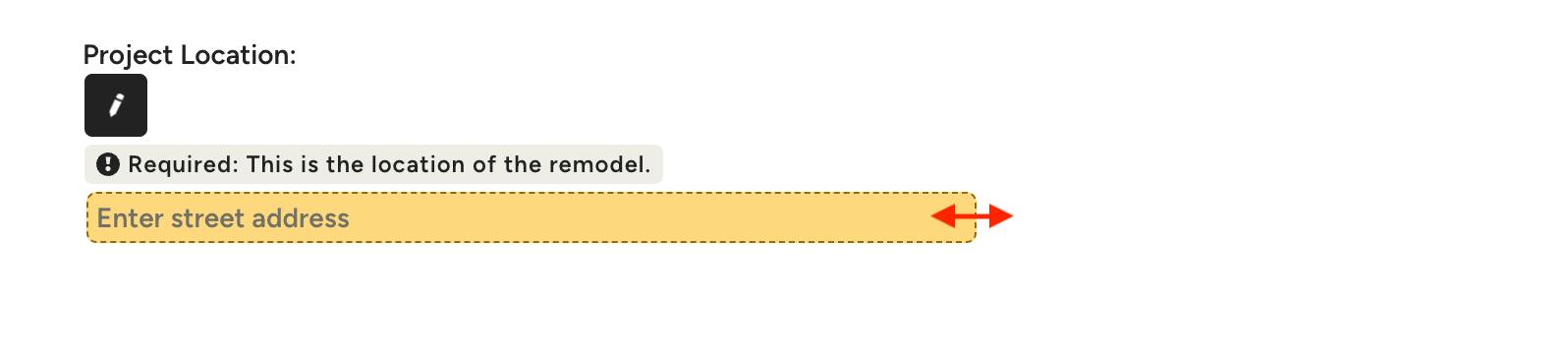
Once the custom text field is created, you can click and drag the right edge of the field to resize it to fit the expected answer.
Checkbox
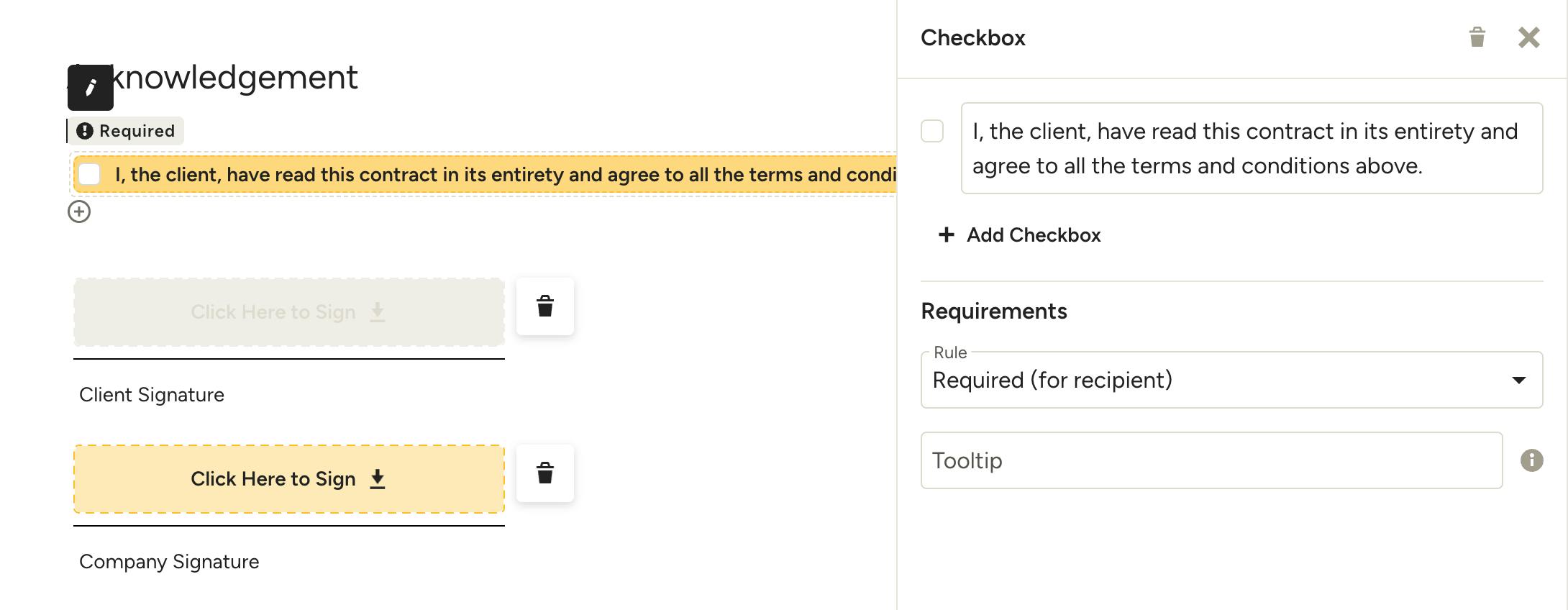
You can easily add a checkbox, or create an entire checklist, in a contract. This field is perfect for having your client, vendor or subcontractor acknowledge specific terms within the contract, or for choosing add-ons. Use checkboxes when the recipient needs to select one or more options.
Checkboxes use the following fields:
Labels: Add one or more checkboxes, each with its own label.
Requirements: Choose one of the following:
- Required: The recipient must complete the field.
- Optional: The recipient can leave the field blank.
- Read Only: The recipient can see the field but cannot edit it.
Tooltip: Add a tooltip to give the recipient more context about the field.
Radio Buttons
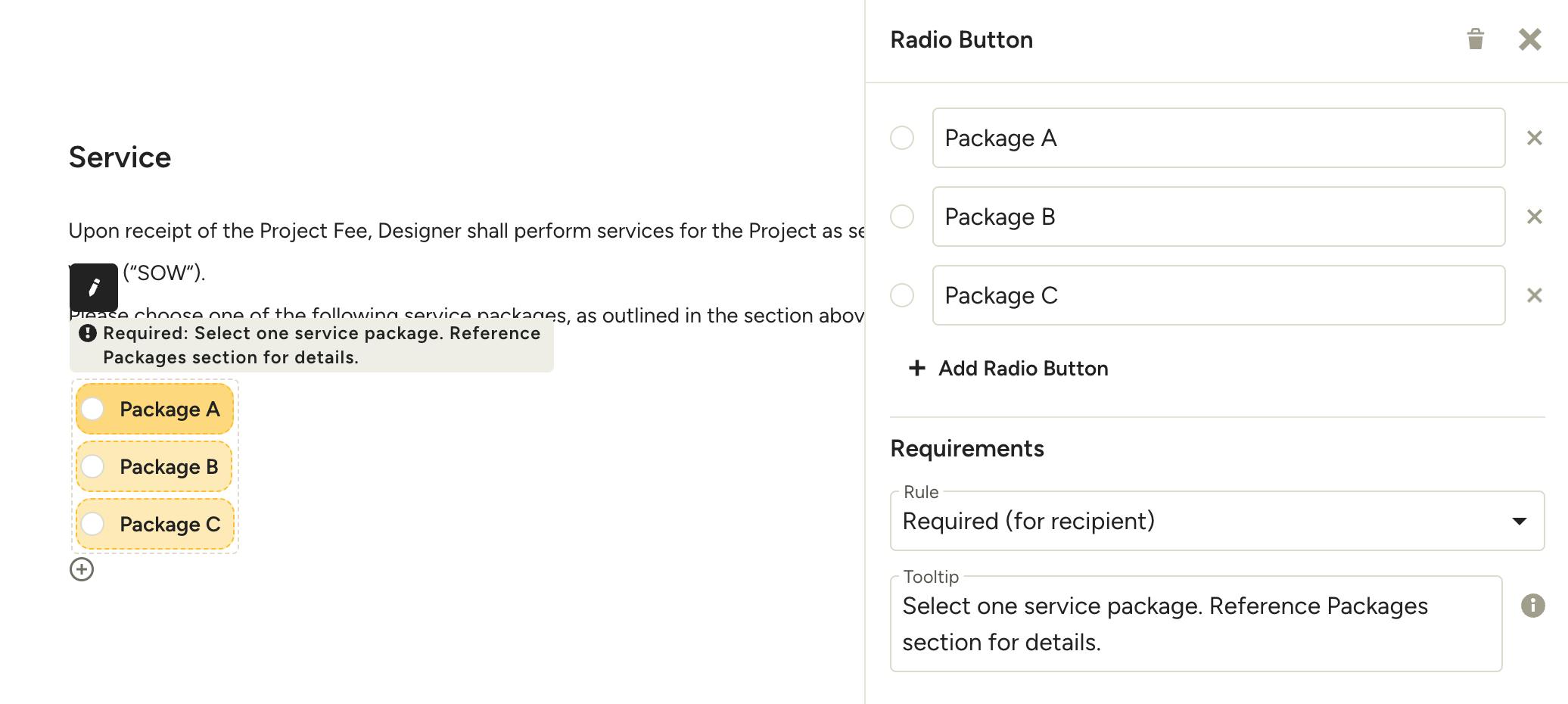
Use radio buttons when the recipient must choose a single option from a group.
Radio buttons use the following fields:
Labels: Add one or more radio buttons, each with its own label.
Requirements: Choose one of the following:
- Required: The recipient must complete the field.
- Optional: The recipient can leave the field blank.
- Read Only: The recipient can see the field but cannot edit it.
Tooltip: Add a tooltip to give the recipient more context.