How to Create Contracts in Houzz Pro
The Contracts feature in Houzz Pro is a powerful tool to help you manage legally binding contracts with ease. Quickly upload existing contracts, start from one of our templates, or build your own from scratch, then easily customize and format the contract with our intuitive editor and Smart Text capabilities. Your clients, vendors and subcontractors will feel secure receiving a professional contract, and you get peace of mind knowing that you have signed agreements as you move forward with your projects.
Create a New Contract
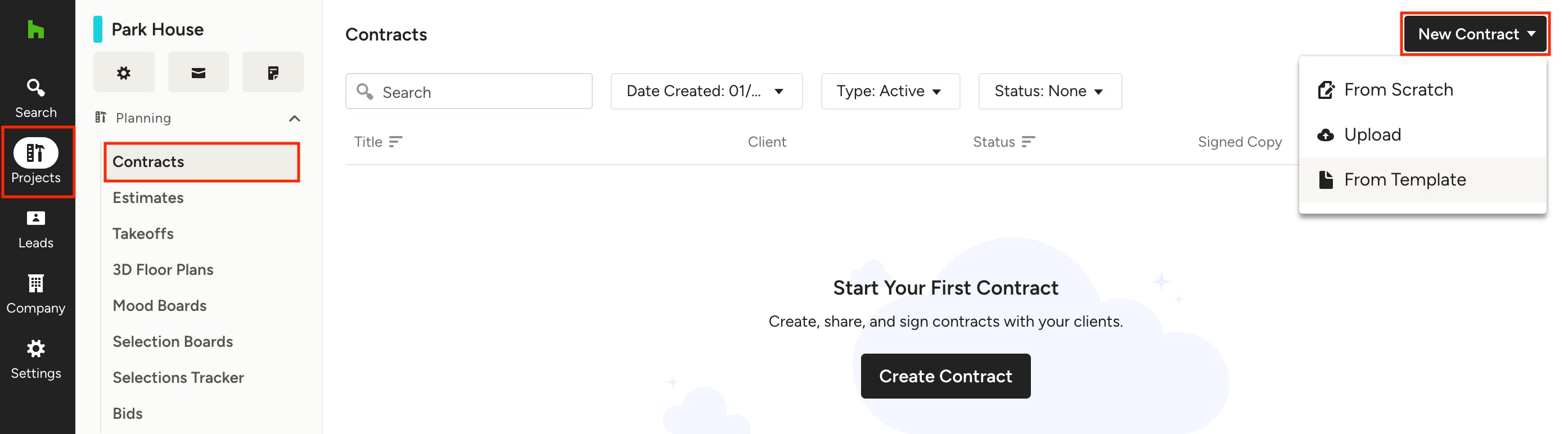
You can create a new contract by using a template, importing an existing PDF, or starting from scratch. To do so, click the Contract icon in the Create New section on your homepage, or navigate to the Contracts section within a project or lead and click New Contract in the top right. Both options will open a menu where you can select the method you want to build your contract: From Scratch, Upload, or From Template.
From Template
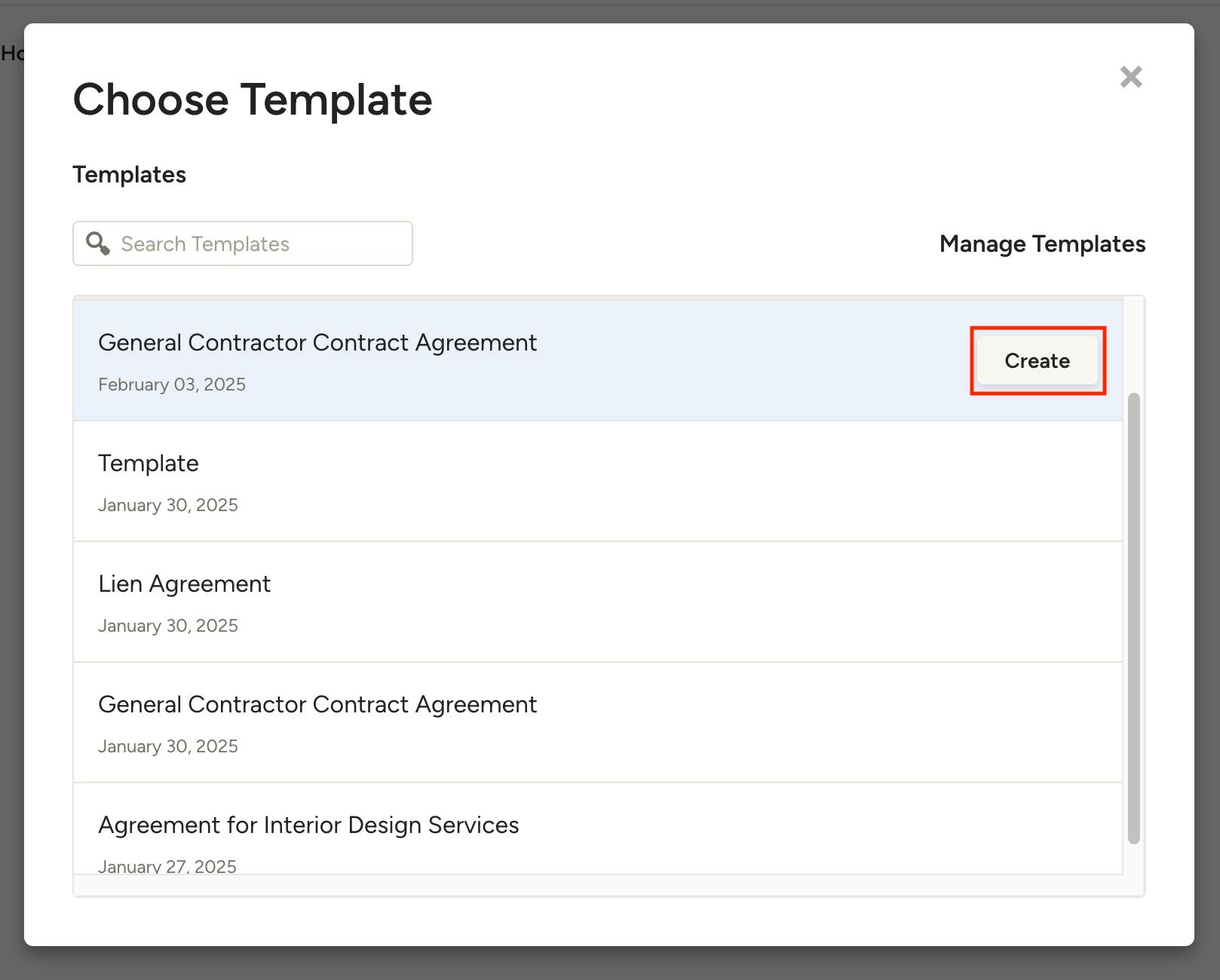
To create a contract from a template, select From Template in the New Contract dropdown. In the modal that opens, click Create on a template to select it.
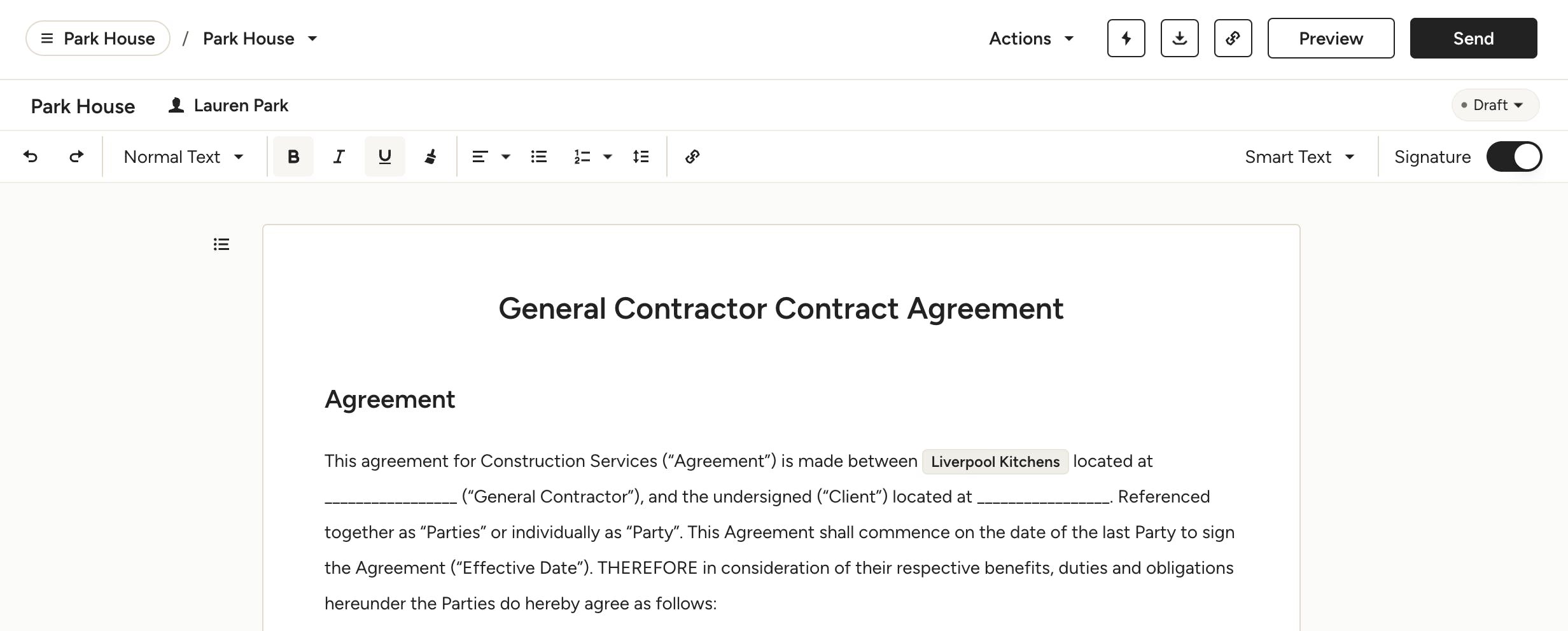
Your new contract will be created from the template. Fill in the relevant data and customize the content to fit the project details.
Upload Contract
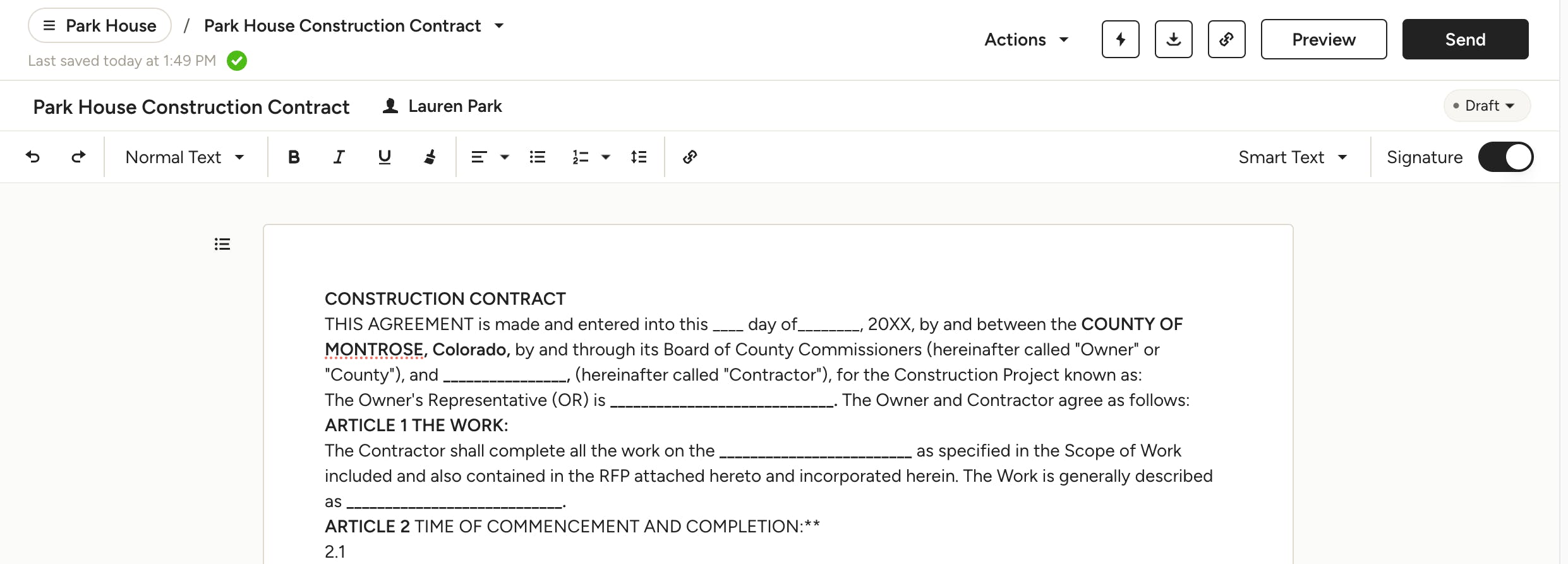
To upload an existing contract, select Upload in the New Contract dropdown. Your system's browser will open where you can select the file you wish to upload. Your imported contract will be converted into an editable format so you can update and customize it as needed.
From Scratch
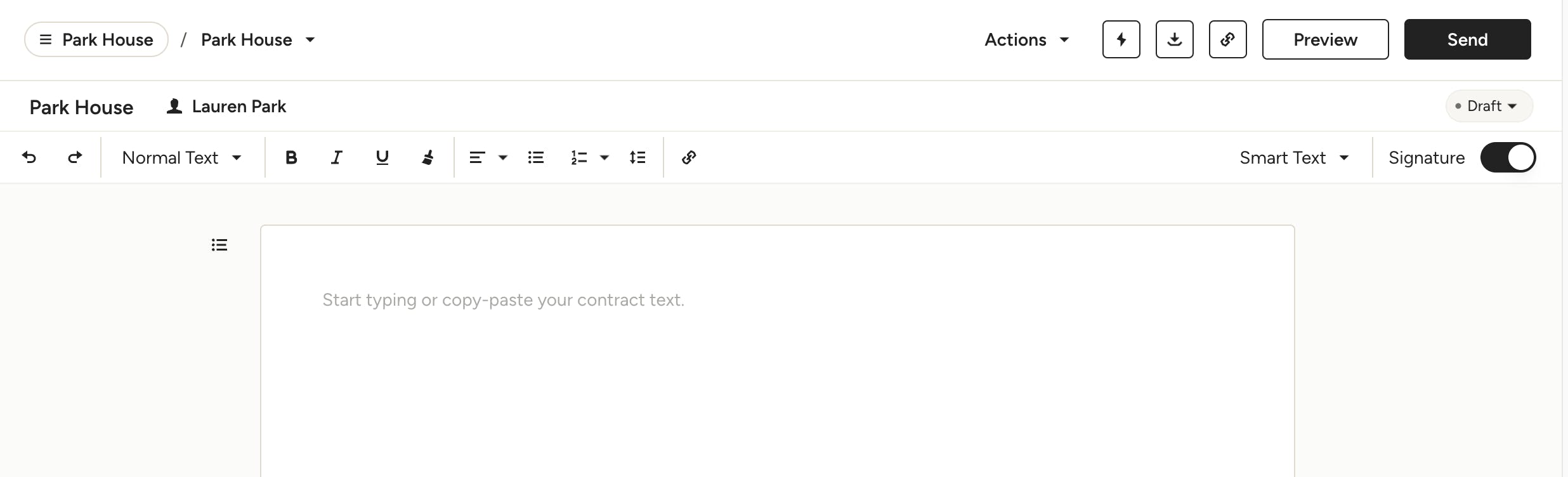
To create a contract from scratch, select From Scratch in the New Contract dropdown. A blank contract will open where you can build it out however you want, using the various customizations available in the tool. You can start typing your contract directly on the page, or copy-paste text from Word, PDFs or Docs.
Add Recipient
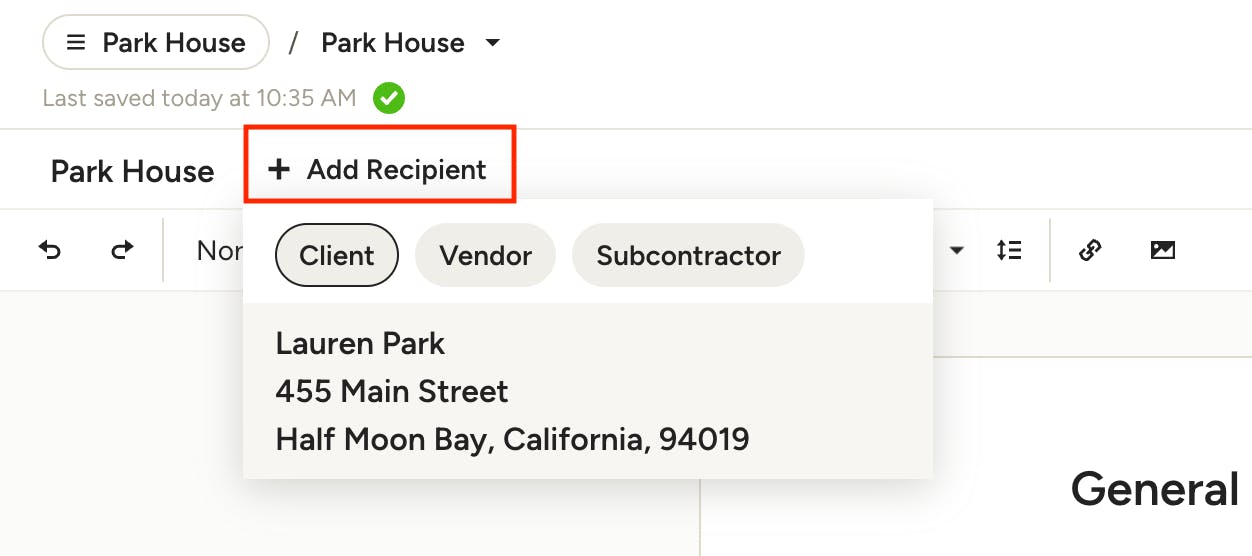
After you create your contract using one of the methods above, you need to add a recipient. Doing this before you start customizing the contract will allow you to take full advantage of certain features, such as Smart Text. Use the + Add Recipient modal at the top left of the contract to choose either the client, a vendor or a subcontractor from the relevant tab.
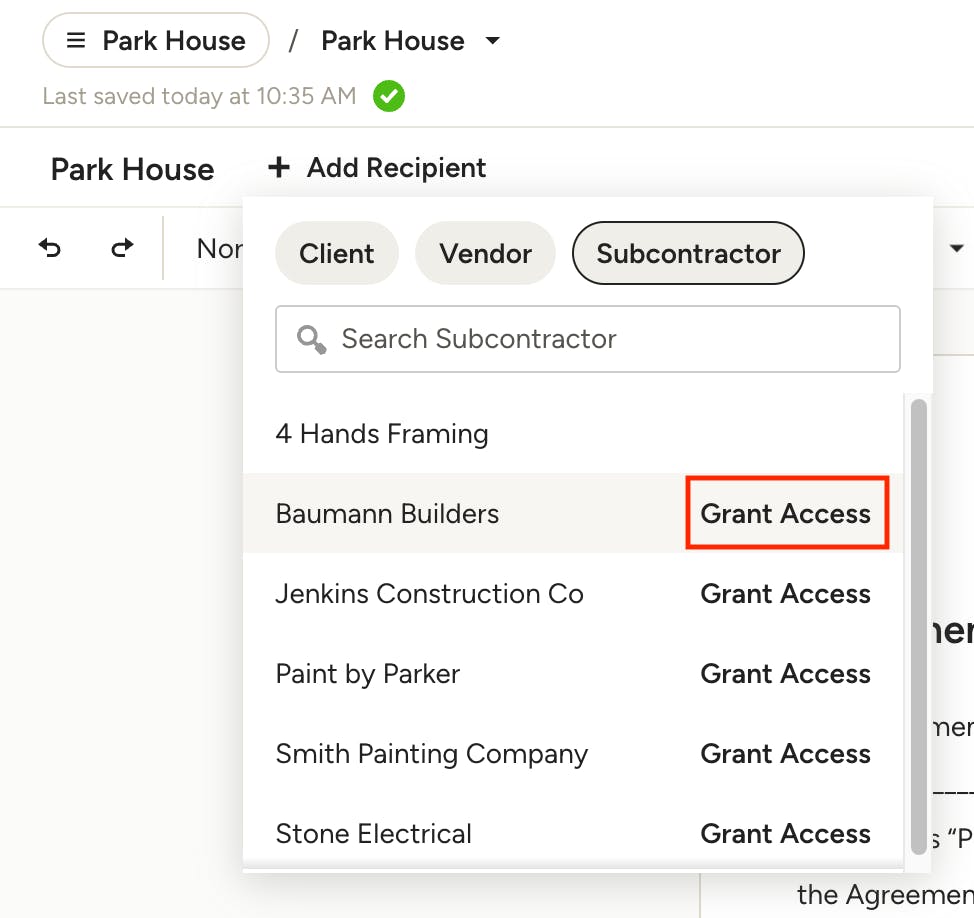
If you are sending a contract to a subcontractor, they will need to be invited to the project. If they are not already invited, you will see Grant Access next to their name. If you click this you will see an invite modal with the option to add a short note with the project invitation.
Customize Content
With our intuitive editor, you can customize your contract with just a few clicks, including add your logo, images and tables, format text and insert Smart Text.
Add Logo
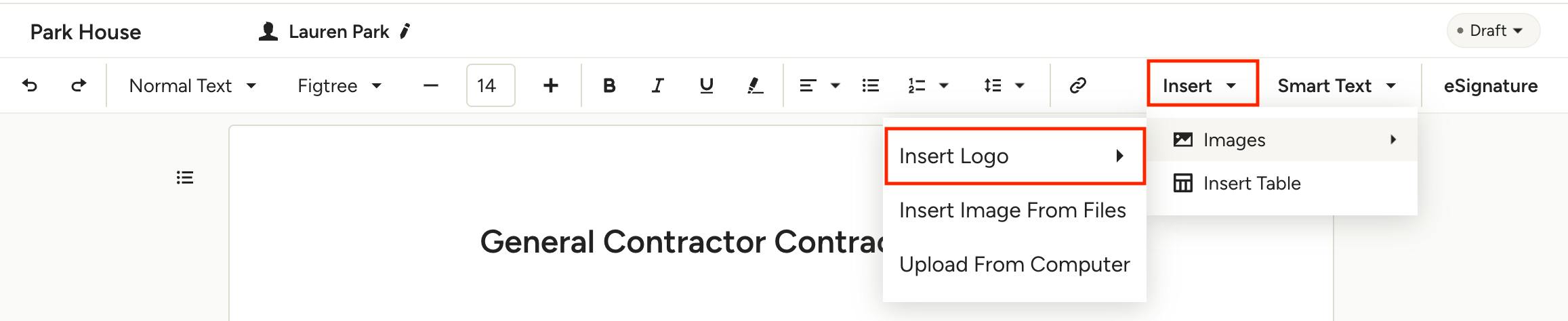
Logos will be added to new contracts (made from scratch) by default. If you remove the logo, future contracts will not contain your logo and will need to be added manually. To add your logo manually, click on the contract where you want to place it, then click Insert in the toolbar at the top. Under Images, hover over Insert Logo and select your documents header or company logo.
Once inserted, you can resize the logo by selecting it and dragging the corners or sides to make it bigger or smaller. You can also click and drag your entire logo to move it to a different place within the contract.
Pro Tip: Once you move or resize your logo to the desired placement, save the contract as a template so it's in the perfect place every time.
Images
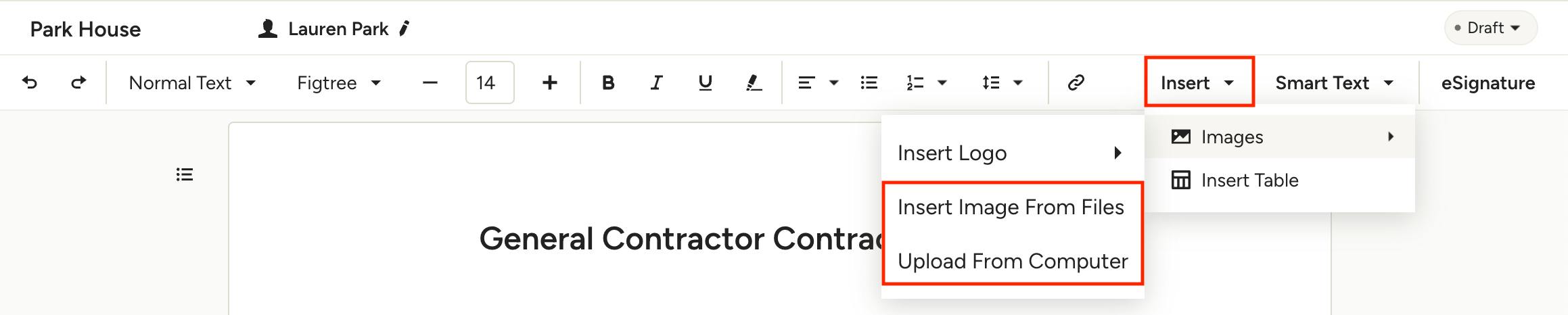
To add an image, click on the contract where you want to place it, then click the Insert menu in the toolbar at the top. Under Images, you can either select Insert Image From Files to choose from existing project files and photos, or Upload From Computer.
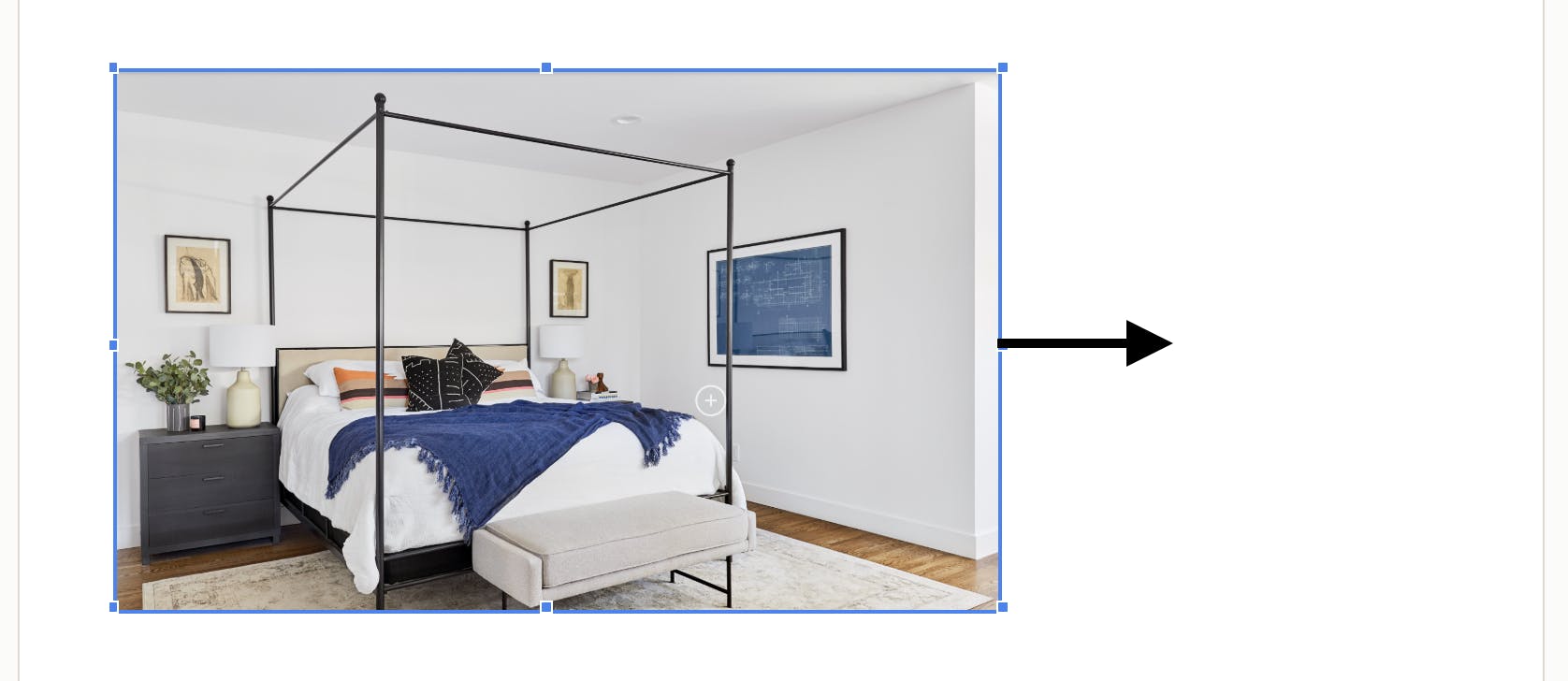
Once inserted, you can resize an image by selecting it and dragging the corners or sides to make it bigger or smaller. You can also click and drag your entire image to move it to a different place within the contract.
Format Text
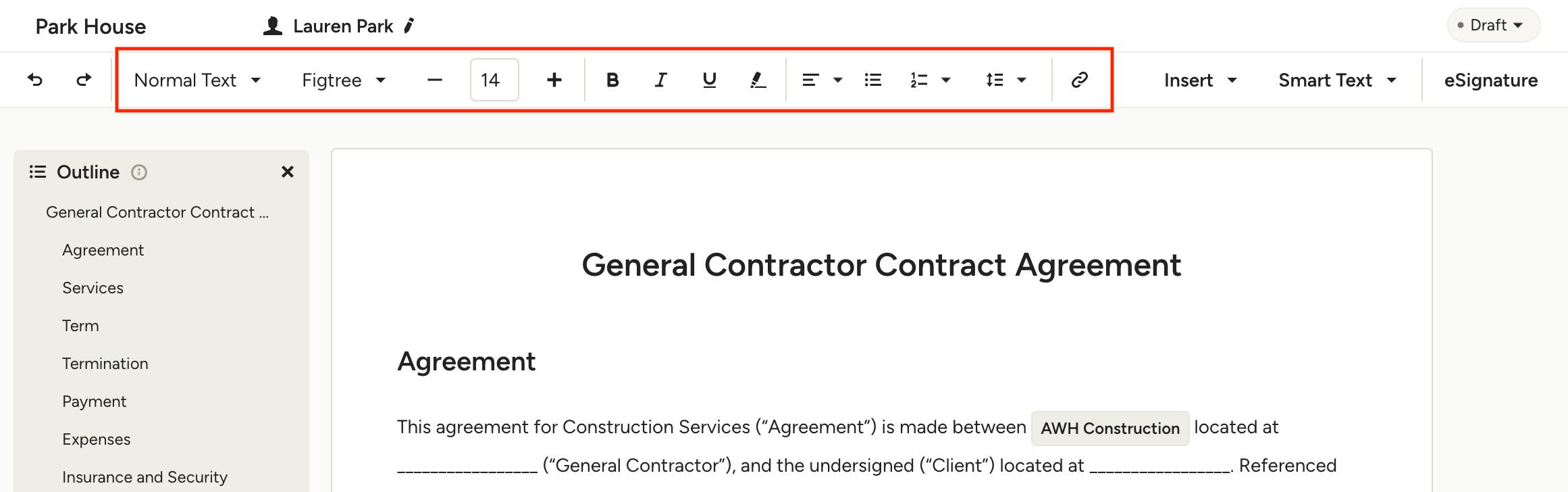
Use the text formatting toolbar at the top of your contract to choose fonts, add headings, create lists, highlight text, adjust alignment, insert links and more.
Pro Tip: Any heading will automatically display in the outline on the left side, allowing you and the recipient to easily navigate throughout the contract.
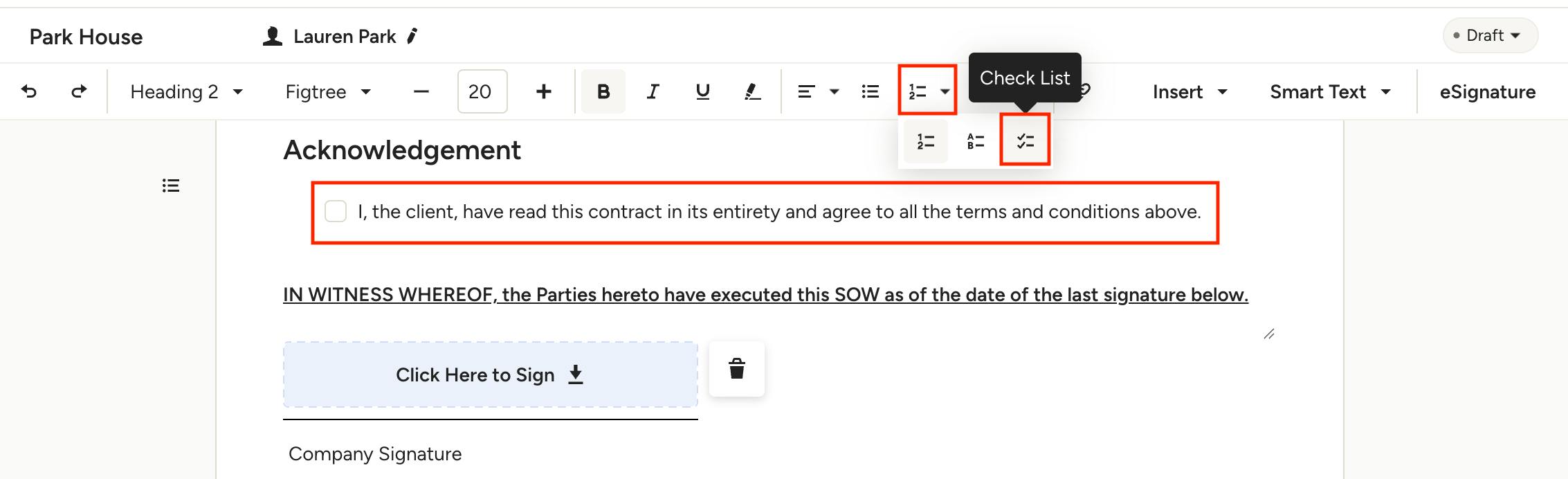
Add Checkboxes and Checklists
You can easily add a checkbox, or create an entire checklist, in a contract by using the checkbox option found under the Lists dropdown in the formatting toolbar. This feature is perfect for having your client, vendor or subcontractor acknowledge specific terms within the contract.
By default, checkboxes can only be selected by the pro, but you have the option to allow recipients to select checkboxes (more below).
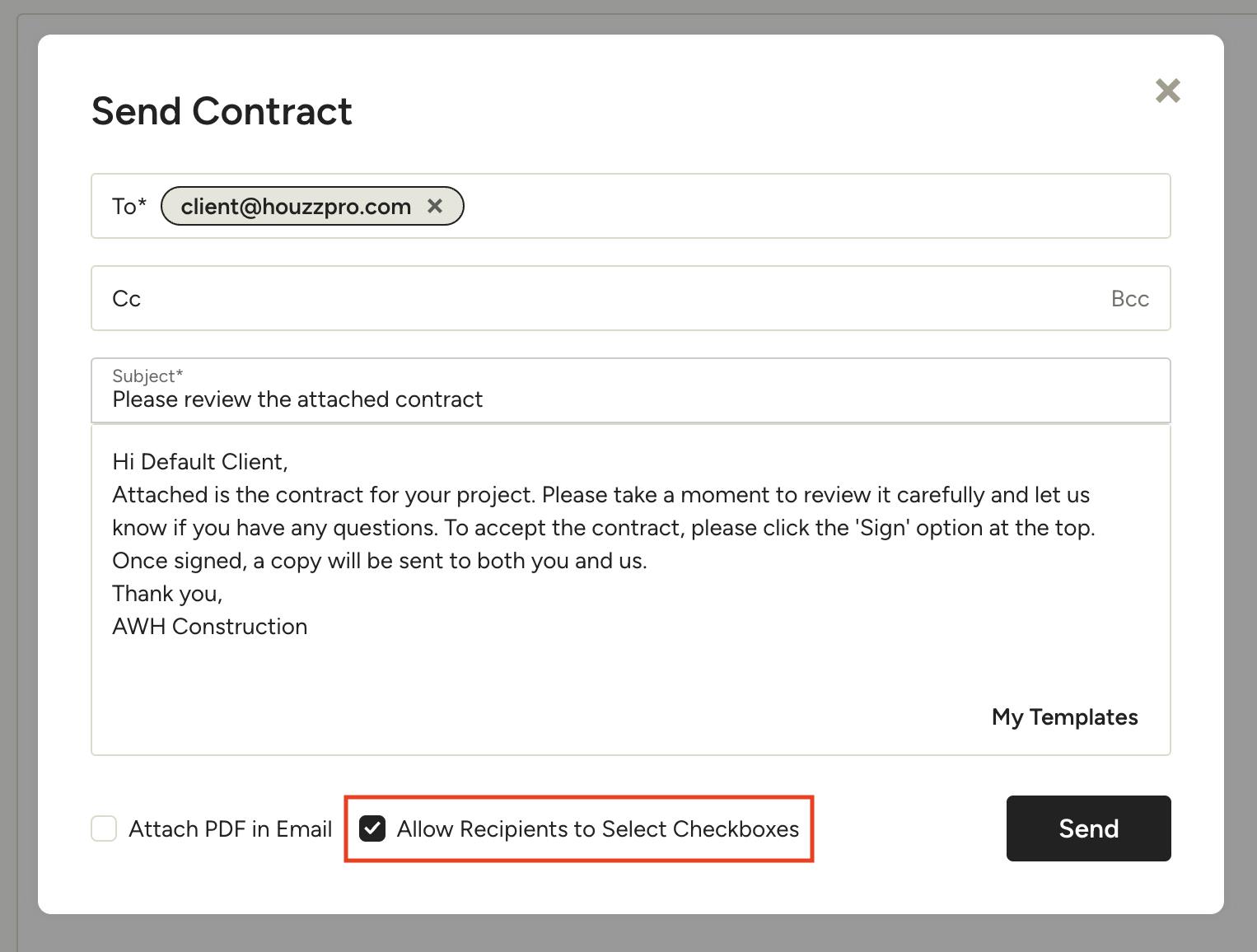
To allow recipients to select checkboxes when they view their contract, make sure you check off "Allow Recipients to Select Checkboxes" in the send screen.
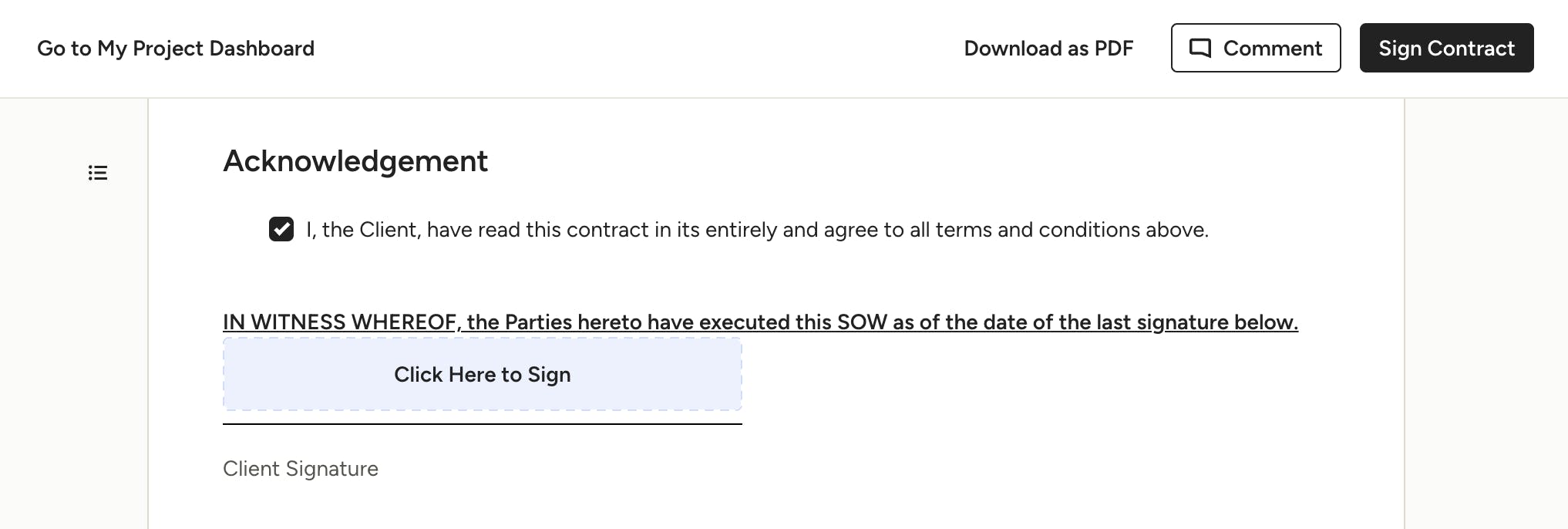
If enabled, the recipient can click to check off an item, and use the comment function at the top to add more details if needed.
Smart Text
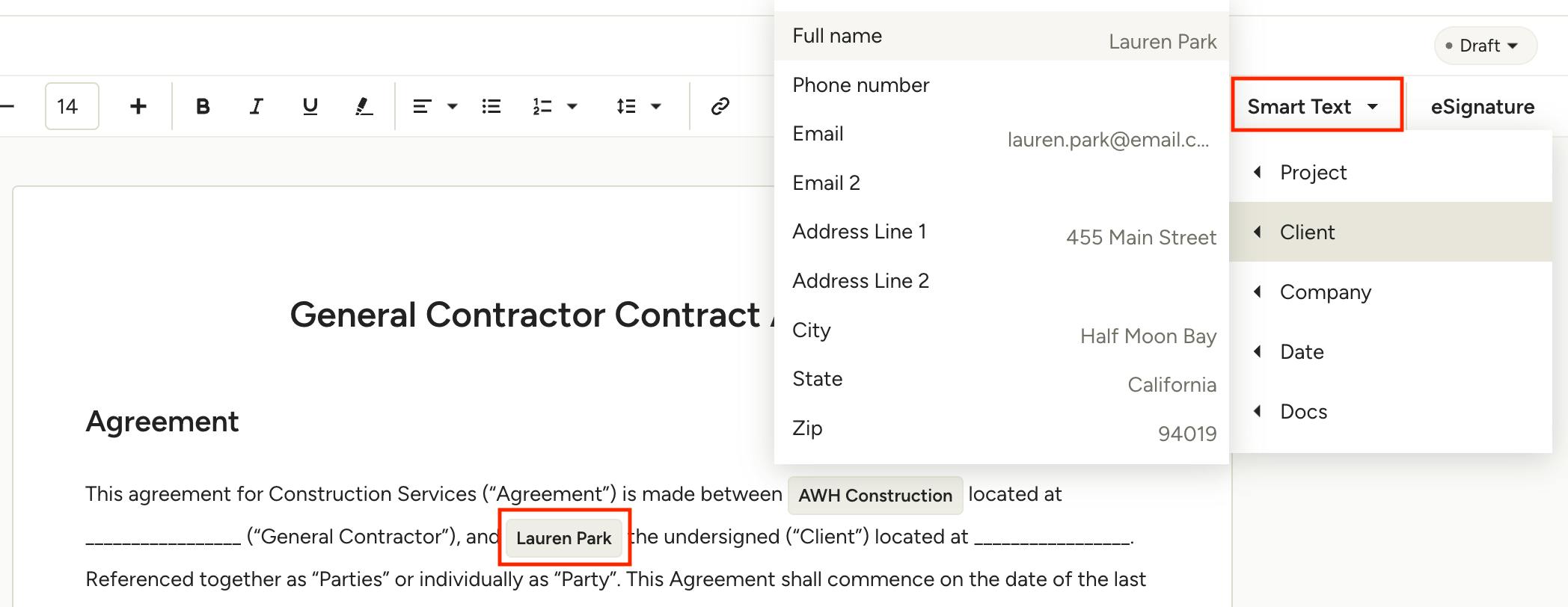
Use our smart text fields to auto-fill details like client/vendor/subcontractor information, project address, and even financial document data (e.g., estimated total). Smart text pulls in data directly from your project details so you don't need to bounce back and forth to find relevant information to complete your contract.
To insert Smart Text, click the location in the text you want to add it, or highlight the text you wish to change, then open the Smart Text menu in the top right. Here you can choose the details that you want to auto-fill. You will notice any Smart Text in the contract will appear slightly different from the regular text when in edit mode — this will appear as regular text when you preview the recipient view.

Insert Tables
To add a table to your contract, click Insert, then Insert Table.
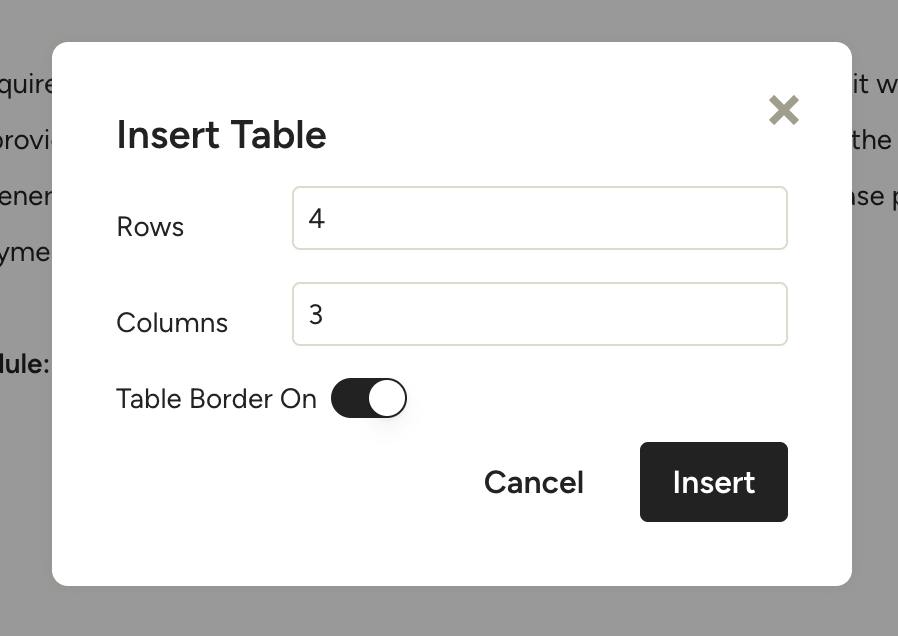
Set the number of rows and columns for the table, and whether you want the border on or off — you can adjust all of this later, this is just a starting point for the table.
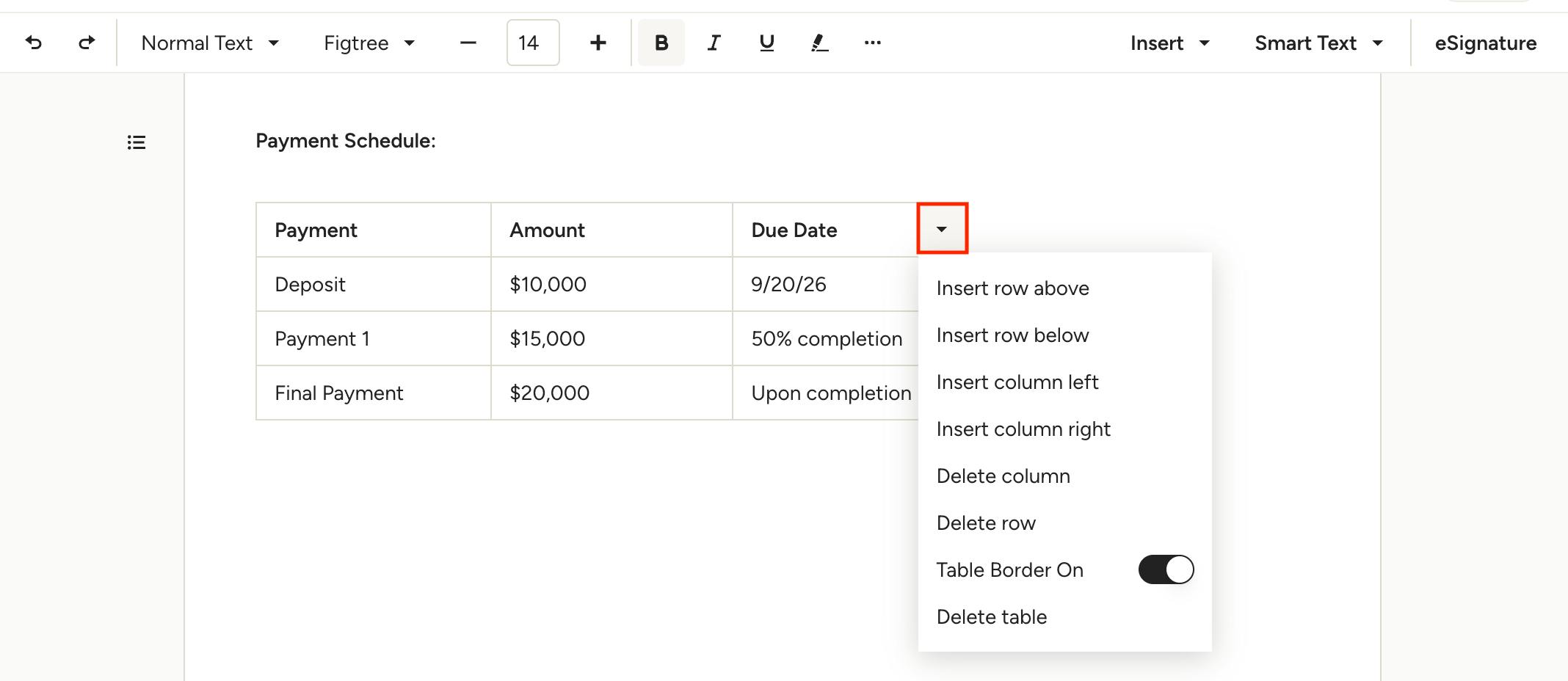
Once the table is inserted, you can resize columns and rows by clicking between them and dragging to the desired size.
To insert or delete columns/rows, click into a cell then click the triangle to open the table options menu — you can turn the border on/off and delete the entire table from here as well.
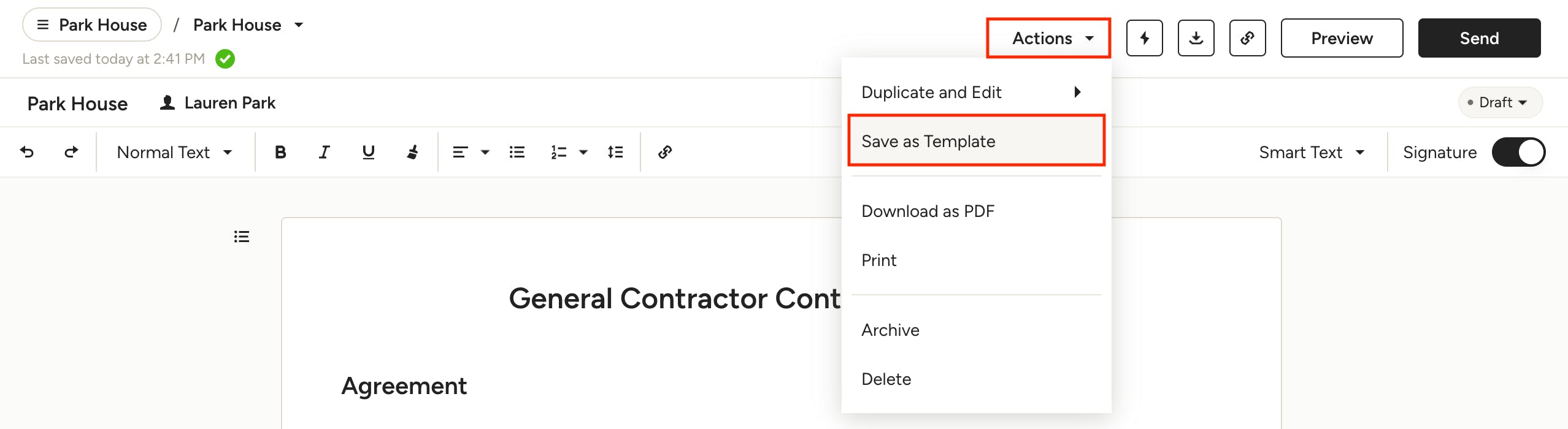
Save Contract as Template
Save time on future project by creating and reusing contract templates. To do so, open the contract you wish you make a template out of, then open the Actions menu at the top and click Save as Template.
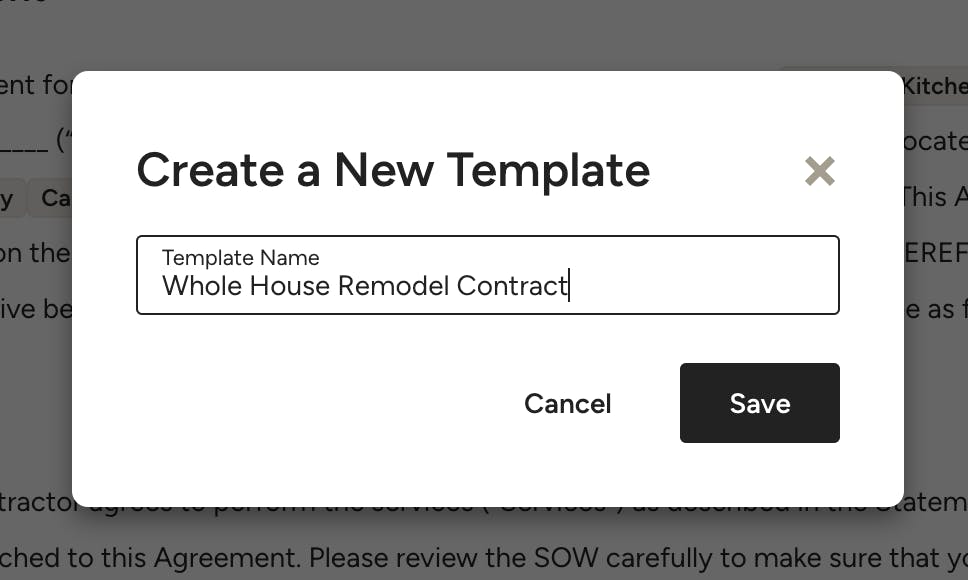
Input a name for your template so that it's easy to identify later. Click Save.
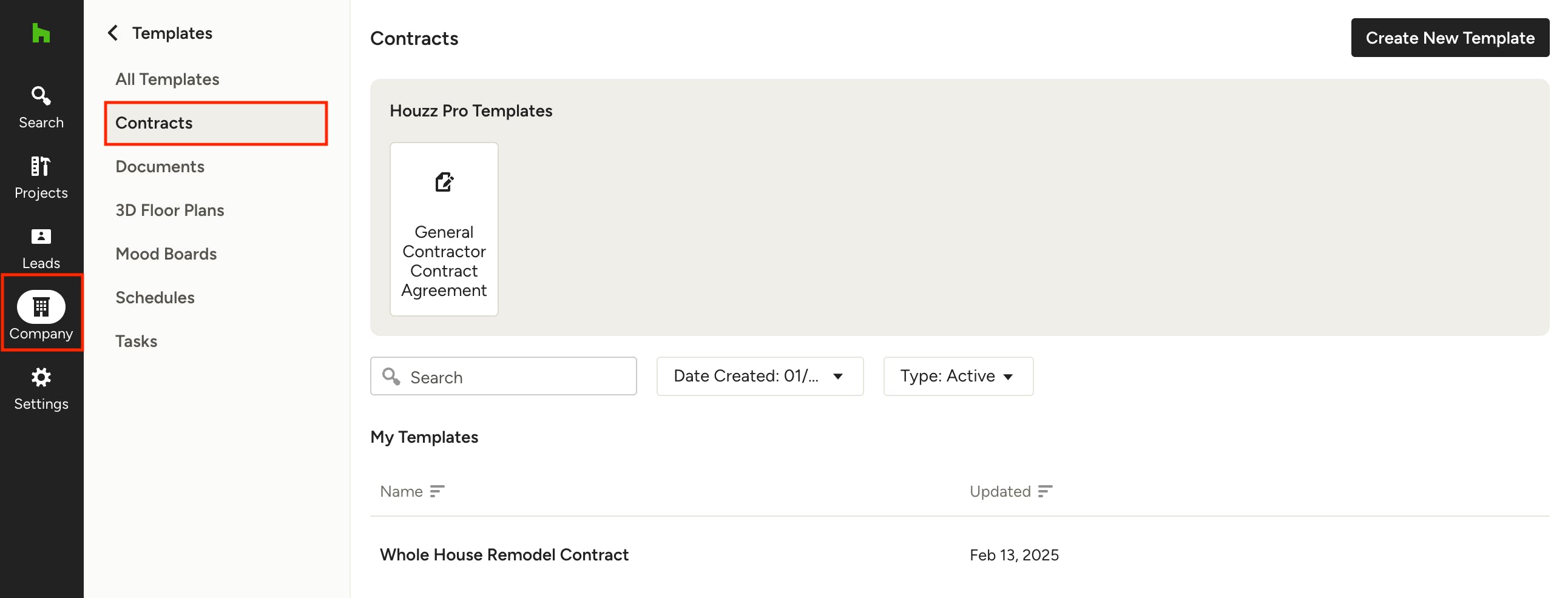
You can find all of your contract templates in the Templates Center, found in the Company section of the left navigation.
Collect Signatures & Initials
Our e-signature feature ensures your contracts are legally binding. There are no different legal implications between how contracts and estimates/proposals are signed, so it's a matter of preference which type of document you choose to collect a signature and/or initials on.
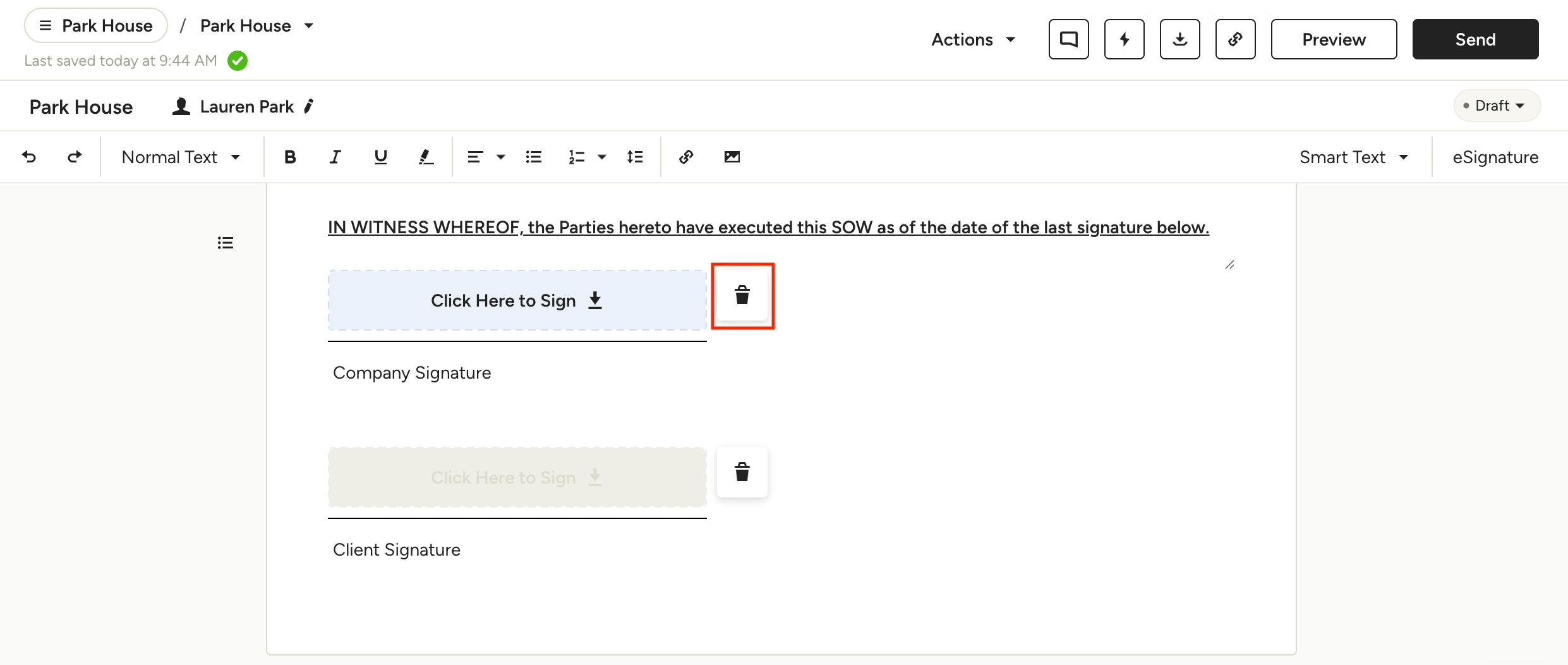
By default, contracts will include company and recipient (client/vendor/subcontractor) signature spots at the bottom of the document. These can removed by clicking the trash icon next to them.
Insert Signatures & Initials
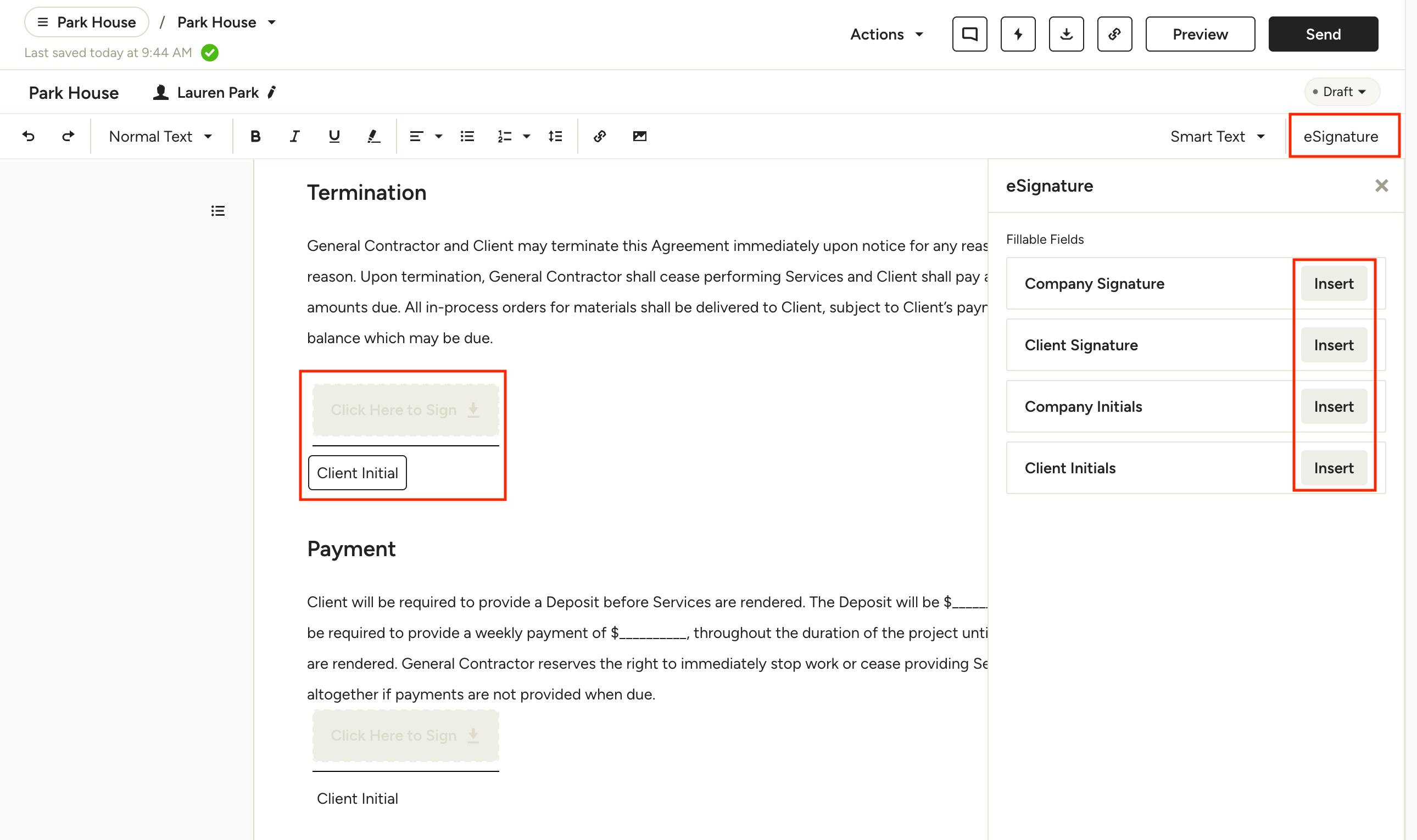
To add signatures or initials throughout a contract, open the eSignature panel at the top right of the document. Click in the contract where you want to insert the signature or initials, then click Insert next to the desired eSignature option you want to add. The description under each signature/initial can be customized to your needs just by clicking into the field.

Signed Contracts
When the recipient signs the contract, the date is automatically added, and a signed copy is sent to you (the pro), any admin, and the recipient. In addition, a PDF copy of the signed contract is automatically added to the project's files and folders, viewable in the client dashboard or subcontractor dashboard, and in the contracts list, as shown below.
Add Deposit
If you would like to collect payment the moment your contract is signed, you can request a deposit. Once created, the deposit will save as a retainer, which you can apply to future invoices as work is completed. Read How to Create and Apply Retainers to learn more.
The deposit option is only available on contracts if you have enabled online payments.
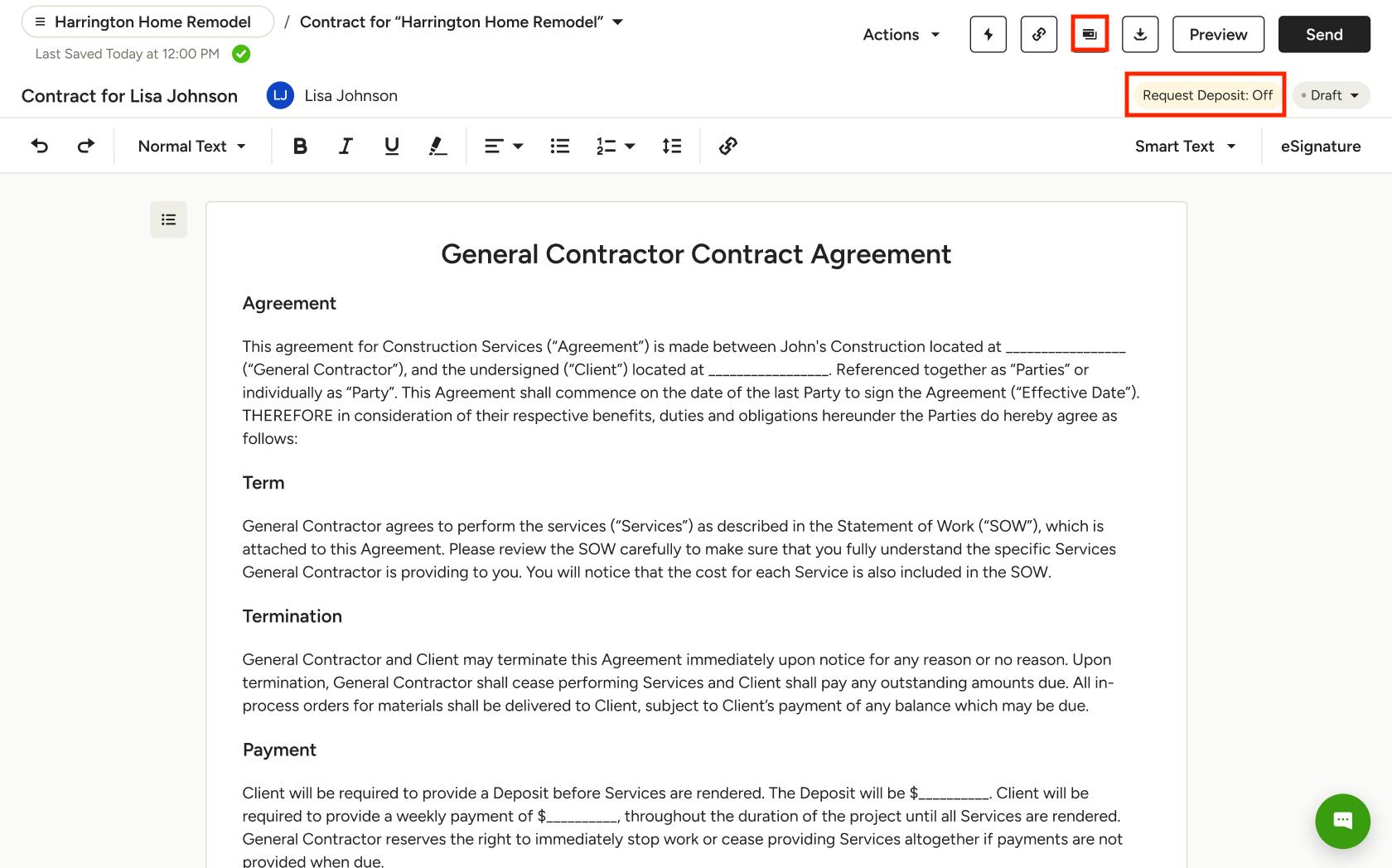
To add a deposit, open the relevant contract. Request Deposit will be Off by default — click the Request Deposit button at the top of your document to adjust.
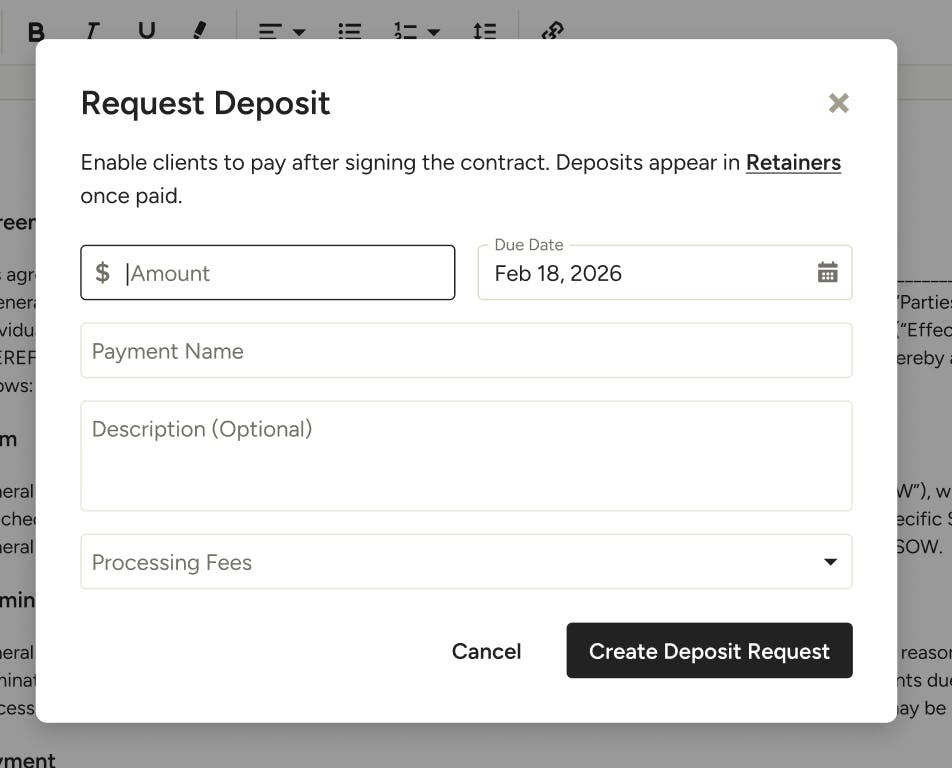
In the next screen, fill out the following details:
- Amount & Due Date: Set the dollar amount and the deadline.
- Payment Details: Give the payment a name and an optional description.
- Processing Fees: Choose how you want to handle transaction fees — add fees to your markup, have the client pay, or deduct from the payment total.
Click Create Deposit Request to save.
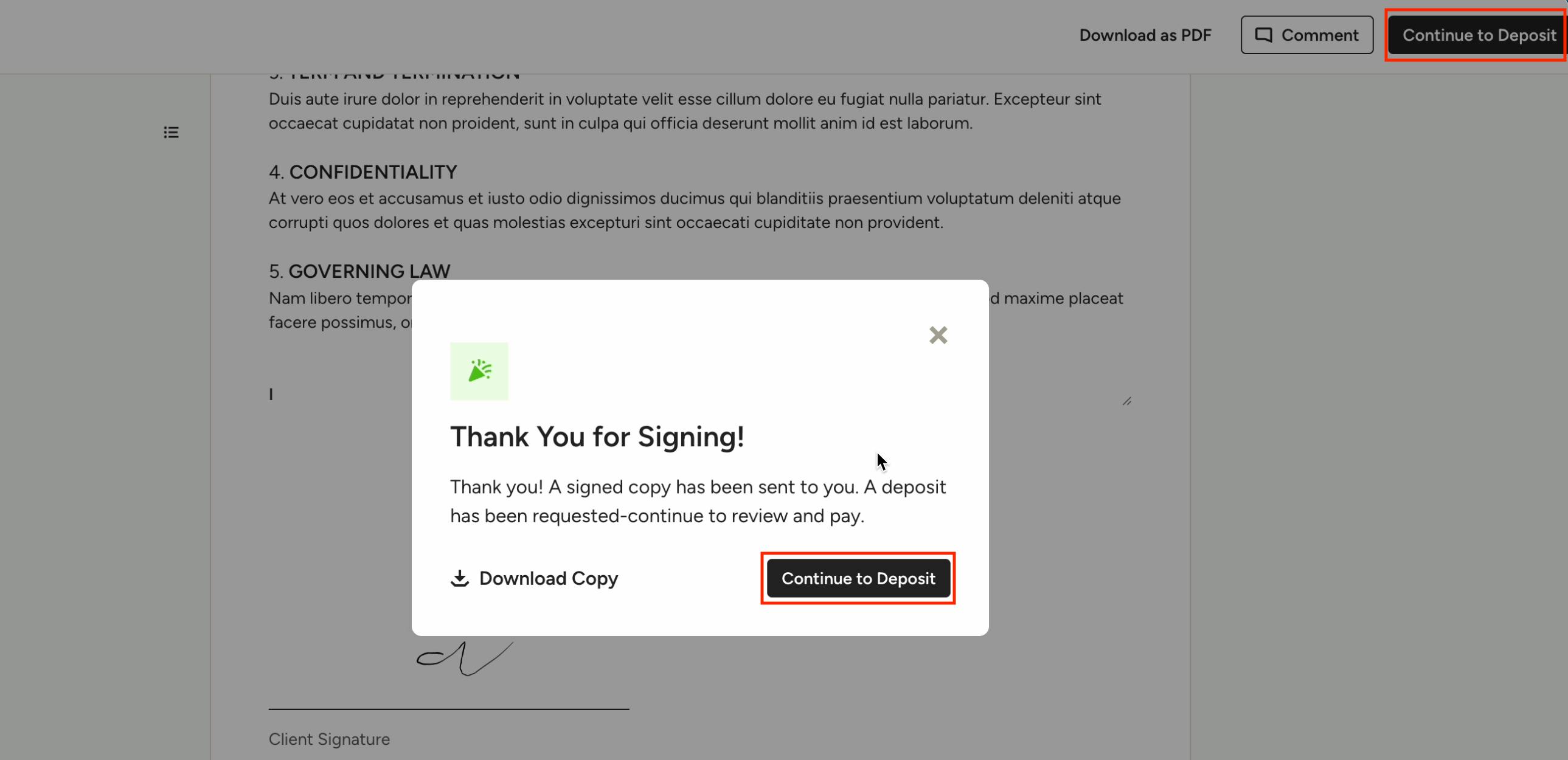
The Request Deposit will now show as On. If you would like to turn it off in the future, you can make adjustments using the same Request Deposit button.
When you send the contract to your client, they will sign it and then have the option to pay the deposit immediately, as shown below.
If selected, they will go to our online checkout page, where they can pay online using a credit card or bank transfer, depending on what payment type you accept.
Once payment is complete, your contract will show Deposit Received at the top of the document, as well as in the activity stream. You can then apply that paid retainer to a project invoice.
Send Contracts to Clients, Vendors and Subcontractors
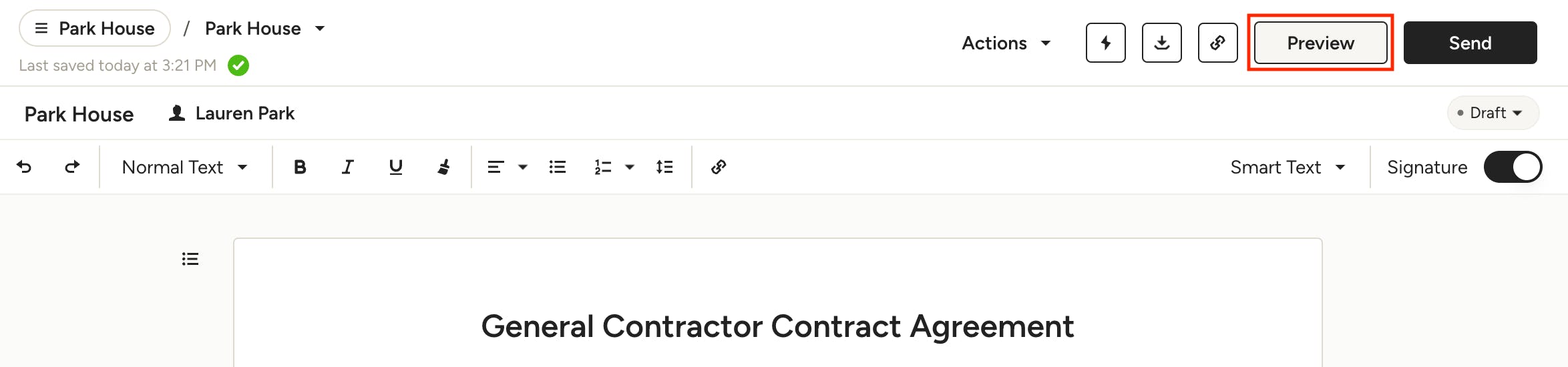
Once your contract is ready, you can choose from multiple methods to send it to your recipient. To do so, click Preview at the top of the contract.

Make sure the preview is correct, as this is exactly how the recipient will view the contract. If everything looks good, you can choose to download a PDF to send, copy a link to share, or send directly from Houzz Pro.
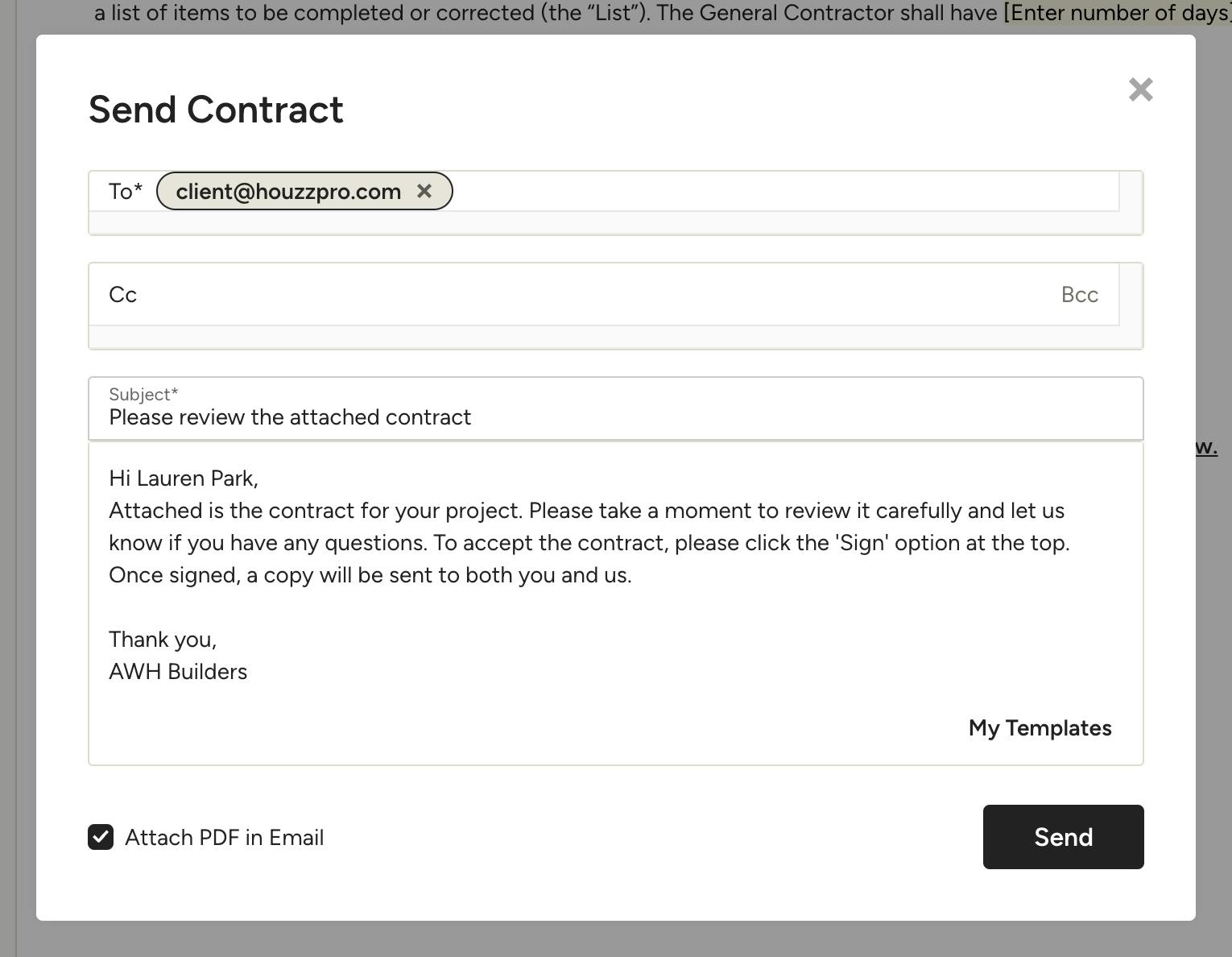
If sending directly from Houzz Pro, you will be prompted to fill in a message to send along with the contract. To attach the contract as a PDF in the email, make sure the checkbox is marked. Click send to share the contract via email.
Once shared, recipients will be able to view the contract and sign (if applicable). Clients can also add comments to the contract that you can reply to, as shown in the next section.
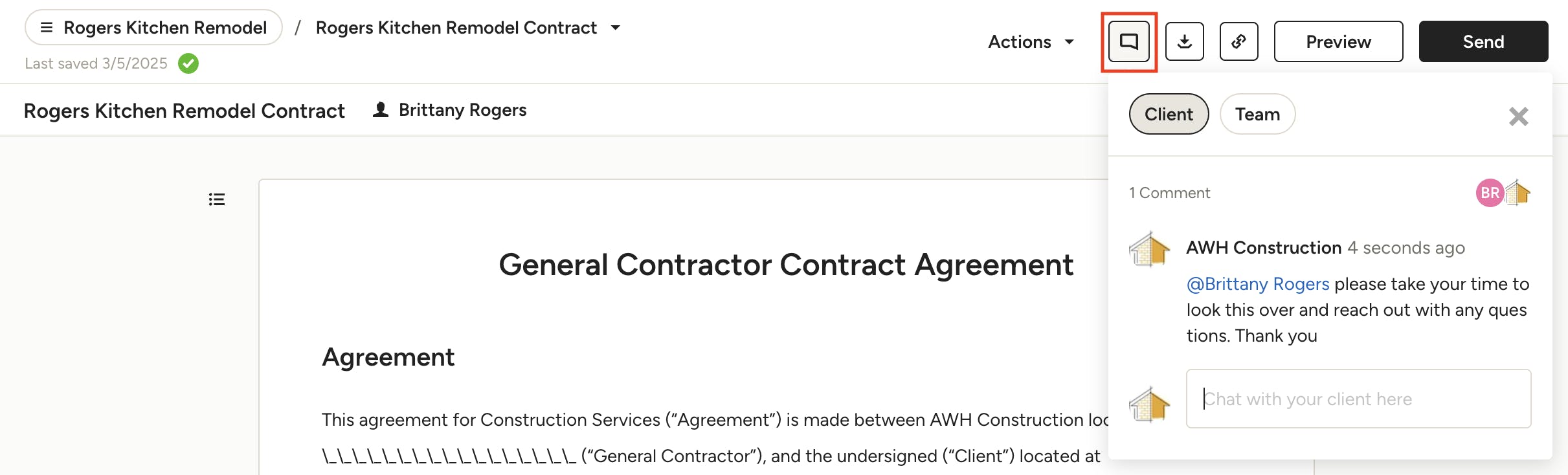
Comment on Contracts (Client Contracts Only)
Once you share your contract with the client, you can communicate with them (and team members) directly on the document by using the comment feature at the top. This allows you to easily reference document details you might be discussing, and keeps conversations organized. To learn more, read How to Comment on Documents in Houzz Pro.
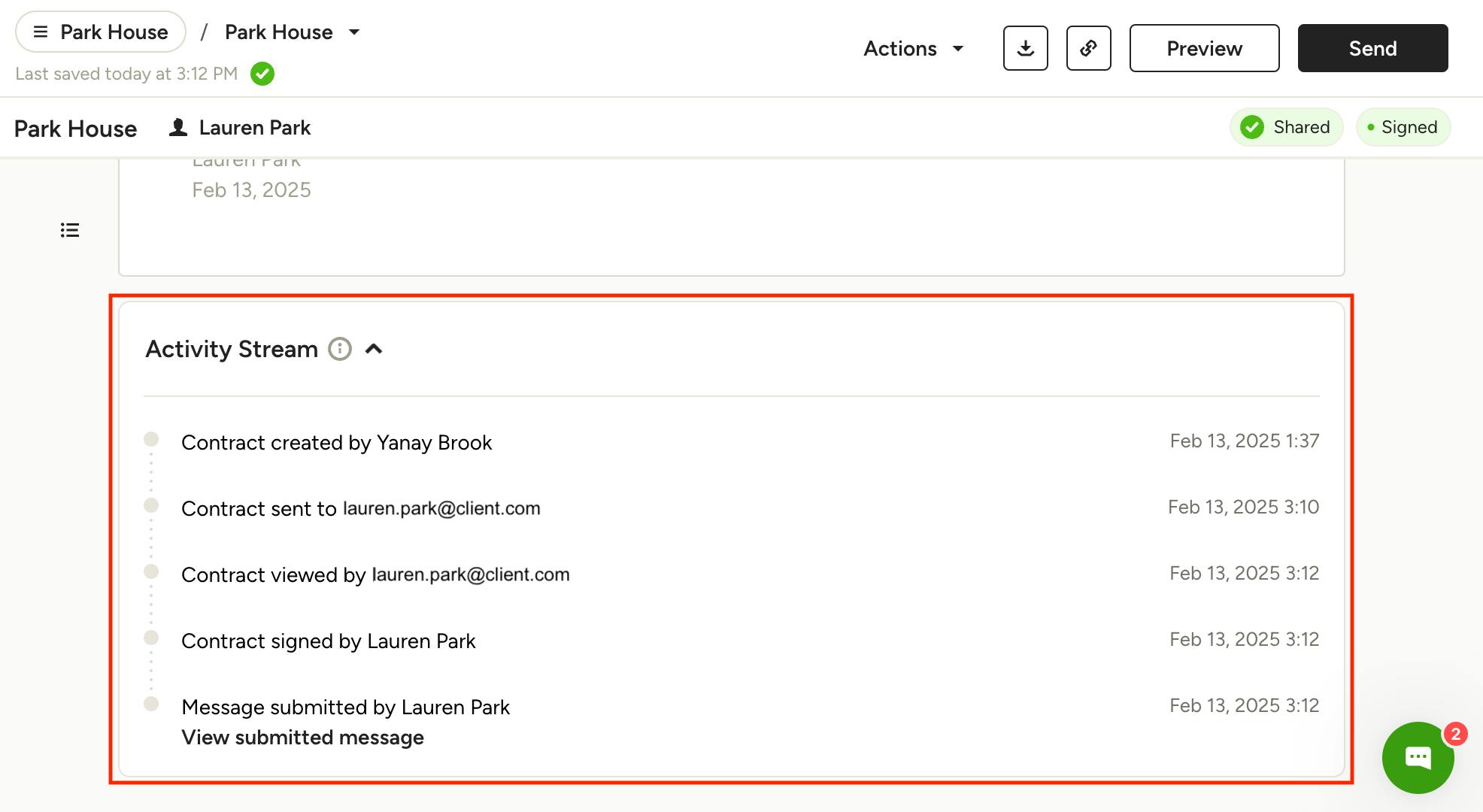
View Notifications & Activity
You’ll receive notifications when a contract is opened, viewed, and signed. All relevant actions are also logged in the activity stream, found at the bottom of each contract, which can be easily used in legal disputes if needed.
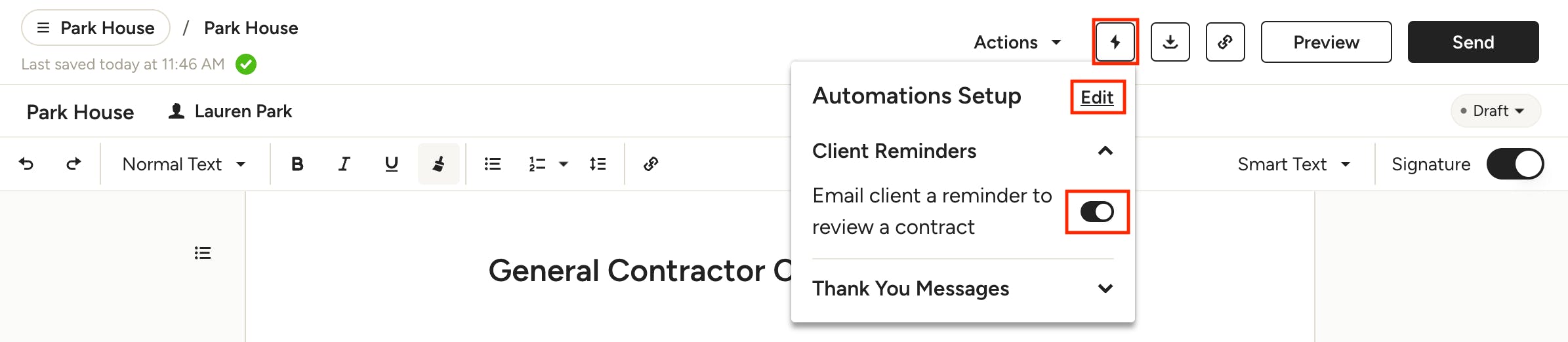
Set Up Automated Actions (Client Contracts Only)
Stay on top of contract deadlines and streamline responses to signed contracts with automated actions. Click the lightning bolt icon at the top of a contract to set up automations, including reminders for the client to review a contract and thank you messages when they sign. You can toggle on/off each automation option or open the settings by clicking Edit.
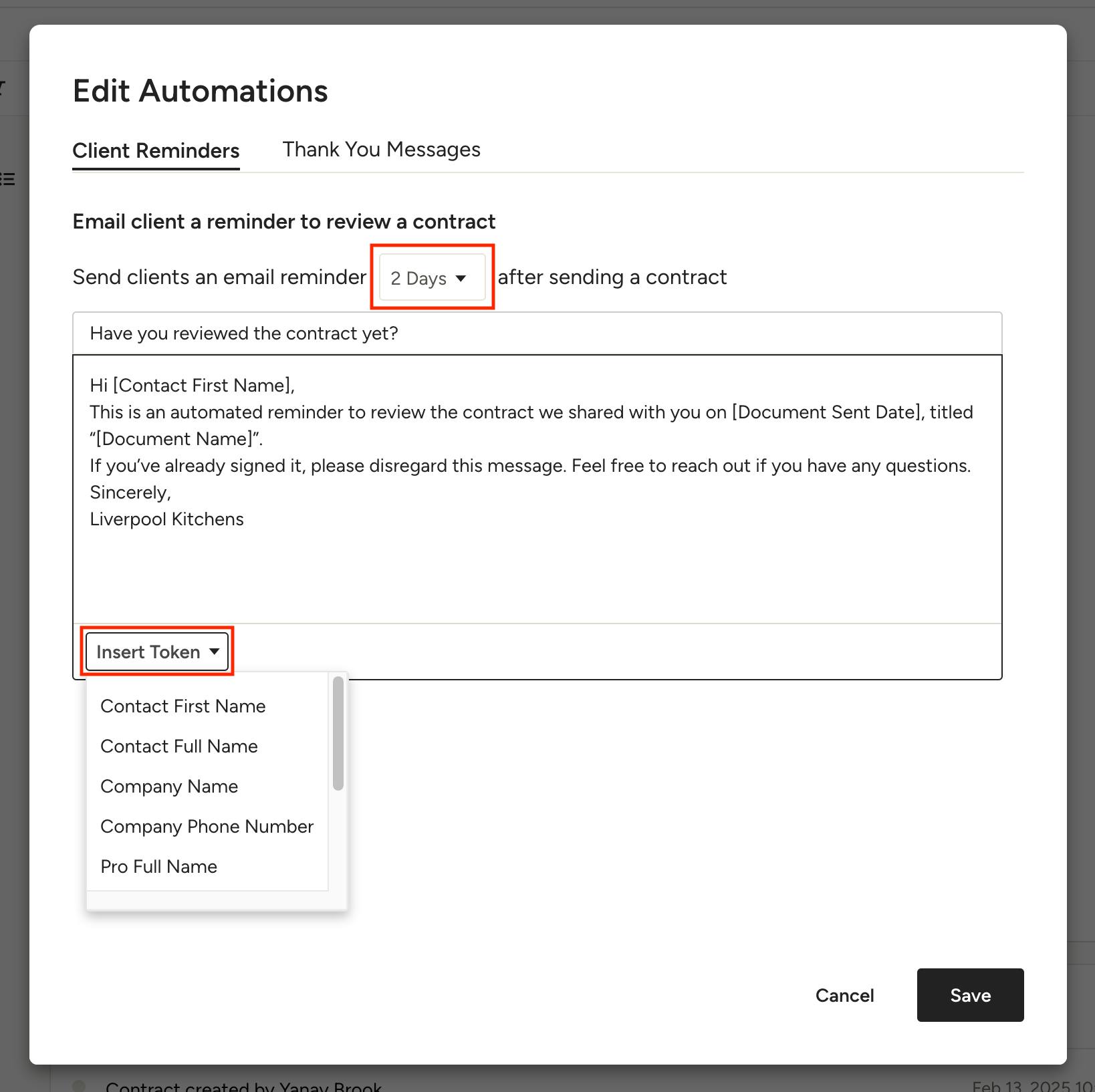
In the Edit Automations screen you can customize the messages that are sent — use tokens to automatically insert client and project information. You can adjust the amount of time before an automated message is sent using the dropdown. Click Save to commit any changes.
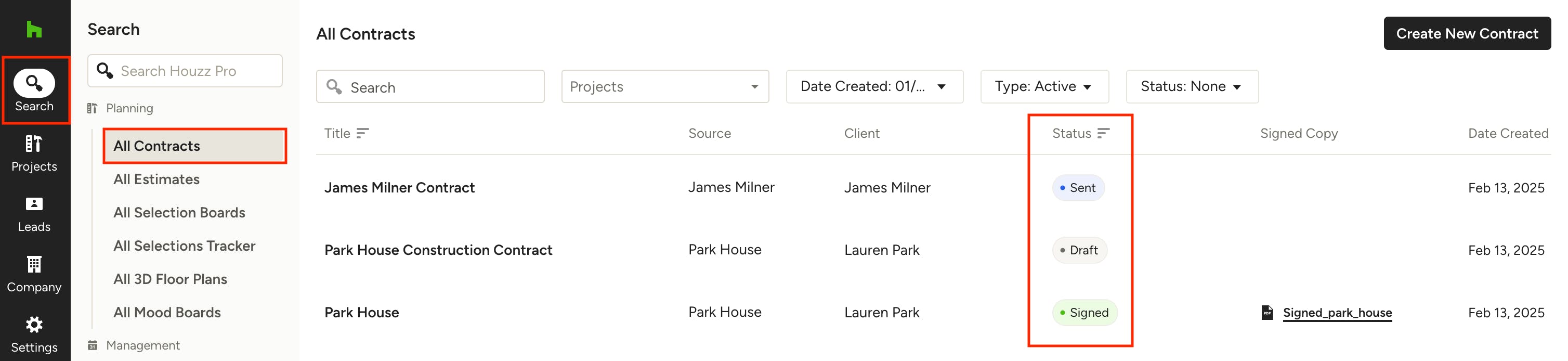
View All Contracts
You can view contracts across all projects in one place by navigating to the All Contracts page, found under the Search icon in the left menu. Here you can quickly see the status of all contracts, allowing you to follow up on any that may need attention. Use the search and filter options at the top to narrow down to specific contracts.