How to Delete or Archive a Document
Financial documents on Houzz Pro can be archived or deleted, depending on the status of the document. Both archived and deleted documents will be hidden from clients and excluded from budgets, QuickBooks Online syncing and financial summaries.
Note: Team members with the "Document Deletion & Archiving" permission can delete and archive documents. To prevent a team member from deleting or archiving document, uncheck this permission in their Details & Permissions settings.
Delete vs Archive
- Deleted Documents: Can be recovered (if Document Recovery feature is enabled) but scheduled payments, attachments, recipients, and allowance/time/expense connections will not be restored.
- Archived Documents: Can be viewed and/or duplicated and edited at any time. All line items, scheduled payments, attachments, recipients, and allowance/time/expense connections remain intact.
Learn more about restoring documents in the last section of this article.
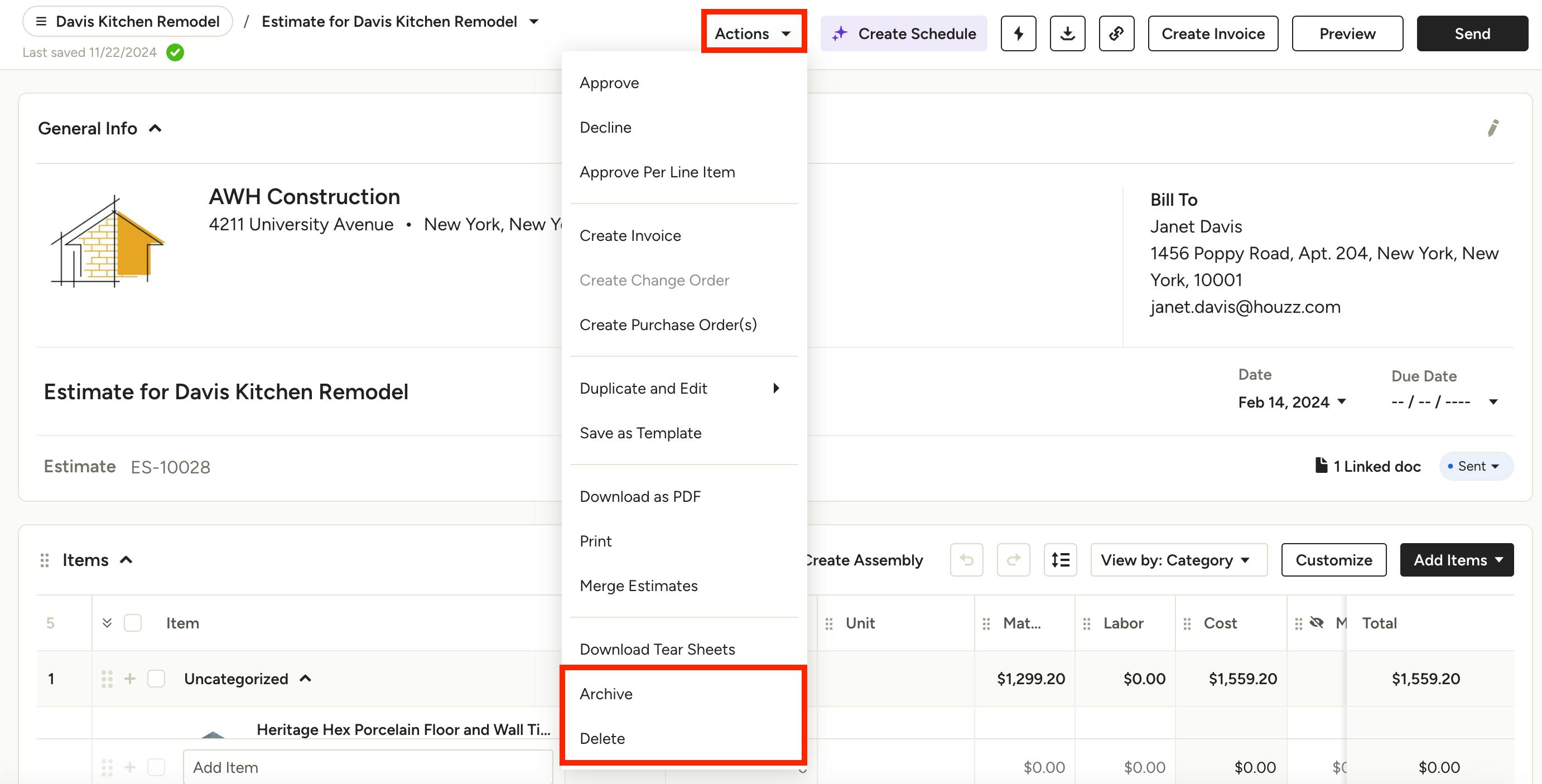
Estimates/Proposals
To delete or archive an estimate/proposal, the document must be in Sent or Draft status — approved, declined, paid, partially paid, invoiced and partially invoiced estimates/proposals cannot be deleted or archived in their current state.
Sent or Draft status estimates/proposals can be deleted or archived by clicking the Actions menu at the top of the page and selecting Delete or Archive. You will be asked to confirm the action.
Estimates/Proposals with Payments: Estimates or proposals with one or more payments applied will not be available for deleting or archiving. To delete or archive a paid or partially paid estimate/proposal, you must first delete any payments.
Approved or Declined Estimates/Proposals: If an estimate or proposal has been fully approved or declined, you must first reopen it for editing to make it available for deleting archiving. To do so, click on the Actions menu at the top of the page and select "Reopen for Editing", then confirm that you want to reopen — this will remove any approval status and e-signatures.
Invoiced Estimates/Proposals: If an estimate or proposal has been partially or fully invoiced, it cannot be deleted or archived as is. You must either delete or archive the linked invoice(s), or remove the items on the invoice(s) that originated from the estimate/proposal.
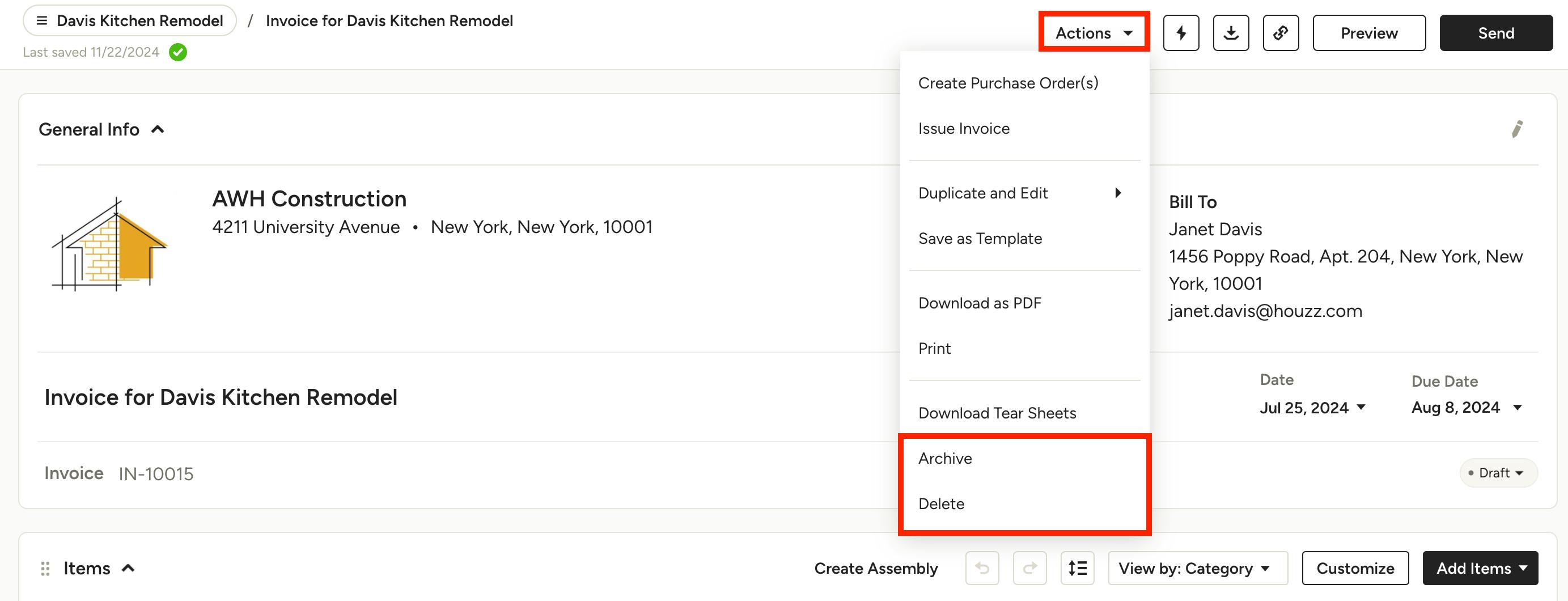
Invoices
To delete or archive an invoice, the document must be in Sent or Draft status — paid, partially paid and issued invoices cannot be deleted or archived in their current state.
Sent or Draft status invoices can be deleted or archived by clicking the Actions menu at the top of the page and selecting Delete or Archive. You will be asked to confirm the action and reminded to consult with your bookkeeper if you’ve already filed sales tax on it.
Note: If the invoice was created from an estimate or proposal, the items on the invoice will be sent back to the respective document(s).
Invoices with Payments: Invoices with one or more payments applied will not be available for deleting or archiving. To delete or archive a paid or partially paid invoice, you must first delete any payments.
Issued Invoices: If an invoice has been issued, it will not be available to delete or archive, even if it is voided. For more information about issued invoices, check out How to Issue an Invoice and How to Void an Issued Invoice.
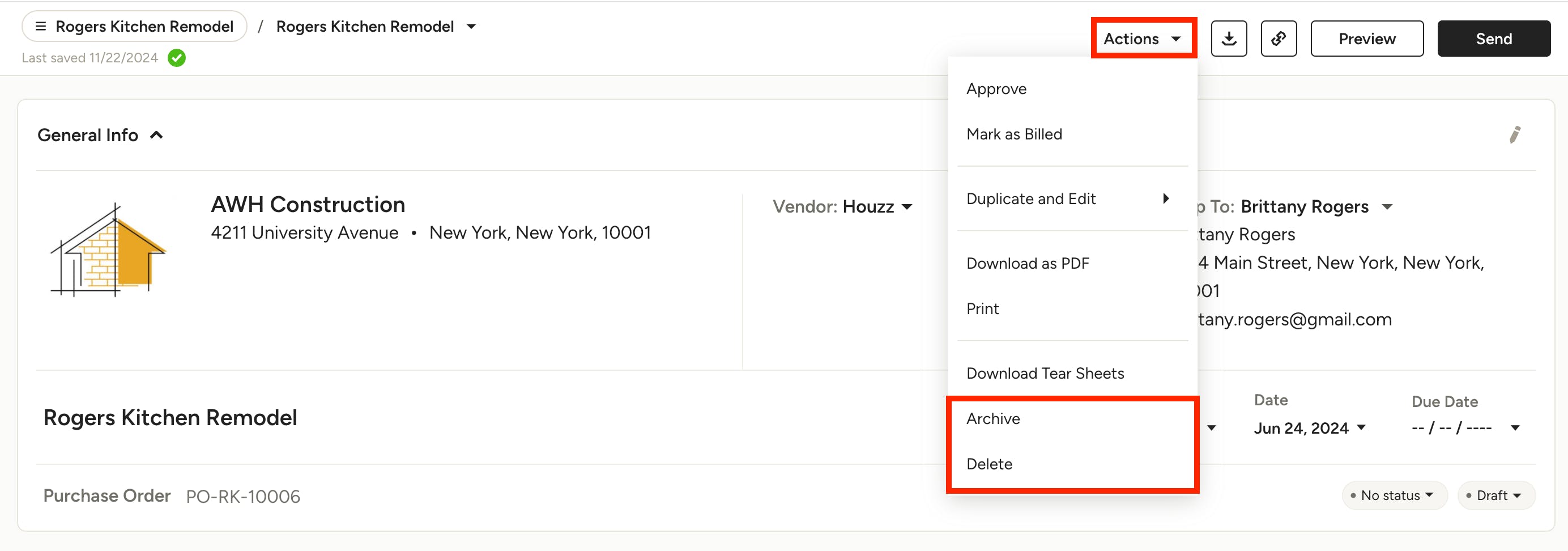
Purchase Orders
To delete or archive a purchase order, the document must be in Sent or Draft status — paid, partially paid and approved purchase orders cannot be deleted or archived in their current state.
Sent or Draft status purchase orders can be deleted or archived by clicking the Actions menu at the top of the page and selecting Delete or Archive. You will be asked to confirm the action.
Purchase Orders with Payments: Purchase orders with one or more payments applied will not be available for deleting or archiving. To delete or archive a paid or partially paid purchase order, you must first delete any payments.
Approved Purchase Orders: If a purchase order has been approved, you must first reopen it for editing to make it available for deleting or archiving. To do so, click on the Actions menu at the top of the page and select "Reopen for Editing", then confirm that you want to reopen — this will remove any approval and e-signatures.
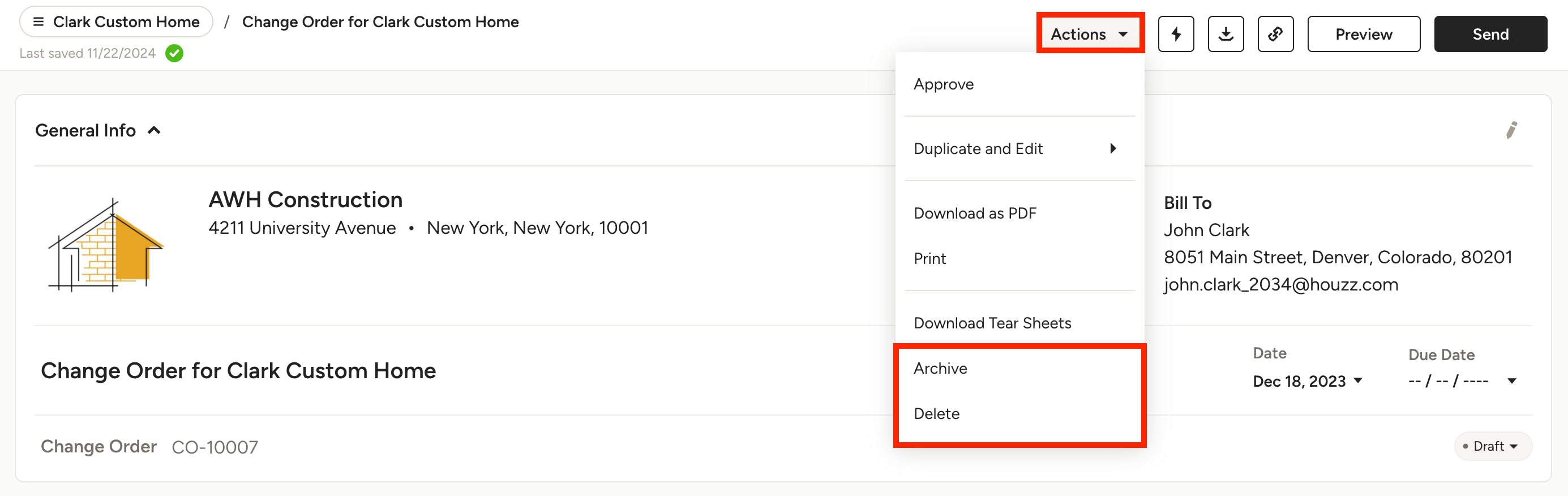
Change Orders
To delete or archive a change order, the document must be in Sent or Draft status — paid, partially paid and approved change orders cannot be deleted or archived in their current state.
Sent or Draft status change orders can be deleted or archived by clicking the Actions menu at the top of the page and selecting Delete or Archive. You will be asked to confirm the action.
Change Orders with Payments: Change orders with one or more payments applied will not be available for deleting or archiving. To delete or archive a paid or partially paid change order, you must first delete any payments.
Approved Change Orders: If a change order has been approved, you must first reopen it for editing to make it available for deleting or archiving. To do so, click on the Actions menu at the top of the page and select "Reopen for Editing", then confirm that you want to reopen — this will remove any approval and e-signatures.
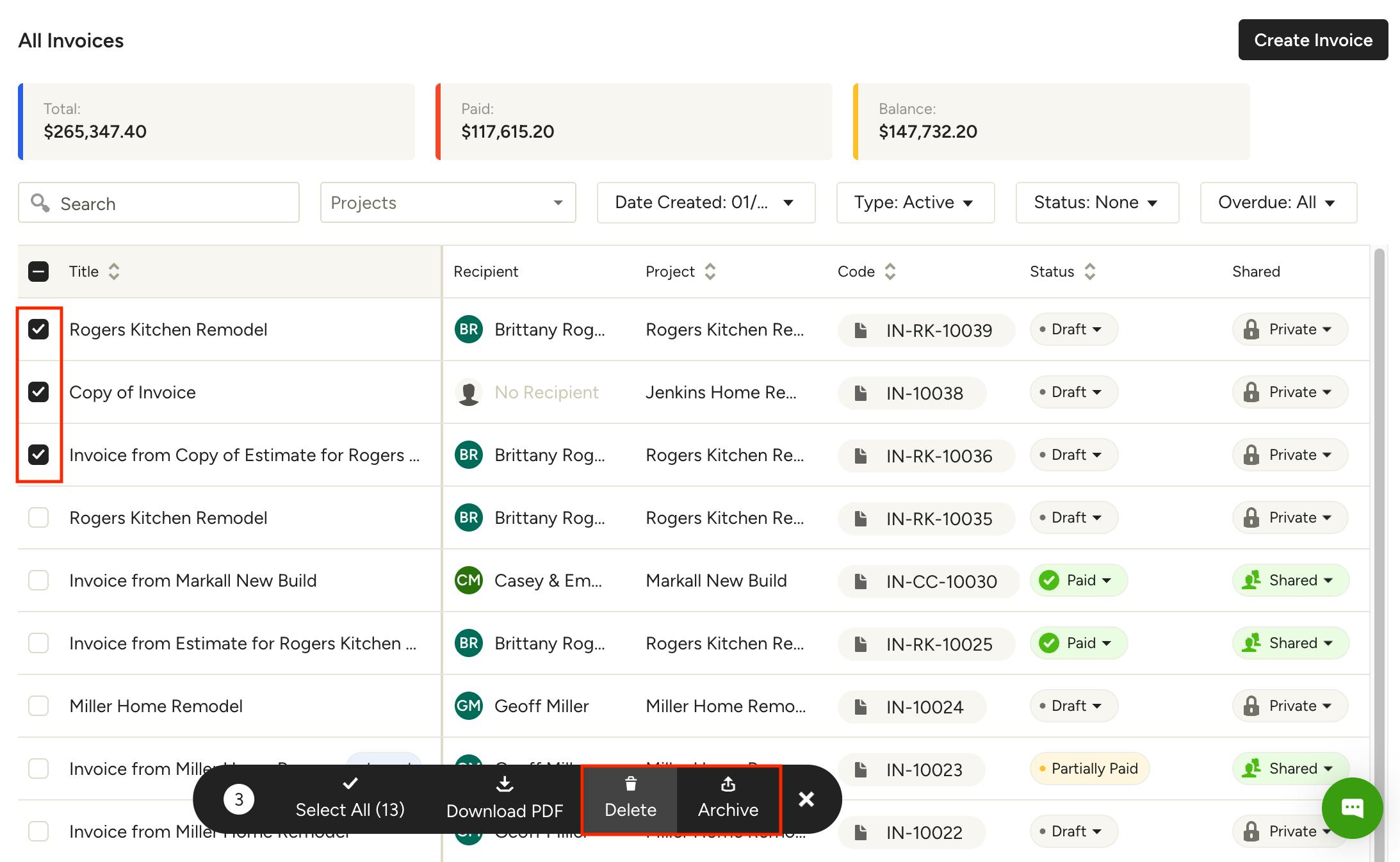
Bulk Delete or Archive Documents
To delete or archive multiple documents at once, navigate to the list view for the document type — this can be within a project's left menu or from the Search icon in the main navigation (All Estimates, All Invoices, etc.). Use the checkboxes to the left of the documents to select the ones you want to delete/archive. Once selected, a menu will appear at the bottom of the page with Delete and Archive options — select the desired action.
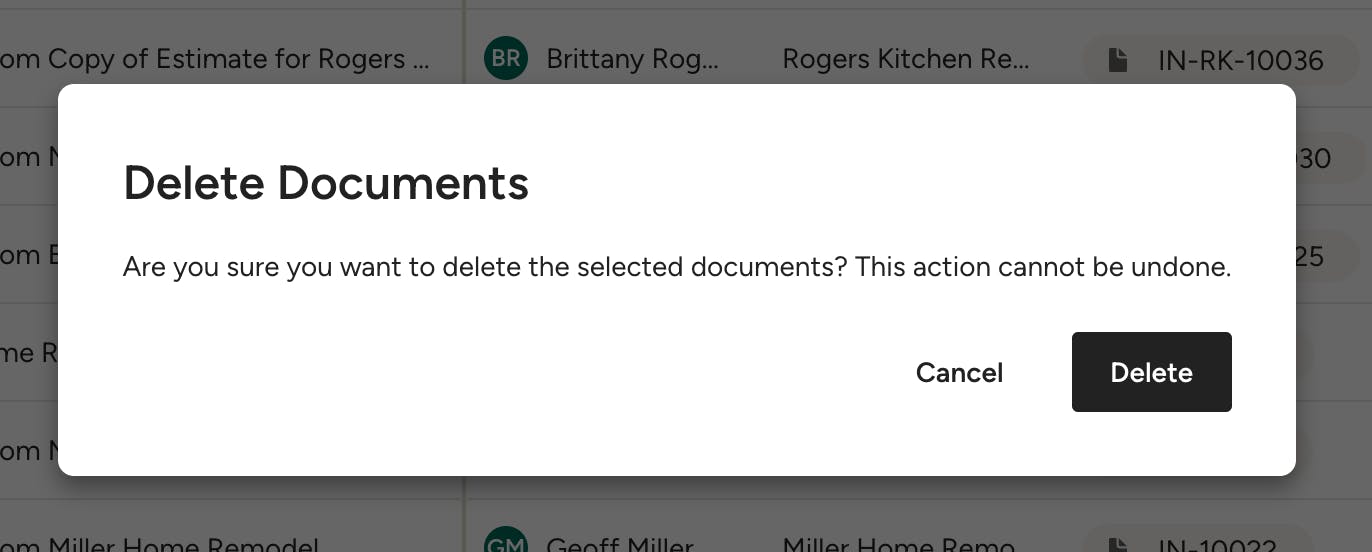
You will be asked to confirm that you want to delete or archive the selected documents. Once confirmed, all relevant documents (Sent or Draft status only) will be deleted or archived. Any selected documents that are not eligible for deleting or archiving will remain as is.
Restore Deleted or Archived Documents
Restore Deleted Documents
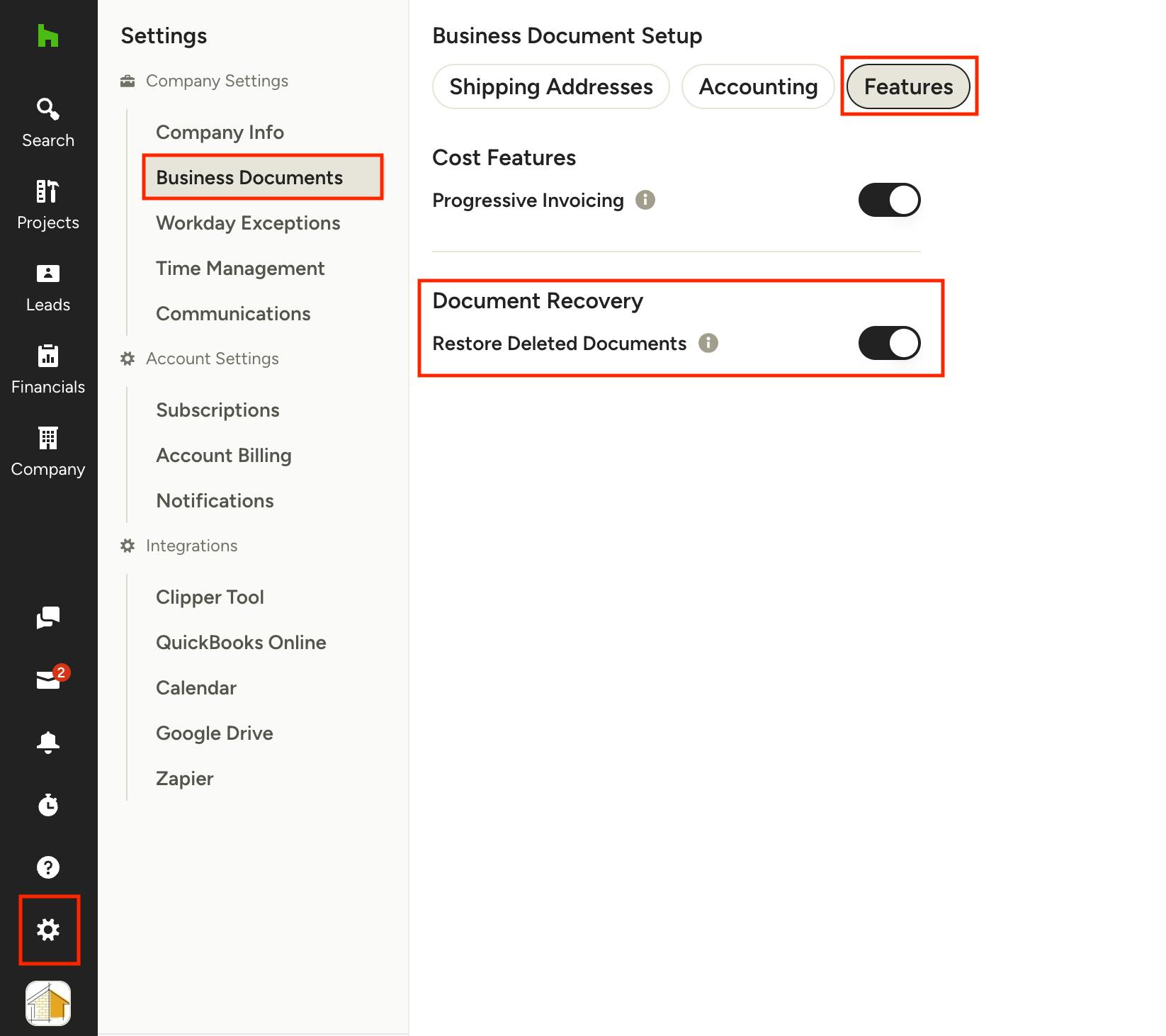
If you want the ability to restore deleted documents, you must enable the Document Recovery feature — this is disabled by default.
Note: Only the Super Admin can restore deleted documents.
To enable Document Recovery, go to your Settings in the left navigation, then the Business Documents section. Select the Features tab, then click the toggle next to Restore Deleted Documents, under the Document Recovery section.
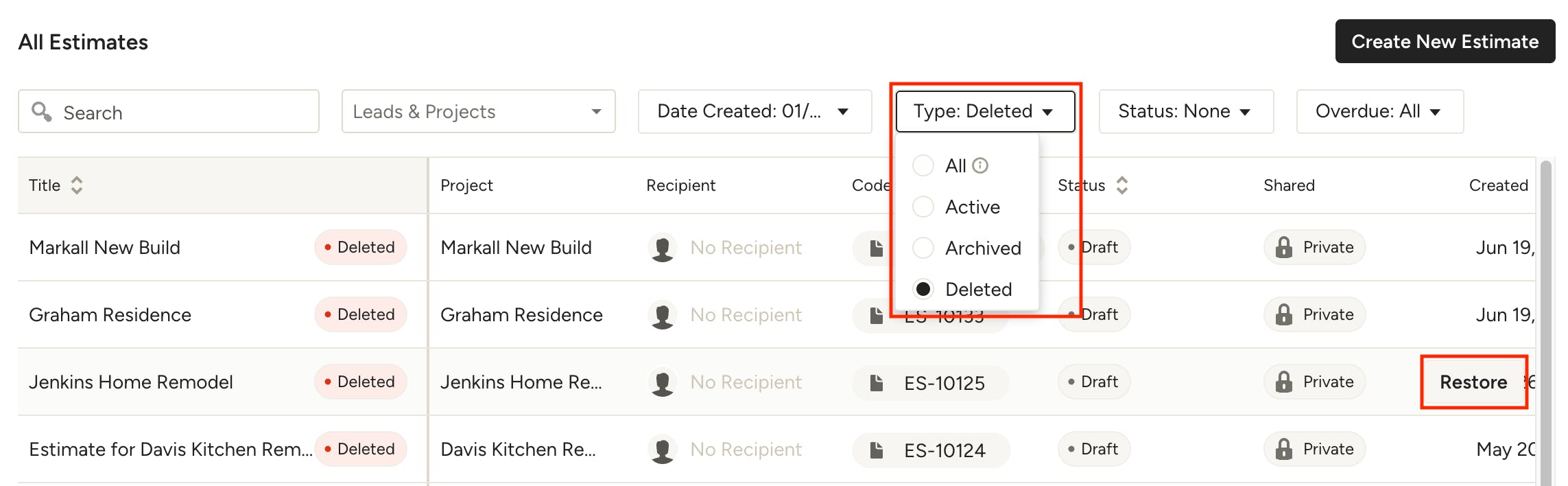
Once enabled, the "Deleted" option will appear on the Type filter on your document list pages. Any documents that you delete will appear here.
To recover a deleted document, hover over the document and click Restore to the far right.
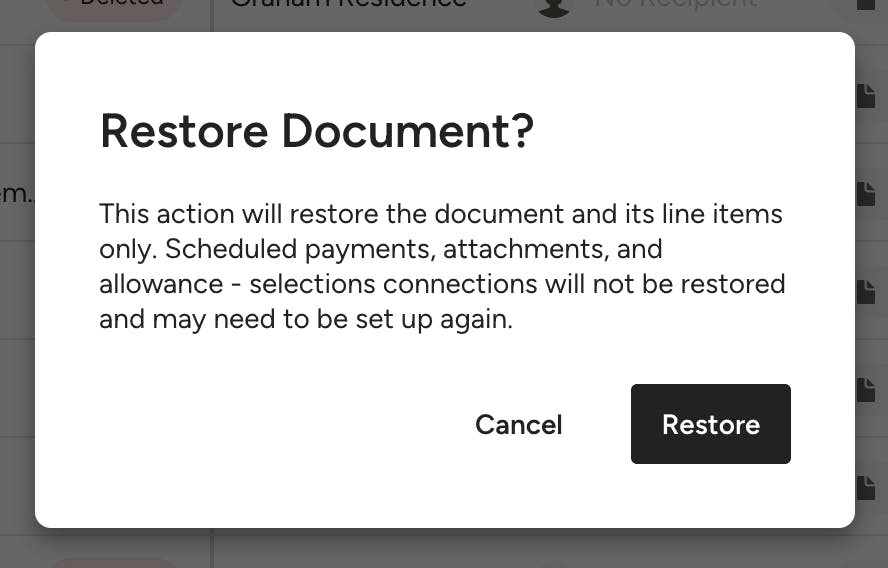
Confirm that you want to restore the document. It will now appear in the "Active" option under the Type filter.
Only the document and line items will be restored. Scheduled payments, attachments, recipients, and allowance/time/expense connections are not restored. Restored documents return in Draft status with Private visibility.
Duplicate and Edit Archived Documents
While you can't directly restore an archived document, you can view it and duplicate it for use in the same or different project if needed. The duplicate will contain all of the same details and items from the original document, including line items, scheduled payments, attachments, recipients, and allowance/time/expense connections.
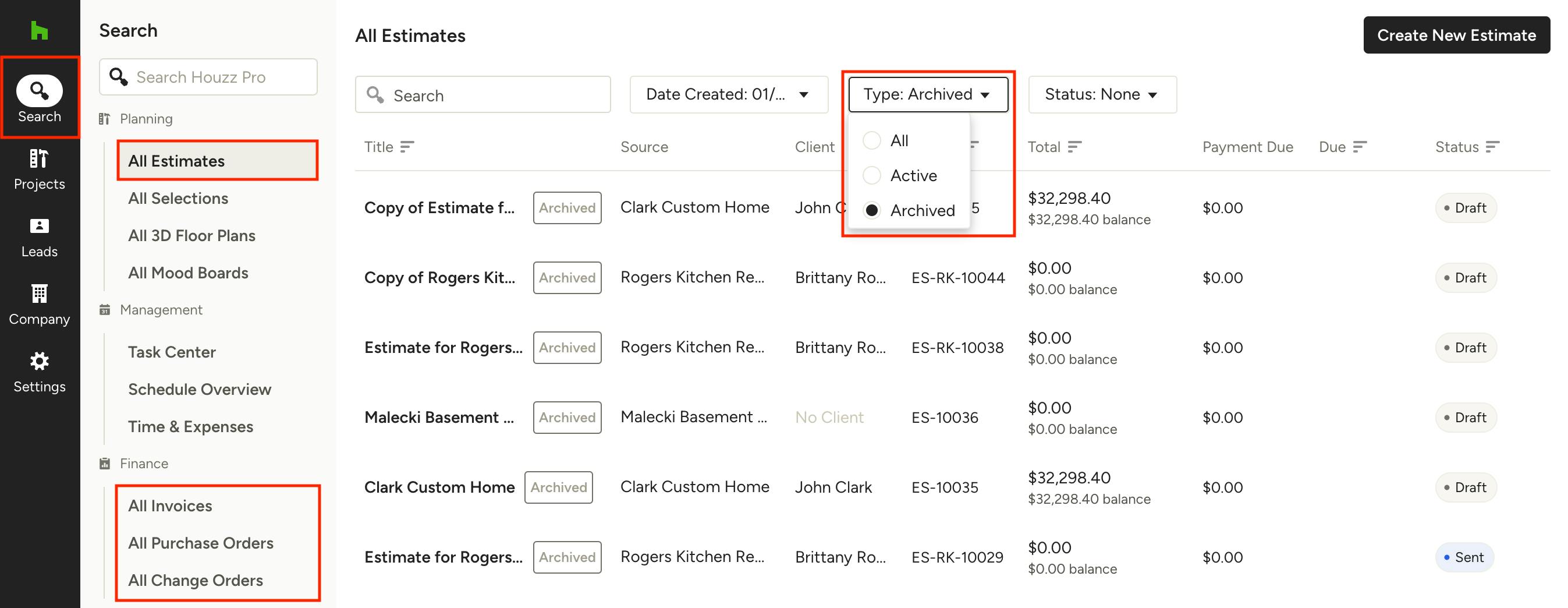
To duplicate and edit an archived document, use the Search icon in the left navigation to open the complete list of documents depending on the type you are looking for (All Estimates, All Invoices, etc.).
Next, use the Type filter at the top and select Archived to show the archived documents. Click on the document title of the one you want to view and/or duplicate.
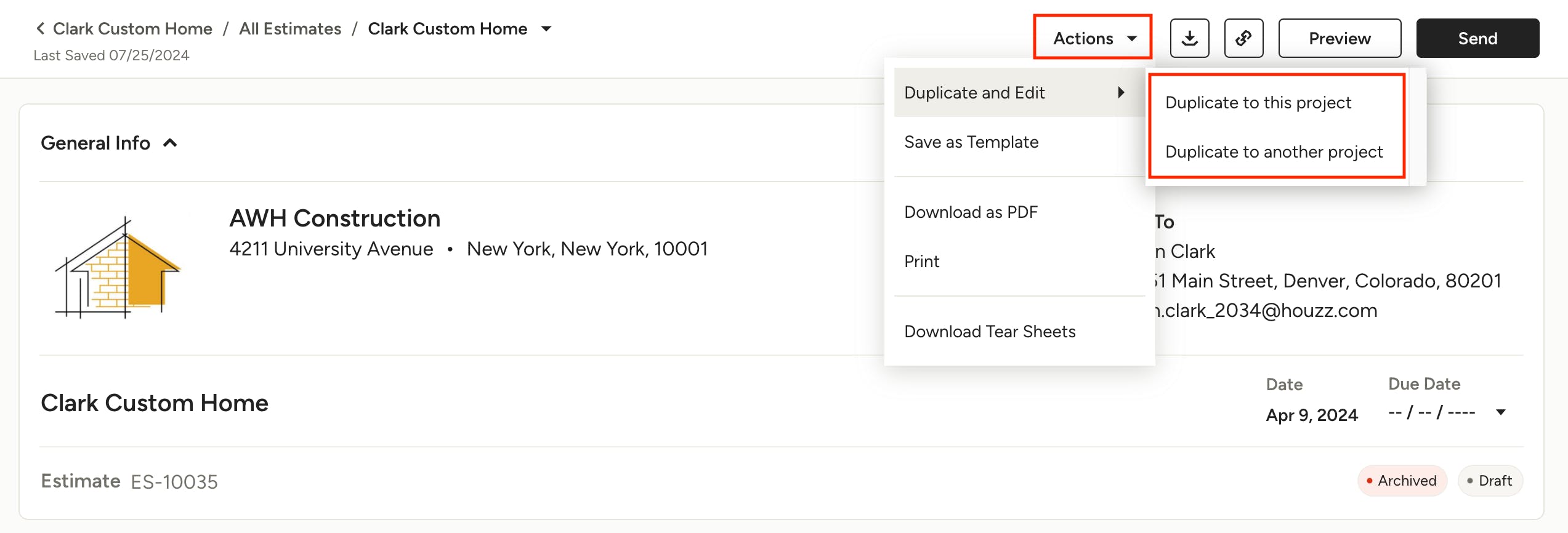
Once in the archived document, click the Actions menu at the top of the page and select Duplicate & Edit, then choose whether you want to duplicate to this project or to another project (new or existing).