How to Use Automations on Documents
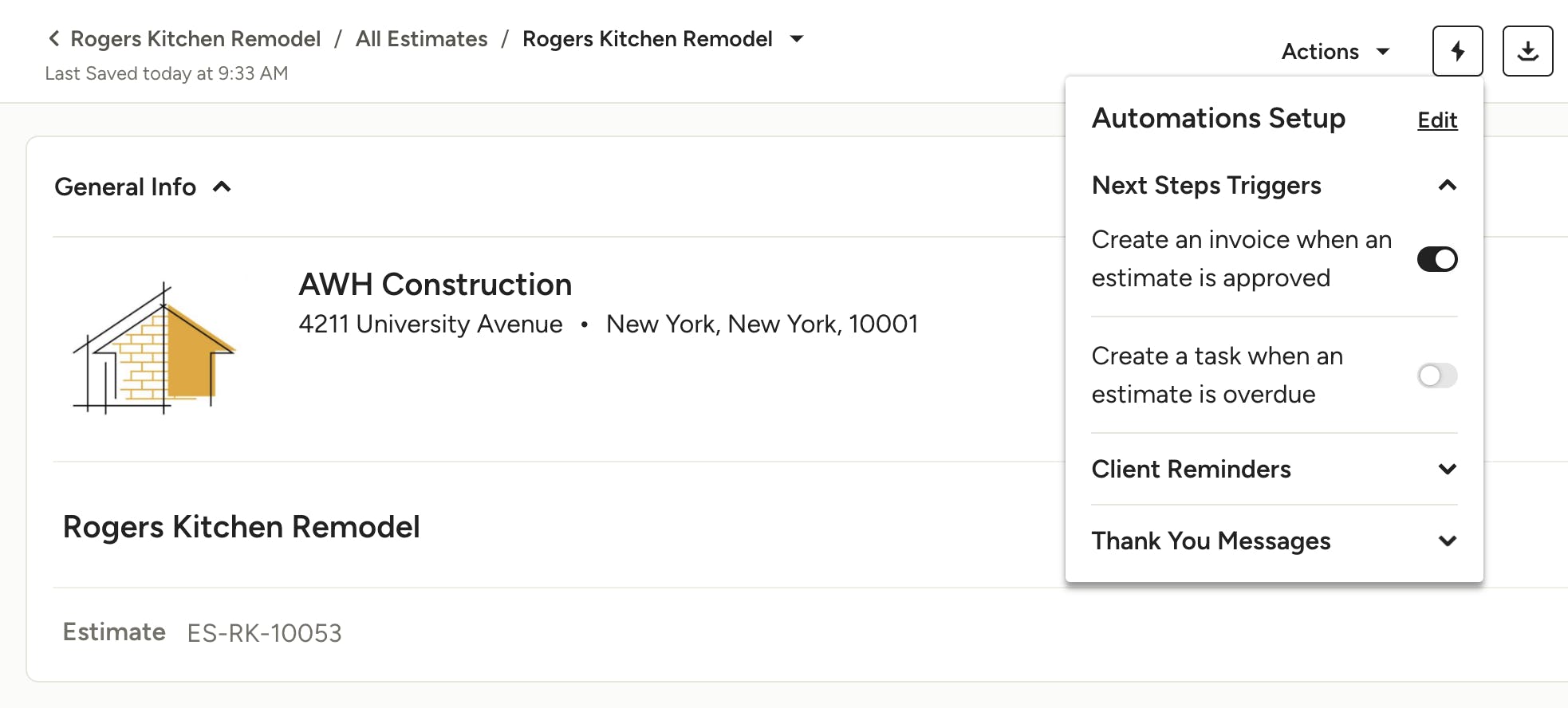
As you create your documents on Houzz Pro, you can save time and increase efficiency with the automations feature, which allows you to schedule automated next steps, client reminders or thank you messages for both projects and leads.
Automations Overview
The automations feature is available within estimates/proposals, invoices and change orders.
The automations icon will only appear on draft, sent, partially invoiced or partially paid documents. Once approved, fully invoiced, and/or fully paid, you will no longer be able to set up any automations.
When you set your automation selections, those settings will save and apply to all future documents of the same type.
Automation Options by Document Type
The automation options vary for each document type and document status. For example, you will not have the option to create a task for an overdue estimate/proposal if the document has already been partially paid.
Here is a list of the available automations by document type.
Note: Automations for estimates and proposals are also available for Leads, unless stated otherwise.
Estimates (Build only)
- Create an invoice when an estimate is approved (available in projects only)
- Create a task when the estimate is overdue
- Send your client an email reminder to review the estimate
- Send your client an email reminder when estimate is overdue
- Send your client an email reminder when estimate has an overdue payment
- Send a thank you email to your client after the estimate is approved
Proposals (Design only)
- Create an invoice when a proposal is approved (available in projects only)
- Create a task when the proposal is overdue
- Send your client an email reminder to review the proposal
- Send your client an email reminder when proposal is overdue
- Send your client an email reminder when proposal has an overdue payment
- Send a thank you email to your client after the proposal is approved
Invoices (Design and Build)
- Create a task when the invoice is overdue
- Send your client an email reminder to review the invoice
- Send your client an email reminder when invoice is overdue
- Send your client an email reminder when invoice has an overdue payment
- Send a thank you email to your client after they make a payment on the invoice
Change Orders (Design and Build)
- Create a task when the change order is overdue
- Send your client an email reminder to review the change order
- Send your client an email reminder when change order is overdue
How to Access Automations
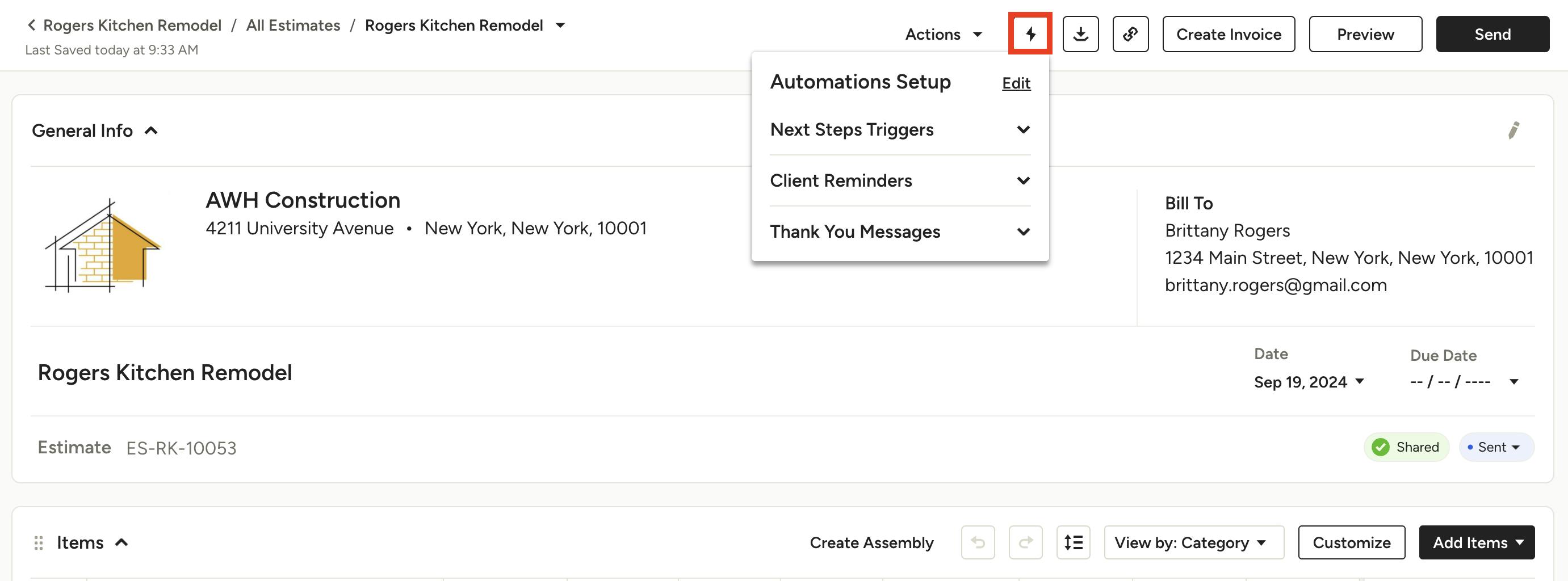
Within all your relevant documents, you can access the automations feature in the same way — by clicking the lightning bolt icon at the top of your document next to the Actions dropdown.
From here, you will see three categories of automated messages or actions — Next Steps, Client Reminders, and Thank You Messages.
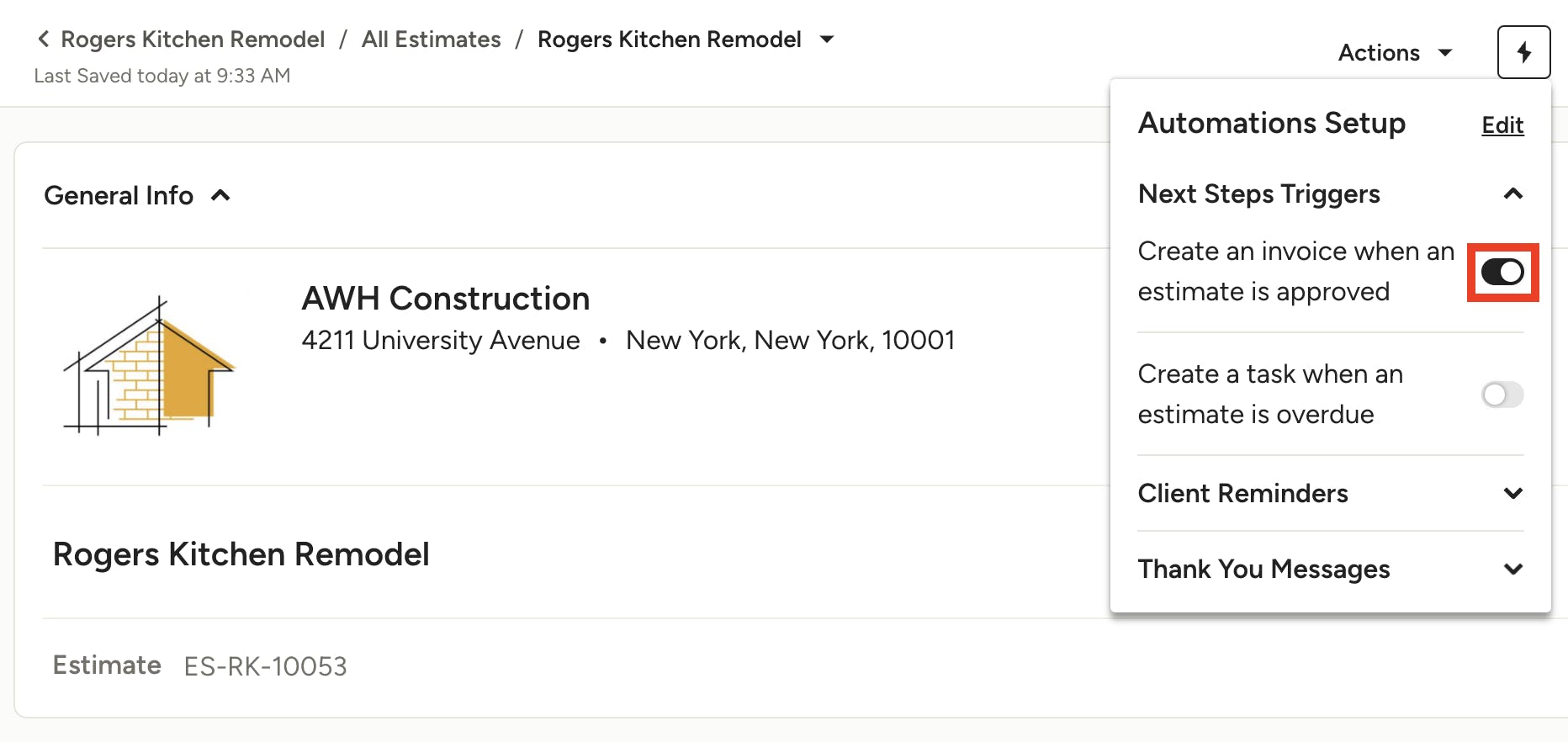
Select the category to view the automation options. You can turn on and off an automation by clicking the toggle bar on the right. It will automatically save your preferences for all future documents of the same type.
How to Edit Automation Details
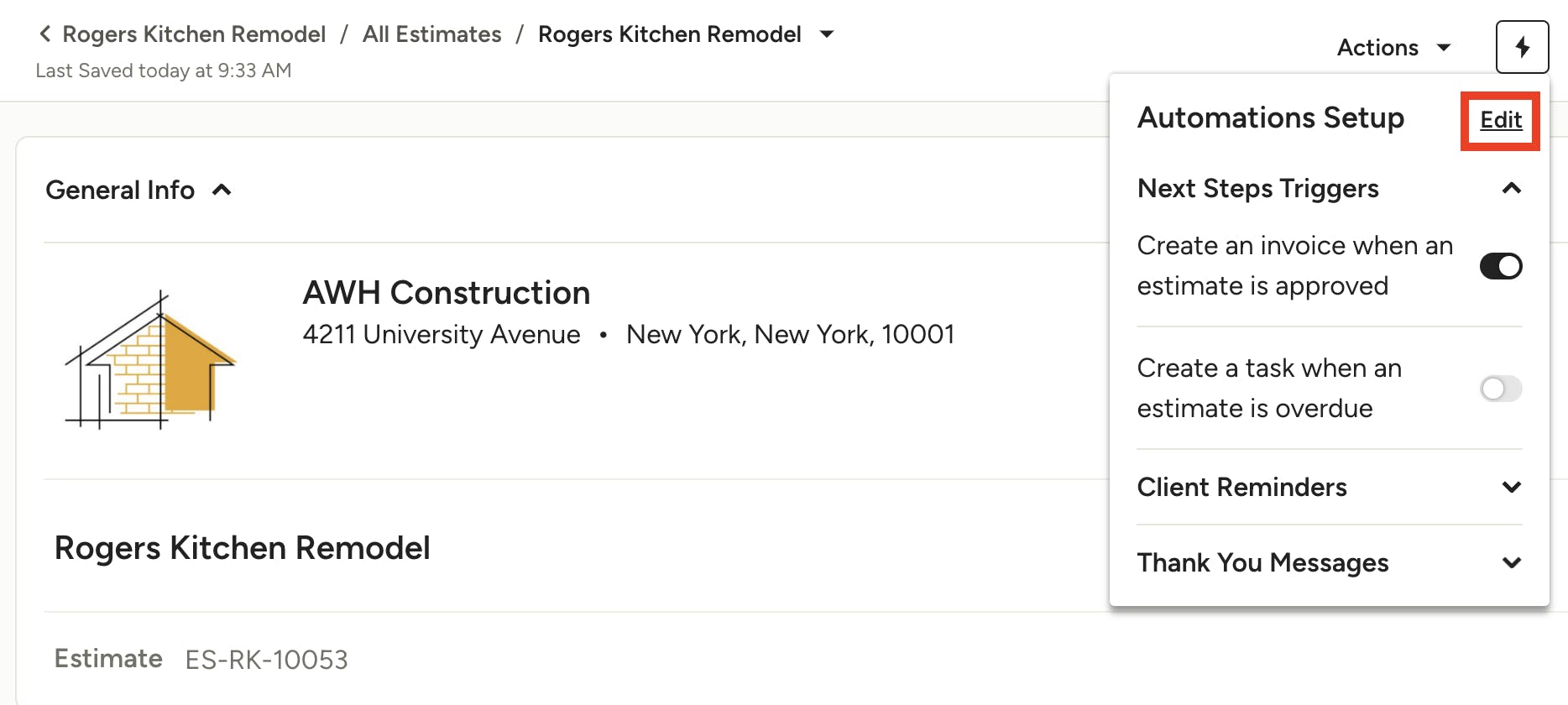
Once your automations are turned on, you can edit specific details for each automation by clicking the Edit button.
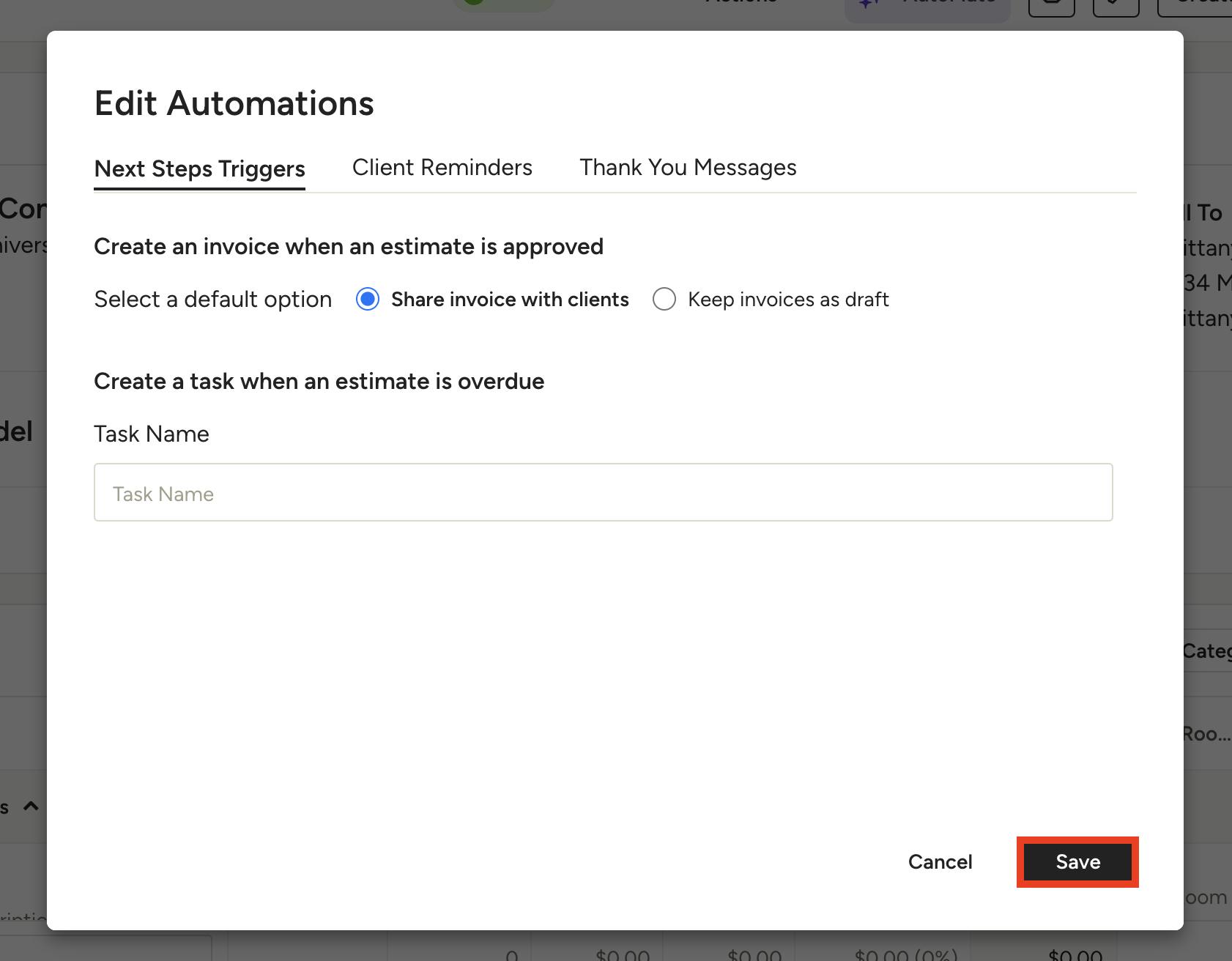
For Next Steps, you can decide whether you want to automatically share an invoice with your client, or you can keep your invoice in the draft format and send manually later on (shown on estimates and proposals only).
You can also create a task when an estimate is overdue and select a task name. Be sure to click Save once complete.
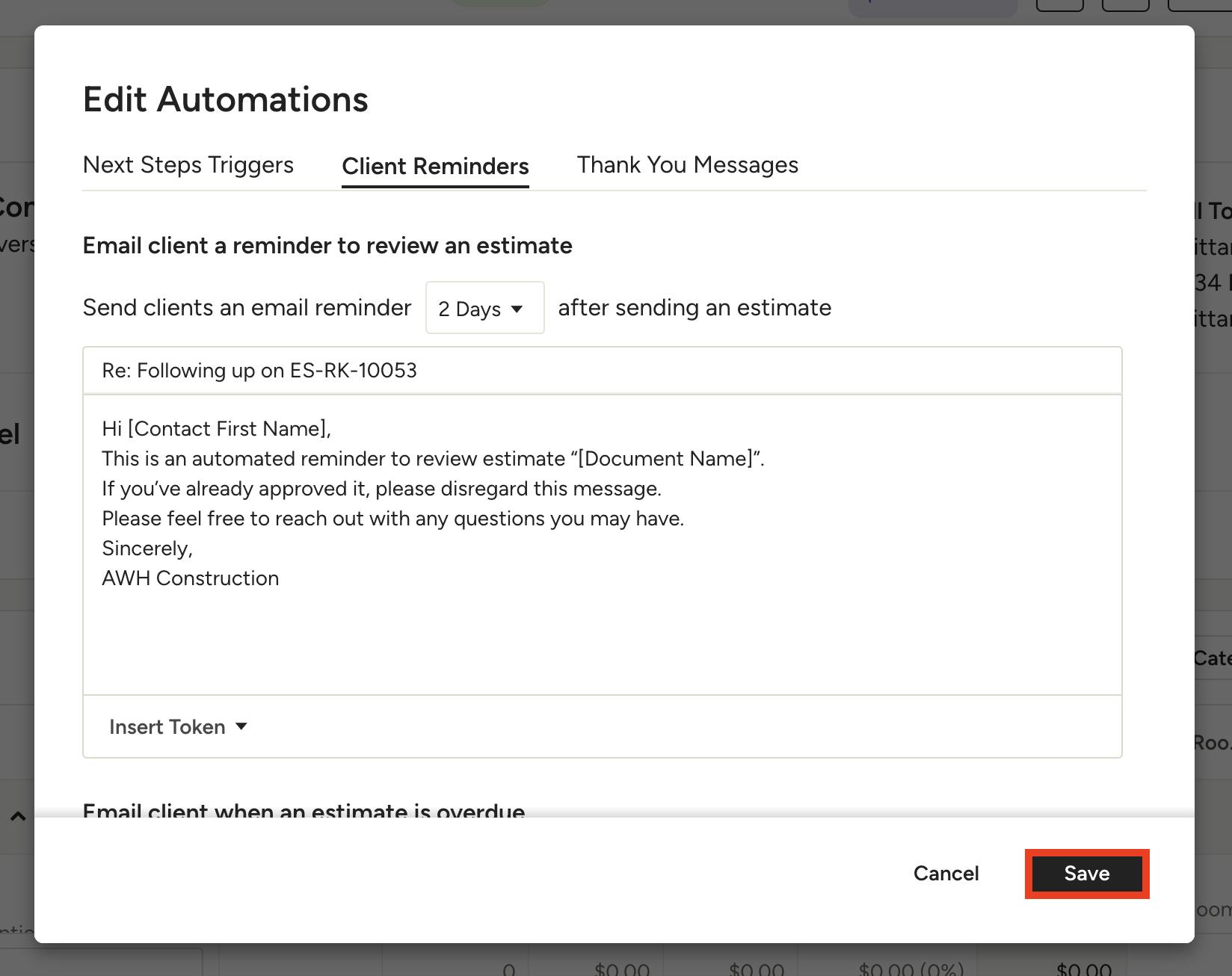
For Reminders, you can remind a client to review a document, or remind them when the document or payment is overdue. You can specify when the reminder goes out, as well as customize the subject line and message of the email. Be sure to click Save once complete.
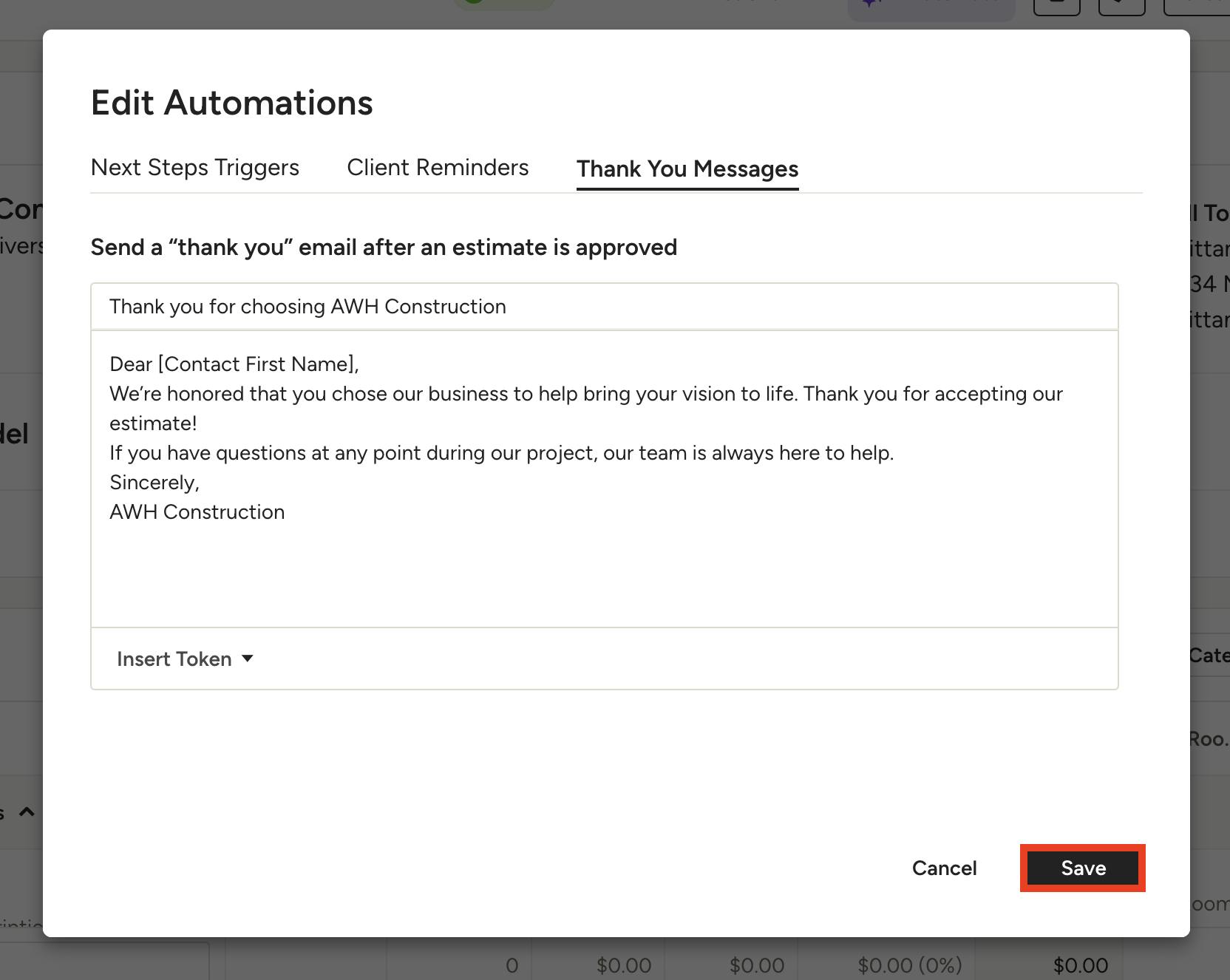
For Thank You Messages, you can send a thank you email to your client after a document is approved. You can customize the subject line and message of the email. Be sure to click Save once complete.