How to Use Your Project Dashboard (For Clients)
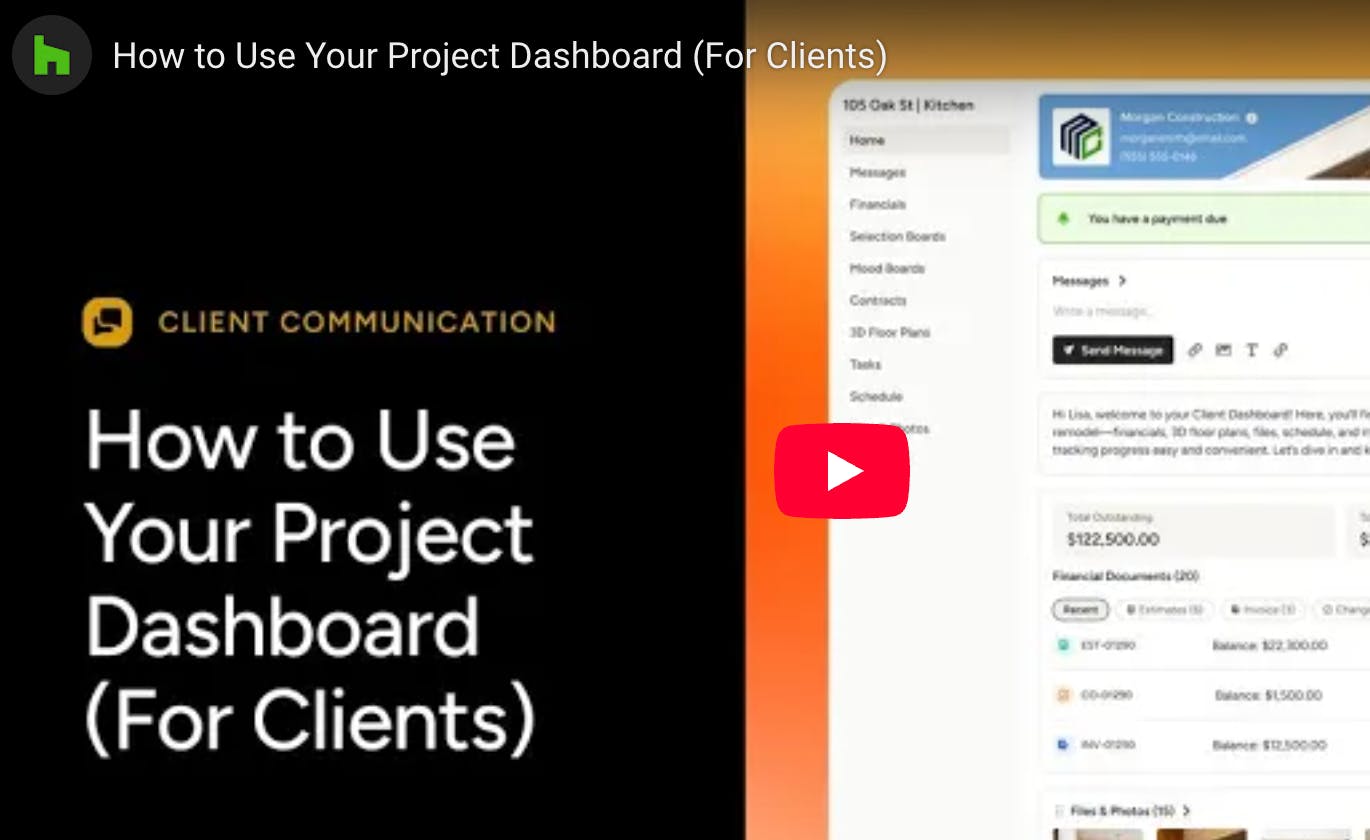
Your project dashboard is a quick way to view up-to-date project details all in one place. You will be able to find everything that's been shared with you by the professional, including messages, financial documents, project budget, schedule, files, photos, 3D floor plans, mood boards and more. You can even see reminders for upcoming payments or notifications about new documents to view.
How to Access Your Project Dashboard
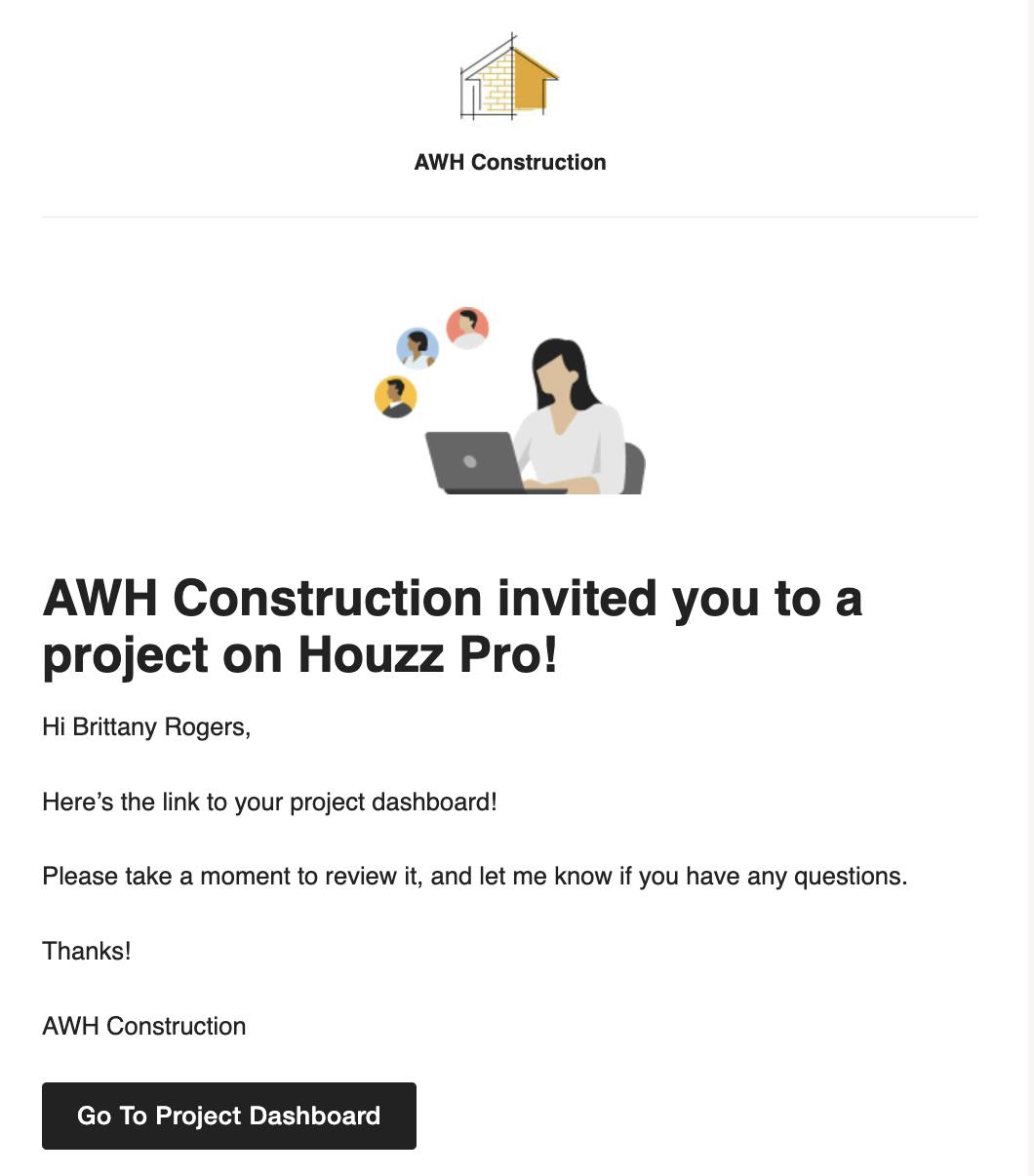
To access your project dashboard, the professional will need to share it with you first. It can be shared with you via an email from Houzz Pro, like the example below, or via a unique link that the pro sends to you through their preferred method of communication. Use the link or click Go to Project Dashboard from the email to view the dashboard.
Tip: Be sure to save this email or bookmark the dashboard link in your browser (instructions below) for easy access throughout your project.
Save Dashboard Link as Bookmark
For quick access to a specific project's dashboard, we recommend saving the unique link as a bookmark, both on your desktop and on your mobile device. This will save you from having to reference the invite email each time you need to look at your dashboard.
Bookmark Link on Mobile
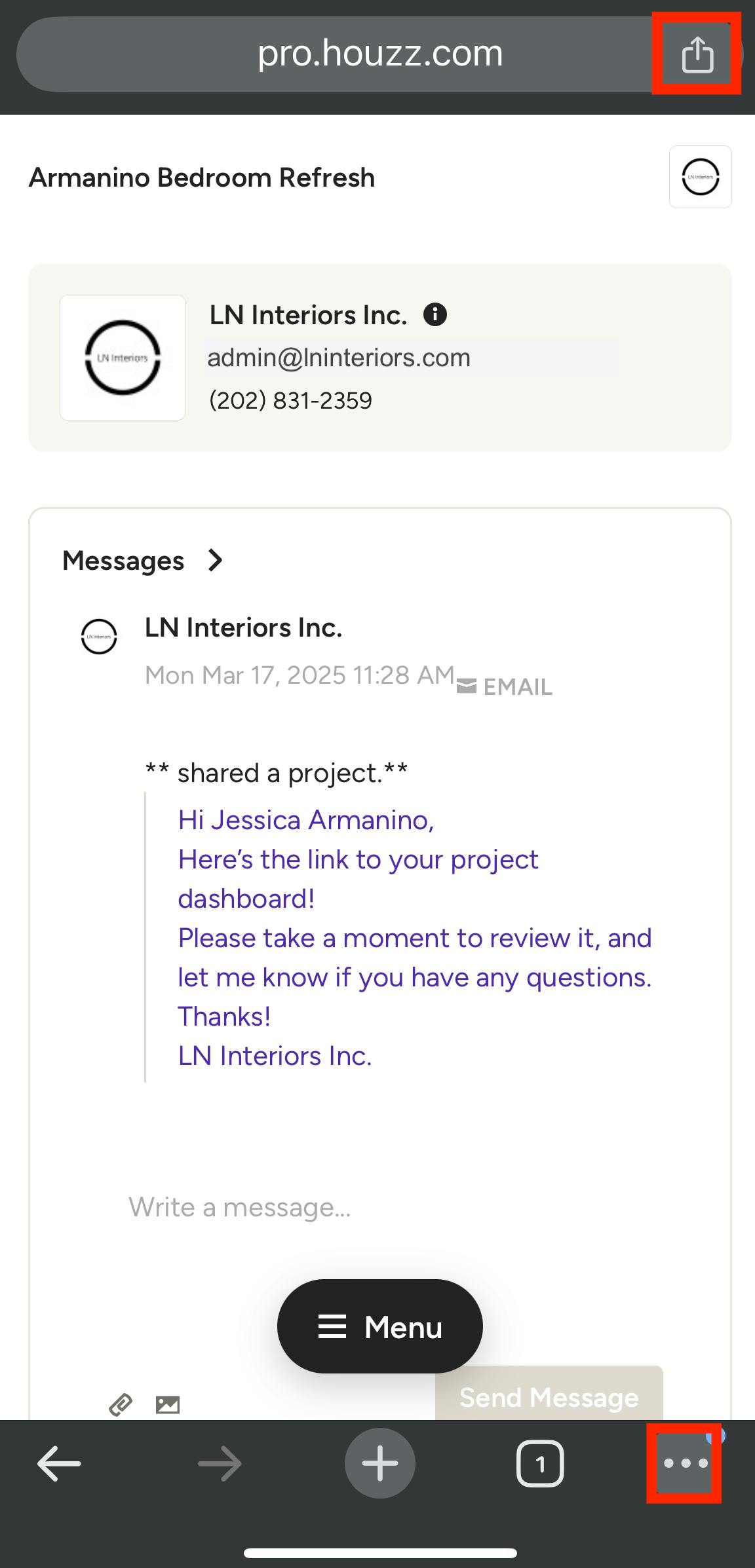
To bookmark a dashboard on the Chrome app on your mobile device, open the link and tap on the send icon in the far right of the URL bar, or on the three dots at the bottom of the browser.
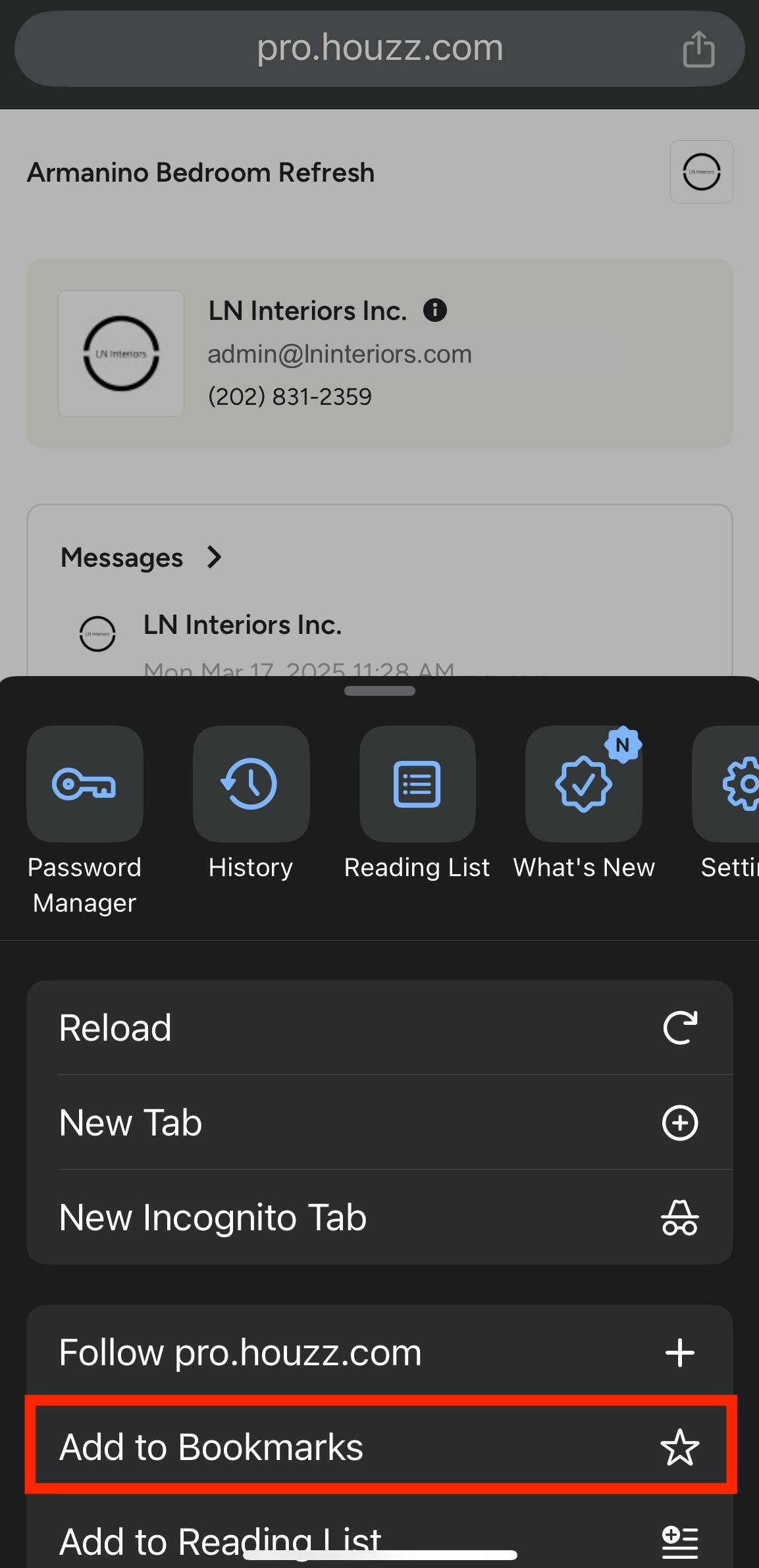
Next, tap Add to Bookmarks from the menu that appears.
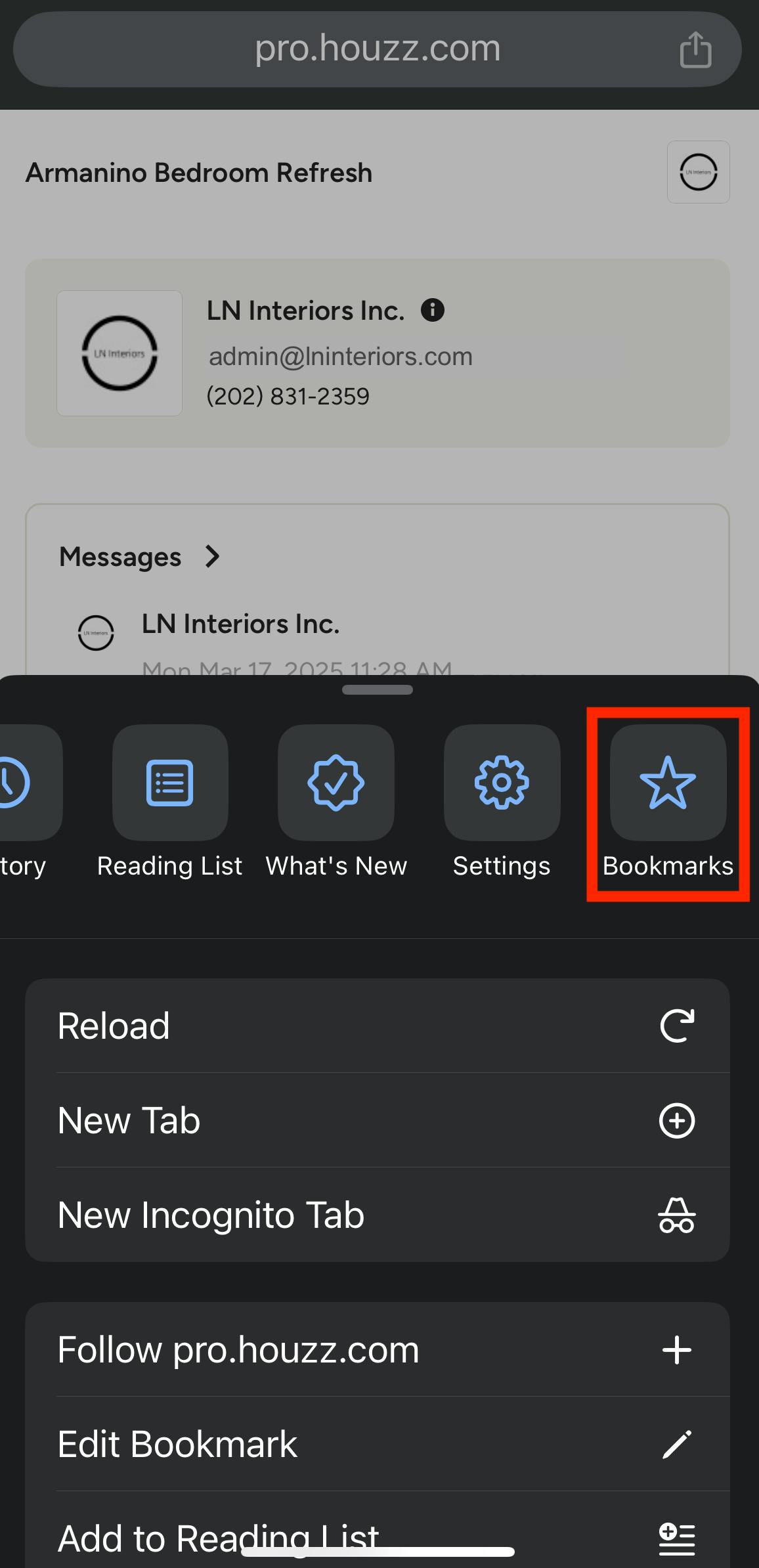
Your project dashboard will now appear in your bookmarked pages. To access your bookmarks, tap the three dots at the bottom of the browser and select Bookmarks from the menu.
Bookmark Link on Desktop
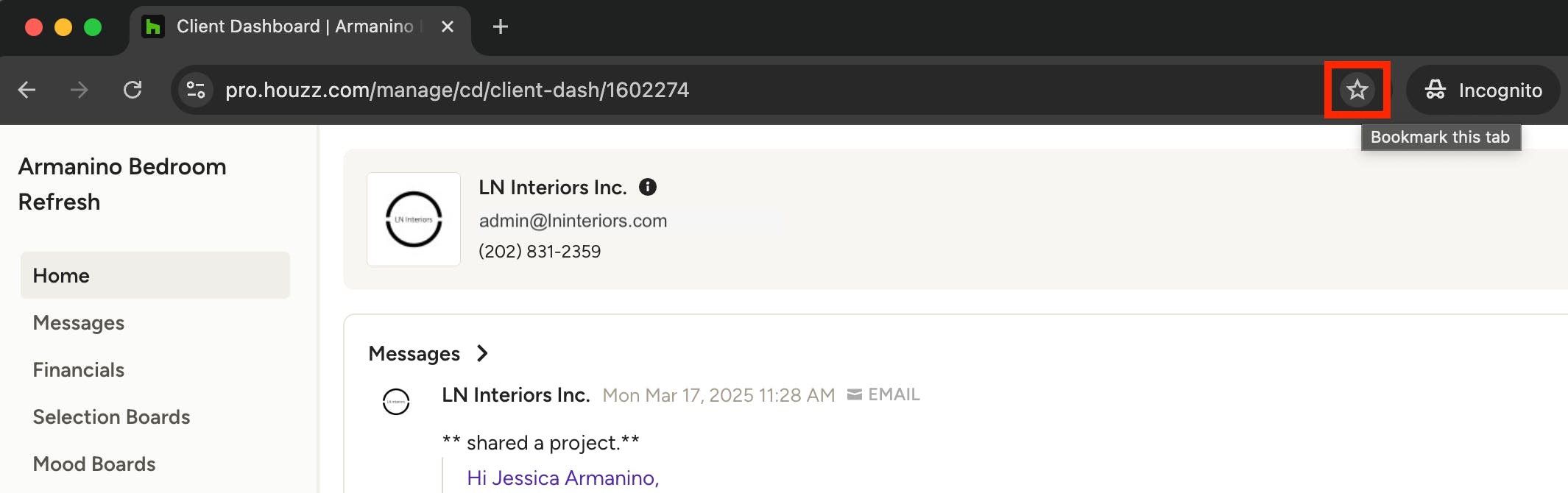
To bookmark a dashboard on the desktop version of Chrome, our recommended browser, simply open the link and click on the star icon in the far right of the URL bar. From here you can click Edit to rename and manage the bookmark as needed.
You can find instructions for bookmarking websites in Safari on a Mac here.
Project Dashboard Overview
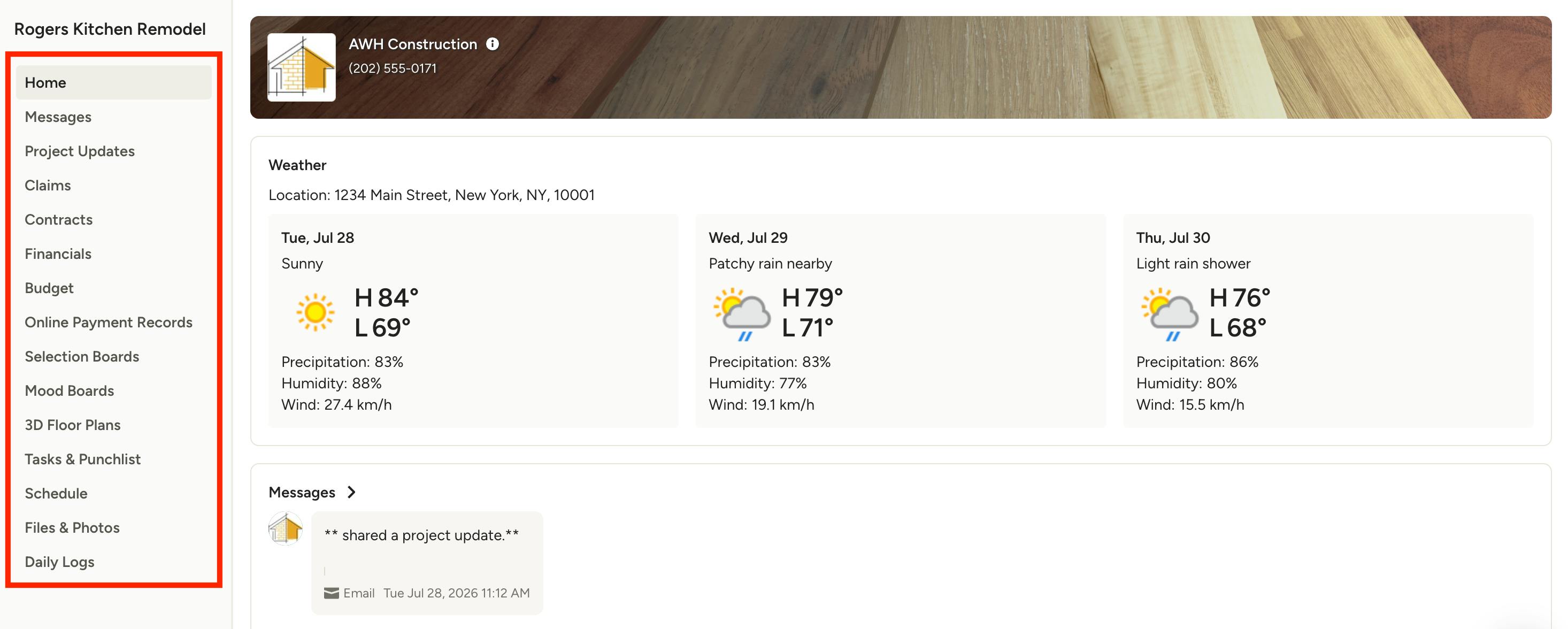
Once in your project dashboard, you'll see an overview of the current state of the project, including any relevant documents, messages and a financial overview (if the pro has shared this info with you). You can quickly send them a message using the Send Message button.
In the left navigation of your project dashboard, you will be able to explore all the project components that have been shared with you. This list can vary by project, but it can include Messages, Project Updates, Claims, Contracts, Financials, Budget, Online Payment Records, Selection Boards, Mood Boards, 3D Floor Plans, Tasks & Punchlist, Schedule, Files & Photos, and Daily Logs. Let's go over each section.
Messages
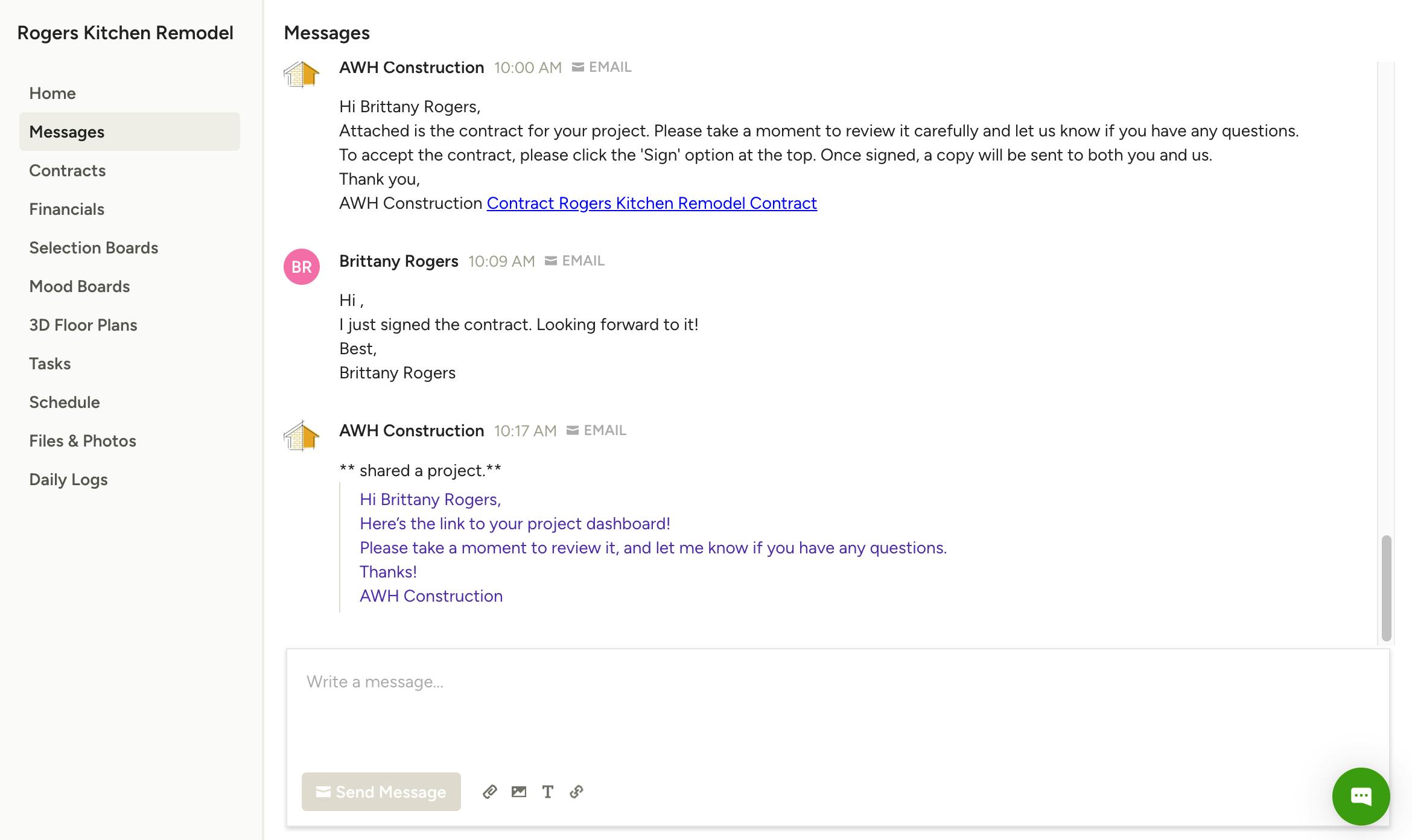
All of your communication history with the professional you're working with can be found in the Messages section of your dashboard. You can send them a message using the field at the bottom of the page, including attach files or images relevant to your project.
Project Updates
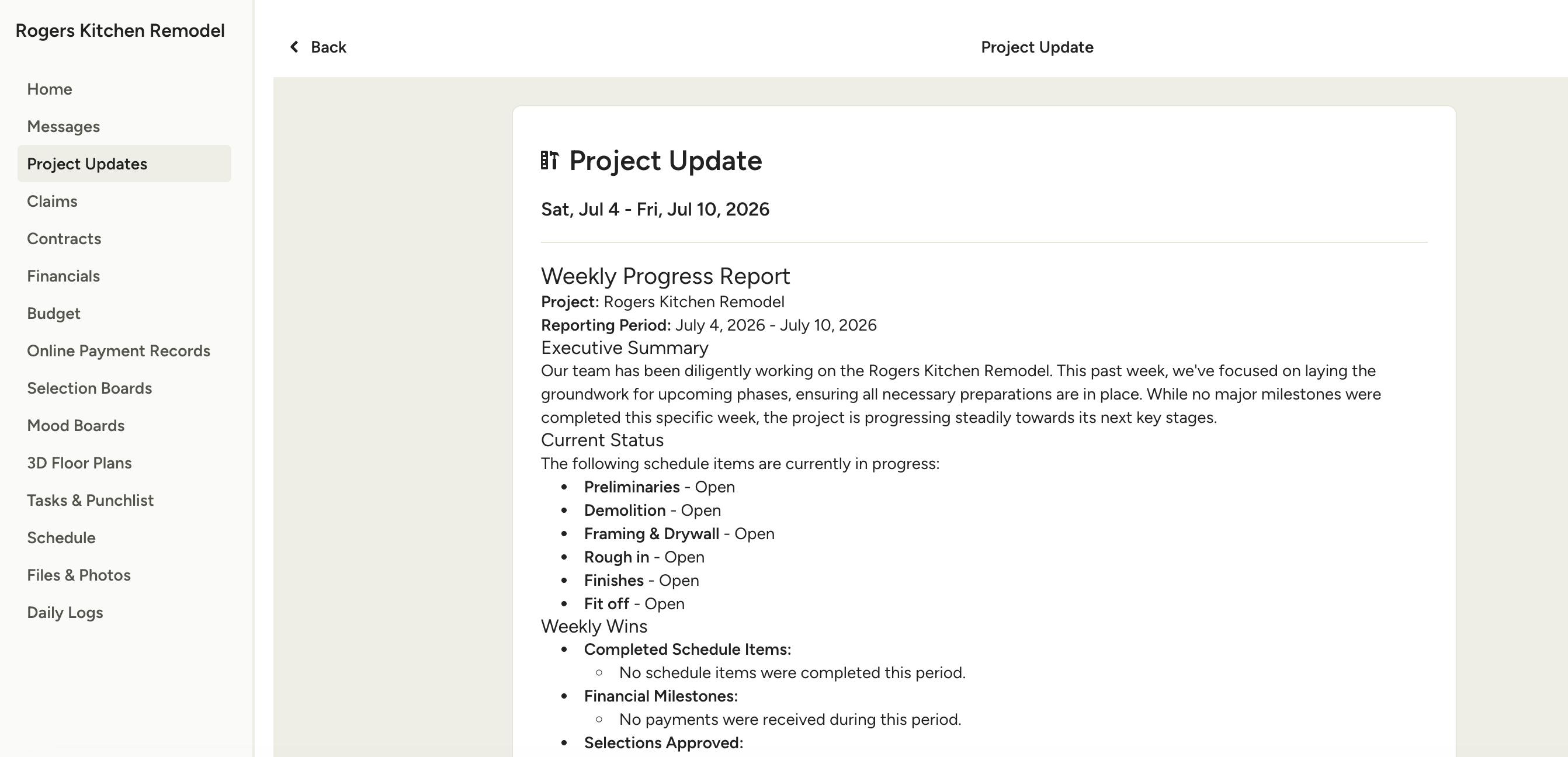
Within the Project Updates section of your dashboard, you can view weekly progress reports shared by your project team. Each update includes a summary of work completed, what to expect next, and any items that need your attention, such as an approval or payment.
You'll receive an email notification whenever a new update is published, and can click into it at any time to view the full details along with any attached photos.
Claims
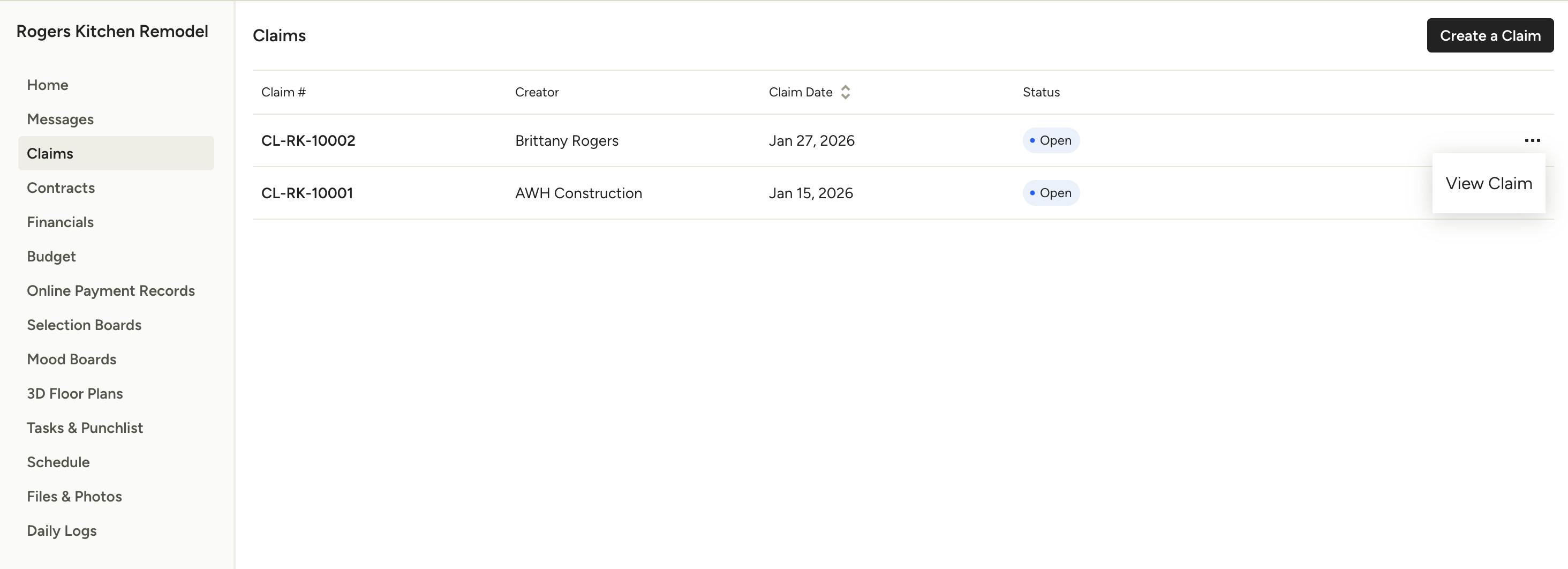
Within the Claims section of your dashboard, you can view existing warranty claims related to your project. Click the Three Dots icon to the right of the claim to view claim details, such as description, status, and photos.
You can also select Create a Claim to start a new claim. Once submitted, the professional will be notified and can approve or deny the claim.
Contracts
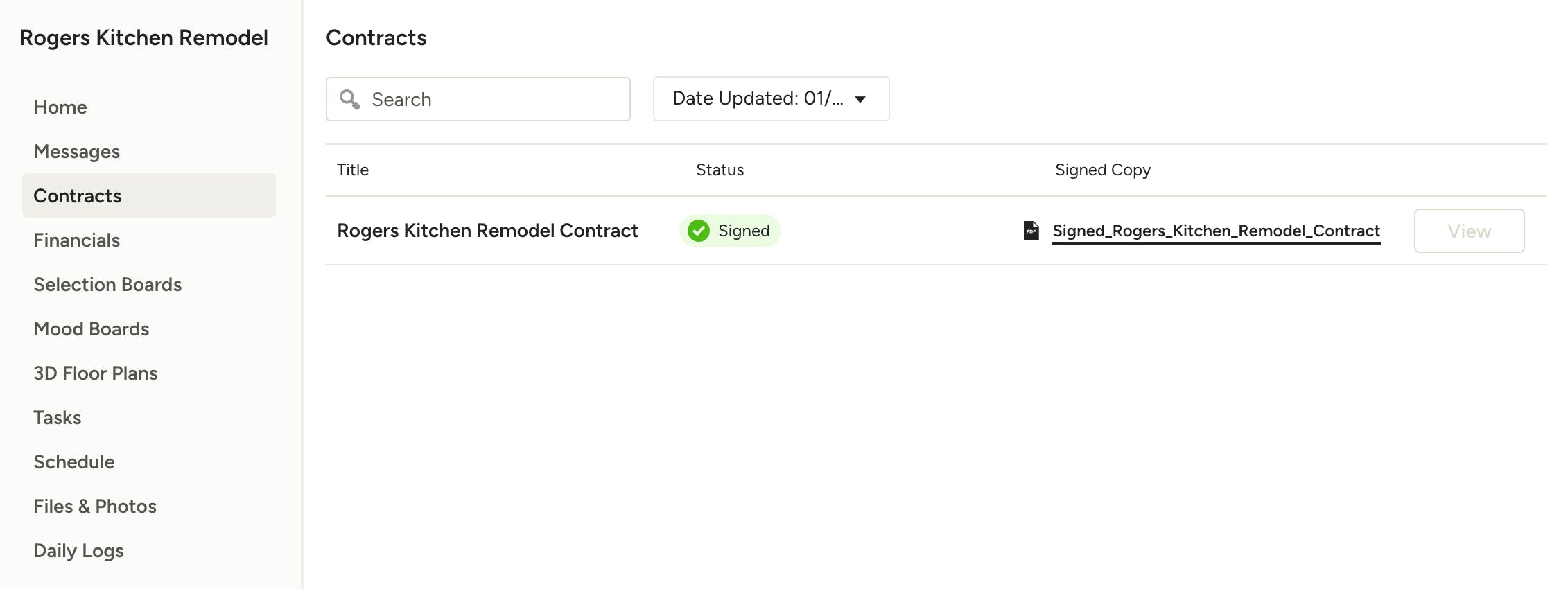
If the professional you're working with has sent one or more contracts via Houzz Pro, you will see them here, along with their status and a copy of any that are signed. Click View next to a contract to open and sign if applicable.
Financials
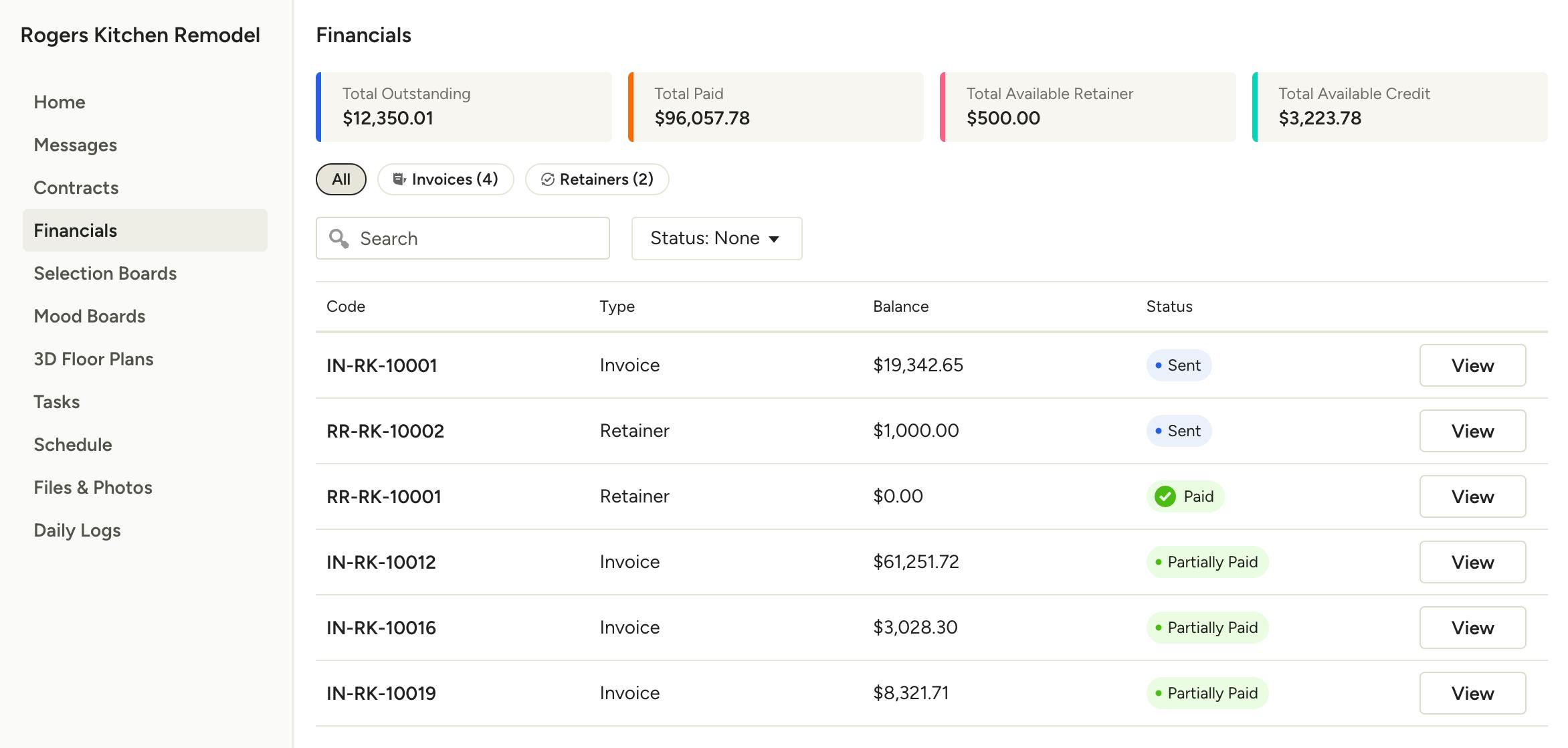
Within the Financials section of your dashboard, you can see any documents that have been sent to you, including estimates, proposals, invoices and change orders, as well as an overview of the project totals (if the pro has chosen to share this info with you).
Click on any financial document to view, download and pay if applicable.
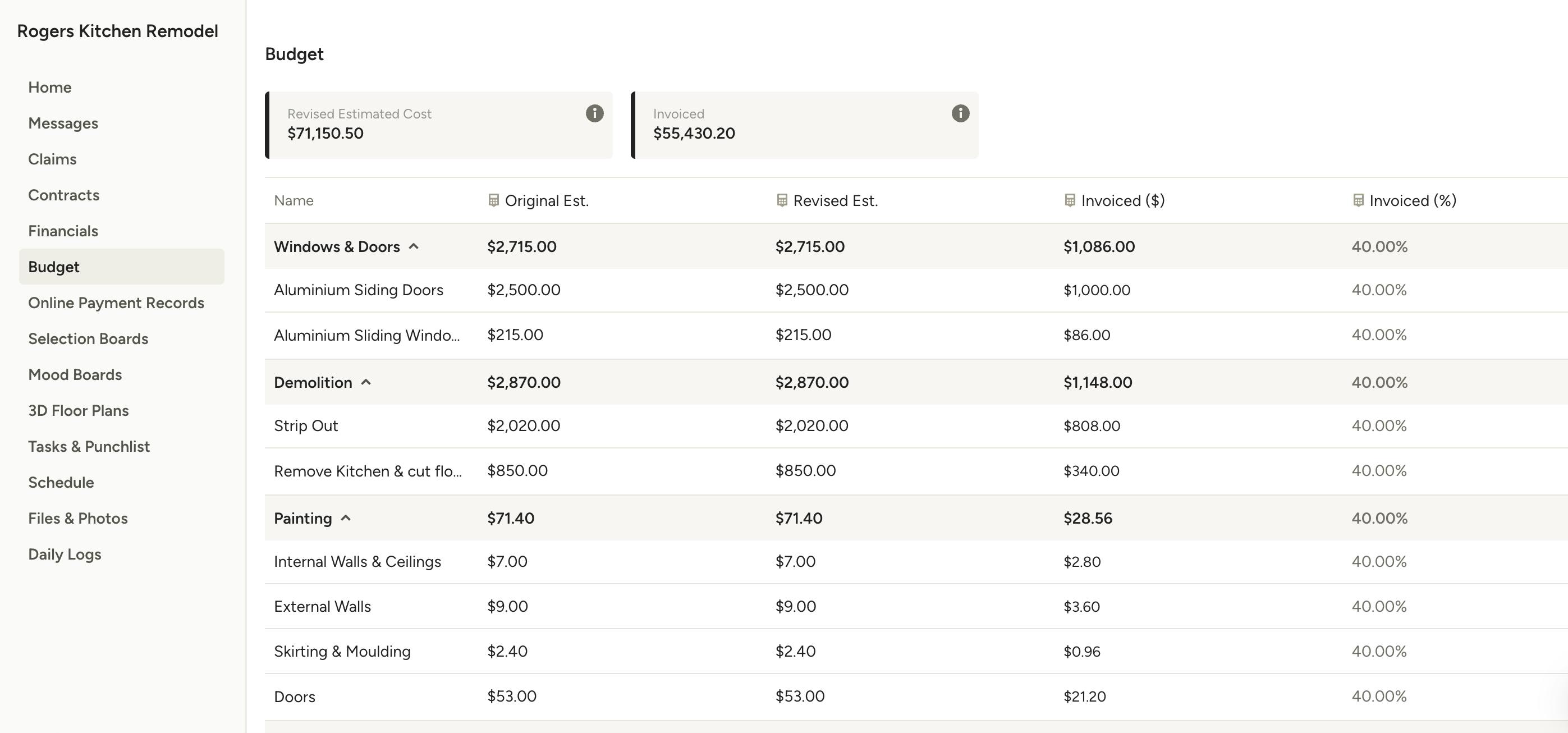
Budget
Within the Budget section of your dashboard, you will have real-time visibility on your project's budget. Here, you can view with full transparency the total project cost, amount already invoiced, and specific line item details.
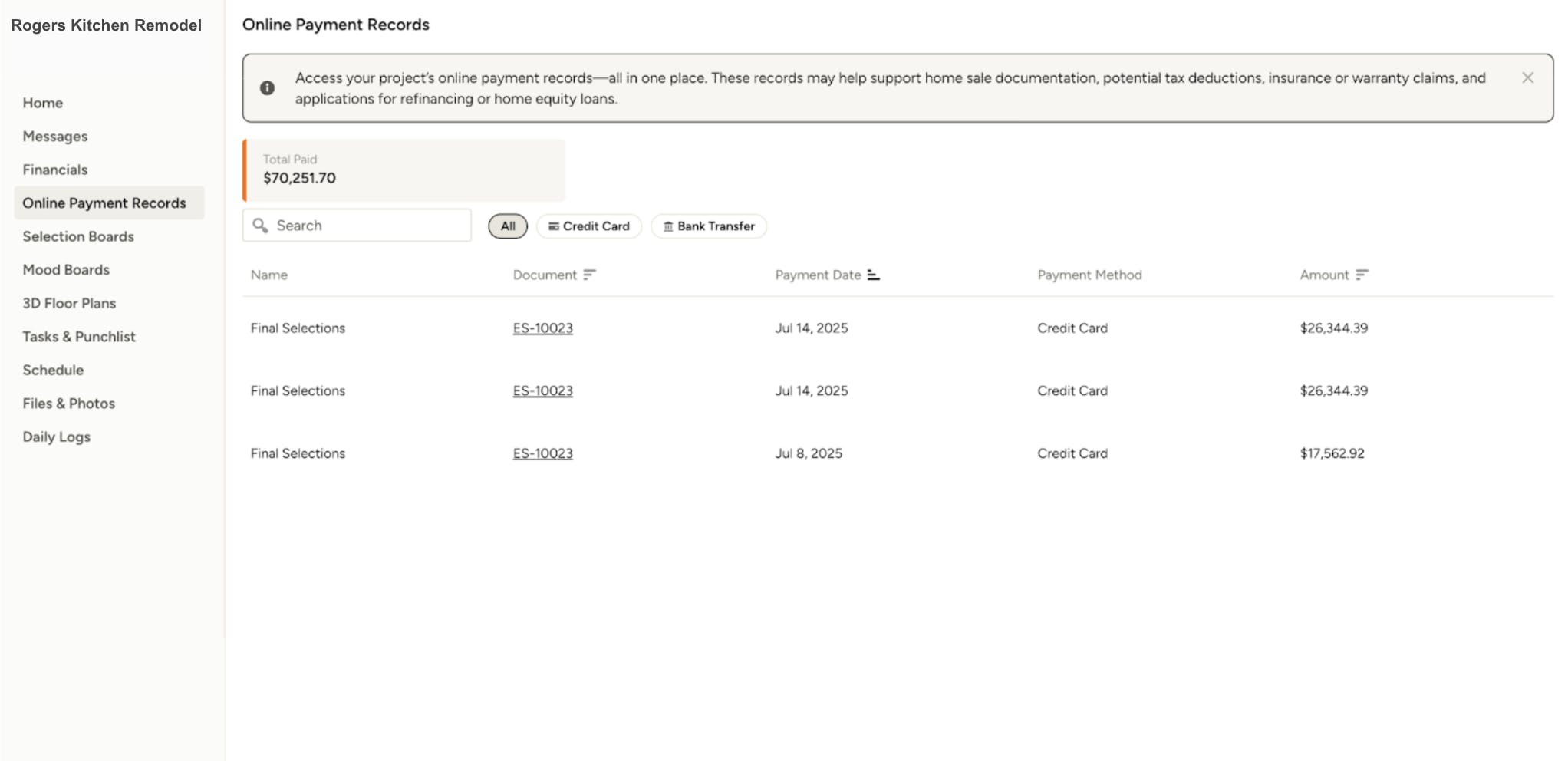
Online Payment Records
Within the Online Payment Records section of your dashboard, you can see a record of all the online payments you have made using Houzz Pro. Here, you can access all of your receipts in case you need them for tracking costs, preparing for taxes, selling your home, or getting bank approval.
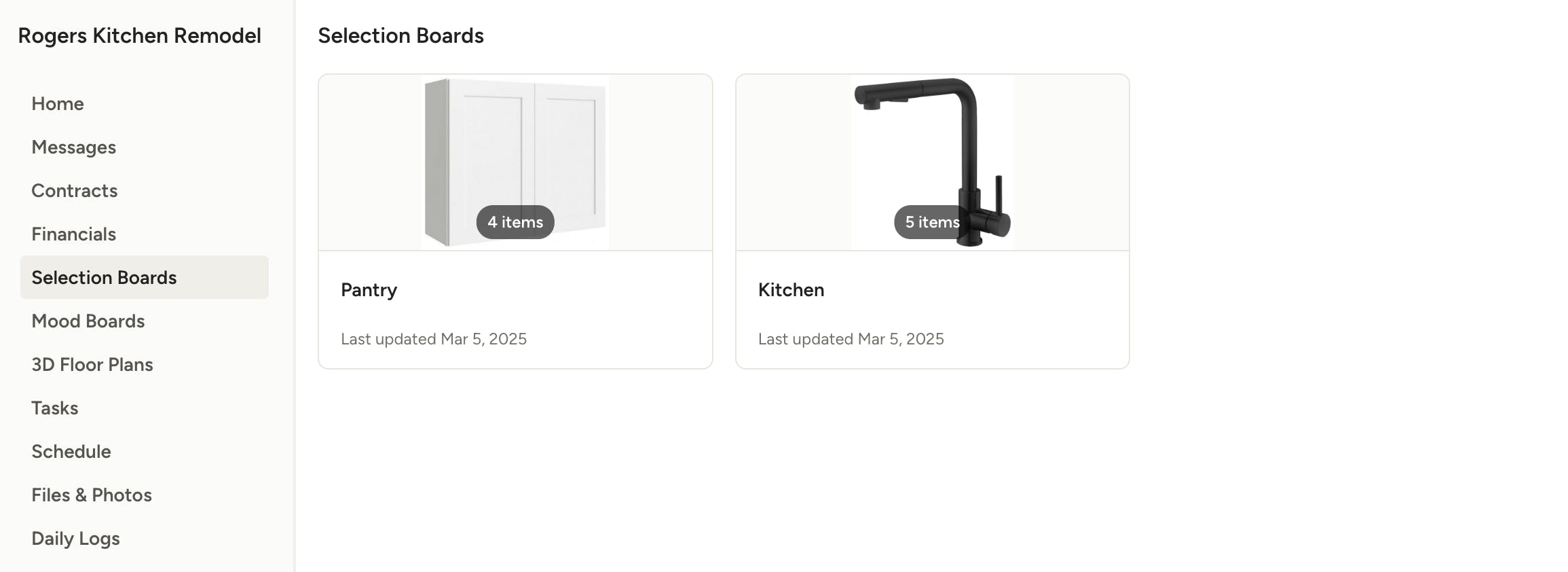
Selection Boards
When a pro shares a selection board, you can find it in your Selections section. Click on any board to open it.
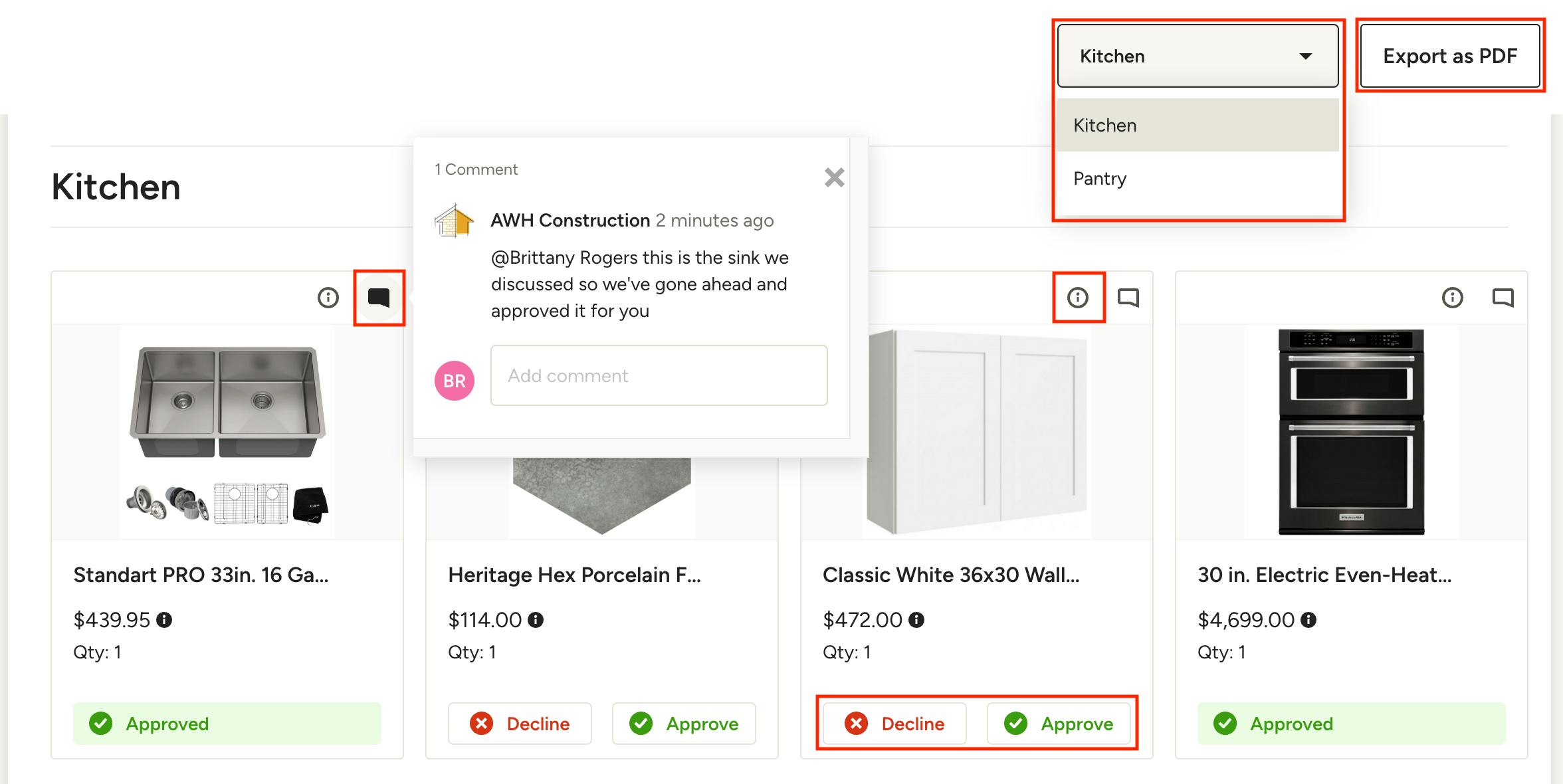
Within a selection board, depending on the information your pro has shared, you can approve or decline items, view item details (click item image or 'i' icon), view and add comments, and export as PDF (top right).
To quickly switch between boards, use the dropdown at the top of the page.
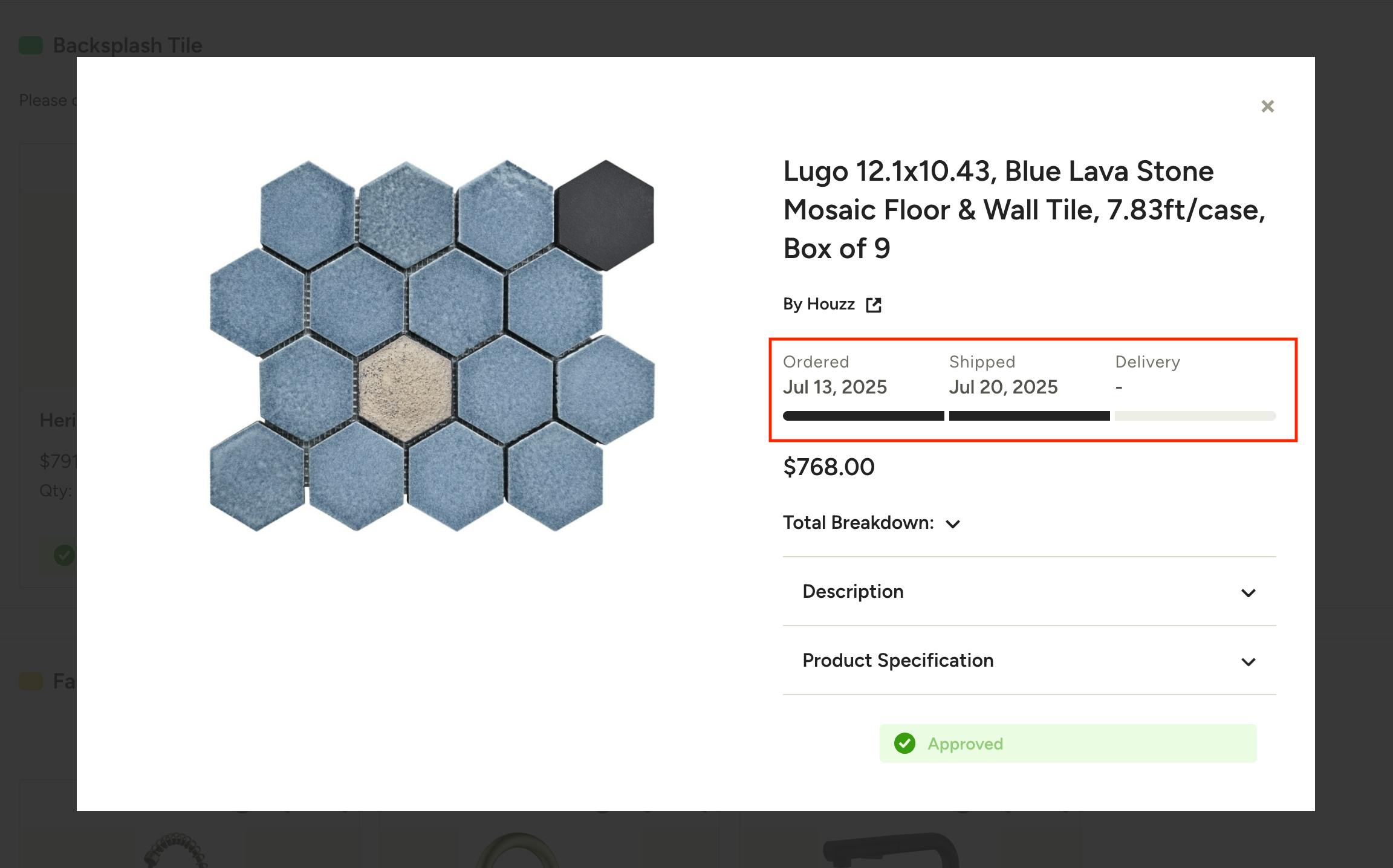
If the pro has shared order tracking details with you, you will be able to see any applicable order date, ship date, and delivery date when you click an approved item to view its details.
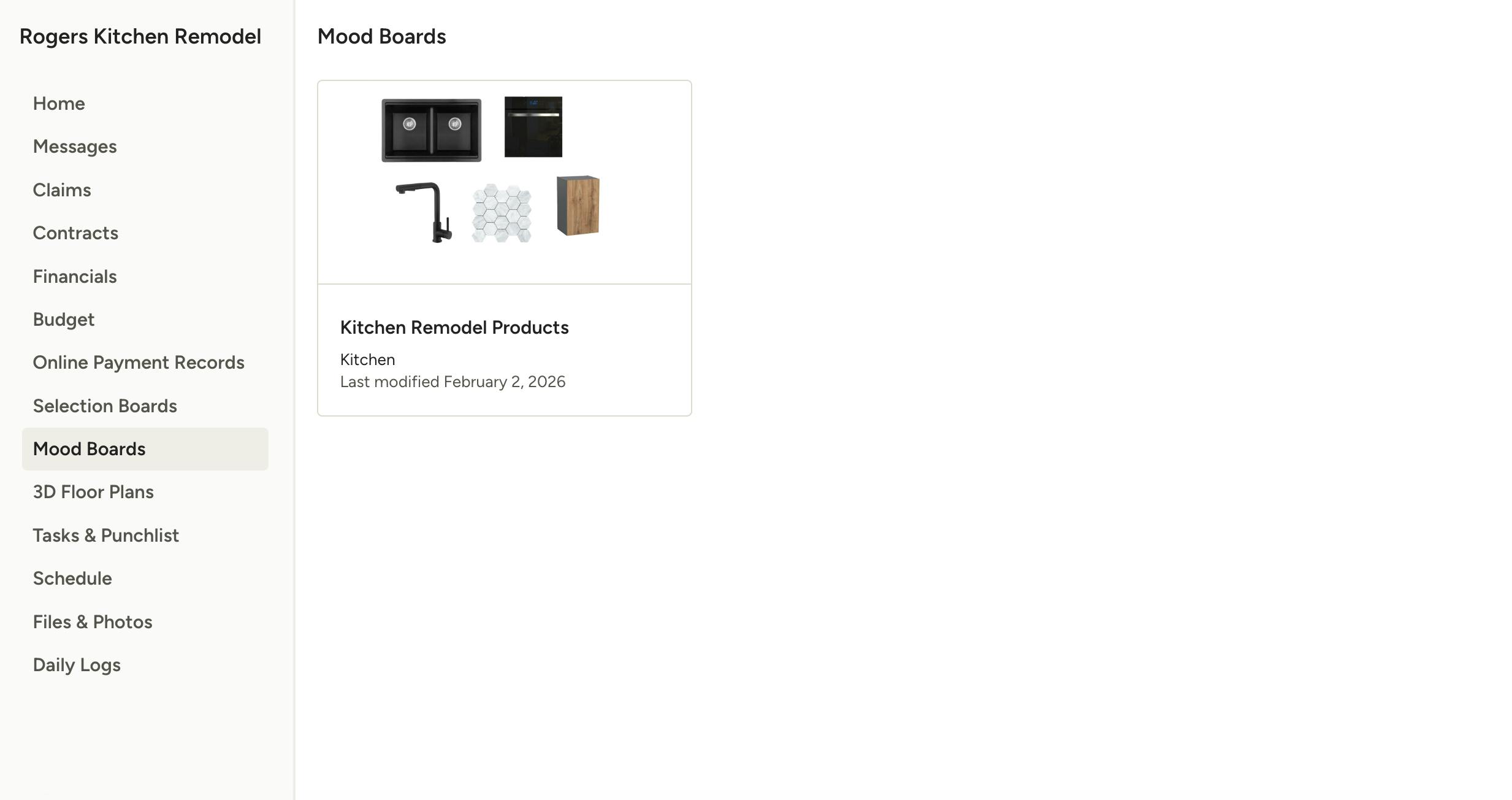
Mood Boards
Any mood boards shared with you will be accessible here. Just click on the one you want to open for a full view.
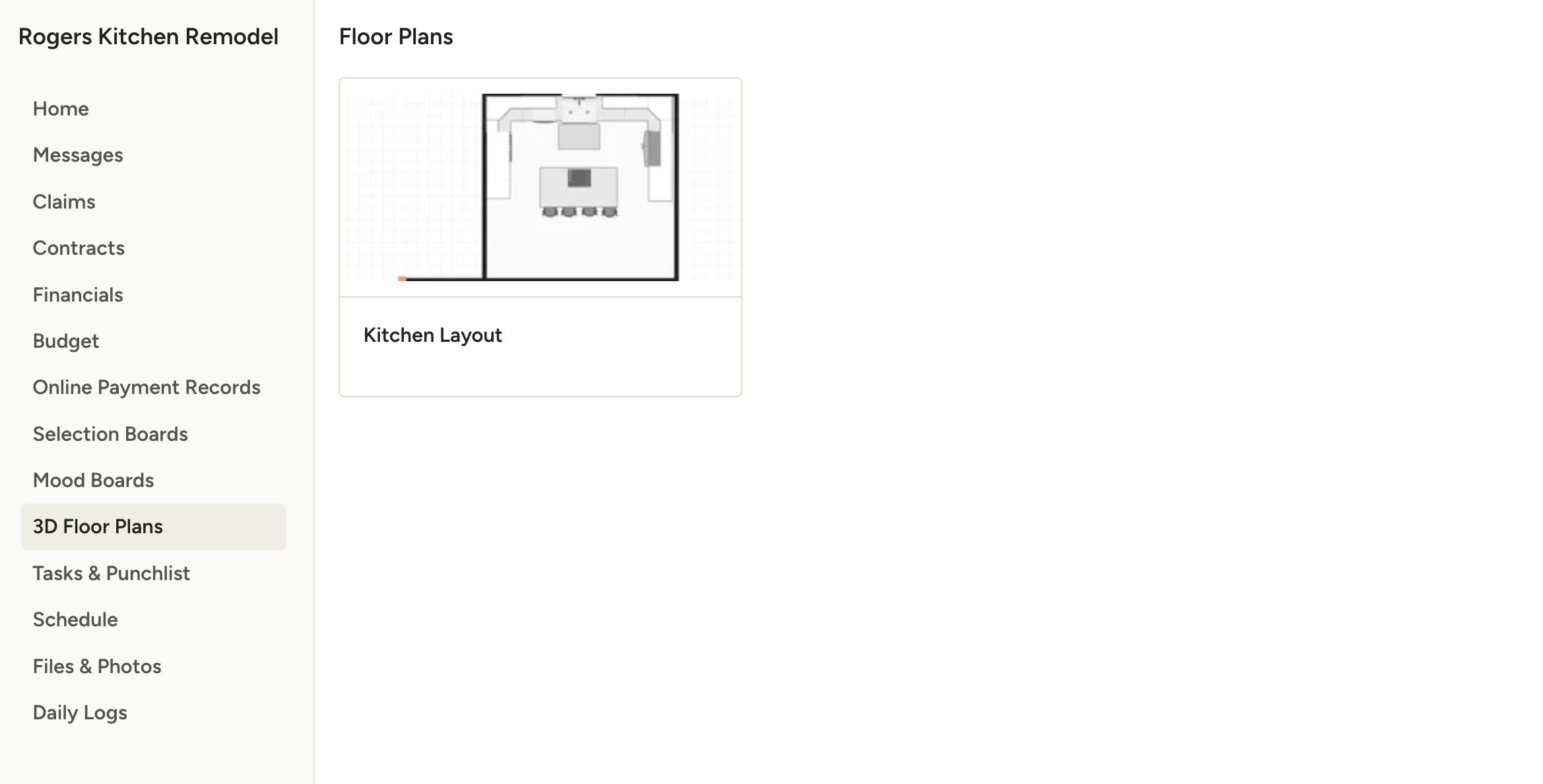
3D Floor Plans
Any floor plans shared with you will be accessible here. Just click on the one you want to open for a full view.
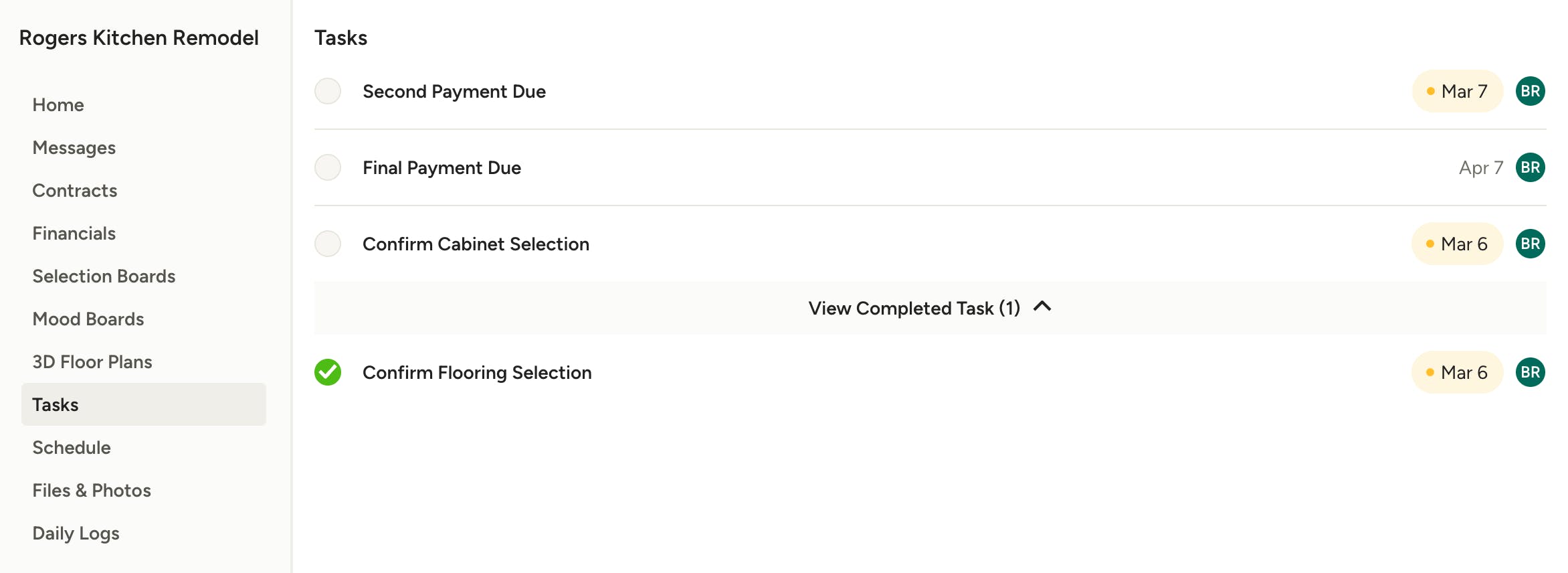
Tasks
If the professional has assigned tasks to you, you will be able to see them in your dashboard. You will be able to see task details, deadlines and mark a task as done. Completed tasks are also shown at the bottom of the list.
Schedule
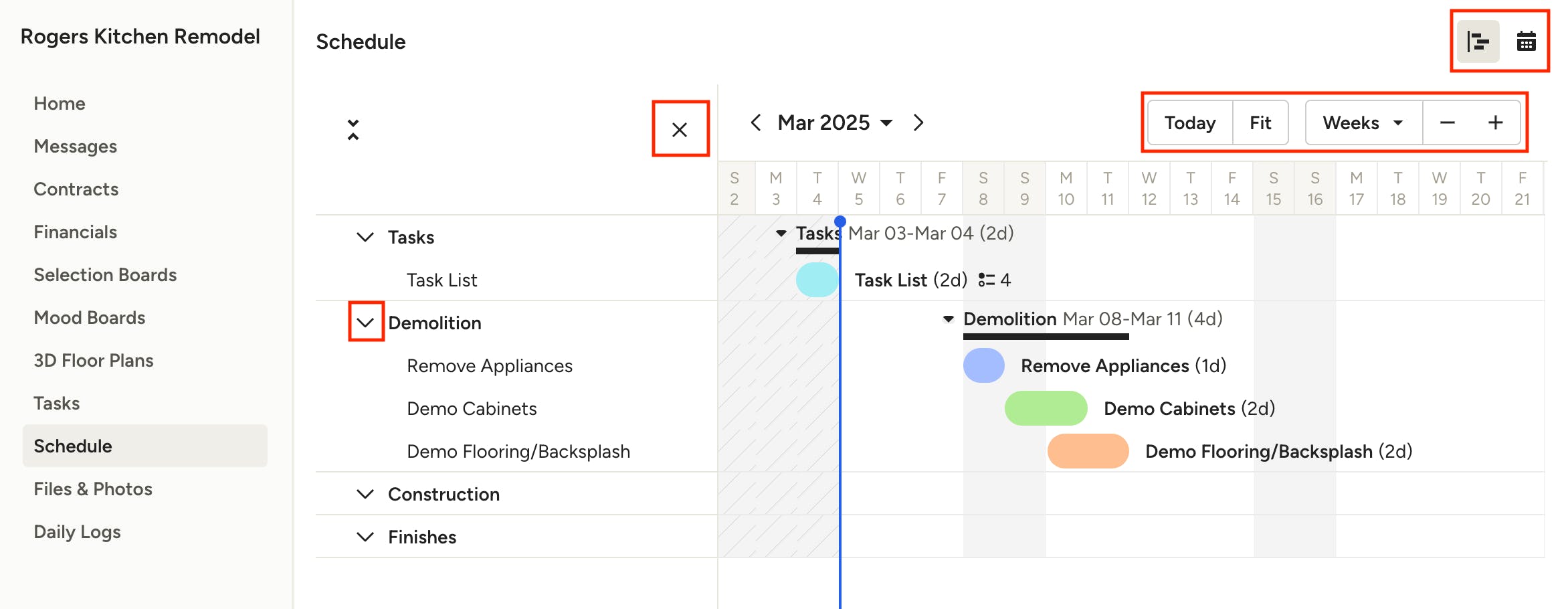
If the professional has shared the project schedule with you, you'll be able to see an overview of the timeline. You can switch to a calendar view using the icon in the top right.
To adjust the granularity of the schedule view, use the options at the top of the timeline to see as detailed as hourly (if applicable) or as broad as yearly.
You can collapse the schedule outline on the left by clicking the X, and expand or collapse each phase using the arrow icon.
Files & Photos
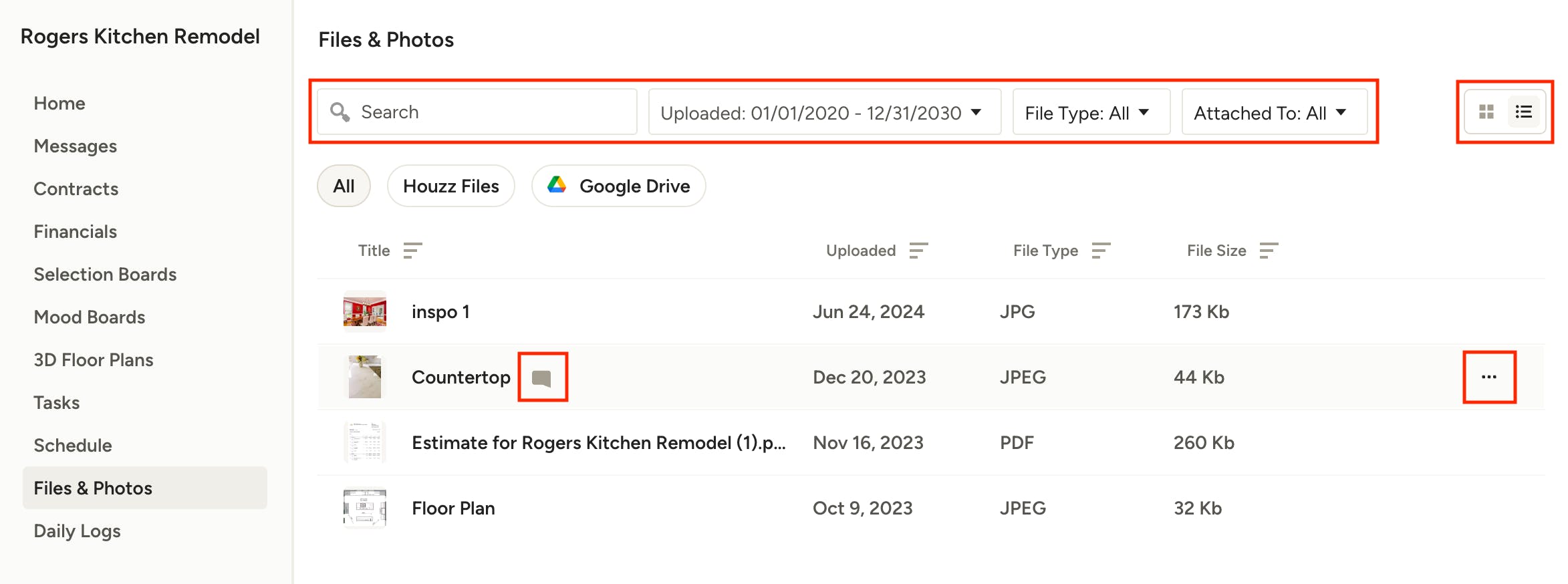
All files, including photos and 3D plans, are accessible in your Files section. Use the search, filter and sort options at the top to quickly find a file. You can switch between list and grid in the top right to adjust the view.
Click the three dots to the right of any file to open or download — you can also click the file name to open it.
Any files with comments on them will be indicated by the comment icon to the right of the file name.
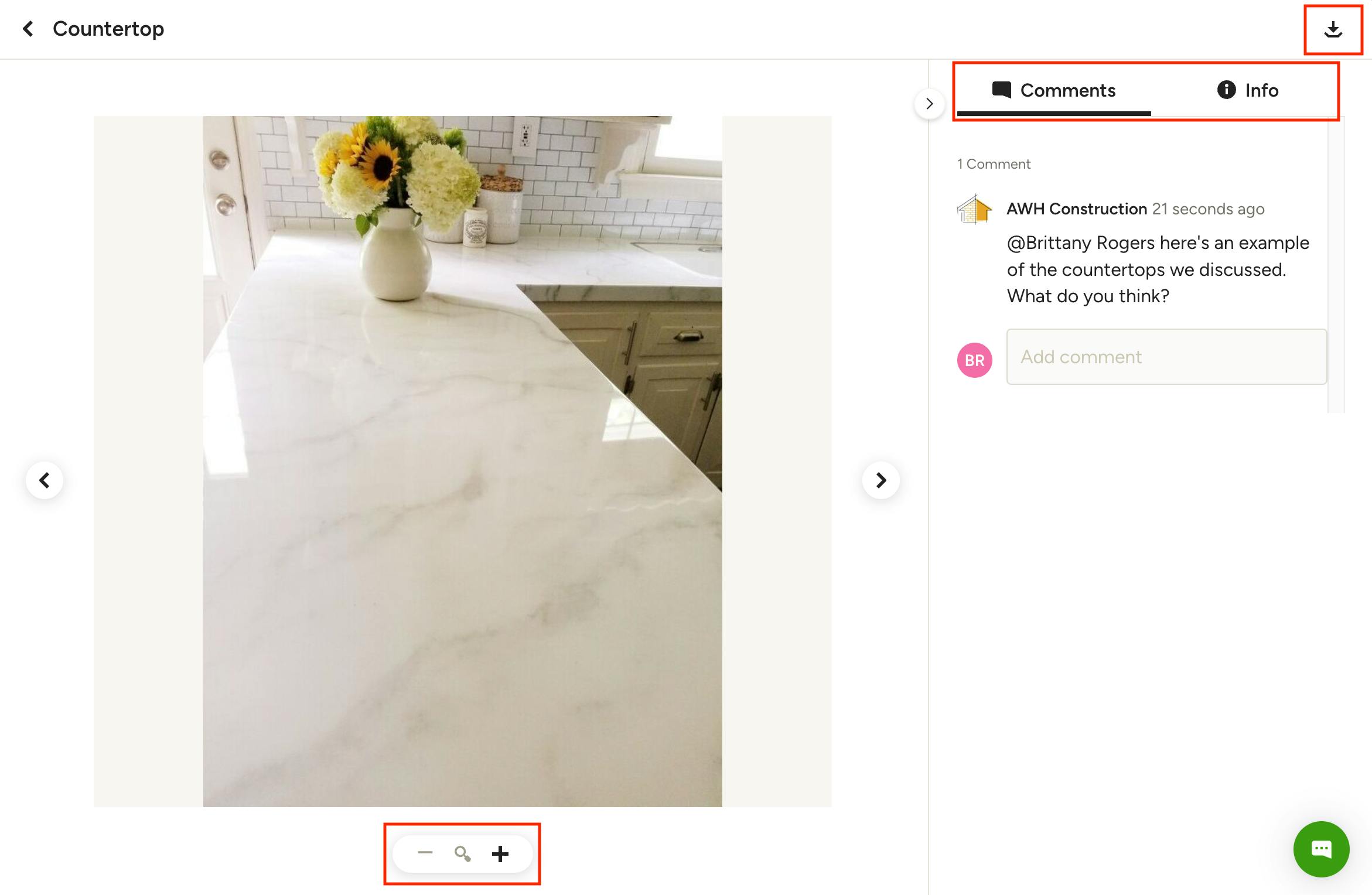
When opened, you'll see a full view of the file, including any comments and file information in the right panel.
Click the -/+ options at the bottom of the file to zoom in or out.
You can download the file by clicking the icon at the top of the page.
Daily Logs
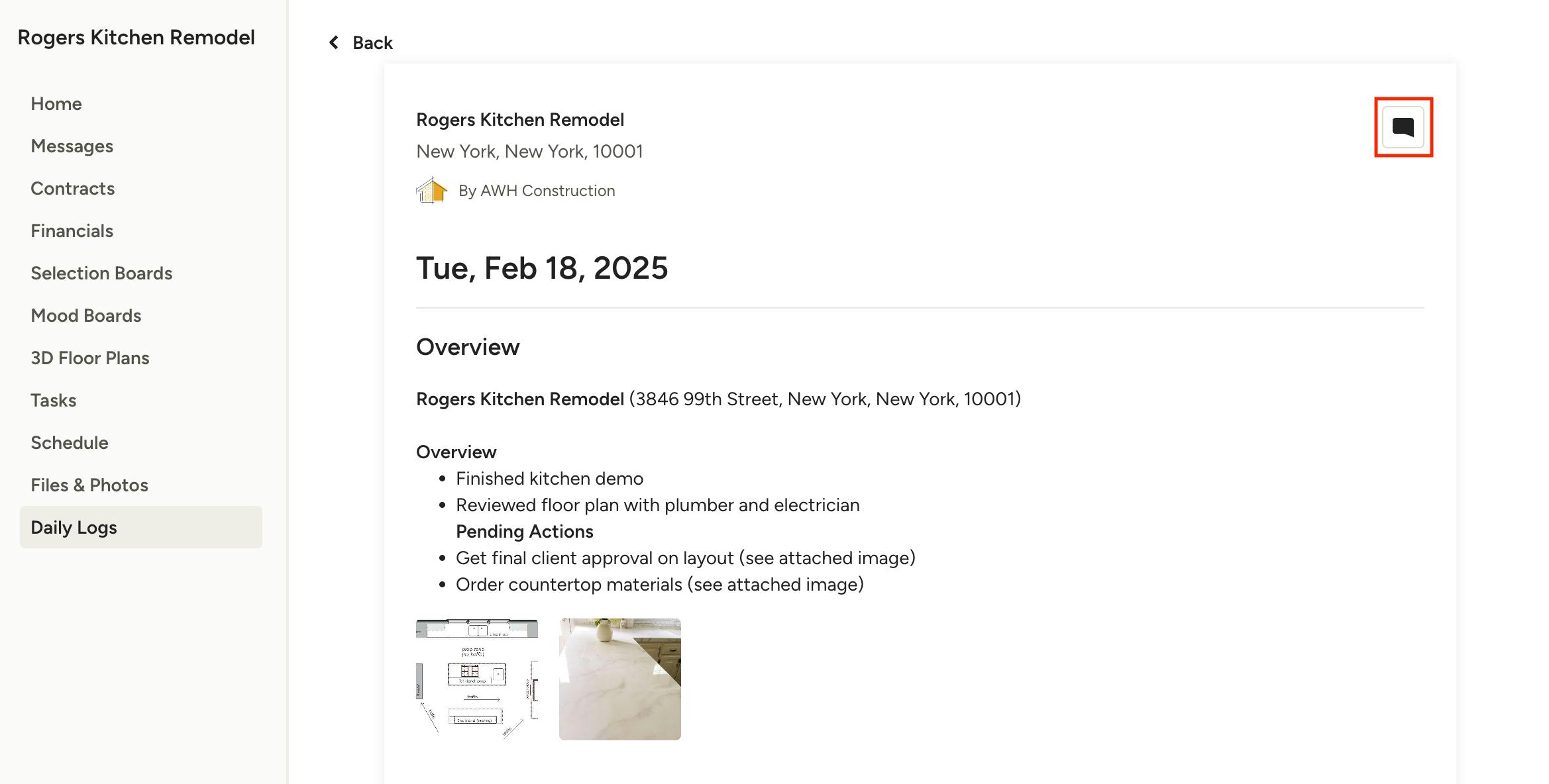
Daily logs are created by the professional to keep the team, clients and subcontractors up-to-date on project progress. If a daily log has been shared with you, you can click to see all the details for that log.
To view or add a comment specific to the daily log, click the comment icon in the top right.