How to Use the Clipper on Mobile

If you have the Houzz Pro app installed on your mobile device, you automatically have access to sourcing items anywhere with the Clipper — no need for additional setup, downloads, or extensions.
To learn how to use the Clipper on desktop, see this article.
Watch this quick video to see how to use the Houzz Pro AI Clipper on mobile, or follow the detailed steps below.
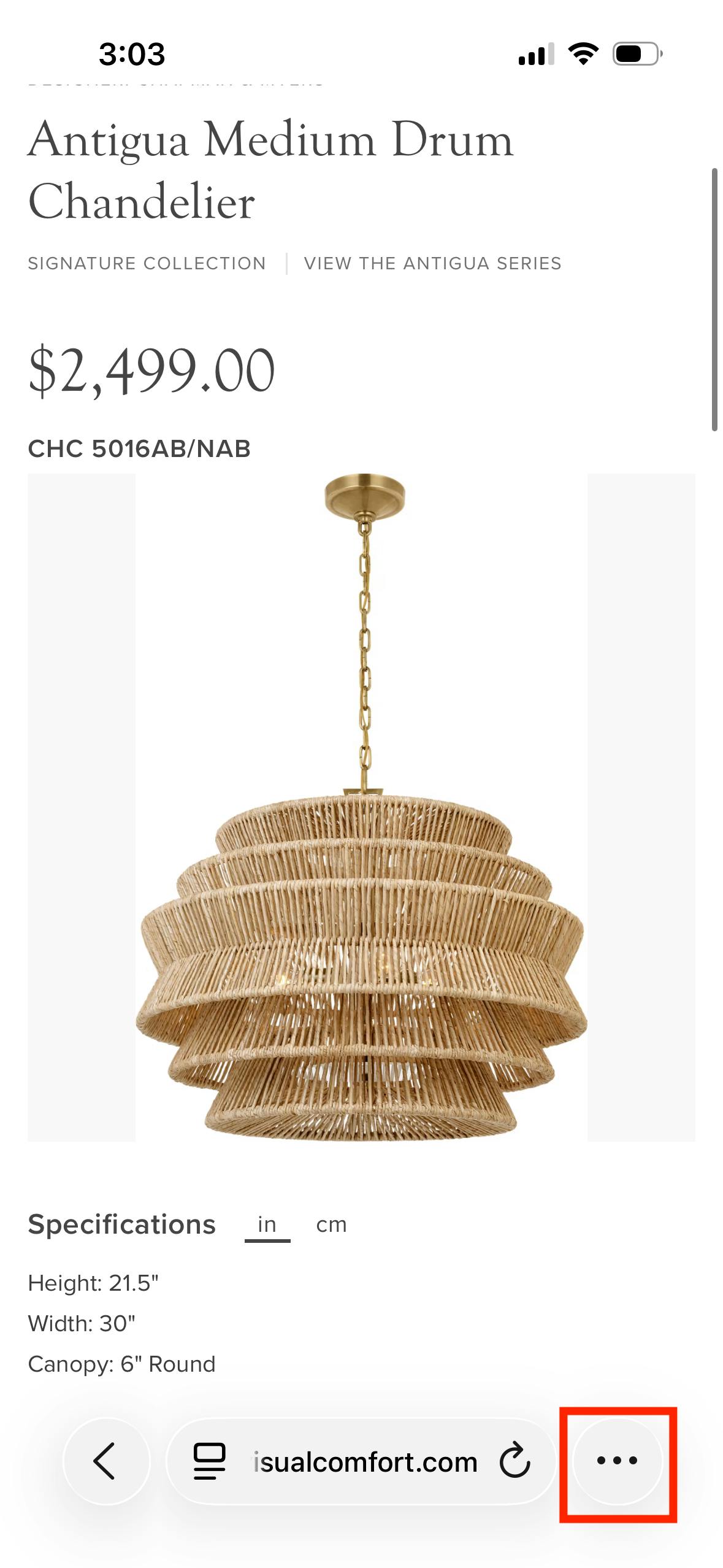
To clip an item on your mobile device, use your preferred browser to find the item. Once on the item detail page, open the browser options menu, which is typically three dots at the bottom of the screen.
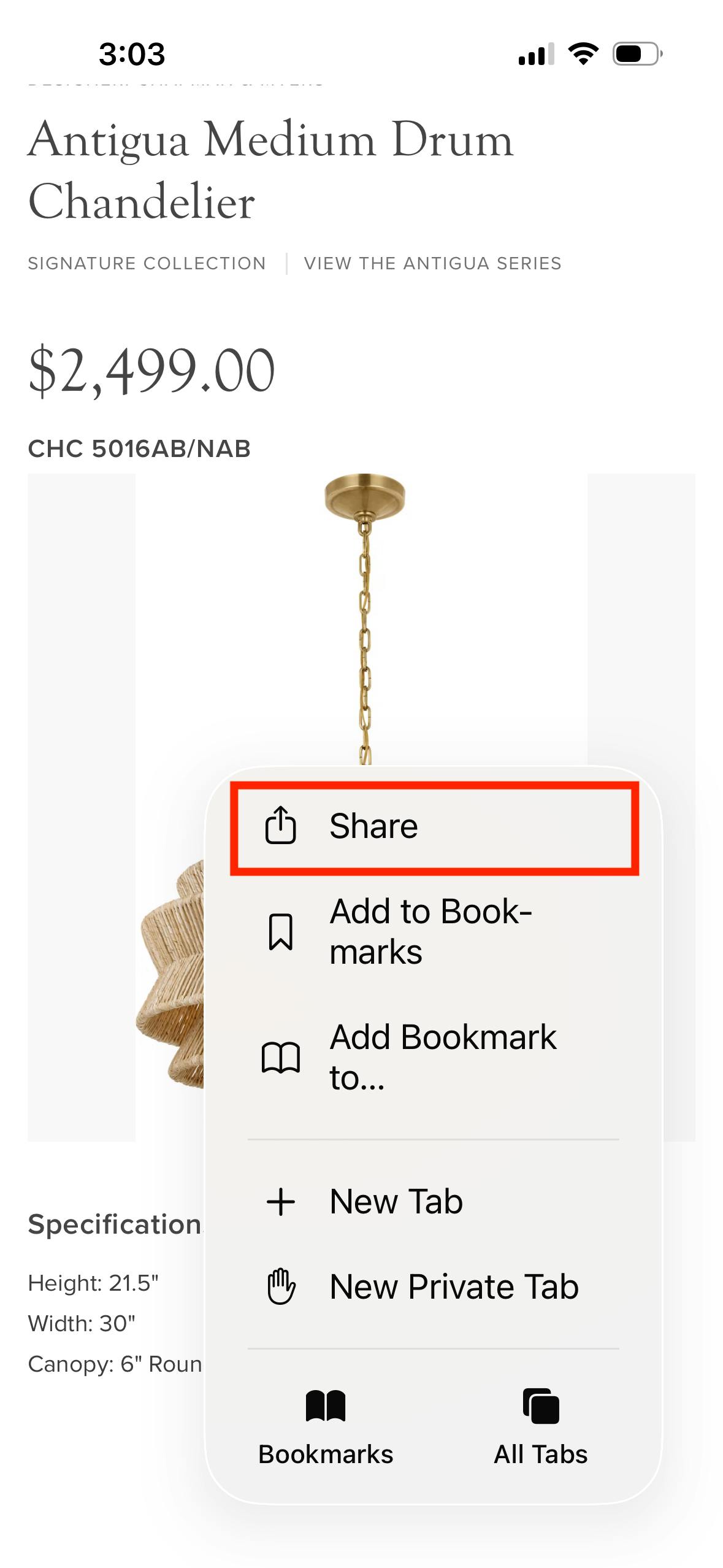
Tap Share in the menu.
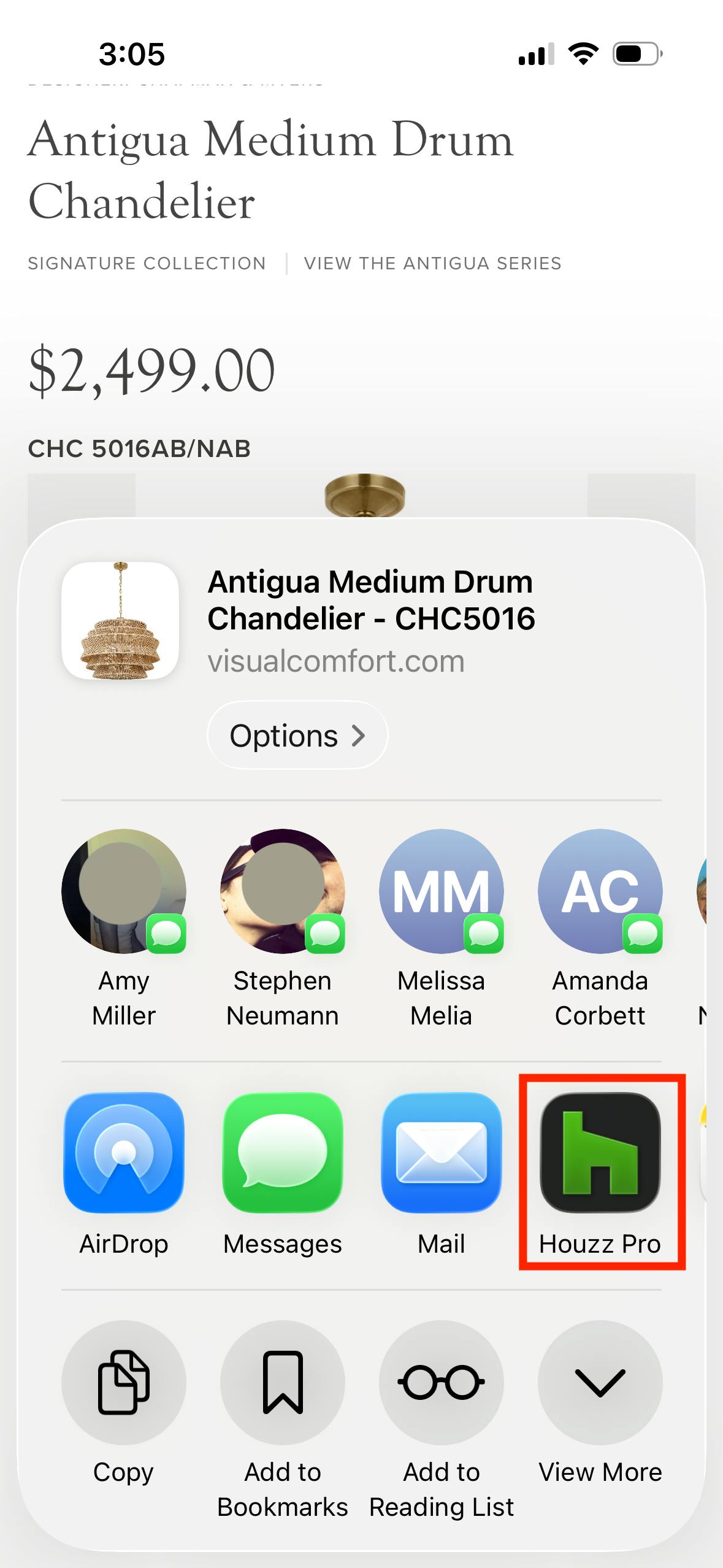
Tap the Houzz Pro icon from the Share options. If you are not currently signed into the Houzz Pro app, you will be prompted to do so before continuing.
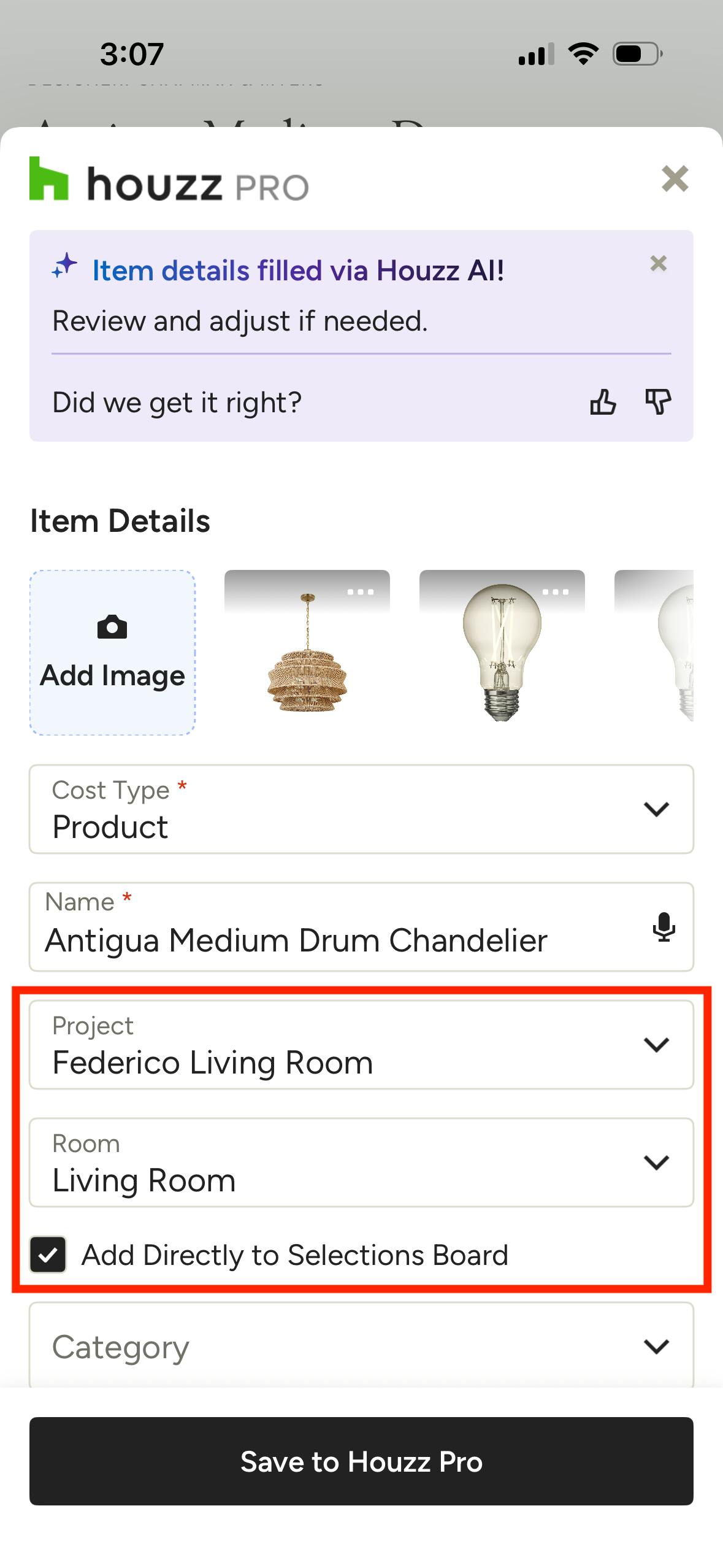
Our Houzz AI Smart Sourcing will get to work extracting product information from any vendor website and automatically map it to the correct Clipper fields, saving you from filling out each product field-by-field. Review the information and make any adjustments needed.
If you want to add the item to a specific project and/or selection board, make sure you scroll down and fill in the Project and Room, and mark the checkbox next to "Add Directly to Selections Board".
When all of the relevant information is filled in, tap Save to Houzz Pro. The item will be added to your My Items library, which you can access in the Houzz Pro app or desktop experience, and you will be directed back to the website you were browsing so you can continue sourcing items.
Adding Clipped Products to Documents on Mobile
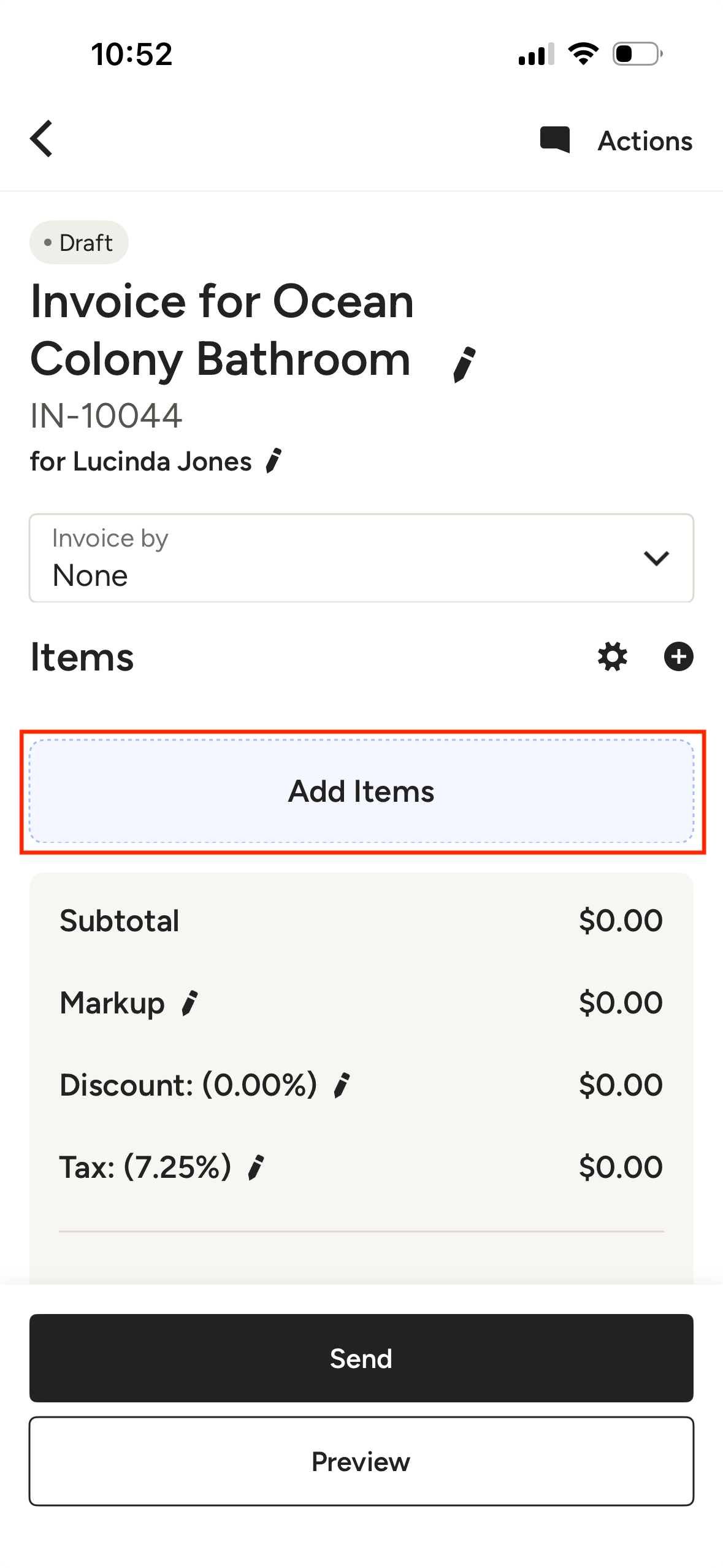
Adding your clipped products to documents on the mobile app is simple. From within any estimate/proposal or invoice, tap Add Items.
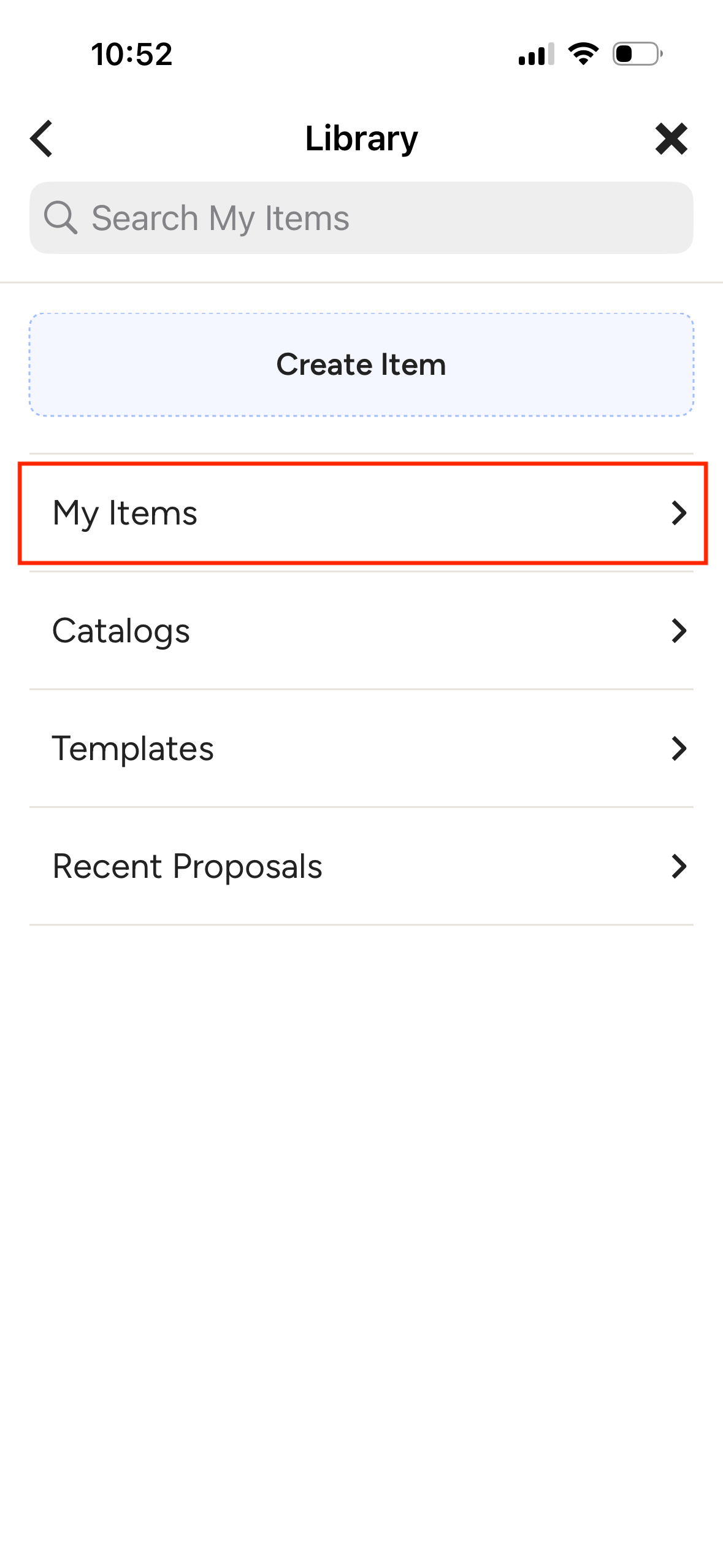
Next, tap My Items.
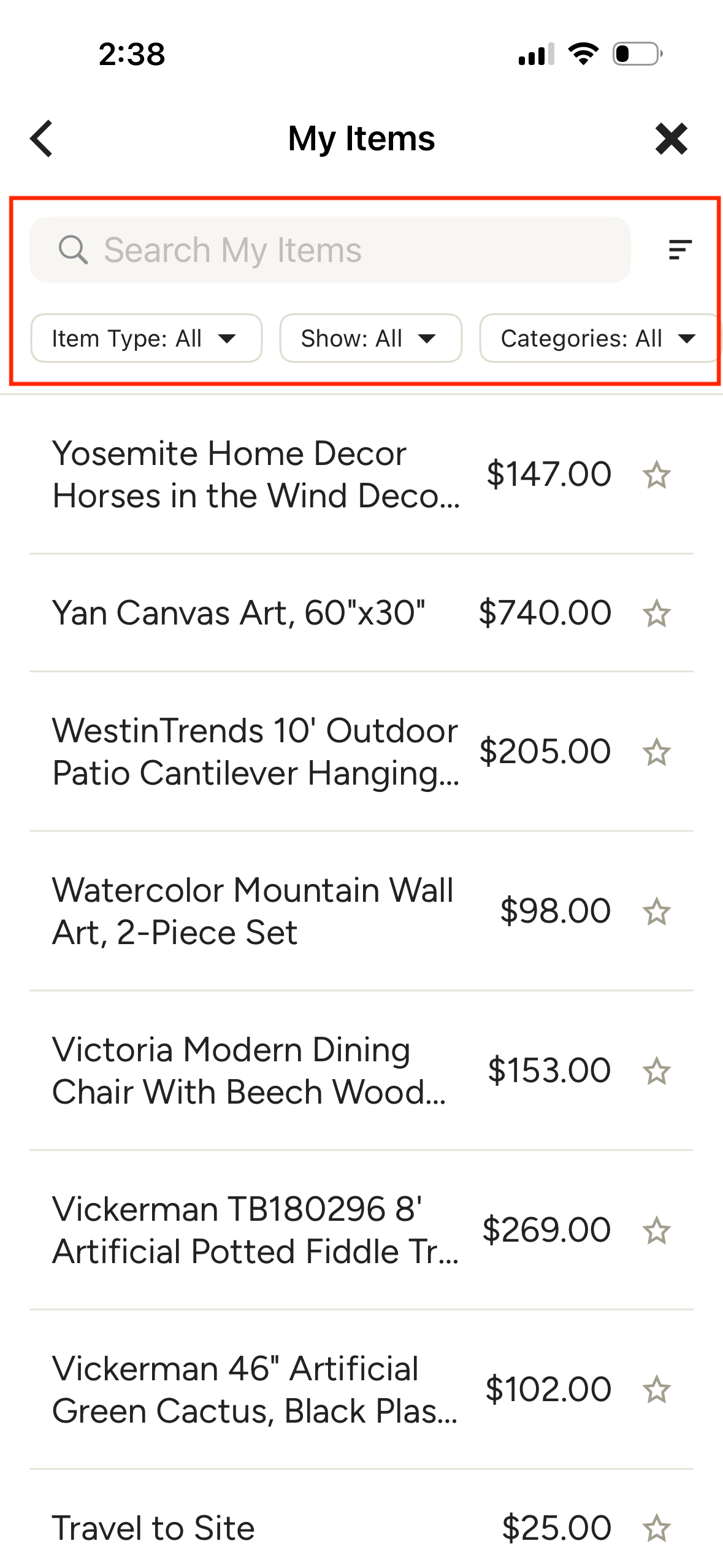
Here is where you will find all items that have been added to your library, either manually or via the Clipper. Use the filters, sort and search bar at the top to quickly find what you're looking for. Tap the item to add it to your document.
To learn more about using the Clipper and your product library on the desktop version of Houzz Pro, check out these resources: