How to Use Schedule on the Mobile App
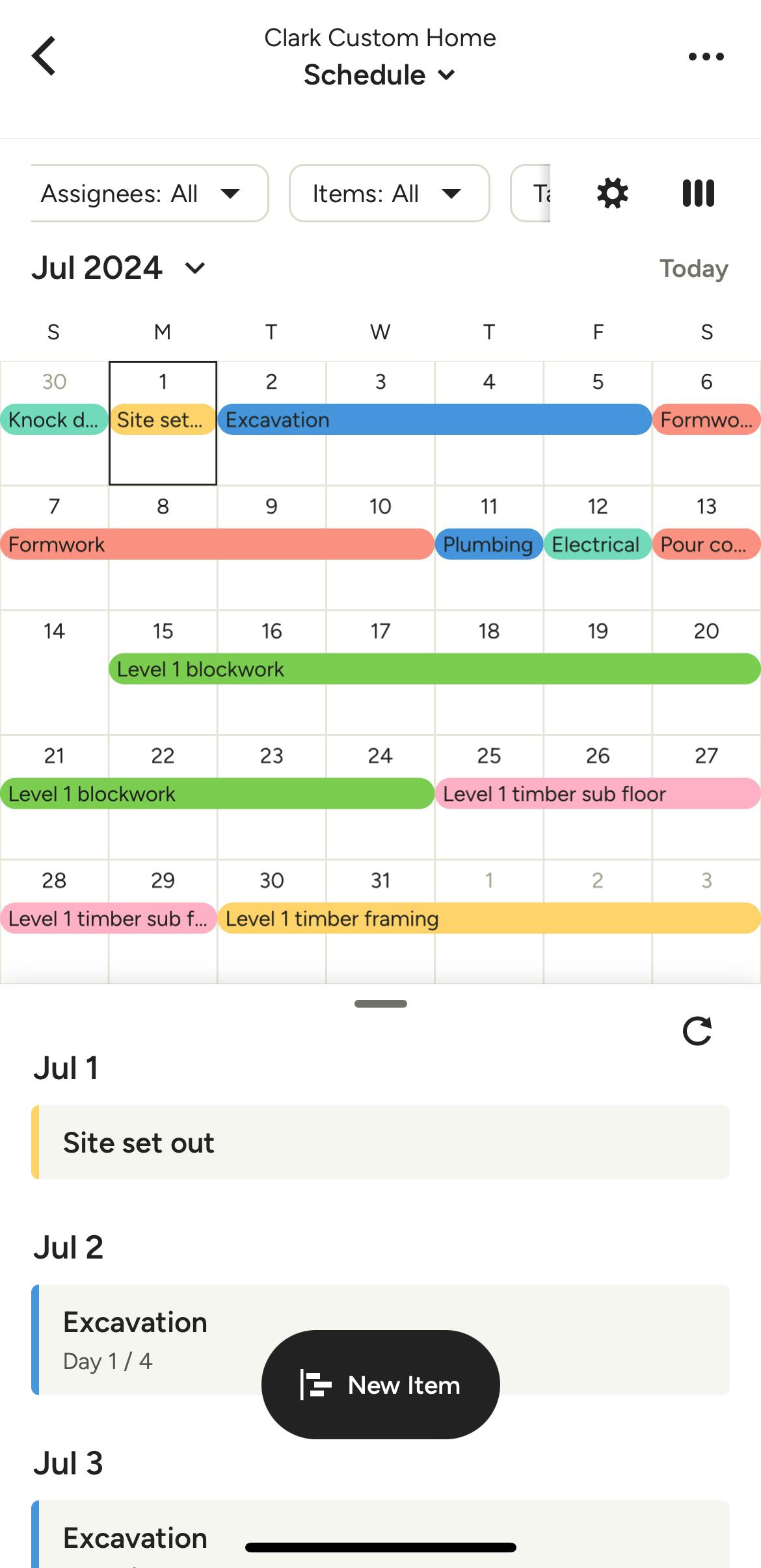
When you use Schedule on your Houzz Pro mobile app, you can review all your project timelines and ensure that everything stays on track. You can view and edit an existing schedule, create a new schedule, create new items, assign clients or team members, create tasks and view a big-picture schedule overview of all your projects.
View Schedule
If you already have a schedule created for an existing project, you can easily view schedule items on the mobile app.
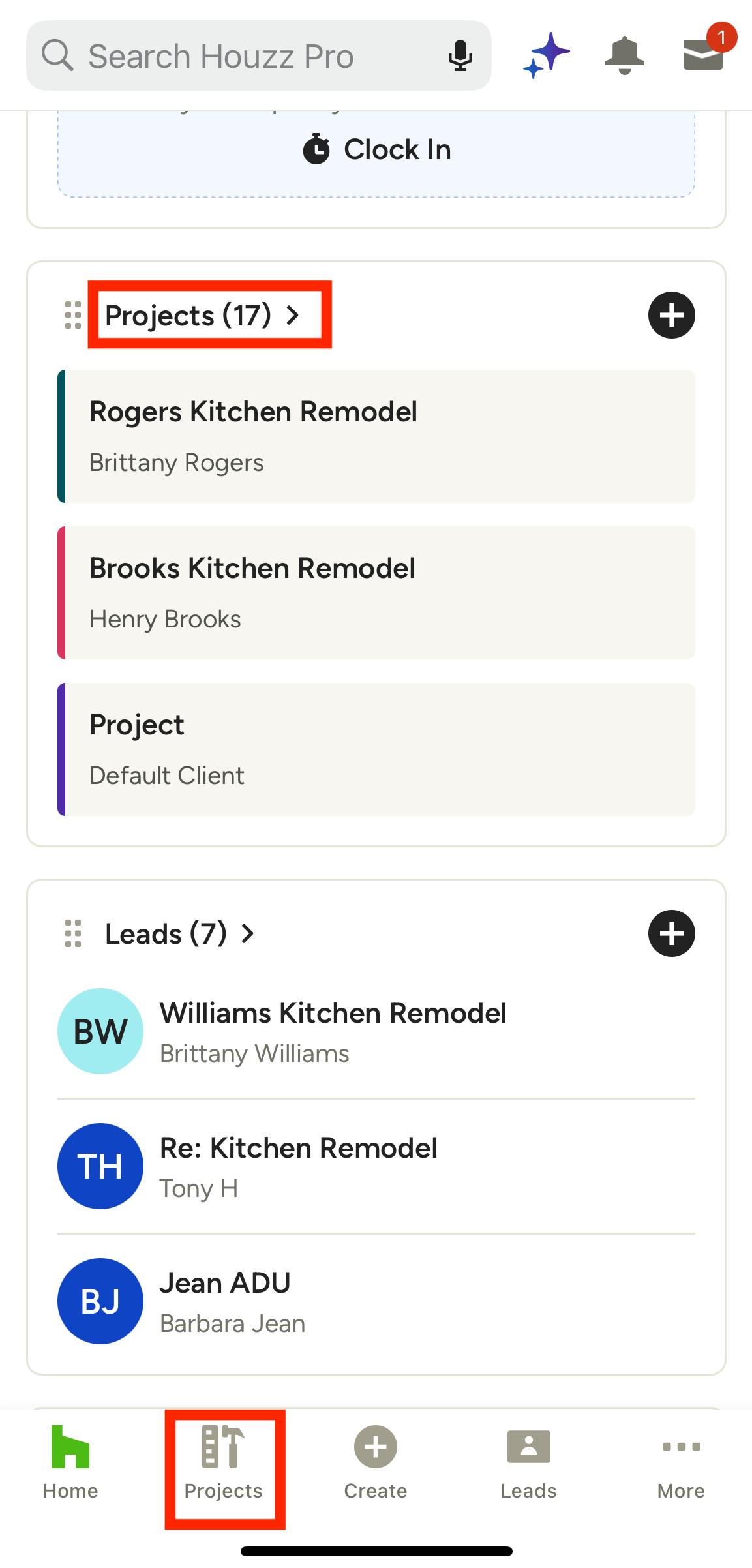
To view your schedule, find the relevant project — you can either select the project from your homepage, or click the Project icon at the bottom of your screen, then select from the project list.
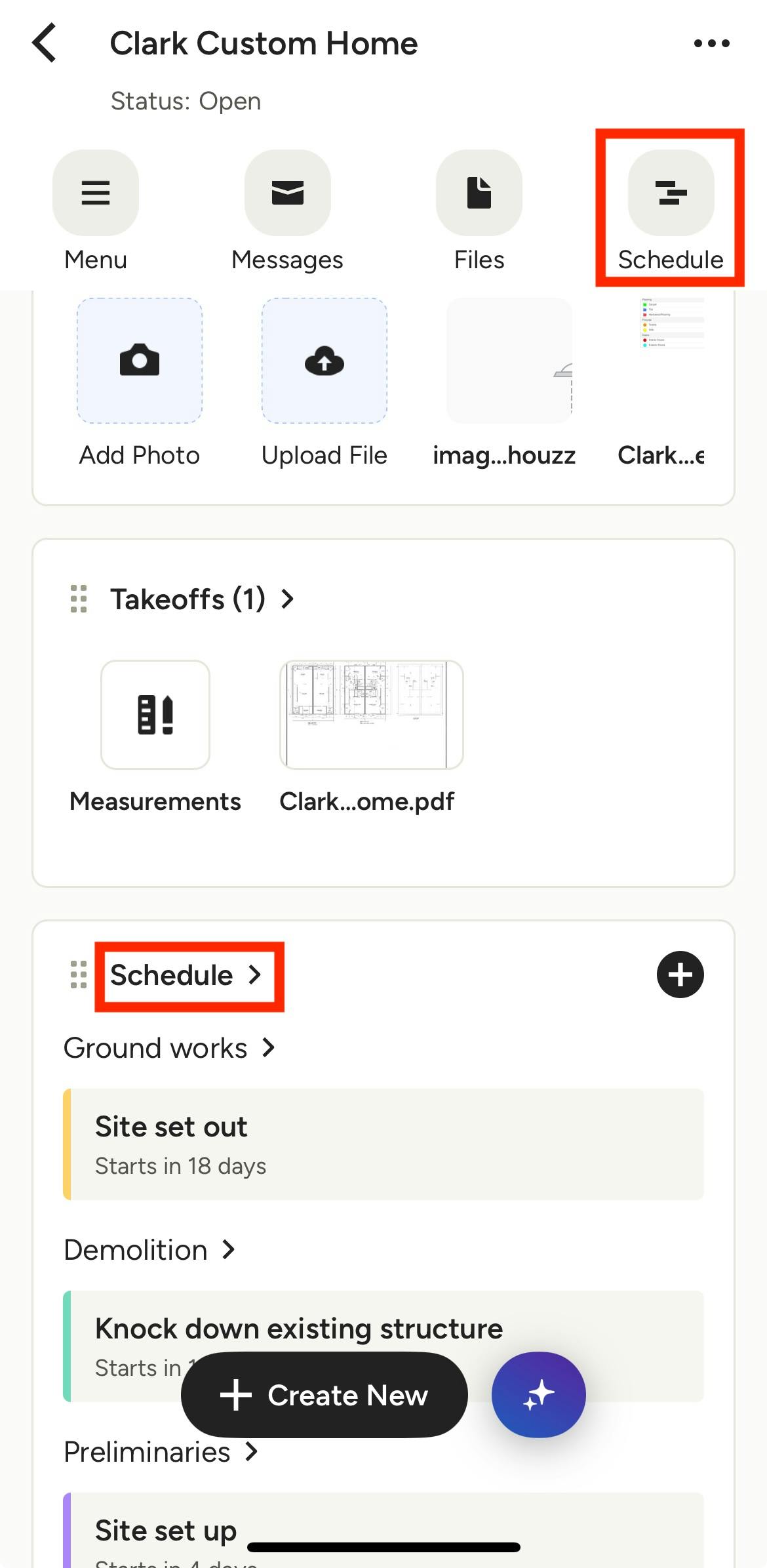
Once on the project overview page, click the Schedule icon from the top menu, or scroll down to the Schedule section and select Schedule.
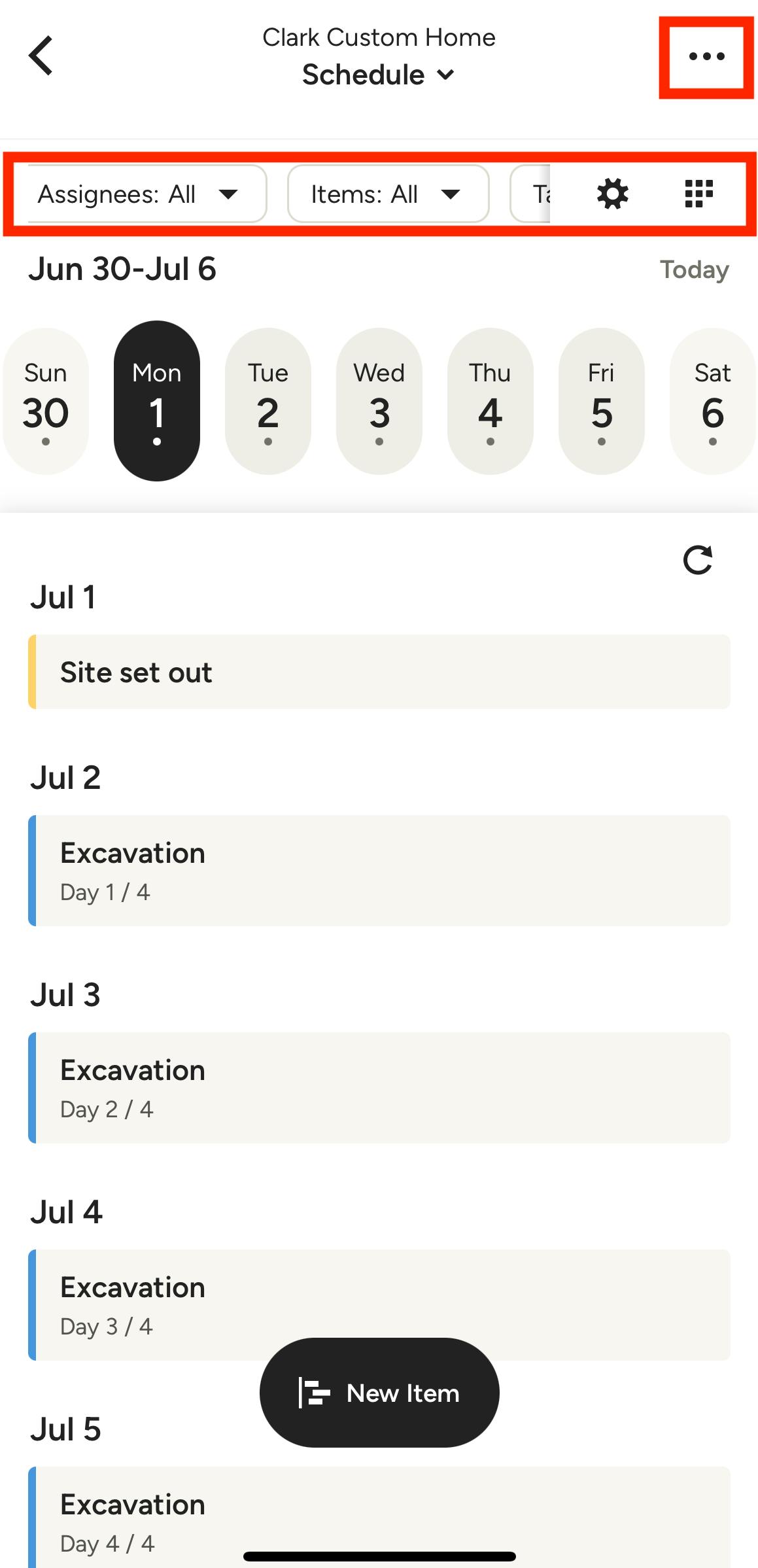
From this screen, you will be able to view your existing schedule in either list view or calendar view. Select the icon on the far right of your menu to adjust your view.
Select the gear icon to toggle on and off Schedule Live Mode (select packages only), Workday Settings, or Move Project Start Date.
You can filter your view by Assignees, Items, and/or Tasks by selecting filtering options from the relevant dropdown menu.
Select the three dots icon at the top for larger project-level changes, such as Share Client Dashboard, Edit Project or Archive Project.
Edit Existing Schedule
Once you are viewing your project schedule, you can quickly add new items or edit existing items.
Add New Items
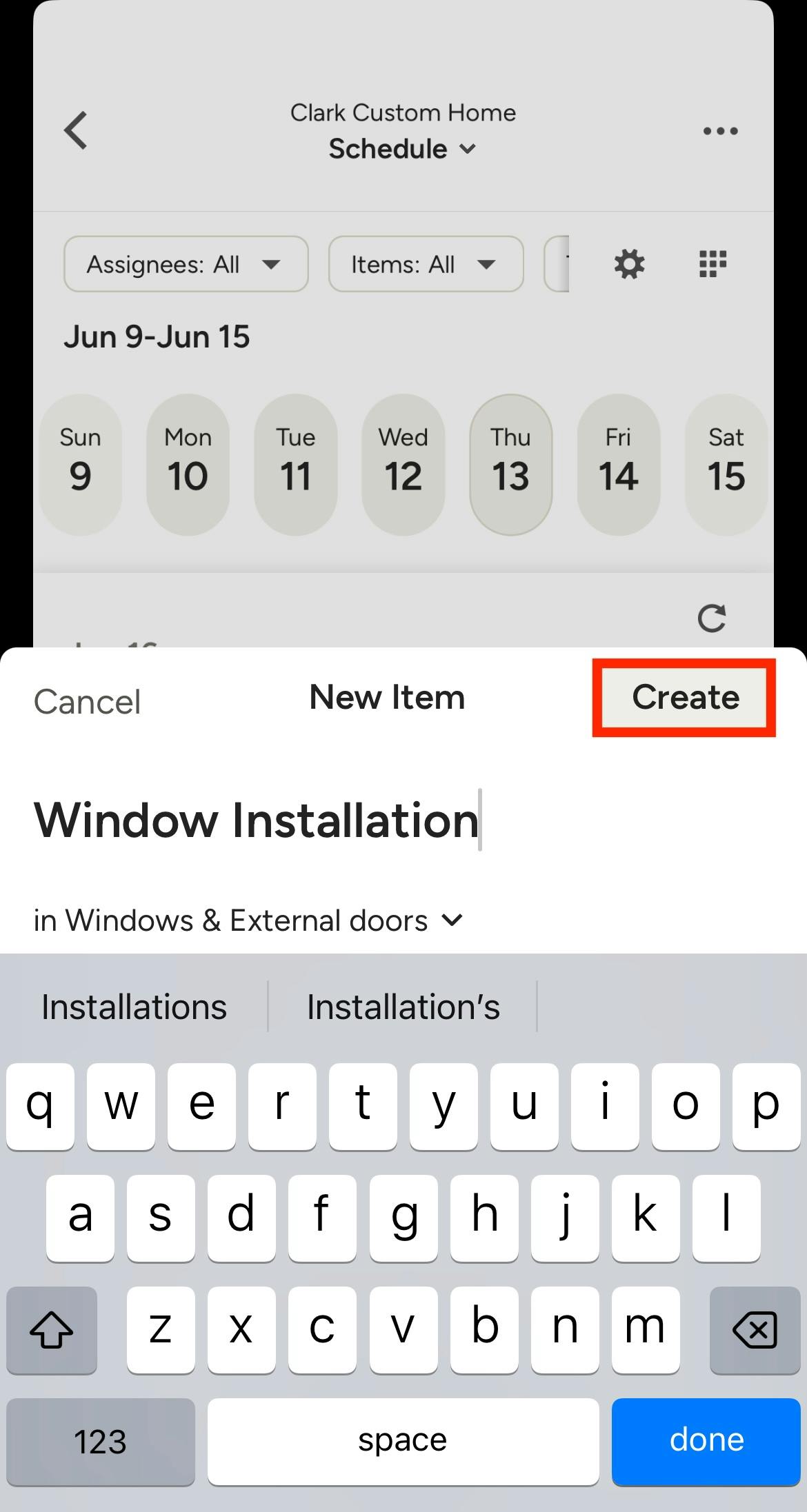
Click the New Item button shown on your schedule to add a new item. A screen will appear where you can input the item title, as well as assign the item to a phase in the dropdown menu. Once done, click Create.
Edit Existing Items
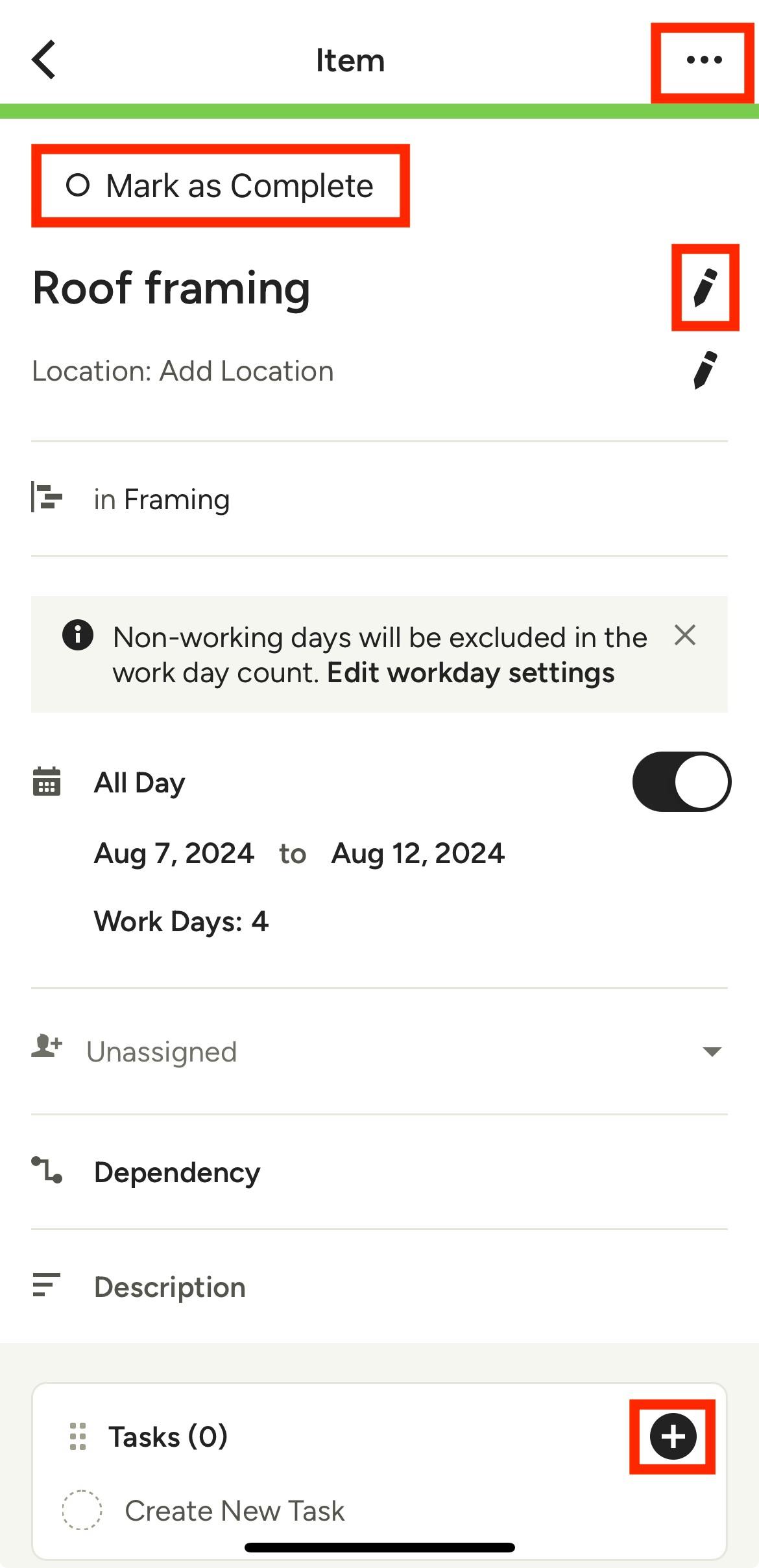
To edit an existing item in your schedule, just click on the item in list or calendar view. A new screen will appear showing the item details, including title, phase, date, assignees, dependencies, description and connected tasks.
On this page, you can:
- Delete the entire item using the three dots icon at the top of your screen
- Mark an item as done by clicking the Mark as Complete button
- Edit the item name, location, phase, date and description
- Assign clients or team members to that item
- Create a dependency for that item
- Add tasks for that item
Create New Schedule
If you would like to create a completely new schedule for a project, you can do this in the mobile app as well.
To start, find the relevant project — you can either select the project from your homepage, or click the Project icon at the bottom of your screen, then select from the project list.
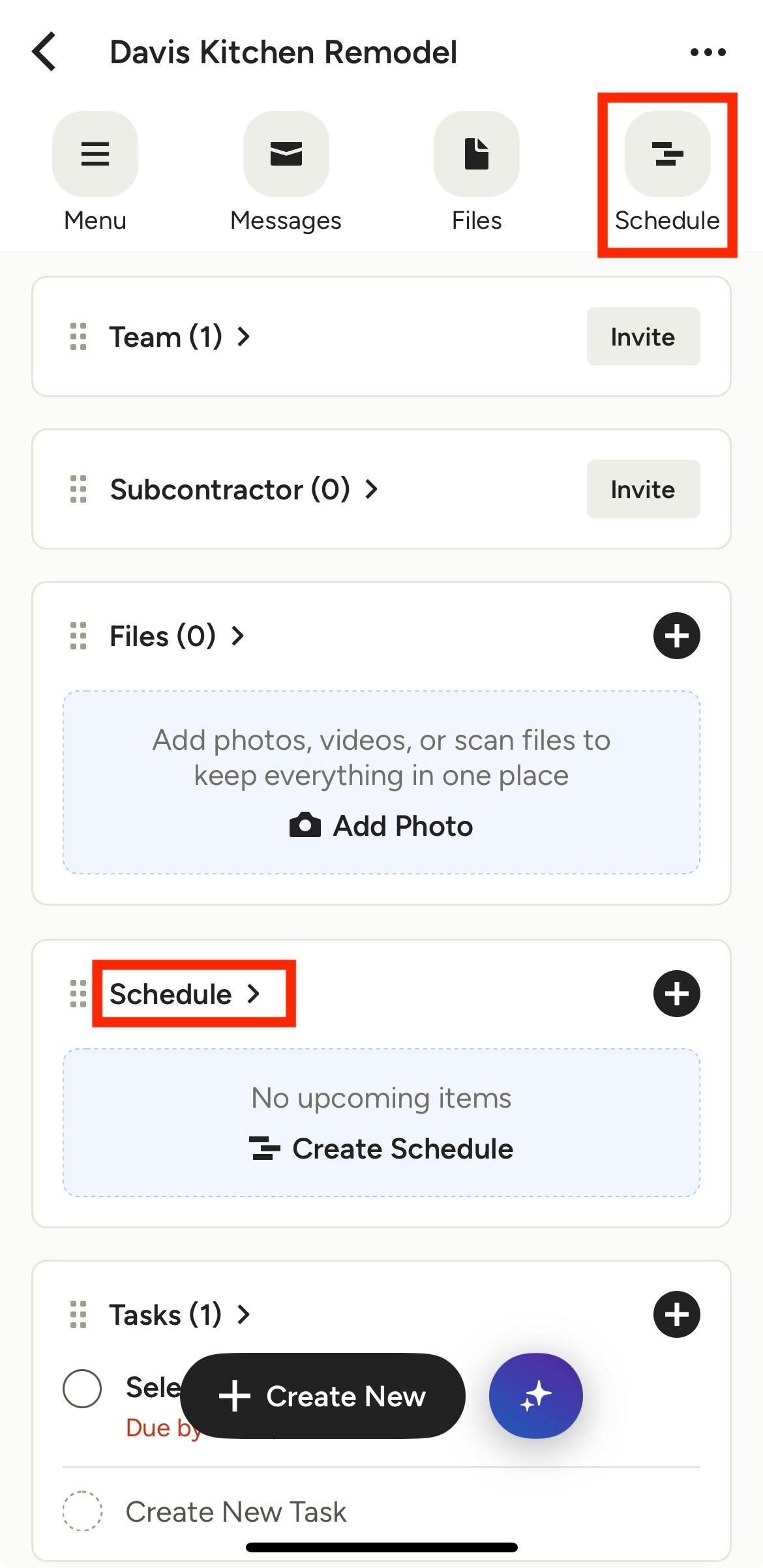
Once on the project overview page, click the Schedule icon from the top menu, or click Schedule in the Schedule section.
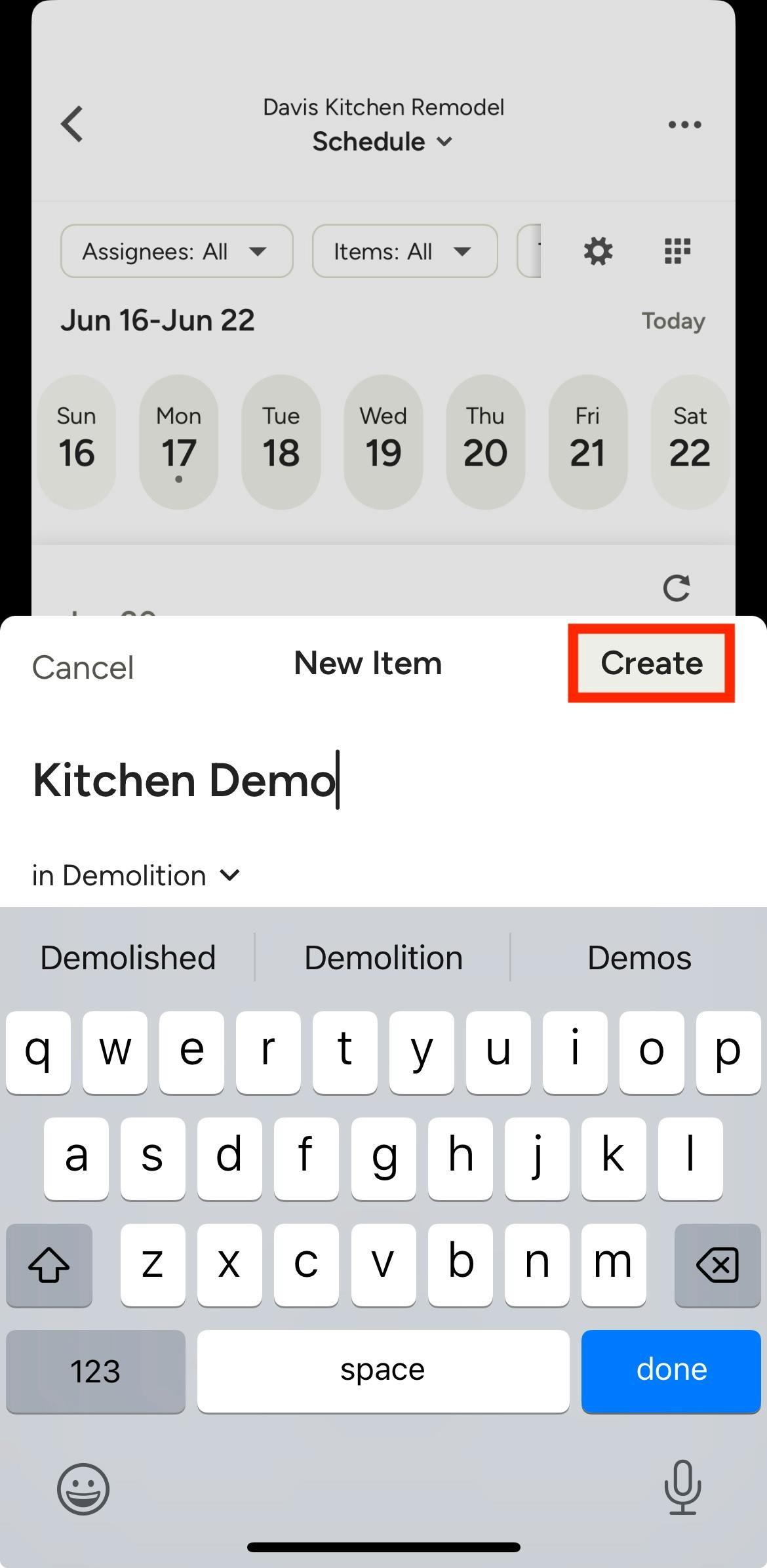
You will need to start by creating a new item. Click the relevant date, then click the New Item button.
From here, name your new item, then select the relevant phase from the dropdown menu. Click Create.
Your new item will now appear on your newly built schedule. You can click on the item to view and edit, and you can add more items to continue to build out your schedule further.
View Schedule Overview
If you would like to see a high-level, big picture perspective of all your project schedules in one place, you can also view the schedule overview on the mobile app. The schedule overview will show all your projects together in one calendar view — this allows you to see what is scheduled in the coming days and weeks so you can keep your team on track.
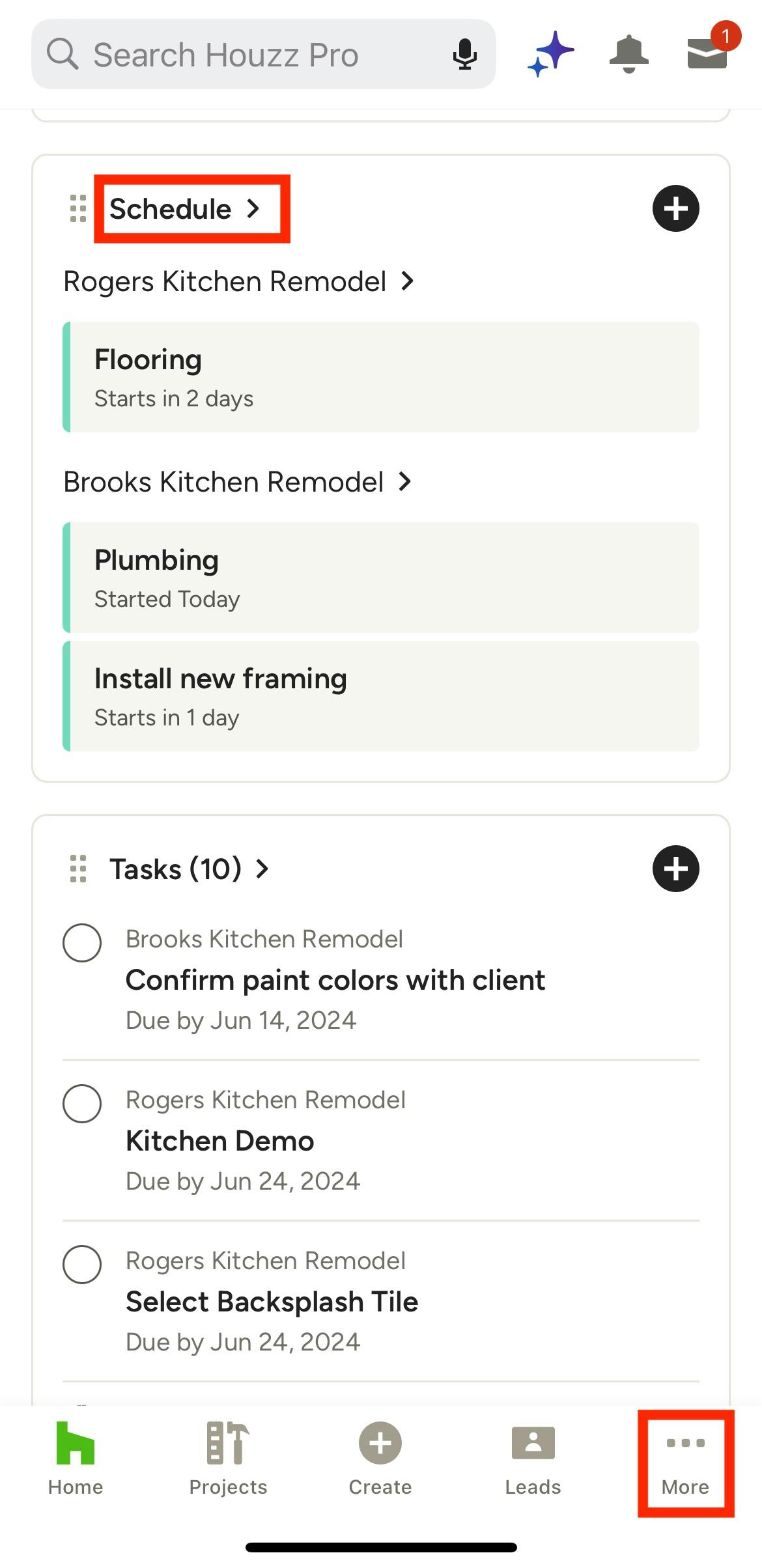
To access the schedule overview, scroll down to the Schedule section on the homepage, and click to open. You can also access by selecting the three dots icon in your bottom menu, then clicking Schedule.
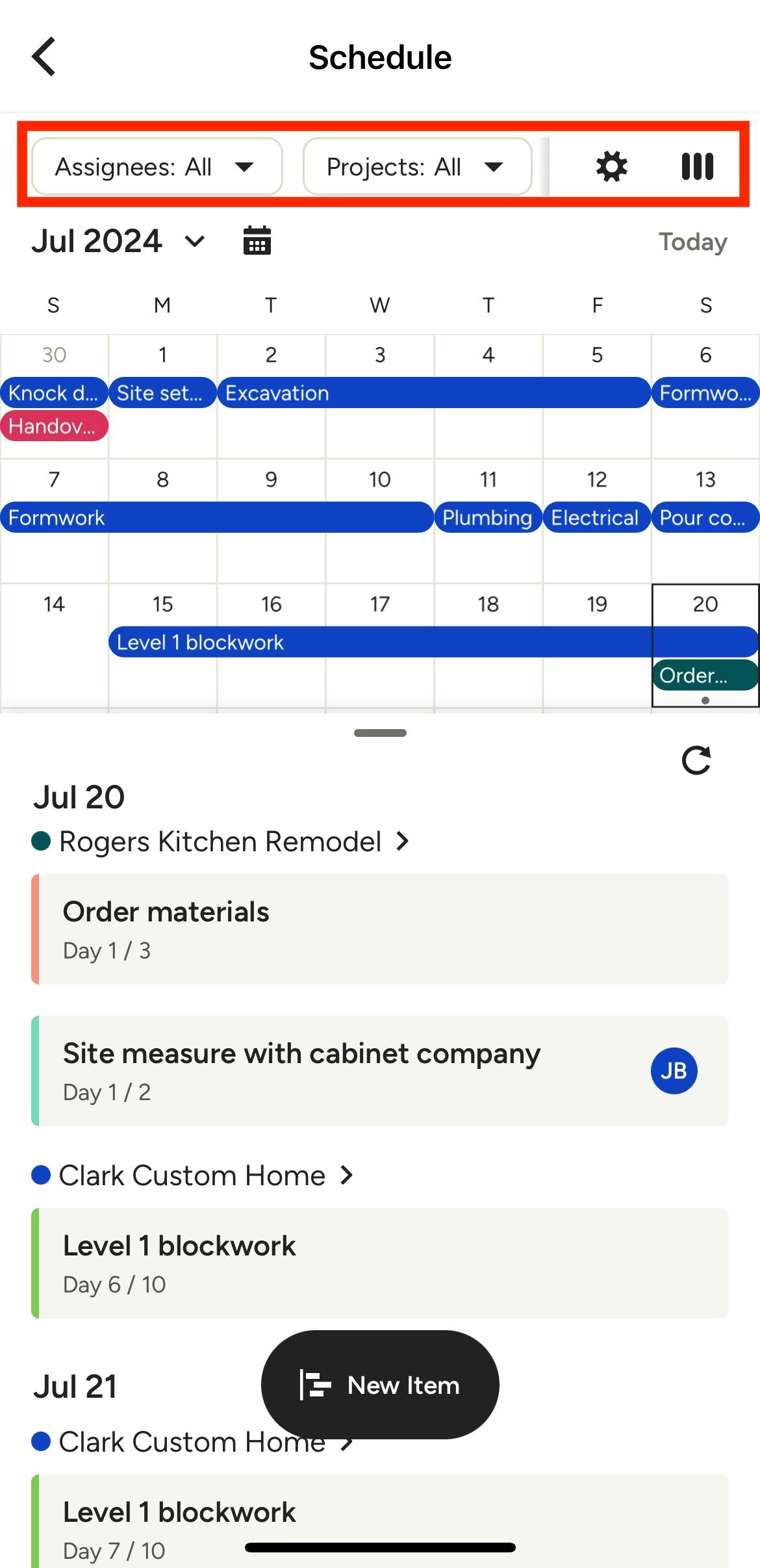
From here, you will be able to view the schedules of all your current projects in one place. You can view in either list view or calendar view — select the icon on the far right of your menu to adjust your view.
The items are broken down by project so you can easily see which item belongs to each project. You can filter your view further by Assignees, Items, and/or Tasks by selecting filtering options from the relevant dropdown menu.
Click on a specific item to view more details or edit the item.
Schedule on Mobile App FAQ
- Can I create a schedule using a template on the mobile app? To create a schedule using a template, you will need to use a desktop computer. You are not able to use schedule templates on the mobile app. Read How to Use Schedule Templates to learn more.
- How do I share my schedule with clients, team members and subcontractors on the mobile app? If you would like to share access to your project schedule, you will need to use a desktop computer. You are not able to share access to your schedule on the mobile app. Read How to Share Your Schedule to learn more.
- How do I create phases on the mobile app? At this time, you can only create items, but not phases, on the mobile app. If you would like to create a phase, you will need to use a desktop computer. Read How to Create Schedule Phases to learn more.
To learn more about general schedule capabilities, read How to Create Your Project Schedule.
To learn more about our mobile app capabilities, read How Do I Use the Houzz Pro App?.