How to Remove Paid Team Member Seats
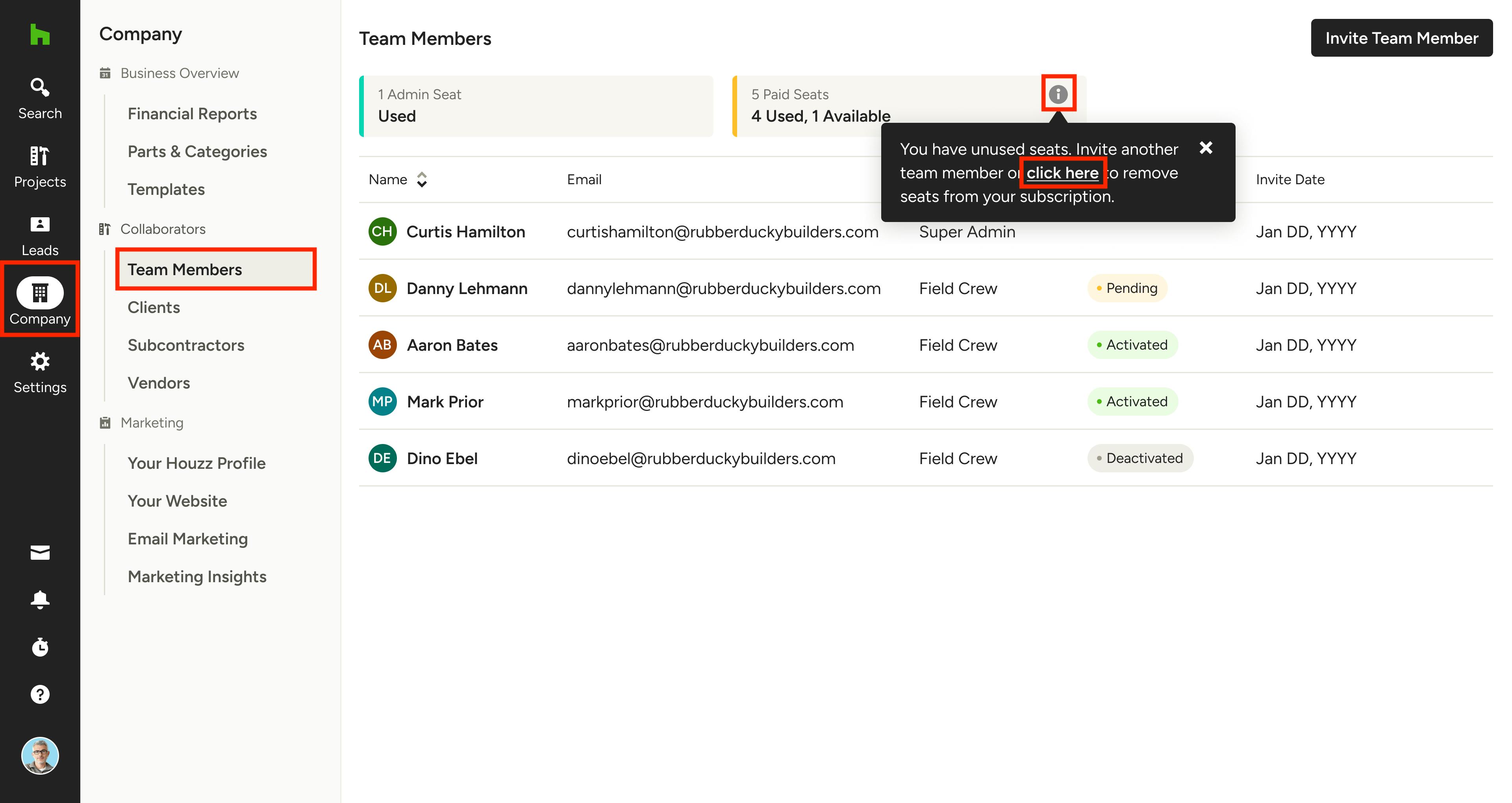
If you have purchased team member seats on Houzz Pro, you can remove said seats within your account, which will update your subscription accordingly. Removed seats will be disabled immediately and billing will stop after your current billing period ends.
Note: The ability to remove seats is only available to the Super Admin of the account.
To remove paid seats, go to the Team Members page, located in the Company section in the left navigation, and click on the (i) icon in the Paid Seats overview (this will only be available if you have unused paid seats; to remove seats that are in use, you first need to revoke a team member's access).
In the info box that appears, select "click here" to open the seat removal modal.
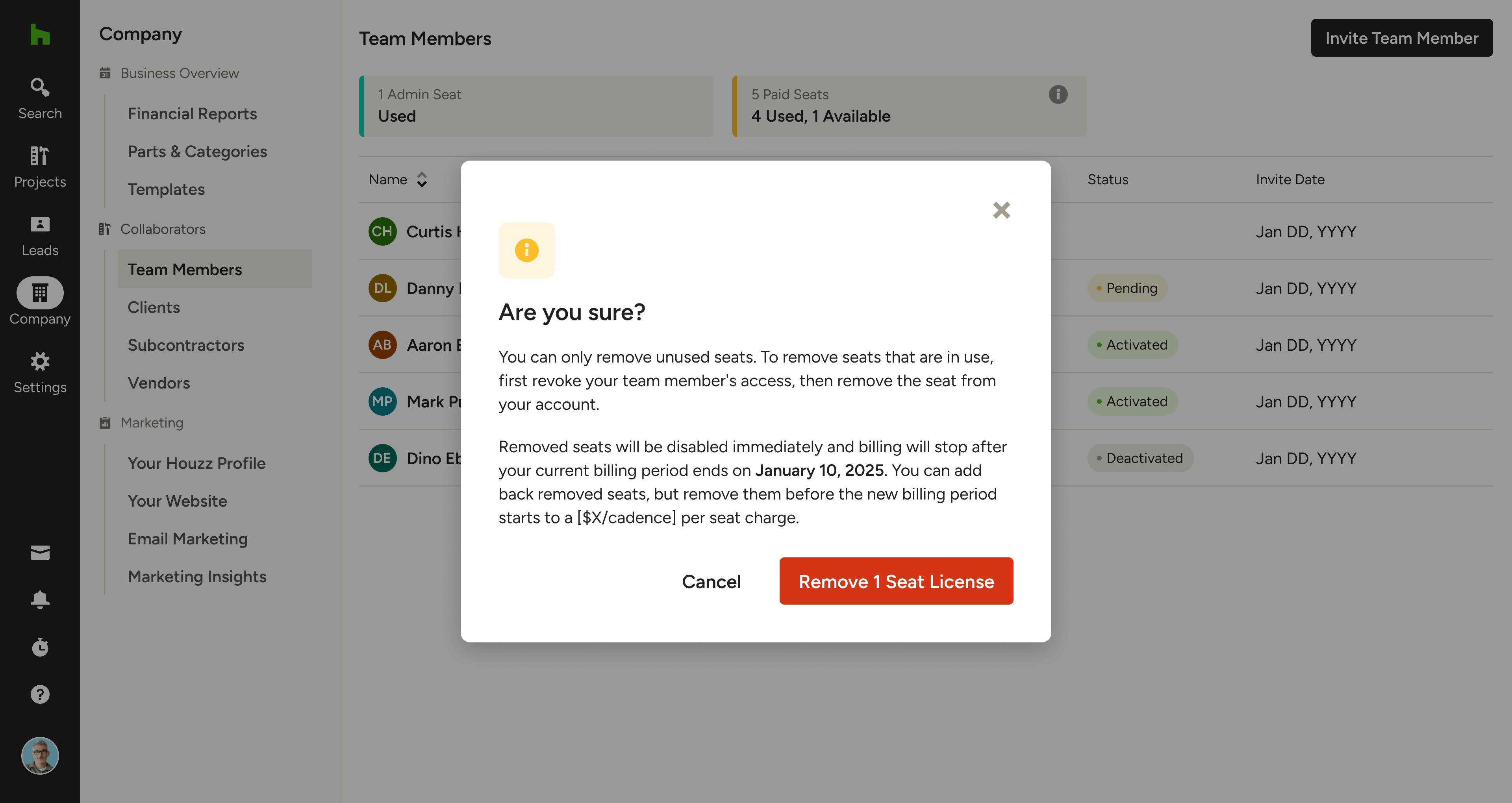
If you have 1 seat available to remove, your screen will look like the following image. Confirm the removal by clicking Remove 1 Seat License.
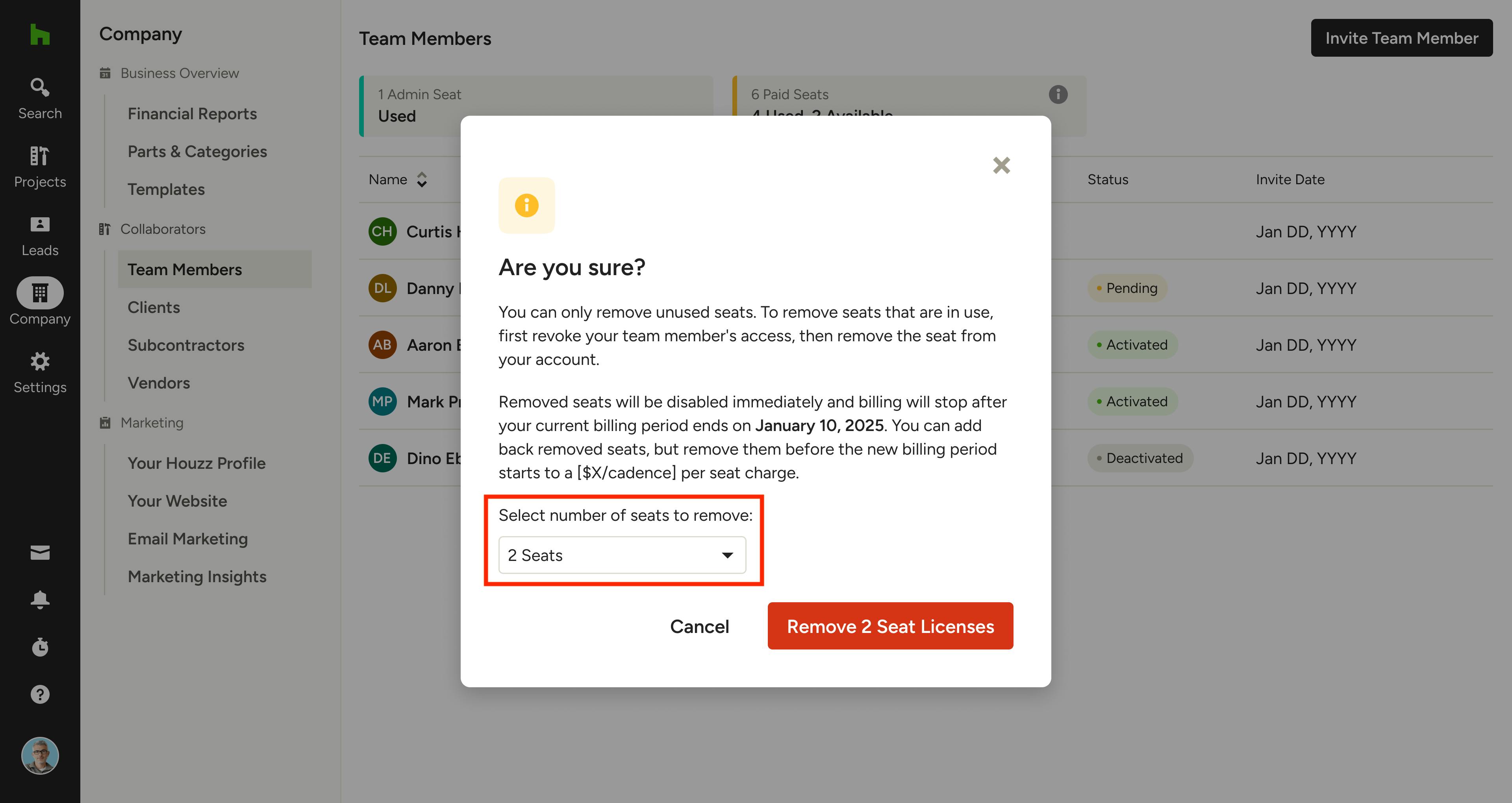
If you have 2 or more seats available to remove, your screen will look like the following image. Use the dropdown to select the number of seats you wish to remove. Confirm the removal by clicking Remove X Seat Licenses.
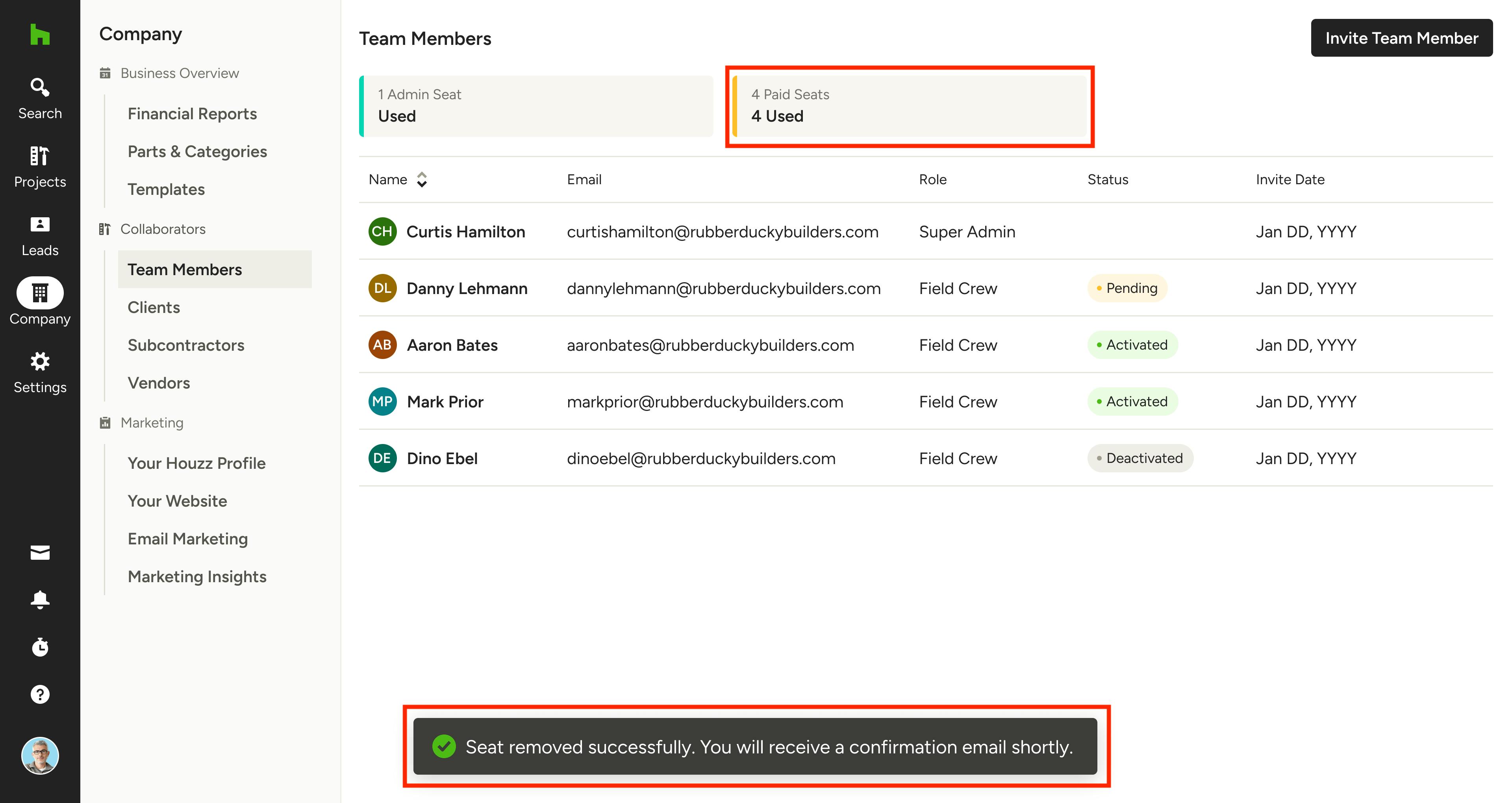
You will see a confirmation of the removal at the bottom of your screen, as well as an updated seats count in the Paid Seats overview.
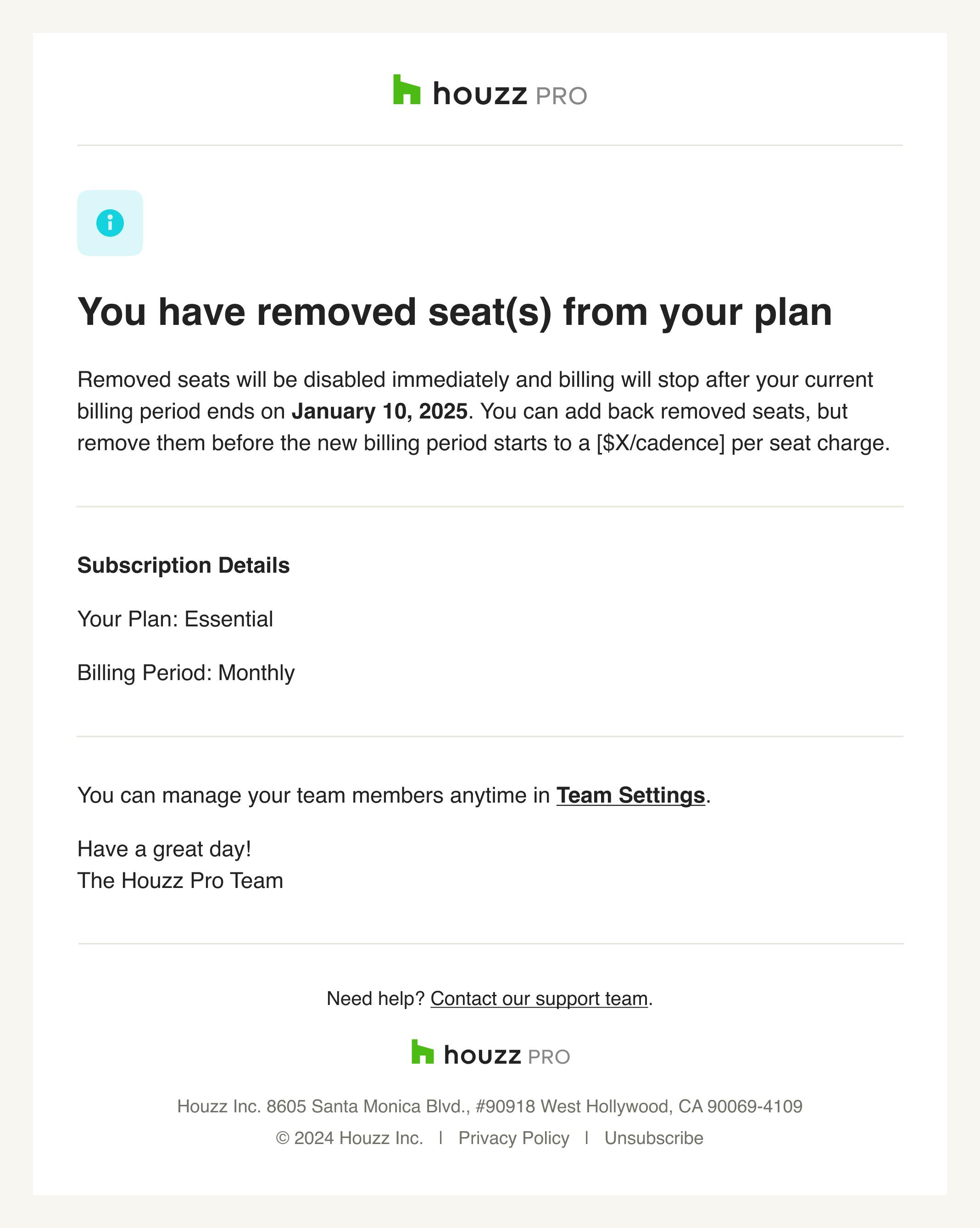
An email will also be sent to you, similar to the one below, confirming the removed seats.
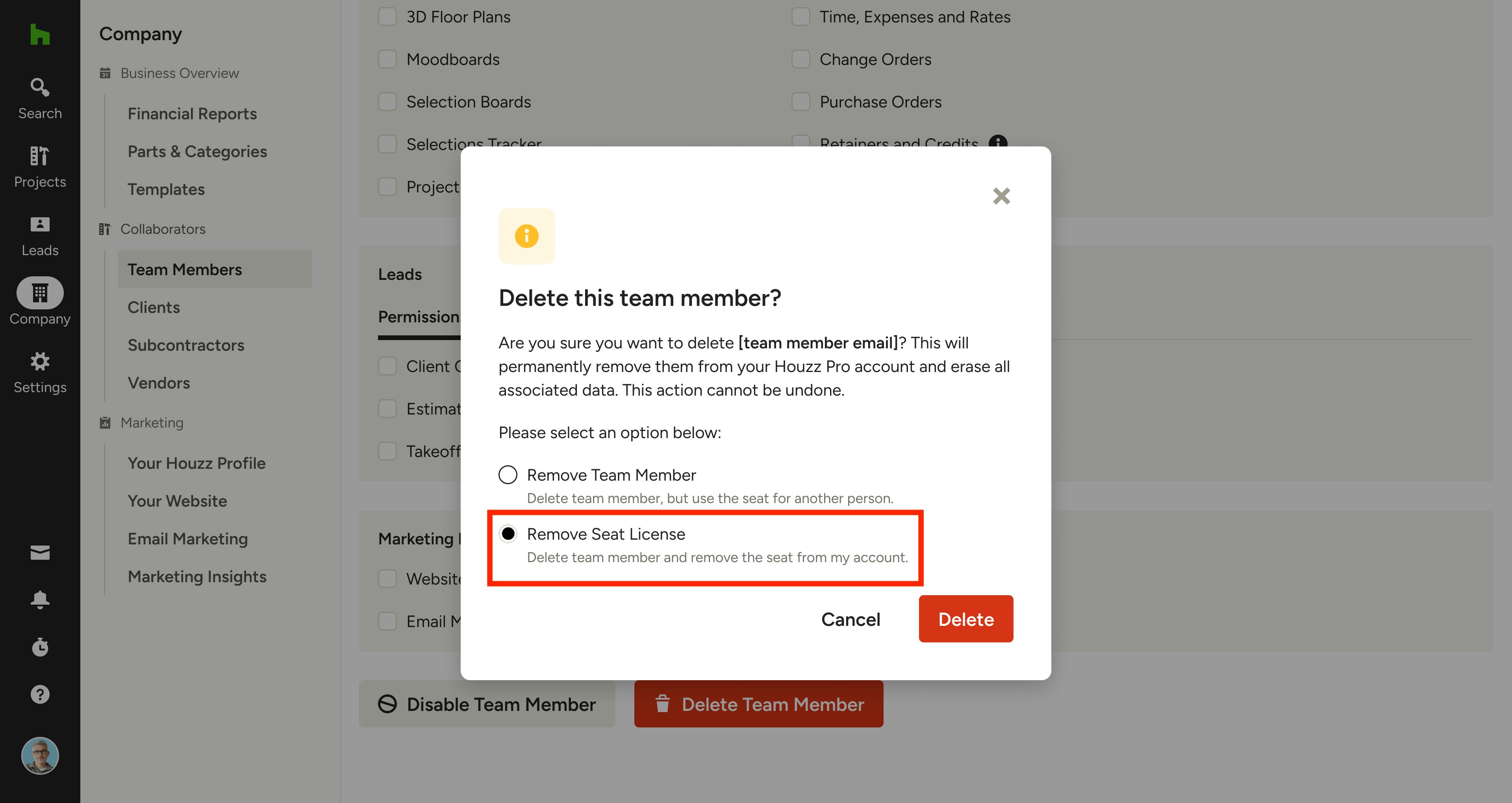
Delete Team Member to Remove Seat License
Only unused paid seats are available to remove from your subscription. If you don't see any unused seats in your Paid Seats overview, you will need to delete a team member to free up their seat for removal. You can follow these instructions to delete a team member, and select Remove Seat License in the final step if you wish to remove the paid seat from your account.
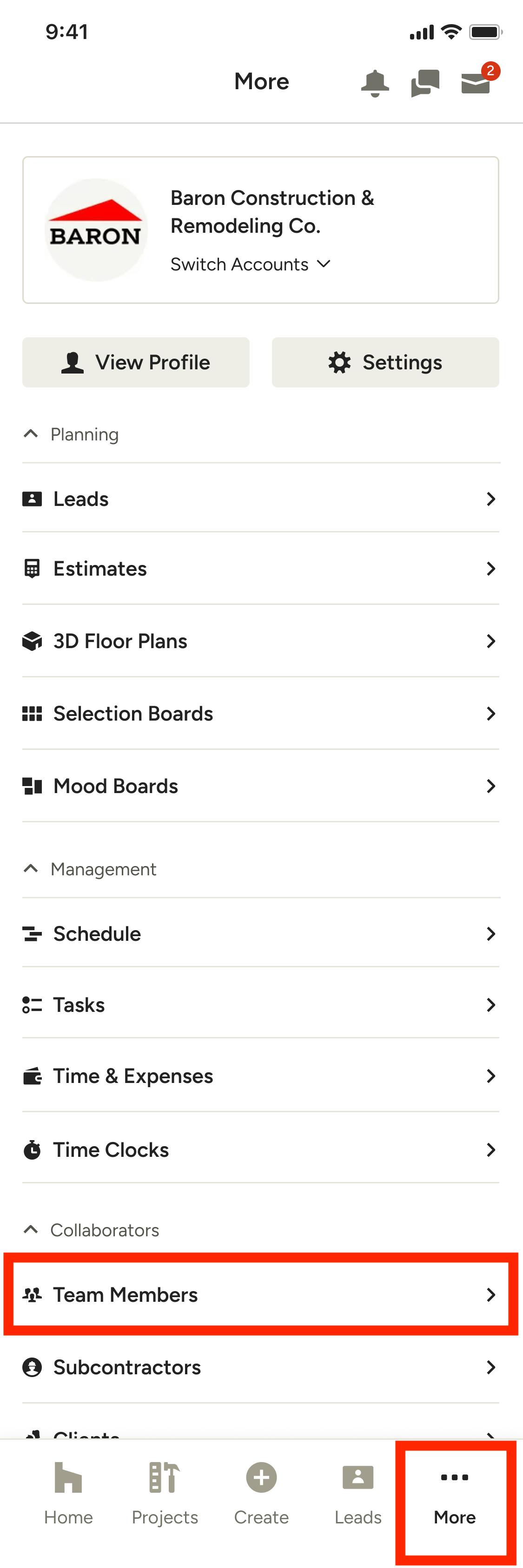
Remove Paid Seats on Mobile
To remove paid seats on the mobile app, tap on the More icon at the bottom of the app, then scroll down and tap Team Members.
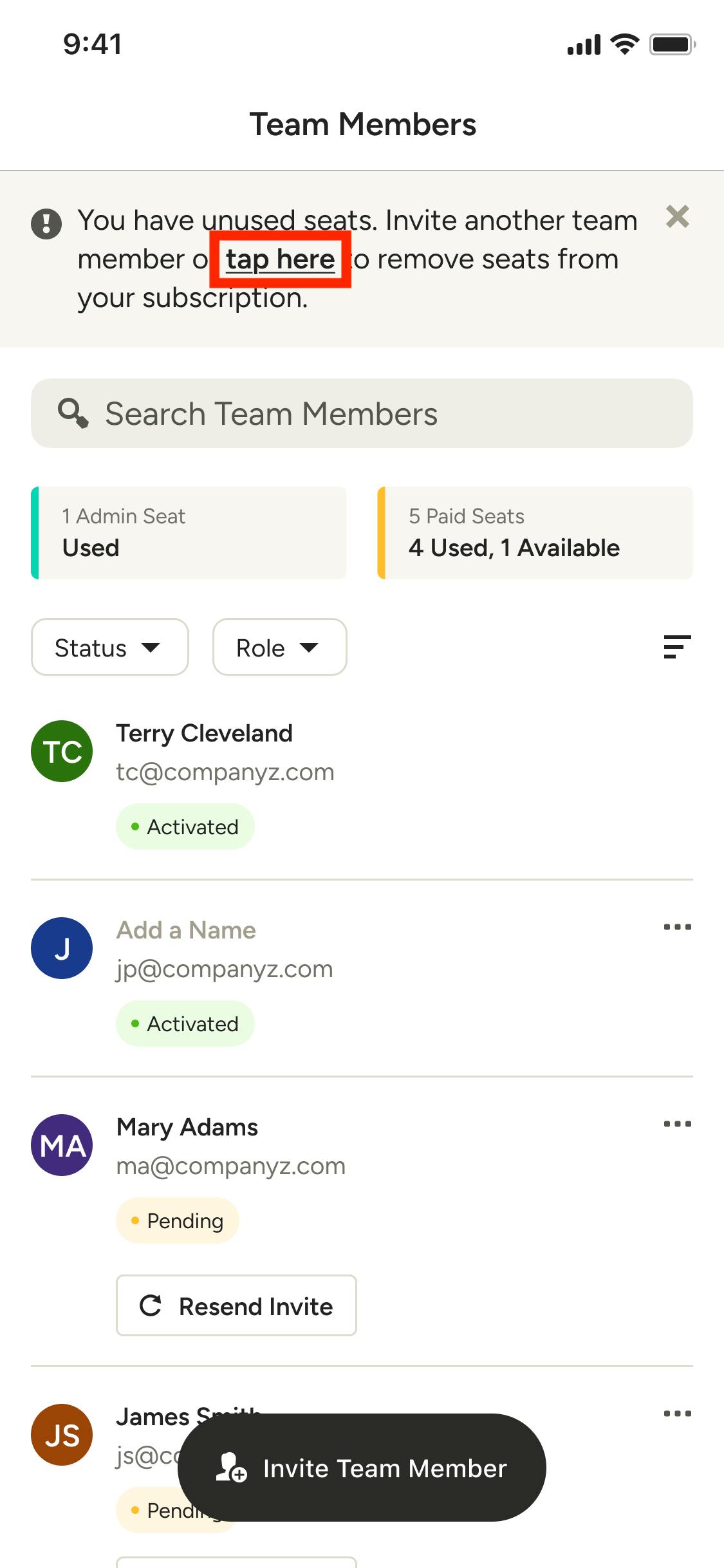
If you have unused paid seats available, you will see a banner at the top where you can tap on "tap here" to remove them from your subscription. If you don't see the banner, you will need to remove seats that are in use — follow these steps to revoke a team member's access.
To continue with removing unused paid seats on mobile, follow the same steps detailed in the desktop experience above.