How to View and Manage Your Notifications
Notifications on Houzz Pro are fully customizable, giving you the ability to receive alerts for the things you care most about, and to quickly reference them as needed. Read on to learn how to find your notifications and adjust your settings to ensure your projects are running as smooth as possible.
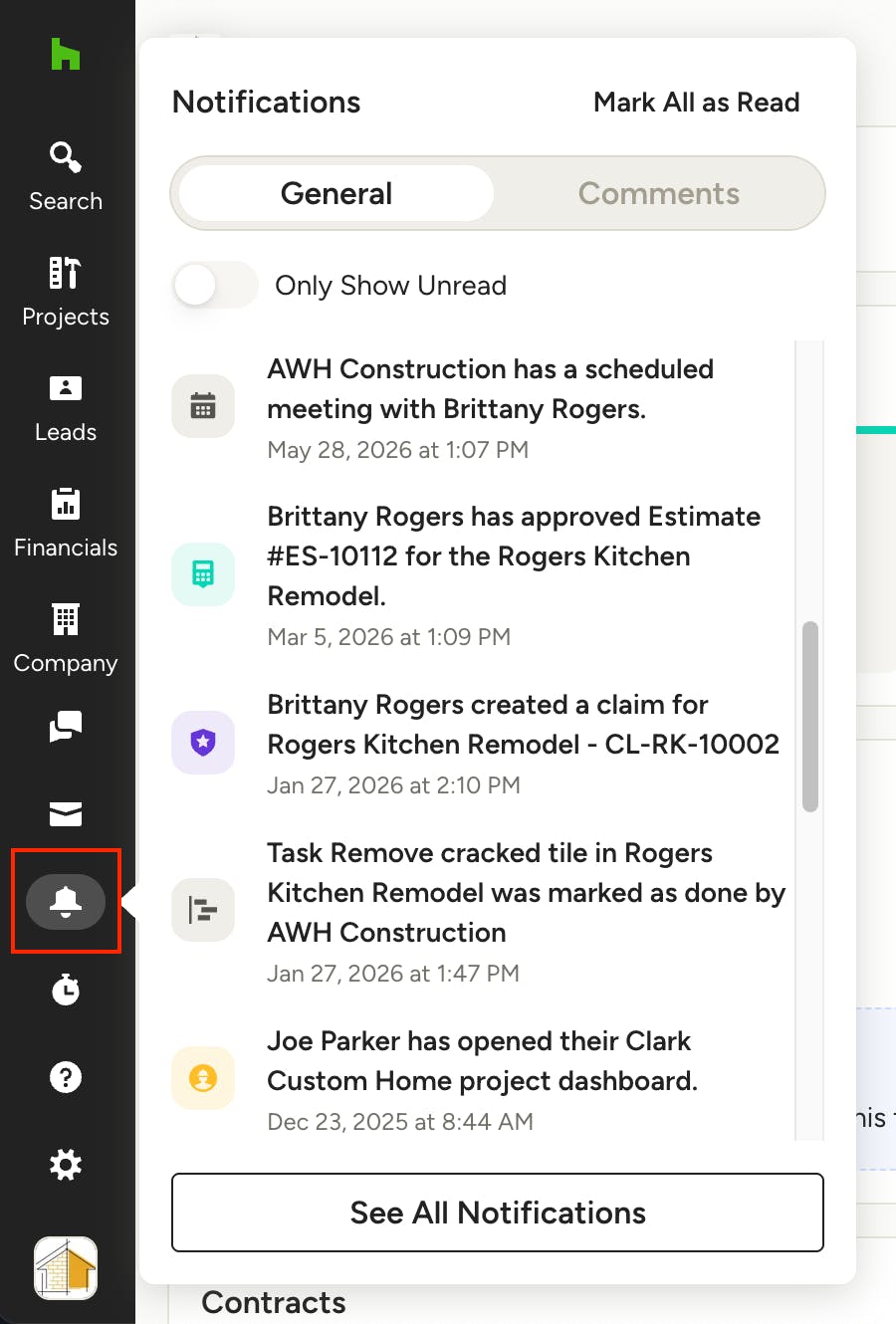
View Notifications
Your notifications will be sent to you via email and/or mobile push notifications, depending on the settings you choose, but they are also available at all times within your Houzz Pro account. To access the most recent alerts, click on the notifications icon (looks like a bell) in the left navigation. Here you will see a preview of your recent notifications, with the ability to toggle between General and Comment notifications at the top, as well as Only Show Unread. Click See All Notifications at the bottom for a full view and expanded filtering options.
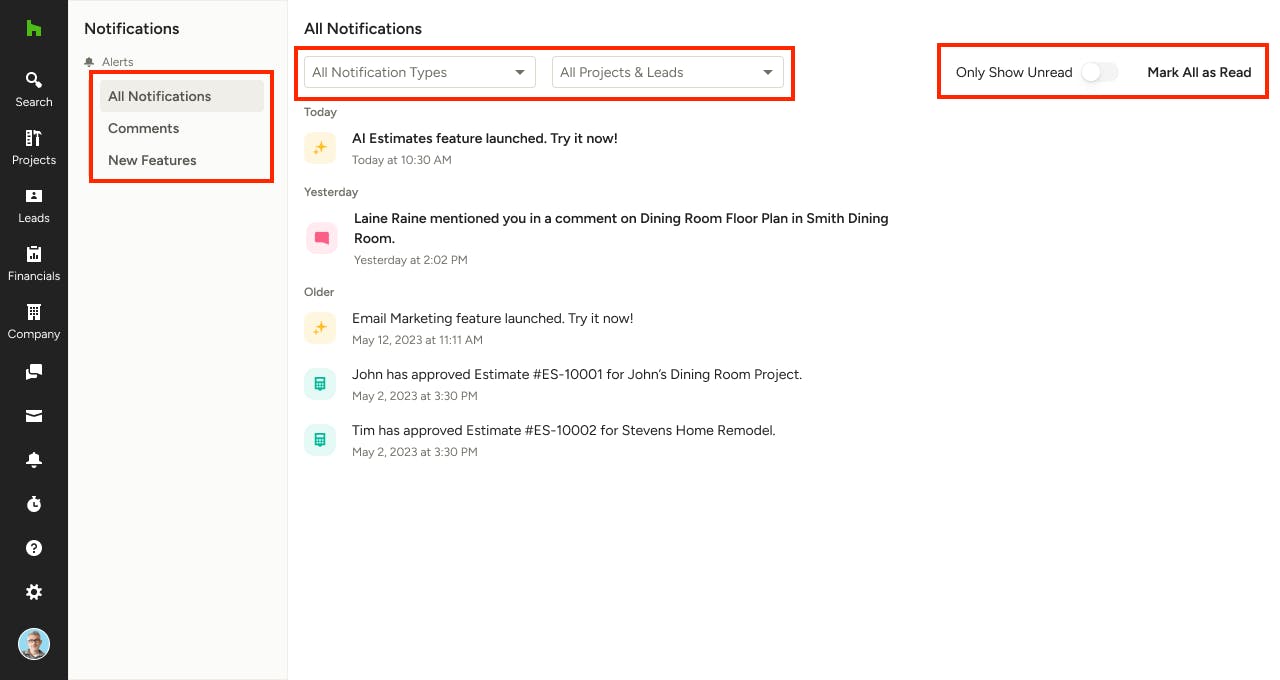
On the notifications overview page, you will see the General and Comments tabs for quickly filtering your alerts, as well as the ability to narrow down notifications by type (estimates, selections, tasks etc.), and specific projects and leads.
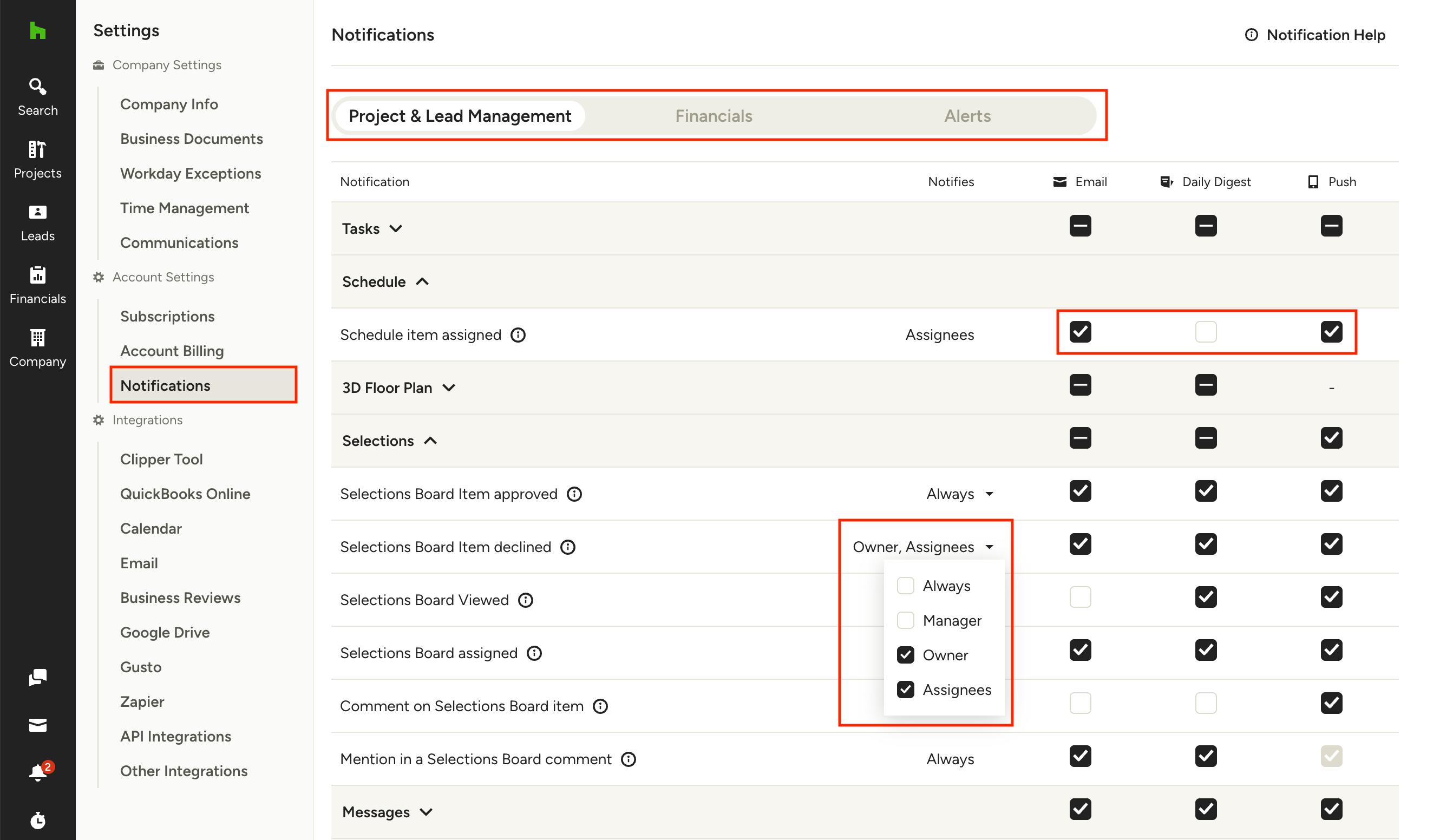
Manage Notifications
You can manage the type, frequency, and conditions under which you receive notifications from Houzz Pro to ensure you aren't missing anything important or getting flooded with alerts.
- Super Admins can configure notification settings for the whole company — Notifies conditions and frequency.
- Team members can control their personal notification frequency and opt out of individual notifications, but cannot change the Notifies conditions.
- Super Admins and team members with “Manage team member” permissions can also configure individual team member notifications. Learn more in the Configure Team Member Notifications section. below
To customize your Houzz Pro notifications follow these steps:
1. Locate the Settings icon in the left navigation and select Notifications from the menu.
2. Use the tabs at the top of the Notifications page to switch between Project & Lead Management, Financials or Alerts.
3. For each feature row (Estimates, Invoices, etc), configure the following:
- Notifies — Select under what conditions (when) you/your team receive a notification: Assignee, Owner, Manager, Always. This setting is only available for Super Admin. See detailed explanation of each one below.
- Frequency — Select how (and how often) you want to receive each notification: Email, Daily Digest, and/or Mobile Push. See detailed explanation of each one below.
4. Deselect the checkboxes for any notifications you wish to turn off entirely.
Super Admin View (Company Settings):
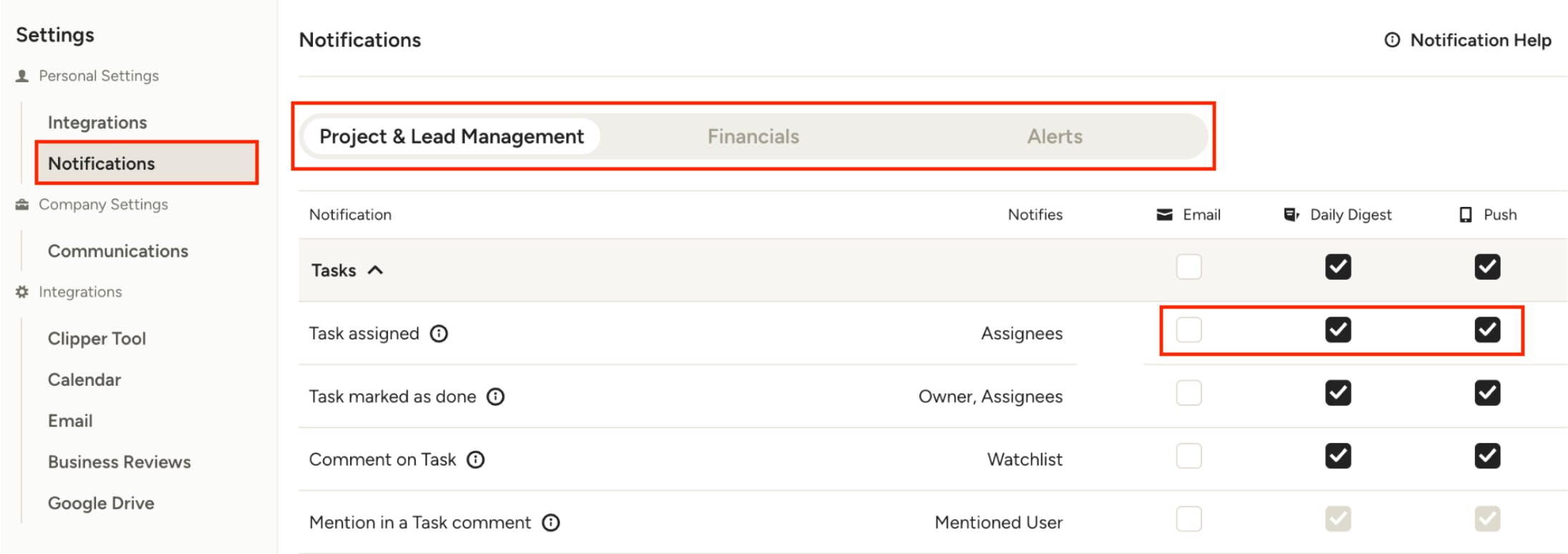
Team Member View (Personal Settings):
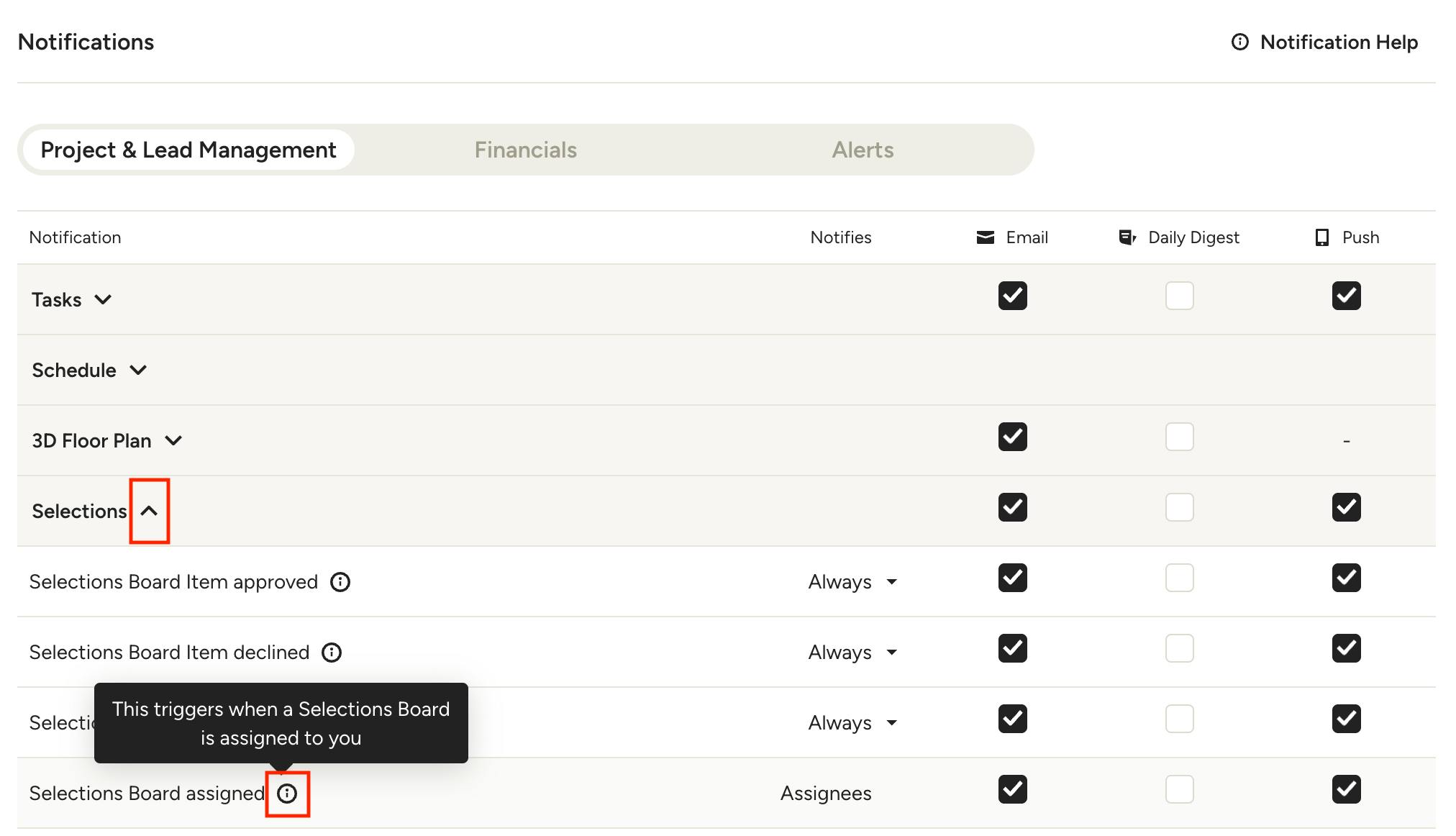
Notification Details
Click the arrow on the left side of any feature row to expand the section and view exactly which actions will trigger a notification for that feature and when you'll receive them. You can hover over the i icon next to an action to see more details.
Notifies Settings
Super Admins can configure the Notifies column to define the conditions under which they/the team receive each notification (when). The available options depend on the feature. Not all options are available for every event.
Assignee: Team members will receive notifications about specific items they are assigned to (task, document, selection board item, etc.). Only available for features that support assignment.
Owner: Team members will receive notifications about specific items they created (own). They will not receive notifications for items created (owned) by other team members on the same project.
Selecting Owner automatically selects Assignee. This means that the team member will still receive notifications of items they are assigned to, even on the items they are not an Owner.
- Example: “Estimate Approved (Owner)” means that they will only get notified about approvals of estimates that they create themselves.
Manager: Team members will receive notifications for all items within a project/lead that they are the designated Manager, regardless of who created the item. This is a higher level of notifications than Owner, and a great notification setting to allow Managers more visibility on the projects they are managing.
Selecting Manager automatically selects Owner and Assignee. This means that the team member will still receive notifications of items they own / are assigned to, even on the projects/lead they are not a Manager — they won’t miss anything, just receive more notifications on those Projects where they are assigned as Managers.
- Example: “Estimate Approved (Manager)” means they will get notifications on all Estimates (even the ones they didn’t create) on the Project / Leads that they are assigned as a Manager.
Always: Team members will receive notifications for all matching events regardless of their role, assignment, or ownership on the item. This is the broadest scope.
- This might be best option for an Admin who wants to receive notifications of everything, and might not be great for team members so you don’t flood them with notifications that aren't directly relevant to them.
Watchlist: Applies to comment and mention notifications only. Team members will be notified when they are on the watchlist for a thread — meaning they previously commented, were @mentioned, or are an Admin.
Note: Team members will never receive a notification for an action they triggered themselves. This applies across all notification types and recipient configurations.
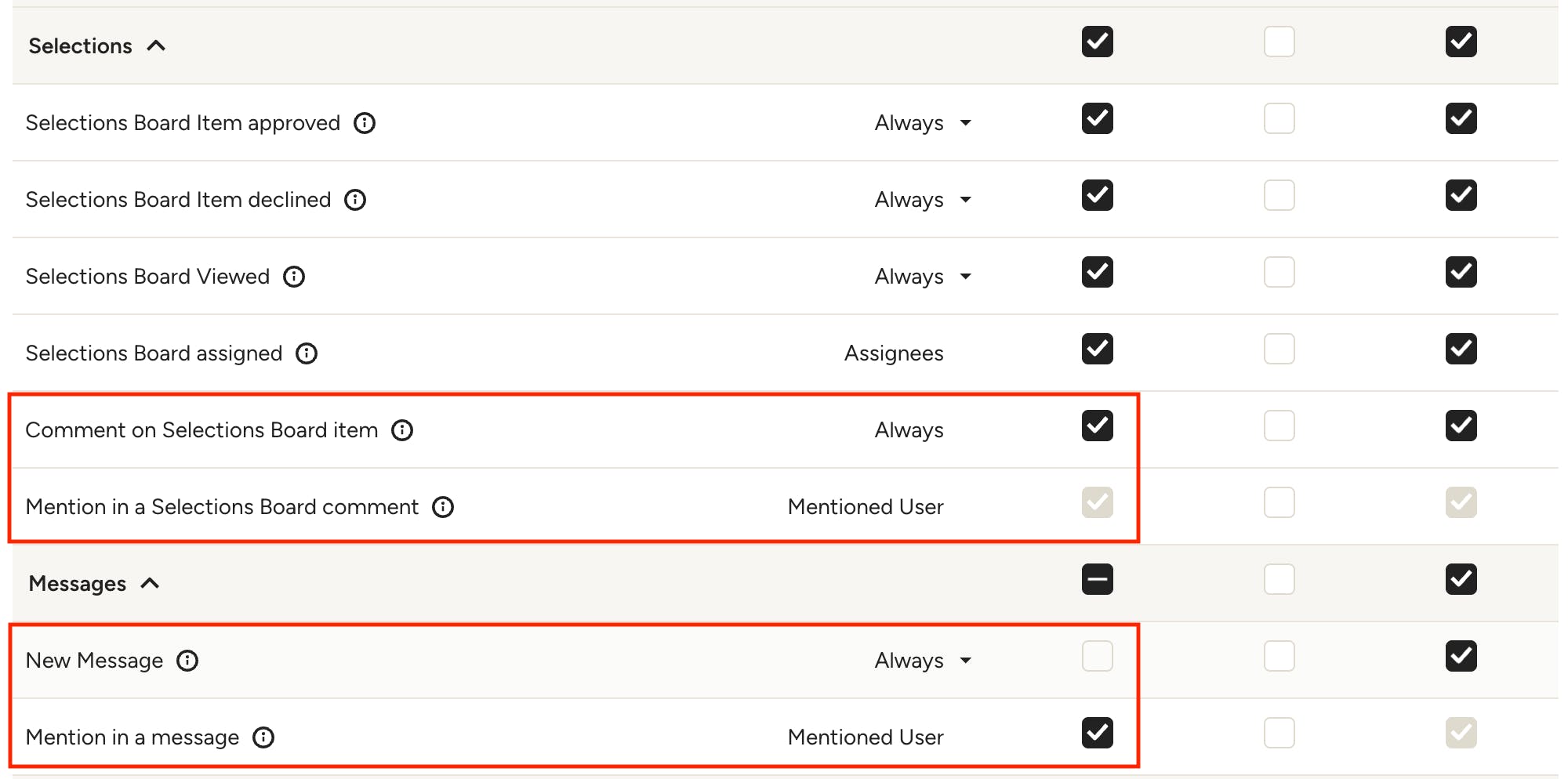
Comment and Mention Notifications
If you select Comment notifications, Mention notifications are automatically enabled and cannot be independently turned off — a mention is a type of comment.
You can unselect Comment and keep only Mention notifications if preferred.
The same rules apply to Messages.
Frequency Settings
- Email: Sends an email the instant a triggering action occurs. This is great for team members who need to quickly respond to clients or communicate with other team members about specific actions.
- Daily Digest: Sends a once-daily summary of all notifications for the features where you've chosen this preference. This is best for staying informed while keeping your inbox uncluttered.
- Push: Sends a mobile push notification the instant a triggering action occurs. This will only occur on a device(s) that has the Houzz Pro app installed and has push notifications enabled. This is great for team members working outside of the office who need timely notifications. Mobile push notifications are not available for all features. If a push checkbox is grayed out, push notifications do not yet exist for that specific event.
Note: If both Email and Daily Digest preferences are selected, you will receive instant emails and those same notifications will be included in your daily digest.
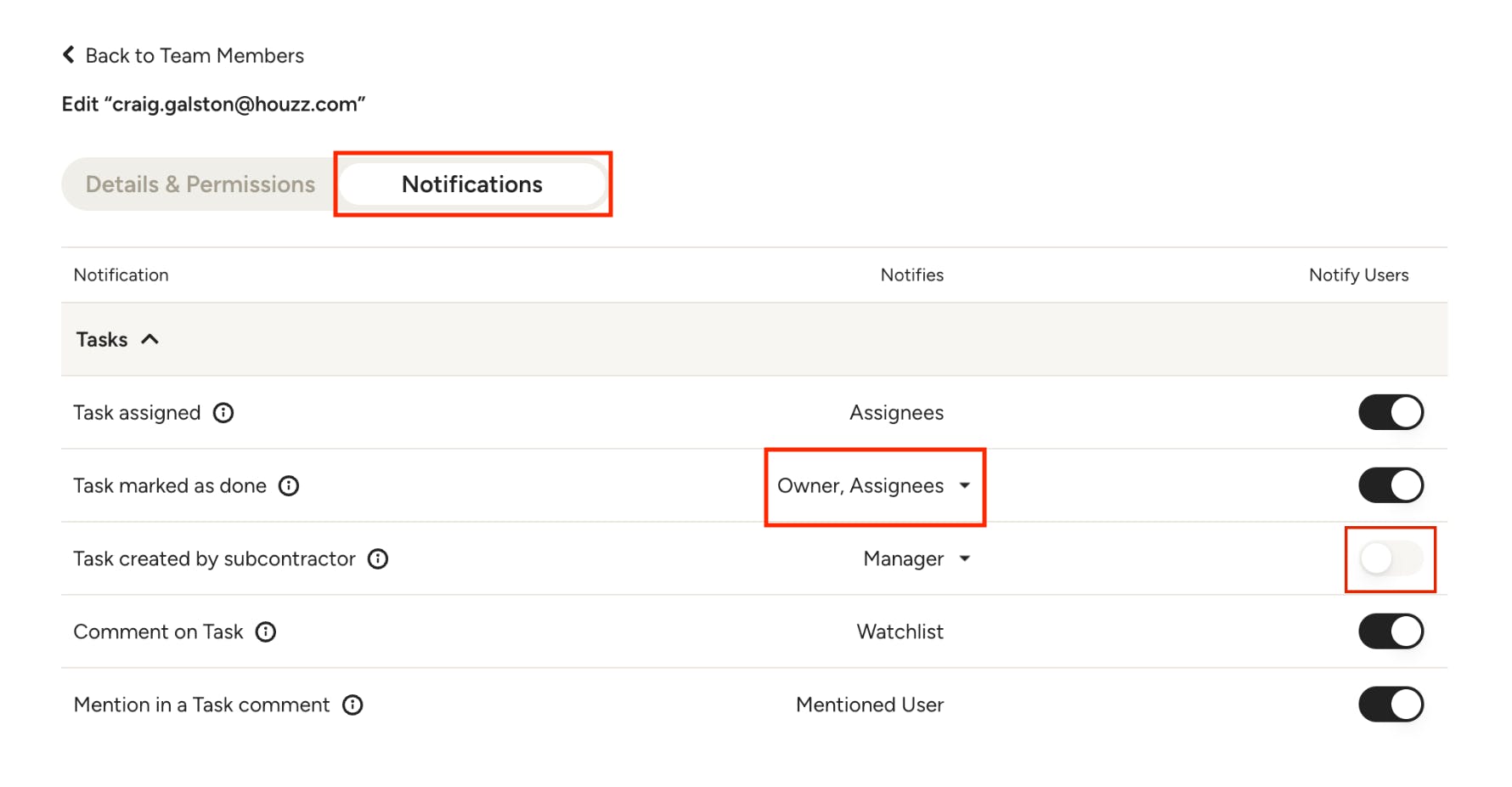
Configure Team Member Notifications
Super Admins and team members with “Manage team member” permissions can also configure individual team member notifications. This can be done from the Notifications tab within the edit Team Member page.
Note: Notifications are tied to permissions — if a team member doesn't have permissions for a feature, you won't see notification settings for that feature.
The following can be set on a team member basis:
- Notifies — When the team member receives the notification. These are the same conditions detailed above in the Notifies Settings section.
- Notify Users — If the team member receives the notification at all. If disabled, this will turn off the specified notification for the team member completely.
Frequently Asked Questions
Why don't I see every feature in my notifications settings?
Notifications are tied to your individual permissions on Houzz Pro. If you don't have access to a feature like invoices, you won't see notification settings for it.
If you have access to the feature but don’t see the notification - try asking your Admin if they turned it off for you.
Can admins change notification settings for team members?
Yes, admins can configure notification settings for each team member individually from the Edit Team Member page. This includes setting the notification conditions (the "when") on behalf of each team member.