How to Duplicate and Edit Takeoff Estimates
We all know estimates are subject to change throughout the bidding process — plans are updated from the initial scope of work, or client preferences change.
Instead of creating an entirely new estimate, you are now able to build upon an existing version with the Duplicate and Edit function. With this feature, you can select a previous estimate format and quickly update that format with new changes you make on the takeoff canvas.
Let's go over how to do this.
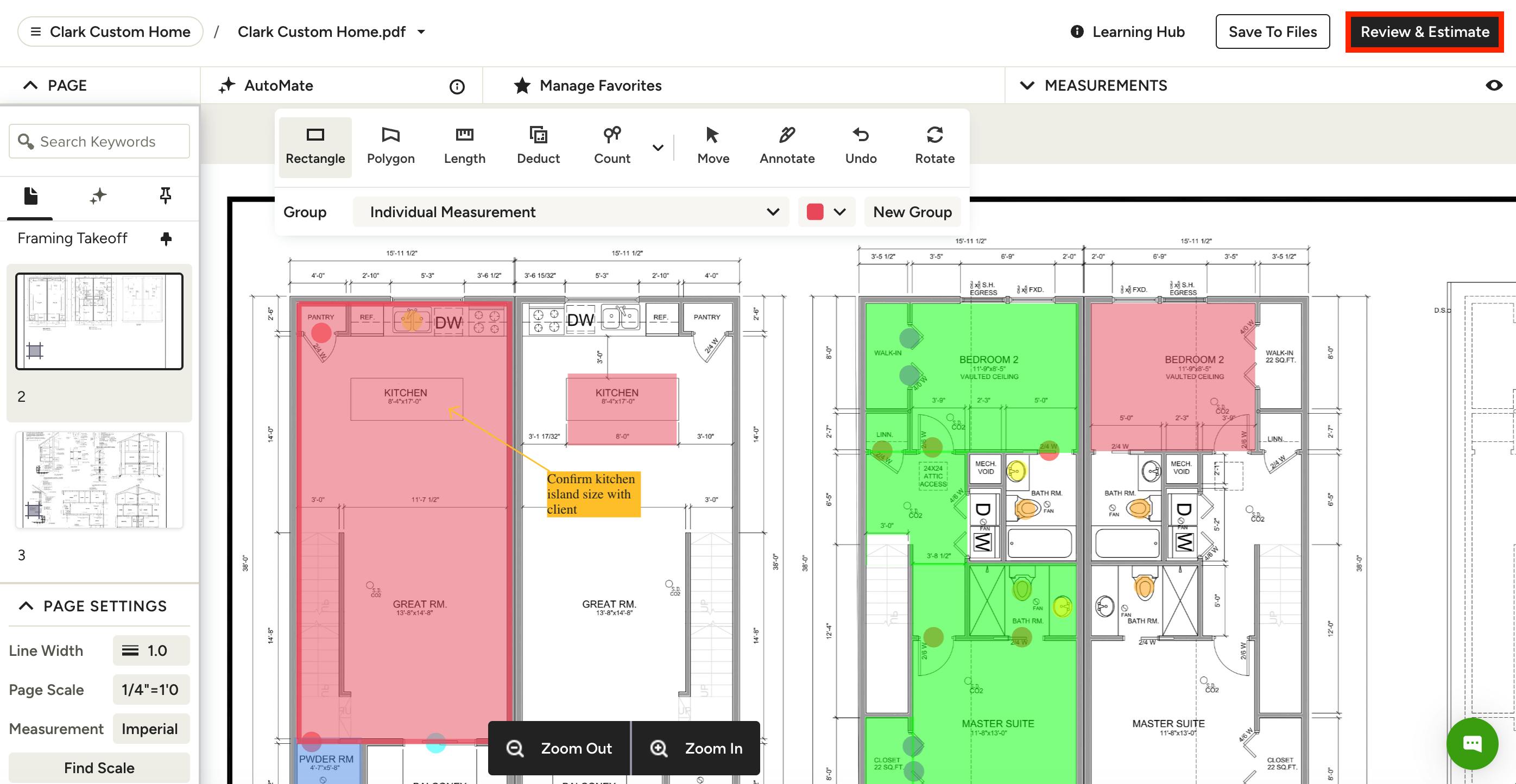
How to Duplicate a Takeoff Estimate
1. Open up your relevant takeoff — you can access from projects, leads or the Houzz Pro homepage.
2. Make the relevant adjustments to your takeoff canvas. Click Review & Estimate in the top right corner to view the Takeoff Summary.
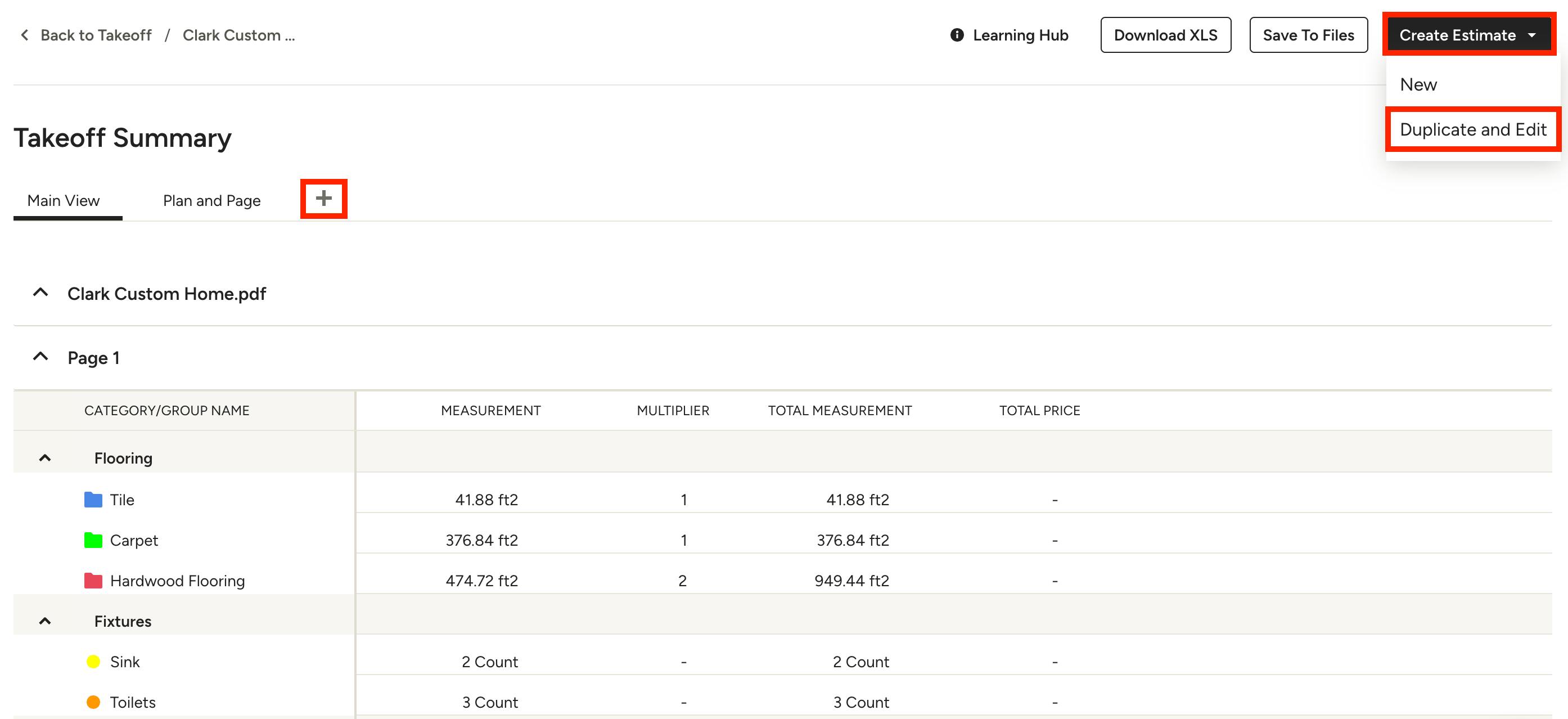
3. The Takeoff Summary will appear with a general overview of your measurement and count details. You can customize your summary by creating new Views using the + sign.
Views allow you to customize which specific plans and pages you want to include. It's important to note that when you create a new View, all the exports, downloads and estimates will be created with the View you are active on. Read How to Customize the Takeoff Summary to learn more about this feature.
If you are ready to create an estimate, make sure you are on the correct View, then click Create Estimate at the top of your summary. You can choose to create a brand new estimate, or you can duplicate and edit a previous estimate.
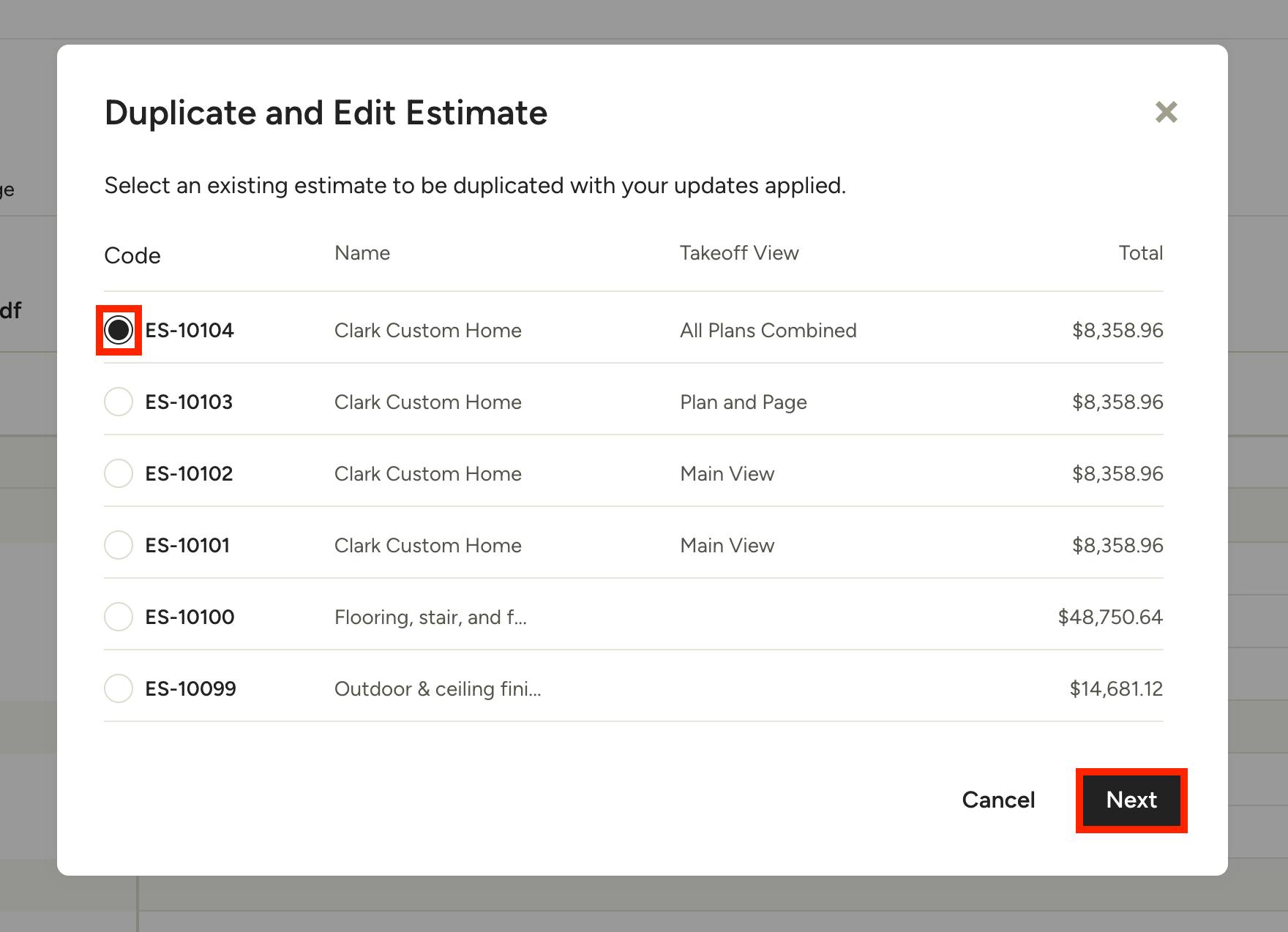
4. When you choose Duplicate and Edit, you must then select which of the previous estimates you want to duplicate. When you select an estimate, you will be able to reuse all your previous work, including any categories or groups. The estimate version will also show the View used — make sure the estimate View you want to use is correct, since that will impact the plans and pages included.
Click Next to create the new version of the estimate. Any updates you made on the takeoff canvas will be applied to this version.
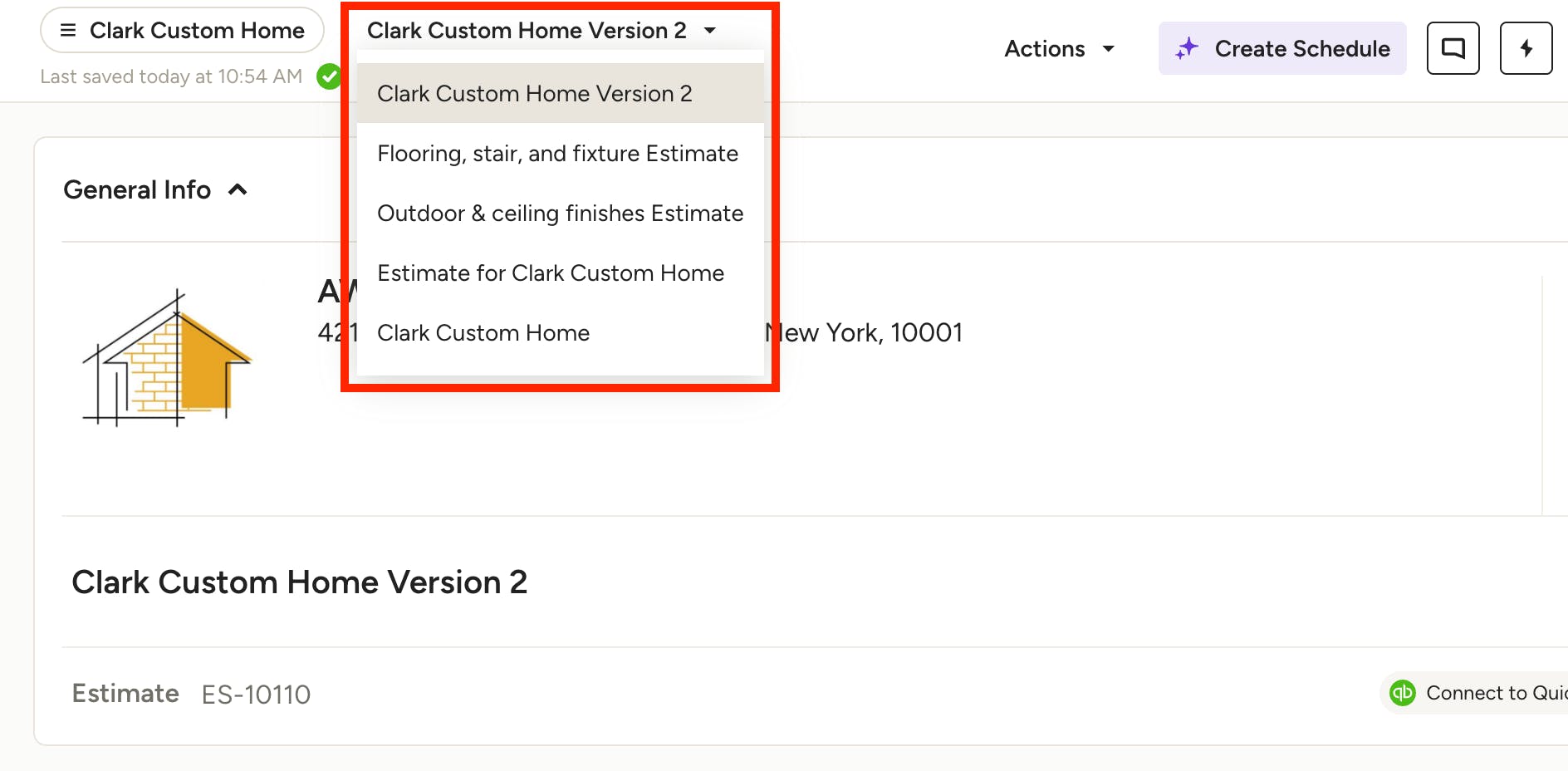
5. After duplicating an estimate, you can rename the new one. For example, this version is Version 2. This will act as a time stamp that you can easily refer back to at later stages in the project should you need to.
Takeoff Duplication FAQ
1. Will the takeoff quantity or the estimate quantity save after duplication?
The takeoff quantity will always take precedence over the estimate quantity. For example, if the quantity of a group is updated in the estimate and then duplicated and edited from a takeoff, the takeoff quantity will overwrite the updated quantity in the estimate.
2. If I rename a group, will the takeoff group name or the estimate group name save after duplication?
If a group is renamed in the estimate, the takeoff group name will have priority and overwrite the renamed group in the estimate during duplication.
3. What happens if I move a takeoff group to different category in the estimate?
If a takeoff group is moved to a different category in the estimate being duplicated, it will be reverted to its original category from takeoffs.
If the category of the takeoff group is renamed in the estimate, it will be corrected back to the original category name during duplication and editing.
4. What fields save after the duplication process?
- Pricing: Material cost or Labor cost edited in the estimate will be retained as the most up-to-date price.
- Description: The description is carried over from the original estimate.
- Other columns not populated in Takeoffs database (e.g., markup, dimensions) are retained as they are in the original estimate.
5. How do I delete measurements?
Example: If you have group1, group2 and group3 in estimate #1, then you delete group2 from the takeoff and duplicate estimate #1, then group2 won’t appear in the new estimate.