How to Hide a Layer on the Takeoff Canvas
On the Takeoff canvas, things can get very busy. You can choose to hide layers on the canvas so that you have a clear view of your plans and can continue to do your Takeoff. Hiding layers isn't just for a cleaner workspace — it's also a quick way to control what shows up in a client-facing export. Hide any measurements you don't want included before you export.
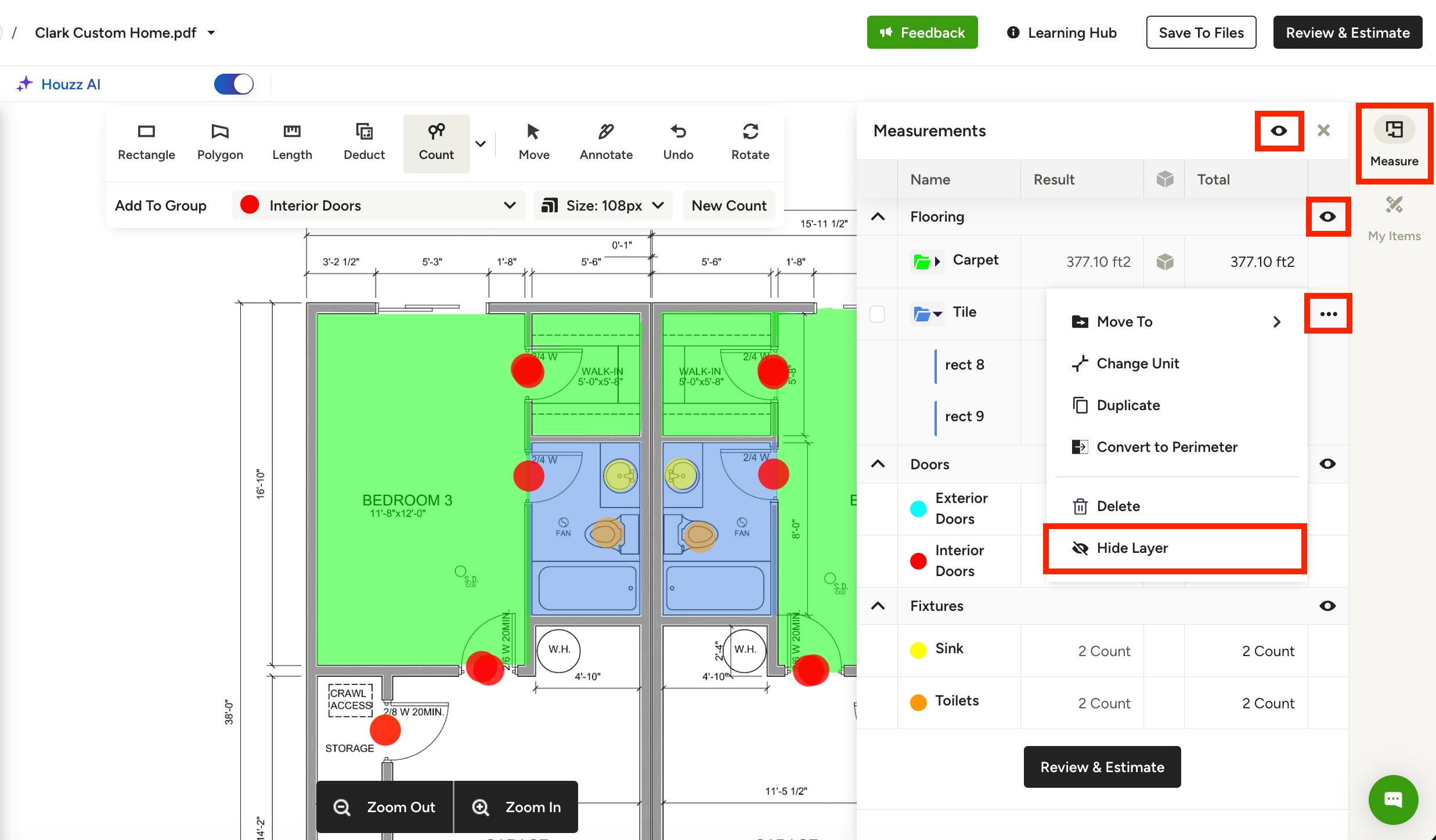
To hide a layer, select Measure from the right menu to open up your Measurements Drawer. Click the Eye icon to hide your measurements — select the one at the top of the Measurements Drawer to hide everything, or select the one next to a specific category.
To hide a group or an individual measurement, simply click the three dots icon to the right of the measurement/group, then select Hide Layer. That measurement/group will now disappear from the canvas.
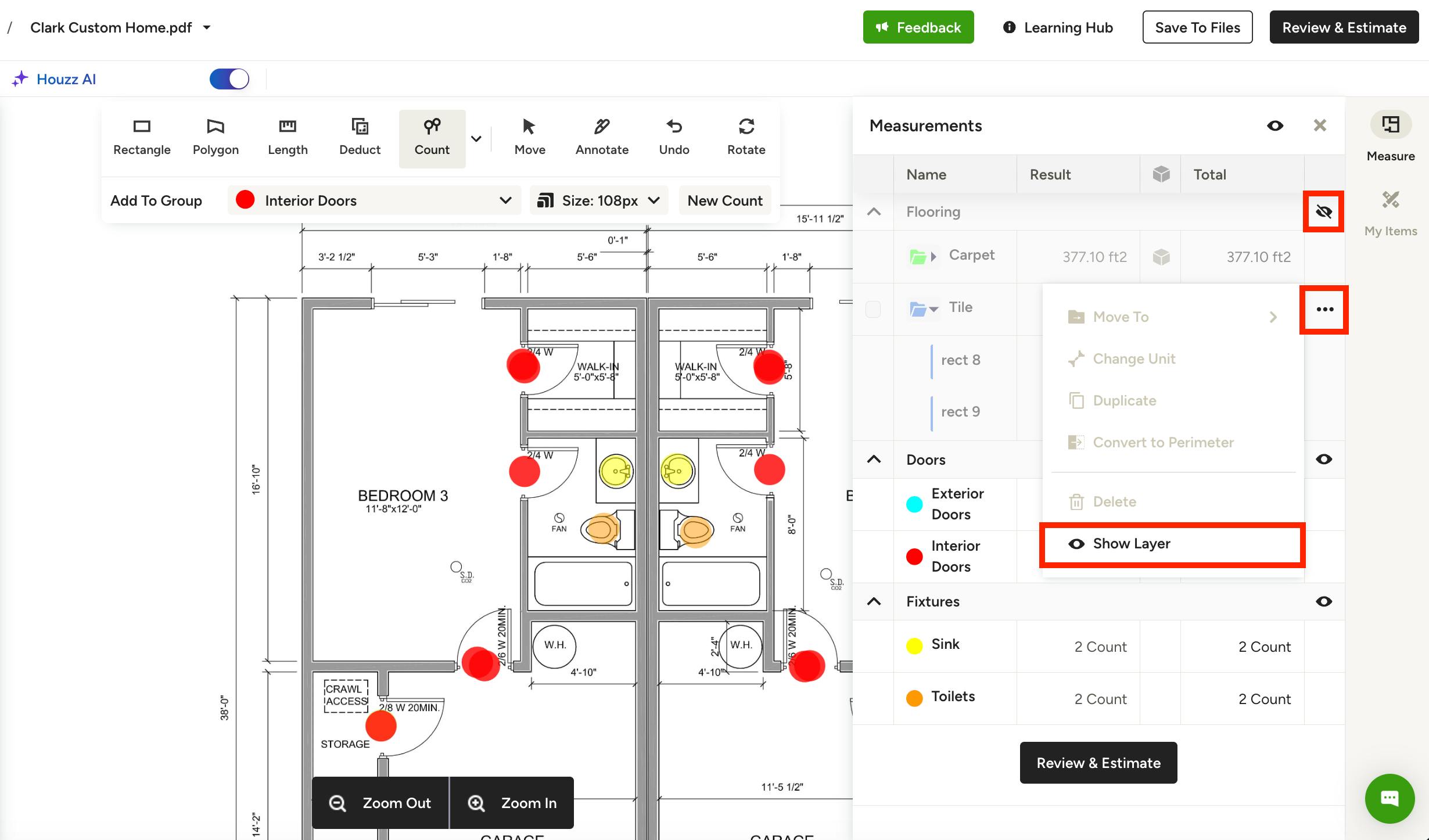
Please Note: Hidden layers are also excluded from your PDF and Excel exports. If a measurement is hidden on your canvas, it won't appear in the file you download — only visible measurements are included.
To show the measurements again, simply click the Eye icon again, or select Show Layer from the three dots menu. All of your measurements will reappear on the canvas.