Bid Management on Houzz Pro
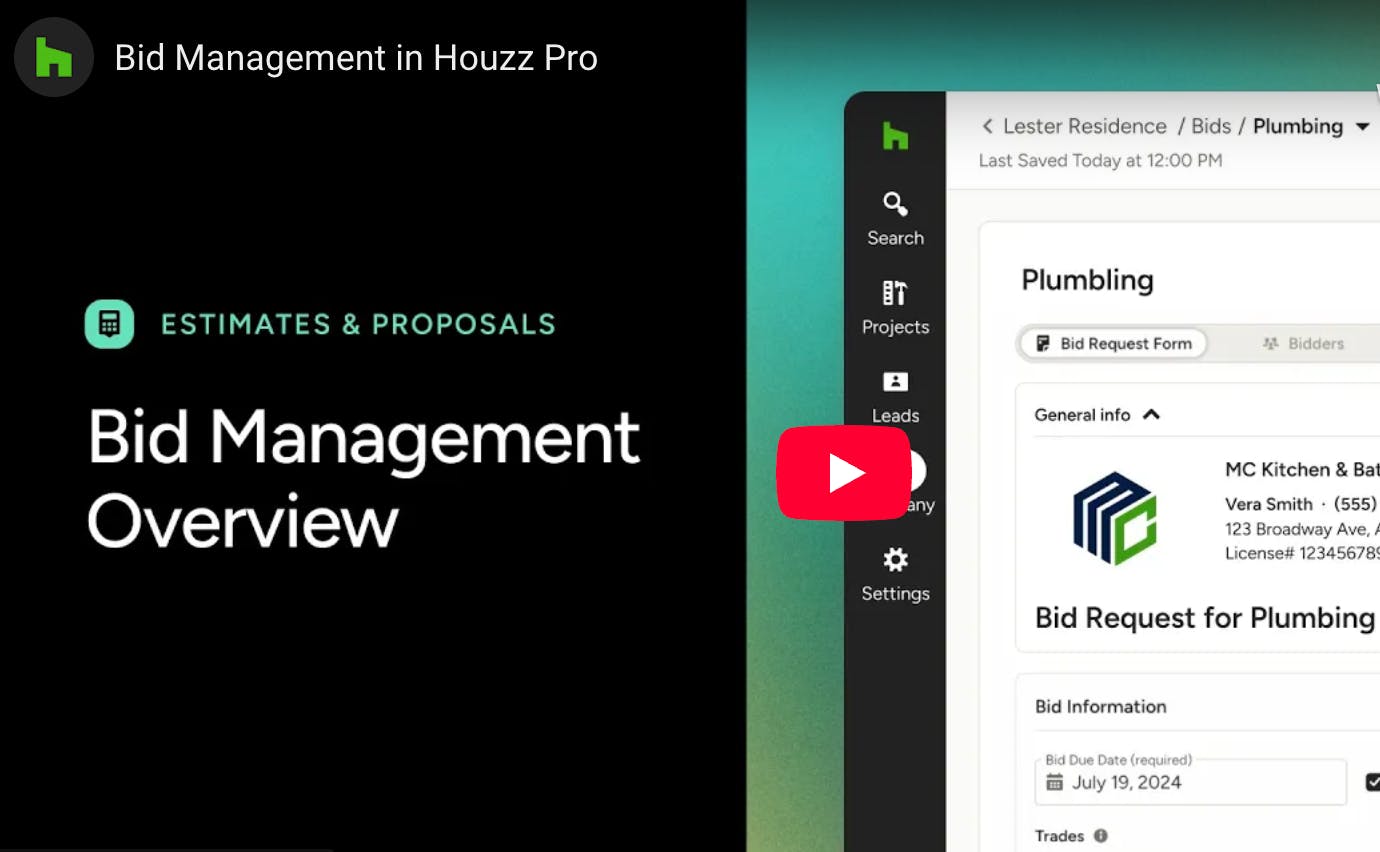
With Houzz Pro, you can easily collaborate with subcontractors using our bid management feature. With bid management (available for select packages only), you can create a bid request for your project, select bidders from your subcontractor list (or add new ones), and then receive quotes from those subcontractors. This ensures you get the right subcontractor — and the right price — for your project.
When using bid management in Houzz Pro, you can either view all bids across projects, or you can view bids for a specific project.
View All Bids
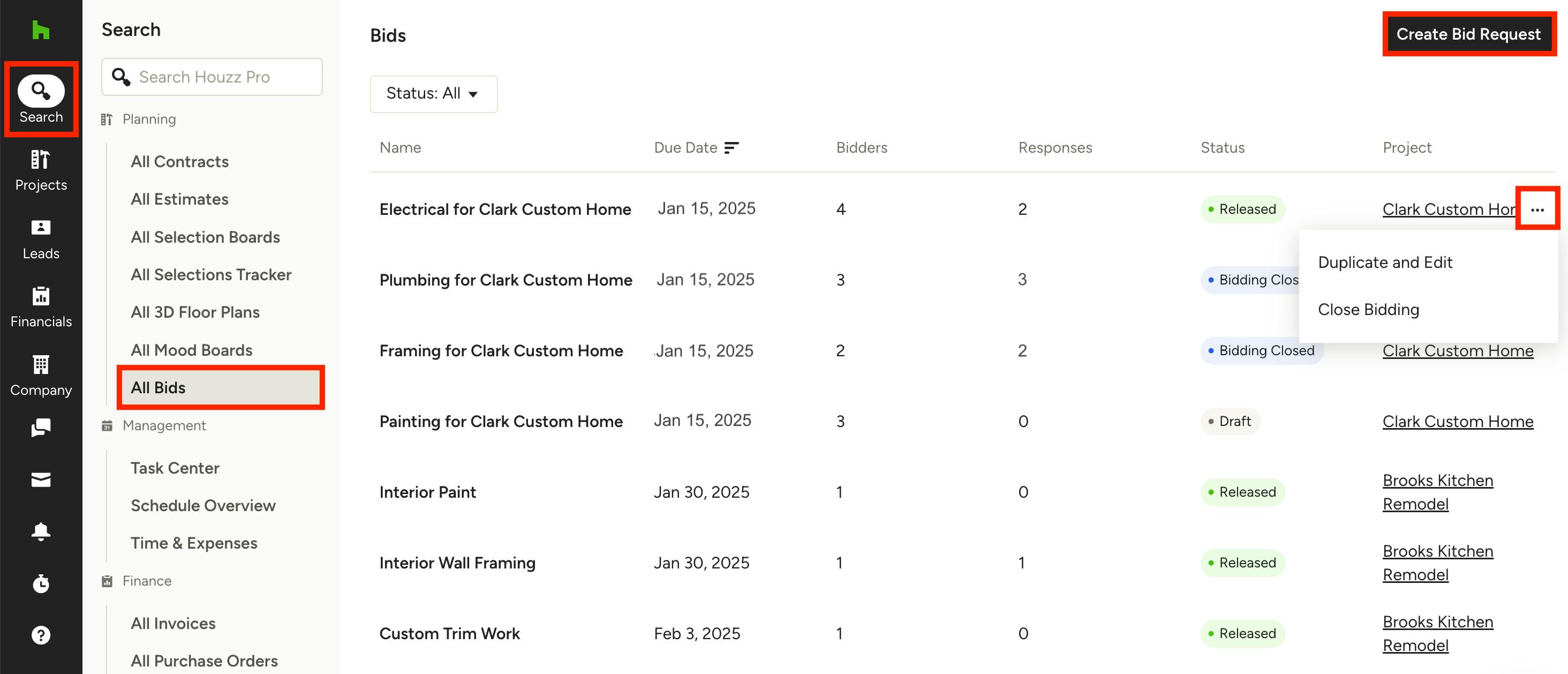
If you would like to view all bids across projects in one place, click the Search icon in the left navigation, then select All Bids in the menu.
To start, your all bids page will be empty. If you have already created bid requests for your projects, you will find all of them listed here (as shown above). You can quickly view the bid name, due date, number of bidders, number of responses, status and project name.
If you would like to edit an existing bid or see more details, click on the bid name. If you would like to duplicate and edit, delete a draft, or close a released bid, click the three dots icon and select the relevant option.
If you would like to create a new bid, select the Create Bid Request button at the top.
View Project Bids
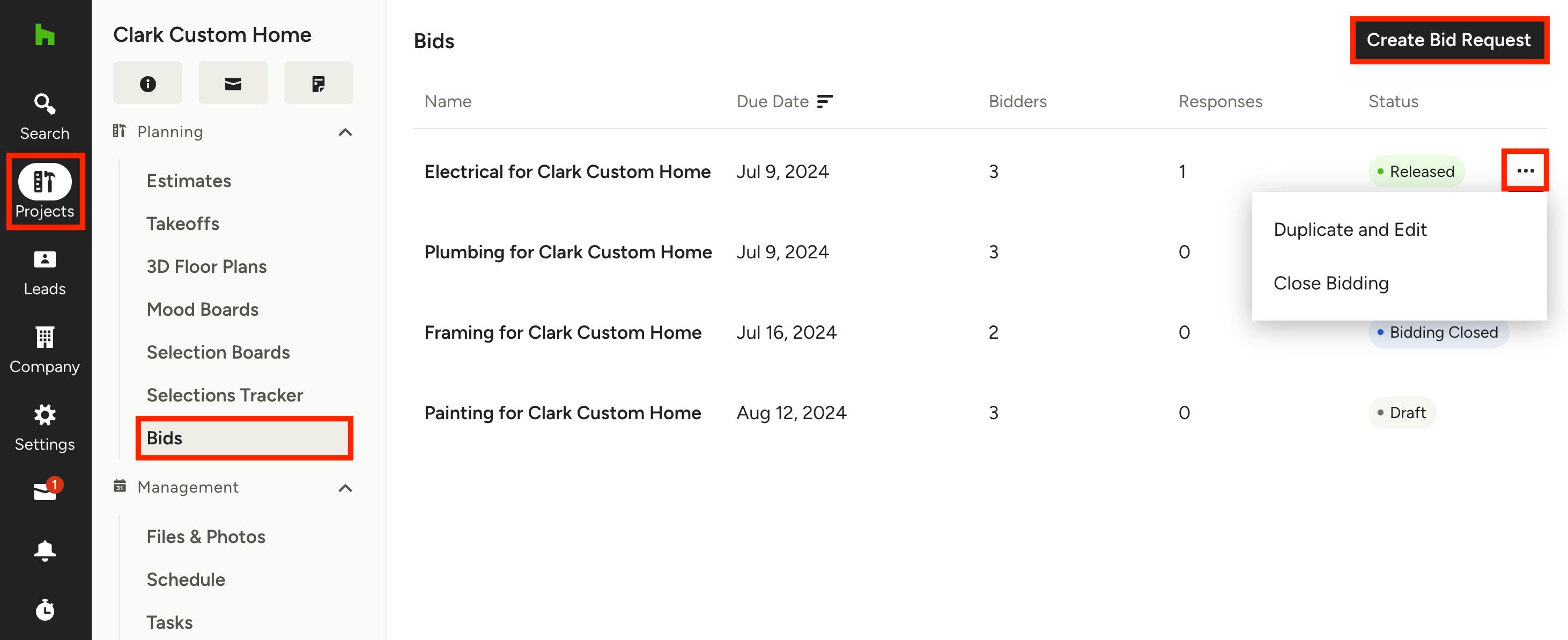
If you would like to see the bids for a specific project instead, click the Projects icon in your left navigation, then select the relevant project. Once on the project overview page, select Bids from the left menu.
To start, your bid management page will be empty. If you have already created bid requests for this project, you will find all of them listed here (as shown above). You can quickly view the bid request name, bid due date, number of bidders, number of responses, and status.
If you would like to edit an existing bid or see more details, click on the bid name. If you would like to duplicate and edit, delete a draft, or close a released bid, click the three dots icon and select the relevant option.
If you would like to create a new bid, select the Create Bid Request button.
Create a New Bid Request
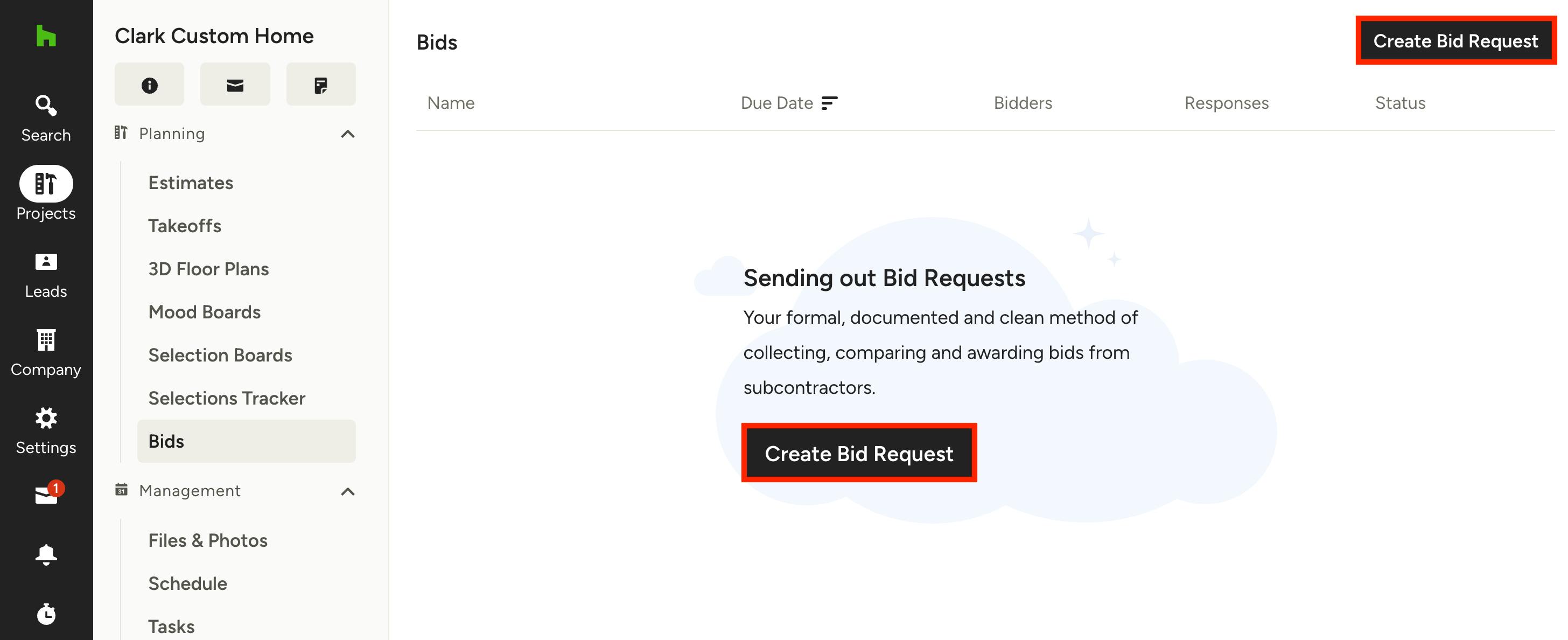
If you are creating a bid for the first time, your bid management page will be empty (as shown below). You can easily start creating a new bid by either clicking the Create Bid Request button at the top of your page or in the middle of your page.
A new screen will appear where you can name your bid — type in the bid name, then click Create.
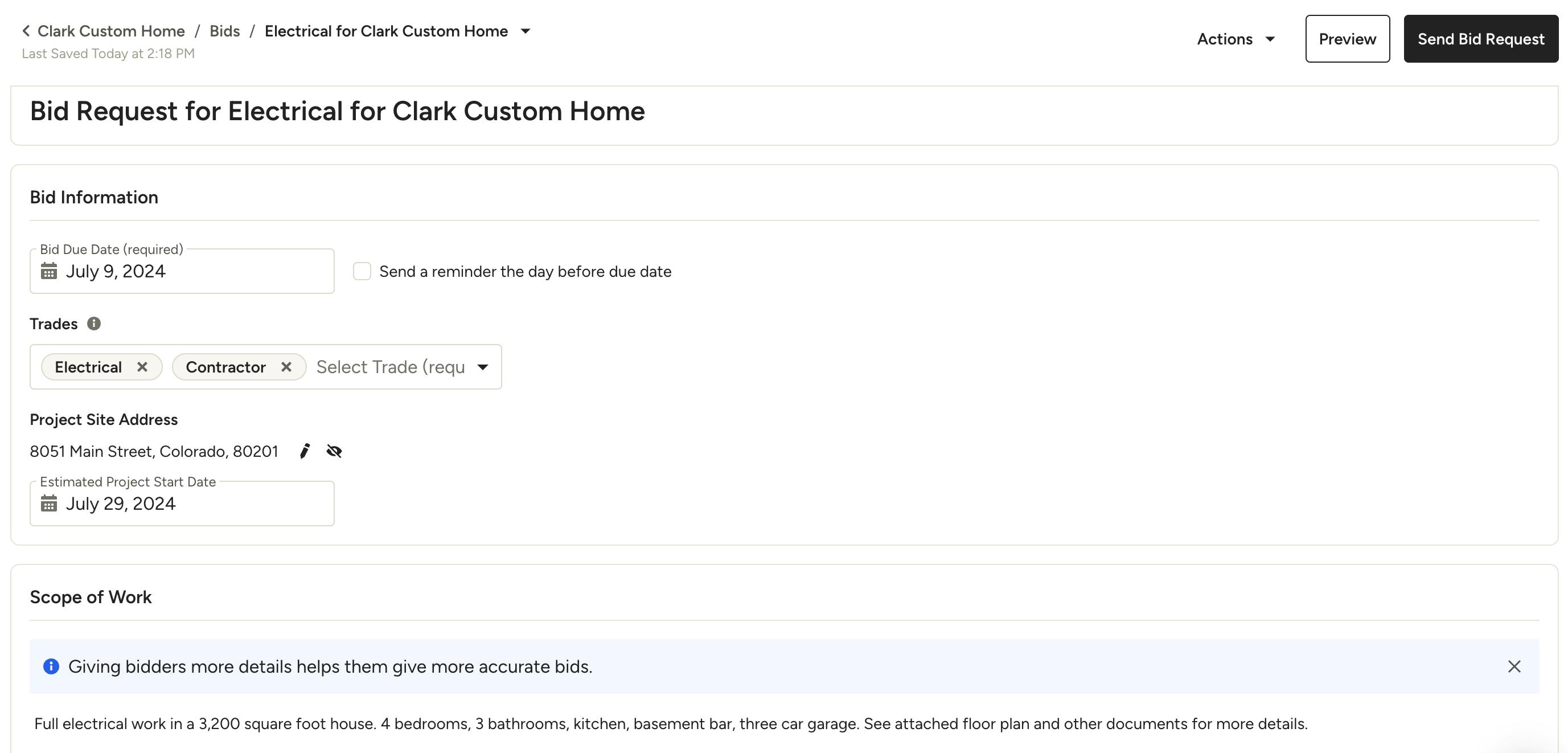
Your bid request form will now appear. On this page, you can fill out the bid information, including:
- Bid Due Date: Select a bid due date from the calendar — you can also check the box next to the due date to send a reminder to bidders the day before the due date.
- Relevant Trades: Select which trade types are relevant for this bid. You can select multiple trades if needed.
- Project Site Address: The project address will already appear if added in the client details page. Click the pencil icon to edit the client's address, or click the eye icon to hide/unhide the address from the bid. If the eye icon is crossed out, subcontractors will not be able to view the project address.
- Estimated Project Start Date: Select an estimated project start date from the calendar.
- Scope of Work Description: Input any necessary details for the subcontractors who are reviewing and submitting quotes. You can add text formatting (bold, italicize, underline text), create bulleted or numbered lists, and include necessary links.
- Attachments: Attach necessary files for subcontractors to review.
As you edit, all your changes will automatically save.
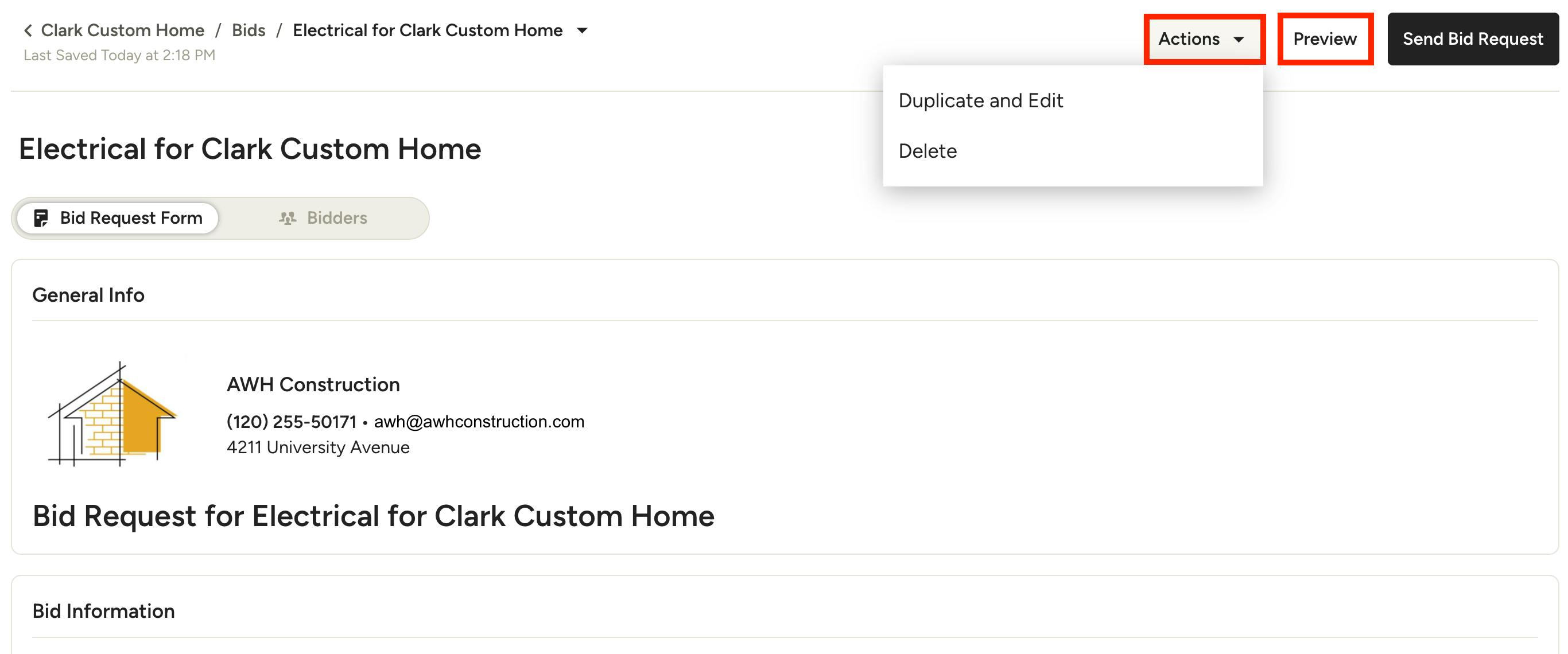
Once complete, click Preview to view the final bid request format — this is what subcontractors will receive when you send your request.
If you would like to duplicate and edit the bid, or delete the bid, click Actions, then select the relevant option from the dropdown.
Select Bidders
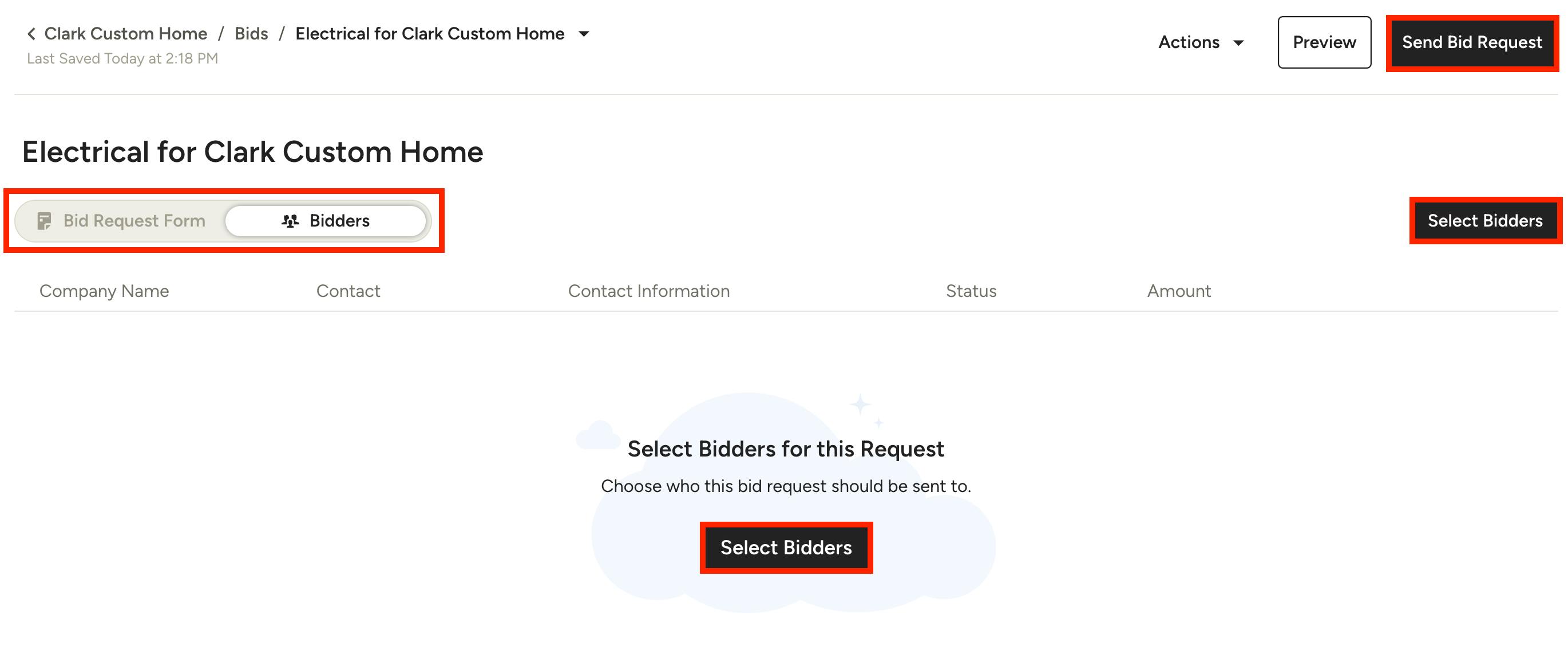
Once your bid request form is complete, you can select bidders to submit quotes for this requested project.
To do this, you can move the toggle from Bid Request Form to Bidders near the top of your bid. A new screen will appear — click the Select Bidders button at the top of your page or in the middle of your page.
You can also just select Send Bid Request at the top of your page.
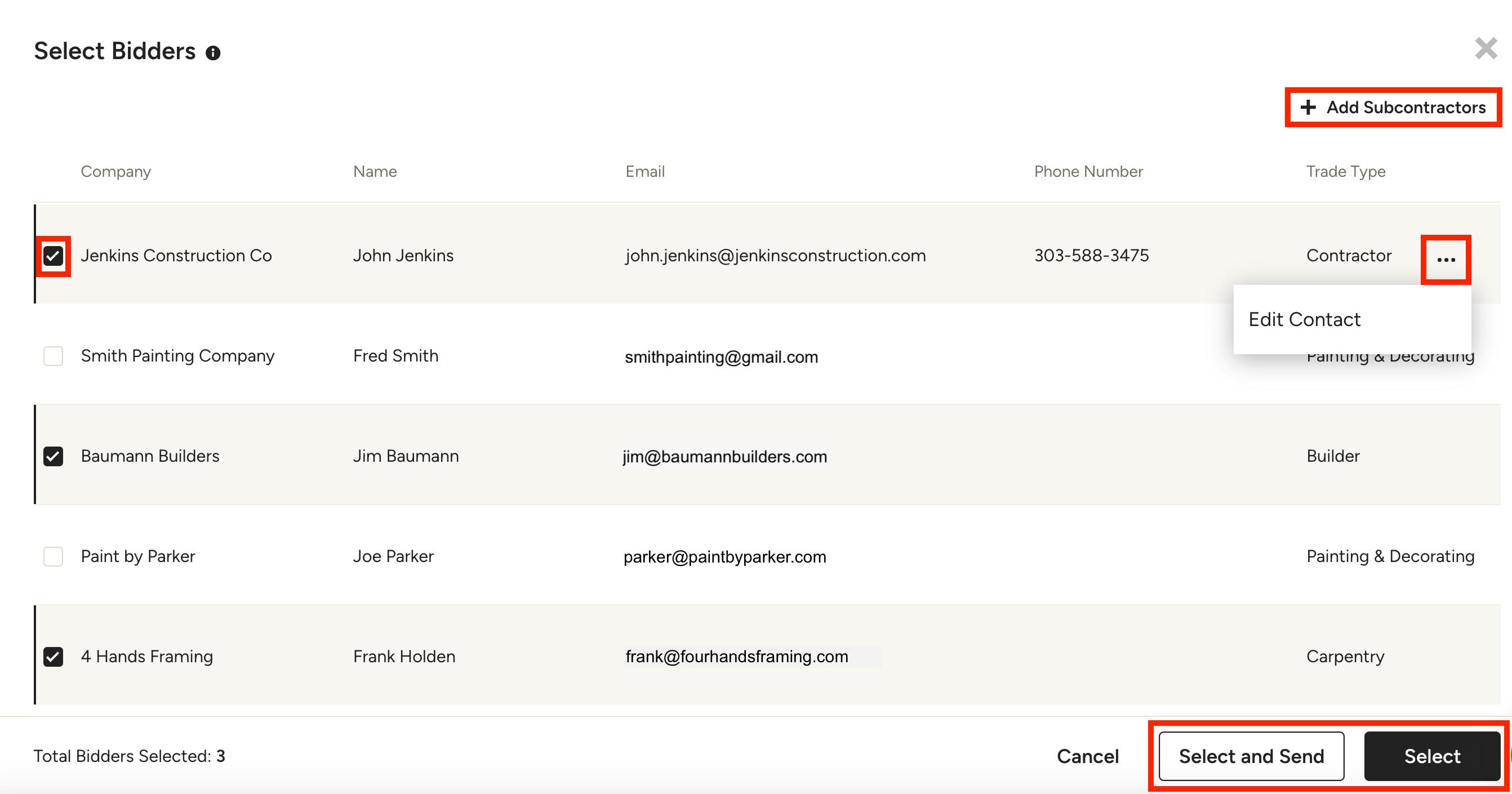
A new screen will appear that lists all your existing subcontractors. Check the box next to the subcontractor you would like to send the bid request to — you can send the request to as many subcontractors as needed.
If you need to edit the information of an existing subcontractor, click the three dots icon, then select Edit Contact. You can then edit contact details on that subcontractor's page.
If you would like to add a new subcontractor, click Add Subcontractors and input the relevant information.
Once you have selected your subcontractors, you can either click Select and Send, or Select.
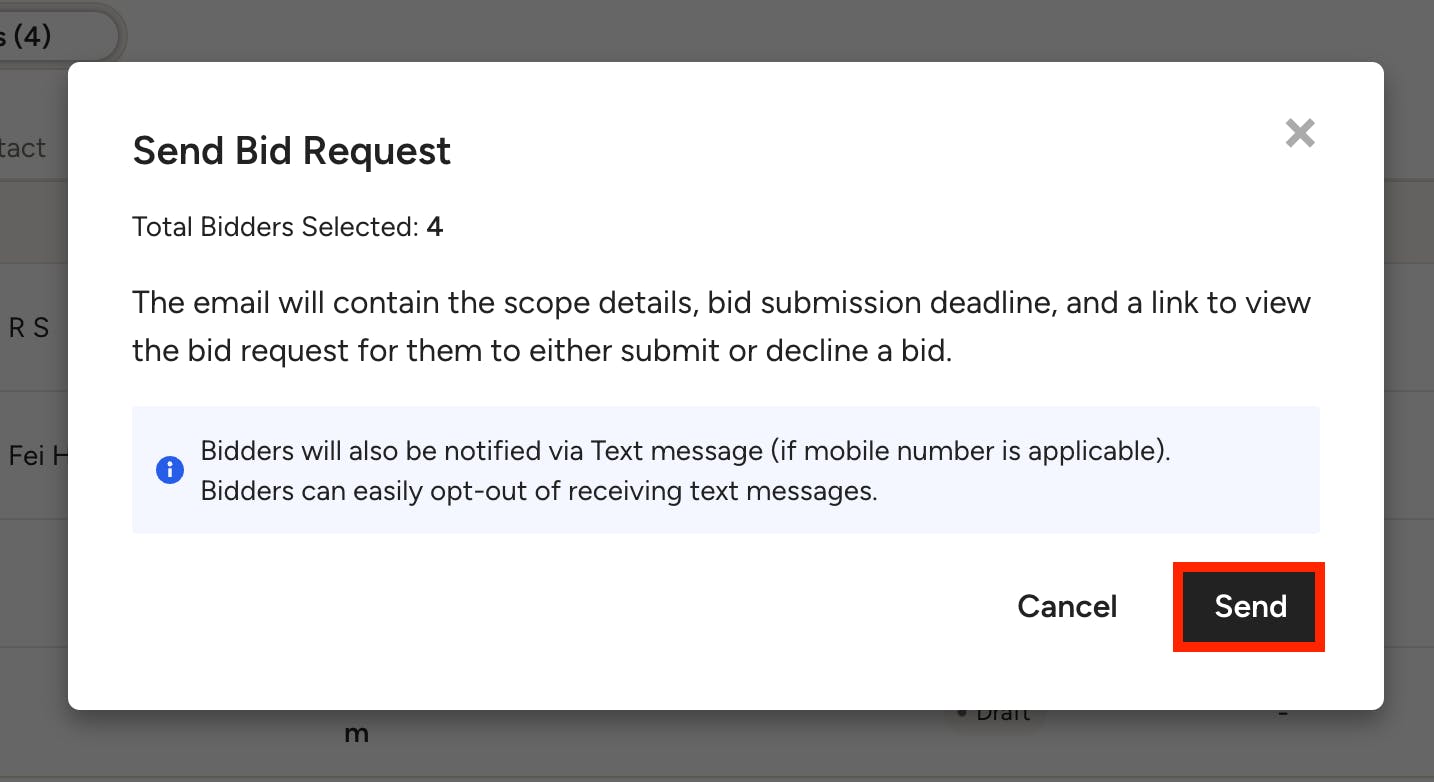
Select and Send will immediately send the bid request to the selected subcontractors. A new screen will appear providing information about the bid process. Be sure to click Send. Your bid request will now be shared with the selected subcontractors.
Select will add the subcontractors as bidders, but you can still make edits to your bid request before sending.
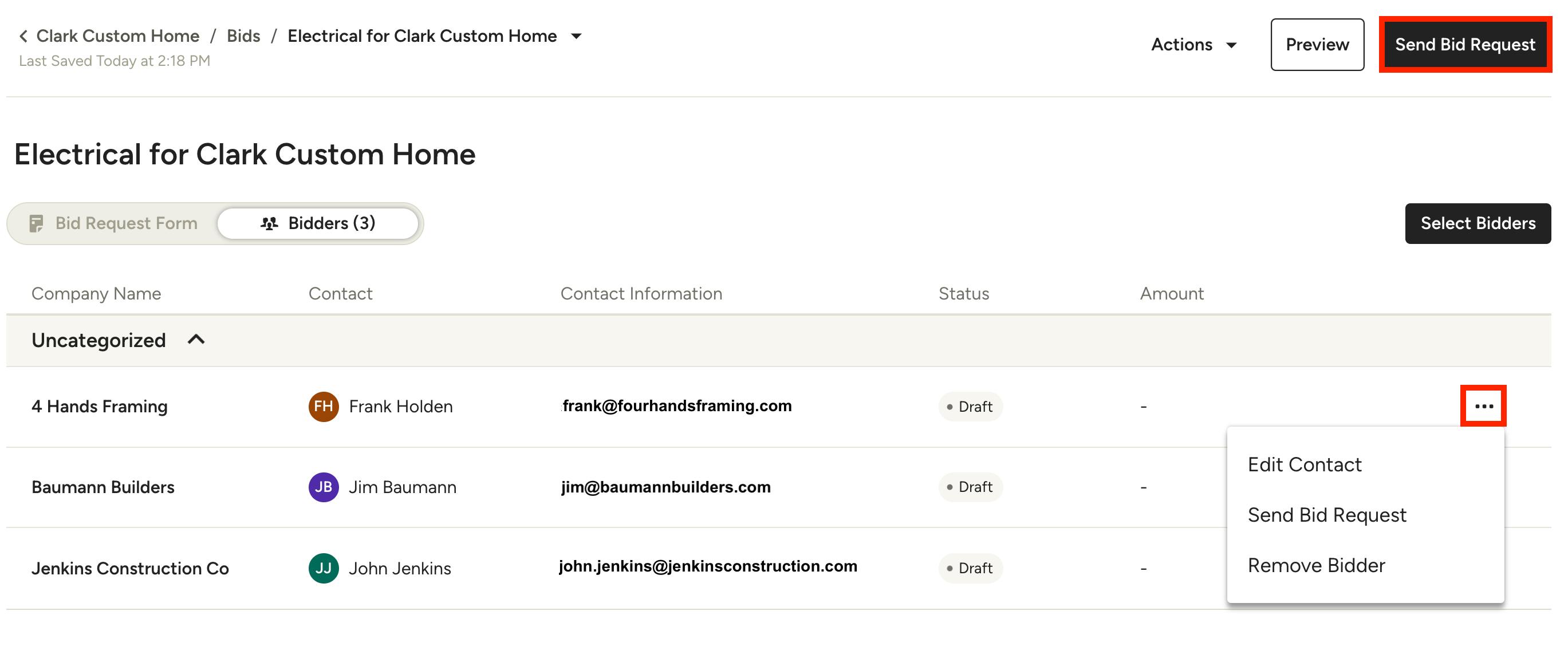
You will be able to view all your selected subcontractors in the bidders list. Here, click the three dots icon to Edit Contact, Send Bid Request, or Remove Bidder.
If you would like to send the bid to the entire list, click Send Bid Request in the top right of your screen. A new screen will appear providing information about the bid process. Be sure to click Send. Your bid request will now be shared with the selected subcontractors.
Subcontractor Bid Submission Process
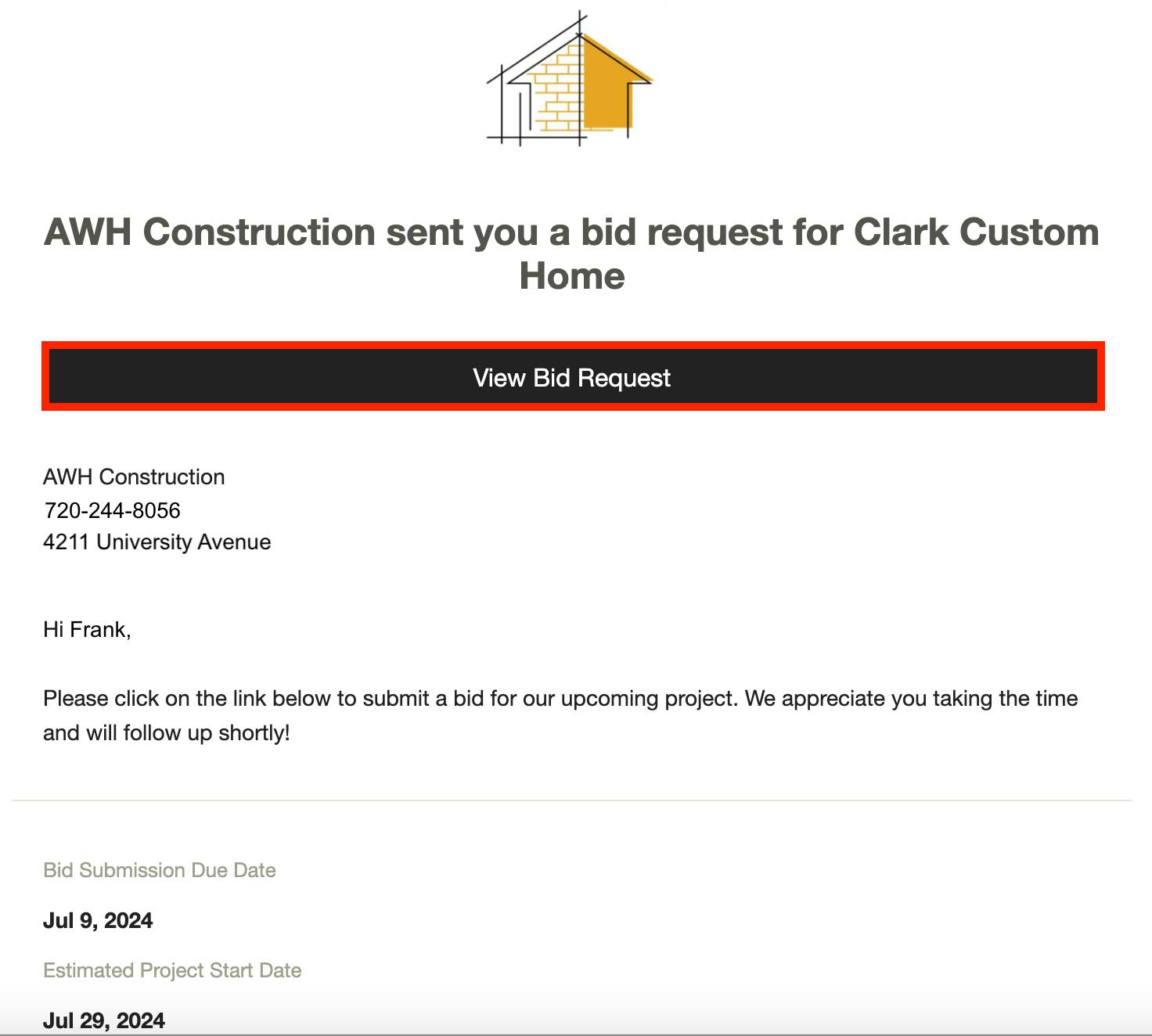
When you send your bid request to the relevant subcontractors, they will receive an email notifying them of the bid request. In this email, they will see the bid submission due date, project start date, scope of work description, and a link to view the bid request.
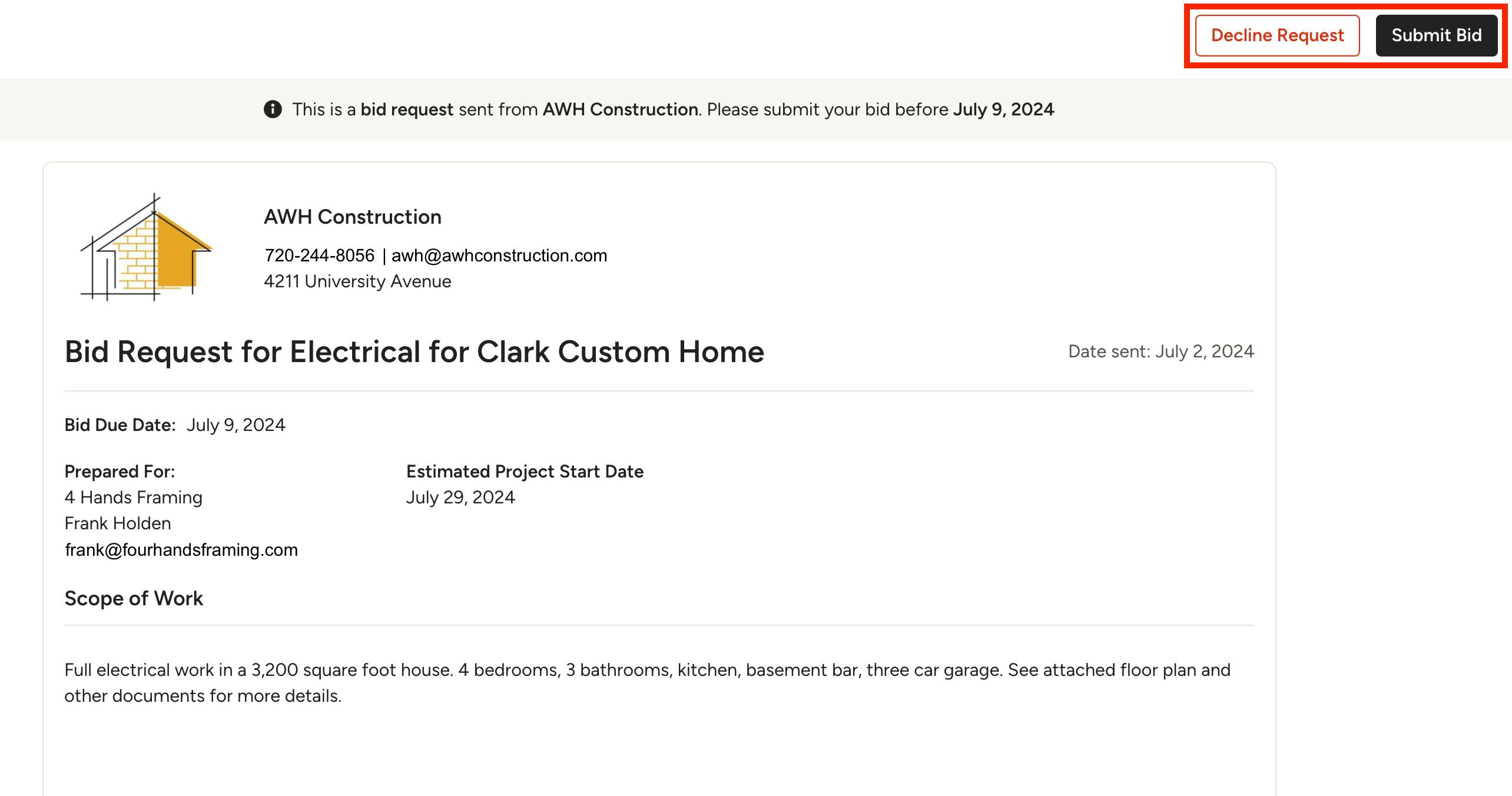
Once they click View Bid Request, they will be able to view all the bid details within Houzz Pro. Please Note: The subcontractor does not need a Houzz Pro account to access and respond to the bid request.
The bid request will show all the bid details. At the top, the subcontractor can decline the request or submit a bid.
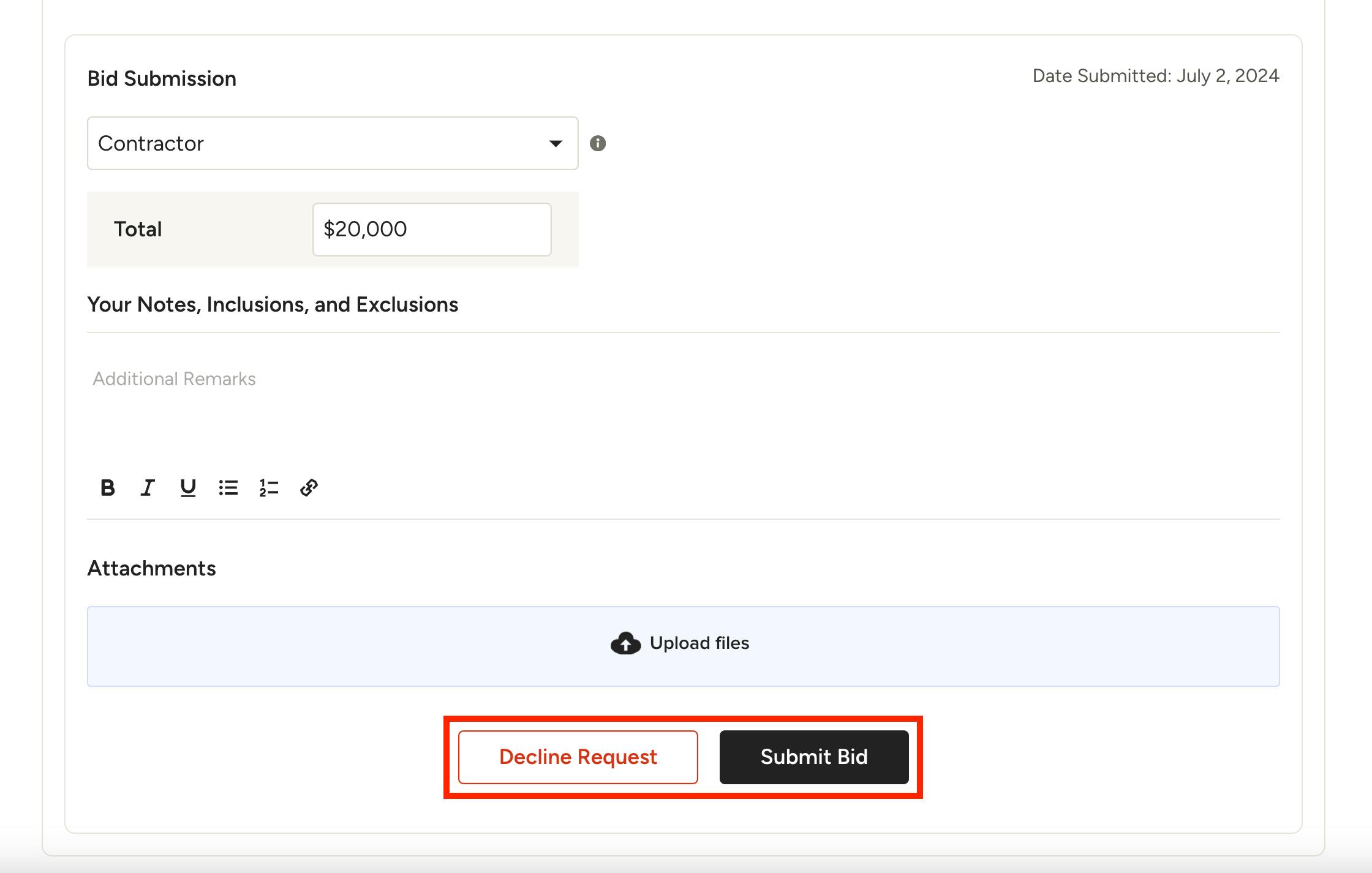
When the subcontractor scrolls down, they will be able to fill out and submit the bid. They will select their relevant trade, give a total cost, add notes, and include any necessary attachments. Once complete, they will click Submit Bid. They will receive a screen notification that their bid was successfully sent.
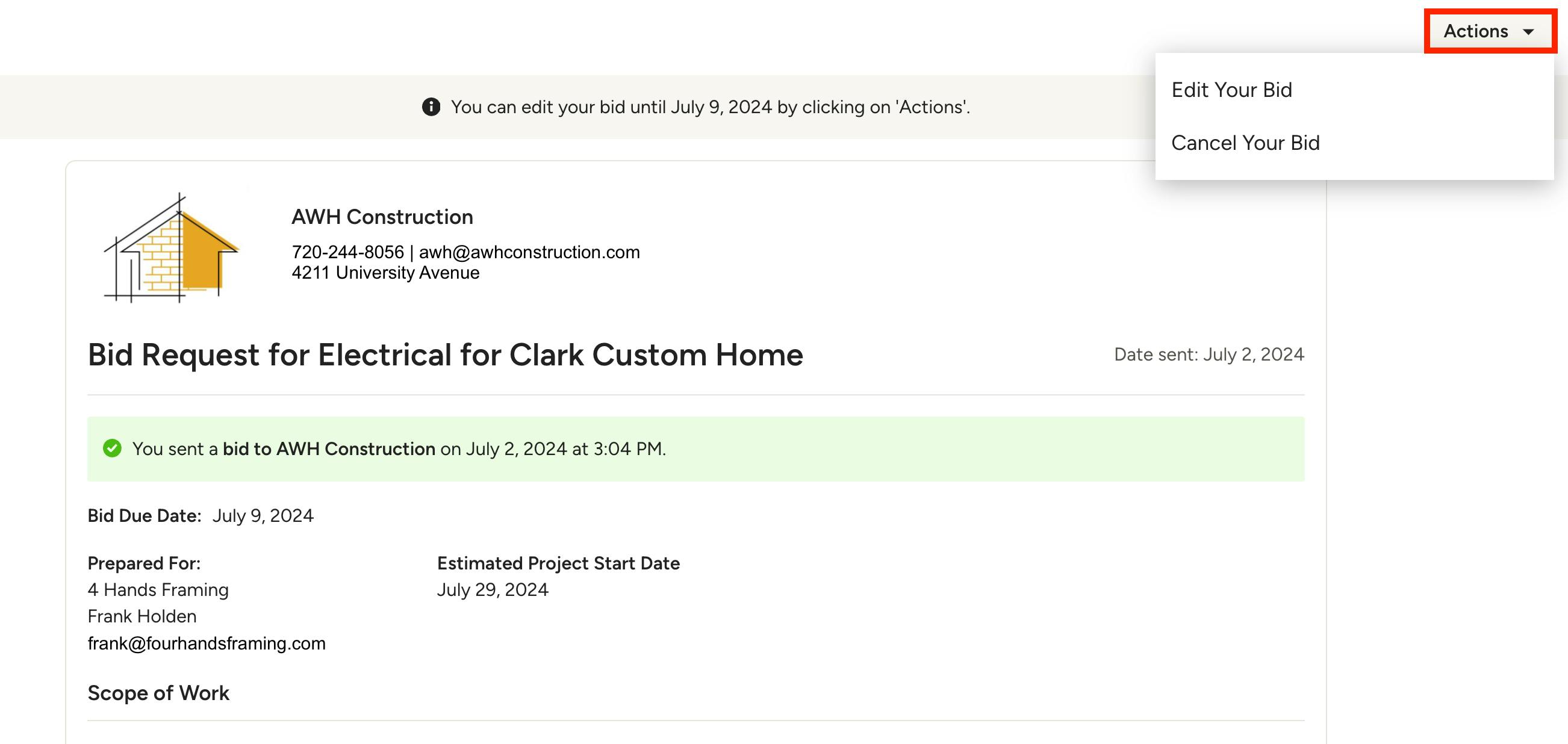
The subcontractor can continue to edit the quote until the bid due date. To make changes, they just need to open the link again, click Actions, then select Edit Your Bid. They can also cancel their bid from here if needed.

Manually Add Subcontractor Bid
If a subcontractor gives you a bid over text, email or in person, you also have the option to manually submit a bid on the subcontractor's behalf. You can only submit a subcontractor bid if the bid is in Released status. If the bid is in Draft or Closed status, you can't submit on behalf of the subcontractor.
To start, open up the bidders list for that project to see all your selected bidders. For bidders in Sent or Draft status, click the three dots icon to the right of the bidder's information, then select Submit Bid. Please Note: You will need to Edit Bid if the bidder has already submitted a bid (see more below).
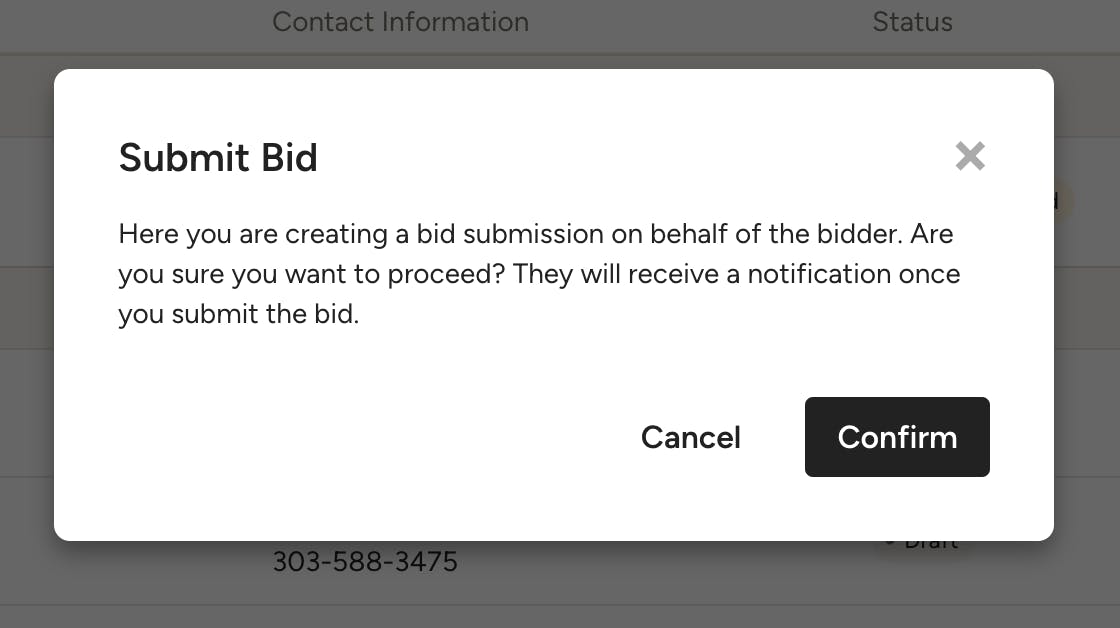
A notification will appear to confirm you want to create a bid on behalf of this bidder. To move forward, click Confirm.
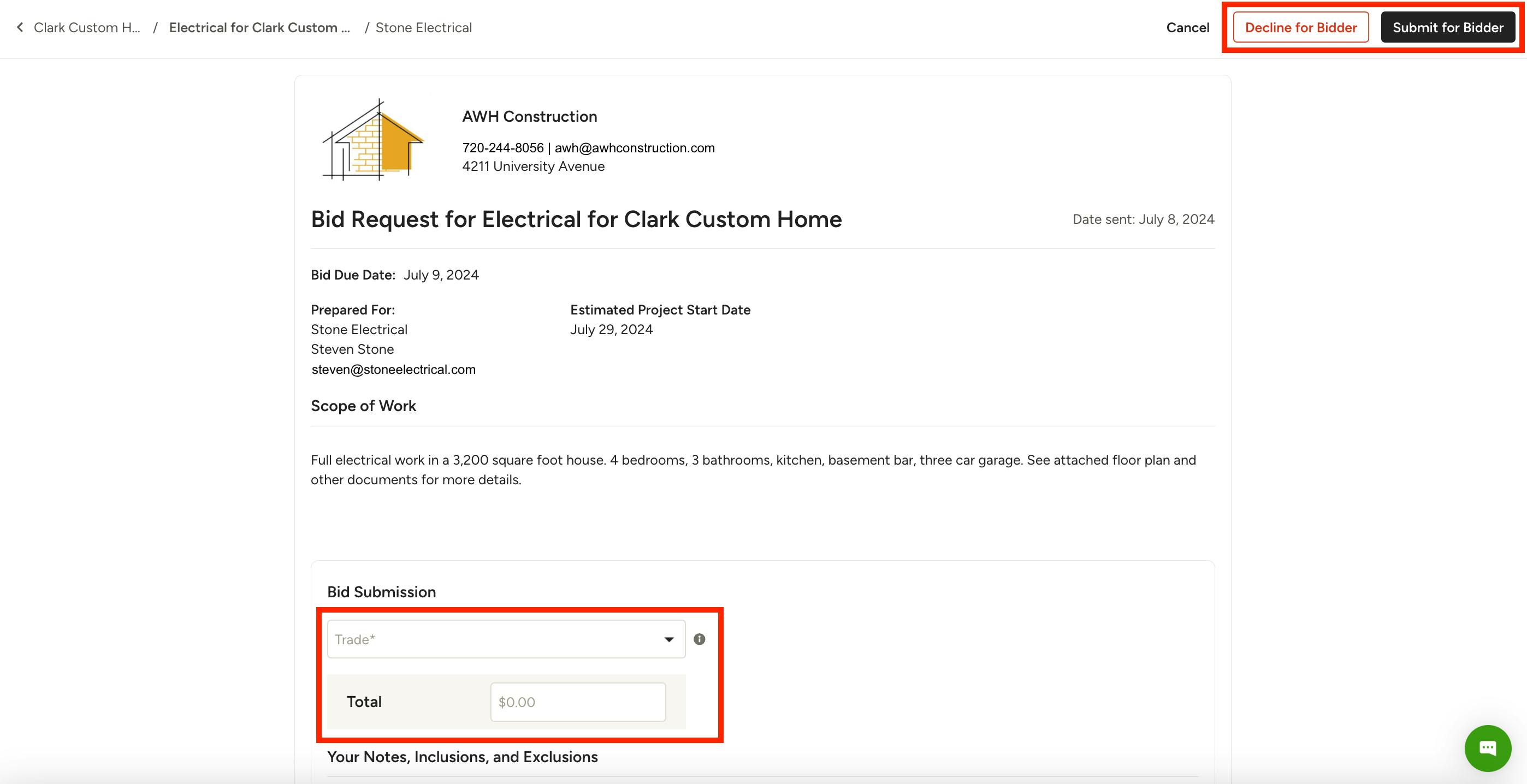
A new screen will appear where you can view the bid request with all the details. The bid will include the subcontractor's information at the top to show that you are preparing on their behalf. Fill in the bid submission information, including their relevant trade, total cost, notes, and any necessary attachments.
Once complete, click Submit for Bidder at the top (you can also Decline for Bidder here if needed).
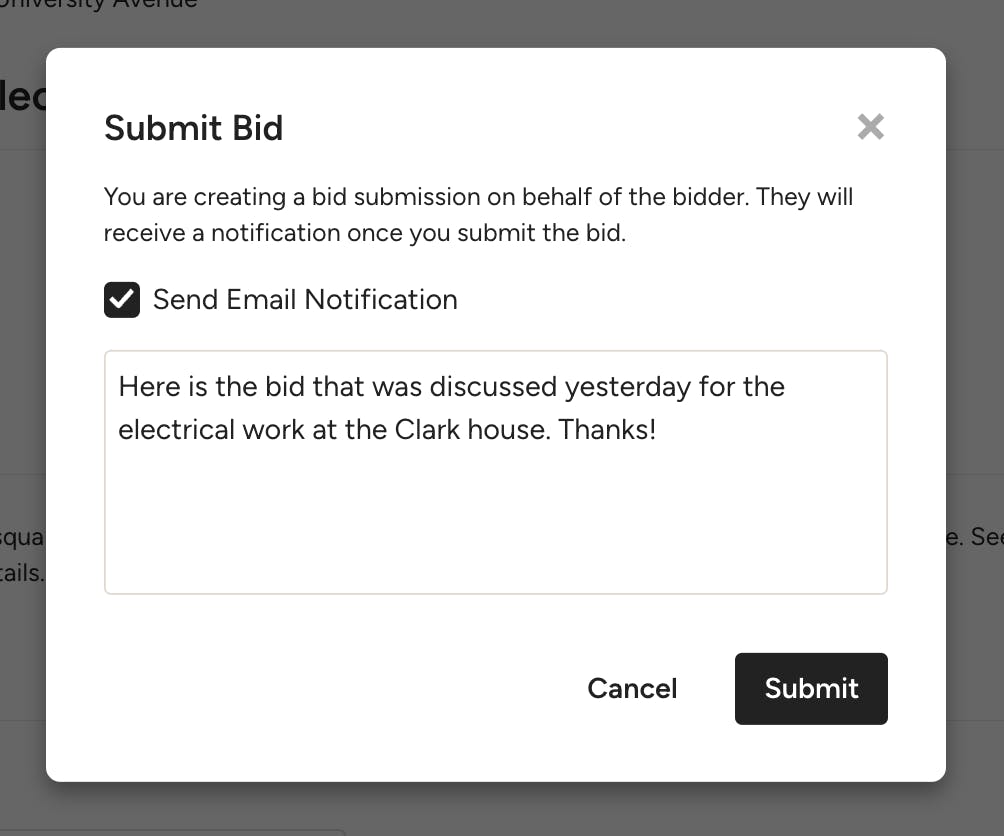
Before you submit the bid, you can select whether the bidder will receive an email notification. Click the checkbox to send the email confirmation — you can also send a personalized message as well. Click Submit to finish the submission process.
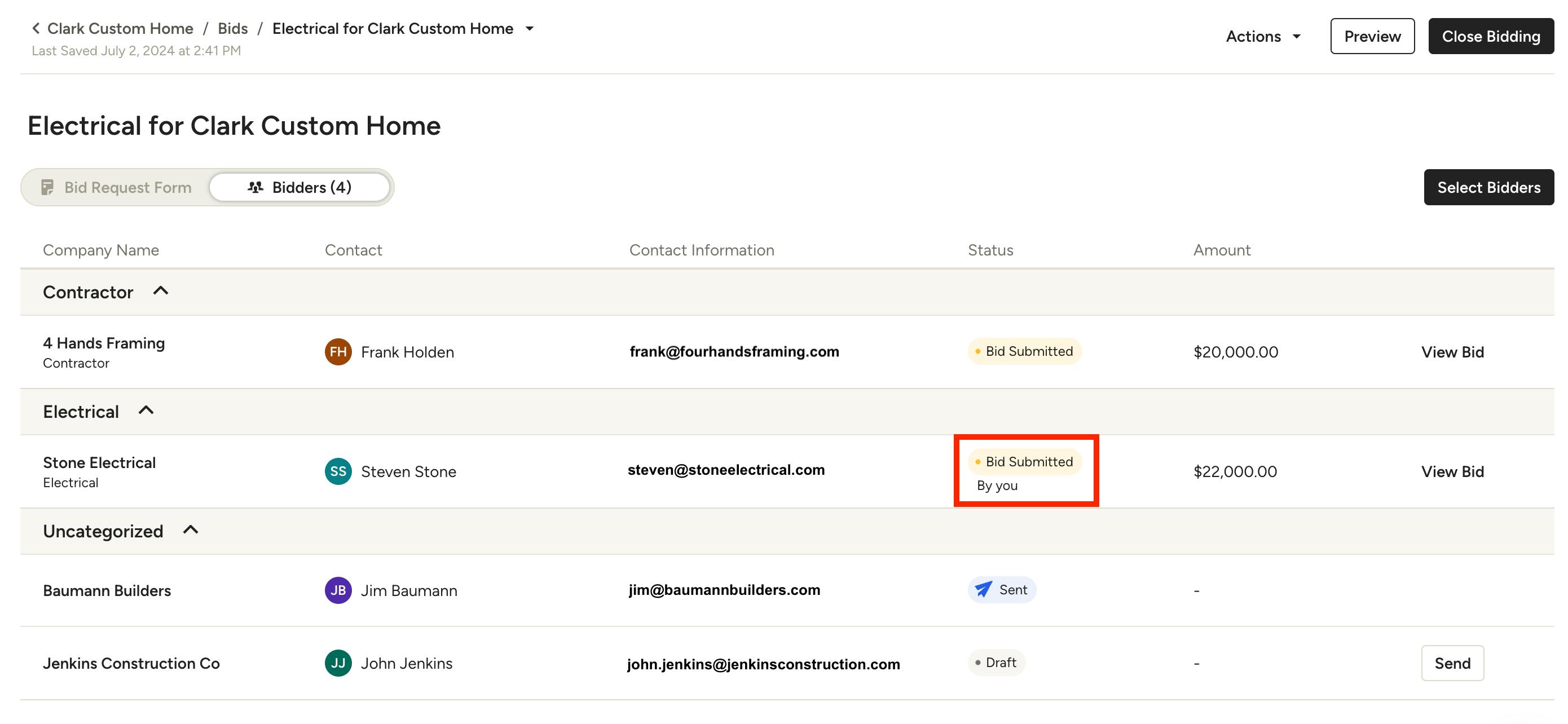
Within your bidders list, the manual bid will now appear as submitted by you.
Edit Subcontractor Bid
If a subcontractor submitted a bid — or you submitted a bid on behalf of the subcontractor — you can easily make edits to the bid as needed.
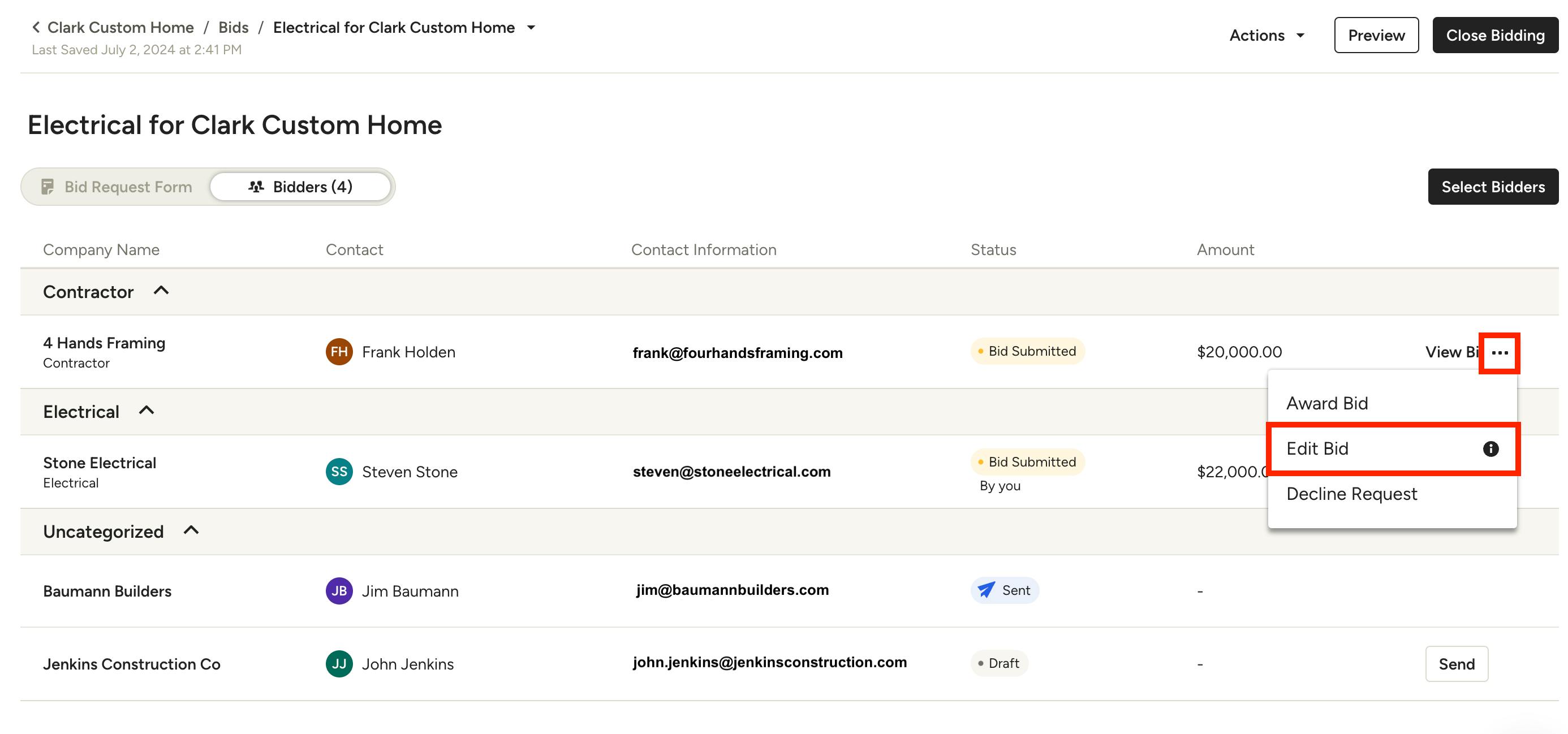
To start, open up the bidders list for that project to see all your selected bidders. For bidders in Bid Submitted status, click the three dots icon to the right of the bidder's information, then select Edit Bid.
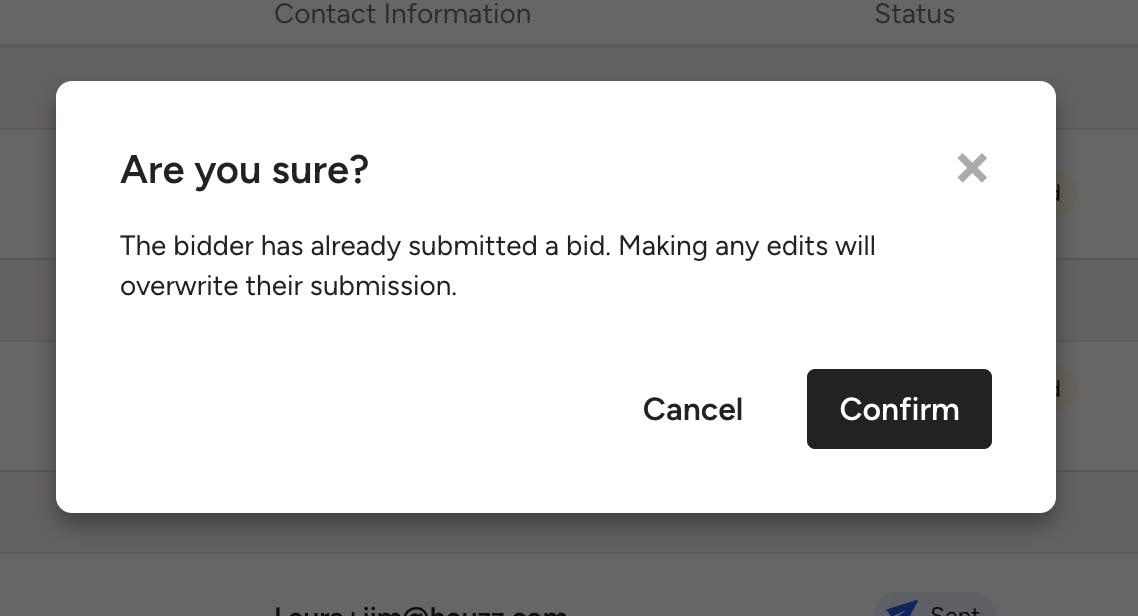
A notification will appear to confirm you want to edit and overwrite their current bid. To move forward, click Confirm.
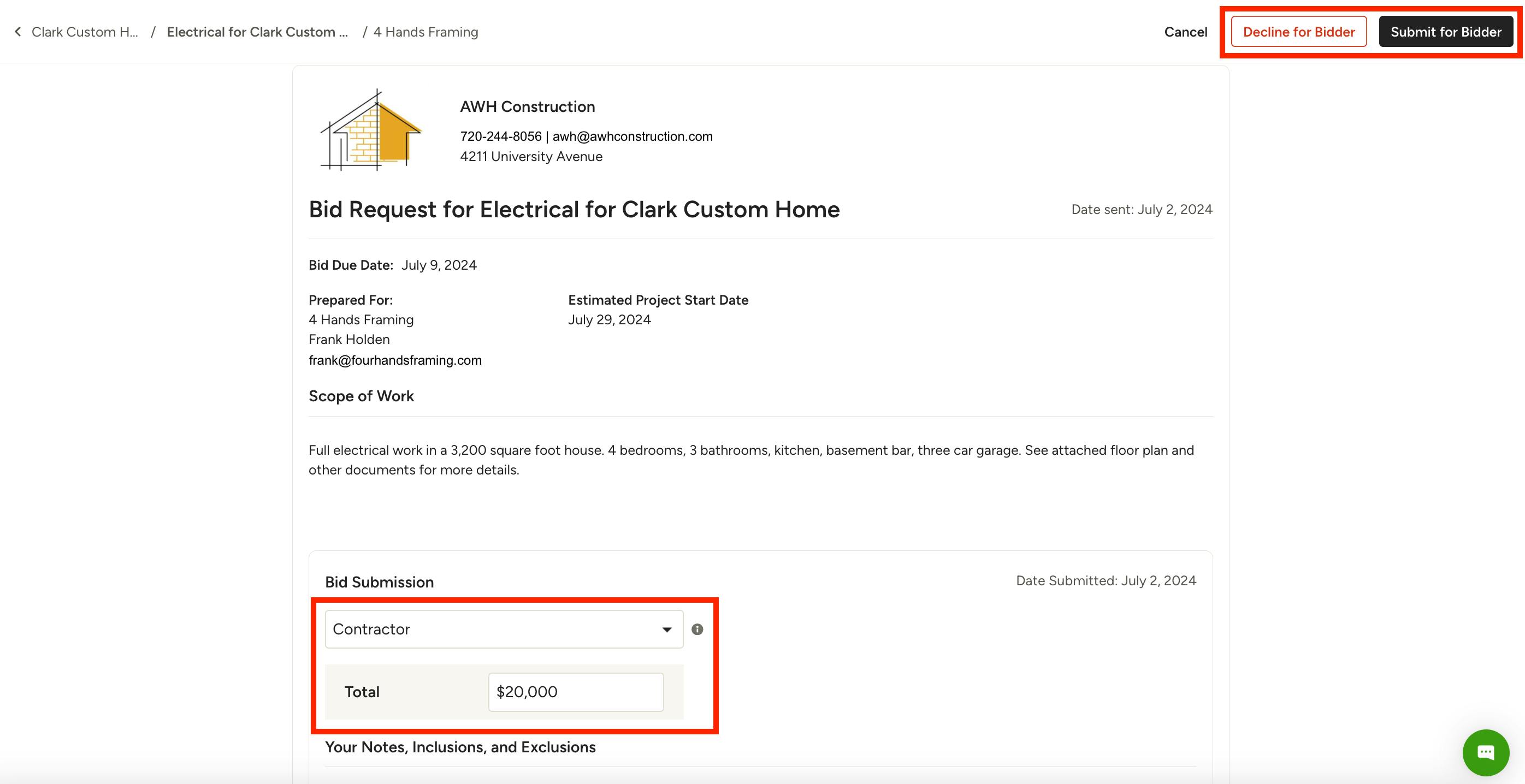
A new screen will appear where you can view the bid request with all the details. Make any necessary changes to the bid submission information, including their relevant trade, total cost, notes and attachments.
Once complete, click Submit for Bidder at the top (you can also Decline for Bidder here if needed).
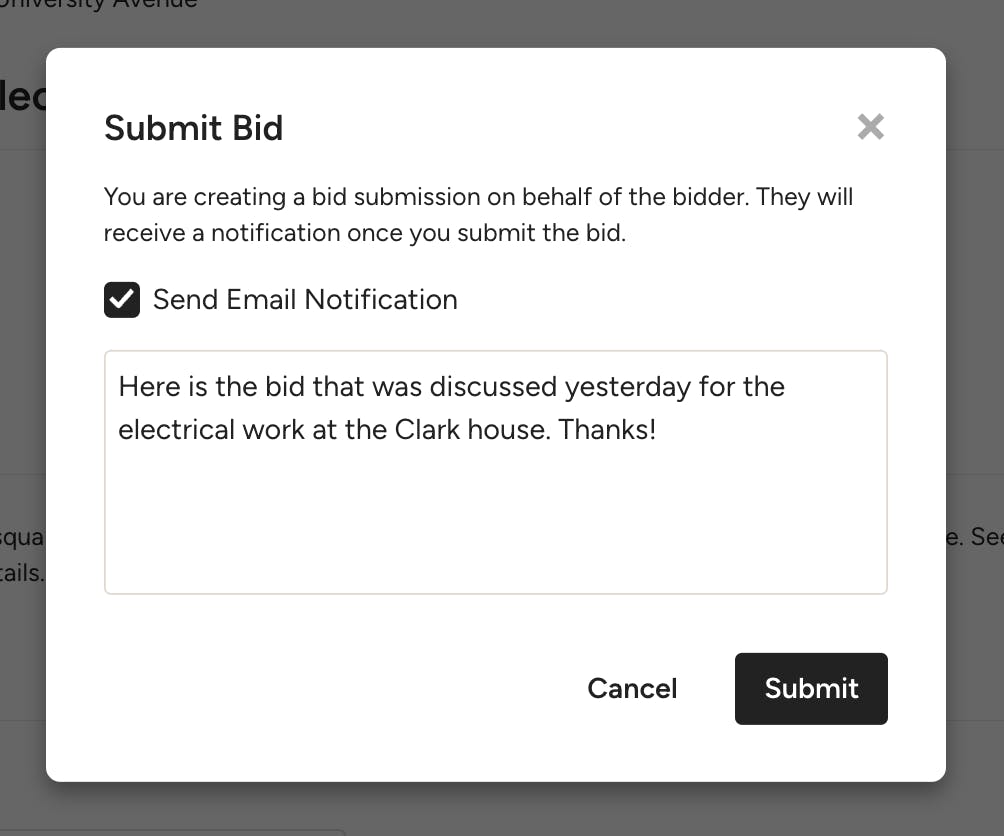
Before you submit the edited bid, you can select whether the bidder will receive an email notification. Click the checkbox to send the email confirmation — you can also send a personalized message as well. Click Submit to finish editing the bid.
Changes will now appear within your bidders list.
Award or Decline Bid
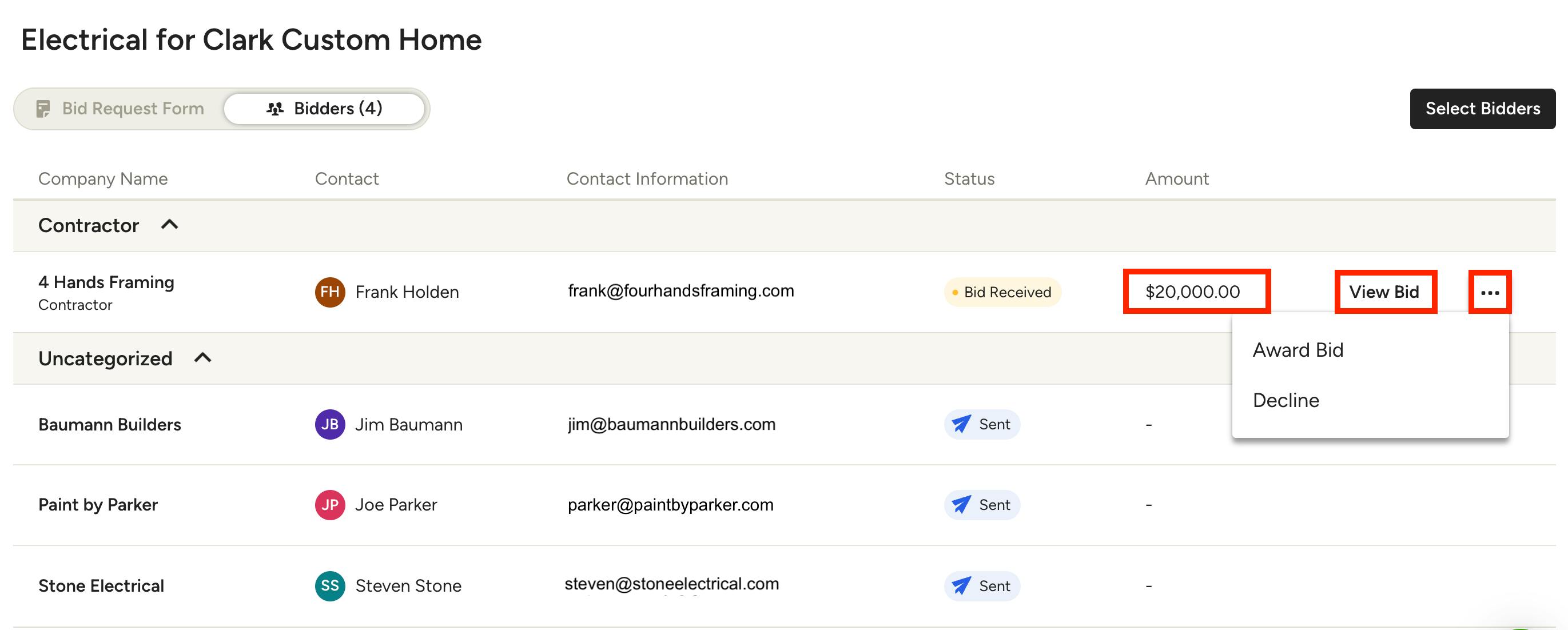
When a bid is submitted, you will receive a notification in Houzz Pro about the new bid. You can view all submitted bids side-by-side within the bidders list for that project. Here, you can compare the total price of each bidder, and you can click on View Bid to see more details.

Once you decide which bid to move forward with, you can either award a bid or decline a bid. From your bidders list, click the three dots icon, then select Award Bid or Decline.
You can also click View Bid, then accept or decline in the Actions dropdown at the top right of the page.
Close Bidding
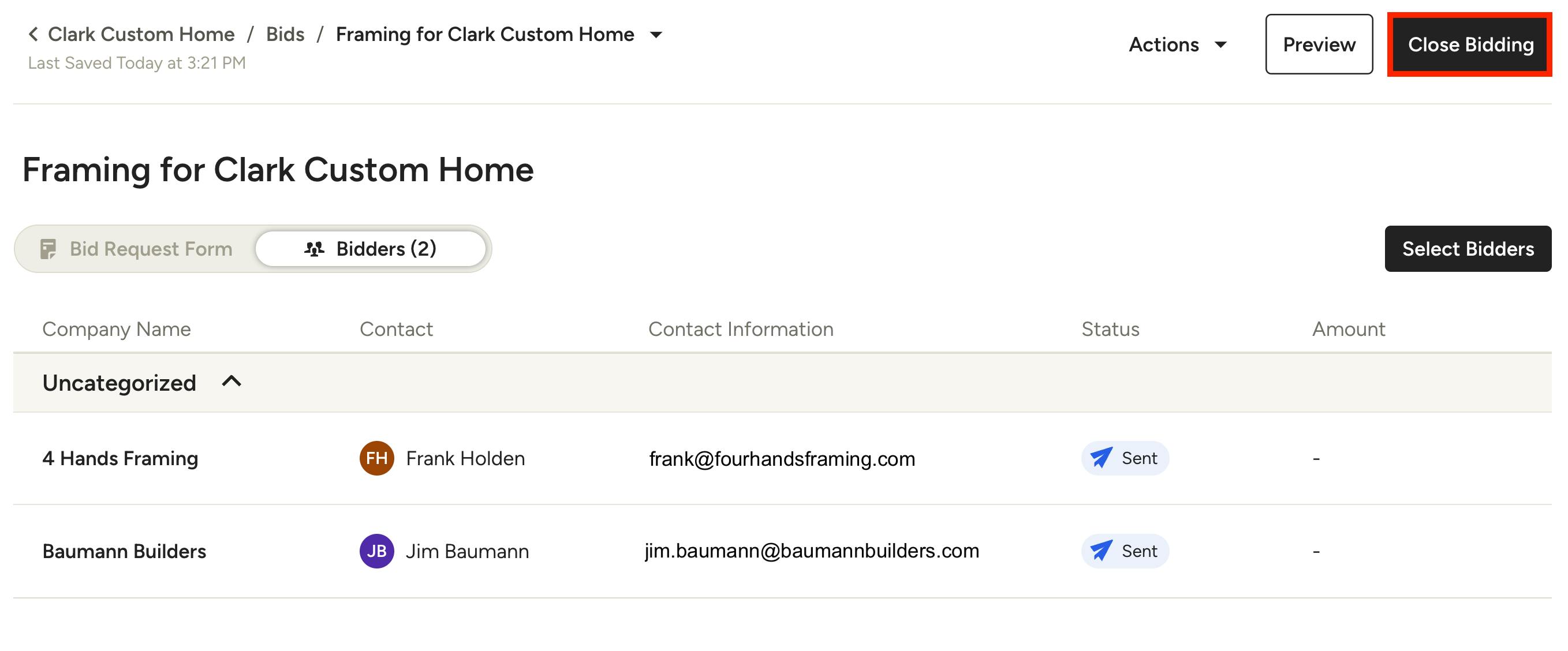
After you receive subcontractor quotes and award the relevant subcontractor with the project, you can close bidding to complete the process.
You can either close bidding from the individual bid request page, or from the bid overview page.
Close Bidding on Bid Request Page
To close a bid from an individual bid request page, open the relevant bid from the bid overview page. Select the Close Bidding button at the top of your bid.
Close Bidding on Bid Overview Page
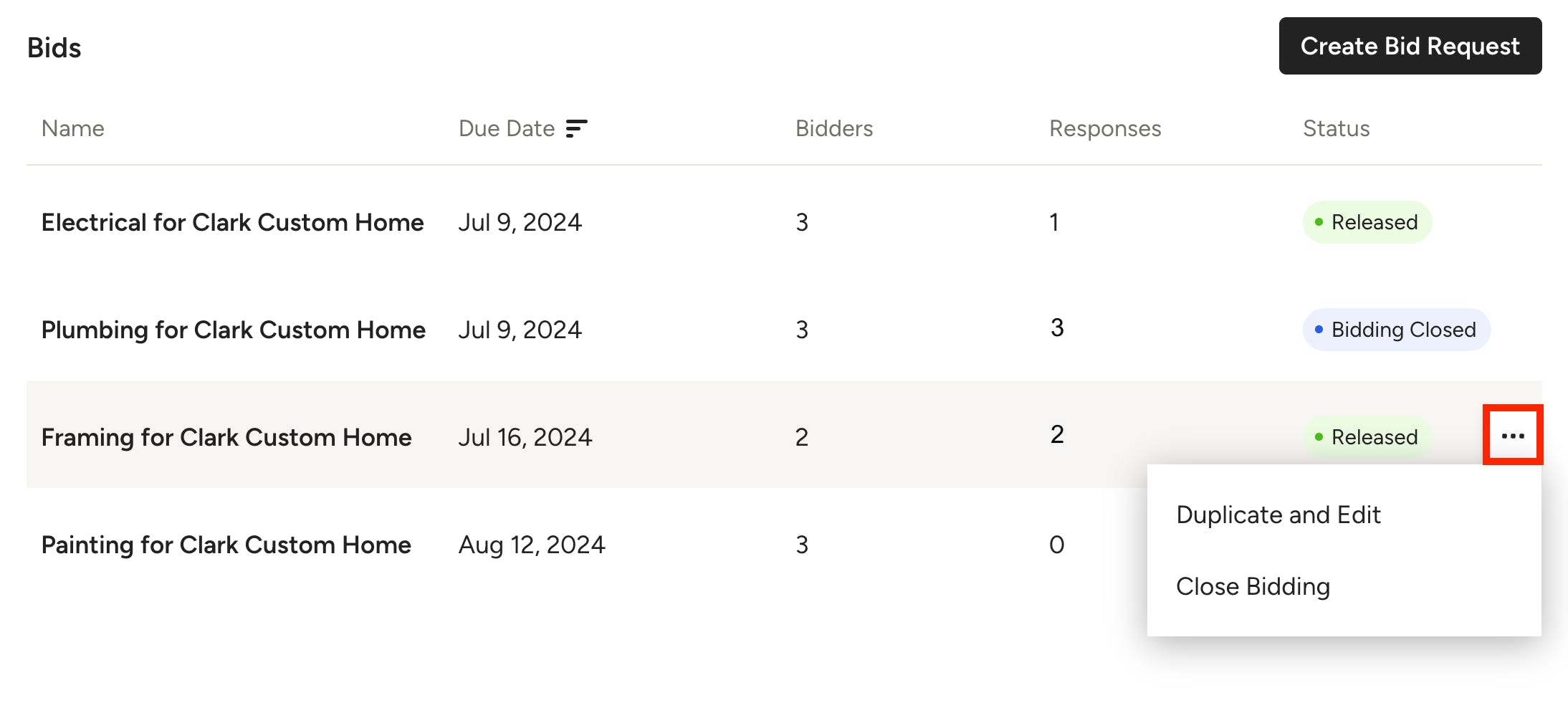
To close a bid from the bid overview page, find the relevant bid from your list, then select the three dots icon on the right. Select Close Bidding from the dropdown menu.

Once you close bidding, the status of the bid will update on your bid overview page.