How to Use Tasks on the Mobile App
When you use tasks on the Houzz Pro mobile app, you can review your to-do list across all your projects and leads to ensure everything stays on track. You can view a big-picture overview of all tasks in your Task Center, view tasks by individual project/lead, edit existing tasks, and create new tasks.
View All Tasks in Task Center
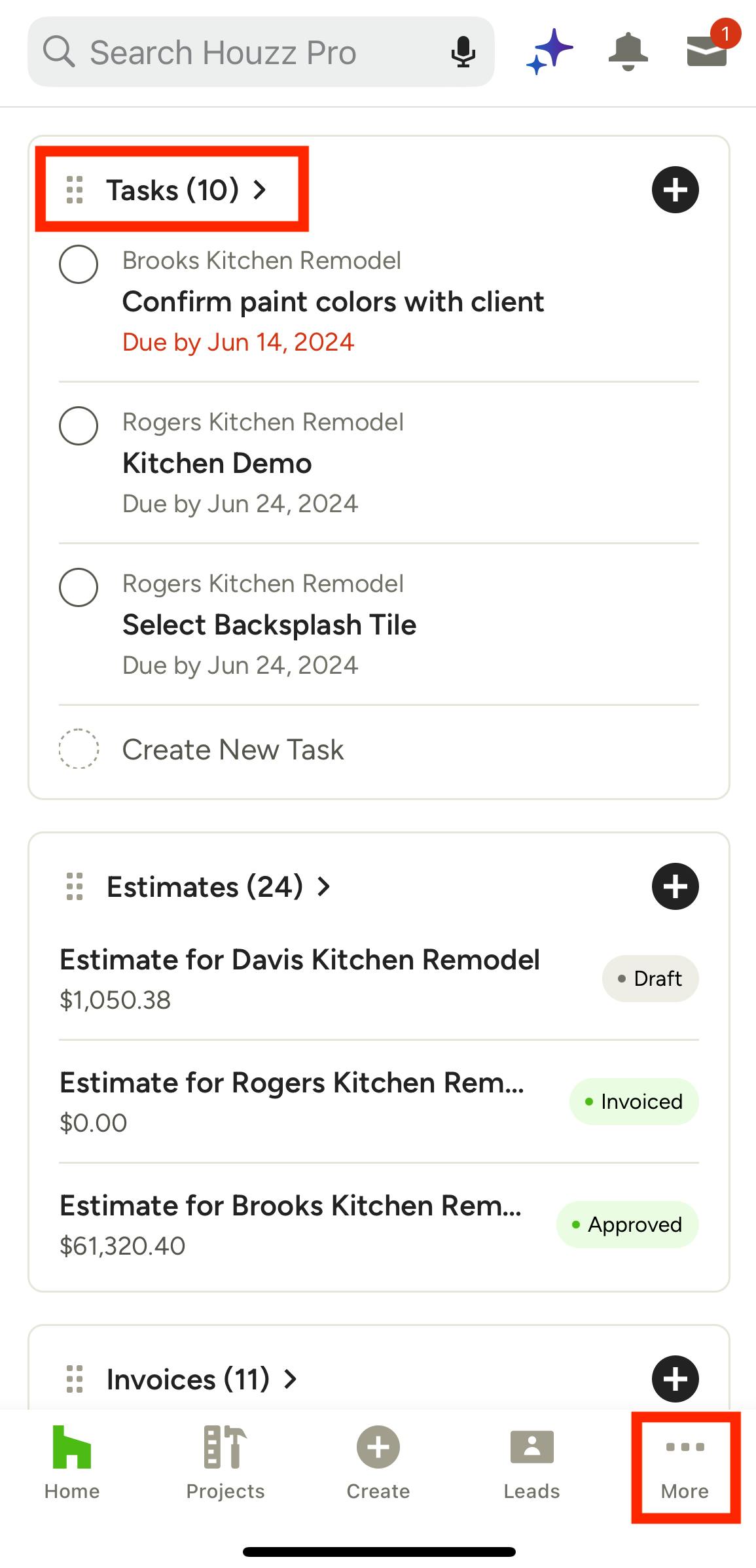
If you would like to see a high-level, big picture perspective of all your tasks in one place, you can view the Task Center on the mobile app. The Task Center will show tasks for all your projects and leads together in one view — this allows you to see what is scheduled in the coming days and weeks so you can keep your team on track.
To access the Task Center, scroll down to the Tasks section on the homepage, and click to open. You can also access by selecting the three dots icon in your bottom navigation, then clicking Tasks.
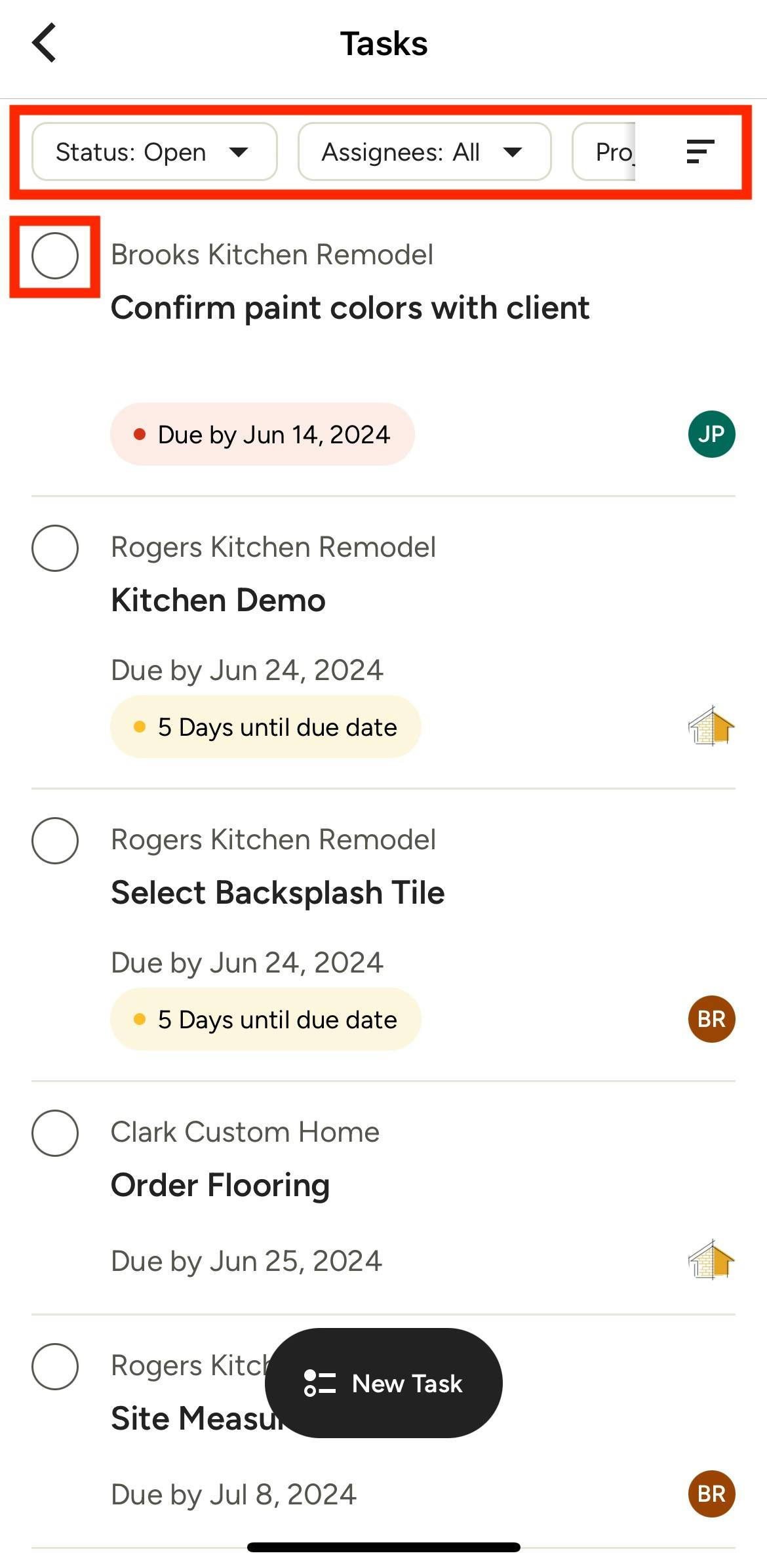
From here, you will be able to view the tasks of all your current projects and leads in one place. The default sort is by due date — select the icon on the far right of your menu to adjust the sort by creation date or alphabetical order instead.
The items are clearly labeled by project/lead so you can easily see which item belongs to each project/lead. You can filter your view further by Status, Assignees, Leads/Projects and/or Reporters by selecting filtering options from the relevant dropdown menu.
Click on a specific task to view more details or edit the task. You can also mark a task as complete by clicking the circle next to the task.
View Tasks in a Project or Lead
If you would like to view all existing tasks for an individual project or lead instead, you can do this in the mobile app as well.
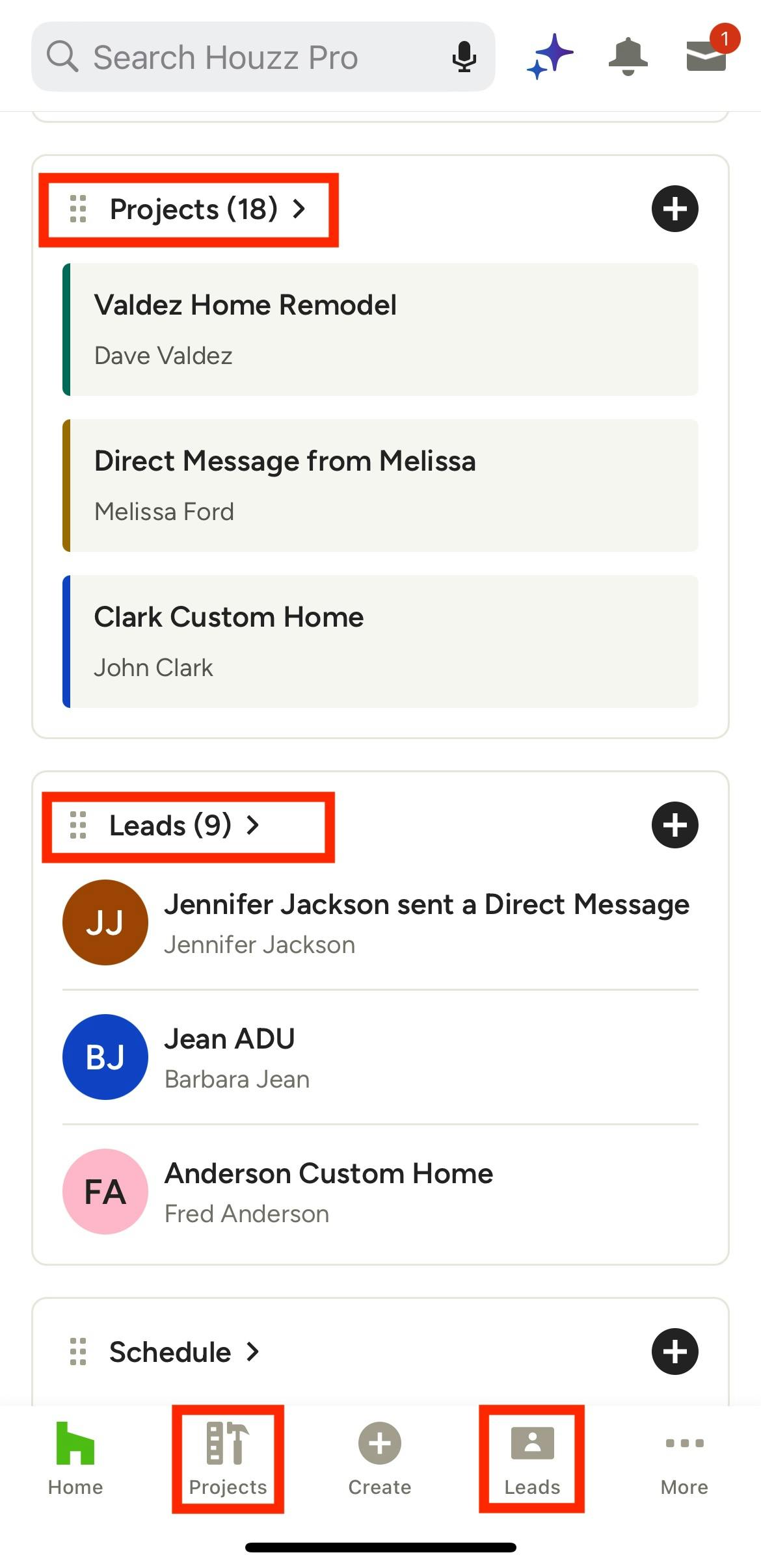
To start, find the relevant project or lead. For projects, you can either select the project from your homepage, or click the Project icon at the bottom of your screen, then select from the project list.
For leads, you can either select the lead from your homepage, or click the Leads icon at the bottom of your screen, then select from the lead list.
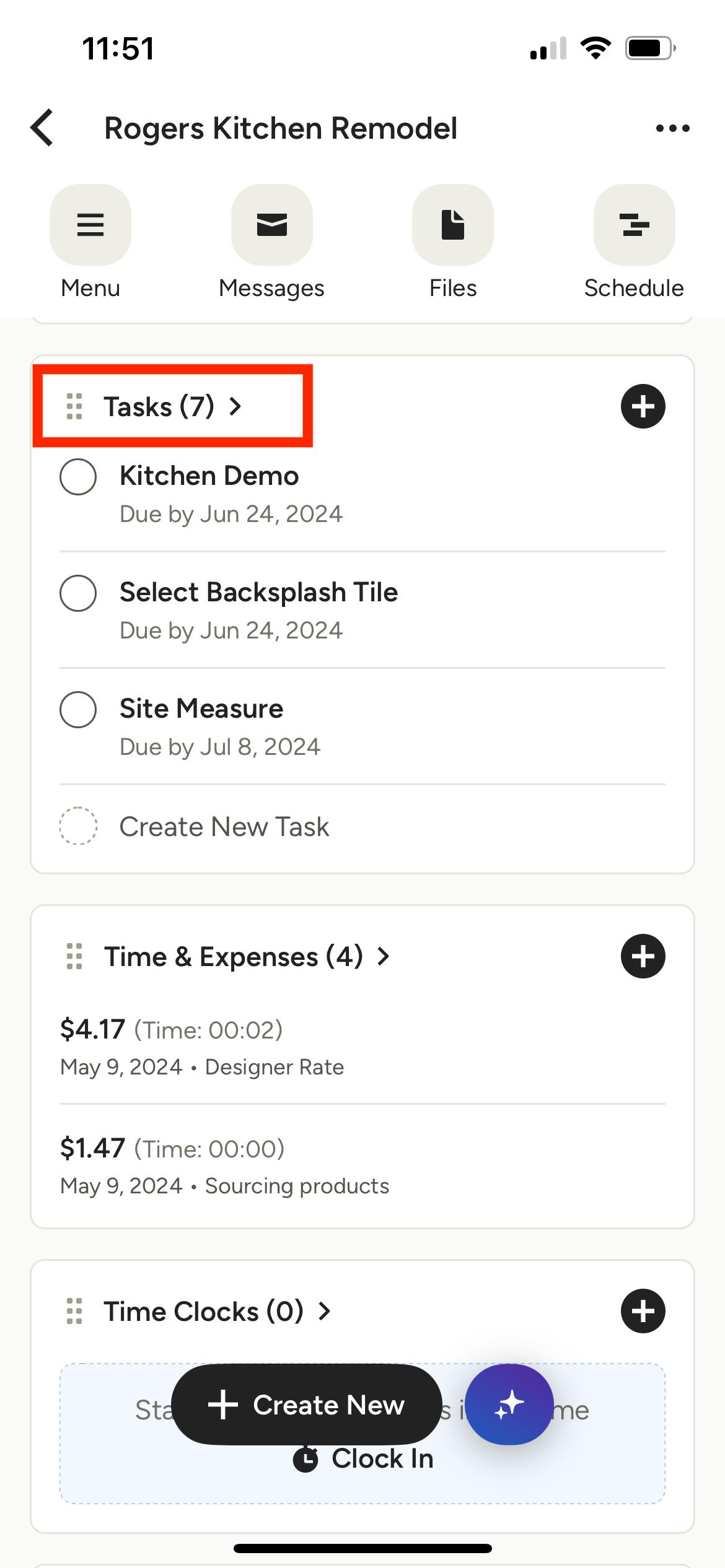
Once on the project or lead overview page, scroll down to the Tasks section and select Tasks.
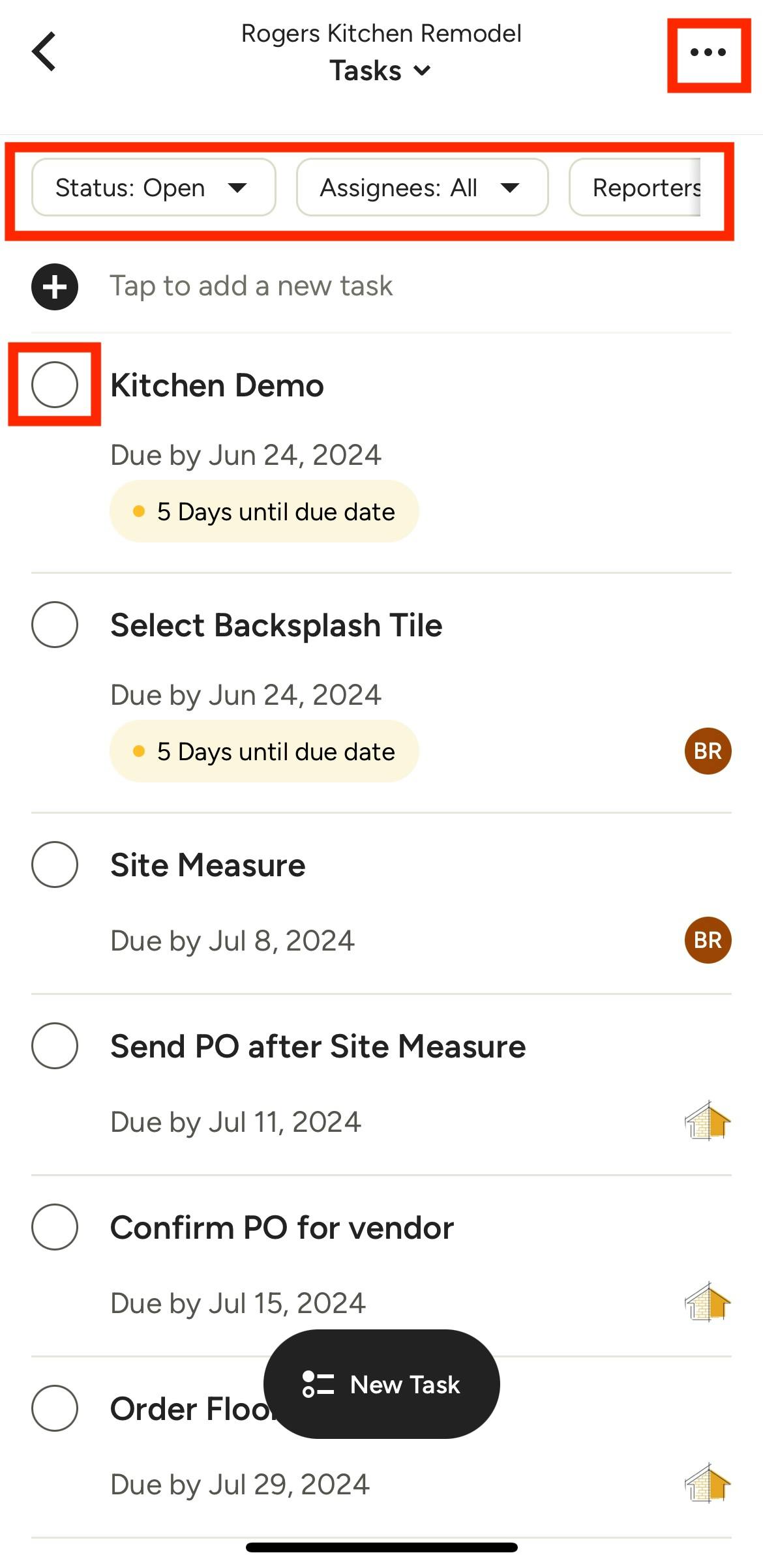
From this screen, you will be able to view a list of your existing tasks, including the title, due date, and any relevant assignees. You can mark a task as complete by clicking the circle next to the task.
You can filter your view by Status, Assignees, and/or Reporters by selecting filtering options from the relevant dropdown menu.
For project tasks, select the three dots icon at the top for larger project-level changes, such as Share Client Dashboard, Edit Project or Archive Project.
For lead tasks, select the three dots icon at the top for larger lead-level changes, such as Edit Lead, Convert to Project, Snooze Lead, Archive Lead or Delete Lead.
Edit Existing Tasks
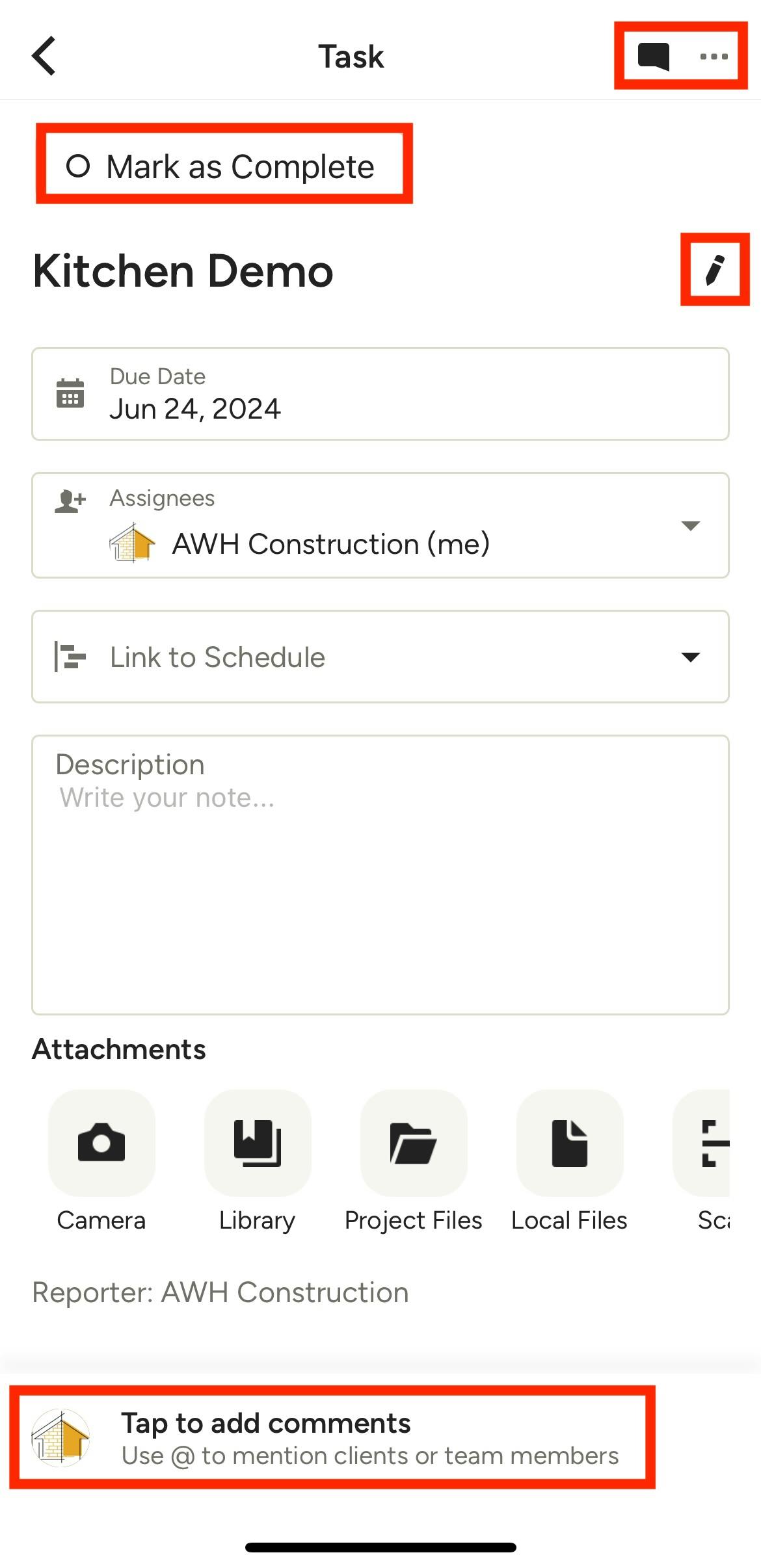
To edit an existing task for a project or lead, just click on the task. A new screen will appear showing the task details. On this page, you can:
- Delete the entire task using the three dots icon at the top of your screen
- View and add comments to a task, and tag clients or team members
- Mark a task as done by clicking the Mark as Complete button
- Edit the task name, due date and description
- Assign clients or team members to that item
- Add relevant attachments for that task
Add New Tasks
There are several ways to add new tasks. You can create tasks directly from the homepage, within your project or lead's task list, within the Task Center, and within a project's schedule.
From the Homepage
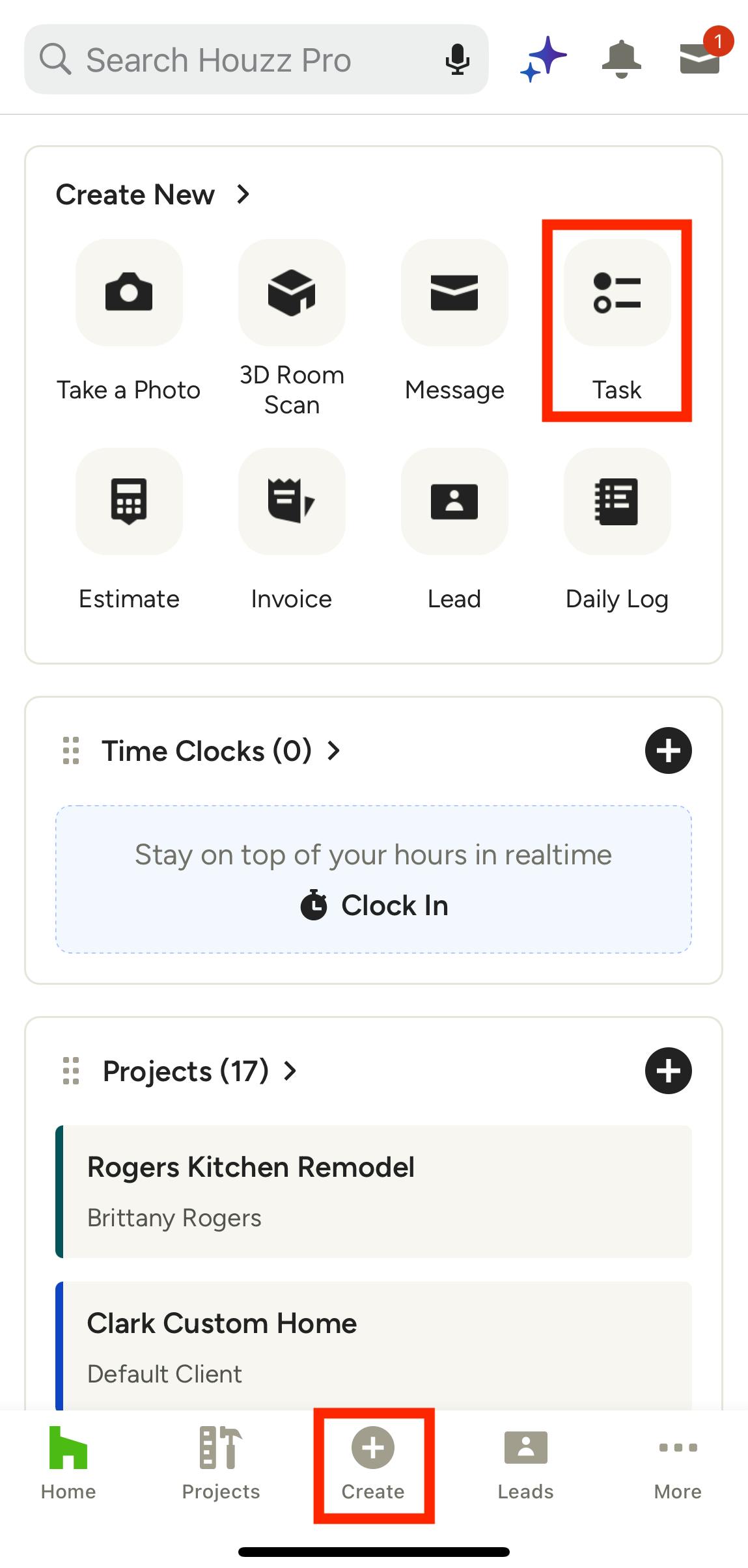
On your Houzz Pro app homepage, you can quickly create a task by either:
- Selecting the Task icon from the Create New section at the top of your screen.
- Selecting the Create icon in the bottom navigation, then selecting Task from the menu.
You can then input all the relevant task details, including title, relevant project/lead, due date, assignees, and description. You will create your task automatically after you name the task, and then can select the project or lead.
Within a Project or Lead
You can also create a task within an individual project or lead.
To start, find the relevant project/lead — you can either select the project/lead from your homepage, or click the Project/Leads icon at the bottom of your screen, then select from the list.
Once on the project/lead overview page, scroll down to the Tasks section and select Tasks.
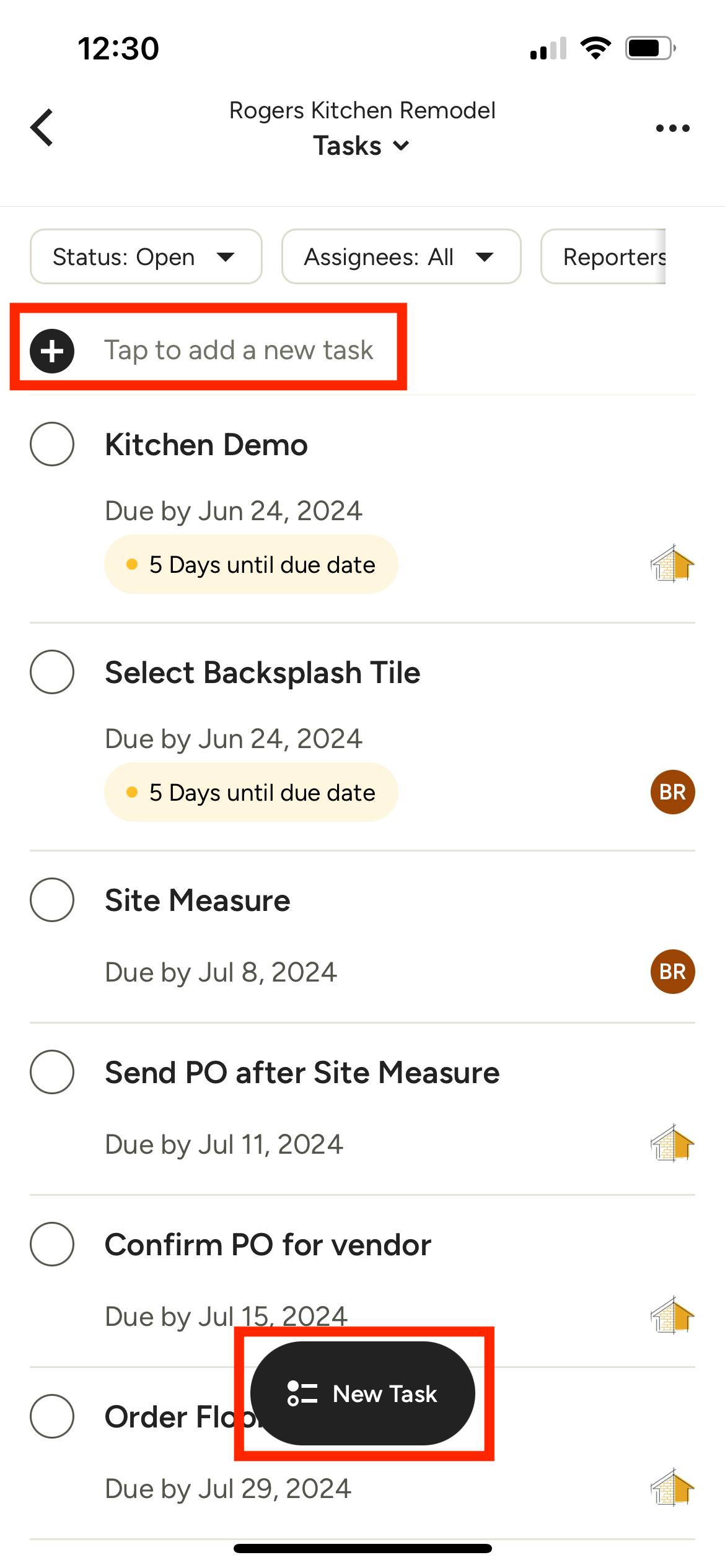
From the task list, you can quickly add a new task by typing the task name directly into the top of your list near the plus icon. This will immediately add the task to your list — you will need to click and open the task to add in more task details.
You can also click the New Task button to add a new task. Here, a screen will appear where you can input the task title, due date, assignee, description and schedule link. You will create your task automatically after you name the task.
Within the Task Center
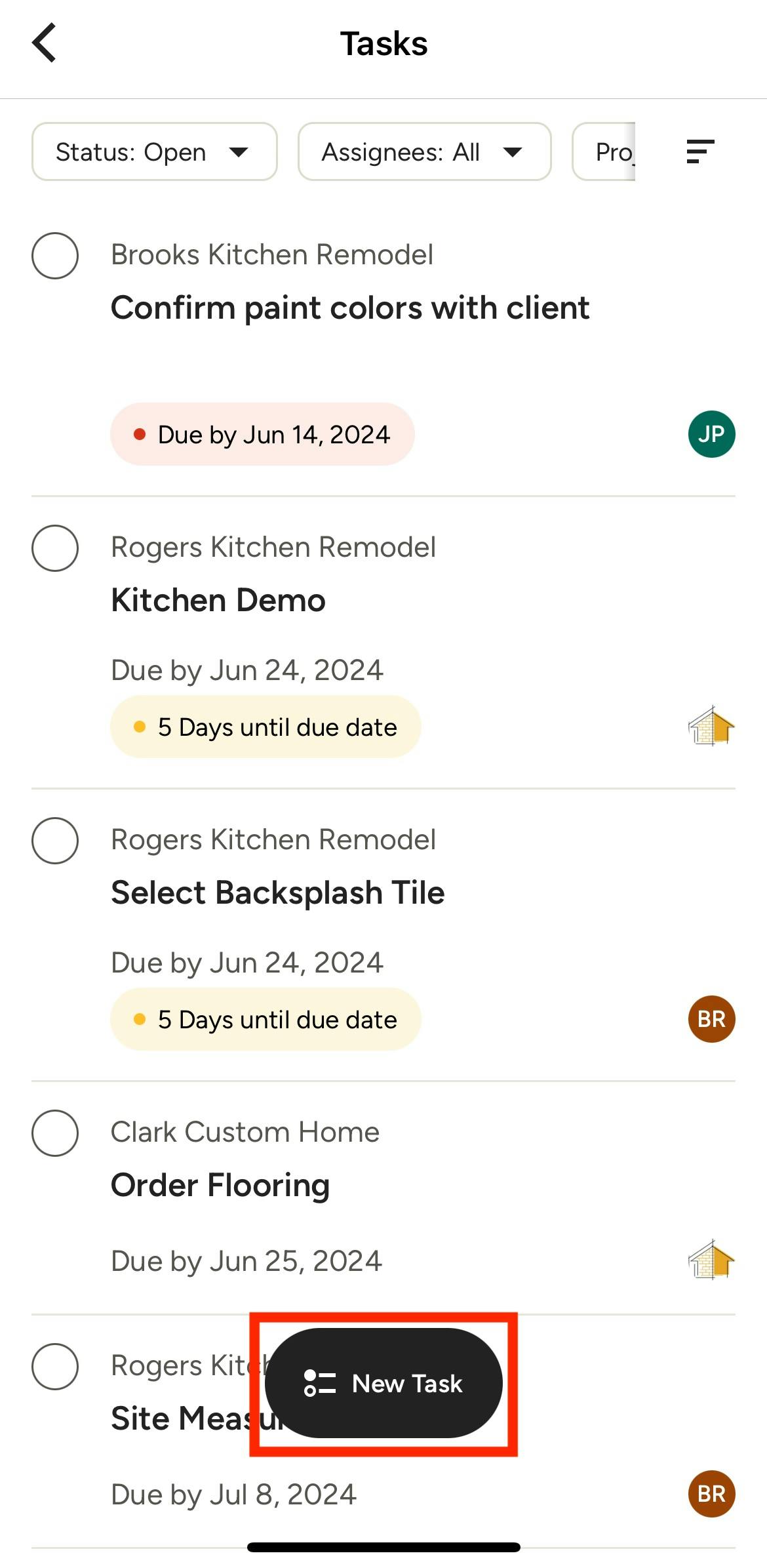
Creating a task within the Task Center is simple. To access the Task Center, scroll down to the Tasks section on the homepage, and click to open. You can also access by selecting the three dots icon in your bottom navigation, then clicking Tasks.
To add a new task, just click the New Task button at the bottom of the page. A screen will appear where you can input the task title, due date, assignee, and description. You will create your task automatically after you name the task and select the project/lead.
Within Schedule
Finally, you can also add new tasks by connecting them to items in your project's schedule. To learn more about adding tasks in your schedule, read How to Use Schedule on the Mobile App.