How to Use Progressive Invoicing to Leverage Your Payments
Progressive invoicing allows you to split an estimate or proposal into as many invoices as you need and request partial payment installments based on your project’s progress. You have the ability to customize each invoice based on a percentage of the total cost, amounts, specific line items, and milestones.
Enable/Disable Progressive Invoicing
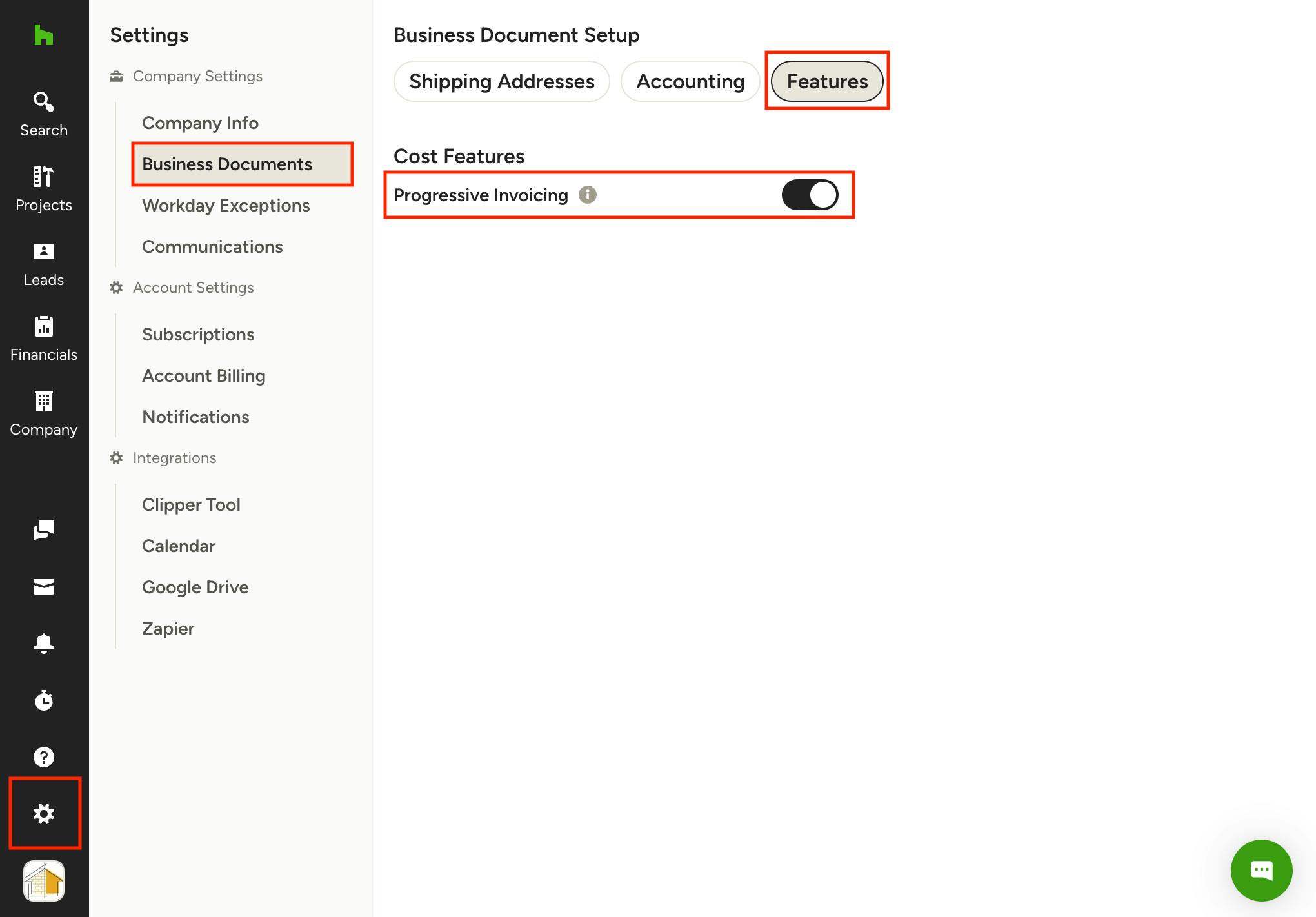
By default, progressive invoicing is enabled for builders and disabled for designers. To enable or disable the option to use progressive invoicing, click on the Settings icon in the left navigation, then click the Business Documents section and select the Features tab at the top. Under Cost Features, you will see a toggle next to Progressive Invoicing. Turn the toggle on to enable progressive invoicing, and off to disable progressive invoicing. Disabling will remove the ability to invoice a percentage of items as a project progresses. You can enable it again at any time by toggling it back on.
Invoicing by Percentage
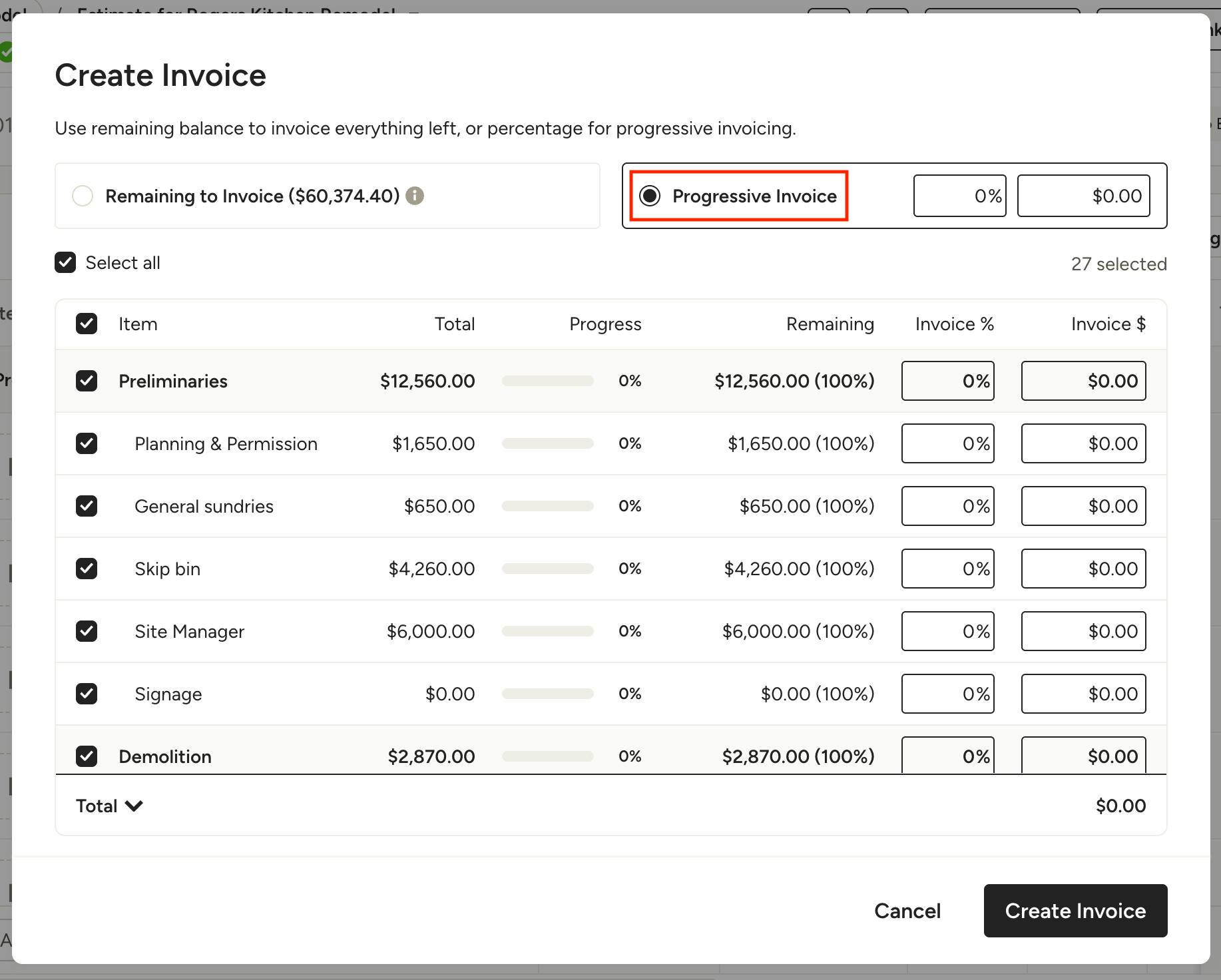
To convert a percentage of an estimate/proposal into an invoice, click on the Create Invoice button on the top toolbar. In the modal that appears, select "Progressive Invoice". Here you can choose to invoice a percentage of the entire estimate/proposal, or invoice custom percentages of individual categories/line items. Let's look at each option:
Invoice Percentage of Entire Estimate/Proposal
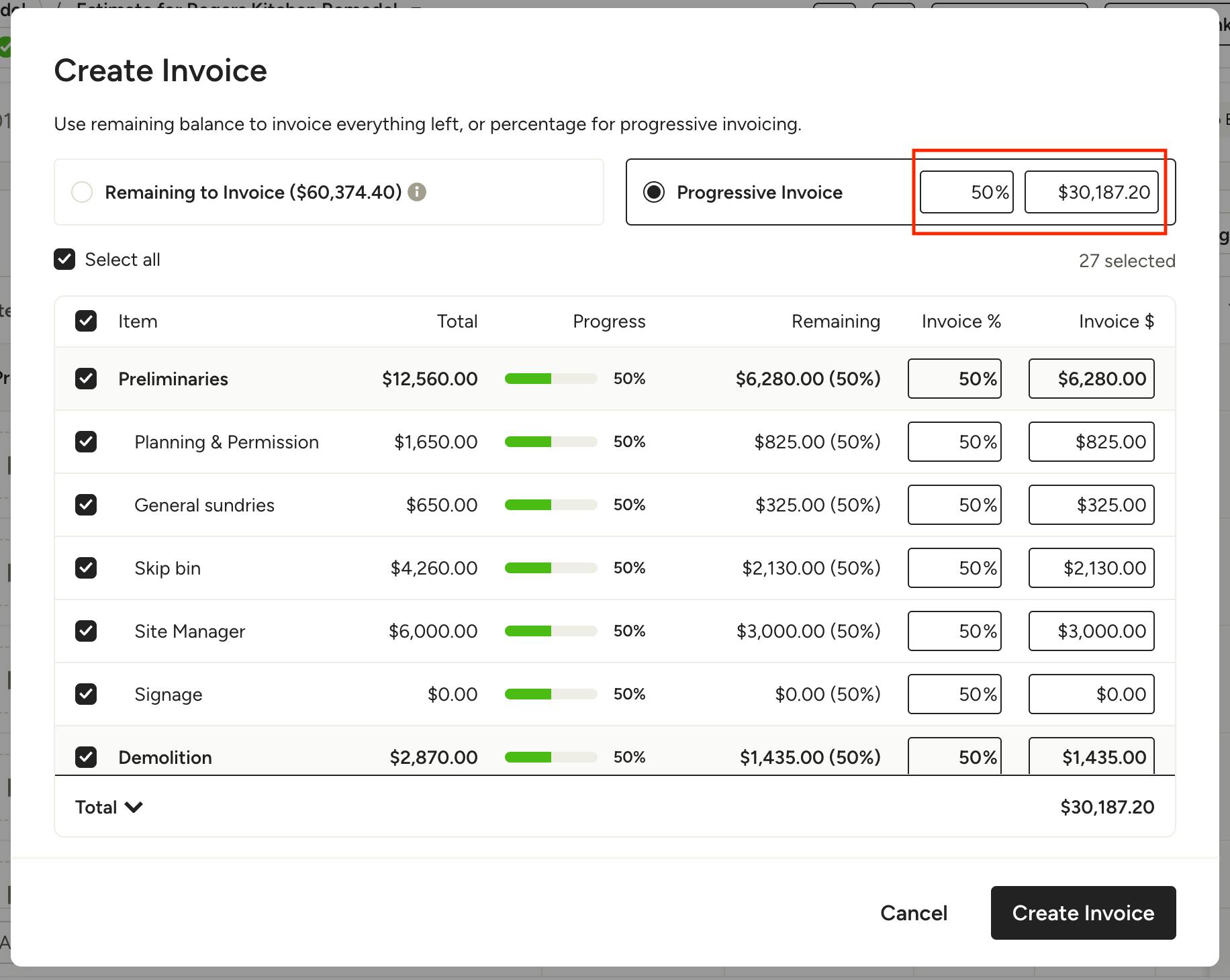
If you want to create an invoice for a certain percentage of all line items on an estimate/proposal, enter the desired percent in the % field at the top. This percent will apply to all line items on the document. You will see the dollar amount to be invoiced reflected on each line item, as well as in the subtotal at the bottom.
Alternatively, if you want to invoice a certain dollar amount, you can enter the amount in the $ field at the top and the % field will update appropriately.
Once you have the desired percentage and dollar amount, click Create Invoice.
Invoice Percentage of Categories/Line Items
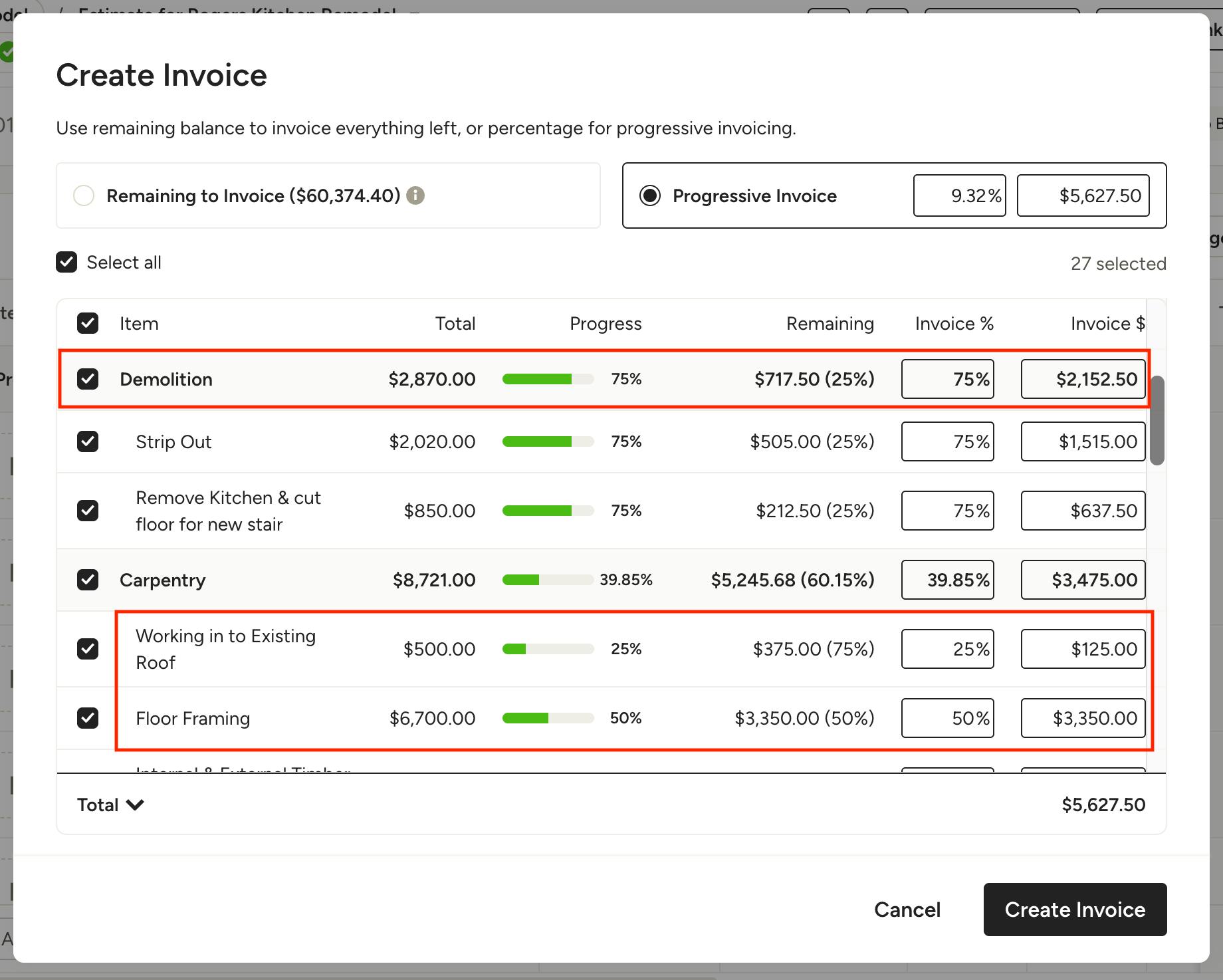
If you want to create an invoice for custom percentages per category and/or line items on an estimate/proposal, enter the desired percent in the % field associated with the relevant category/line item. If you enter a percentage on a category, this will apply to all line items in said category (as seen on Demolition category in the image below). If you enter percentages directly on individual line items, the category totals will reflect accordingly (as seen on Carpentry category in the image below).
You will see the dollar amount to be invoiced reflected on each line item, as well as in the subtotal at the bottom.
Alternatively, if you want to invoice a certain dollar amount, you can enter the amount in the $ field on the relevant category/line item and the % field will update appropriately.
Once you have the desired percentage and dollar amount, click Create Invoice.
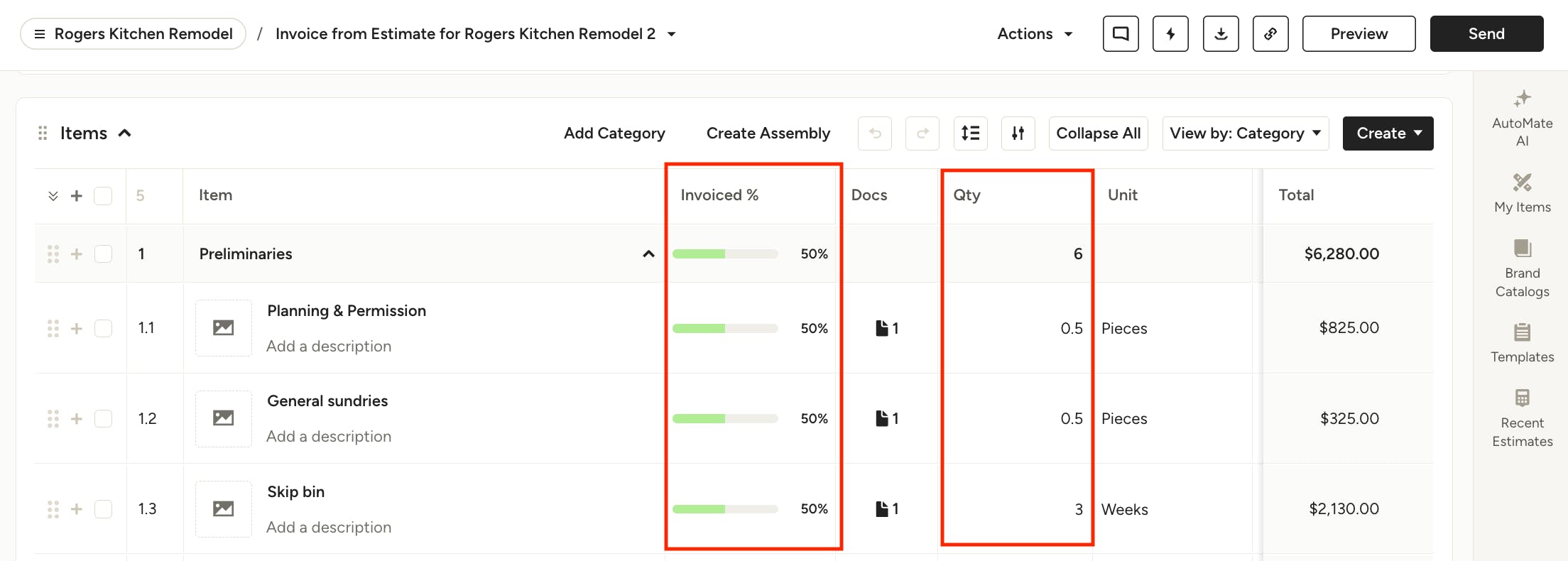
In your newly created invoice, you will see the percentage that you chose to invoice in the Invoiced % column. You will also see this reflected in the Quantity column — for example, if you chose to invoice 50% of the estimate/proposal, you would see 0.5 as the quantity next to each line item.
The estimate/proposal which you created the invoice from will be linked in the Docs column for quick reference.
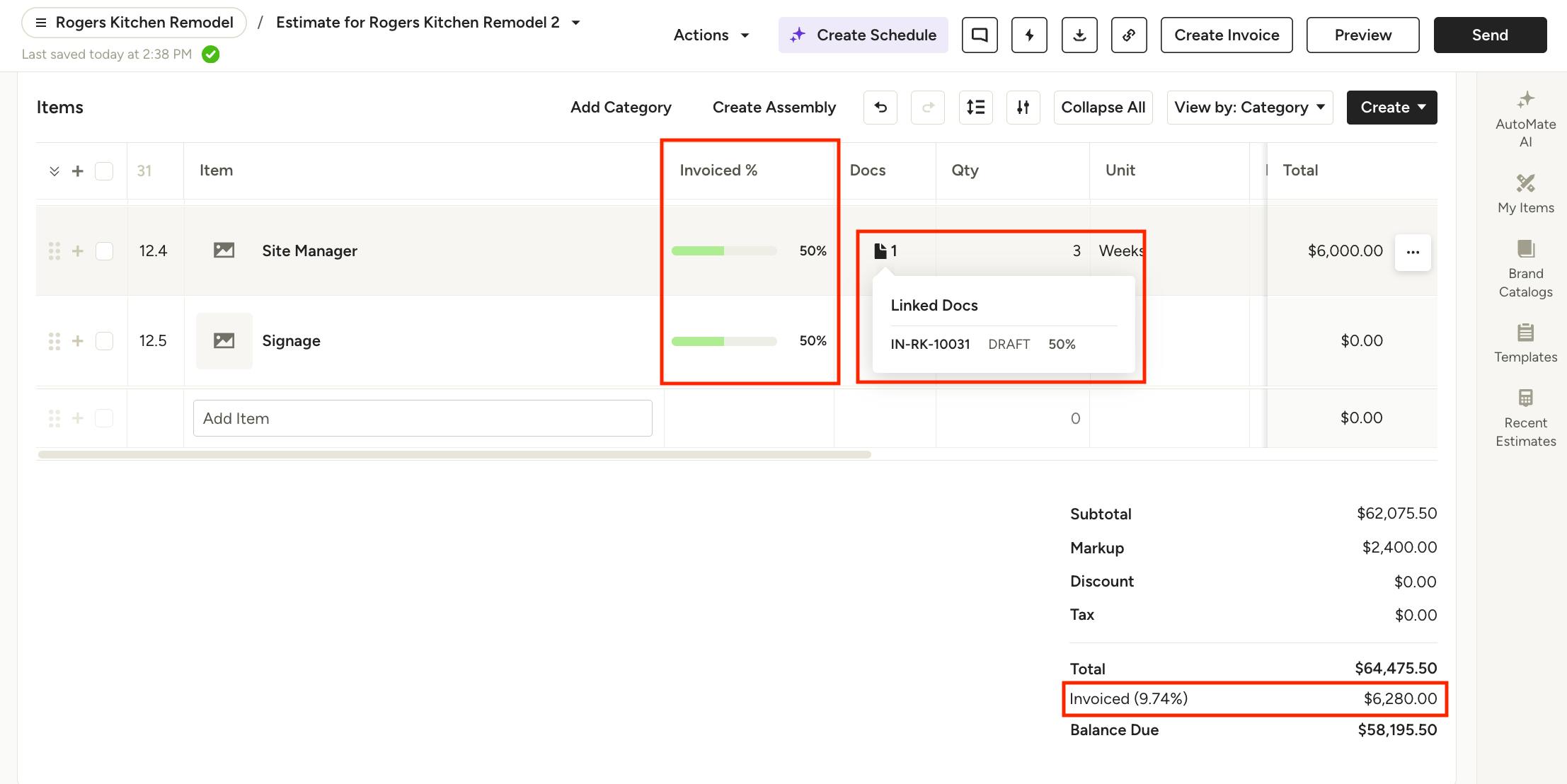
In your original estimate/proposal, you will also now see the percent invoiced in the Invoiced % column for each item. Under the Total at the bottom of the estimate/proposal, you will see what percent has already been invoiced overall, as well as the remaining balance on the estimate/proposal.
You will also see a document icon next to each line item. Mouse over each one to see the linked invoice(s) and percent of the item that has already been invoiced. If you aren't seeing these document icons, make sure you have the Docs column enabled.
Invoice Additional Percentage
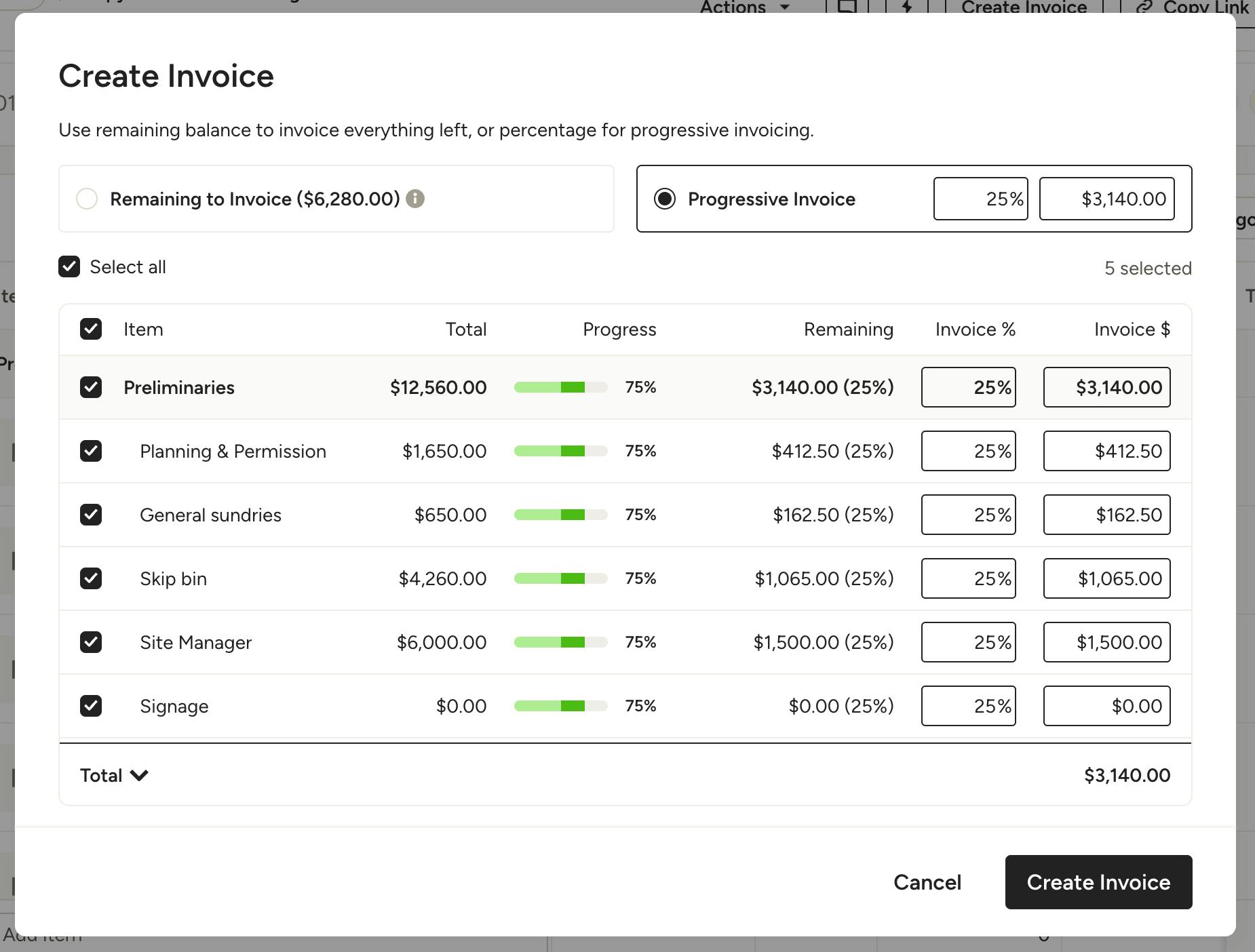
To invoice additional remaining percentages of an estimate/proposal, you can repeat either method above. In the example below, 50% of the items were previously invoiced and an additional 25% are now being invoiced, showing a progress of 75%. The additional 25% will create a new, separate invoice that can be sent to the client for payment.
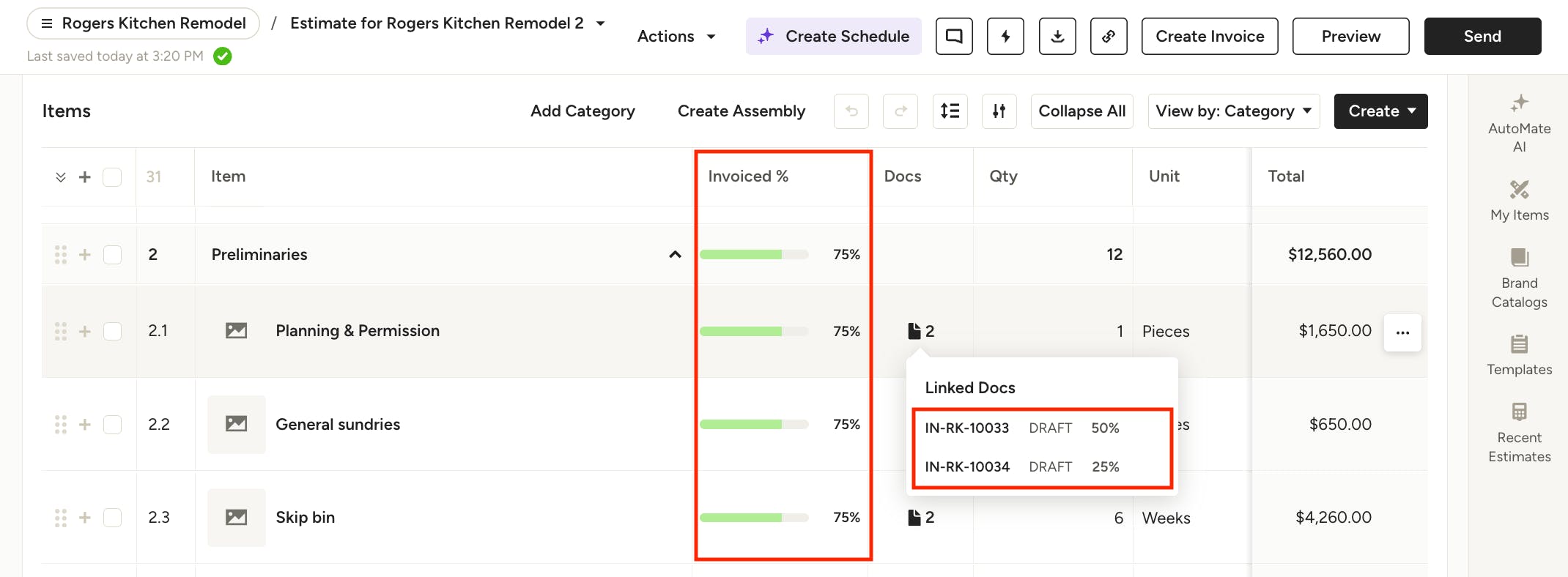
The original estimate/proposal will show all linked invoices in the Docs column, along with the percent invoiced for each one. The Invoiced % column will update to reflect the overall percentage that has been invoiced for each item.
Invoicing by Milestones or Line Item
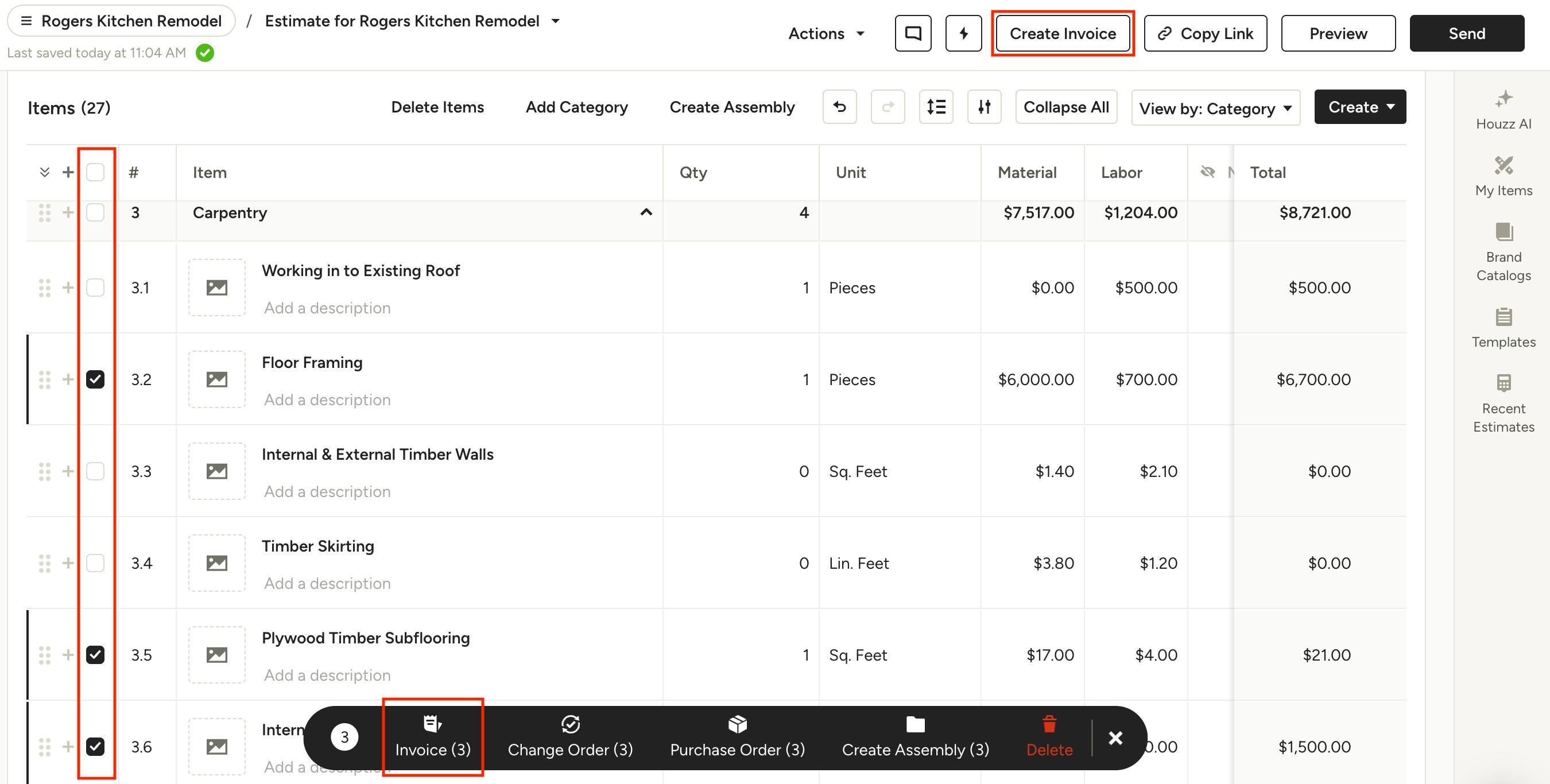
To invoice a completed milestone or specific line items in your estimate/proposal, select the desired line item(s) and/or category by clicking on the left checkbox(es), then click Create Invoice from the top toolbar or the menu that appears at the bottom of the document.
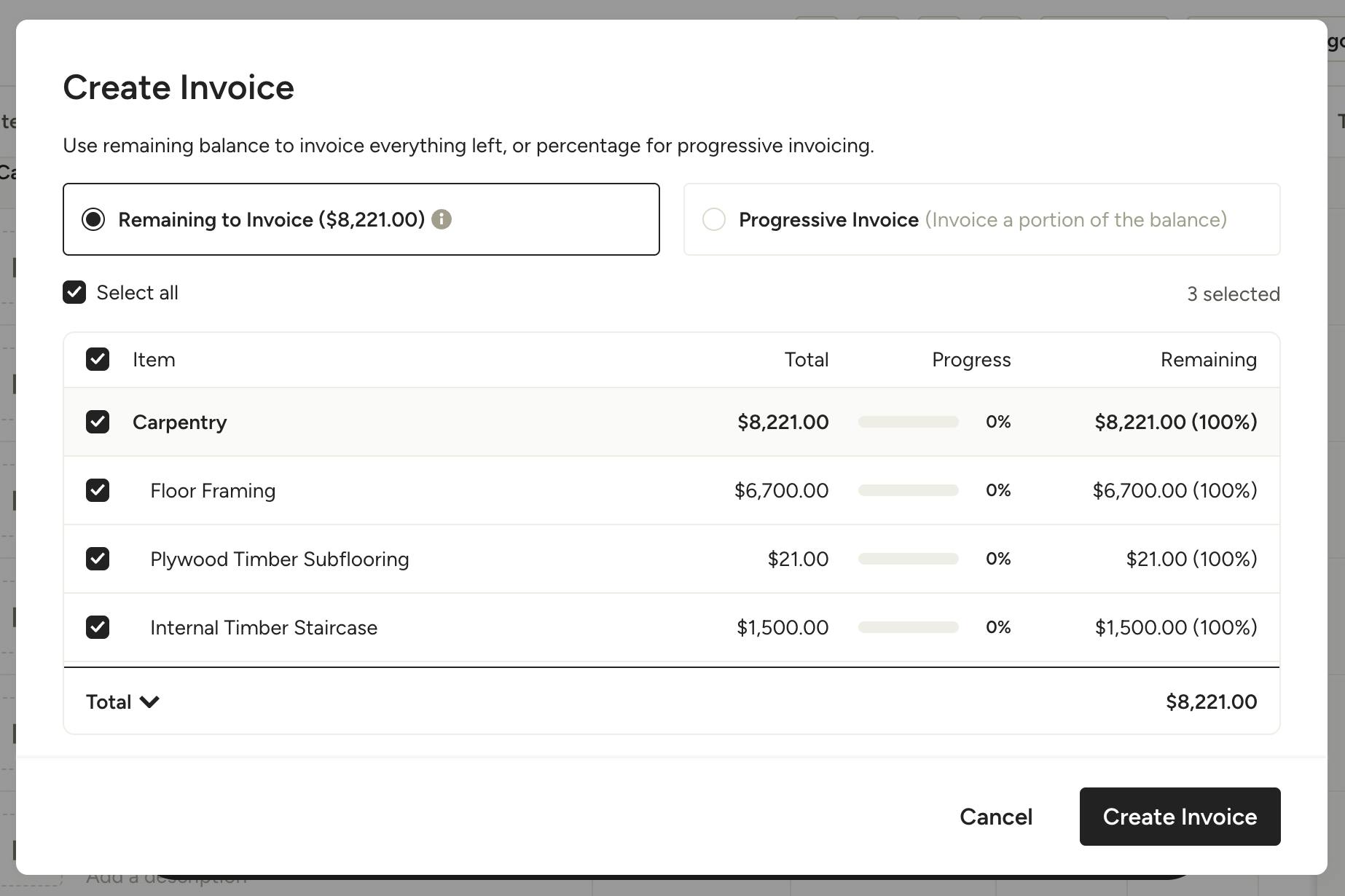
In the modal that appears, you will see the item(s) selected, along with their total. You can choose to invoice for the full amount of the items by selecting "Remaining to Invoice", or you can choose to invoice for a percentage of the selected item(s) by clicking "Progressive Invoice" and choosing the desired amount. Click Create Invoice to continue.
See the section above for more details on progressive invoicing by percentage.
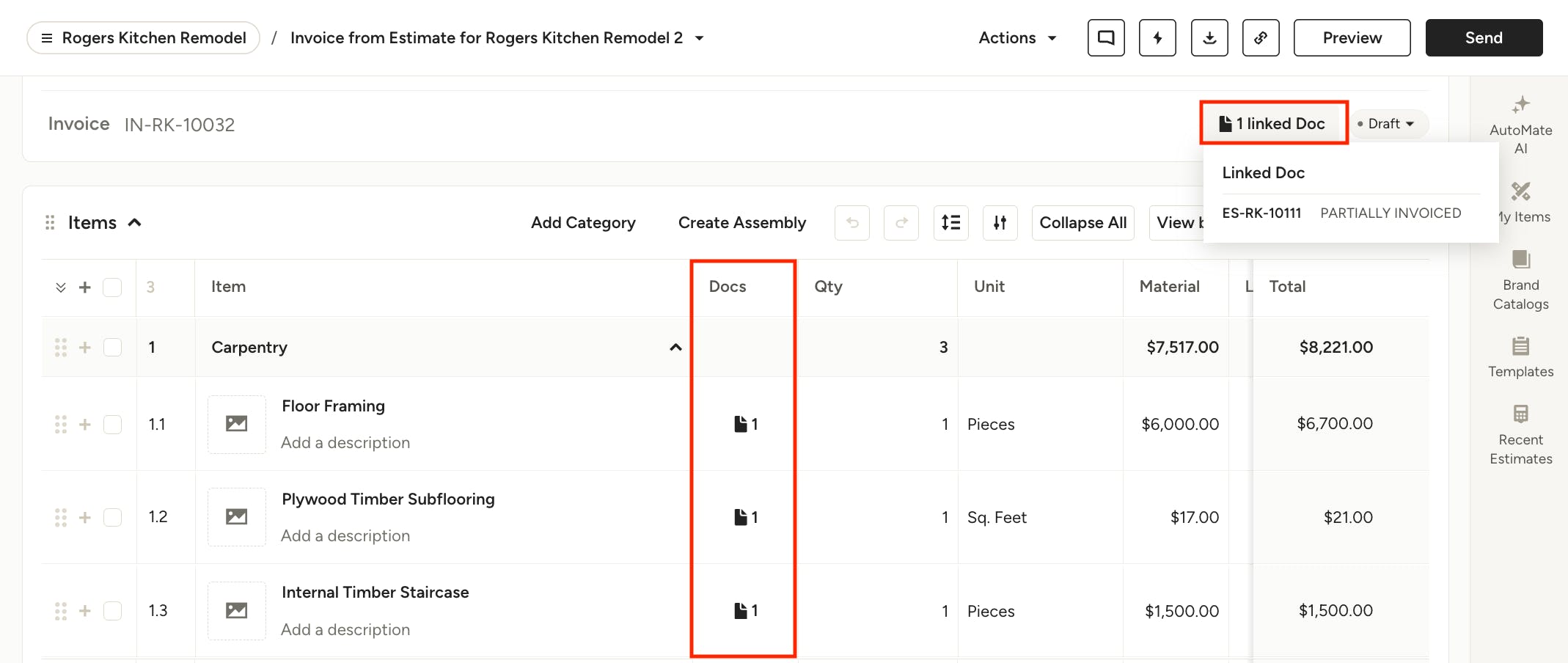
In the newly created invoice, you will see the items or categories that you selected from the original estimate/proposal, as well as the exact estimate/proposal that the invoice was created from as a linked document under the General Info section and the Docs column, if enabled.
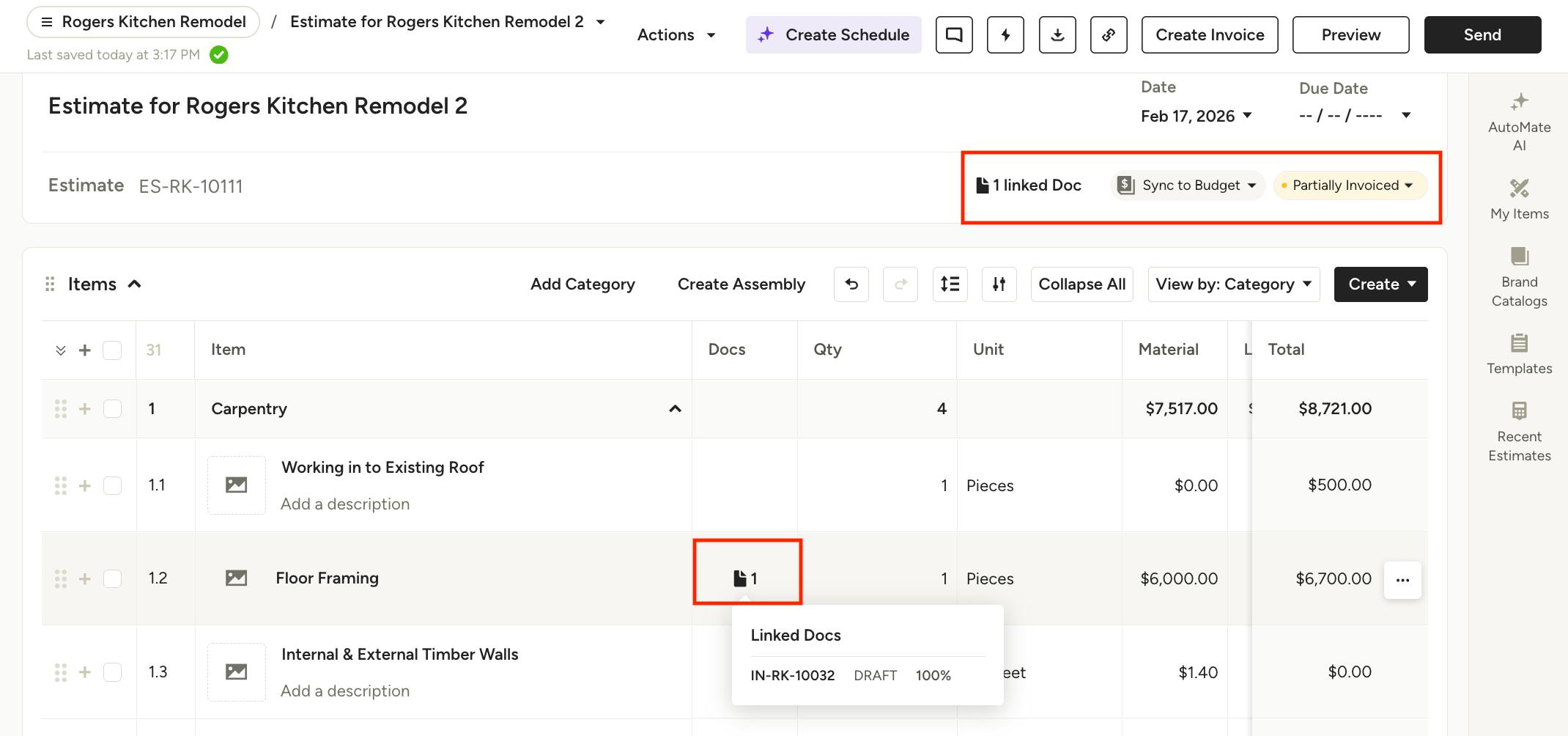
In your original estimate/proposal, you will see that the document has been Partially Invoiced under the General Info section, as well as any linked documents.
You will also see a document icon next to each line item that has been invoiced. Mouse over each one to see the linked invoice. If you aren't seeing these document icons, make sure you have the Docs column enabled.
Frequently Asked Questions
Can the amount of money on my estimate/proposal exceed my balance?
No. The amount of money left on an estimate/proposal cannot exceed the balance on your estimate/proposal.
How can I effectively handle and log payments using Progressive Invoicing?
- Set up a scheduled payment plan on your estimate, proposal or invoice.
- Create multiple invoices using the progressive invoicing feature
- Log each payment individually on the invoices you create according to the plan