How to Approve Per Line Item on Estimates & Proposals
Approvals by line items is a feature on estimates and proposals that ensures your client is on board with each of your selected choices. Once you turn on this option in document settings, you or your client can approve or decline each line item, groups of line items, or all items at once.
Approvals per line items also work with scheduled payments — payments will automatically adjust based on the costs of the approved/declined items.

How to Turn on Approvals Per Line Item
If you would like your client to have the ability to approve and/or reject certain line items in your estimate or proposal, you need to allow them to view this feature.
To start:
1. Open your document and select the Preview button in the top right corner.
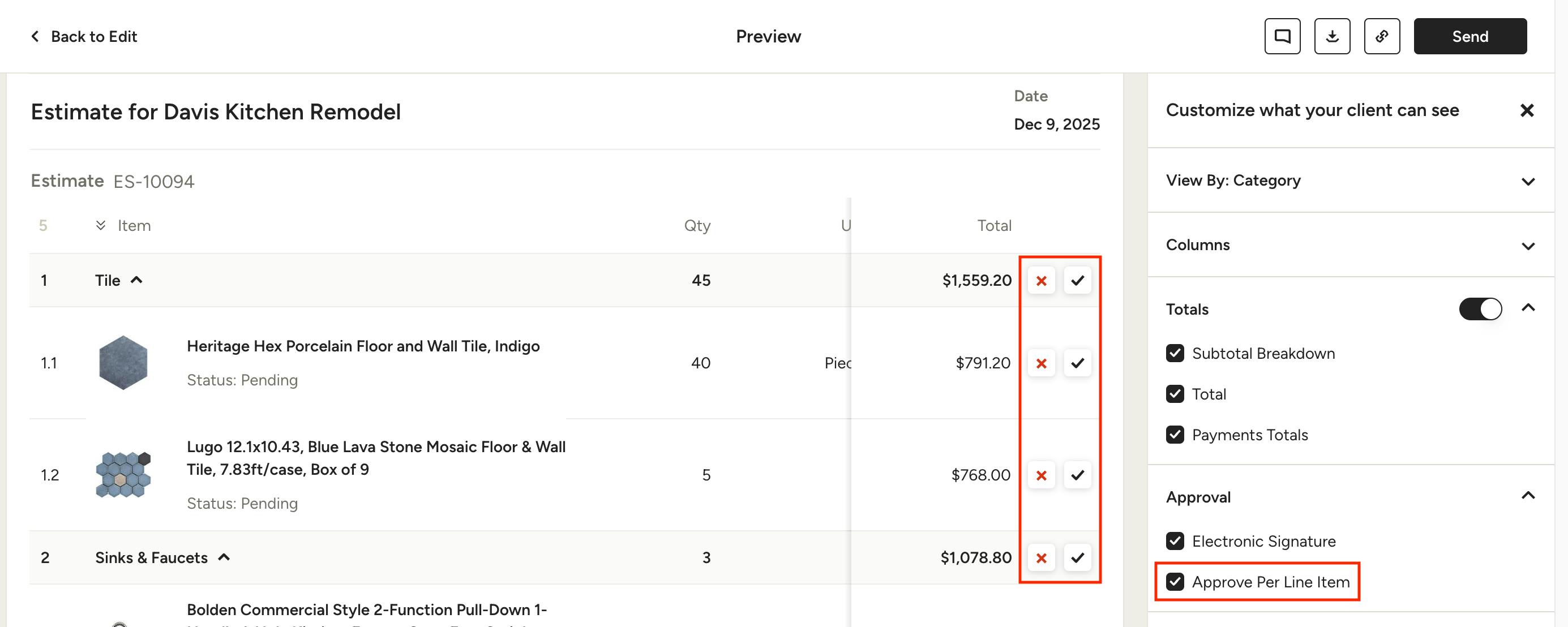
2. On the right of your preview screen, there is a panel called "Customize what your client can see". Scroll down to the Approval section and make sure to check the box next to Approve Per Line Item. This will add a the approve/decline options into your document preview.
How Your Client Can Approve/Decline Line Items
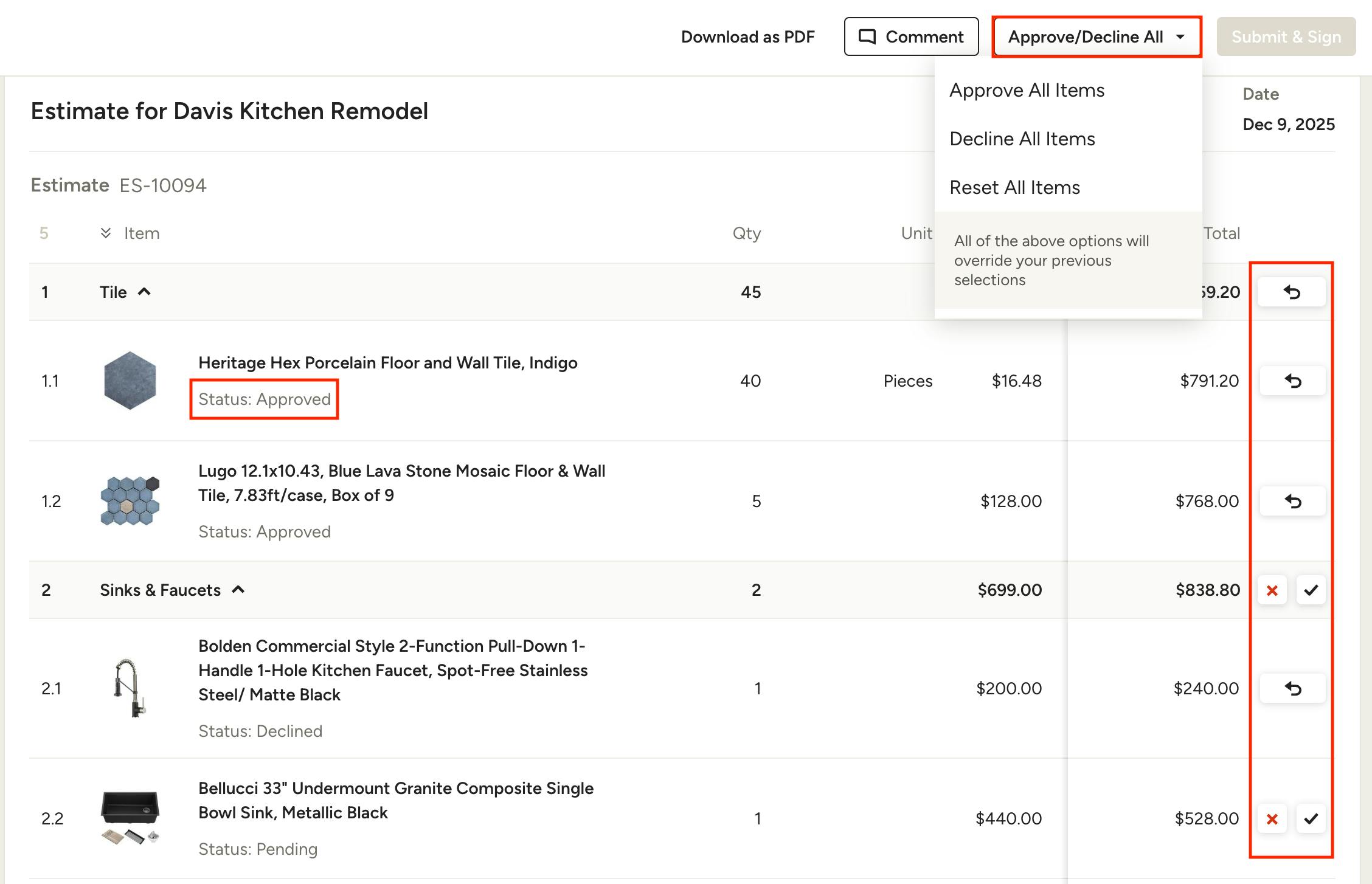
Once you have set up approvals per line item in preview and sent the document to your client, they will be able to view your estimate or proposal and approve or decline each item.
Your client will use the checkmarks and x's to approve or decline each line item or a group of items. The item status will appear directly under the item title. Your client can also approve, decline or reset all items using the dropdown at the top.
If your client makes a mistake during the approval process, they can select the undo button to reset the line item or group. When they’re finished, they can click the Submit & Sign button in the top right.

Pro Tip: If you would like to see the client view of the approval/declining process before sending, click the Preview button on your document and copy the shareable link. Then paste the link into your browser in an incognito window, and you’ll see the document as if you’re the client.
How You Can Approve/Decline Line Items
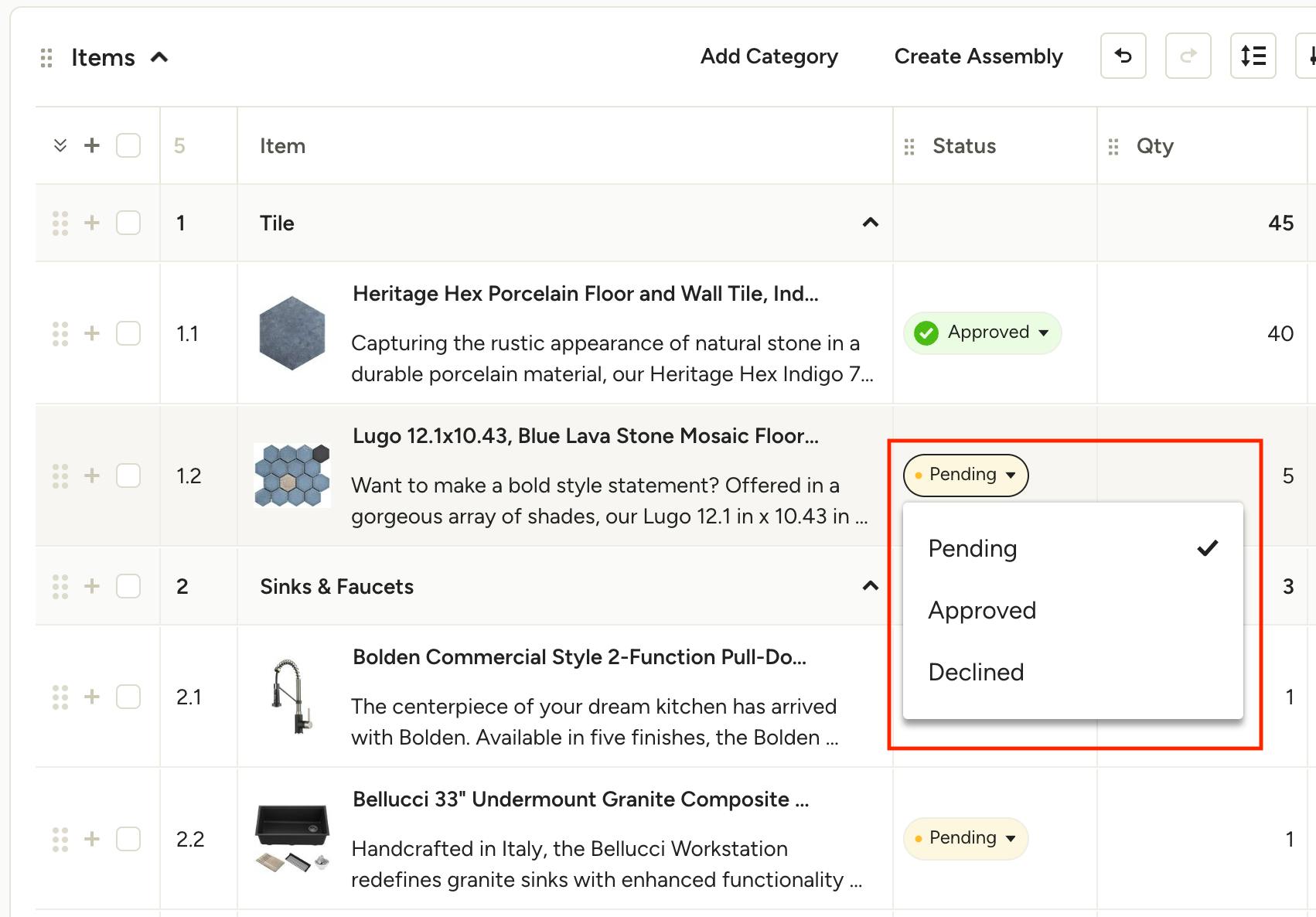
If you would like to approve/decline items on behalf of your client, you can do this directly in the Status column of your document. For pending items, just select the Pending status, and a dropdown will appear to allow you to change the status to Approved or Declined.
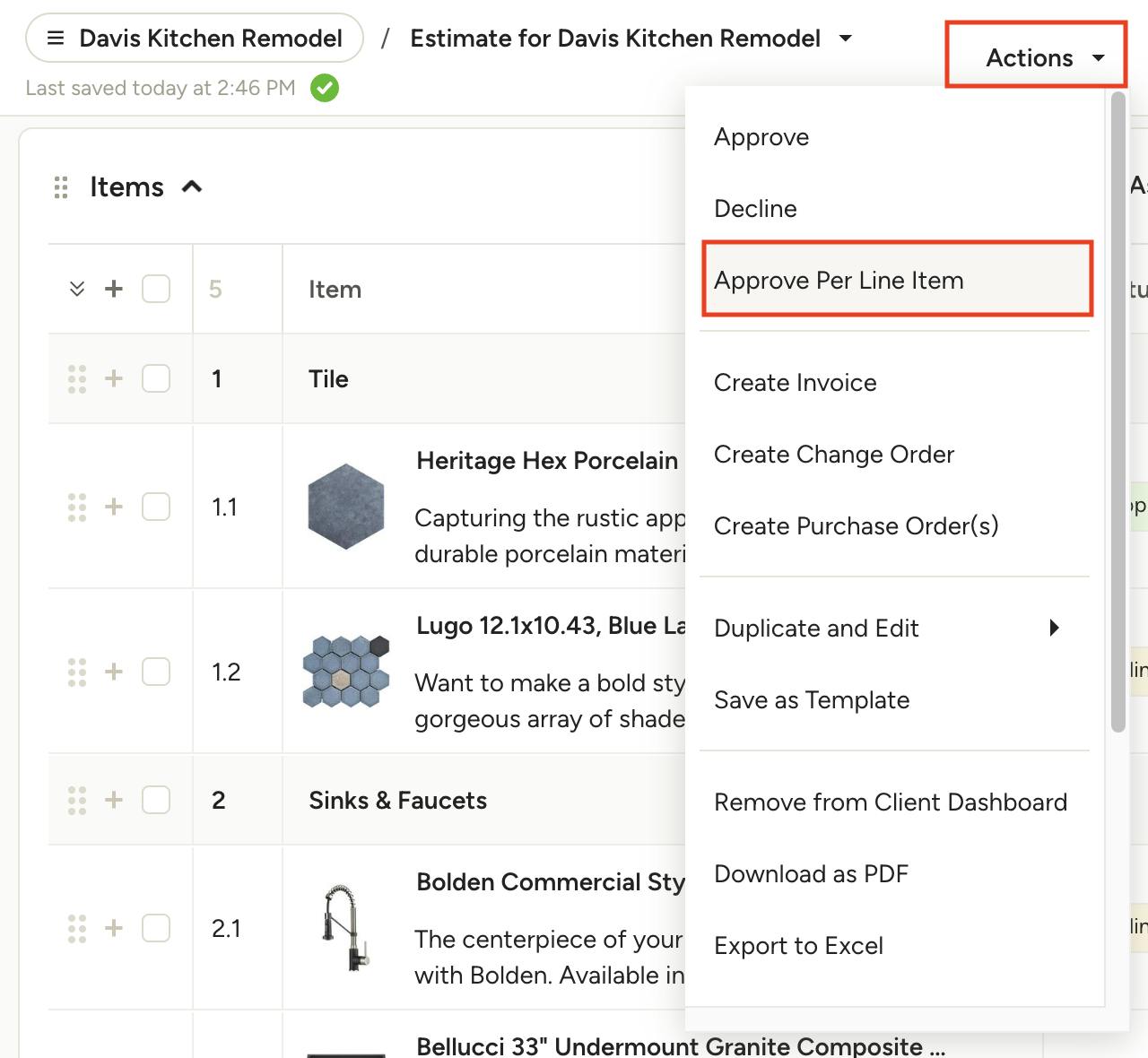
You can also approve/decline from the Actions dropdown. Select Approve Per Line Item from the menu.
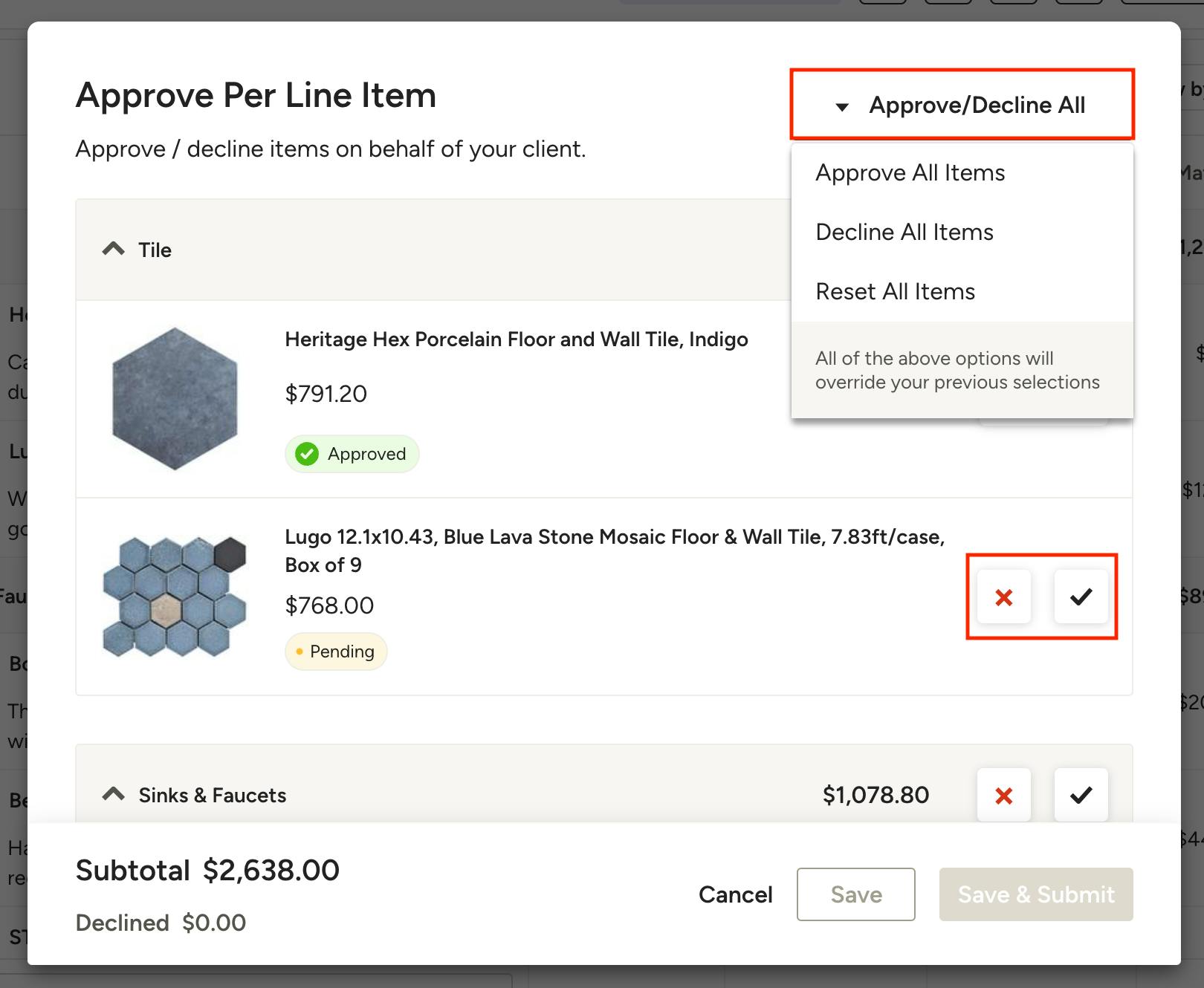
This will take you to a screen where you can go through and approve or decline each line item, each group of line items, or all line items at once.
On the bottom of this screen, you can either click the Save button to save for now, or click the Save & Submit button to finalize the approvals, which locks the ability to approve/decline anymore on the document.
How Scheduled Payments Work With Approvals Per Line Item
If you already set up scheduled payments and an item has been declined, the scheduled payments will automatically recalculate based on percentage.
For example: Suppose your document has five line items totaling $1,500, split into three scheduled payments of $500, and your client declines one item valuing $300. This automatically adjusts the total to $1,200.
Since the scheduled payments were for $1,500 total, it will automatically split the adjusted total into three updated payments of $400 each.
If you would prefer your payments to work a different way, you also have the ability to adjust the scheduled payments manually before your document has been approved.