How to Integrate Zapier with Houzz Pro
If your business receives projects and leads from many different places, you can quickly connect multiple sources all within Houzz Pro by integrating Zapier. This helpful integration streamlines your workflow with automation — it ensures you never miss out on a chance to connect with clients or convert a lead to a paying client.
This feature is only available for pros with select packages.
Note: Zapier integration only works for pros who are associated with a single Houzz Pro Team. If you're part of multiple teams within Houzz Pro, the Zapier connection will not work.
How it Works
Zapier is an automation tool that connects multiple web apps to improve workflow efficiency. While it can improve many different processes, the Zapier and Houzz Pro integration currently allows you to import leads and projects from multiple CRM (Customer Relationship Management) tools so you view them all in Houzz Pro.
Please Note: This is a one-way integration — you can import leads/projects from other sources, but you can't export leads/projects from Houzz Pro.
To use Zapier to manage your leads and projects, you need to:
- Select a Trigger: Choose an action in Houzz Pro (example: create a new lead) to initiate the workflow.
- Define the Action: Specify what happens in the connected account (example: adding a contact to Houzz Pro from another CRM).
- Set Up Your Zap: Configure the integration settings to align with your specific needs.
- Test the Workflow: Run a test to ensure everything works as expected.
- Activate the Automation: Turn on your Zap to let Zapier handle the repetitive tasks automatically.

How to Access Zapier
You can easily access Zapier within Houzz Pro settings, as well as within your all leads page and your all projects page.
Access in Account Settings
To access within settings, click on the Settings icon in your navigation, then select Zapier from the left menu. Select Open Zapier to log into your Zapier account (or create a new one). You can then create new workflows, or view and edit existing workflows.
Access in Leads
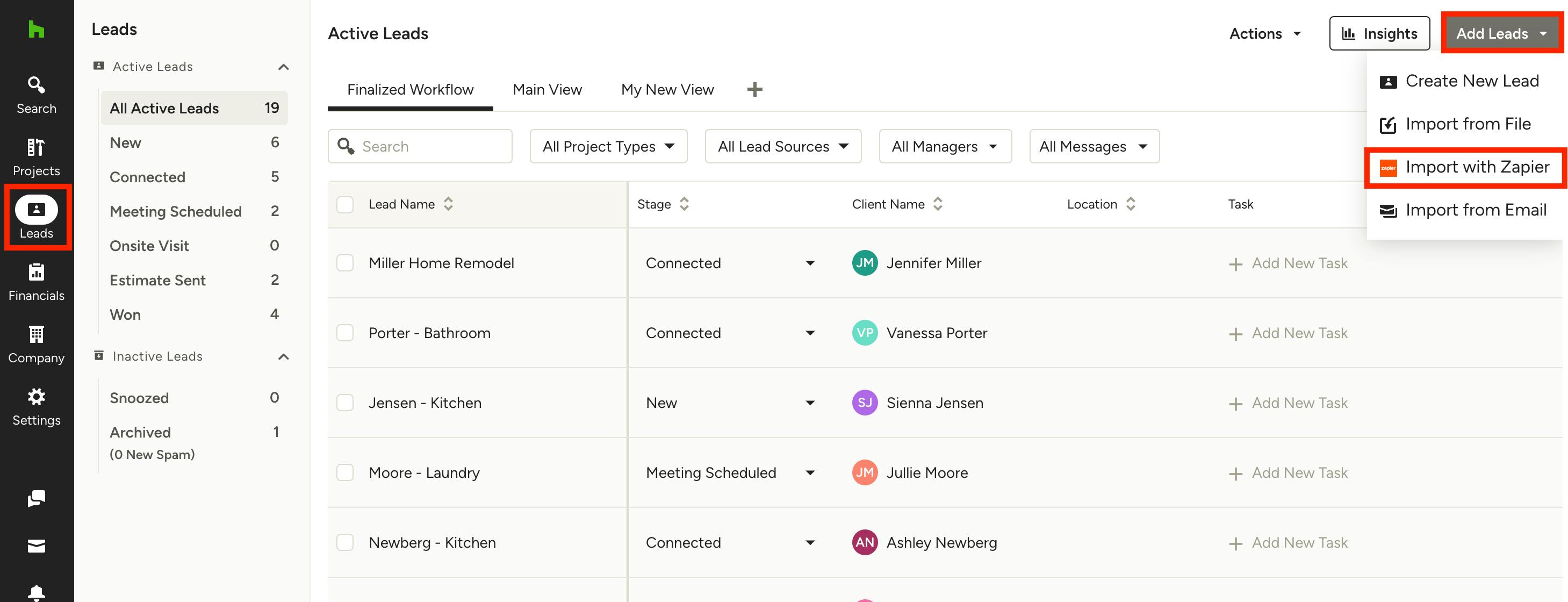
To access Zapier within leads, select the Leads icon in your navigation. Once on your all leads page, select the Add Leads button at the top right of your screen, then Import with Zapier.
You will be directed to the Zapier settings page, where you can log into your account for the first time, or open up your account to review and adjust your automation settings.

Access in Projects
To access Zapier within projects, select the Projects icon in your navigation. Once on your all projects page, select the Import with Zapier button at the top right of your screen.
You will be directed to the Zapier settings page, where you can log into your account for the first time, or open up your account to review and adjust your automation settings.
Set Up Workflows
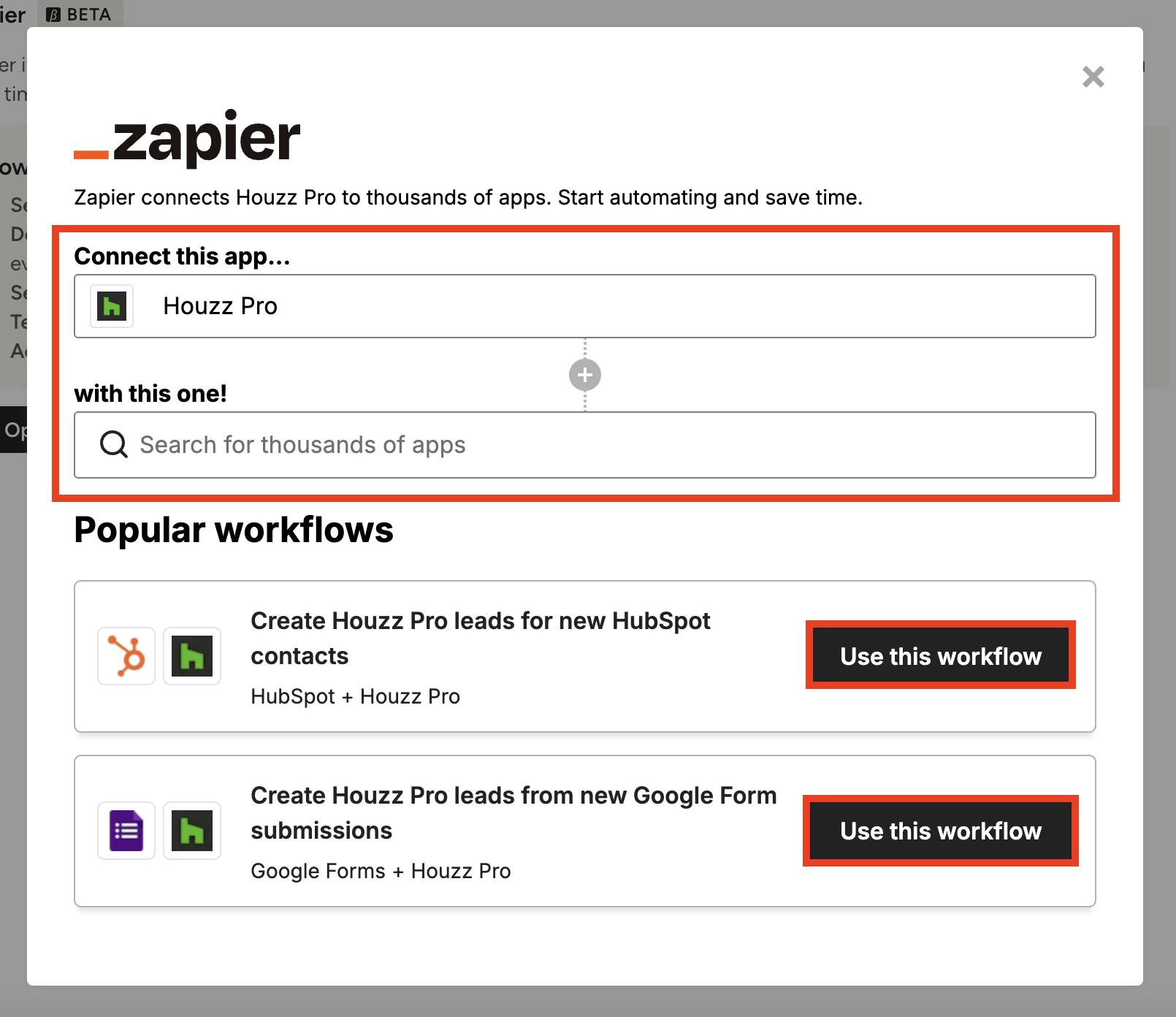
Once you are logged into your account, a new screen will appear. Here, you will have two options. You can:
- Set up your own custom workflow by searching for the relevant app in the search bar at the top
- Use one of our featured templates by selecting Use This Workflow next to the relevant workflow
Use Existing Workflow Template
The fastest way to get started is by using one of our featured templates. Options include HubSpot, Google Forms and more.
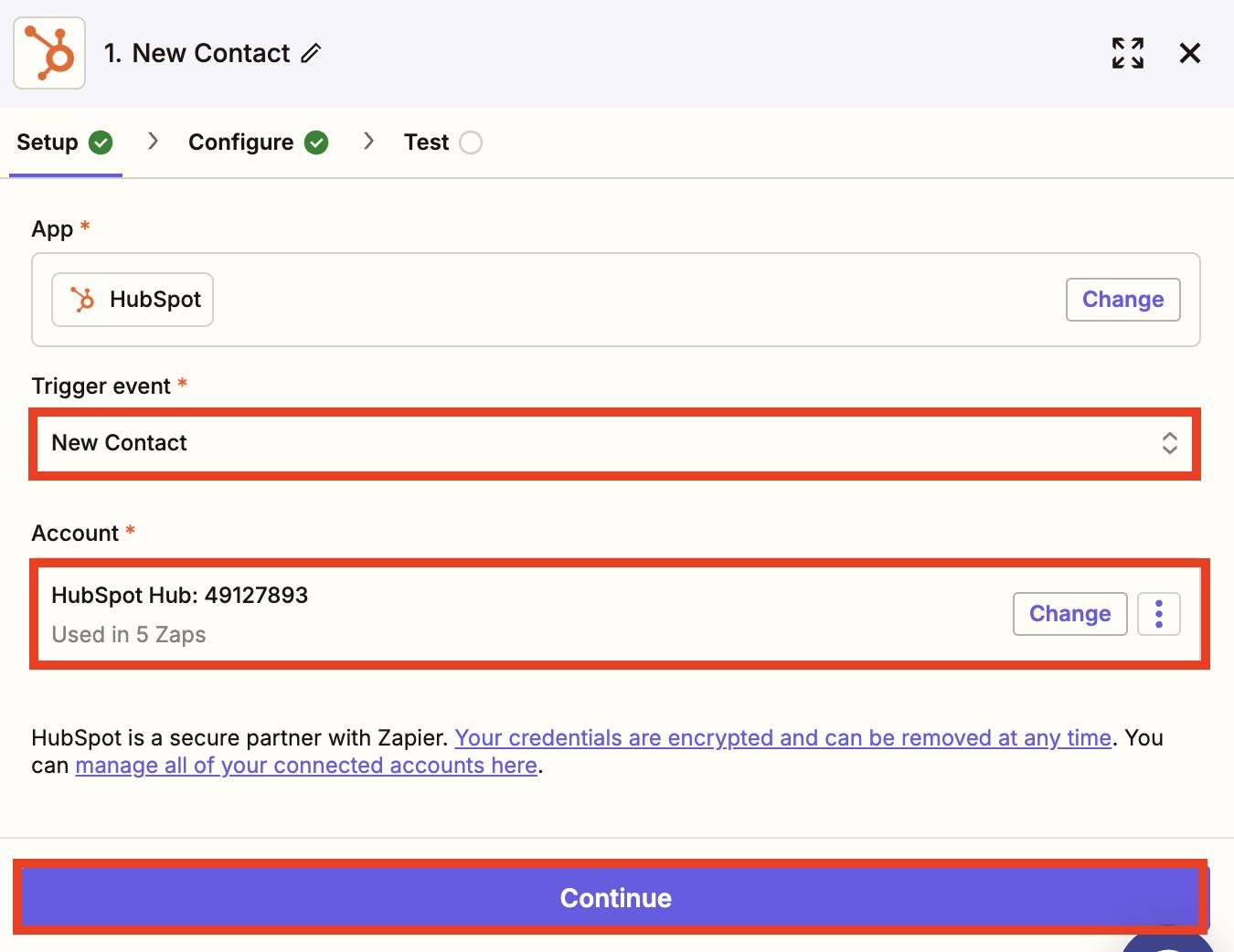
Once you select Use This Workflow, a new screen will appear where you can start your setup. The first step will be to input the account information for the app you would like to connect (HubSpot in this example).
To connect your relevant account, click on Account, then sign in and authenticate in the popup that appears.
Since this is a template, the trigger event will be pre-configured, but review to ensure it's correct before you click Continue.

In the next step, you can review and add more configuration details — this includes all the relevant information that will pull from your connected app (HubSpot) into Houzz Pro.
Since this is a template, the information listed in the box above is already pre-configured, but you can add any missing information by searching for a value in the Additional Properties to Retrieve dropdown.
Click Continue once complete.

Finally, you will need to test your workflow to make sure it is working as expected. If you haven't already done so, you will need to sign in and authenticate your Houzz Pro account to test.
During the testing, Zapier will pull in the most recent record from your connected app (HubSpot) so you can see the pre-configured fields. You can easily customize each field or connect additional fields by selecting the + icon for that option.
Click Continue once complete.
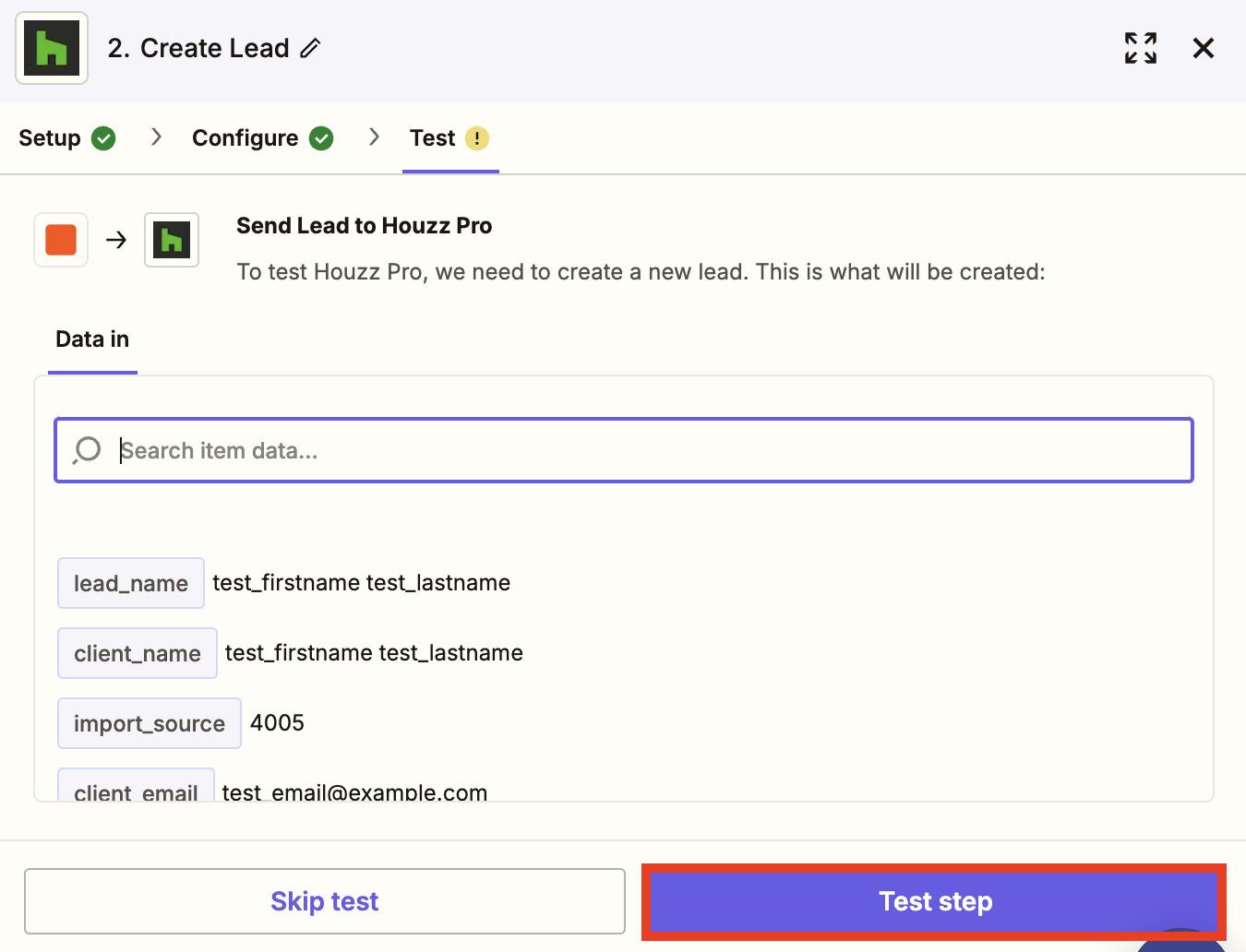
Once the lead information appears as expected, click Test Step. The lead in the connected app (HubSpot) will then be pulled into Houzz Pro, where you can view the format and ensure the import was successful.
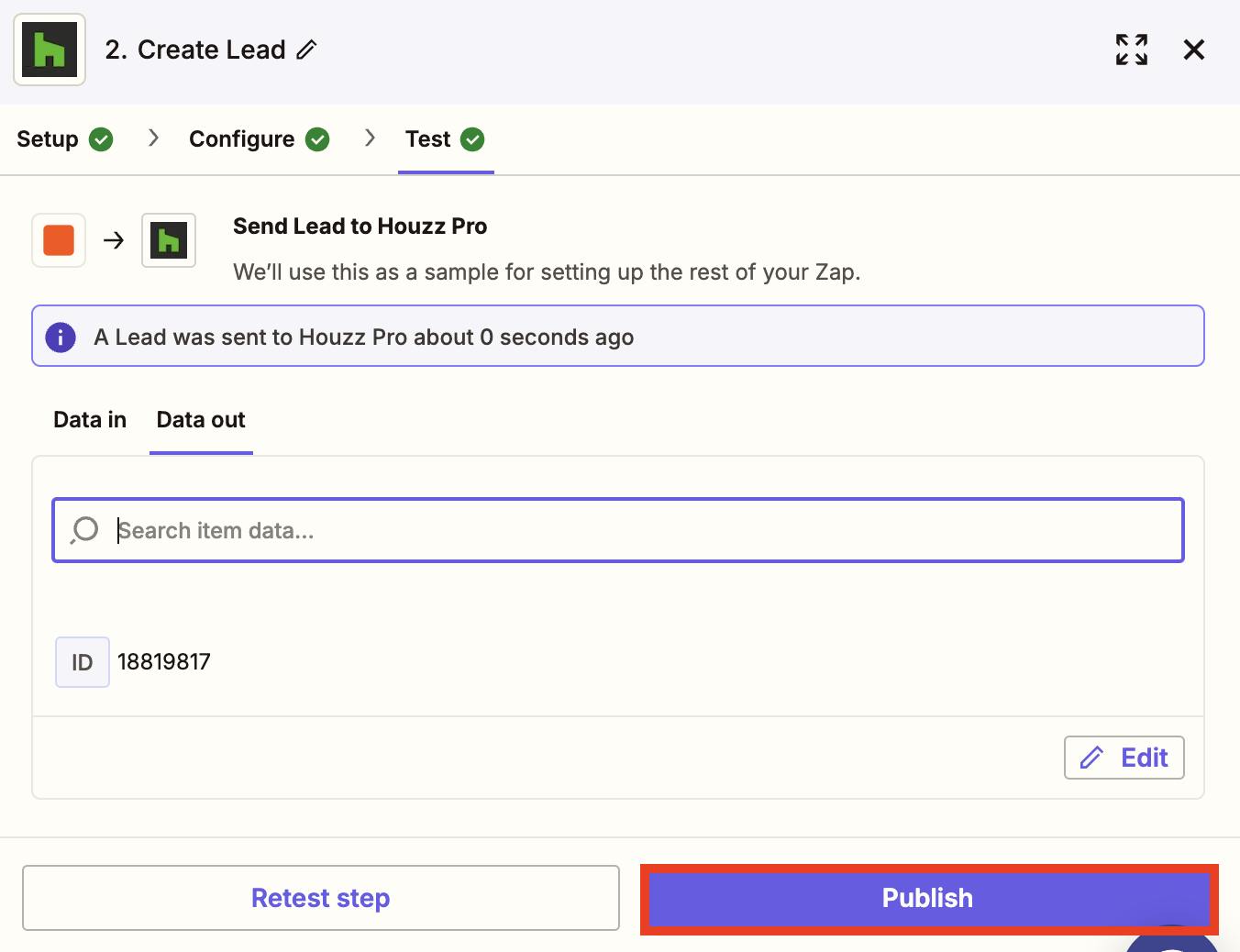
If the test looks good, click Publish to put your new workflow into action. After it's published, any future leads created in your other app (HubSpot) will automatically create a new lead within Houzz Pro.
Create New Workflow
If none of the featured templates work for your business, you also have the option to create a new custom workflow as well. The process is the same as above, but unlike the templates, none of the information will be filled out for you. It will take more time to set up, but you can customize exactly how you need it.